# AOS Registration
This section will provide guidance for students and staff seeking information regarding registration in online courses.
# AOS Registration Staff
**Akuri Lingenfelter**
Director of Student Enrollment
? alingenfelter@AState.edu
? 870-680-8352
? A-State Online Services
---
**Stacy Chappell**
Assistant Registrar
? schappell@AState.edu
? 870-680-4823
? A-State Online Services
---
**Sara Wright**
Assistant Registrar
? sawright@AState.edu
? 870-972-2920
? A-State Online Services
---
**Tara Hoggard**
Part-Time Registration Coordinator
? thoggard@AState.edu
? 870-972-3246
? A-State Online Services
# AOS Registration Guide
A step-by-step guide for accessing registration, adding and dropping classes, viewing your detailed schedule, and ensuring your classes are meeting program requirements.
# How to Access Self Registration
In order to access the registration and planning portal, please follow these steps:
1\. Go to pack.astate.edu and log in. Your username is your full student email address and your password.
[](https://kb.astate.edu/uploads/images/gallery/2025-06/image-1749589875656.png)
2\. Select the option for Banner Student from the list of available tools on the left.
[](https://kb.astate.edu/uploads/images/gallery/2025-06/image-1749667955437.png)
3\. Click the option "Registration and Planning" from the list of available options on the left.
[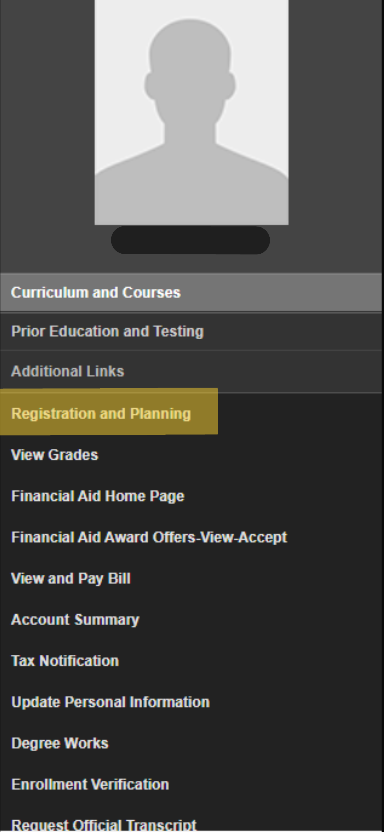](https://kb.astate.edu/uploads/images/gallery/2025-06/image-1749668300277.png)
4\. Click "Register for Classes".
[](https://kb.astate.edu/uploads/images/gallery/2025-06/image-1749668545194.png)
5\. Select the desired semester from the drop down menu.
[](https://kb.astate.edu/uploads/images/gallery/2025-06/image-1749668969687.png)
# Registering for Classes by Using the Search Function
For instructions on how to access the self-registration page, please visit the guide [here. ](https://kb.astate.edu/books/aos-registration/page/how-to-access-self-registration)
**Registering for a class when you do not know that CRN (course reference number)**
1\. To register for a class when you do not know the CRN, you can use the "find classes" tab.
[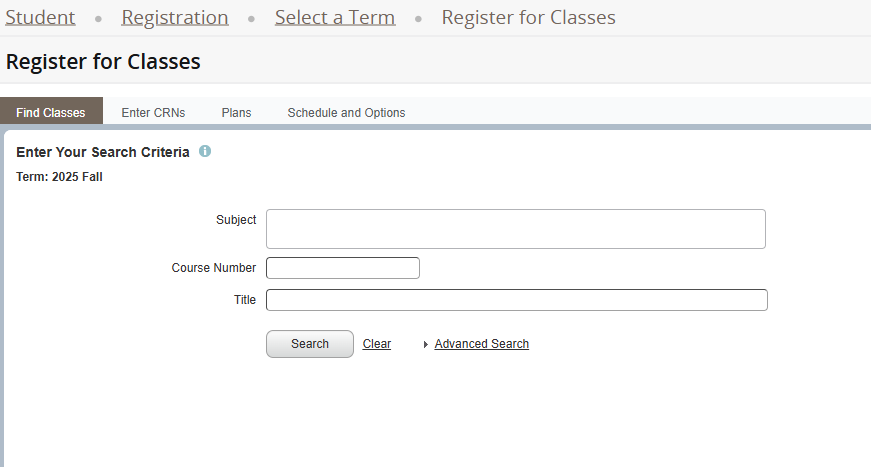](https://kb.astate.edu/uploads/images/gallery/2025-06/image-1749673340264.png)
2\. Begin typing in the subject code for the desired subject area and select the correct department from the drop down.
[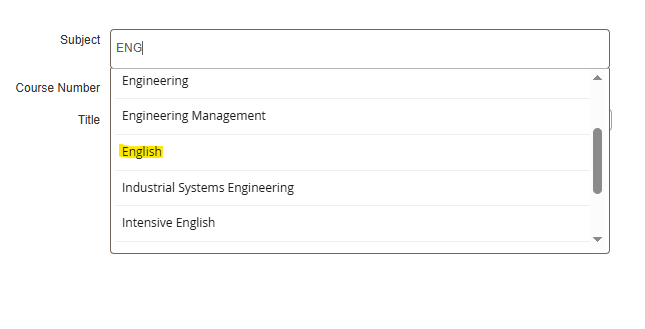](https://kb.astate.edu/uploads/images/gallery/2025-06/image-1749675403709.png)
3\. If you know the course number, type the number into the "course number" box and click "search".
[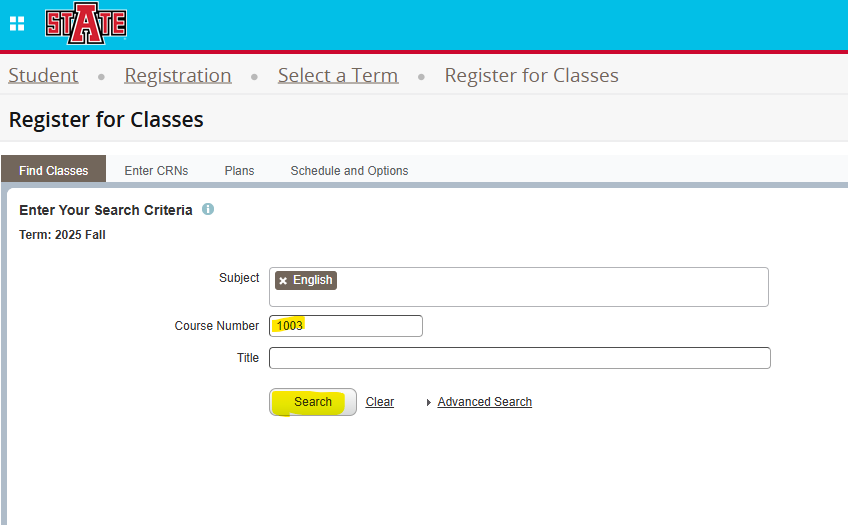](https://kb.astate.edu/uploads/images/gallery/2025-06/image-1749675704100.png)
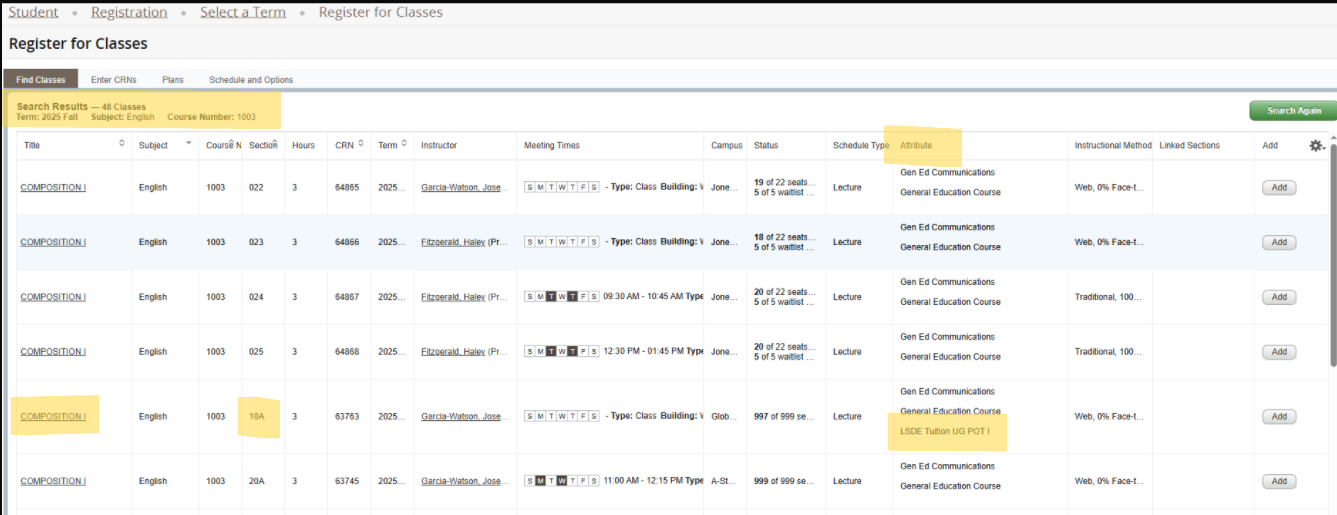
4\. Scroll the available sections of the course to identify to the A-State Online section. Look for courses with the section number 10A, 20A, 30A, etc. The attribute will say LSDE Tuition. Click "add" to add the desired course to your cart.
[](https://kb.astate.edu/uploads/images/gallery/2025-06/image-1749676662481.png)
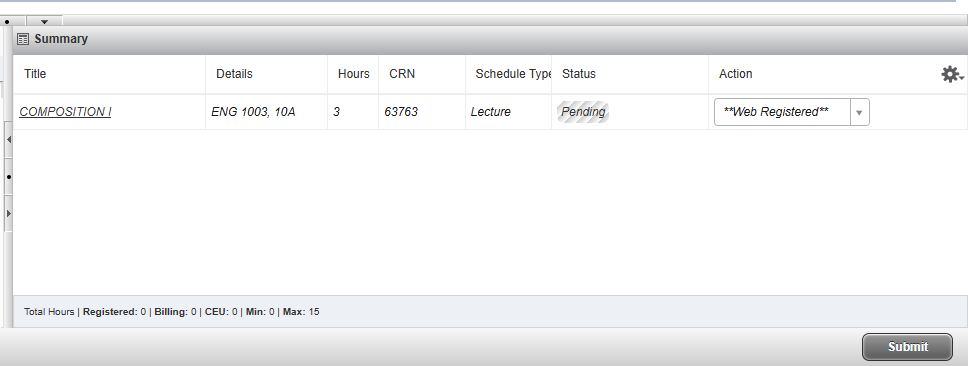
5\. See your pending registration in the bottom right corner. Click "submit" to save your registration.
[](https://kb.astate.edu/uploads/images/gallery/2025-06/image-1749676891289.png)
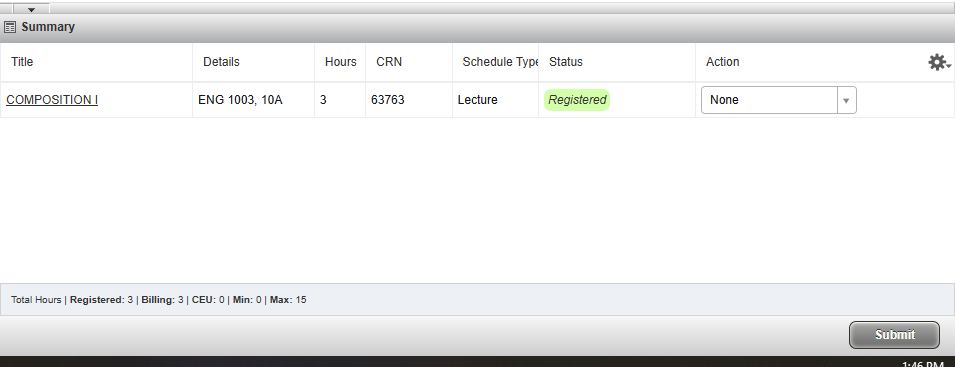
6\. Your status will then show "Registered".
[](https://kb.astate.edu/uploads/images/gallery/2025-06/image-1750185994939.png)
# Registering for Classes When You Know the CRN
For instructions on how to access the self-registration page, please visit the guide [here. ](https://kb.astate.edu/books/aos-registration/page/how-to-access-self-registration)
**Registering for a class when you know the CRN (course reference number)** The CRN is a unique 5-digit number assigned to each specific section of a course. You can find course CRNs for Online specific programs [here](https://studentsuccess.astate.edu/portal/aos-programs)
1\. To register for a class when you know the CRN, use the tab that says "Enter CRNs".
[](https://kb.astate.edu/uploads/images/gallery/2025-06/image-1750278226911.png)
2\. Type the 5-digit CRN into the designated box.
[](https://kb.astate.edu/uploads/images/gallery/2025-06/image-1750278295818.png)
3\. Click "Add to Summary", then click "submit" to save the changes.
[](https://kb.astate.edu/uploads/images/gallery/2025-06/image-1750278412201.png)
# Registration Add Errors
There are a few common errors you might experience when trying to register. Please contact your academic advisor for assistance with addressing these errors.
**Pre-requisite and Test Score**
If you receive a pre-requisite and test score error, this is an indication that you may not have met the requirements to enroll in the intended course.
English Composition and Math courses require placement exam scores for enrollment. Please speak with your academic advisor for information on course enrollment eligibility. If you need to take the Accuplacer exam, please contact the A-State testing center for more information.
For all other courses, this error indicates that there are one or more pre-requisites assigned to the intended course. You can view pre-requisites assigned by course through the bulletin, which can be found [here](https://catalog.astate.edu/index.php). Please be sure to select the correct bulletin for undergraduate or graduate to see the associated courses. After reviewing the pre-requisite, if you believe you should be able to enroll in the course, please contact your academic advisor for further assistance.
**Advisor**
If you receive an error that says "advisor", this indicates that there is a restriction set on the course that your academic advisor will need to review and provide a permit if you are eligible to enroll. Please contact your academic advisor for assistance.
**Repeat Course**
If you receive an error that states this is a repeat course, this indicates that you have already previously attempted, or previously completed, the course. Students repeating a course with a D or F grade should seek assistance from their academic advisor to override the error for enrollment. If unsure about the course being a repeat, please review your Degree Works audit and/or speak with an advisor to determine how to proceed.
# Dropping a Class
**Dropping a Class**
1\. To drop a class, access the self-registration by following the instructions [here. ](https://kb.astate.edu/books/aos-registration/page/how-to-access-self-registration)
2\. Find your registered courses in the bottom right corner.
[](https://kb.astate.edu/uploads/images/gallery/2025-06/image-1750186746489.png)
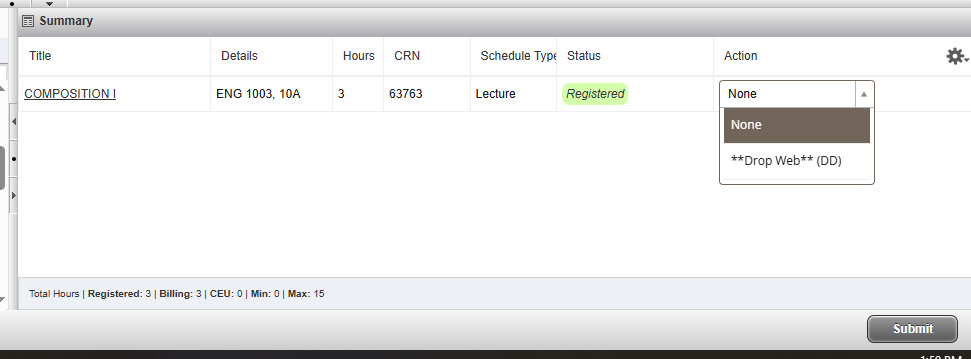
3\. Use the drop down menu next to the course you wish to drop and select "\*\*drop web\*\* (DD)".
[](https://kb.astate.edu/uploads/images/gallery/2025-06/image-1750186789191.png)
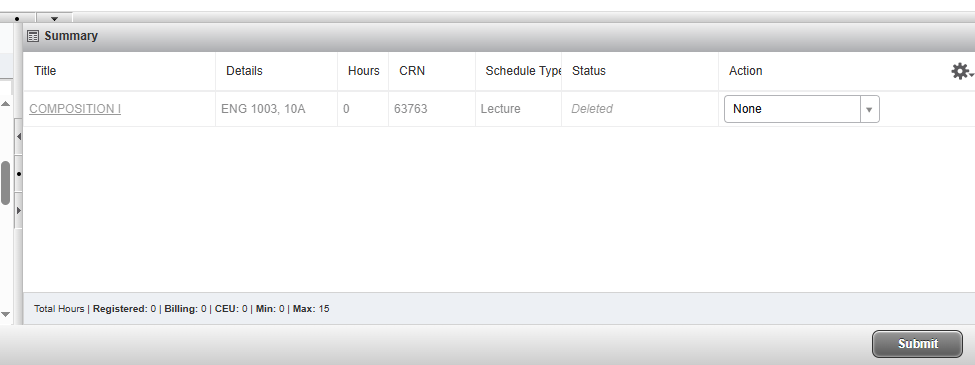
4\. Click "submit" to save the change.
[](https://kb.astate.edu/uploads/images/gallery/2025-06/image-1750187122878.png)
# How to View My Detailed Schedule
Follow the instructions below to find your detailed schedule of registered classes, including start and end dates.
**Please note that academic advisors do not have access to this student page. It is only accessible by the individual student.**
**1. Go to pack.astate.edu**
**2. Click on "Banner Student"**
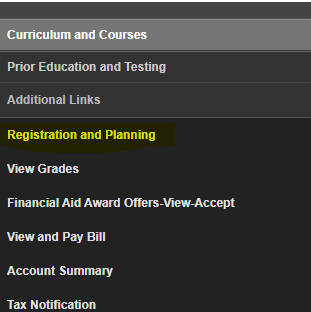
**3. Click "Registration and Planning"**
[](https://kb.astate.edu/uploads/images/gallery/2025-12/image-1765798812767.png)
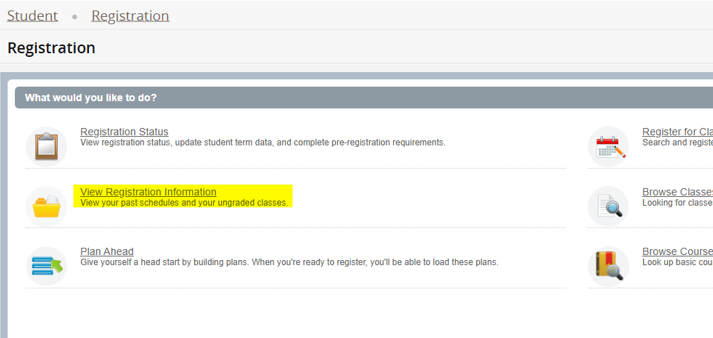
**4. Click "View Registration Information".**
[](https://kb.astate.edu/uploads/images/gallery/2025-12/image-1765799272372.png)
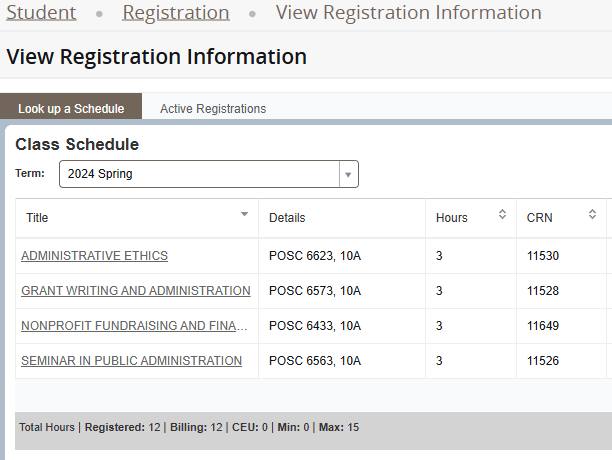
**5. Select the desired semester from the drop down menu.**
[](https://kb.astate.edu/uploads/images/gallery/2025-12/image-1765799350767.png)
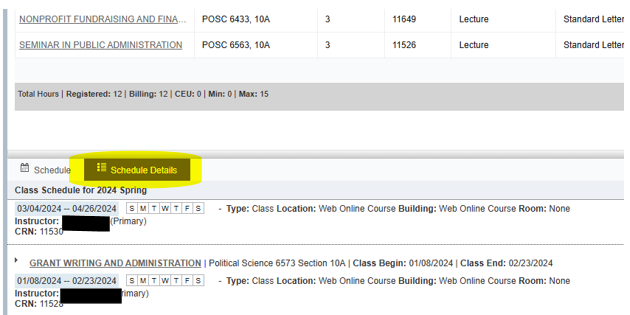
**6. Go to the bottom half of the page and click "Schedule Details".**
[](https://kb.astate.edu/uploads/images/gallery/2025-12/image-1765799540569.png)