For further assistance, contact the ITS Help Desk at 870-972-3933 or stop by IT Support Services (
Students should have access to the Creative Cloud products when working in classrooms and computer labs across campus. Please check with the ITS administrators for the computers in an area to see which devices have the products installed.
If you are in a class requiring Adobe Creative Cloud then the professor of the class will need to request an account on your behalf. Once approved, you will receive an email with instructions for setting up your account. When your account has been created, you will have access to Adobe Creative Cloud.
If students don't have access to on campus classrooms or labs with the Creative Cloud products installed, there are several free Adobe apps linked below that they can use.
### Adobe Scan **Download:** Adobe Scan for [Android](https://play.google.com/store/apps/details?id=com.adobe.scan.android) | [iOS](https://itunes.apple.com/us/app/adobe-scan-doc-scanner-to-pdf/id1199564834?mt=8) (Free) ### Adobe Fill & Sign **Download:** Adobe Fill & Sign for [Android](https://play.google.com/store/apps/details?id=com.adobe.fas) | [iOS](https://itunes.apple.com/us/app/adobe-fill-sign/id950099951?mt=8) (Free) ### Adobe Spark Post **Download:** Adobe Spark Post for [Android](https://play.google.com/store/apps/details?id=com.adobe.spark.post) | [iOS](https://itunes.apple.com/us/app/adobe-spark-post/id1051937863?mt=8) (Free, subscription available) ### Adobe Capture CC **Download:** Adobe Capture CC for [Android](https://play.google.com/store/apps/details?id=com.adobe.creativeapps.gather) | [iOS](https://itunes.apple.com/us/app/adobe-capture-cc/id1040200189?mt=8) (Free) ### Adobe Premiere Rush **Download:** Adobe Premiere Rush for [Android](https://play.google.com/store/apps/details?id=com.adobe.premiererush.videoeditor) | [iOS](https://apps.apple.com/us/app/adobe-premiere-rush-for-video/id1188753863) (Free, subscription available) ### Adobe Photoshop Mix **Download:** Adobe Photoshop Mix for [Android](https://play.google.com/store/apps/details?id=com.adobe.photoshopmix) | [iOS](https://itunes.apple.com/us/app/adobe-photoshop-mix-cut-out-combine-create/id885271158?mt=8) (Free) ### Adobe Photoshop Fix **Download:** Adobe Photoshop Fix for [Android](https://play.google.com/store/apps/details?id=com.adobe.adobephotoshopfix) | [iOS](https://itunes.apple.com/us/app/adobe-photoshop-fix/id1033713849?mt=8) (Free) # How to Setup Adobe Creative Cloud --- Please follow the instructions below to enable access to Creative Cloud Desktop Apps on your personal device. --- 1. Visit [https://creativecloud.adobe.com](https://urldefense.proofpoint.com/v2/url?u=https-3A__creativecloud.adobe.com_&d=DwMFAg&c=QzRQJlHx0ZTYmlwGx7ptjrPEeuNmnYRxm_FN73lod7w&r=v2kO1VlgpPxrhZkGFdGAq0RgETK1DmmsTHhFLbWnIog&m=ITUqMTRFTwaaRHjc6gGbhGef6ktr8K4G1e5qZPcVedM&s=TRNYJD-w7iQwnSaYzqUFJO-k06rfC8WU84GR2xiT8XA&e=) and use your **A-State **email address to begin the sign in process. You may need to Create an account. [](https://kb.astate.edu/uploads/images/gallery/2023-09/picture1.png) 2. Once you create your account, it will ask you to select which account you are wanting to sign into. You will need to select the **Company or School Account** option. [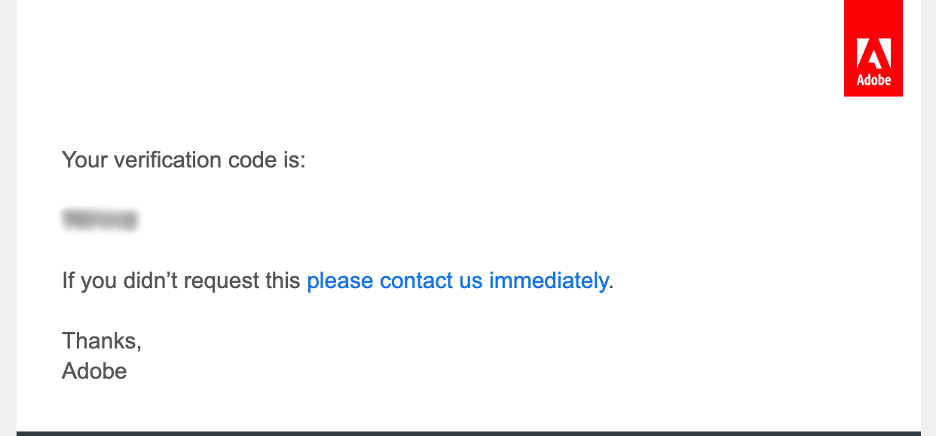](https://kb.astate.edu/uploads/images/gallery/2023-09/3LMpicture4.png) 3. You will be asked to **Verify your Identity**. You do this by pressing **Continue** and then typing in the **Verification Code** that will be sent to your **A-State **email address. [](https://kb.astate.edu/uploads/images/gallery/2023-09/2TRpicture5.png) 4. From here, you will be asked to enter in your password for this account, if you do not remember your password, click the Reset your password hyperlink and you will be sent an email to your A-State student mail with a **Reset Password** link. [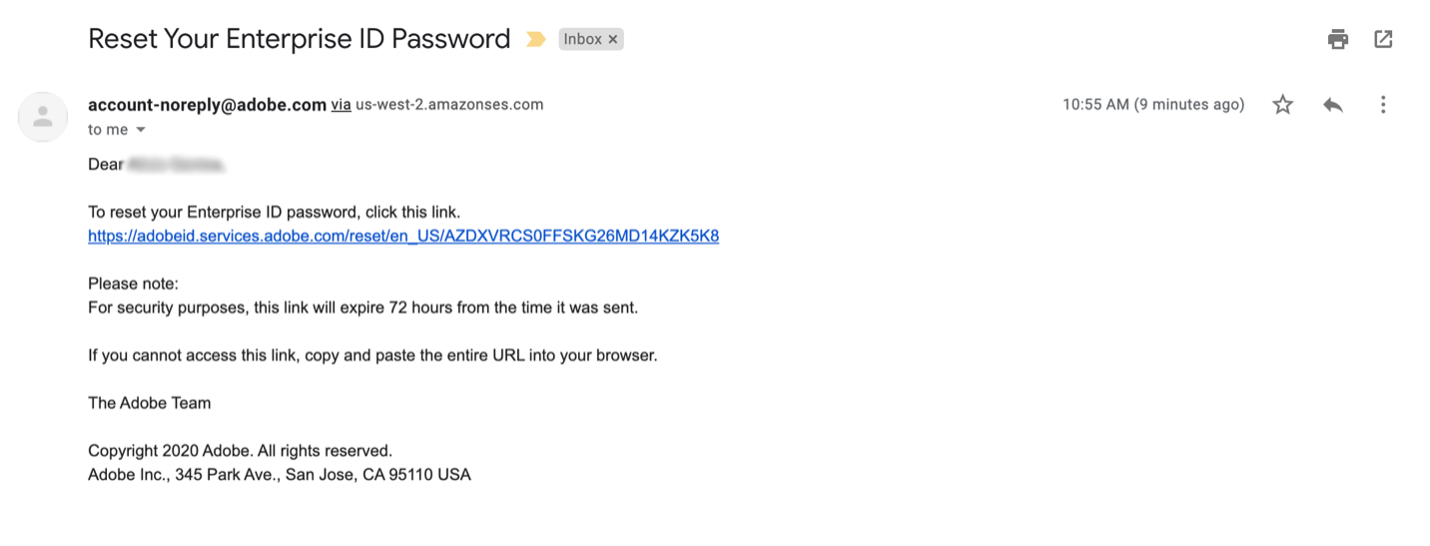](https://kb.astate.edu/uploads/images/gallery/2023-09/nVIpicture6.png) 5. Once you have reset your password or successfully signed in, you should be taken to the Adobe Creative Cloud Home page. From here, you should click on the Apps buttons on the top left hand corner of the home page to take you to the Applications page where you will be able to see all of the applications you will be able to download and install onto your device. [](https://kb.astate.edu/uploads/images/gallery/2023-09/dBJpicture7.png) [](https://kb.astate.edu/uploads/images/gallery/2023-09/picture8.png) 6. Lastly, to have complete confirmation that this process has been successful, you should receive an email from Adobe that looks similar to this stating that you will now have access to all of the Adobe Creative Cloud applications for a limited time [](https://kb.astate.edu/uploads/images/gallery/2023-09/picture9.png)\*DISCLAIMER\*: Only students who are registered in classes for the current semester that require the use of these Adobe Creative Cloud applications will be able to have access to this subscription.
For more information on how to download or install apps, see [Download and Install Creative Cloud apps](https://urldefense.proofpoint.com/v2/url?u=https-3A__helpx.adobe.com_download-2Dinstall_using_download-2Dcreative-2Dcloud-2Dapps.html&d=DwMFAg&c=QzRQJlHx0ZTYmlwGx7ptjrPEeuNmnYRxm_FN73lod7w&r=v2kO1VlgpPxrhZkGFdGAq0RgETK1DmmsTHhFLbWnIog&m=ITUqMTRFTwaaRHjc6gGbhGef6ktr8K4G1e5qZPcVedM&s=hgsxFH-vuUCu86RB-Fp_ZQTDHY8Djciaq7NdfDf1Ex8&e=).
For Higher Education students to continue developing skills, Adobe offers free “Daily Creative Challenges”. These are guided projects where participants receive creative prompts and connect with pros, mentors, and other students for feedback and support. Click on the app name to learn more: [Photoshop](https://urldefense.proofpoint.com/v2/url?u=http-3A__www.behance.net_challenge_photoshop&d=DwMFAg&c=QzRQJlHx0ZTYmlwGx7ptjrPEeuNmnYRxm_FN73lod7w&r=v2kO1VlgpPxrhZkGFdGAq0RgETK1DmmsTHhFLbWnIog&m=ITUqMTRFTwaaRHjc6gGbhGef6ktr8K4G1e5qZPcVedM&s=4avTiFsOkgVtHYD-e2Y1S1T-suonk5BJyde0XfLy3MU&e=), [XD](https://urldefense.proofpoint.com/v2/url?u=http-3A__www.behance.net_challenge_xd&d=DwMFAg&c=QzRQJlHx0ZTYmlwGx7ptjrPEeuNmnYRxm_FN73lod7w&r=v2kO1VlgpPxrhZkGFdGAq0RgETK1DmmsTHhFLbWnIog&m=ITUqMTRFTwaaRHjc6gGbhGef6ktr8K4G1e5qZPcVedM&s=PcnVL15rDB03qGxZ1Z1IghItM1pmVHEbt4lLLgv8JGU&e=) and [Illustrator](https://urldefense.proofpoint.com/v2/url?u=http-3A__www.behance.net_challenge_illustrator&d=DwMFAg&c=QzRQJlHx0ZTYmlwGx7ptjrPEeuNmnYRxm_FN73lod7w&r=v2kO1VlgpPxrhZkGFdGAq0RgETK1DmmsTHhFLbWnIog&m=ITUqMTRFTwaaRHjc6gGbhGef6ktr8K4G1e5qZPcVedM&s=I7X5zgnnRg39CRdZP73aLQSlBoAsgdlM8wp2psQLUFo&e=). Also, for inspiration and over-the-shoulder learning, watch pros share their creative process on Adobe Live daily at [www.behance.net/adobelive](https://urldefense.proofpoint.com/v2/url?u=http-3A__www.behance.net_adobelive&d=DwMFAg&c=QzRQJlHx0ZTYmlwGx7ptjrPEeuNmnYRxm_FN73lod7w&r=v2kO1VlgpPxrhZkGFdGAq0RgETK1DmmsTHhFLbWnIog&m=ITUqMTRFTwaaRHjc6gGbhGef6ktr8K4G1e5qZPcVedM&s=vI1OtPf6rXe093rRgI1S_qjgrTpFpVQF3vzHcdtZWG8&e=).
For faculty seeking to engage students during campus closures, Adobe has curated resources to help them discover inspiring projects, best practices, and new ideas so they can continue to drive valuable learning in virtual environments. For more information on Adobe’s distance learning resources, [please click here](https://urldefense.proofpoint.com/v2/url?u=https-3A__edex.adobe.com_distance-2Dlearning&d=DwMFAg&c=QzRQJlHx0ZTYmlwGx7ptjrPEeuNmnYRxm_FN73lod7w&r=v2kO1VlgpPxrhZkGFdGAq0RgETK1DmmsTHhFLbWnIog&m=ITUqMTRFTwaaRHjc6gGbhGef6ktr8K4G1e5qZPcVedM&s=OGEApmIEYb8M5lJoXMp0R2T9Z-ciErPwuWGfuxBhq-A&e=).
Please visit this [HelpX page](https://urldefense.proofpoint.com/v2/url?u=https-3A__helpx.adobe.com_enterprise_kb_covid-2D19-2Dedu-2Dlabs-2Dfaq.html&d=DwMFAg&c=QzRQJlHx0ZTYmlwGx7ptjrPEeuNmnYRxm_FN73lod7w&r=v2kO1VlgpPxrhZkGFdGAq0RgETK1DmmsTHhFLbWnIog&m=ITUqMTRFTwaaRHjc6gGbhGef6ktr8K4G1e5qZPcVedM&s=9ITuSTq4N_OSaOQ4KskoMj7m_fUkzBT_3sAejJOJ8Nw&e=) if you have questions.
For further assistance, contact the ITS Help Desk at 870-972-3933 or stop by IT Support Services (