This method will work for both mobile phones and tablets (either iOS or Android) \*Some devices may not support the BeyondTrust app\*
iOS devices are limited to "View Only", while Android devices can be "View Only" and "Full Control" \*You may have to change your devices permissions for the BeyondTrust app in your device's system settings\*
--- 1\. Open any web browser and go to [connect.astate.edu](https://connect.astate.edu) , this will open the **Support Portal** and select the agent's name you are needing to remote into your device 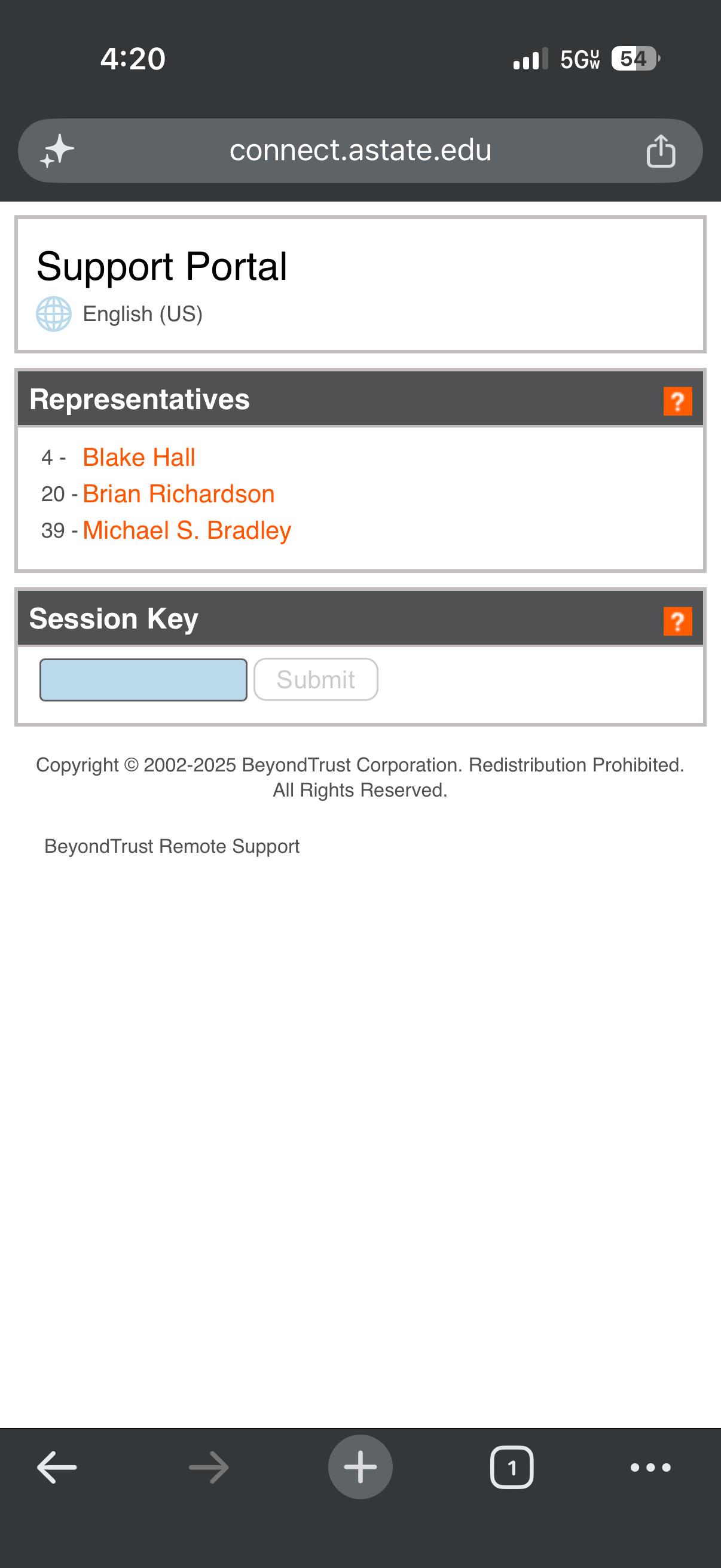 2\. The next screen will prompt you to install the free **BeyondTrust Support** application from your device's app store 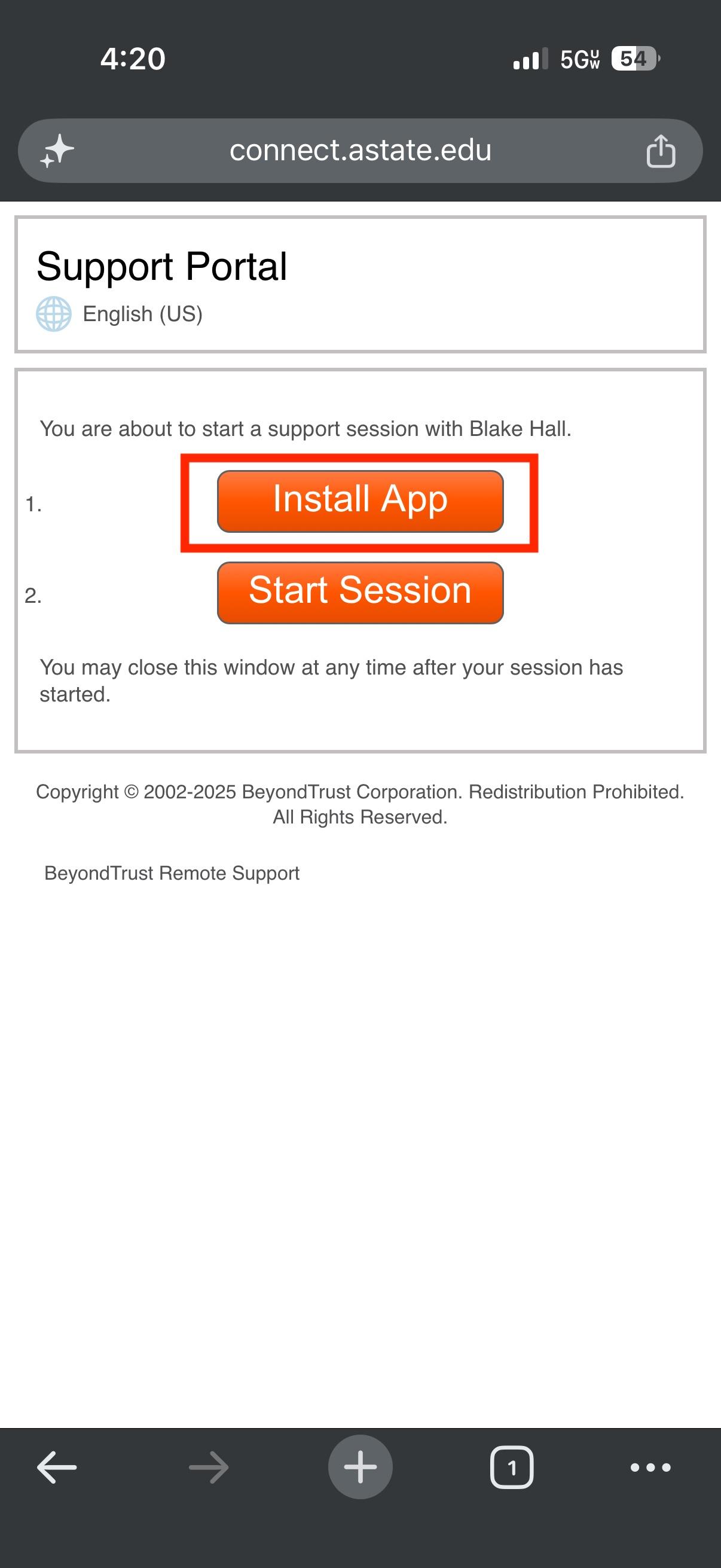 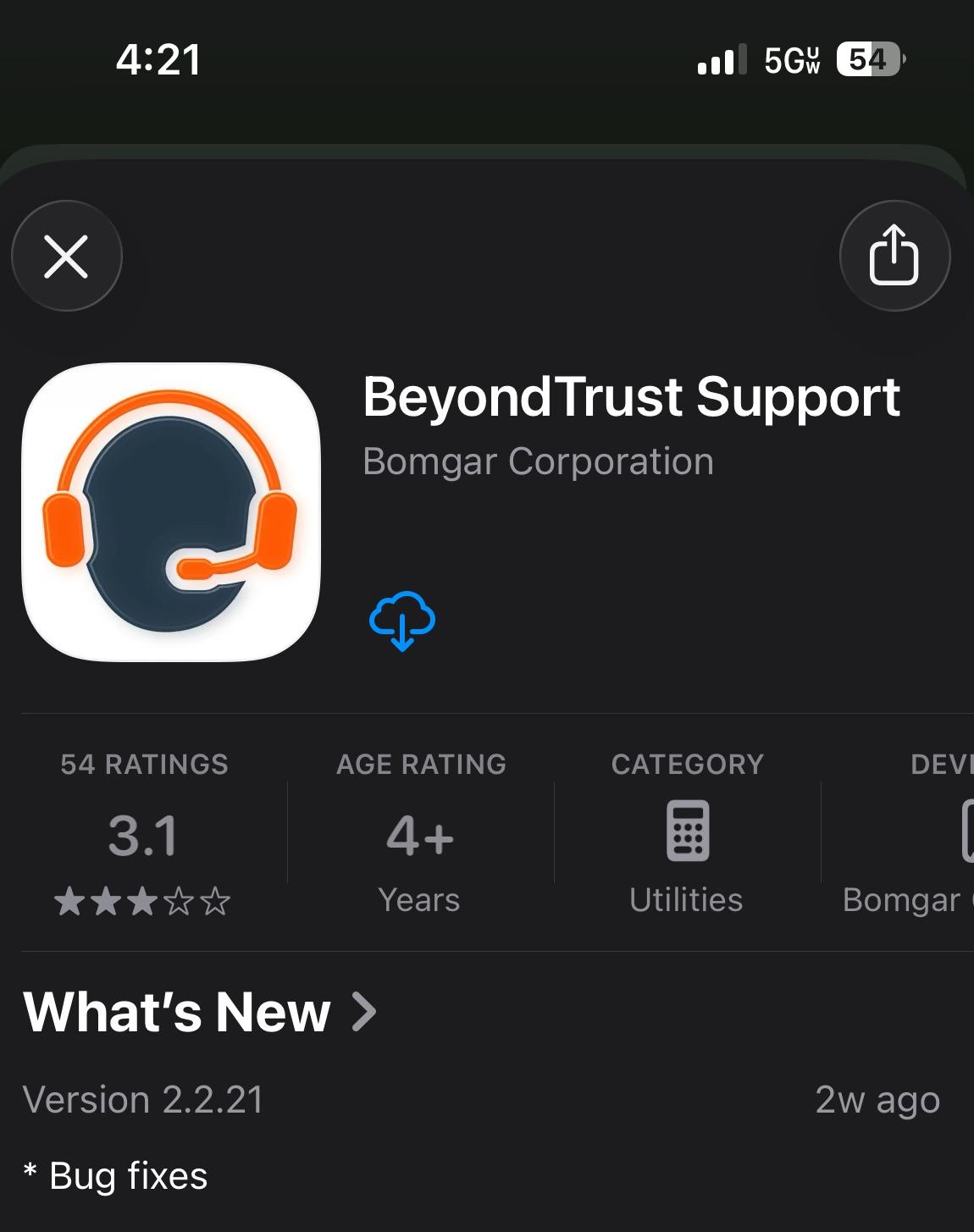 3\. After installing the app on your mobile device, you can proceed with either of these methods: - **OPTION 1:** Go back to the Support Portal page and select "**Start Session**" (select **Allow** when prompted) or - **OPTION 2:** Open the app itself and type **connect.astate.edu** in the **Site Address** field and the A-State agent can provide you with the Session Key **Option 1: Option 2:** 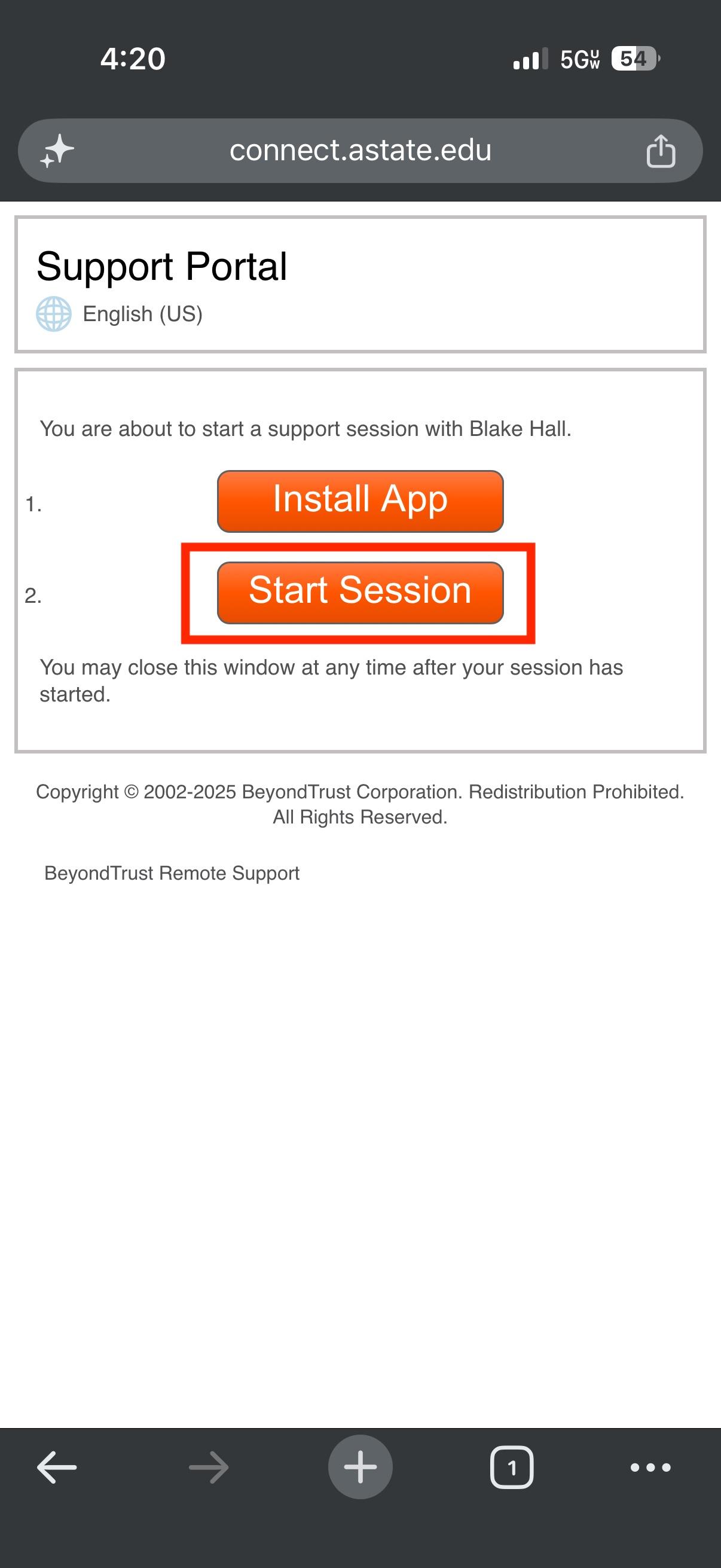 [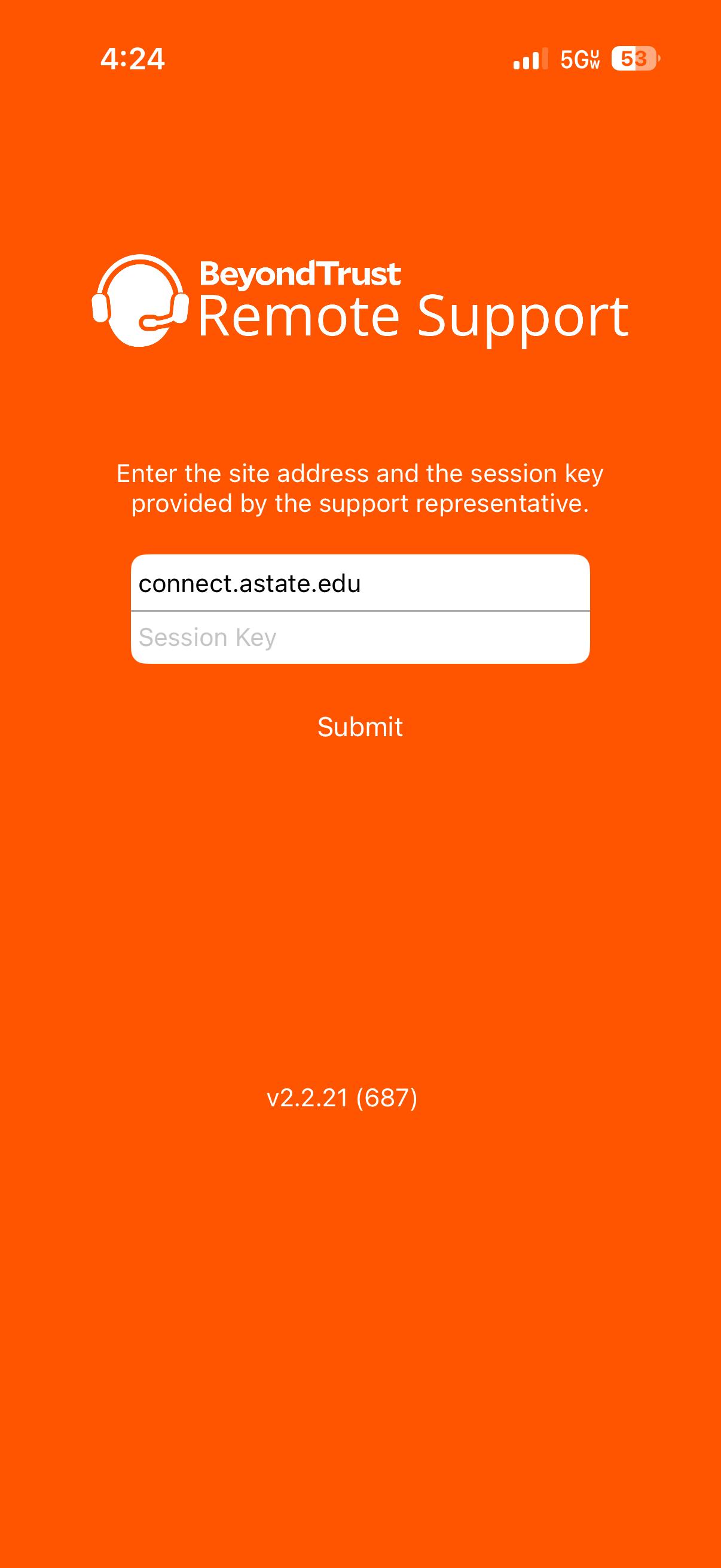](https://kb.astate.edu/uploads/images/gallery/2026-05/bomgar-12.jpeg) 3\. Either method will connect your device to the **BeyondTrust chat portal**, where the agent can remote in and see this screen: - Select the circle icon at the top of the screen and then select **Start Broadcast** - *Please note, the agent will not be able to see anything other than the chat screen until you start the broadcast, if the circle icon is **RED**, the agent will be able to fully view your screen on your device* **Not Sharing Sharing** 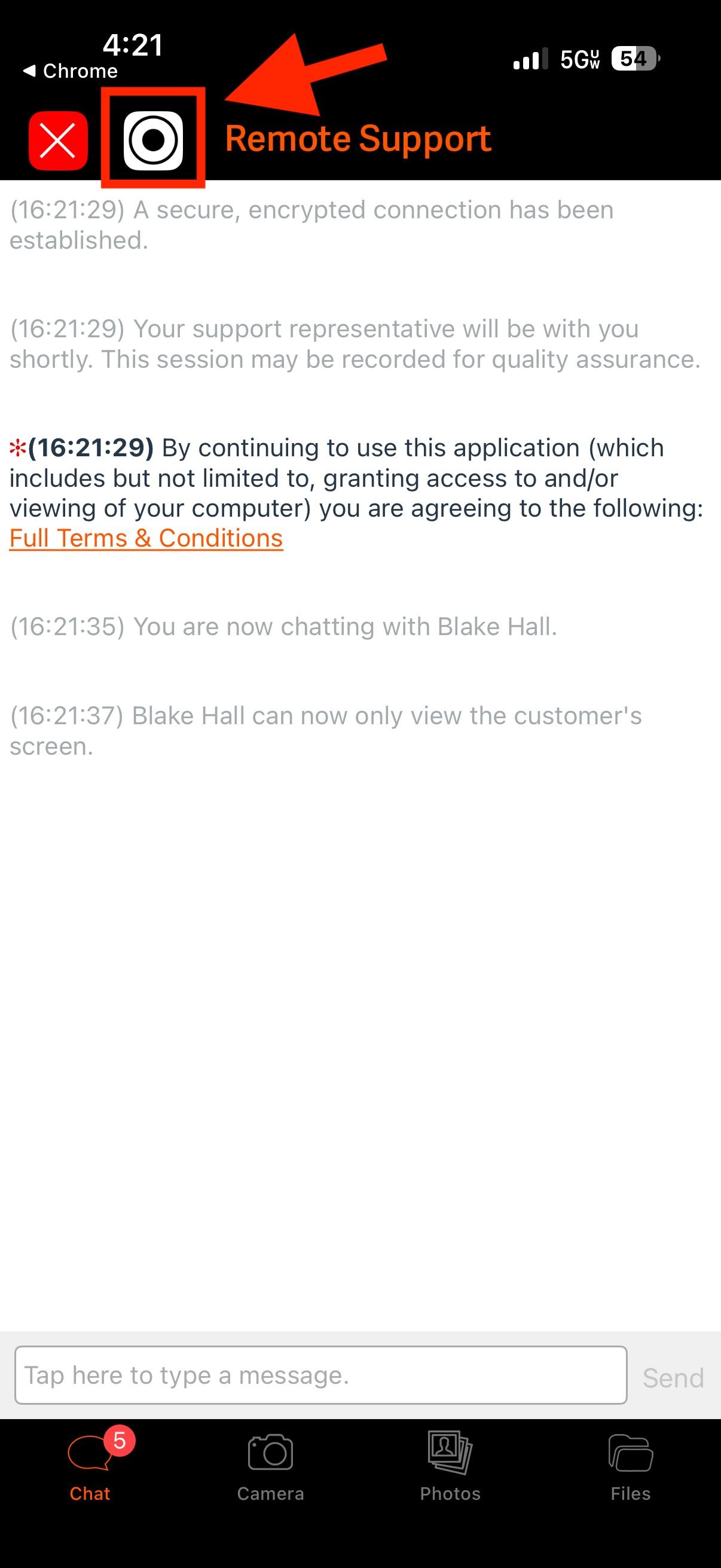 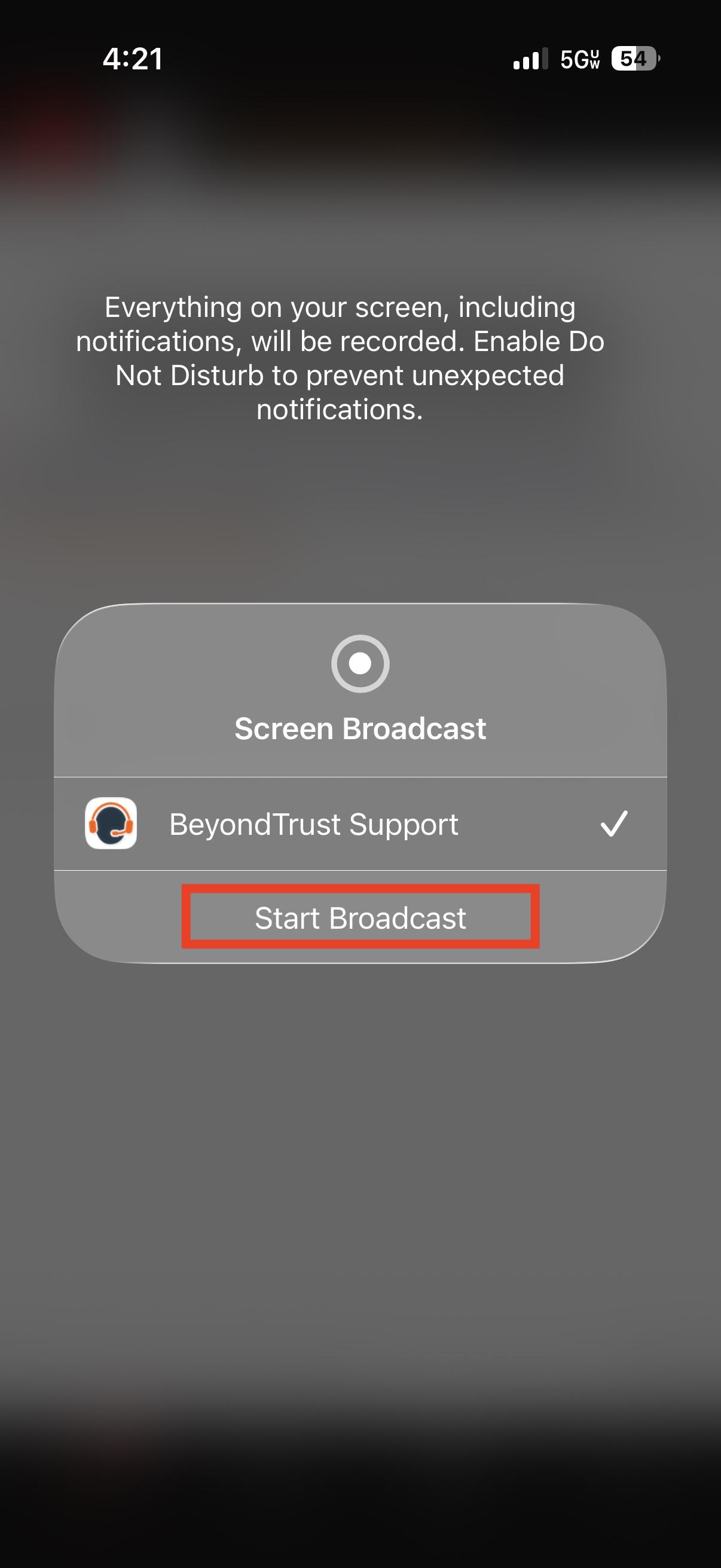 [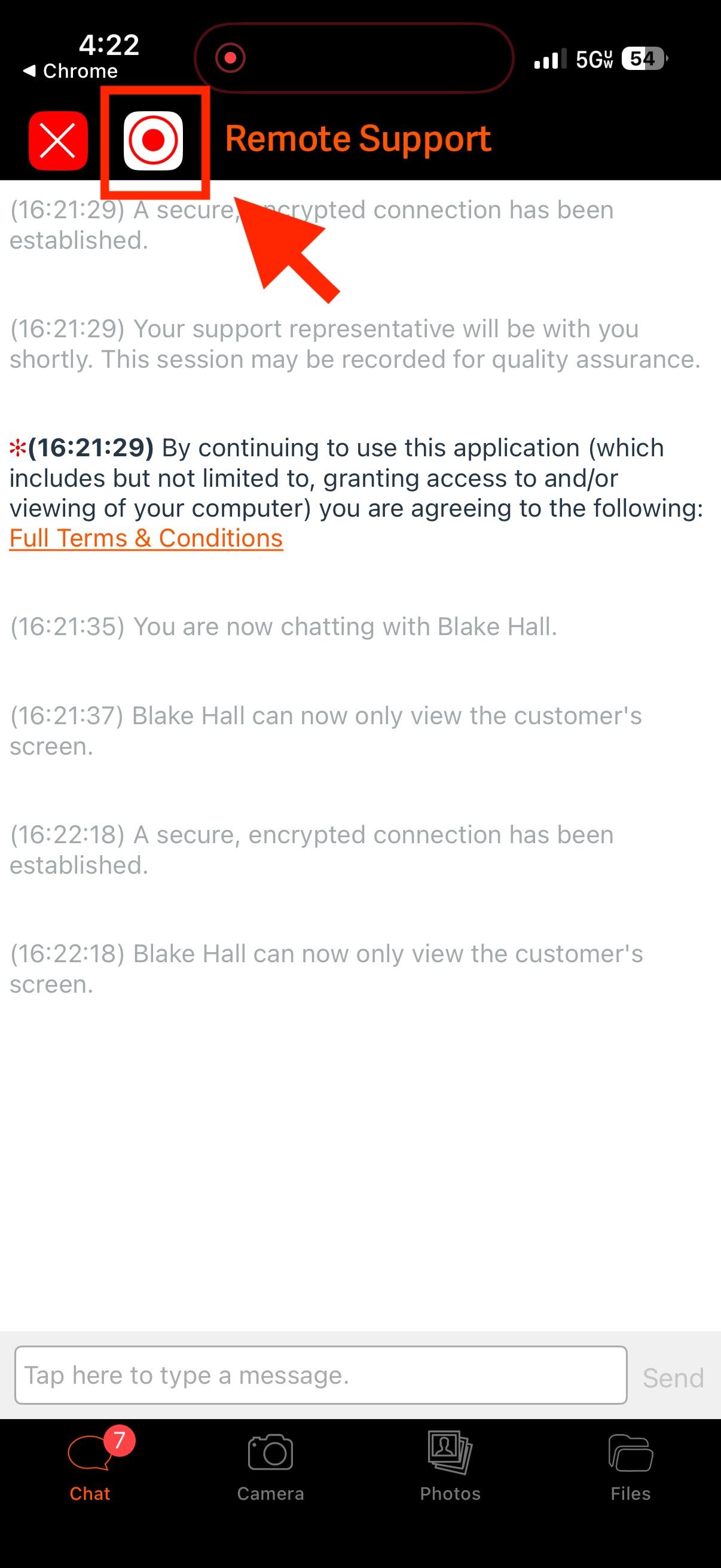](https://kb.astate.edu/uploads/images/gallery/2026-05/eOGbomgar-8.jpeg) 4\. Once you are ready to end screen sharing, just tap the **RED** circle icon again and select **Stop Broadcast** 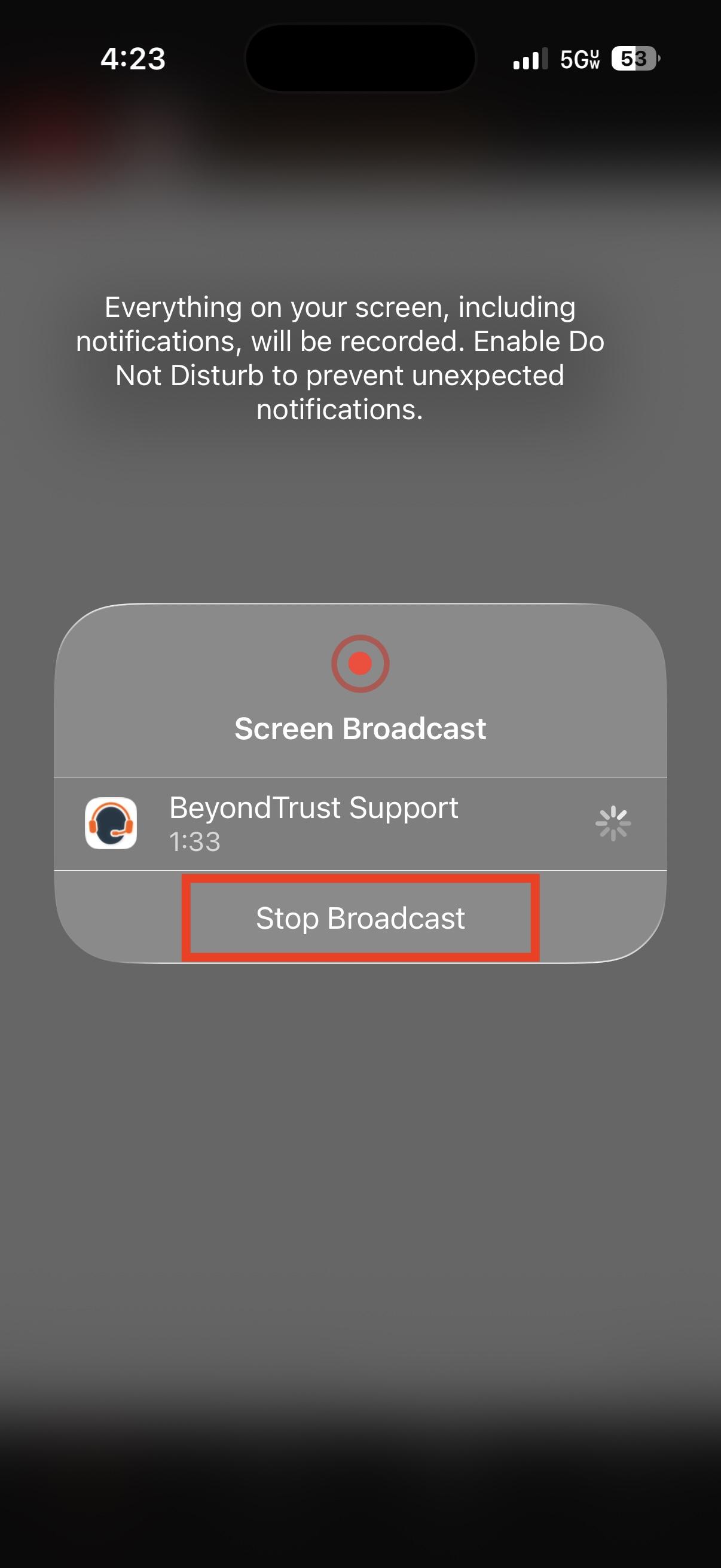 5\. To completely end the session and remove access for the A-State agent, tap the "**X**" in the top left and select **Yes**, when it ask if you want to end the support session, you will receive a confirmation message when disconnected 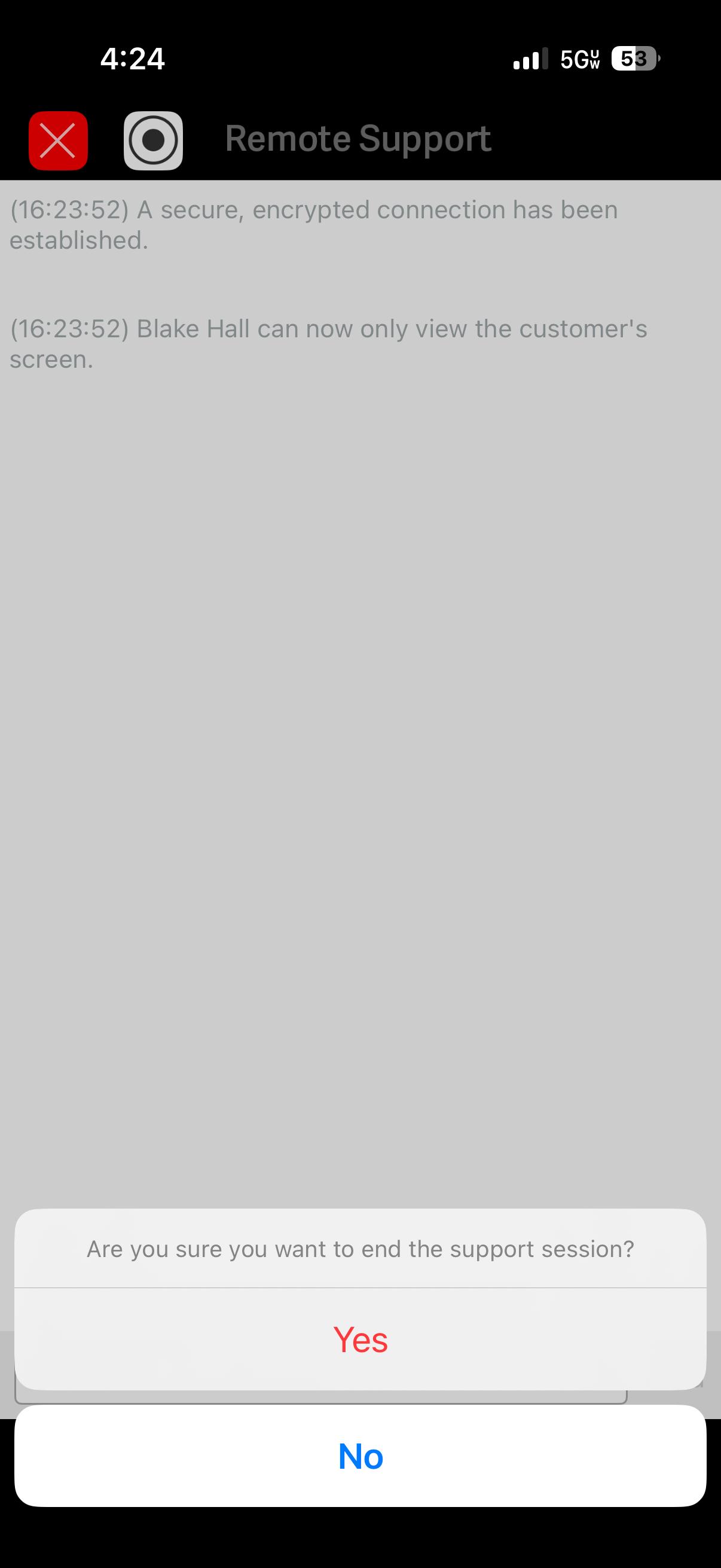 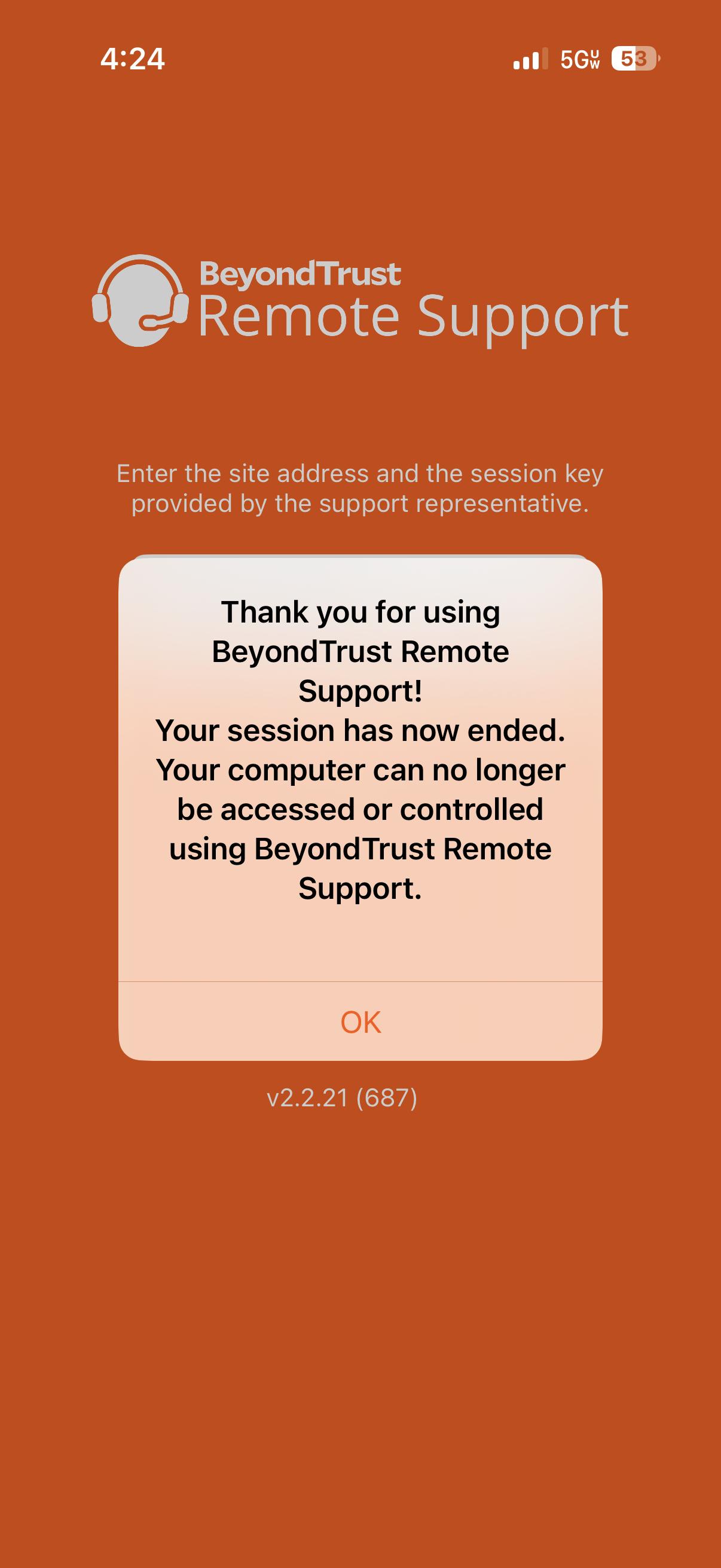For further assistance, contact the ITS Help Desk at 870-972-3933 or stop by IT Support Services (