# How to Set Up and Use Remote Desktop

---

##### How to Set Up Remote Desktop

---

You will need to set up the PC you want to connect to so it allows remote connections.

1\. Click the **Start** button.

[![image-1747856831824.png](https://kb.astate.edu/uploads/images/gallery/2025-05/scaled-1680-/image-1747856831824.png)](https://kb.astate.edu/uploads/images/gallery/2025-05/image-1747856831824.png)

2\. Open **Settings**.

[![image-1747856871772.png](https://kb.astate.edu/uploads/images/gallery/2025-05/scaled-1680-/image-1747856871772.png)](https://kb.astate.edu/uploads/images/gallery/2025-05/image-1747856871772.png)

3\. Click **System**.

[![image-1747857266960.png](https://kb.astate.edu/uploads/images/gallery/2025-05/scaled-1680-/image-1747857266960.png)](https://kb.astate.edu/uploads/images/gallery/2025-05/image-1747857266960.png)

4\. Under **System**, click **Remote Desktop**.

[![image-1747857299792.png](https://kb.astate.edu/uploads/images/gallery/2025-05/scaled-1680-/image-1747857299792.png)](https://kb.astate.edu/uploads/images/gallery/2025-05/image-1747857299792.png)

5\. Set **Remote Desktop** to **On**.

[![image-1747857356493.png](https://kb.astate.edu/uploads/images/gallery/2025-05/scaled-1680-/image-1747857356493.png)](https://kb.astate.edu/uploads/images/gallery/2025-05/image-1747857356493.png)

6\. Select **Confirm**.

[![image-1747857379774.png](https://kb.astate.edu/uploads/images/gallery/2025-05/scaled-1680-/image-1747857379774.png)](https://kb.astate.edu/uploads/images/gallery/2025-05/image-1747857379774.png)

<p class="callout info">Make note of the PC name under PC Name; you will need it to connect.</p>

---

##### How to Use Remote Desktop

---

- **On your local Windows PC:** In the search box on the taskbar, type <span class="ocpUserInput">Remote Desktop Connection</span>, and then select **Remote Desktop Connection**. In Remote Desktop Connection, type the name of the PC you want to connect to (from Step 1), and then select **Connect**.
- **On your macOS or iOS device:**   
    1. Open **Microsoft Remote Desktop** (available for free from Microsoft Store and the Apple App Store).  
      
    [![macremotedesktop1.png](https://kb.astate.edu/uploads/images/gallery/2025-05/scaled-1680-/macremotedesktop1.png)](https://kb.astate.edu/uploads/images/gallery/2025-05/macremotedesktop1.png)
    
      
    2. Click the arrow by the plus sign (+) and choose Add PC.  
      
    [![macremotedesktop5.png](https://kb.astate.edu/uploads/images/gallery/2025-05/scaled-1680-/macremotedesktop5.png)](https://kb.astate.edu/uploads/images/gallery/2025-05/macremotedesktop5.png)  

    3. Add the name of the PC that you want to connect to (from Step 1).   
      
    [![macremotedesktop2.png](https://kb.astate.edu/uploads/images/gallery/2025-05/scaled-1680-/macremotedesktop2.png)](https://kb.astate.edu/uploads/images/gallery/2025-05/macremotedesktop2.png)  
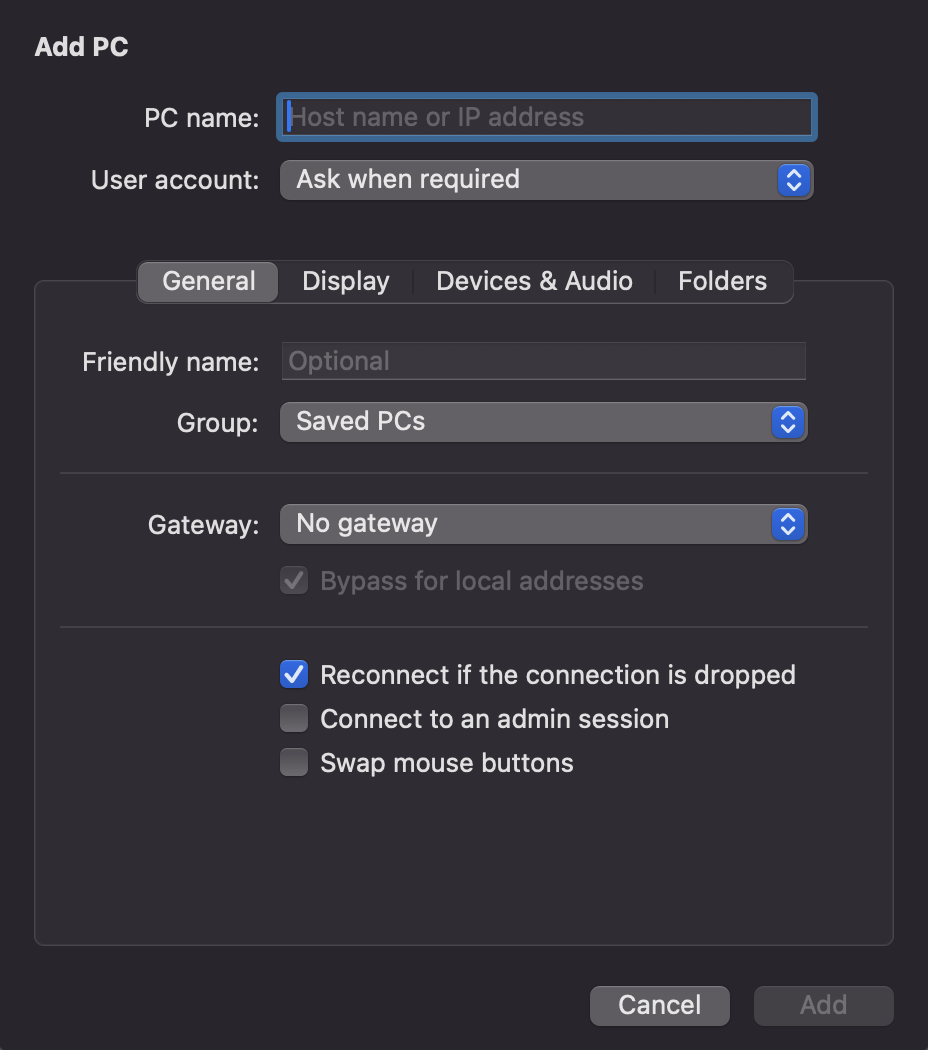
    4. Select the remote PC name that you added and choose Connect.  
      
    [![macremotedesktop3.png](https://kb.astate.edu/uploads/images/gallery/2025-05/scaled-1680-/macremotedesktop3.png)](https://kb.astate.edu/uploads/images/gallery/2025-05/macremotedesktop3.png)  
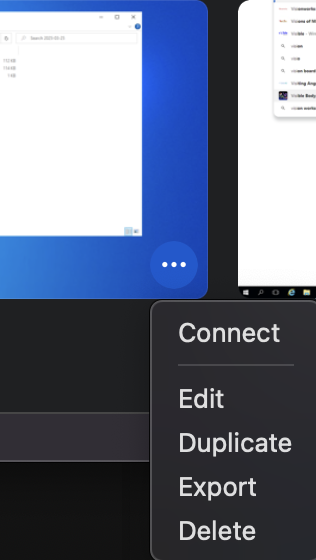
    5. When prompted, enter your Username and Password.  
      
    [![macremotedesktop4.png](https://kb.astate.edu/uploads/images/gallery/2025-05/scaled-1680-/macremotedesktop4.png)](https://kb.astate.edu/uploads/images/gallery/2025-05/macremotedesktop4.png)
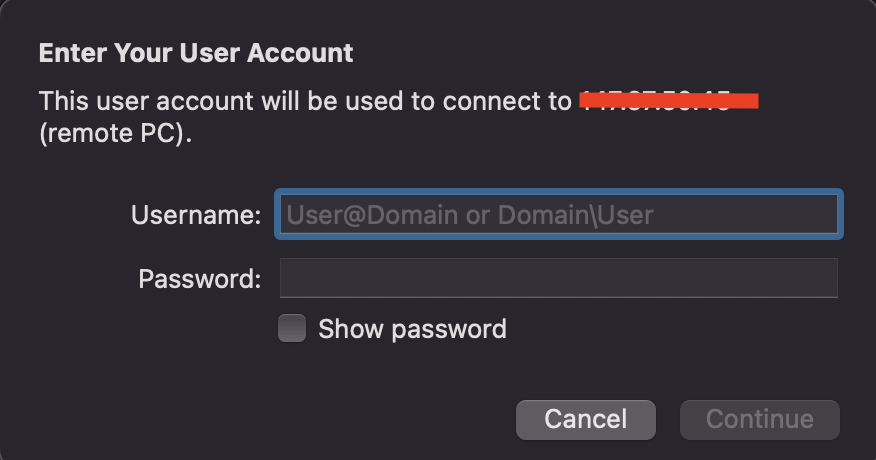
<p class="callout info">While a Remote Desktop server (as in, the PC that you are connecting **to**) needs to be running a Pro edition of Windows, a client machine (the device you are connecting **from**) can be running any edition of Windows (Pro **or** Home), or even a different operating system altogether. </p>