# Argos Dashboards

This book provides an overview of Argos access, dashboard navigation, and data export. The initial release includes college enrollment dashboards. Additional dashboards will be added to support timely access to high-value operational reports.

# Argos Login Troubleshooting

## **Argos** 

***Favorite the Argos link for easier access***

##### **Acceptable Browsers:** Google Chrome, Firefox, or Edge

##### **Argos URL:** [evisions | eLauncher](https://maps-prod.astate.elluciancloud.com/#argosTab)

You will be prompt to login, please try your email address (**BCREECH@ASTATE.EDU**)

If that does not work, please try everything before the @ASTATE.EDU (**BCREECH**)

<p class="callout info">**NOTE**: If you are a MAC user you will have to use the ***Web Viewer***. Otherwise, Click Argos, and download if prompted. </p>

[![image-1756331194786.png](https://kb.astate.edu/uploads/images/gallery/2025-08/scaled-1680-/image-1756331194786.png)](https://kb.astate.edu/uploads/images/gallery/2025-08/image-1756331194786.png)

#####  

##### ***If you experience an error saying wrong username/password, please follow the steps below***

##  

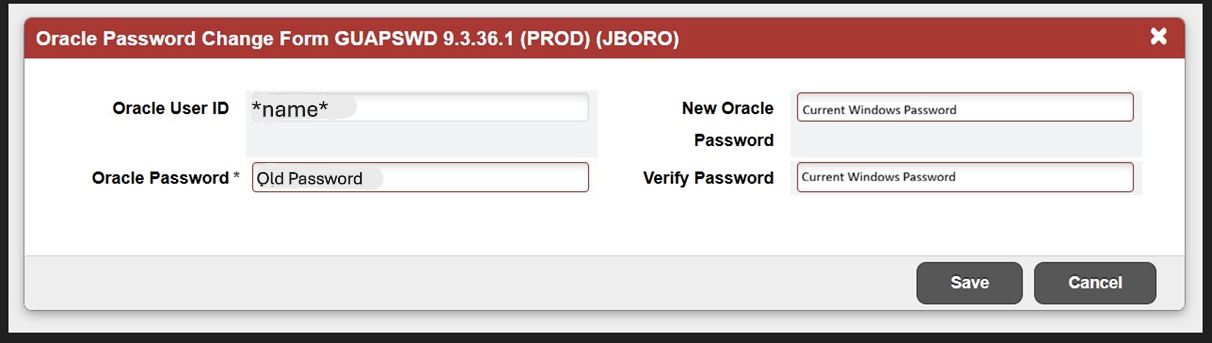
## **Resync Password**

**Banner Admin:** [Application Navigator](https://appnav-prod.astate.elluciancloud.com/applicationNavigator/seamless)

**Table:** GUAPSWD

[![image.png](https://kb.astate.edu/uploads/images/gallery/2026-04/scaled-1680-/dqAimage.png)](https://kb.astate.edu/uploads/images/gallery/2026-04/dqAimage.png)
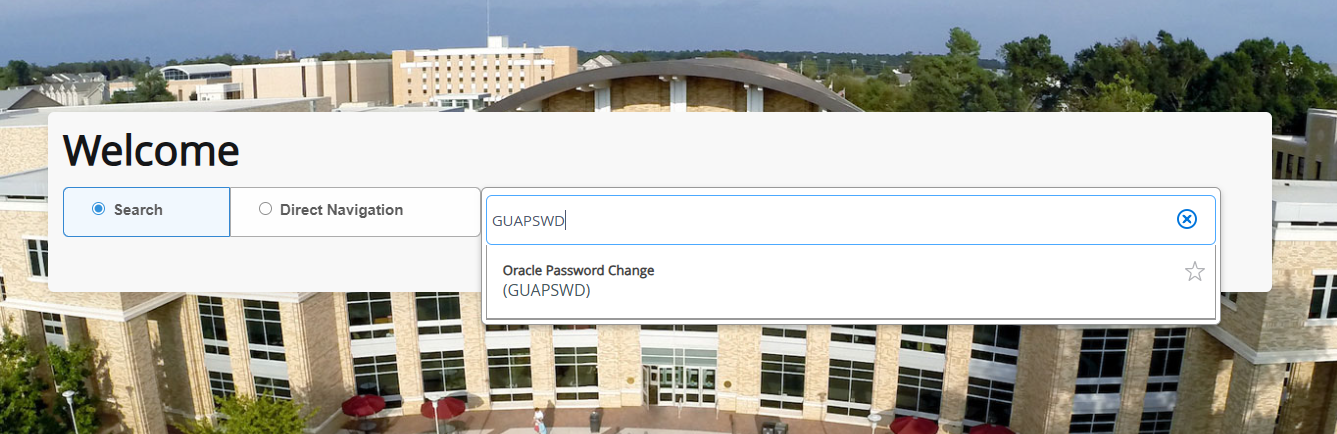
<p class="callout info">**Tip:** If you cannot login to the first sign in screen, please resync your password on the banner table **GUAPSWD.** If you do not remember your old password or do not have access, please reach out to **[ITS\_DBA@astate.edu](mailto:ITS_DBA@astate.edu)** to reset the old password. Your new password will be the **current password** you use. </p>

[![image.png](https://kb.astate.edu/uploads/images/gallery/2026-04/scaled-1680-/TfRimage.png)](https://kb.astate.edu/uploads/images/gallery/2026-04/TfRimage.png)

**Then hit save.**

**Before you try logging into Argos again, Please clear your cache and cookies of all time.**

**Go to Argos and try to log in.**

[![image-1756331142326.png](https://kb.astate.edu/uploads/images/gallery/2025-08/scaled-1680-/image-1756331142326.png)](https://kb.astate.edu/uploads/images/gallery/2025-08/image-1756331142326.png)


#### \*\*If you continue to experience issues, please reach out to bcreech@astate.edu\*\*

# Dashboards

\- Enrollment Dashboard  
\- Graduation Dashboard  
\- IFC, NPC, and NPHC GPA Request  
  
More coming soon...

# Enrollment Dashboard — Quick Start (A-State Faculty/Staff)

## Access

1. **Sign in to Argos.**
2. In the left panel, open **JBORO**.
3. Open **your college** folder, then select **Enrollment Dashboard** and click **Run**. <button class="ms-1 flex h-[25px] text-[10px] leading-[13px] rounded-xl items-center justify-center gap-1 px-2 relative text-token-text-secondary! hover:text-token-text-primary! hover:bg-token-bg-secondary dark:bg-token-main-surface-secondary dark:hover:bg-token-bg-secondary bg-[#f4f4f4] "><svg alt="File" class="h-[12px] w-[12px] object-contain text-token-text-primary! flex-none" fill="currentColor" height="20" viewbox="0 0 20 20" width="20" xmlns="http://www.w3.org/2000/svg"></svg></button>
    
    enrollment-dashboard-navigation

[![image-1757536096963.png](https://kb.astate.edu/uploads/images/gallery/2025-09/scaled-1680-/image-1757536096963.png)](https://kb.astate.edu/uploads/images/gallery/2025-09/image-1757536096963.png)

> **Note:** You may be prompted to sign in again when you select your folder.
> 
> **Tip:** If you cannot login to the first sign in screen, please resync your password on the banner table GUAPSWD. If you do not remember your old password, please reach out to [ITS\_DBA@astate.edu](mailto:ITS_DBA@astate.edu) to reset it. Your new password will be the current password you use.
> 
> **\*\***If you are able to get into Argos on the first sign in but not on the second one, it may be a security issue, please reach out to <bcreech@astate.edu>

**<span style="color: #222222; font-size: 2.628em; background-color: #ffffff;">Who can see what</span>**

Dashboards are **college-specific**—you will only see your own college’s dashboards.

[![image-1756332760156.png](https://kb.astate.edu/uploads/images/gallery/2025-08/scaled-1680-/image-1756332760156.png)](https://kb.astate.edu/uploads/images/gallery/2025-08/image-1756332760156.png)

- Don’t see your college dashboard? Email **<a class="decorated-link cursor-pointer" data-end="713" data-start="695" rel="noopener">bcreech@astate.edu </a>**for access. <button class="ms-1 flex h-[25px] text-[10px] leading-[13px] rounded-xl items-center justify-center gap-1 px-2 relative text-token-text-secondary! hover:text-token-text-primary! hover:bg-token-bg-secondary dark:bg-token-main-surface-secondary dark:hover:bg-token-bg-secondary bg-[#f4f4f4] "><svg alt="File" class="h-[12px] w-[12px] object-contain text-token-text-primary! flex-none" fill="currentColor" height="20" viewbox="0 0 20 20" width="20" xmlns="http://www.w3.org/2000/svg"></svg></button>

## **What’s on the dashboard**

[![image-1756333008224.png](https://kb.astate.edu/uploads/images/gallery/2025-08/scaled-1680-/image-1756333008224.png)](https://kb.astate.edu/uploads/images/gallery/2025-08/image-1756333008224.png)

- **Enrollment:** Students with degree info, **semester** credit hours, and **overall** credit hours.
- **GPA:** Degree info alongside GPA and academic standing.
- **Student Details:** Personal info (race, age, address, phone) with degree info. <button class="ms-1 flex h-[25px] text-[10px] leading-[13px] rounded-xl items-center justify-center gap-1 px-2 relative text-token-text-secondary! hover:text-token-text-primary! hover:bg-token-bg-secondary dark:bg-token-main-surface-secondary dark:hover:bg-token-bg-secondary bg-[#f4f4f4] "><svg alt="File" class="h-[12px] w-[12px] object-contain text-token-text-primary! flex-none" fill="currentColor" height="20" viewbox="0 0 20 20" width="20" xmlns="http://www.w3.org/2000/svg"></svg></button>
    
    enrollment-dashboard-navigation

> **Tip:** Use the **HELP** tab (top-left) for a quick guide to each section, how filters work (**Term**, **Campus**, **Level**, **Major**), and common issues (e.g., no results, export tips). Click **Main** to return to your data. <button class="ms-1 flex h-[25px] text-[10px] leading-[13px] rounded-xl items-center justify-center gap-1 px-2 relative text-token-text-secondary! hover:text-token-text-primary! hover:bg-token-bg-secondary dark:bg-token-main-surface-secondary dark:hover:bg-token-bg-secondary bg-[#f4f4f4] "><svg alt="File" class="h-[12px] w-[12px] object-contain text-token-text-primary! flex-none" fill="currentColor" height="20" viewbox="0 0 20 20" width="20" xmlns="http://www.w3.org/2000/svg"></svg></button>

## **Filtering**

- Filters can be used **individually or together** (e.g., *Term only*, *Term + Program*, etc.).
- Adjust filters and click **Run** to refresh. <button class="ms-1 flex h-[25px] text-[10px] leading-[13px] rounded-xl items-center justify-center gap-1 px-2 relative text-token-text-secondary! hover:text-token-text-primary! hover:bg-token-bg-secondary dark:bg-token-main-surface-secondary dark:hover:bg-token-bg-secondary bg-[#f4f4f4] "><svg alt="File" class="h-[12px] w-[12px] object-contain text-token-text-primary! flex-none" fill="currentColor" height="20" viewbox="0 0 20 20" width="20" xmlns="http://www.w3.org/2000/svg"></svg></button>

## **Save / Export results**

1. Right-click anywhere in the report grid and choose **Save Results**.
2. Uncheck any columns you don’t want.
3. Click **Save**.

[![image-1756333503148.png](https://kb.astate.edu/uploads/images/gallery/2025-08/scaled-1680-/image-1756333503148.png)](https://kb.astate.edu/uploads/images/gallery/2025-08/image-1756333503148.png)

1. Choose **OneDrive** so you can access the file anywhere.

[![image-1756333560436.png](https://kb.astate.edu/uploads/images/gallery/2025-08/scaled-1680-/image-1756333560436.png)](https://kb.astate.edu/uploads/images/gallery/2025-08/image-1756333560436.png)

1. Name the file and confirm **Save**

> **Tip:** If you don’t see **Save Results**, click once inside the grid to activate it, then right-click again.

# Graduation Dashboard — Quick Start (A-State Faculty/Staff)

<article class="text-token-text-primary w-full focus:outline-none scroll-mt-[calc(var(--header-height)+min(200px,max(70px,20svh)))]" data-scroll-anchor="true" data-testid="conversation-turn-62" data-turn="assistant" data-turn-id="e8ce4c0e-b523-4879-a462-425f15592e77" dir="auto" id="bkmrk-argos-login-sign-in-" tabindex="-1"># **Access**

<div><div><div><div><div><div data-message-author-role="assistant" data-message-id="f8a1cc7b-5758-469b-9623-998d9660263b" data-message-model-slug="gpt-5-thinking"><div><div>1. **Sign in to Argos.**
2. In the left panel, open the **JBORO** folder.
3. Inside **JBORO**, open **STU-GRAD-ADVISOR.**

</div></div></div></div></div></div></div></div>> **Note:** You may be prompted to sign in again when you select your folder.
> 
> **Tip:** If you cannot login to the first sign in screen, please resync your password on the banner table GUAPSWD. If you do not remember your old password, please reach out to [ITS\_DBA@astate.edu](mailto:ITS_DBA@astate.edu) to reset it. Your new password will be the current password you use.
> 
> **\*\***If you are able to get into Argos on the first sign in but not on the second one, it may be a security issue, please reach out to <bcreech@astate.edu>

</article><div aria-hidden="true" data-edge="true" id="bkmrk-"></div># **Dashboard**

[![image-1758655680011.png](https://kb.astate.edu/uploads/images/gallery/2025-09/scaled-1680-/image-1758655680011.png)](https://kb.astate.edu/uploads/images/gallery/2025-09/image-1758655680011.png)

<p class="callout info">**Filters:** *Term Code, Grad Status, Program, Major, Student ID, Advisor ID:* pick one or more values as needed.</p>

## **What you’ll see**

- **Student ID** (textbox)
- **Advisor ID** (textbox)
- **Term Code**, **Grad Status**, **Program**, **Major** (lists)
- **All** Codes Marked ![](https://kb.astate.edu/uploads/images/drawio/2025-09/drawing-1095-1758656220.png)

You can change any filter at any time. Click on a **filter** to refresh.

## **Very important: Student ID &amp; Advisor ID require a wildcard when “blank”**

Those two boxes use a SQL `LIKE` match. That means:

- To search **all students/advisors**, the box must contain a single percent symbol: **`%`**
- If you look up an ID and then **clear** the box, the query won’t run as “all.”  
    You **must** put the wildcard **`%`** back in the box.

### **Examples (Student ID or Advisor ID)**

- **Exact 9-digit ID**: `123456789` → returns just that person
- **Starts with**: `12345%` → returns anyone whose ID begins with 12345
- **All**: `%` → returns everyone (no filtering by that field)

> Tip: If a run returns nothing or won’t execute after you delete an ID, add **`%`** back to the box and run again.


## **Save / Export results**

1. Right-click anywhere in the report grid and choose **Save Results**.
2. Uncheck any columns you don’t want.

[![image-1758657334673.png](https://kb.astate.edu/uploads/images/gallery/2025-09/scaled-1680-/image-1758657334673.png)](https://kb.astate.edu/uploads/images/gallery/2025-09/image-1758657334673.png)
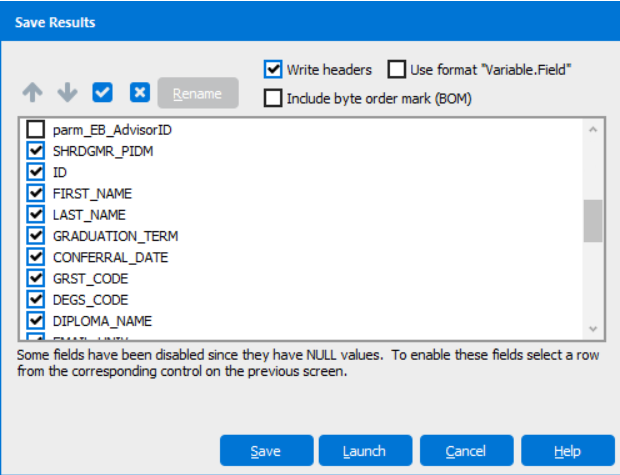
 3. Click **Save**.

 4. Choose **OneDrive** so you can access the file anywhere.

[![image-1756333560436.png](https://kb.astate.edu/uploads/images/gallery/2025-08/scaled-1680-/image-1756333560436.png)](https://kb.astate.edu/uploads/images/gallery/2025-08/image-1756333560436.png)
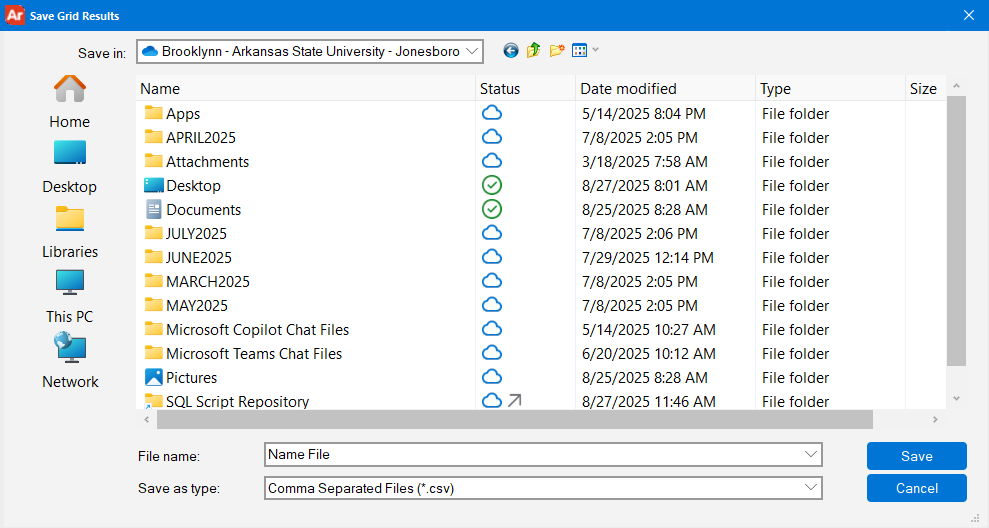
 5. Name the file and confirm **Save.**

<div id="bkmrk--1"><svg class="svg-icon" data-icon="link" role="presentation" viewbox="0 0 24 24" xmlns="http://www.w3.org/2000/svg"></svg></div>> **Tip:** If you don’t see **Save Results**, click once inside the grid to activate it, then right-click again. <button class="ms-1 flex h-[25px] text-[10px] leading-[13px] rounded-xl items-center justify-center gap-1 px-2 relative text-token-text-secondary! hover:text-token-text-primary! hover:bg-token-bg-secondary dark:bg-token-main-surface-secondary dark:hover:bg-token-bg-secondary bg-[#f4f4f4] "><svg alt="File" class="h-[12px] w-[12px] object-contain text-token-text-primary! flex-none" fill="currentColor" height="20" viewbox="0 0 20 20" width="20" xmlns="http://www.w3.org/2000/svg"></svg></button>