# Enrollment Dashboard — Quick Start (A-State Faculty/Staff)

## Access

1. **Sign in to Argos.**
2. In the left panel, open **JBORO**.
3. Open **your college** folder, then select **Enrollment Dashboard** and click **Run**. <button class="ms-1 flex h-[25px] text-[10px] leading-[13px] rounded-xl items-center justify-center gap-1 px-2 relative text-token-text-secondary! hover:text-token-text-primary! hover:bg-token-bg-secondary dark:bg-token-main-surface-secondary dark:hover:bg-token-bg-secondary bg-[#f4f4f4] "><svg alt="File" class="h-[12px] w-[12px] object-contain text-token-text-primary! flex-none" fill="currentColor" height="20" viewbox="0 0 20 20" width="20" xmlns="http://www.w3.org/2000/svg"></svg></button>
    
    enrollment-dashboard-navigation

[![image-1757536096963.png](https://kb.astate.edu/uploads/images/gallery/2025-09/scaled-1680-/image-1757536096963.png)](https://kb.astate.edu/uploads/images/gallery/2025-09/image-1757536096963.png)

> **Note:** You may be prompted to sign in again when you select your folder.
> 
> **Tip:** If you cannot login to the first sign in screen, please resync your password on the banner table GUAPSWD. If you do not remember your old password, please reach out to [ITS\_DBA@astate.edu](mailto:ITS_DBA@astate.edu) to reset it. Your new password will be the current password you use.
> 
> **\*\***If you are able to get into Argos on the first sign in but not on the second one, it may be a security issue, please reach out to <bcreech@astate.edu>

**<span style="color: #222222; font-size: 2.628em; background-color: #ffffff;">Who can see what</span>**

Dashboards are **college-specific**—you will only see your own college’s dashboards.

[![image-1756332760156.png](https://kb.astate.edu/uploads/images/gallery/2025-08/scaled-1680-/image-1756332760156.png)](https://kb.astate.edu/uploads/images/gallery/2025-08/image-1756332760156.png)

- Don’t see your college dashboard? Email **<a class="decorated-link cursor-pointer" data-end="713" data-start="695" rel="noopener">bcreech@astate.edu </a>**for access. <button class="ms-1 flex h-[25px] text-[10px] leading-[13px] rounded-xl items-center justify-center gap-1 px-2 relative text-token-text-secondary! hover:text-token-text-primary! hover:bg-token-bg-secondary dark:bg-token-main-surface-secondary dark:hover:bg-token-bg-secondary bg-[#f4f4f4] "><svg alt="File" class="h-[12px] w-[12px] object-contain text-token-text-primary! flex-none" fill="currentColor" height="20" viewbox="0 0 20 20" width="20" xmlns="http://www.w3.org/2000/svg"></svg></button>

## **What’s on the dashboard**

[![image-1756333008224.png](https://kb.astate.edu/uploads/images/gallery/2025-08/scaled-1680-/image-1756333008224.png)](https://kb.astate.edu/uploads/images/gallery/2025-08/image-1756333008224.png)

- **Enrollment:** Students with degree info, **semester** credit hours, and **overall** credit hours.
- **GPA:** Degree info alongside GPA and academic standing.
- **Student Details:** Personal info (race, age, address, phone) with degree info. <button class="ms-1 flex h-[25px] text-[10px] leading-[13px] rounded-xl items-center justify-center gap-1 px-2 relative text-token-text-secondary! hover:text-token-text-primary! hover:bg-token-bg-secondary dark:bg-token-main-surface-secondary dark:hover:bg-token-bg-secondary bg-[#f4f4f4] "><svg alt="File" class="h-[12px] w-[12px] object-contain text-token-text-primary! flex-none" fill="currentColor" height="20" viewbox="0 0 20 20" width="20" xmlns="http://www.w3.org/2000/svg"></svg></button>
    
    enrollment-dashboard-navigation

> **Tip:** Use the **HELP** tab (top-left) for a quick guide to each section, how filters work (**Term**, **Campus**, **Level**, **Major**), and common issues (e.g., no results, export tips). Click **Main** to return to your data. <button class="ms-1 flex h-[25px] text-[10px] leading-[13px] rounded-xl items-center justify-center gap-1 px-2 relative text-token-text-secondary! hover:text-token-text-primary! hover:bg-token-bg-secondary dark:bg-token-main-surface-secondary dark:hover:bg-token-bg-secondary bg-[#f4f4f4] "><svg alt="File" class="h-[12px] w-[12px] object-contain text-token-text-primary! flex-none" fill="currentColor" height="20" viewbox="0 0 20 20" width="20" xmlns="http://www.w3.org/2000/svg"></svg></button>

## **Filtering**

- Filters can be used **individually or together** (e.g., *Term only*, *Term + Program*, etc.).
- Adjust filters and click **Run** to refresh. <button class="ms-1 flex h-[25px] text-[10px] leading-[13px] rounded-xl items-center justify-center gap-1 px-2 relative text-token-text-secondary! hover:text-token-text-primary! hover:bg-token-bg-secondary dark:bg-token-main-surface-secondary dark:hover:bg-token-bg-secondary bg-[#f4f4f4] "><svg alt="File" class="h-[12px] w-[12px] object-contain text-token-text-primary! flex-none" fill="currentColor" height="20" viewbox="0 0 20 20" width="20" xmlns="http://www.w3.org/2000/svg"></svg></button>

## **Save / Export results**

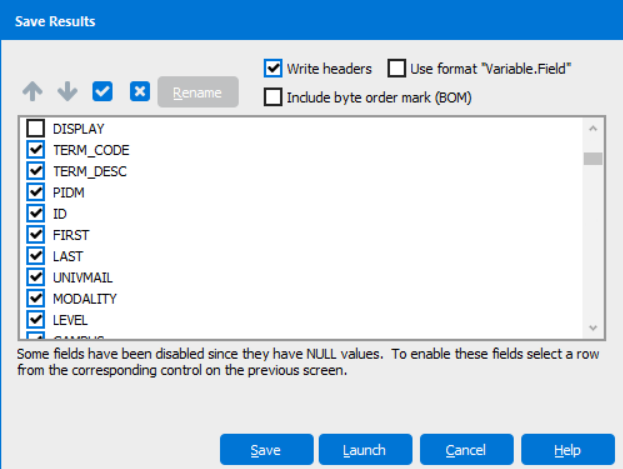
1. Right-click anywhere in the report grid and choose **Save Results**.
2. Uncheck any columns you don’t want.
3. Click **Save**.

[![image-1756333503148.png](https://kb.astate.edu/uploads/images/gallery/2025-08/scaled-1680-/image-1756333503148.png)](https://kb.astate.edu/uploads/images/gallery/2025-08/image-1756333503148.png)
1. Choose **OneDrive** so you can access the file anywhere.

[![image-1756333560436.png](https://kb.astate.edu/uploads/images/gallery/2025-08/scaled-1680-/image-1756333560436.png)](https://kb.astate.edu/uploads/images/gallery/2025-08/image-1756333560436.png)
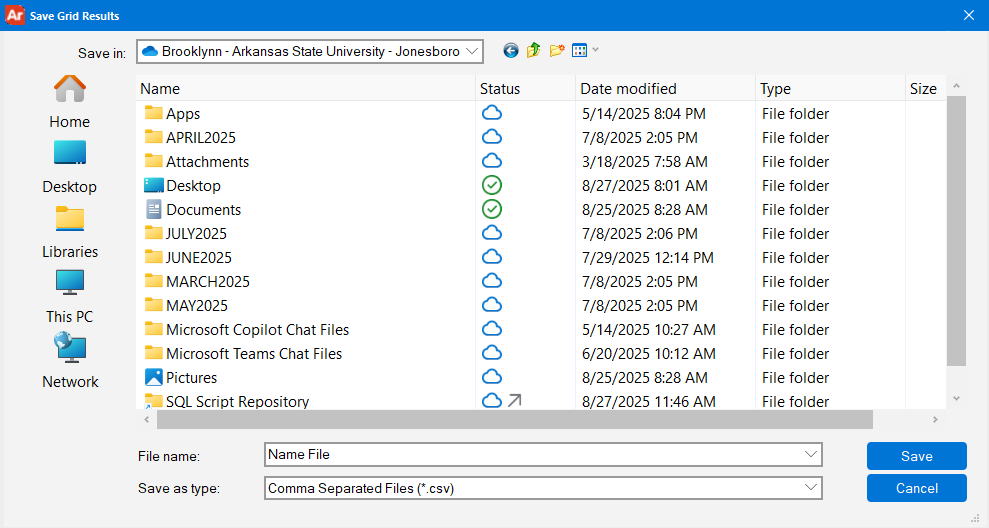
1. Name the file and confirm **Save**

> **Tip:** If you don’t see **Save Results**, click once inside the grid to activate it, then right-click again.