# Banner Self Service Faculty
# FACULTY GRADE ENTRY
##### **1. Login to Self Service via [Pack Portal](https://pack.astate.edu)**
**2. Go to “Faculty Grade Entry” on the Self Service home page**
**3. Open the Final Grades tab to display a list of courses where you are an instructor. *Alternatively, if you***
***are entering midterm grades, open the Midterm Grades tab***
[](https://kb.astate.edu/uploads/images/gallery/2024-10/image-1729023883598.png)
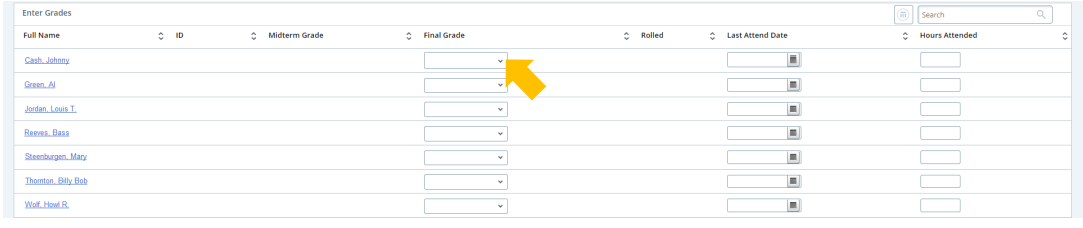
##### **4. Select the relevant class section and your full roster will appear. When grading is available grade drop-down boxes will appear; select a grade from the drop-down for each student**
[](https://kb.astate.edu/uploads/images/gallery/2024-10/image-1729023961540.png)
##### **5. After you have assigned grades, scroll to the bottom and select “Save”**
##### [](https://kb.astate.edu/uploads/images/gallery/2024-10/image-1729024017639.png)**6. You can save and return later if not all grades are available. Classes with missing grades show the**
**grading status “In Progress”, once all grades are entered the grading status changes to “*Completed*”**
[](https://kb.astate.edu/uploads/images/gallery/2024-10/image-1729024070450.png)
##### **You can make changes to entered grades following the steps above until the grades are rolled into academic**
**history. Rolled grades are viewable to the student and available on the student’s transcript.**
#####
**A rolled grade can be identified by a green check in the “*Rolled*” column on the grading roster.**
[](https://kb.astate.edu/uploads/images/gallery/2024-10/image-1729024129105.png)
##### **\*\*If changes are needed after grades roll, a grade change form is required.\*\***
# VIEW CLASS LIST / ROSTER
##### **1. Login to Self Service via [Pack Portal](https://pack.astate.edu)**
**2. Go to “Class Lists / Rosters” on the Self Service home page**
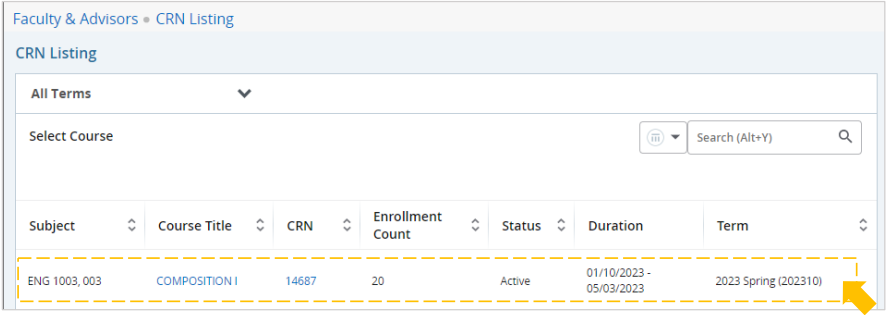
**3. A listing of classes where you’re an instructor will be displayed**
[](https://kb.astate.edu/uploads/images/gallery/2024-10/image-1729025455592.png)
##### **a. Select the arrow next to “All Terms” to filter by term and narrow down the classes listed
b. Select a course title to display the course details pop-up (general course information)
c. Select a CRN to display the class details pop-up (class section specific information)**
##### **4. Select anywhere on the white part of the course row to view the class list for that course**
##### **5. The class list “Summary View” will display**
##### [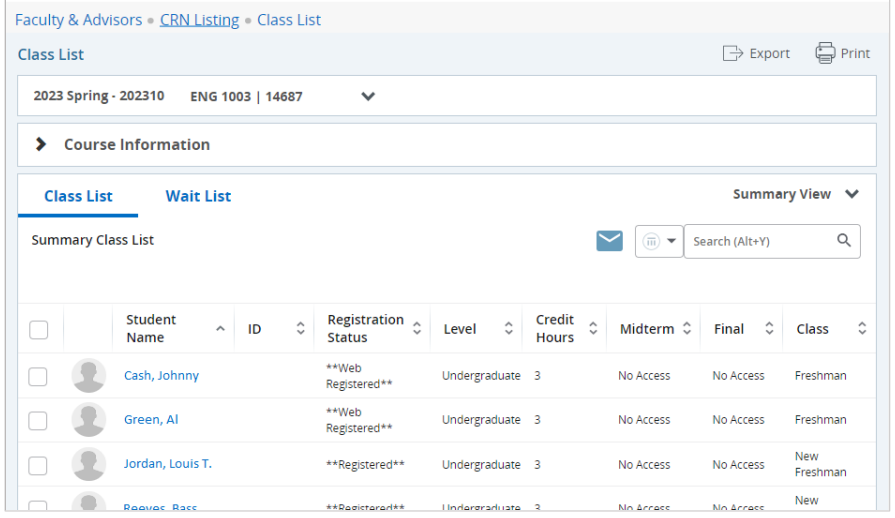](https://kb.astate.edu/uploads/images/gallery/2024-10/image-1729025527519.png)**a. Use the “Export” button to save the class list as an Excel file**
**b. Select the “Print” button to open a printer friendly class list that you can print or save as a .pdf**
[](https://kb.astate.edu/uploads/images/gallery/2024-10/image-1729025572992.png)
#####
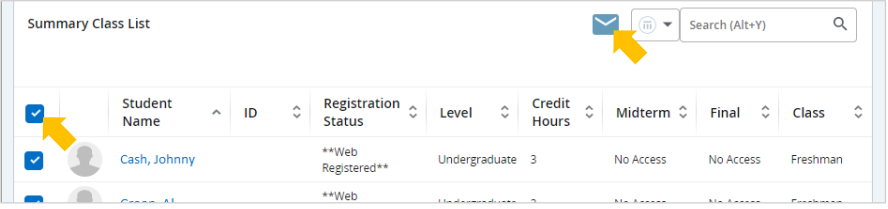
**c. Use the checkboxes to select students, or check the top box to select all**
**d. Select the envelope button to email all selected students**
[](https://kb.astate.edu/uploads/images/gallery/2024-10/image-1729025592495.png)
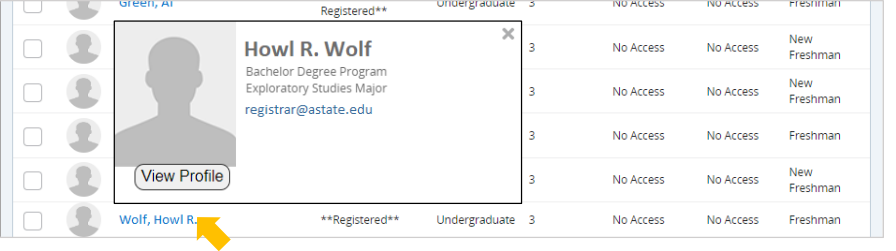
##### **e. Select a student’s name to view their student profile, including advisor information**
**f. Hover over a student’s name to view a quick summary, including their email address**
[](https://kb.astate.edu/uploads/images/gallery/2024-10/image-1729025616637.png)
#####
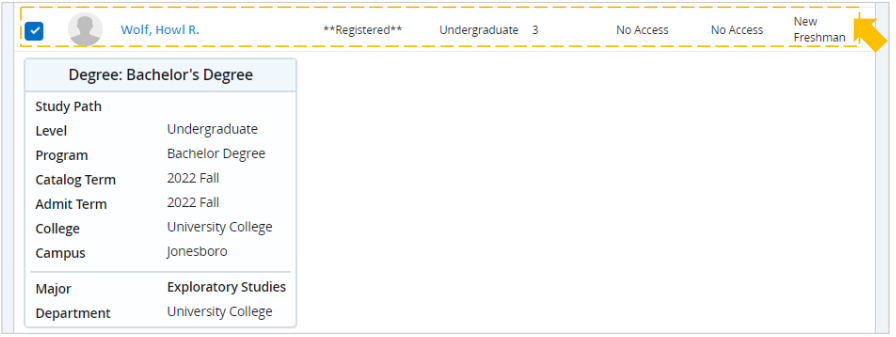
**g. Select anywhere on the white part of the student row to expand that student’s degree information**
**i. Switch to “Detail View” to expand degree information for every student on the class list**
[](https://kb.astate.edu/uploads/images/gallery/2024-10/image-1729025636039.png)
#####
#####
# VIEW STUDENT INFORMATION
##### **1. Login to Self Service via [Pack Portal](https://pack.astate.edu)**
**2. Go to “Advisee Search” on the Self Service home page**
**3. The *Advisee Search page* will open, select a term from the drop-down listing**
[](https://kb.astate.edu/uploads/images/gallery/2024-10/image-1729025777565.png)
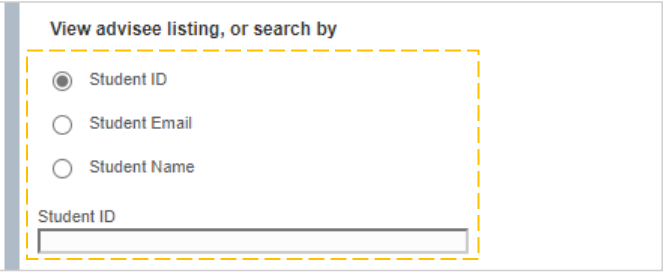
##### **4. Enter the search criteria you’d like to use in your student search**
[](https://kb.astate.edu/uploads/images/gallery/2024-10/image-1729025808843.png)
##### **a. To search by ID number, make sure “Student ID” is selected**
**i. Enter the ID number and hit “Enter” on your keyboard**
**b. To search by email, make sure “Student Email” is selected**
**i. Enter the email address and hit “Enter” on your keyboard**
**ii. You must include “@smail.astate.edu” in your search criteria**
**c. To search by name, make sure “Student Name” is selected**
**i. Enter the student’s name, then select the correct student from the drop-down listing**
**ii. You must use the format “Last Name, First Name” in your search criteria**
**5. Or, to view a listing of your advisee students, select “View My Advisee Listing”**
[](https://kb.astate.edu/uploads/images/gallery/2024-10/image-1729025970012.png)
##### **6. Once a student has been chosen, select “View Profile” to open the student’s profile**
[](https://kb.astate.edu/uploads/images/gallery/2024-10/image-1729026007149.png)
####
**STUDENT PROFILE**
#####
**The student’s name and ID number(1), academic standing(2), overall hours and overall GPA(3), registration notices(4),and any holds on their account(5) can be found across the top of the profile:**
[](https://kb.astate.edu/uploads/images/gallery/2024-10/image-1729026153438.png)
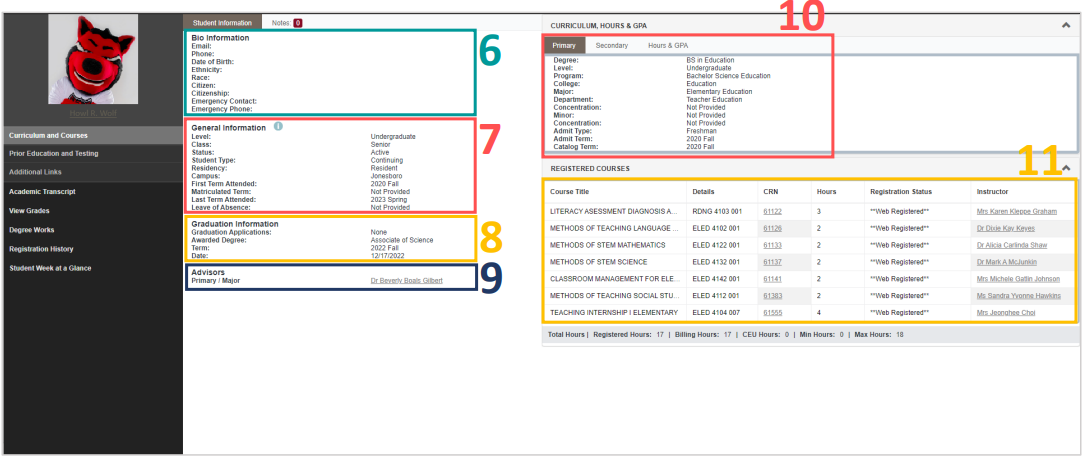
##### **The center section displays the student’s personal information(6) (including email address), general academic information(7), graduation information(8) (including a link to their submitted graduation applications when applicable), and a list of their advisors(9). The right side of the profile displays curriculum information(10) and the**
**student’s course schedule(11) for the selected term:**
[](https://kb.astate.edu/uploads/images/gallery/2024-10/image-1729026390301.png)
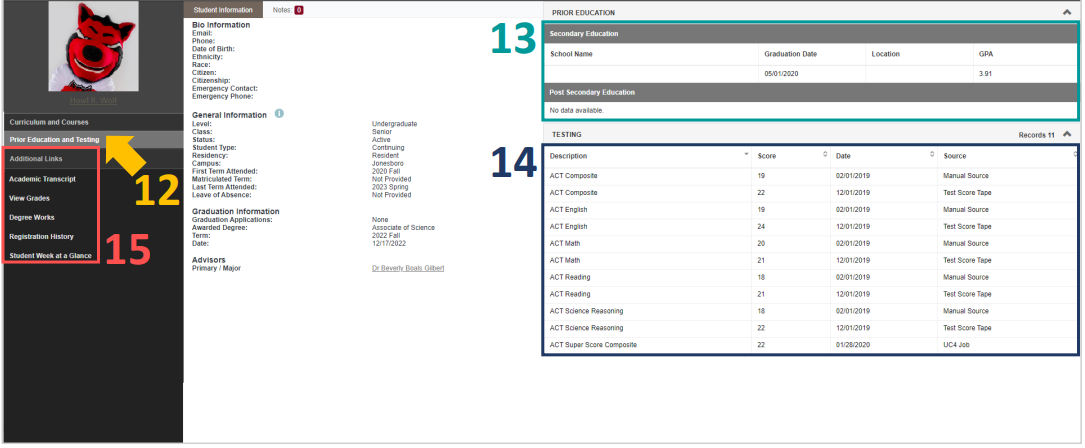
##### **Selecting “Prior Education and Testing(12)” under the student’s photo will change the right side of the profile to display the student’s prior education(13) and test scores(14). Also under the student’s photo are additional links(15) to the student’s transcript, grades, registration history, schedule week at a glance, and a link to Degree Works**
[](https://kb.astate.edu/uploads/images/gallery/2024-10/image-1729026485859.png)
# DEGREE WORKS FOR ADVISORS AND FACULTY - RESPONSIVE DASHBOARD
##### Link **to Responsive Dashboard**
#####
[https://dw-prod.astate.elluciancloud.com/JBORO/responsiveDashboard/](https://dw-prod.astate.elluciancloud.com/JBORO/responsiveDashboard/)
---
#### SEARCH
#####
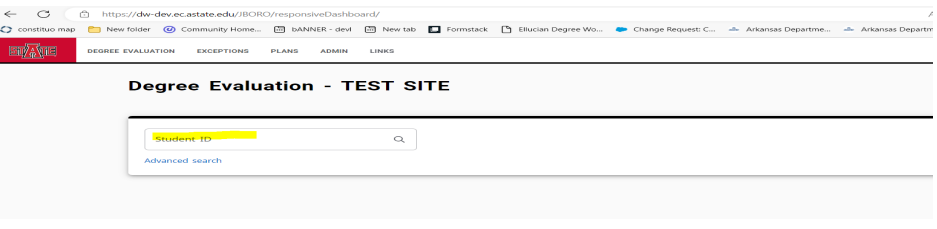
*Search by ID#*
[](https://kb.astate.edu/uploads/images/gallery/2024-10/image-1729713269300.png)
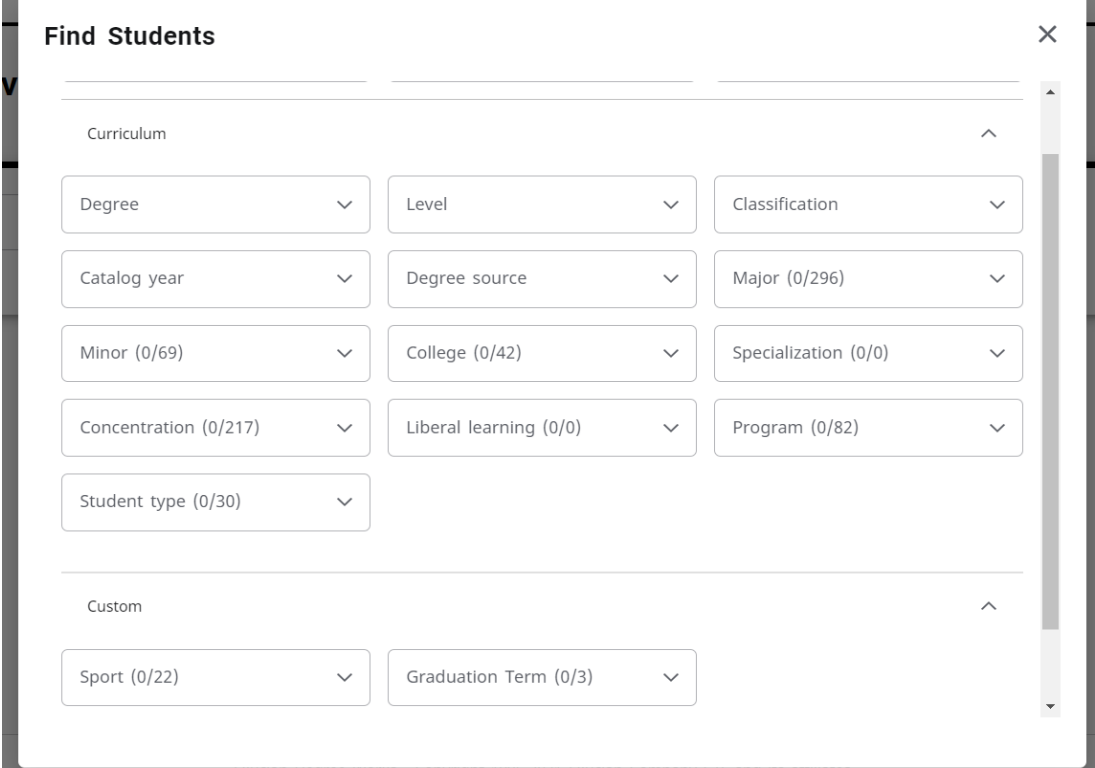
##### *Advanced Search Option: Filter by a criterion*
[](https://kb.astate.edu/uploads/images/gallery/2024-10/image-1729713290723.png)
#### Student Header
#####
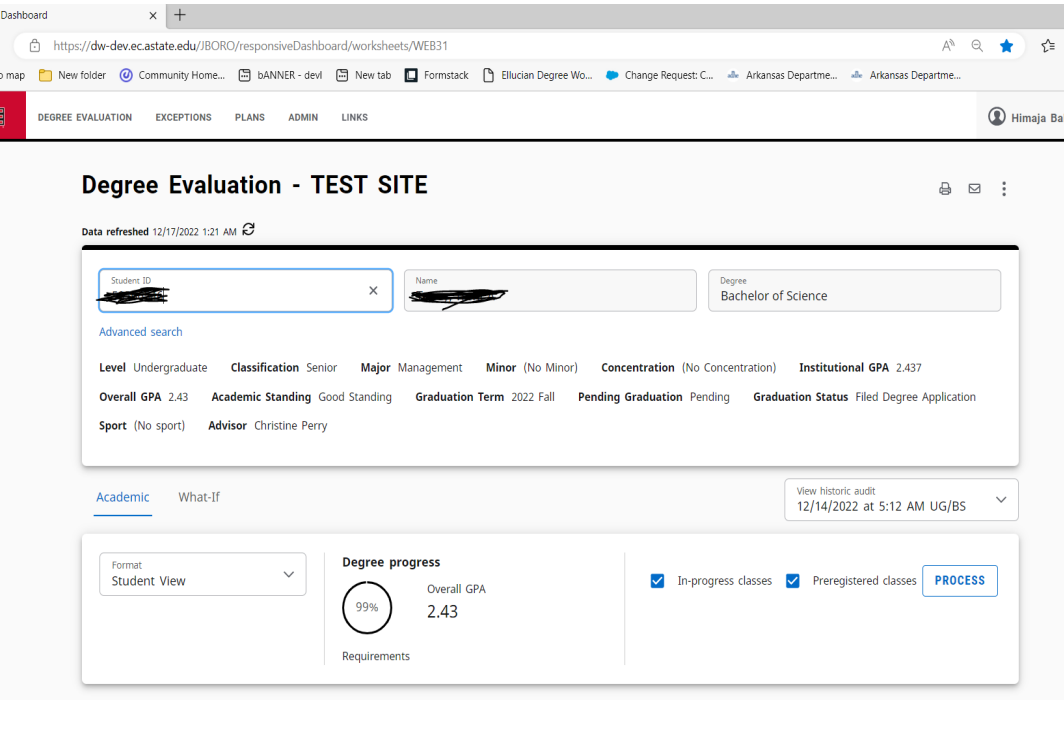
In the Student Header block, important information is displayed from different fields such as the student’s name, ID, classification, academic program information (degree type, college, major, minor,and concentration, if applicable) assigned academic advisor etc.
[](https://kb.astate.edu/uploads/images/gallery/2024-10/image-1729713314902.png)
##### Progress will not equal 100% until all courses are complete and grades have been processed in the system. A graduating senior who has completed all credits and course requirements and is preparing for graduation will reach 98% until the grades are submitted at the end of the term.
#####
*PROCESS*: The date of the last time an audit was run for the student is displayed here. Audits are not updated after students register for classes, have final grades posted, change their major, declare a minor, etc. until you process a new audit. If the last audit date occurred before the last refresh date, a new audit should be processed in order for the most accurate information to be displayed
##### *DATA REFRESHED*: Student data is refreshed in Degree Works from Banner. This displays the last date and time the student’s data was pulled from Banner. Data is refreshed automatically every night. If the data was pulled at 2:00AM and the student registered for classes at 10:00AM that data won’t be reflected in Degree Works until the next refresh.
##### The button next to the date and time can be used to
refresh a single student manually. This should be used sparingly as it slows down both Degree Works and Banner when use
####
Degree Requirements
#####
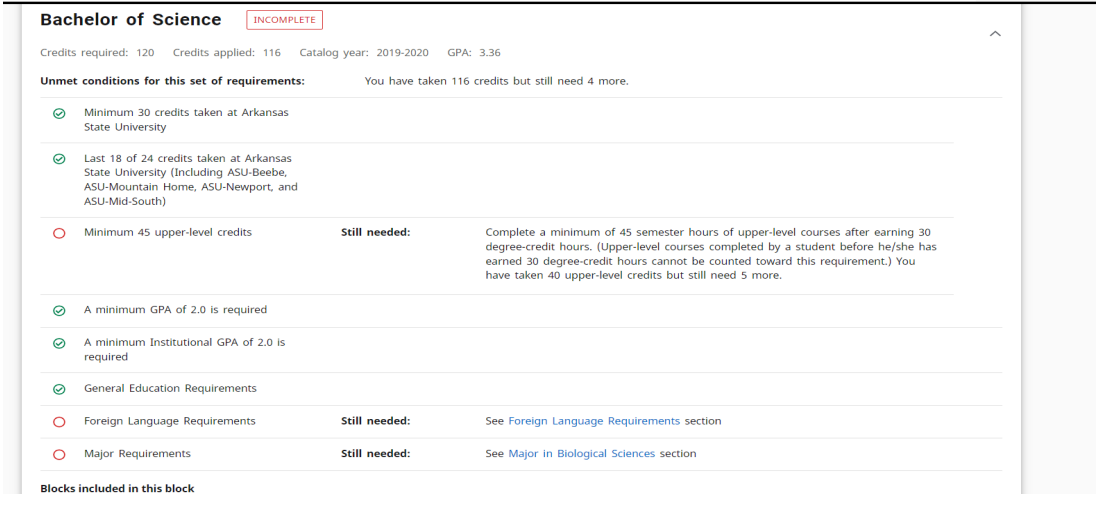
In the new dashboard, requirements are not color coded, but they are displayed in a check box format
that state whether the requirement has been fulfilled or not. Each block header also displays an
Incomplete, In-Progress, Complete label based on the status of the requirements.
The audit is still divided by blocks, but now users can collapse and expand sections for quick navigation
and use the arrows within each block to collapse and expand a single block.
[](https://kb.astate.edu/uploads/images/gallery/2024-10/image-1729713336184.png)
##### The Degree, GENED Requirements, Major, Minor and Concentration (if applicable), Electives (if
applicable), In-progress and/or. blocks are all listed in the same order as before. Other blocks may display depending on the degree that the student is pursuing (Example: Foreign Language requirements)
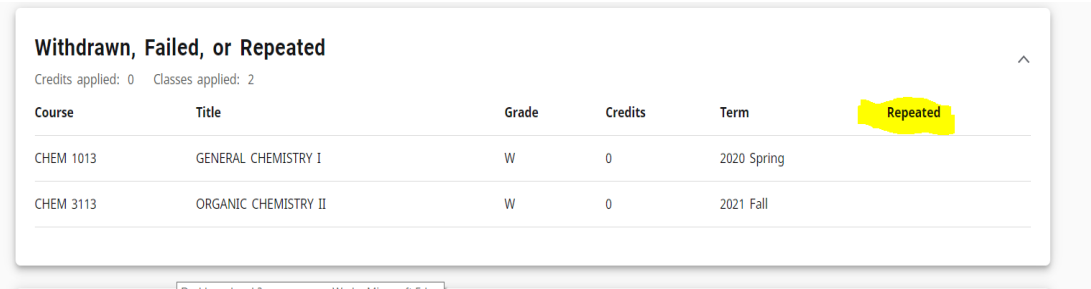
##### In the new dashboard, a Repeated column that indicates a notation of (R) next to a course if the course has been repeated
[](https://kb.astate.edu/uploads/images/gallery/2024-10/image-1729713358246.png)
#### *Legend*
##### In the new dashboard, the checkbox icons are now circles but the colors are similar. Requirements completed will show in green, requirements not complete will show in red, and requirements with classes in-progress will show in blue.
[](https://kb.astate.edu/uploads/images/gallery/2024-10/image-1729713369103.png)
### **What-If and Look Ahead**
#####
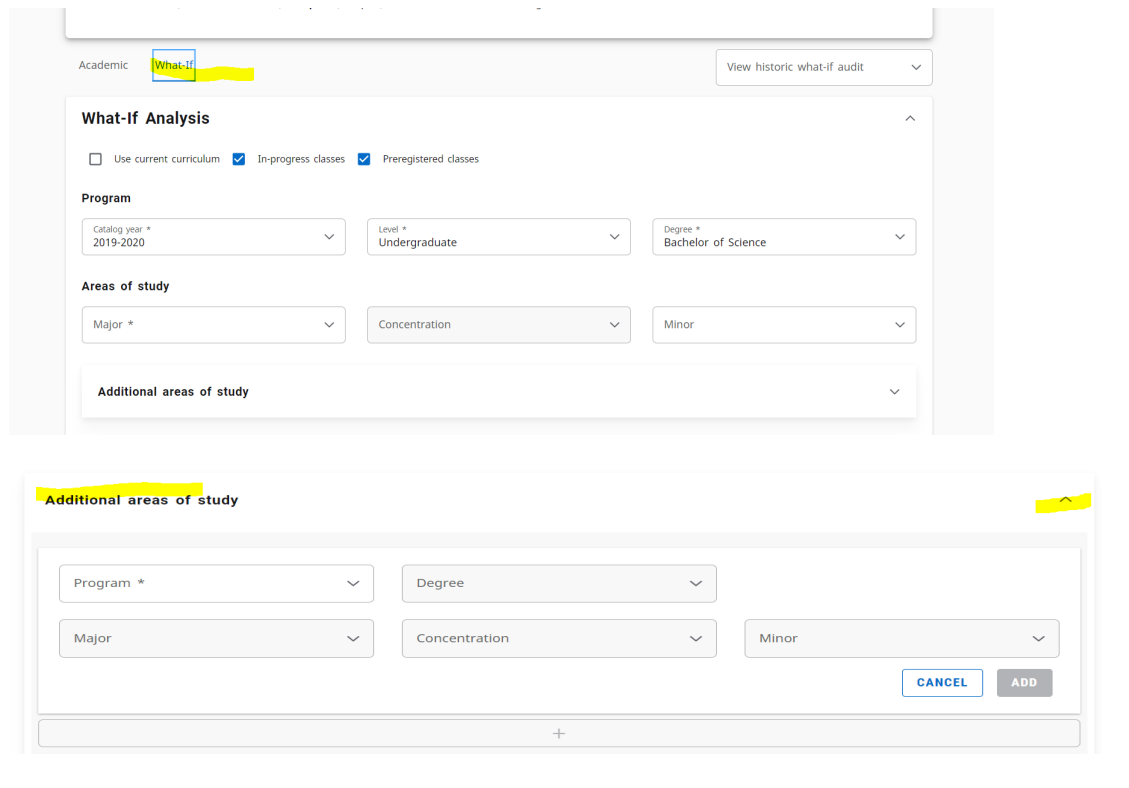
Previously, the What-if function that applies the students’ courses to a different major, minor, concentration, etc. and the Look Ahead function that allows for potential courses to be reviewed against the degree plan to see where the course(s) would fall into a student’s plan, were separate.
#####
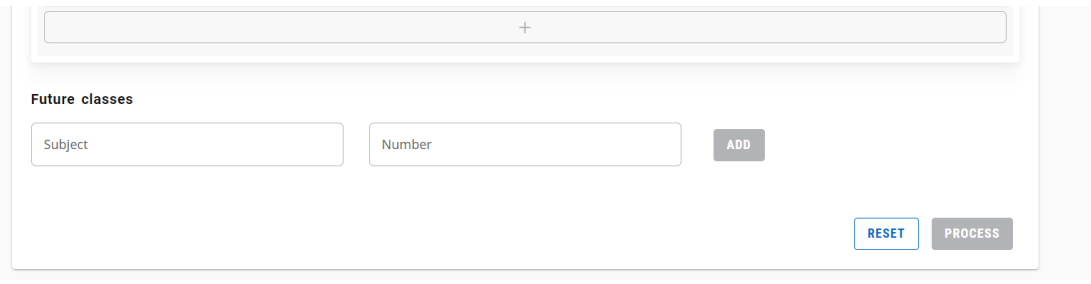
In the new dashboard, the Look Ahead function is now labeled Future Classes and is combined with the What-if function to improve efficiency in the user interface.
#####
The user must still select the catalog year, degree type and major (some majors also require a concentration and/or a minor) but now the user has the option to include or not include In-progress and Preregistered classes.
#####
The Additional areas of study feature also gives the option to add another major, minor, etc. when using the What-if function.
[](https://kb.astate.edu/uploads/images/gallery/2024-10/image-1729713385777.png)
[](https://kb.astate.edu/uploads/images/gallery/2024-10/image-1729713401833.png)