# FACULTY GRADE ENTRY
##### **1. Login to Self Service via [Pack Portal](https://pack.astate.edu)**
**2. Go to “Faculty Grade Entry” on the Self Service home page**
**3. Open the Final Grades tab to display a list of courses where you are an instructor. *Alternatively, if you***
***are entering midterm grades, open the Midterm Grades tab***
[](https://kb.astate.edu/uploads/images/gallery/2024-10/image-1729023883598.png)
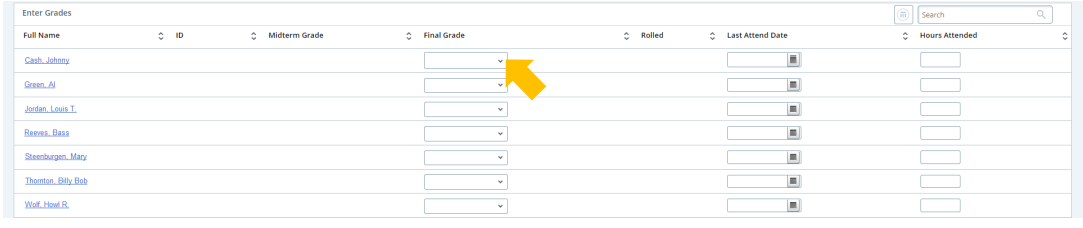
##### **4. Select the relevant class section and your full roster will appear. When grading is available grade drop-down boxes will appear; select a grade from the drop-down for each student**
[](https://kb.astate.edu/uploads/images/gallery/2024-10/image-1729023961540.png)
##### **5. After you have assigned grades, scroll to the bottom and select “Save”**
##### [](https://kb.astate.edu/uploads/images/gallery/2024-10/image-1729024017639.png)**6. You can save and return later if not all grades are available. Classes with missing grades show the**
**grading status “In Progress”, once all grades are entered the grading status changes to “*Completed*”**
[](https://kb.astate.edu/uploads/images/gallery/2024-10/image-1729024070450.png)
##### **You can make changes to entered grades following the steps above until the grades are rolled into academic**
**history. Rolled grades are viewable to the student and available on the student’s transcript.**
#####
**A rolled grade can be identified by a green check in the “*Rolled*” column on the grading roster.**
[](https://kb.astate.edu/uploads/images/gallery/2024-10/image-1729024129105.png)
##### **\*\*If changes are needed after grades roll, a grade change form is required.\*\***