# VIEW STUDENT INFORMATION
##### **1. Login to Self Service via [Pack Portal](https://pack.astate.edu)**
**2. Go to “Advisee Search” on the Self Service home page**
**3. The *Advisee Search page* will open, select a term from the drop-down listing**
[](https://kb.astate.edu/uploads/images/gallery/2024-10/image-1729025777565.png)
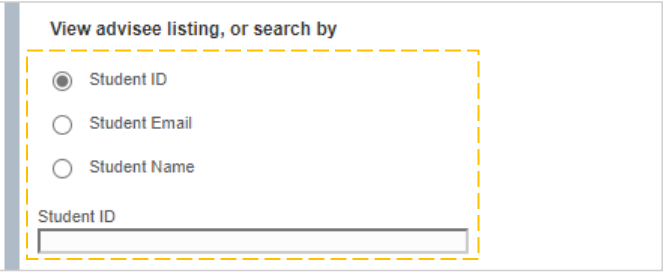
##### **4. Enter the search criteria you’d like to use in your student search**
[](https://kb.astate.edu/uploads/images/gallery/2024-10/image-1729025808843.png)
##### **a. To search by ID number, make sure “Student ID” is selected**
**i. Enter the ID number and hit “Enter” on your keyboard**
**b. To search by email, make sure “Student Email” is selected**
**i. Enter the email address and hit “Enter” on your keyboard**
**ii. You must include “@smail.astate.edu” in your search criteria**
**c. To search by name, make sure “Student Name” is selected**
**i. Enter the student’s name, then select the correct student from the drop-down listing**
**ii. You must use the format “Last Name, First Name” in your search criteria**
**5. Or, to view a listing of your advisee students, select “View My Advisee Listing”**
[](https://kb.astate.edu/uploads/images/gallery/2024-10/image-1729025970012.png)
##### **6. Once a student has been chosen, select “View Profile” to open the student’s profile**
[](https://kb.astate.edu/uploads/images/gallery/2024-10/image-1729026007149.png)
####
**STUDENT PROFILE**
#####
**The student’s name and ID number(1), academic standing(2), overall hours and overall GPA(3), registration notices(4),and any holds on their account(5) can be found across the top of the profile:**
[](https://kb.astate.edu/uploads/images/gallery/2024-10/image-1729026153438.png)
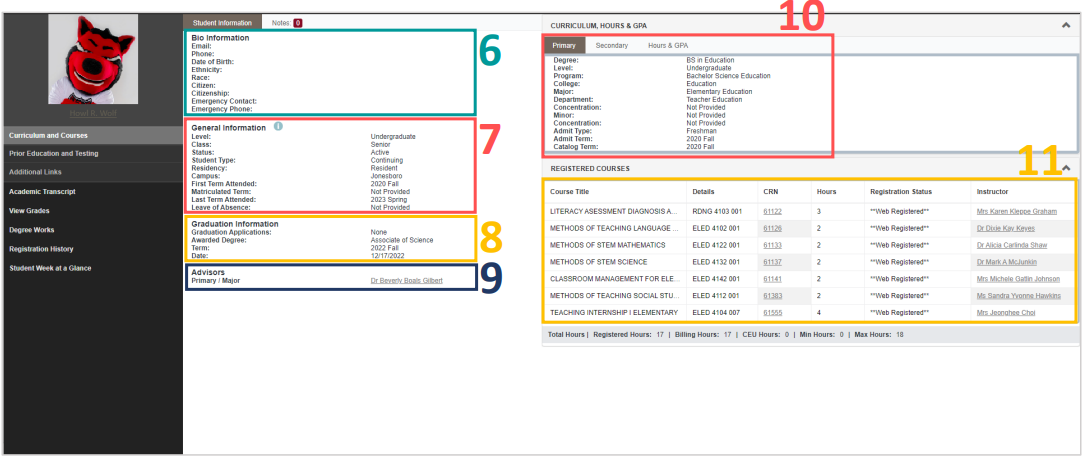
##### **The center section displays the student’s personal information(6) (including email address), general academic information(7), graduation information(8) (including a link to their submitted graduation applications when applicable), and a list of their advisors(9). The right side of the profile displays curriculum information(10) and the**
**student’s course schedule(11) for the selected term:**
[](https://kb.astate.edu/uploads/images/gallery/2024-10/image-1729026390301.png)
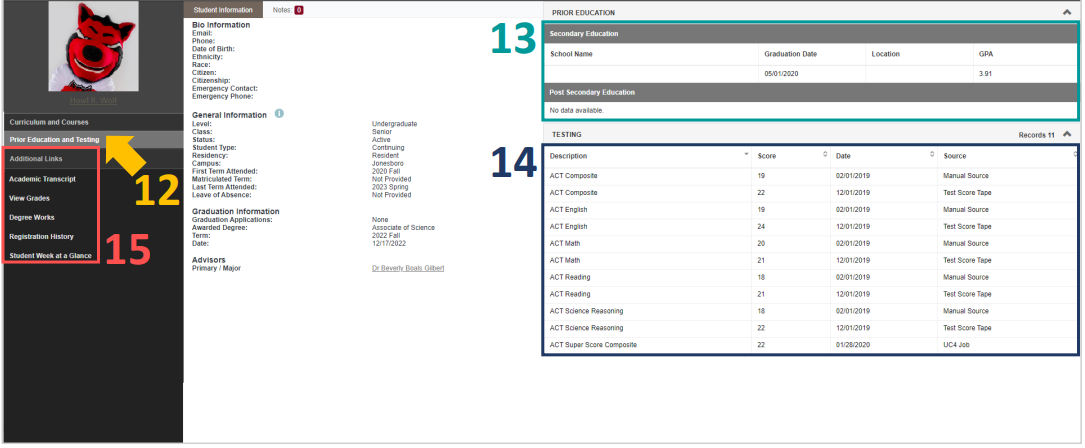
##### **Selecting “Prior Education and Testing(12)” under the student’s photo will change the right side of the profile to display the student’s prior education(13) and test scores(14). Also under the student’s photo are additional links(15) to the student’s transcript, grades, registration history, schedule week at a glance, and a link to Degree Works**
[](https://kb.astate.edu/uploads/images/gallery/2024-10/image-1729026485859.png)