# Banner Self Service General
# UPDATE PERSONAL INFORMATION
You can manage personal information in Self Service. On the Self Service home page:
**1. Select the four-square menu button on the upper left, then select “Banner”**
[](https://kb.astate.edu/uploads/images/gallery/2024-10/screenshot-2024-10-14-133718.png)
**2. Select “Personal Information”**
[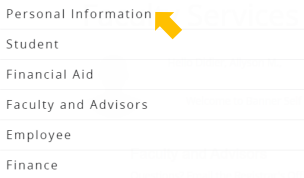](https://kb.astate.edu/uploads/images/gallery/2024-10/screenshot-2024-10-14-134352.png)
**3. Your personal information will be displayed**
[](https://kb.astate.edu/uploads/images/gallery/2024-10/screenshot-2024-10-14-134524.png)
You can manage preferred first name, email, phone number, address, and emergency contact information.
**4. Go to the section for the type of information you’d like to manage**
a. To add an entry, select “Add New”
b. To edit an entry, select the pencil icon
c. To delete an entry, select the trash can icon
**EXAMPLE: Managing Address Information**
1\. To add an address entry, select “**Add New**”
a. Enter the necessary information and select “**Add**”
[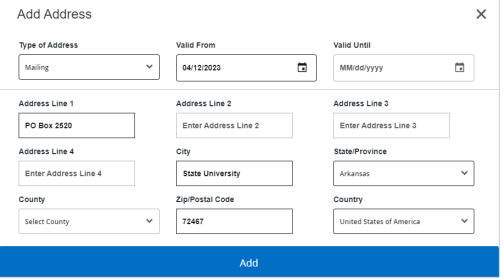](https://kb.astate.edu/uploads/images/gallery/2024-10/screenshot-2024-10-14-134644.png)
**2. To edit an address entry, select the pencil icon**
a. Update the necessary information and select “**Update**”
[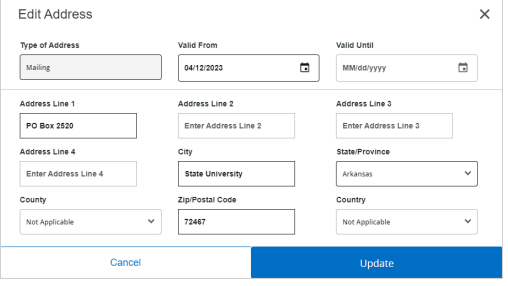](https://kb.astate.edu/uploads/images/gallery/2024-10/screenshot-2024-10-14-134716.png)
**3. To delete an address entry, select the trash can icon**
a. A pop-up will ask you to confirm the deletion, select “**Delete**”
[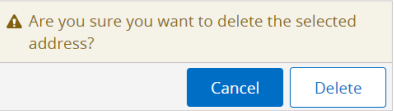](https://kb.astate.edu/uploads/images/gallery/2024-10/screenshot-2024-10-14-134759.png)
# UPDATE PREFERRED FIRST NAME
**To update your preferred first name in Self Service (which then adjusts your display name in Canvas):**
#####
**1. Select the *four-square menu button* on the upper left, then select “Banner”**
[](https://kb.astate.edu/uploads/images/gallery/2024-10/image-1729712888557.png)
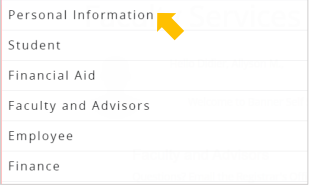
##### **2. Select “Personal Information”**
[](https://kb.astate.edu/uploads/images/gallery/2024-10/image-1729712903522.png)
##### **3. Your personal information will display. Under *Personal Details* select “Edit”**
[](https://kb.astate.edu/uploads/images/gallery/2024-10/image-1729712915971.png)
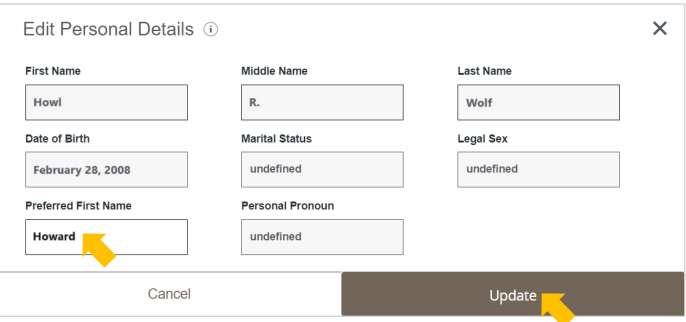
##### **4. Enter your “Preferred First Name” and select “Update”**
[](https://kb.astate.edu/uploads/images/gallery/2024-10/image-1729712938747.png)
##### If you do not see your preferred first name adjusted as your display name in Canvas within 24hours,
please email AOS@AState.edu with your name and ID number for further assistance.