# Campus Wireless
AStateConnect is the Wi-Fi network you will use while on campus. You can log in with your A-State email address and password. Home@AState is the Wi-Fi network used in A-State Campus Housing. Every student living in on-campus housing should have been provided a password for this Wi-Fi network to their A-State student email.
# MacOS (Macbooks / Mac)
The current **AStateSecure** wireless network will be retired at **noon** on **Saturday, Oct. 3**, and will no longer be available after that time.
---
#### Connecting to AStateConnect
**AStateConnect** is the Wi-Fi network you will use while on campus. You log in with your A-State email address and password.
---
1\. Open the **Settings** app on your iOS device. The icon should look like the image below.
[](https://kb.astate.edu/uploads/images/gallery/2021-09/ios-9-settings-icon-full-size-1.jpg)
2\. Tap on **Wi-Fi** on the left hand side of the **Settings** screen.
3\. Tap on **AStateConnect**.
4\. Enter your A-State email address and password and tap **Join**.
5\. A screen will pop up like the image below. Tap **Trust**.
Your device should now be signed into the **AStateConnect** network.
---
#### Disable Private Wi-Fi Addressing
If you are exeriencing issues with the network, you might need to disable private wi-fi addressing. Steps for this can be found [here](https://kb.astate.edu/books/campus-wireless/page/disabling-private-wi-fi-addressing).
---
#### Connecting to Home@AState
**Home@AState** is the Wi-Fi network used in A-State Campus Housing. Every student living in on-campus housing should have been provided a password for this Wi-Fi network to their A-State student email.
---
1\. Open the **Settings** app on your iOS device. The icon should look like the image below.
[](https://kb.astate.edu/uploads/images/gallery/2021-09/ios-9-settings-icon-full-size-1.jpg)
2\. Tap on **Wi-Fi** on the left hand side of the **Settings** screen.
[](https://kb.astate.edu/uploads/images/gallery/2021-10/1.PNG)
3\. Tap on **Home@AState**.
4\. Enter the **Home@AState** password provided via A-State student email and tap **Join**.
Your device should now be signed into the **Home@AState** network.
If you have not received your **Home@AState** password, you can use this **[GUIDE](https://kb.astate.edu/books/campus-wireless/page/how-to-request-a-home-at-astate-wi-fi-password)** for help requesting a new password.
---
For further assistance, contact the ITS Help Desk at 870-972-3933 or stop by IT Support Services (). It is located on the bottom floor of the Dean B. Ellis Library, Room 149.
# Android Devices
The current **AStateSecure** wireless network will be retired at **noon** on **Saturday, Oct. 3**, and will no longer be available after that time.
---
#### Connecting to AStateConnect
**AStateConnect** is the Wi-Fi network you will use while on campus. You log in with your full A-State email address and password.
---
1\. Open the **Settings** on your Android device. The icon should look like the image below.
[](https://kb.astate.edu/uploads/images/gallery/2023-12/androidsettings.jpg)
2\. Scroll and tap on **Connections**.
[](https://kb.astate.edu/uploads/images/gallery/2023-12/androidsettingsmenu.jpg)
3\. Tap on **Wi-Fi**.
[](https://kb.astate.edu/uploads/images/gallery/2023-12/androidconnections.jpg)
4\. Tap on **AStateConnect**.
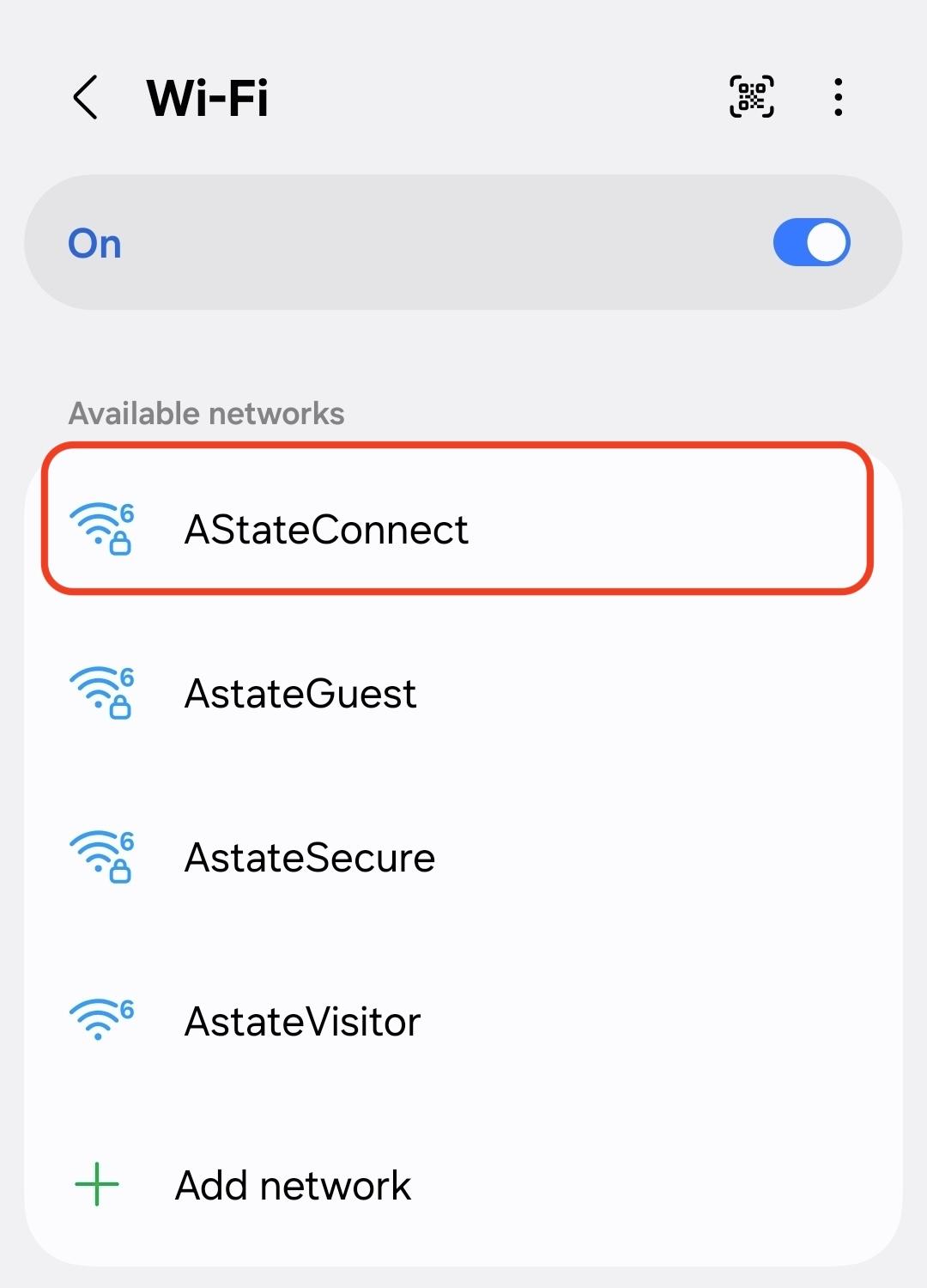
5\. For the EAP Method, you will need to select **PEAP.**
6\. For the Phase 2 Authentication, you will need to select **MSCHAPV2**.
7\. Enter your A-State email address under **Identity** and your A-State password under **Password**. Leave the **Anonymous Identity** field blank.
8\. For Certificates, select **Do Not Validate** or **Do Not Check.**
9\. If prompted for the domain, enter **astate.edu**.
10\. Set MAC address type to **Phone MAC**.
11\. Tap **Connect**.
Your device should now be signed into the **AStateConnect** network.
---
#### Connecting to Home@AState
**Home@AState** is the Wi-Fi network used in A-State Campus Housing. Every student living in on-campus housing should have been provided a password for this Wi-Fi network to their A-State student email.
---
1\. Open the **Settings** on your Android device. The icon should look like the image below.
[](https://kb.astate.edu/uploads/images/gallery/2023-12/androidsettings.jpg)
2\. Scroll and tap on **Connections**.
[](https://kb.astate.edu/uploads/images/gallery/2023-12/androidsettingsmenu.jpg)
3\. Tap on **Wi-Fi**.
[](https://kb.astate.edu/uploads/images/gallery/2023-12/androidconnections.jpg)
4\. Tap **Home@AState**.
5\. Enter the **Home@AState** password provided via email.
6\. Tap **Connect**.
Your device should be now be signed into the **Home@AState** network.
If you have not received your **Home@AState** password, you can use this **[GUIDE](https://kb.astate.edu/books/campus-wireless/page/how-to-request-a-home-at-astate-wi-fi-password)** for help requesting a new password.
---
For further assistance, contact the ITS Help Desk at 870-972-3933 or stop by IT Support Services (). It is located on the bottom floor of the Dean B. Ellis Library, Room 149.
# Google Pixel
The current **AStateSecure** wireless network will be retired at **noon** on **Saturday, Oct. 3**, and will no longer be available after that time.
---
#### Connecting to AStateConnect
**AStateConnect** is the Wi-Fi network you will use while on campus. You log in with your A-State email address and password.
---
1\. Open the **Settings** on your Google Pixel. The icon should look like the image below.
[](https://kb.astate.edu/uploads/images/gallery/2023-12/androidsettings.jpg)
2\. Scroll and tap on **Connections**.
[](https://kb.astate.edu/uploads/images/gallery/2023-12/androidsettingsmenu.jpg)
3\. Tap on **Wi-Fi**.
[](https://kb.astate.edu/uploads/images/gallery/2023-12/androidconnections.jpg)
4\. Tap on **AStateConnect**.
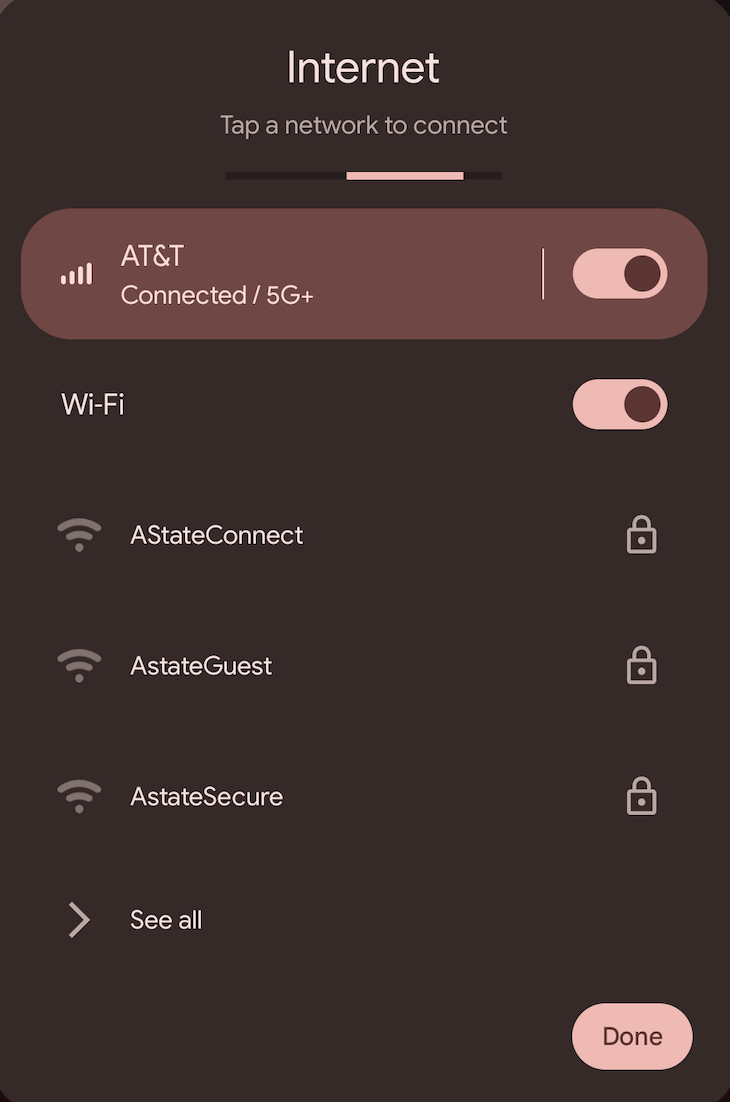
5\. For the EAP Method, you will need to select **PEAP.**
6\. For the Phase 2 Authentication, you will need to select **MSCHAPV2**.
7\. Enter your A-State email address under **Identity** and your A-State password under **Password**.
8\. Leave the **Anonymous Identity** field blank (it populates automatically so it needs to be cleared).
9\. For Certificates, select **Use System Certificates** (select **TLS 1.0, Request Certificate Status**).
10\. If prompted for the domain, enter **astate.edu**.
11\. Change Randomized MAC Address to **Device MAC**.
11\. Tap **Connect**.
Your device should now be signed into the **AStateConnect** network.
---
#### Connecting to Home@AState
**Home@AState** is the Wi-Fi network used in A-State Campus Housing. Every student living in on-campus housing should have been provided a password for this Wi-Fi network to their A-State student email.
---
1\. Open the **Settings** on your Google Pixel. The icon should look like the image below.
[](https://kb.astate.edu/uploads/images/gallery/2023-12/androidsettings.jpg)
2\. Scroll and tap on **Connections**.
[](https://kb.astate.edu/uploads/images/gallery/2023-12/androidsettingsmenu.jpg)
3\. Tap on **Wi-Fi**.
[](https://kb.astate.edu/uploads/images/gallery/2023-12/androidconnections.jpg)
4\. Tap **Home@AState**.
5\. Enter the **Home@AState** password provided via email.
6\. Tap **Connect**.
Your device should be now be signed into the **Home@AState** network.
If you have not received your **Home@AState** password, you can use this **[GUIDE](https://kb.astate.edu/books/campus-wireless/page/how-to-request-a-home-at-astate-wi-fi-password)** for help requesting a new password.
---
If you would like to reconnect to **AStateConnect** or **Home@AState**, you will need to go through the above steps to reconnect.
---
For further assistance, contact the ITS Help Desk at 870-972-3933 or stop by IT Support Services (). It is located on the bottom floor of the Dean B. Ellis Library, Room 149.
# Windows
The current **AStateSecure** wireless network will be retired at **noon** on **Saturday, Oct. 3**, and will no longer be available after that time.
---
#### Connecting to AStateConnect
**AStateConnect** is the Wi-Fi network you will use while on campus. You log in with your A-State email address and password.
---
1\. Click the **Network** icon in the taskbar.
2\. Click **AStateConnect** and then click **Connect**.
3\. Enter your full A-State email address and password.
4\. Click **Next**.
Your device should now be signed into the **AStateConnect** network.
---
#### Connecting to Home@AState
**Home@AState** is the Wi-Fi network used in A-State Campus Housing. Every student living in on-campus housing should have been provided a password for this Wi-Fi network to their A-State student email.
---
1\. Click the **Network** icon in the taskbar.
2\. Click **Home@AState** and then click **Connect**.
3\. Enter the **Home@AState** password provided via A-State student email.
4\. Click **Next**.
Your device should now be signed into the **Home@AState** network.
If you have not received your **Home@AState** password, you can use this **[GUIDE](https://kb.astate.edu/books/campus-wireless/page/how-to-request-a-home-at-astate-wi-fi-password)** for help requesting a new password.
---
For further assistance, contact the ITS Help Desk at 870-972-3933 or stop by IT Support Services (). It is located on the bottom floor of the Dean B. Ellis Library, Room 149.
# iOS Devies (iPhone / iPad)
The current **AStateSecure** wireless network will be retired at **noon** on **Saturday, Oct. 3**, and will no longer be available after that time.
---
#### Connecting to AStateConnect
**AStateConnect** is the Wi-Fi network you will use while on campus. You log in with your A-State email address and password.
---
1. Open the **Settings** app on your iOS device.

2\. Tap **Wifi**.
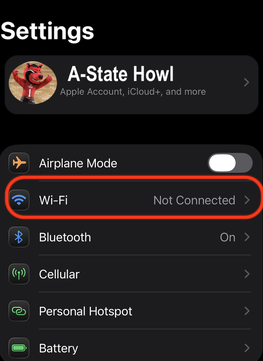
3\. Tap **AStateConnect**
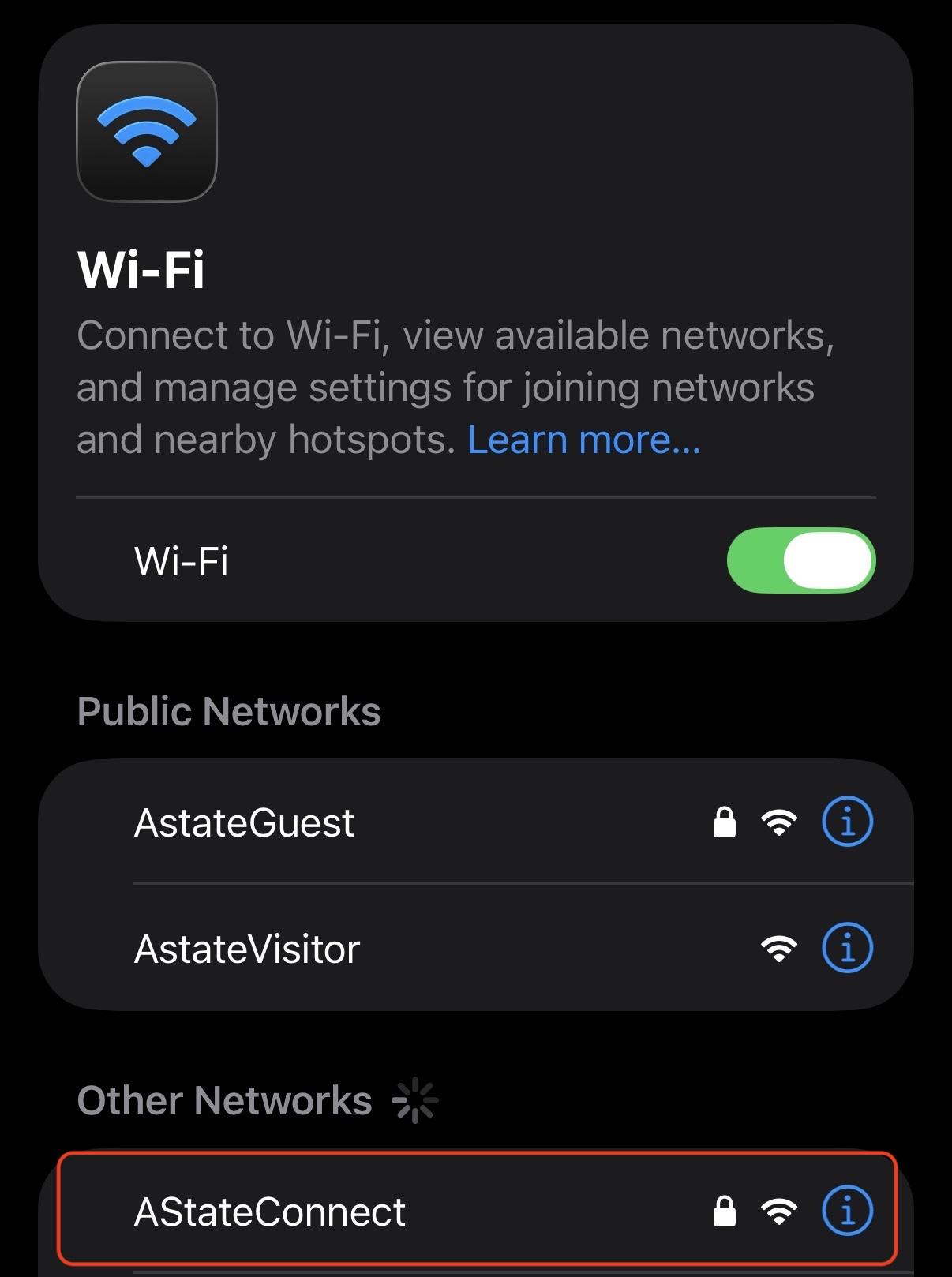
4\. Sign in with your full A-State email and password
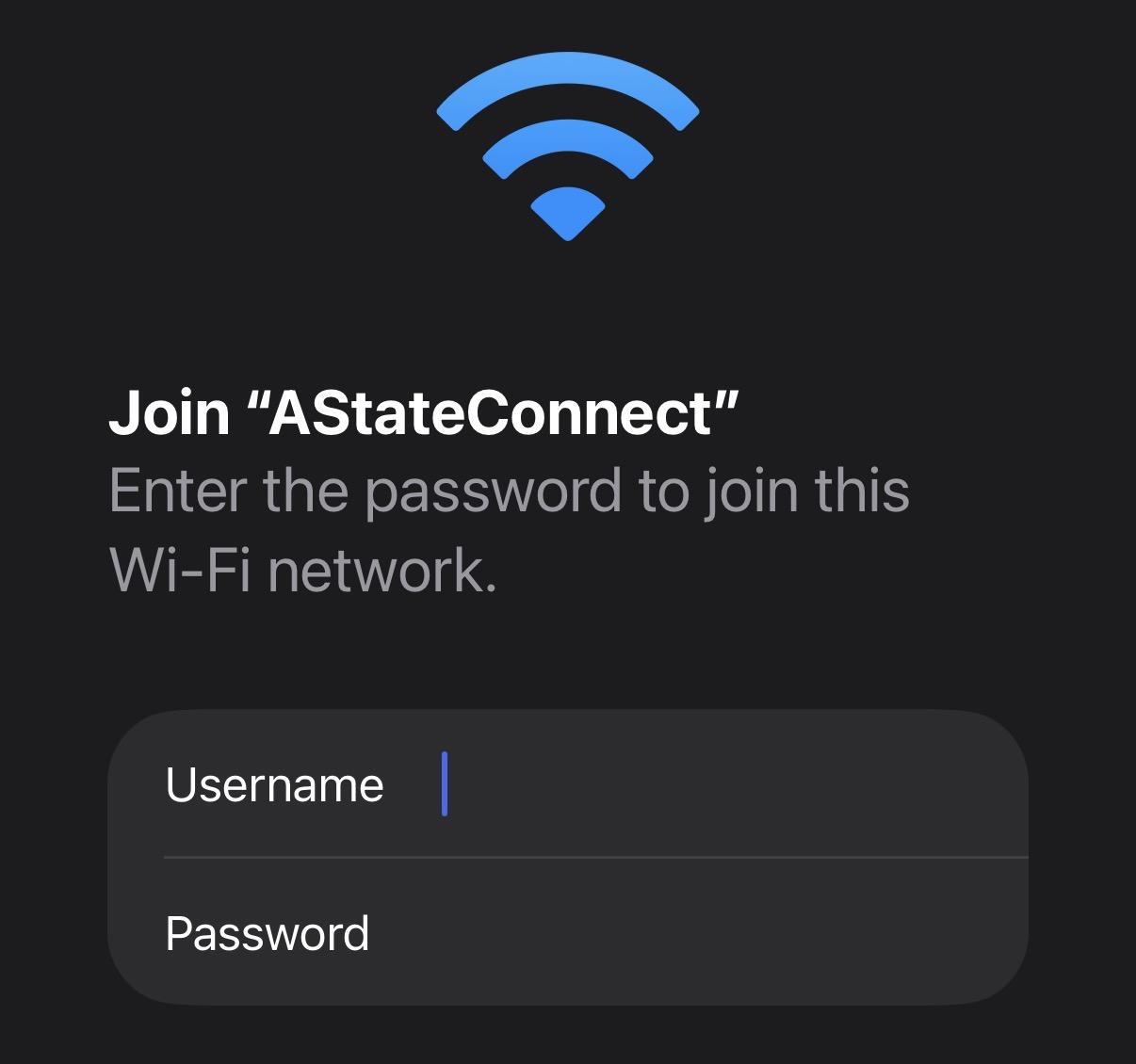
5. Tap **Trust** on the Certificate prompt
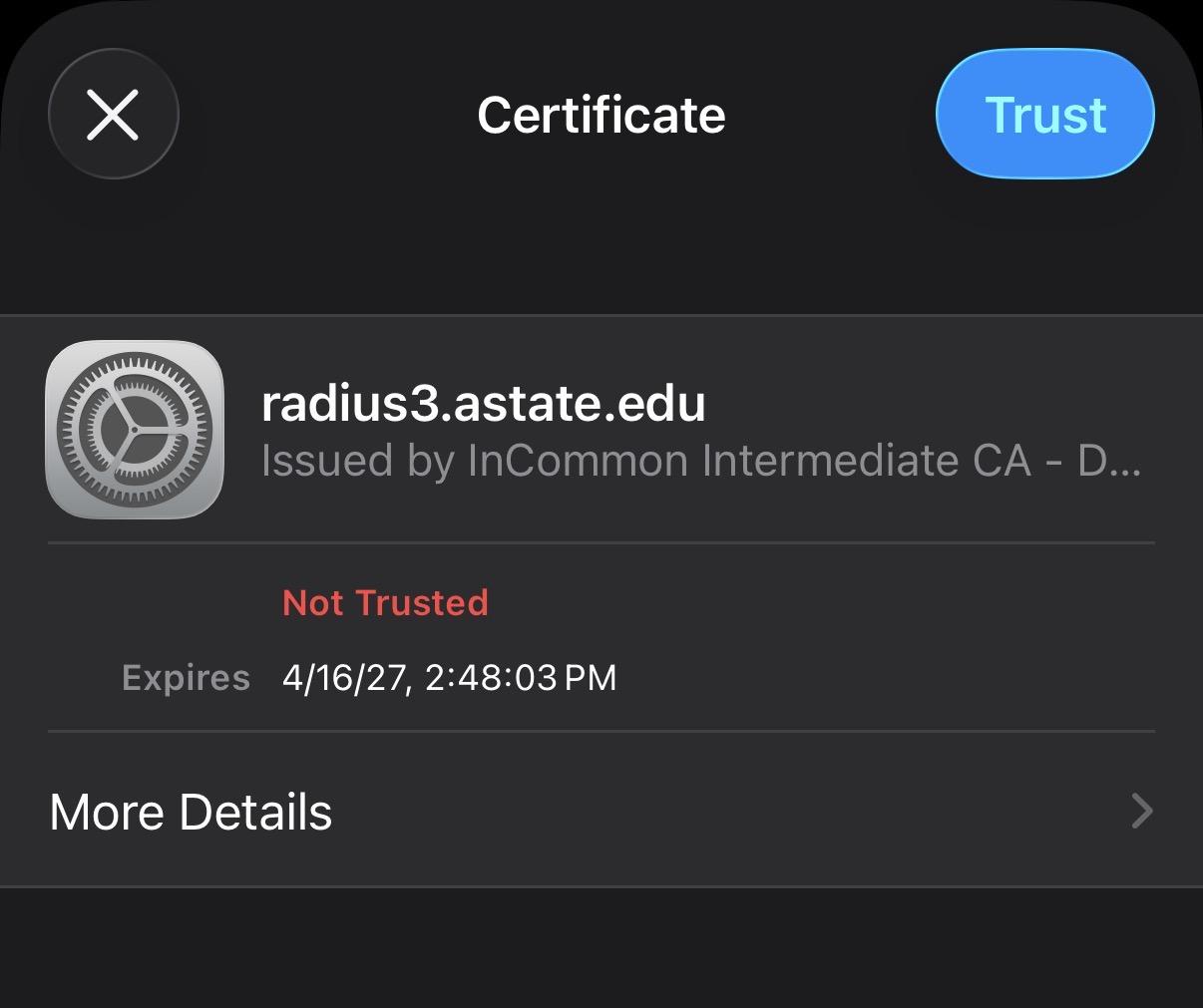
Your device should now be signed into the **AStateConnect** network.
---
#### Connecting to Home@AState
---
1. Open your devices **Settings** app
2. Tap on the **Wi-Fi**

2\. Tap **Home@AState**.
3\. Enter the password provided via A-State student email.
4\. Click **Join**.
Your device should now be signed into the **Home@AState** network.
If you have not received your **Home@AState** password, you can use this **[GUIDE](https://kb.astate.edu/books/campus-wireless/page/how-to-request-a-home-at-astate-wi-fi-password)** for help requesting a new password.
---
For further assistance, contact the ITS Help Desk at 870-972-3933 or stop by IT Support Services (). It is located on the bottom floor of the Dean B. Ellis Library, Room 149.
# Chromebook
The current **AStateSecure** wireless network will be retired at **noon** on **Saturday, Oct. 3**, and will no longer be available after that time.
---
#### Connecting to AStateConnect
**AStateConnect** is the Wi-Fi network you will use while on campus. You log in with your A-State email address and password.
---
1\. Go to **Settings** on your device.
2\. Scroll and click on **Network and Internet**.
3\. Click on **Wi-Fi**.
4\. Click on **AStateConnect**.
5\. For the EAP Method, you will need to select **PEAP.**
6\. For the Phase 2 Authentication, you will need to select **MSCHAPV2**.
7\. Enter your A-State email address under **Identity** and your A-State password under **Password**. Leave the **Anonymous Identity** field blank.
8\. For Certificates, select **Do Not Validate** or **Do Not Check**.
9\. If prompted for the domain, enter **astate.edu**
10\. Then click **Connect**.
Your device should now be signed into the **AStateConnect** network.
---
#### Connecting to Home@Astate
**Home@AState** is the Wi-Fi network used in A-State Campus Housing. Every student living in on-campus housing should have been provided a password for this Wi-Fi network to their A-State student email.
---
1\. Go to **Settings** on your device.
2\. Scroll and click on **Network and Internet**.
3\. Click on **Wi-Fi**.
4\. Click on **Home@AState**.
5\. Enter the **Home@AState** password provided via A-State student email.
6\. Click **Connect**.
Your device should be now be signed into the **Home@AState** network.
If you have not received your **Home@AState** password, you can use this **[GUIDE](https://kb.astate.edu/books/campus-wireless/page/how-to-request-a-home-at-astate-wi-fi-password)** for help requesting a new password
---
For further assistance, contact the ITS Help Desk at 870-972-3933 or stop by IT Support Services (). It is located on the bottom floor of the Dean B. Ellis Library, Room 149.
# How to Submit a Help Desk Ticket
---
If you experience issues or errors when trying to login to the **AStateConnect** network, please try forgetting the Wi-Fi network and trying to reconnect. There are instructions on how to do this for various different devices below.
If you did not receive or cannot find your **Home@AState** password or if you are experiencing networking issues within your dorm, submit a Help Desk Ticket so we can help you get this matter resolved. Here are the instructions for this:
---
1\. Go to [pack.astate.edu.](https://pack.astate.edu/)
[](https://kb.astate.edu/uploads/images/gallery/2025-05/image-1747341110902.png)
2\. Click **Log In** on the top right corner of the screen.
3\. Enter your full A-State email address and click **Next**.
[](https://kb.astate.edu/uploads/images/gallery/2025-05/image-1747341135131.png)
4\. Enter your A-State password and click **Login**.

5. Authenticate using **Microsoft Authenticator** on your mobile device.
 
6\. Click **IT Services** on the left.
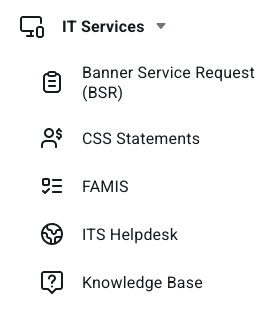
7\. Click **ITS Helpdesk**.
5\. If not already, click on **Sign In** located at the top right of the screen.
[](https://kb.astate.edu/uploads/images/gallery/2022-02/1.png)
6\. Enter your full A-State email address and password and click **Login**.
[](https://kb.astate.edu/uploads/images/gallery/2025-05/image-1747341283228.png)
7\. Authenticate using **Microsoft Authenticator** on your mobile device.
 
8\. Click on **Get Started**.
[](https://kb.astate.edu/uploads/images/gallery/2023-12/getstarted.png)
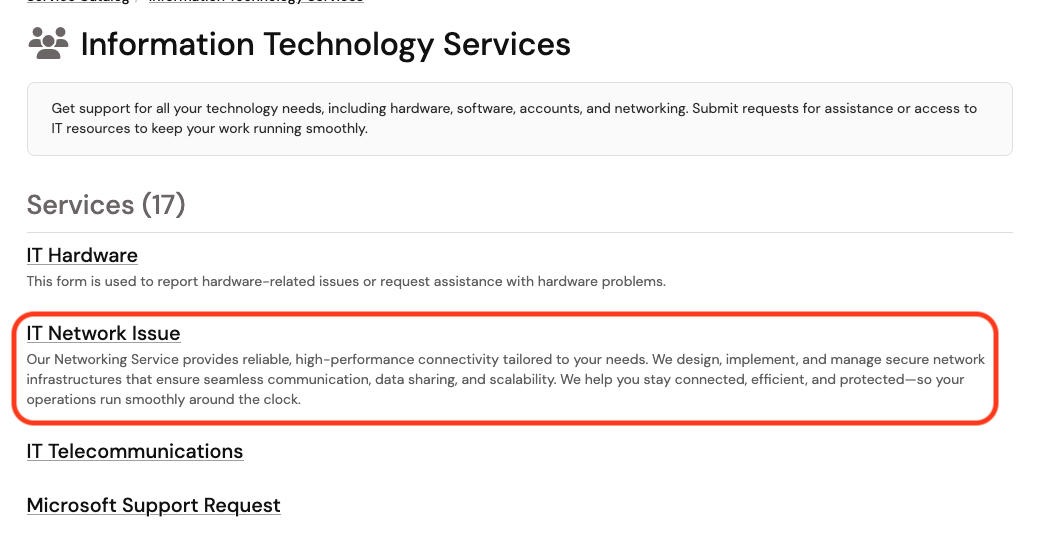
9\. Note the categories of issues that you can submit a ticket for. For this example, click on **Information Technology Services**.
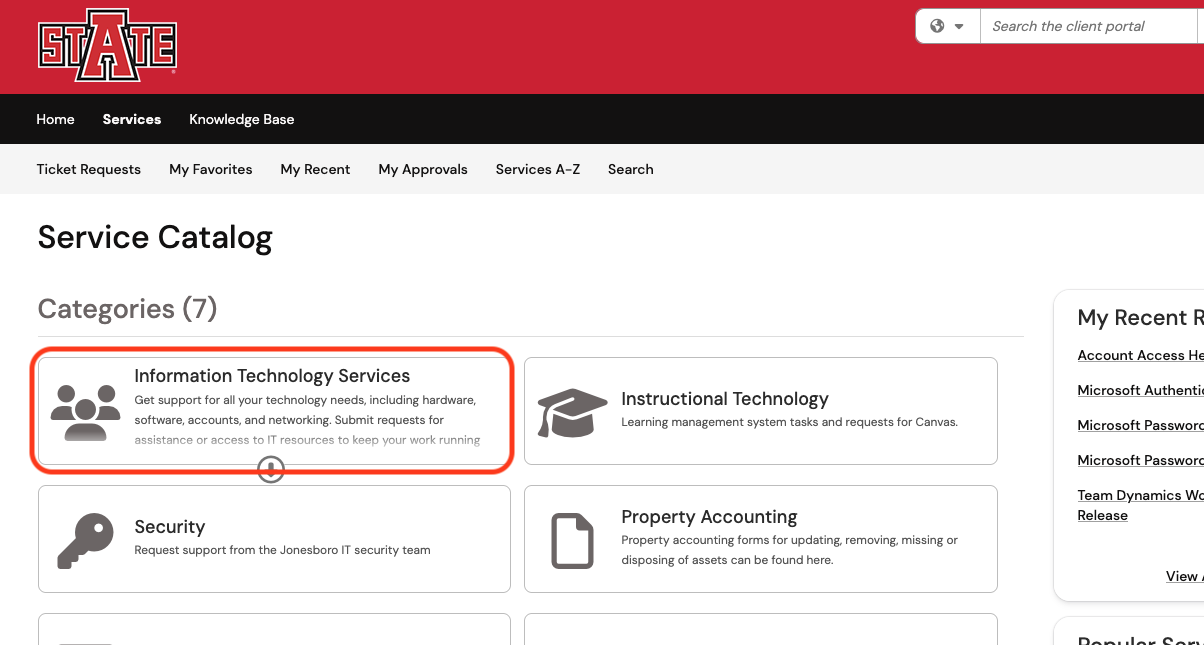
10\. Here you would choose the option that closest matches the issue you are currently having. For this example, click **IT Network Issue**
11\. Click **Submit a Request**
[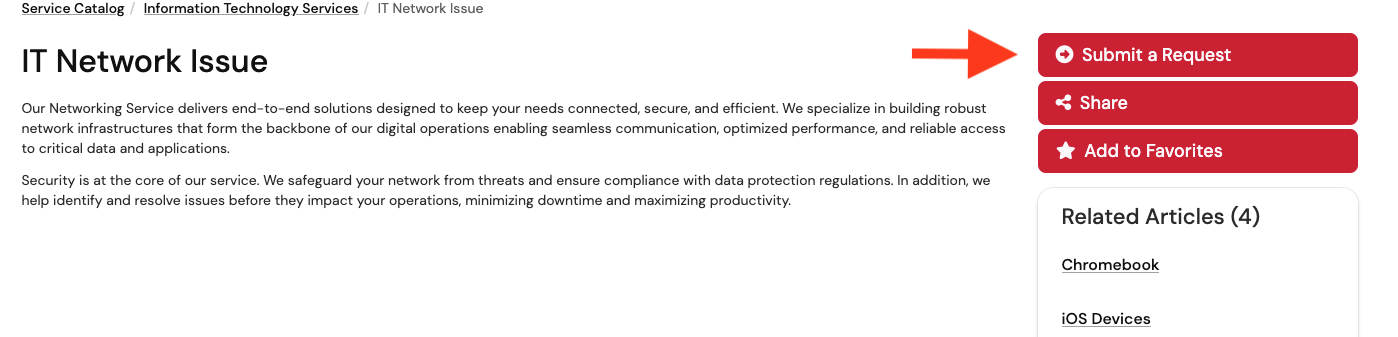](https://kb.astate.edu/uploads/images/gallery/2026-10/network-ticket-submit.png)
12\. Fill out the form with the requested information. Click **Request** to submit your ticket. The Help Desk will then read your ticket and route it to the correct department.
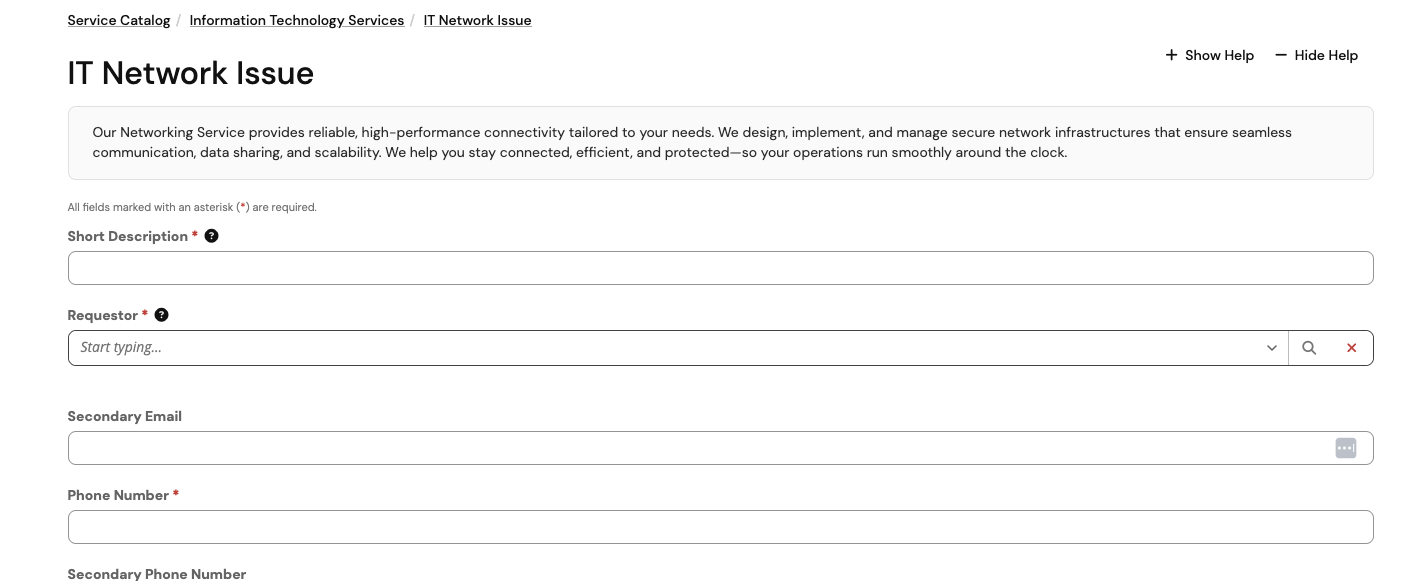
[](https://kb.astate.edu/uploads/images/gallery/2022-02/6.png)
For further assistance, contact the ITS Help Desk at 870-972-3933 or stop by IT Support Services (). It is located on the bottom floor of the Dean B. Ellis Library, Room 149.
# How to Request a Home@AState Wi-Fi Password
---
If you are living on campus you will connect to the **Home@AState** Wi-Fi network. To request a password you will need to submit a ticket which should include your building name and room number. A password will then be assigned and emailed to you.
---
1\. Go to [pack.astate.edu.](https://pack.astate.edu/)
[](https://kb.astate.edu/uploads/images/gallery/2025-05/image-1747341110902.png)
2\. Click **Log In** on the top right corner of the screen.
3\. Enter your full A-State email address and click **Next**.
[](https://kb.astate.edu/uploads/images/gallery/2025-05/image-1747341135131.png)
4\. Enter your A-State password and click **Login**.

5. Authenticate using **Microsoft Authenticator** on your mobile device.
 
6\. Click **IT Services** on the left.
[](https://kb.astate.edu/uploads/images/gallery/2026-08/new-its.png)
7\. Click **ITS Helpdesk**.
5\. Click on **Sign In** located at the top right of the screen.
[](https://kb.astate.edu/uploads/images/gallery/2022-02/1.png)
6\. Enter your full A-State email address and password and click **Login**.
[](https://kb.astate.edu/uploads/images/gallery/2025-05/image-1747341283228.png)
7\. Authenticate using **Microsoft Authenticator** on your mobile device.
 
8\. Click on **Get Started**.
[](https://kb.astate.edu/uploads/images/gallery/2023-12/getstarted.png)
9. Scroll to the bottom of the page and click **Get Help**.
[](https://kb.astate.edu/uploads/images/gallery/2023-12/image-1701463697567.png)
10\. Click **Create A Ticket**.[](https://kb.astate.edu/uploads/images/gallery/2023-12/image-1701463802562.png)
10\. Fill out the required fields on the form with your full A-State email address, phone number, building name, room number, and a subject of **Home@AState password request**.
11\. This will be sent to our Housing and Student Support team and they will generate a password and email it to your A-State email address. The email should come from **no-reply@extremecloudiq.com**. If you do not see the email in your inbox, check your spam folder.
For further assistance, contact the ITS Help Desk at 870-972-3933 or stop by IT Support Services (). It is located on the bottom floor of the Dean B. Ellis Library, Room 149.
# Disabling Private Wi-Fi Addressing
**Why You Need to Turn Off Private Wi-Fi Addressing at Astate**
To connect to AStateConnect, you must disable private Wi-Fi addressing. This setting causes your device to use a random MAC address, which can lead to connection issues and interfere with campus network security and performance.
Disabling it ensures stable access, better support, and a secure experience for everyone.
---
#### iOS Devices
---
1\. Open the **Settings** app on your iOS device. The icon should look like the image below.
[](https://kb.astate.edu/uploads/images/gallery/2021-09/ios-9-settings-icon-full-size-1.jpg)
2\. Tap on **Wi-Fi** on the left hand side of the **Settings** screen.
[](https://kb.astate.edu/uploads/images/gallery/2021-10/1.PNG)
3\. Find the Wi-Fi network in the list on the right side of the screen; you should see an **information symbol**.
[](https://kb.astate.edu/uploads/images/gallery/2023-12/image-1702590390007.png)
4\. Tap on the **information symbol**.
5\. Tap to turn **Private Address** on or off. If your device joined the network without using a private address, a privacy warning explains why.
[](https://kb.astate.edu/uploads/images/gallery/2023-12/image-1702590468213.png)
---
#### Apple Watch
---
1\. Open the **Settings** app.
2\. Tap on **Wi-Fi.**
3\. Tap the name of the network you joined. If you haven't joined the network yet, swipe left on its name and tap more.
[](https://kb.astate.edu/uploads/images/gallery/2023-12/image-1702590578835.png)
4\. Tap to turn **Private Address** on or off.
[](https://kb.astate.edu/uploads/images/gallery/2023-12/image-1702590633894.png)
---
#### Google Pixel
---
1\. Open the **Settings** app.
2\. Tap on **Network and Internet**.
3\. Tap on **Wi-Fi**.
4\. Connect to the Wireless network in your area.
5\. Tap the gear icon next to the current Wi-Fi connection.
6\. Tap on **Advanced**.
7\. Tap on **Privacy**.
8\. Tap on **Use device MAC**.
---
#### Samsung Galaxy
---
1\. Open the **Settings** app.
2\. Tap **Connections**.
3\. Tap **Wi-Fi**.
4\. Tap **AStateConnect** or **Home@AState**.
5\. Tap the gear shaped icon next to the network you connected to.
6\. Tap **Advanced**.
7\. Tap **MAC Address Type**.
8\. Select **Use Phone/Device MAC**.
---
#### Windows
---
1\. Click on the **Network Settings** icon in the bottom right of the screen.
[](https://kb.astate.edu/uploads/images/gallery/2023-12/image-1702591168927.png)
2\. Click on **Network & Internet settings**.
[](https://kb.astate.edu/uploads/images/gallery/2023-12/image-1702591215436.png)
3\. Select the **Wi-Fi** tab on the left.
[](https://kb.astate.edu/uploads/images/gallery/2023-12/image-1702591276999.png)
4\. Turn off **Random hardware addresses**.
[](https://kb.astate.edu/uploads/images/gallery/2023-12/image-1702591286936.png)
For further assistance, contact the ITS Help Desk at 870-972-3933 or stop by IT Support Services (). It is located on the bottom floor of the Dean B. Ellis Library, Room 149.
# Linux
The current **AStateSecure** wireless network will be retired at **noon** on **Saturday, Oct. 3**, and will no longer be available after that time.
---
#### Connecting to AStateConnect
**AStateConnect** is the Wi-Fi network you will use while on campus. You log in with your A-State email address and password.
---
1\. Go to **System Menu** on your device.
2\. In the **Settings** window, go to **Network** in the left-hand sidebar.
3\. Click on **Wi-Fi**.
4\. Click on **AStateConnect**.
5\. For the Wi-Fi security, you will need to select **WPA & WPA2 Enterprise.**
6\. For Authentication, you will need to select Protected EAP (PEAP).
7\. Leave Anonymous identity blank
8\. Leave Domain blank
9\. No CA certificate is required can be checked
10\. PEAP version is Automatic
11\. Inner authentication MSCHAPv2
12\. For the Phase 2 Authentication, you will need to select **MSCHAPV2**.
13\. Enter your A-State email address under **Username** and your A-State password under **Password**.
14\. Then click **Connect**.
Your device should now be signed into the **AStateConnect** network.
---
#### Connecting to Home@Astate
**Home@AState** is the Wi-Fi network used in A-State Campus Housing. Every student living in on-campus housing should have been provided a password for this Wi-Fi network to their A-State student email.
---
1\. Go to **Settings** on your device.
2\. Scroll and click on **Network and Internet**.
3\. Click on **Wi-Fi**.
4\. Click on **Home@AState**.
5\. Enter the **Home@AState** password provided via A-State student email.
6\. Click **Connect**.
Your device should be now be signed into the **Home@AState** network.
If you have not received your **Home@AState** password, you can use this **[GUIDE](https://kb.astate.edu/books/campus-wireless/page/how-to-request-a-home-at-astate-wi-fi-password)** for help requesting a new password.
---
For further assistance, contact the ITS Help Desk at 870-972-3933 or stop by IT Support Services (). It is located on the bottom floor of the Dean B. Ellis Library, Room 149.
# Mac/iOS - AStateConnect Connection Troubleshooting
If you are having trouble connecting to the AStateConnect network on your Macbook or iOS device and it keeps going in a loop and asking you to run a Network Diagnostics, follow these steps to resolve the issue.
First, you will need to temporarily pause your iCloud/Keychain sync on your iPhone
- Open the **Settings** app on your iPhone Troubleshooting
- Tap your name at the very top of the screen
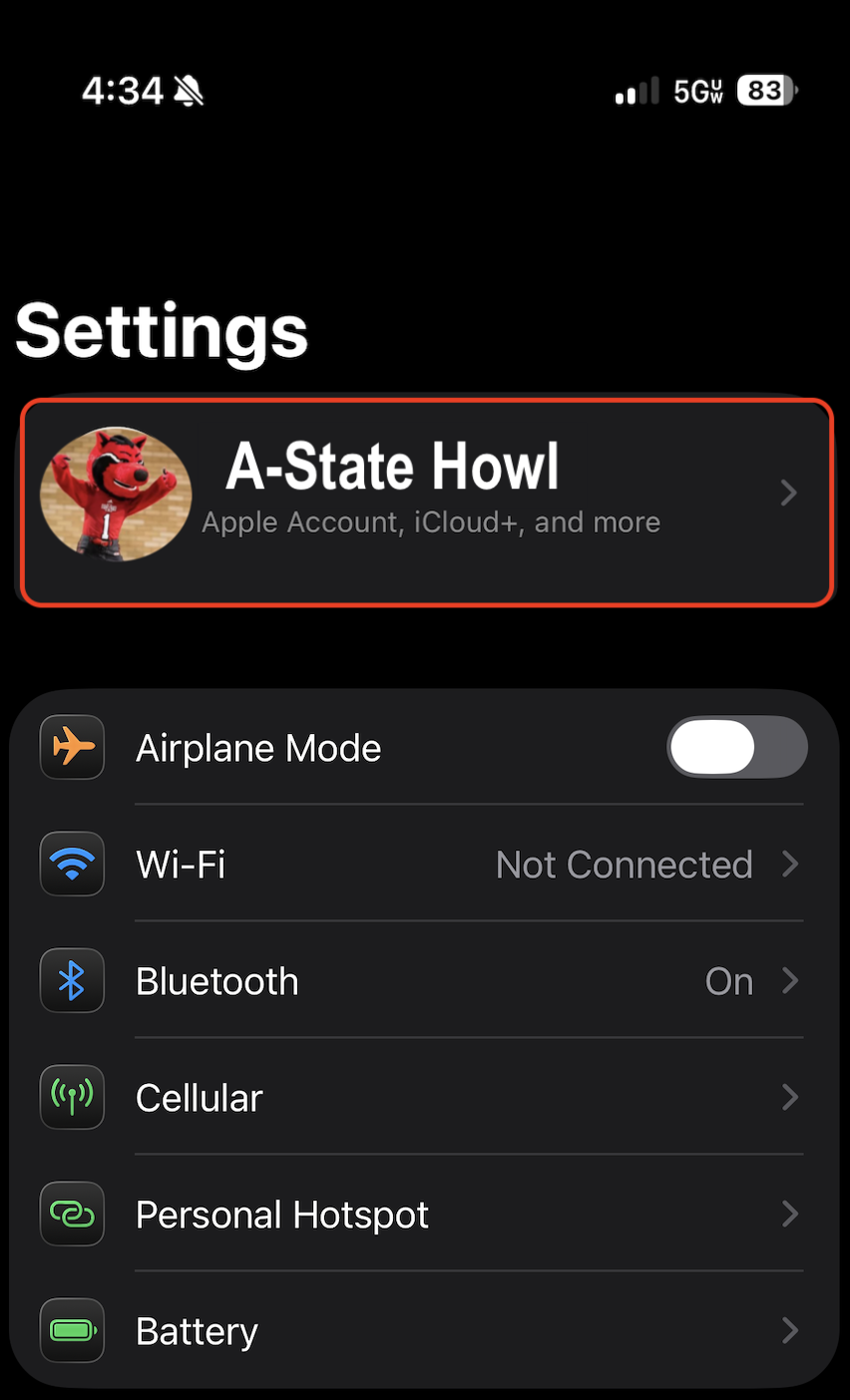
- On the next screen, tap the **iCloud** option
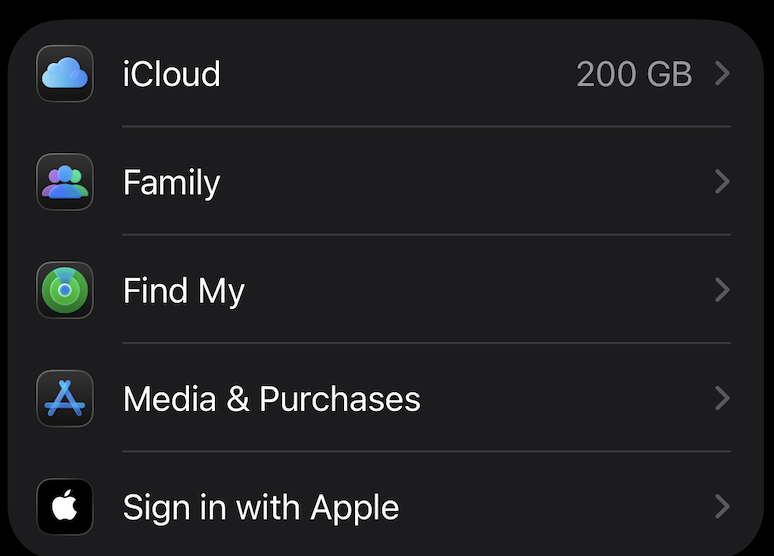
- Tap **Passwords** in the ***Saved to iCloud*** sections
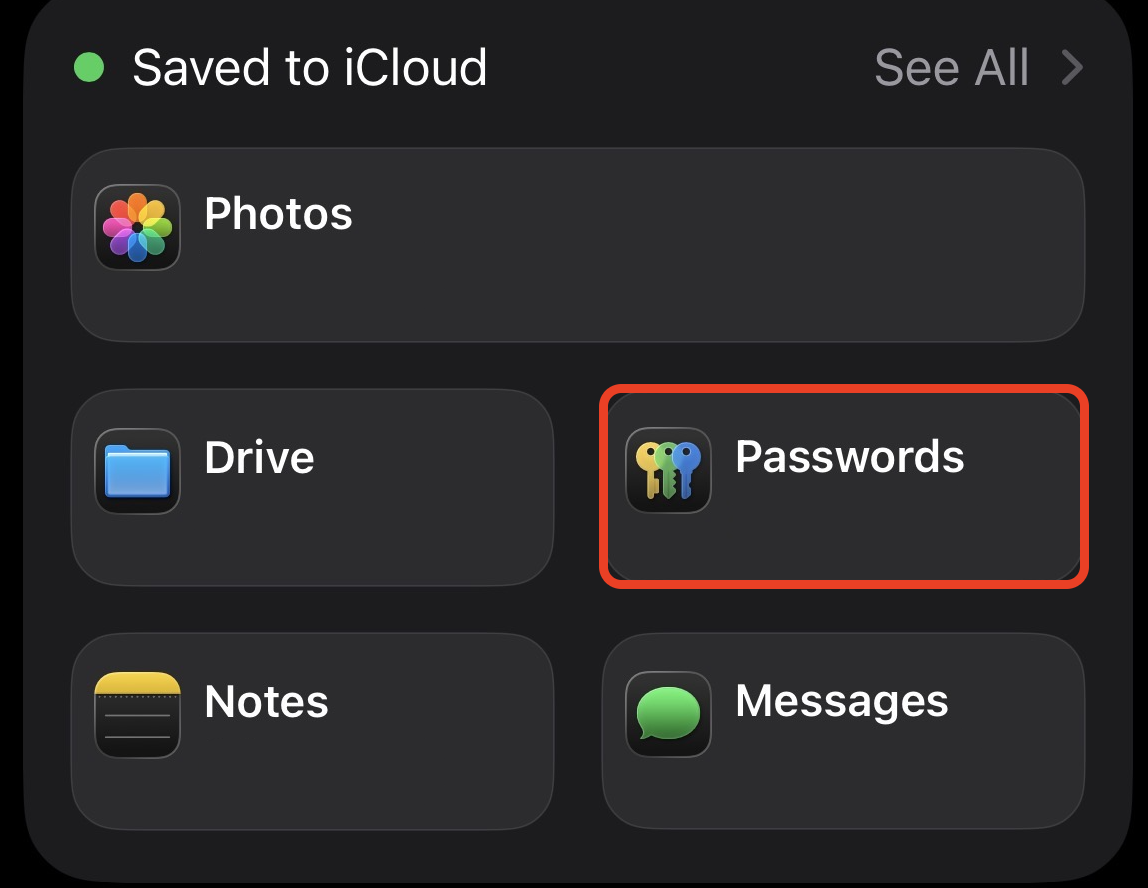
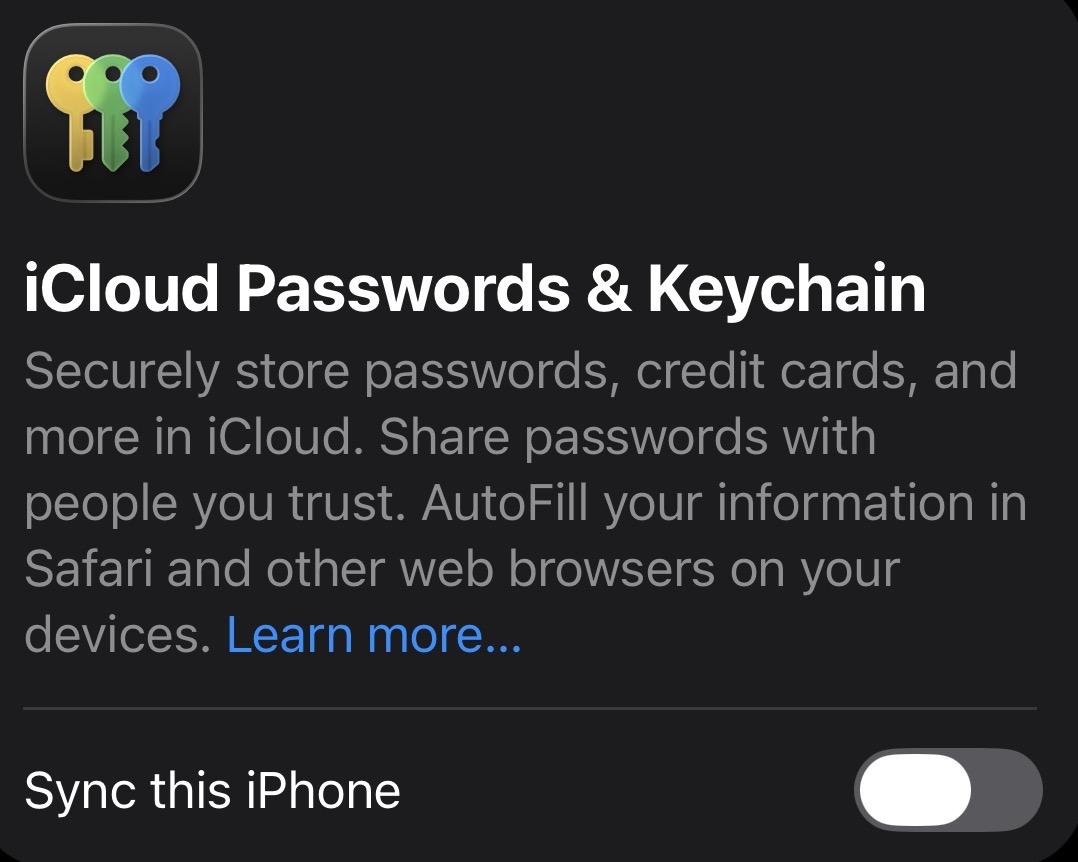
- Toggle **iCloud Passwords & Keychain** to ***OFF***
Once you have that paused, go back to your MacBook or your iPhone and follow these steps to forget the **AStateConnect** network:
- Go to your devices Network/Wifi settings
MacBook
- Click on the Wifi symbol in the top right of the screen

- Select **Wi-fi Settings...** from the list
- Select the ***Details*** on the **AStateConnect** bar
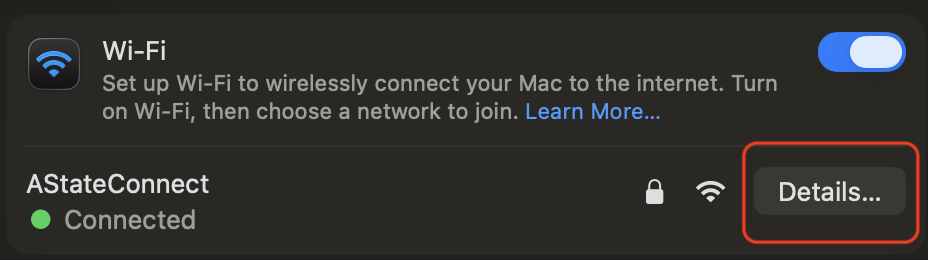
- Click **Forget This Network...**
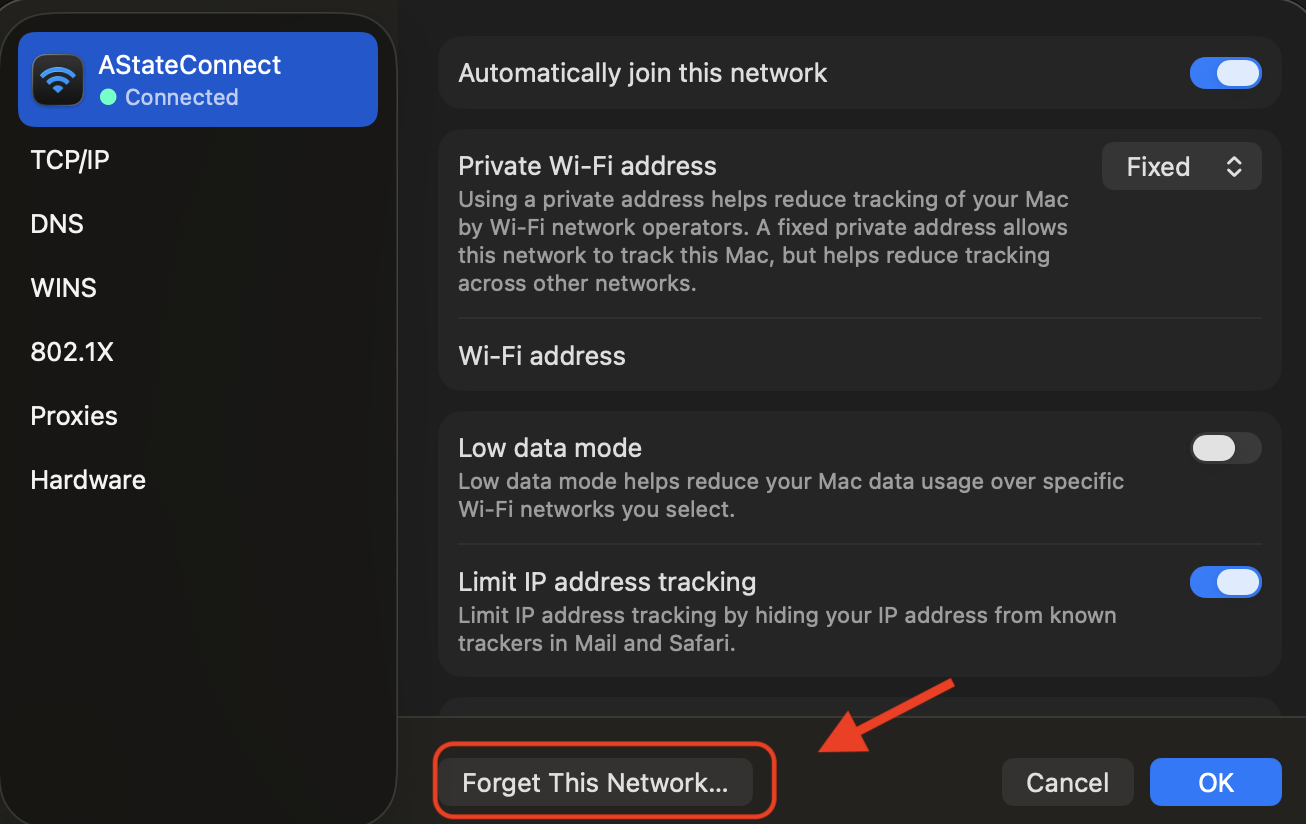
- Click **Forget**
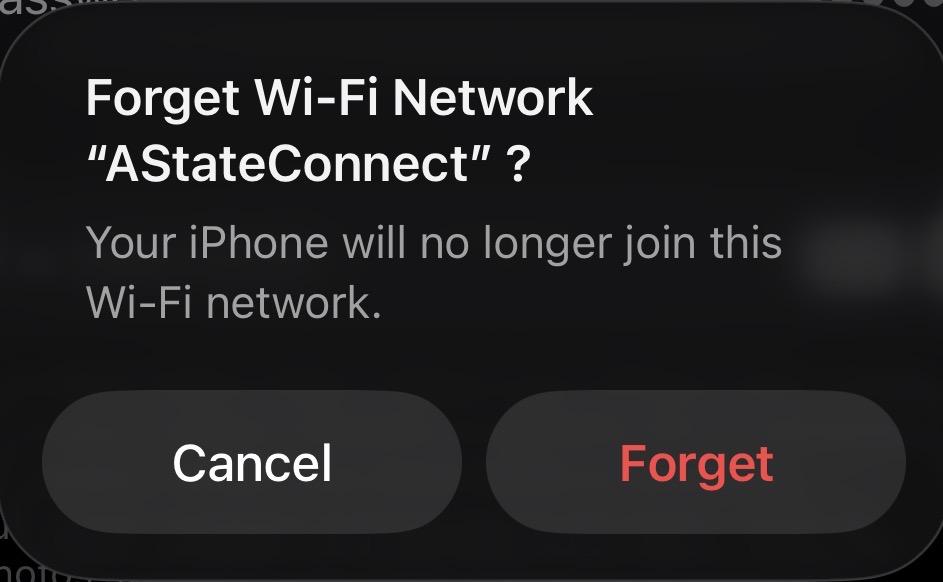
- You should be disconnected from the **AStateConnect** network
iPhone / iPad
- Open the **Settings** app
- Select **Wi-Fi** from the main screen
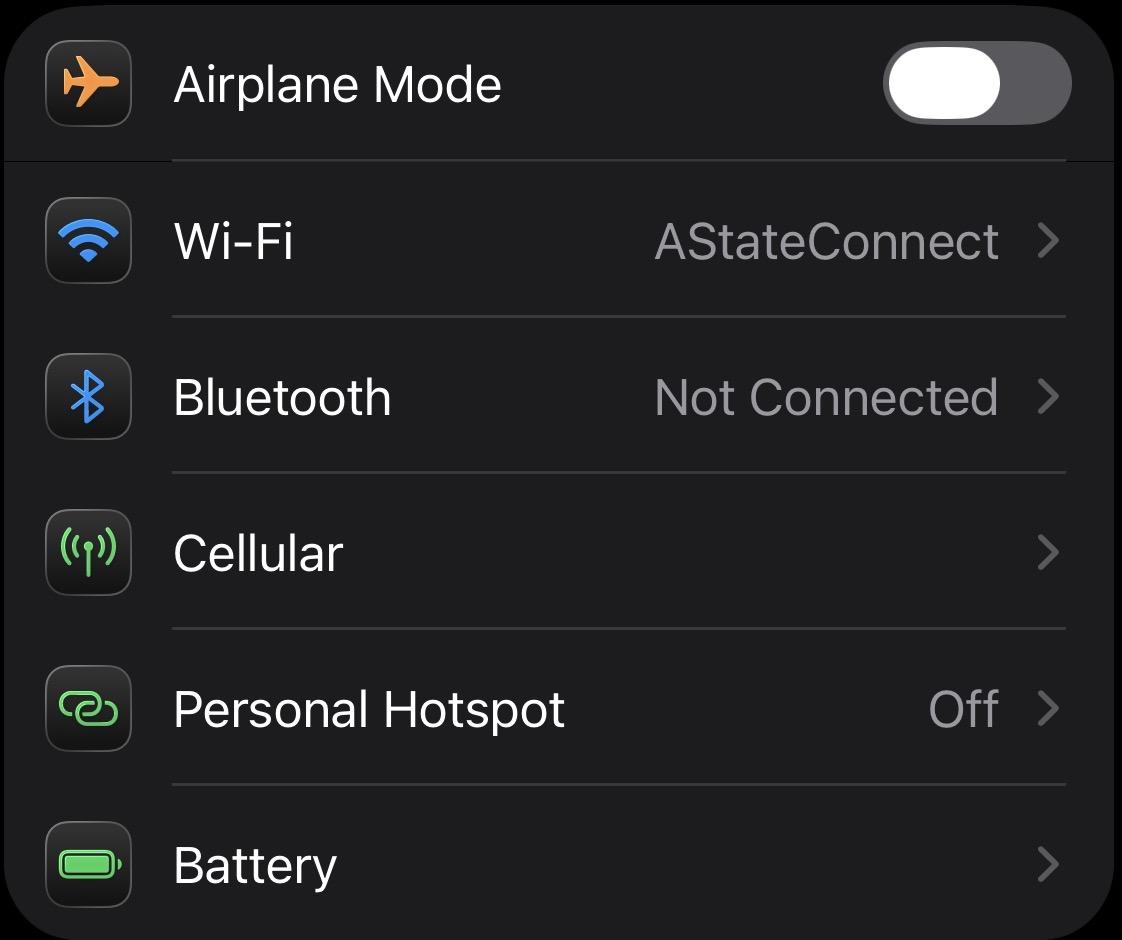
- Tap the blue "i" icon next to **AStateConnect**
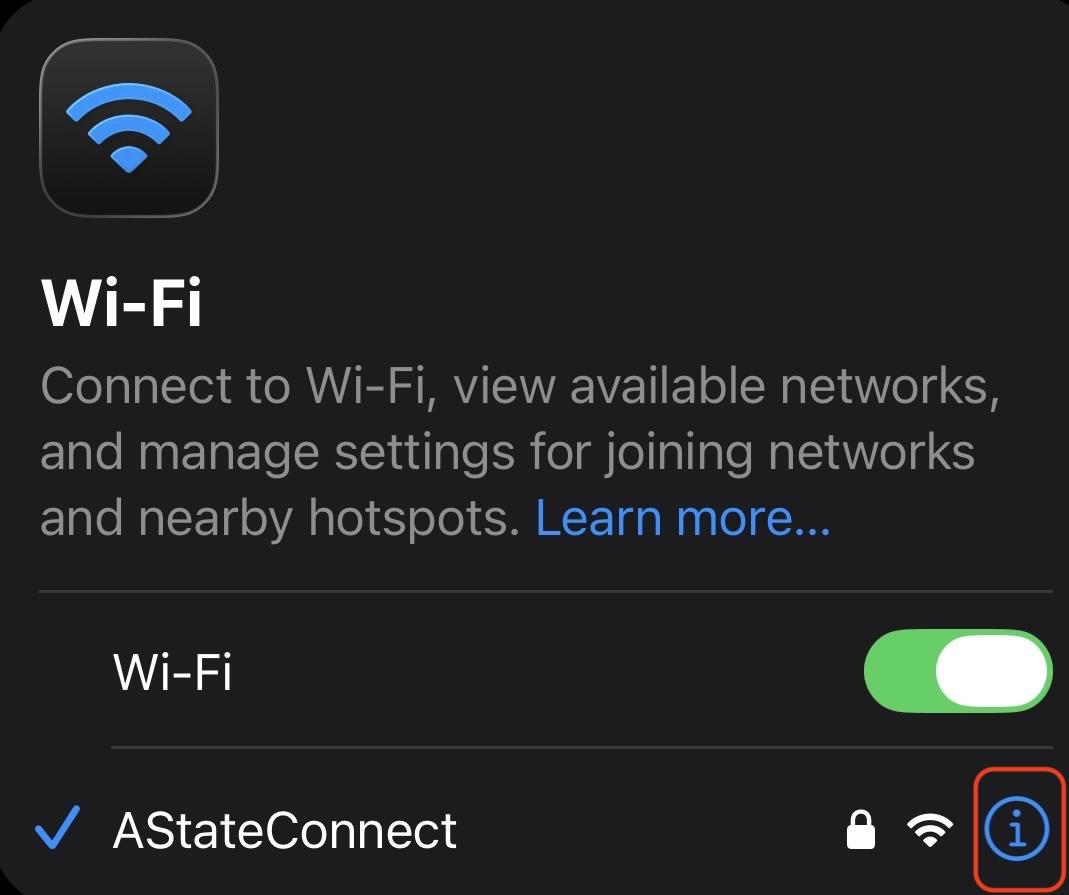
- Select **Forget This Network** from the top of the screen and tap **Forget**
 
- After you have forgotten the **AStateConnect** network on your device, you will reconnect using your A-State Credentials
MacBook
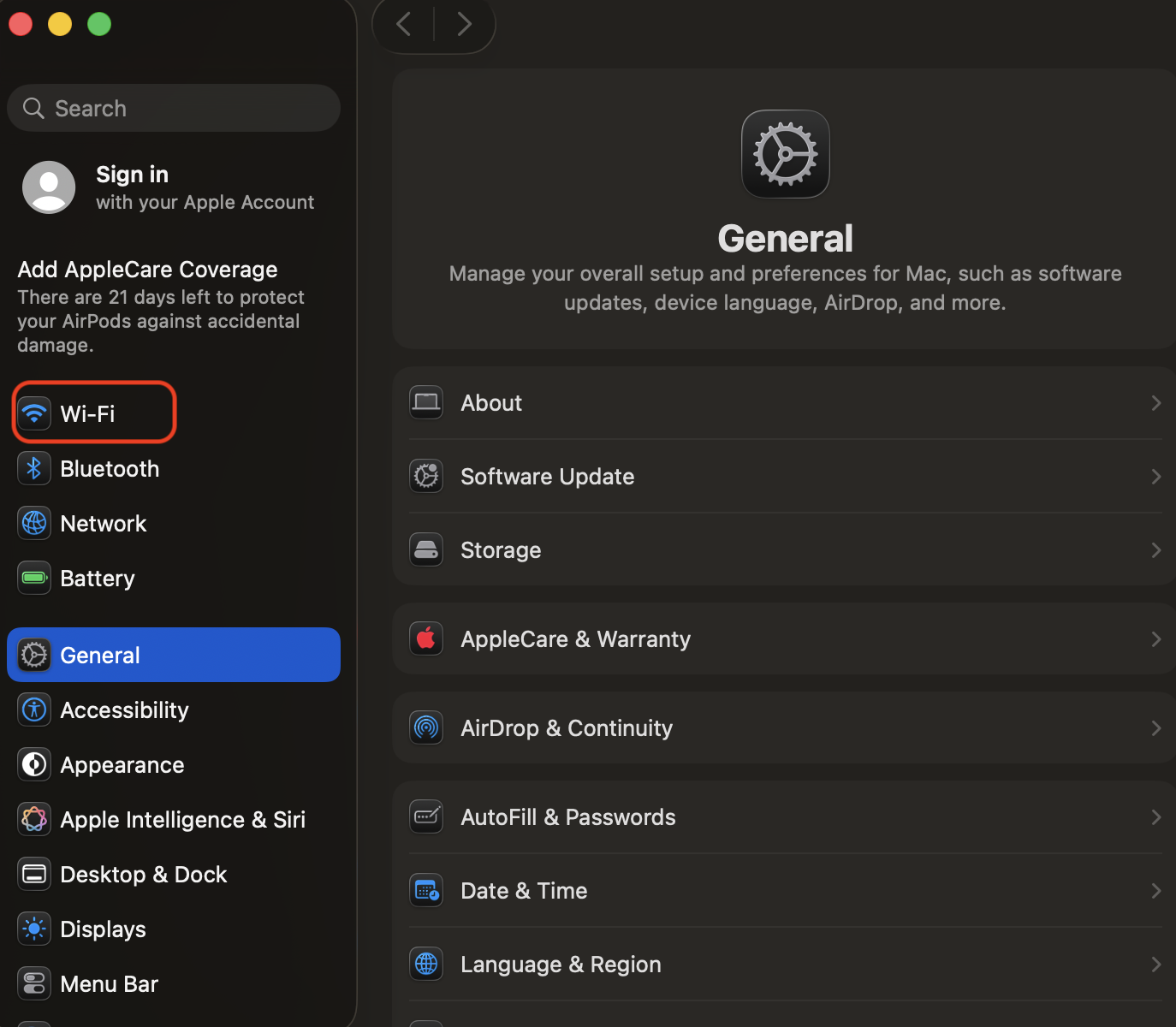
- Click on the Wifi symbol in the top right of the screen

- Select **Wifi Settings...** from the list
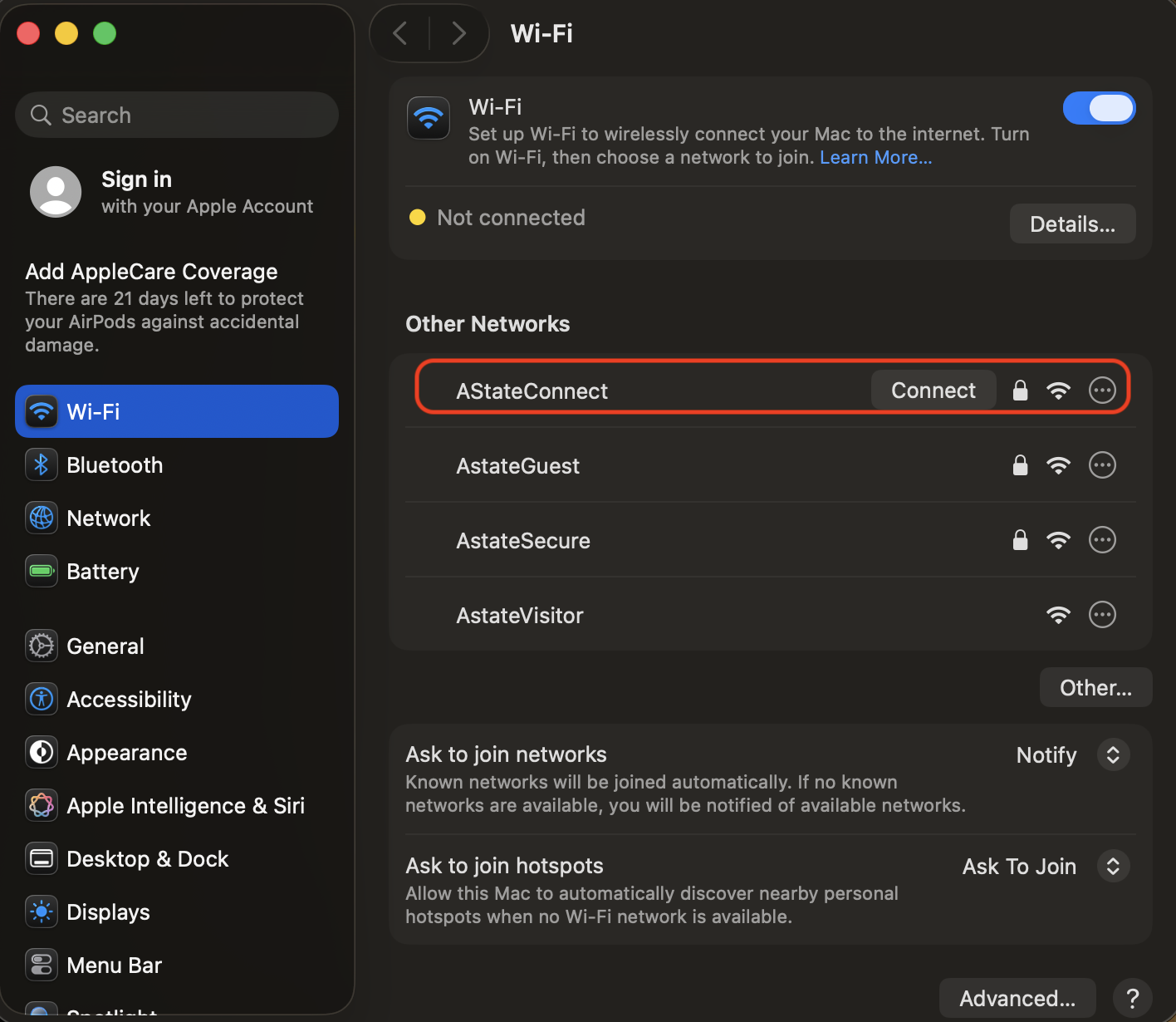
- Select ***Connect*** next to **AStateConnect**
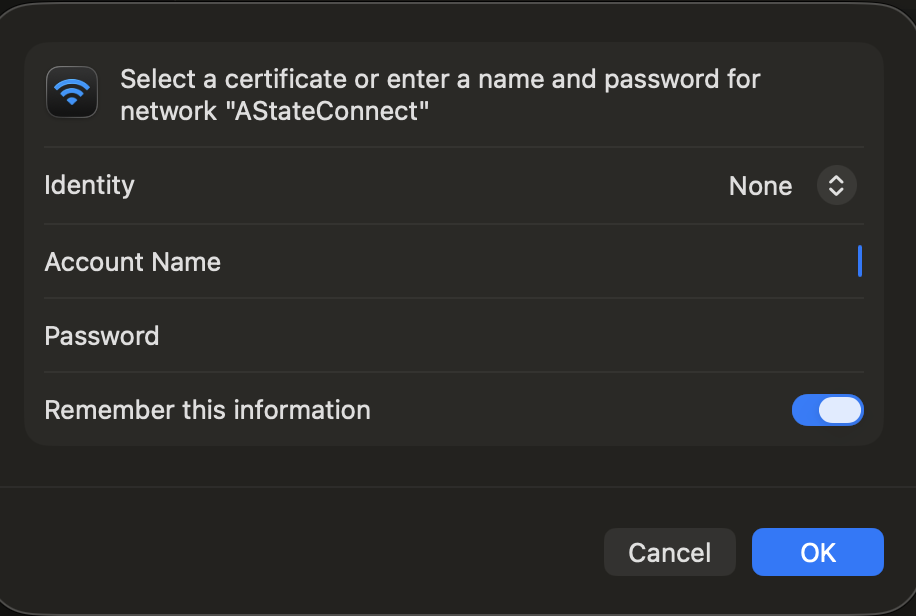
- Type in your A-State email and password and click OK

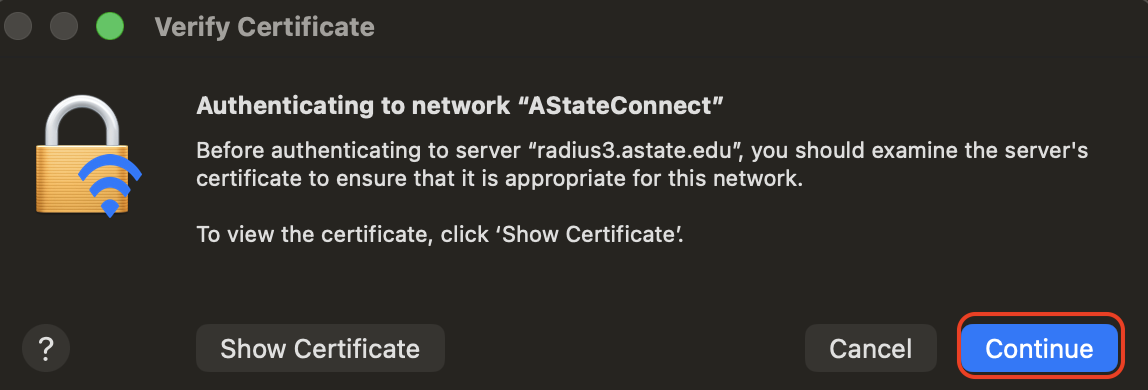
- Click **Continue** when it ask you to **Verify Certificate**
**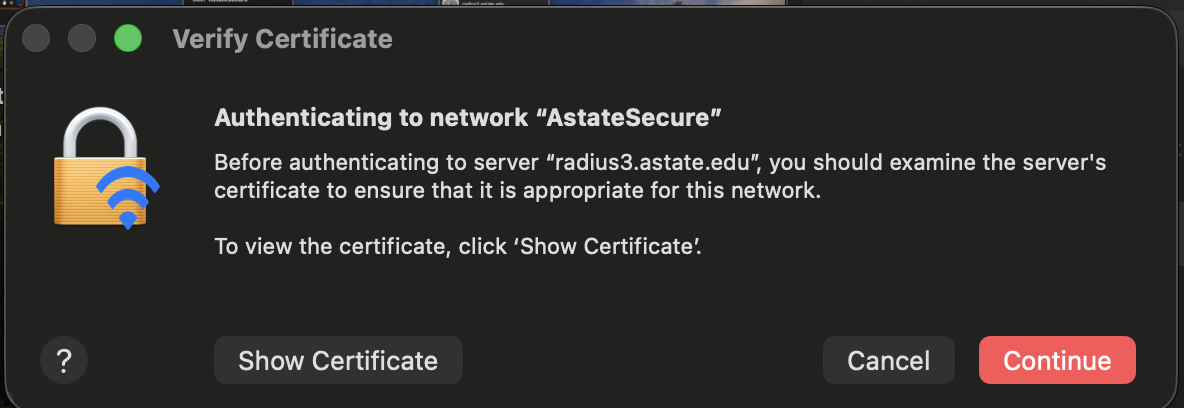**
- Verify you are connected to the network by opening a web browser and go to the Pack Portal ([pack.astate.edu](https://pack.astate.edu/dashboard))
iPhone / iPad
- Open the **Settings** app
- Select **Wi-Fi** from the main screen
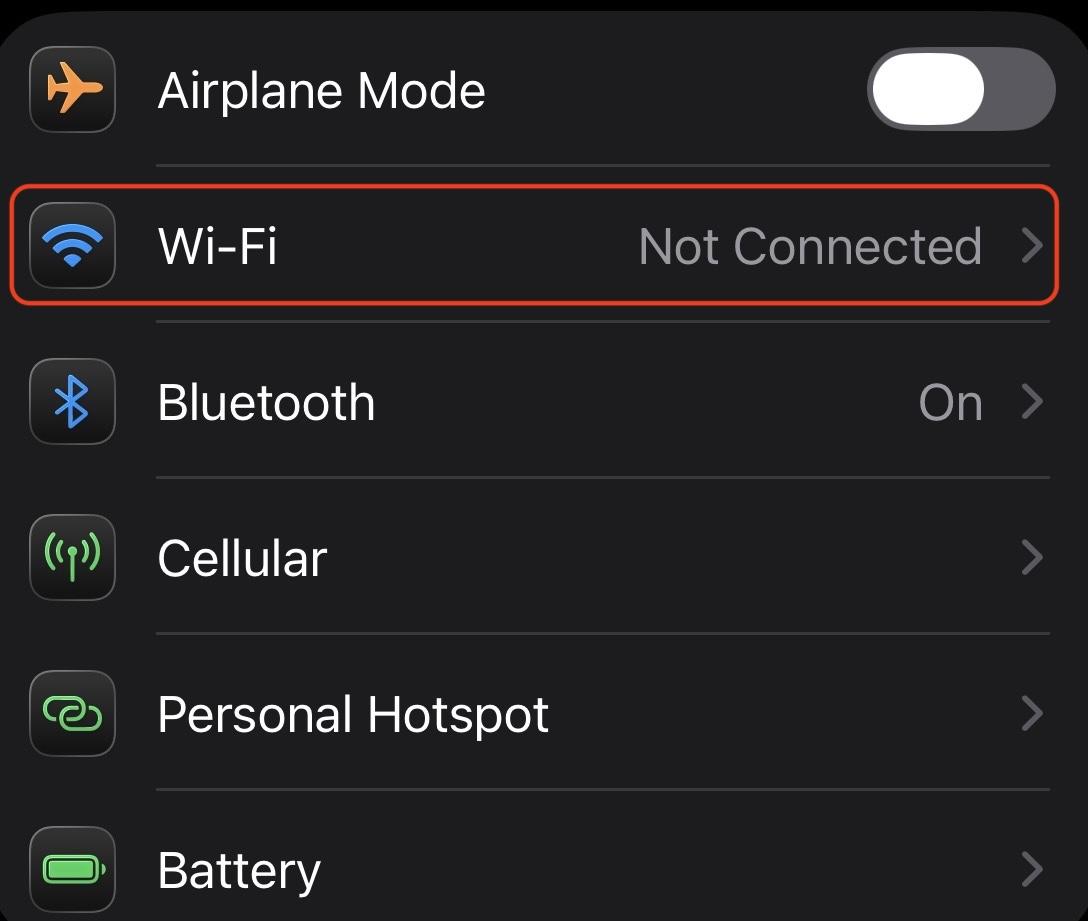
- Select **AStateConnect** from the list

- Sign in with your A-State credentials and tap **Trust** on the **Certificate** prompt
 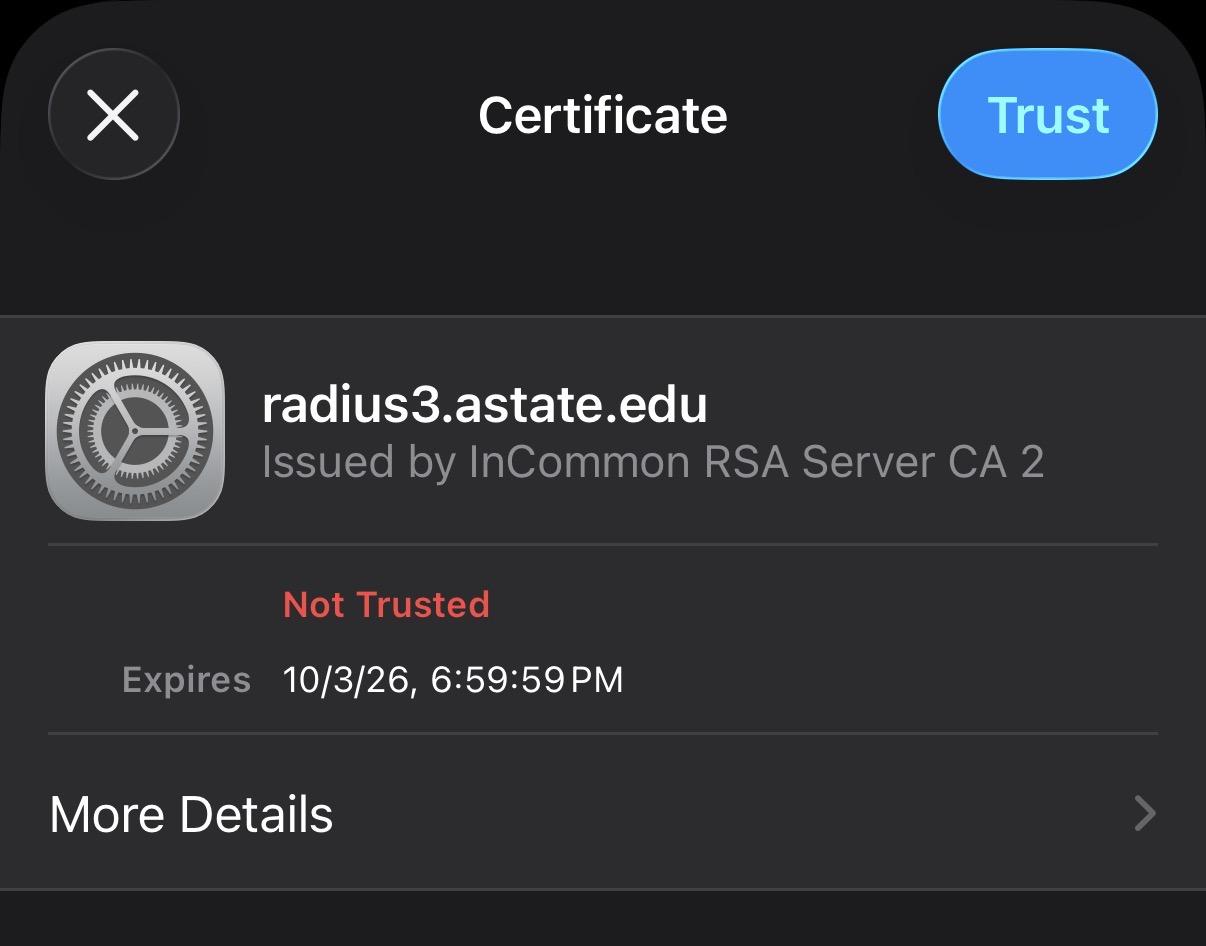
- Verify you are connected to the network by opening a web browser and go to the Pack Portal ([pack.astate.edu](https://pack.astate.edu/dashboard))
# iCloud Private Relay Troubleshooting
If you have a device running MacOS or iOS and are connected to the AStateConnect network, but having trouble getting websites to load or you are unable to connect to the AStateConnect network, it may be connected to the i***Cloud Private Relay***.
This feature will need to be turned **OFF** for a device to be able to connect the **AStateConnect** network
- Open your devices **System** settings
iPhone / iPad
- Select your **Name** on the top of the screen

- Select **iCloud**
****
- From the **iCloud+ Features** menu, tap **Private Relay**
**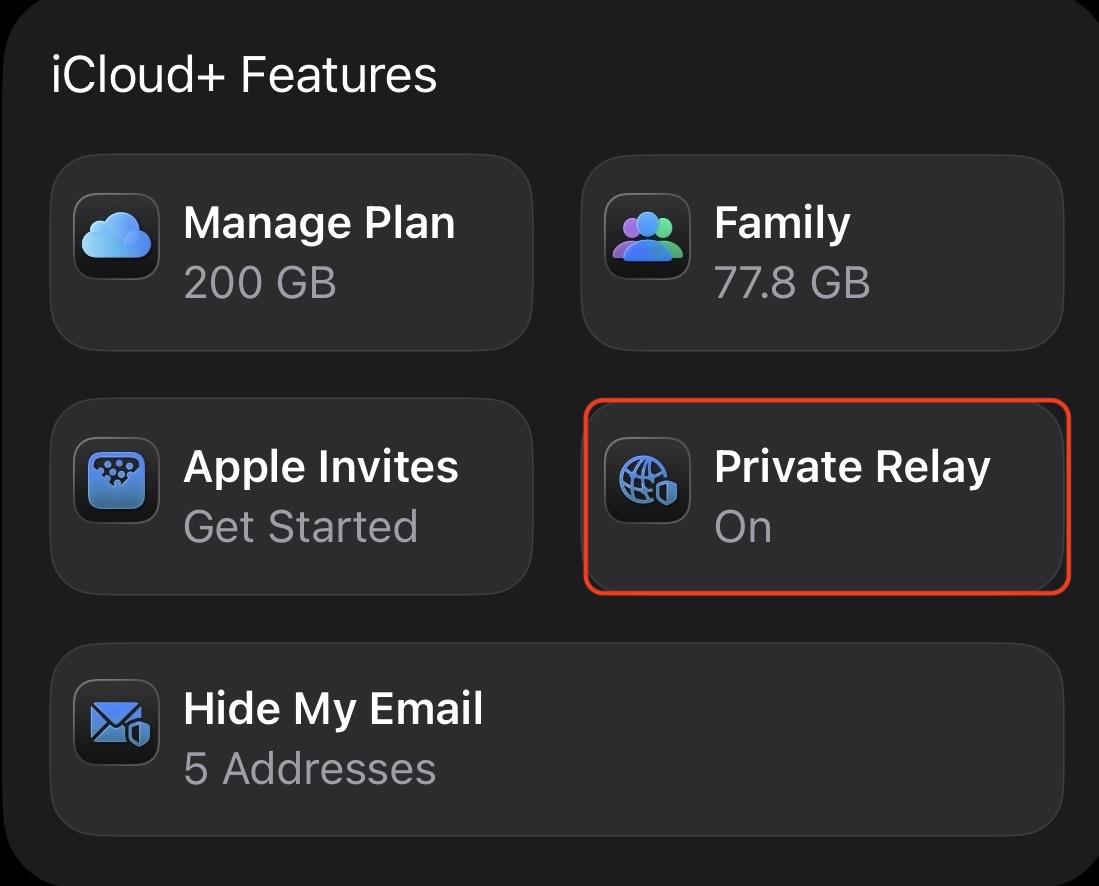**
- Toggle **Private Relay** to ***OFF***
**Toggled ON** Select **Turn Off Private Relay Toggled OFF**
***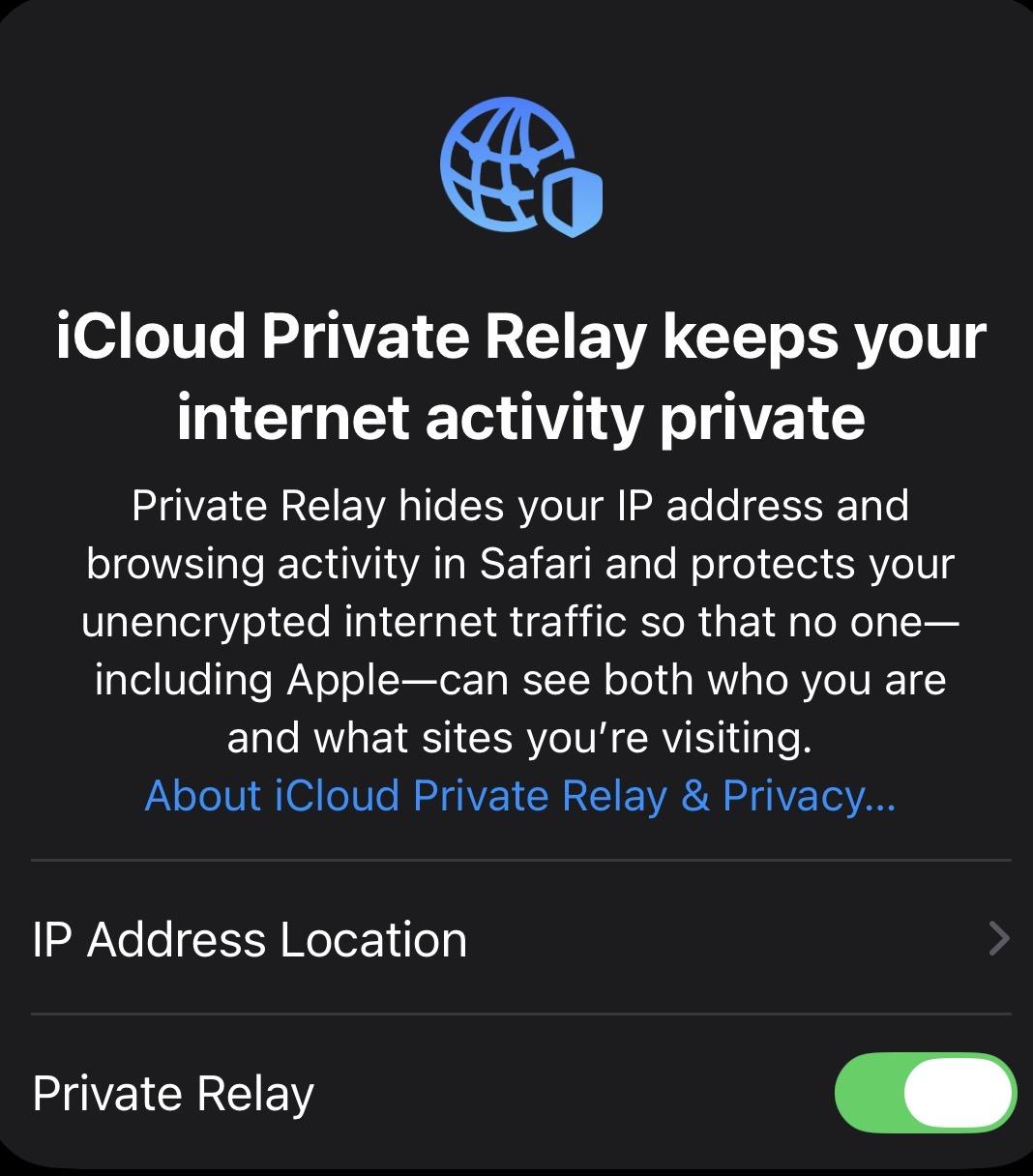 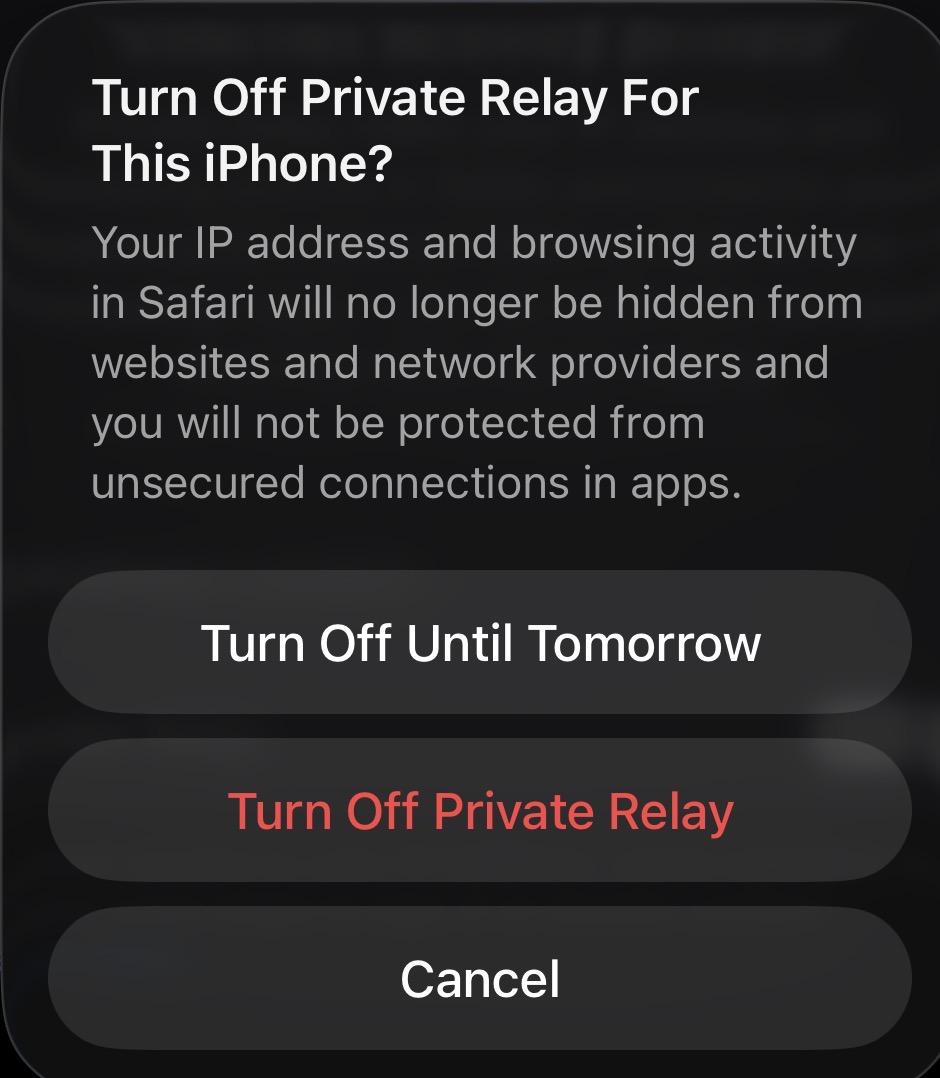 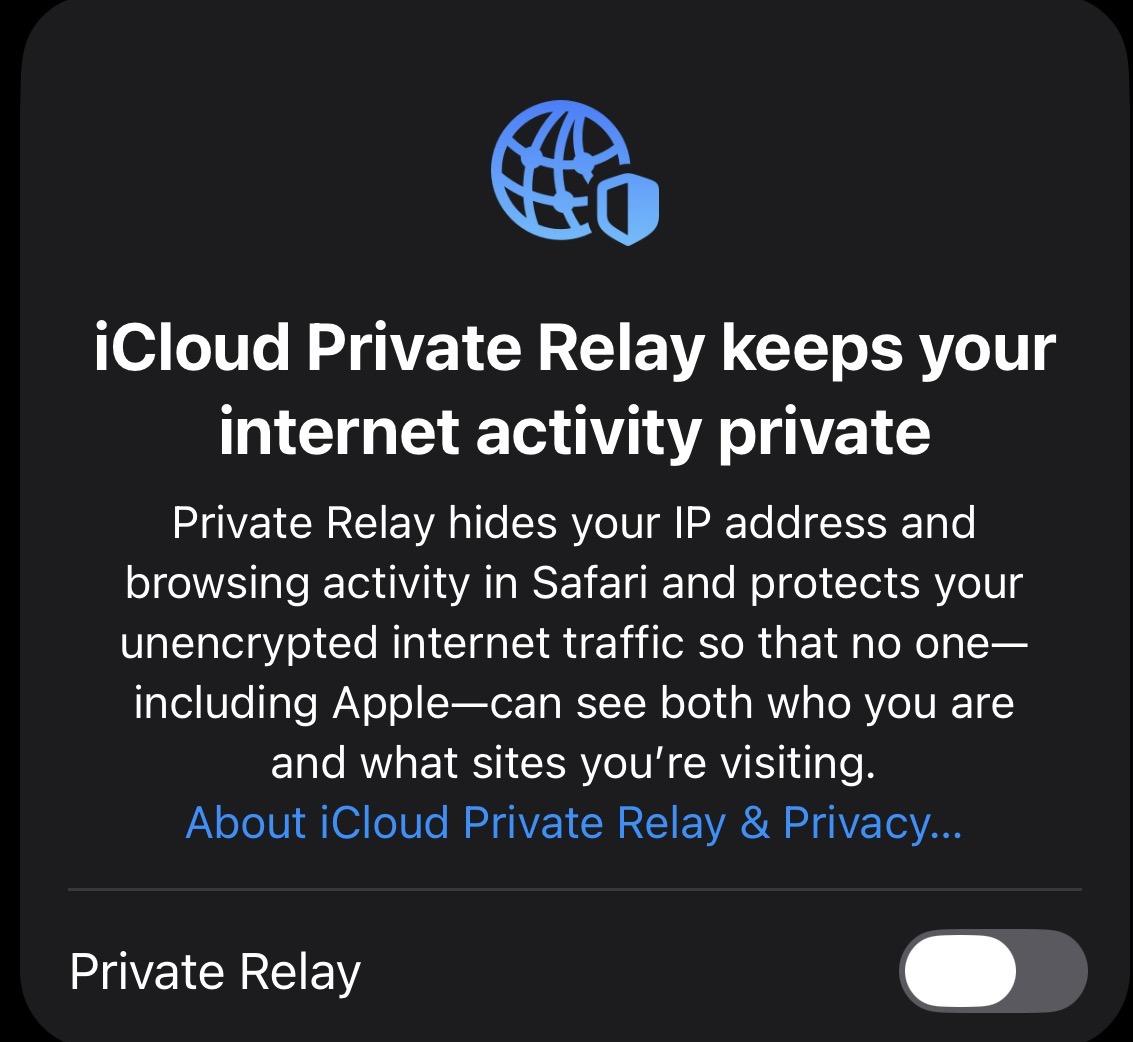***
- You should now be able to connect to the **AStateConnect** network
- You can follow this [**GUIDE**](https://kb.astate.edu/books/campus-wireless/page/ios-devies-iphone-ipad) for help getting connected to the network
MacBook
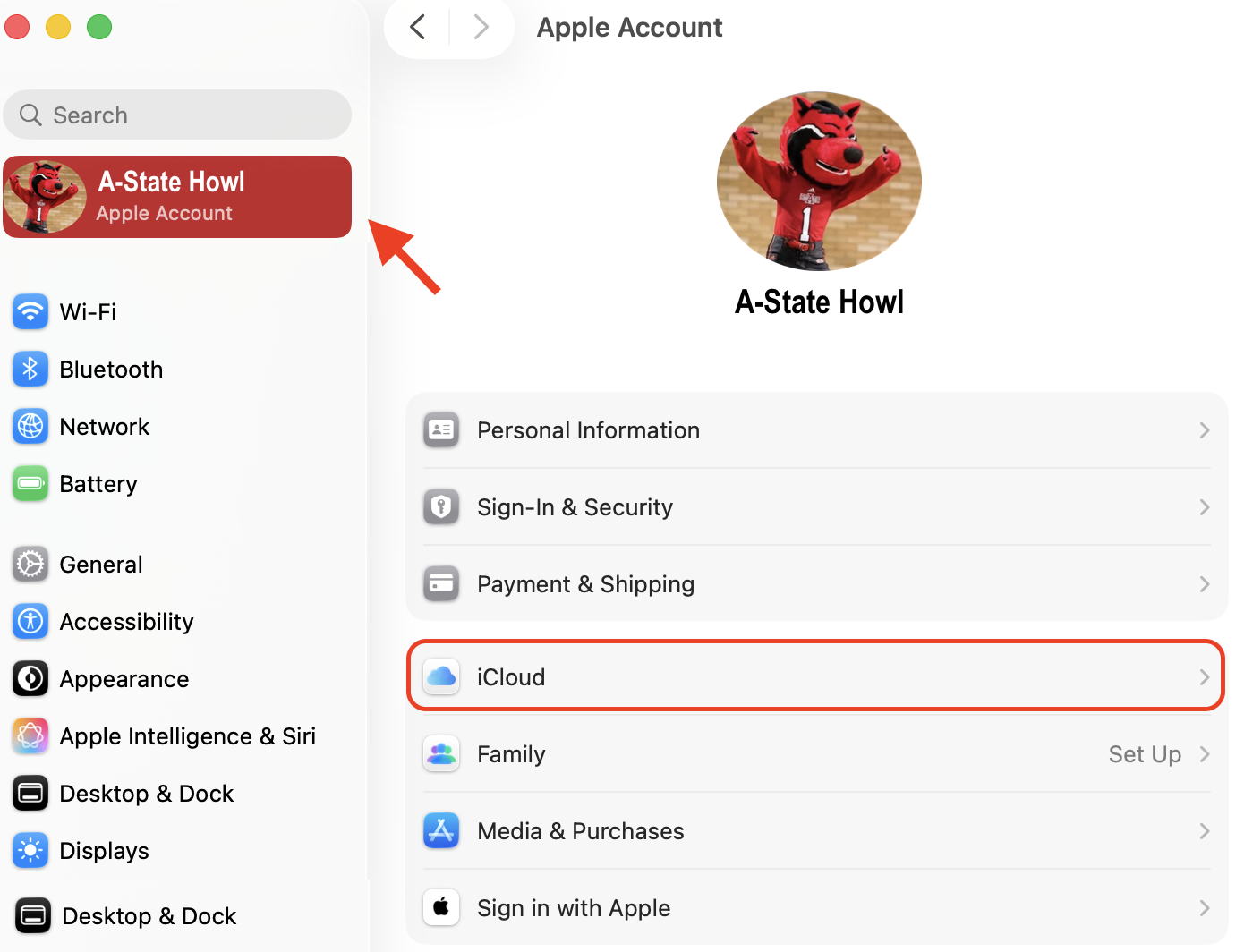
- Click on your **Name** on the left side of the menu and select **iCloud** on the right side
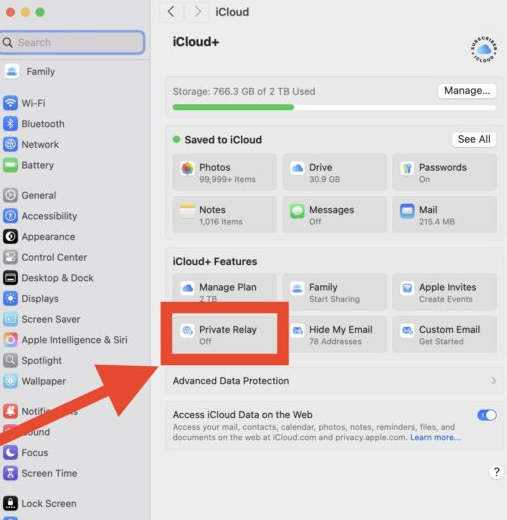
- Under **iCloud+** Features, select **Private Relay**
****
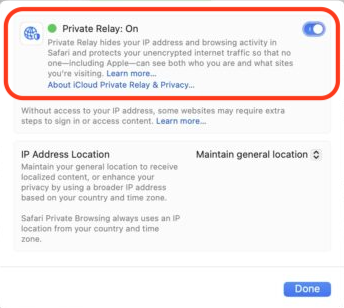
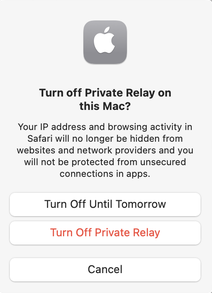
- - Toggle **Private Relay** to ***OFF***
**Toggled ON** Select **Turn Off Private Relay Toggled OFF**
***  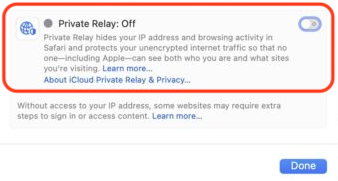***
- You should now be able to connect to the **AStateConnect** network
- You can follow this [**GUIDE**](https://kb.astate.edu/books/campus-wireless/page/macos-macbooks-mac) for help getting connected to the network
# Forgetting Wireless Networks
---
##### Forgetting the network is a good way to troubleshoot any Wi-Fi issues you may be experiencing. Select your device and go through the steps to see if you can self-solve your issues.
---
#### Mobile Devices
iOS (iPhone/iPad)Forgetting a Single Network
1\. Open the **Settings** app on your iOS device.

2\. Tap **Wifi** on the main screen
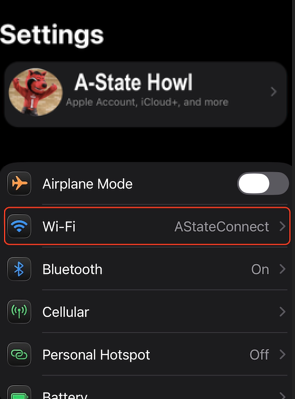
3\. Select the "i" next **AStateConnect**

4\. Tap **Forget This Network**
**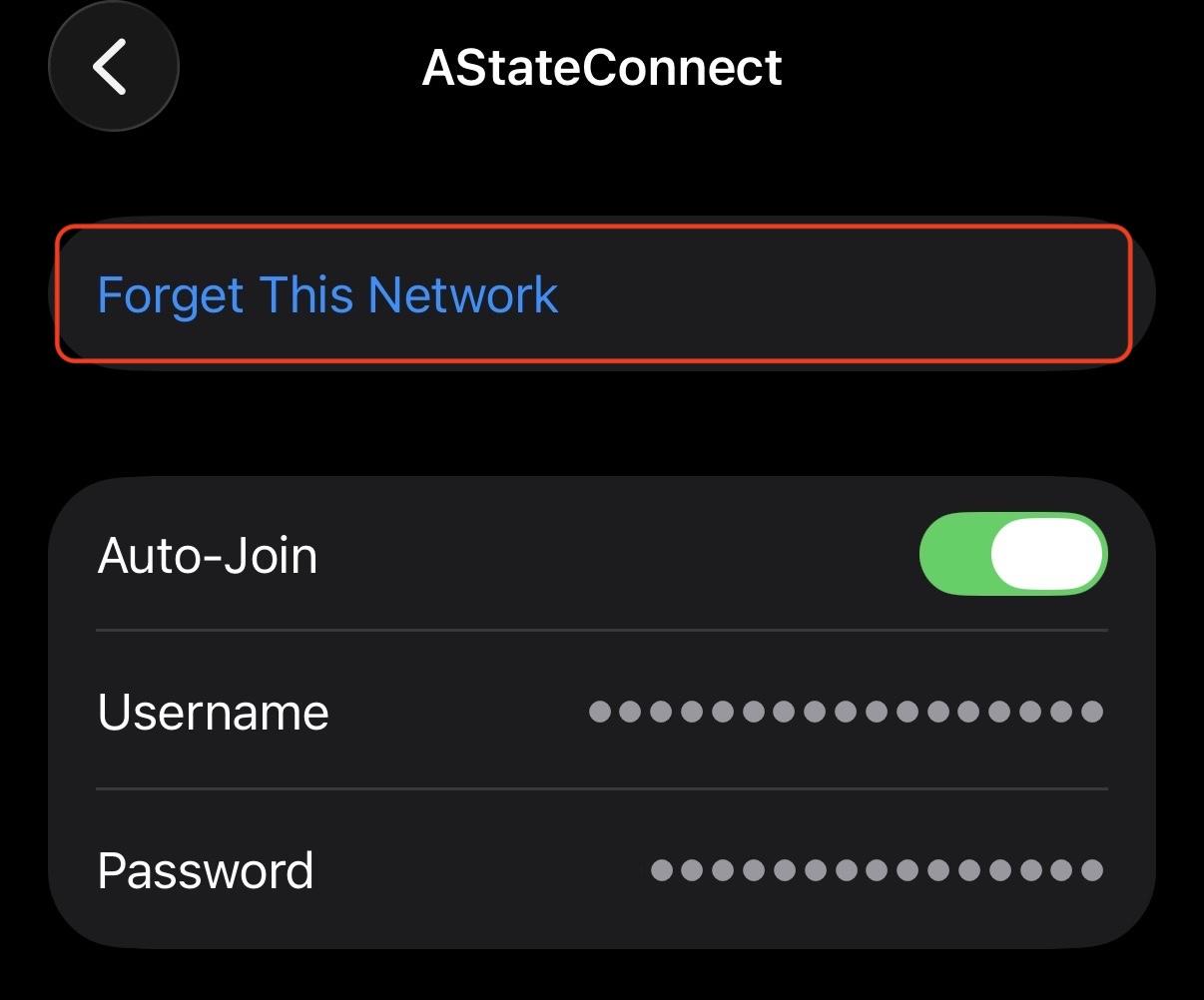**
**5.** Tap **Forget**
****
This will successfully disconnect your device from the **AStateConnect** network.
Forgetting Multiple Known Networks
1\. Open the **Settings** app on your iOS device.

2\. Select **Wi-Fi**
****
3\. Select **Edit** in the top right corner
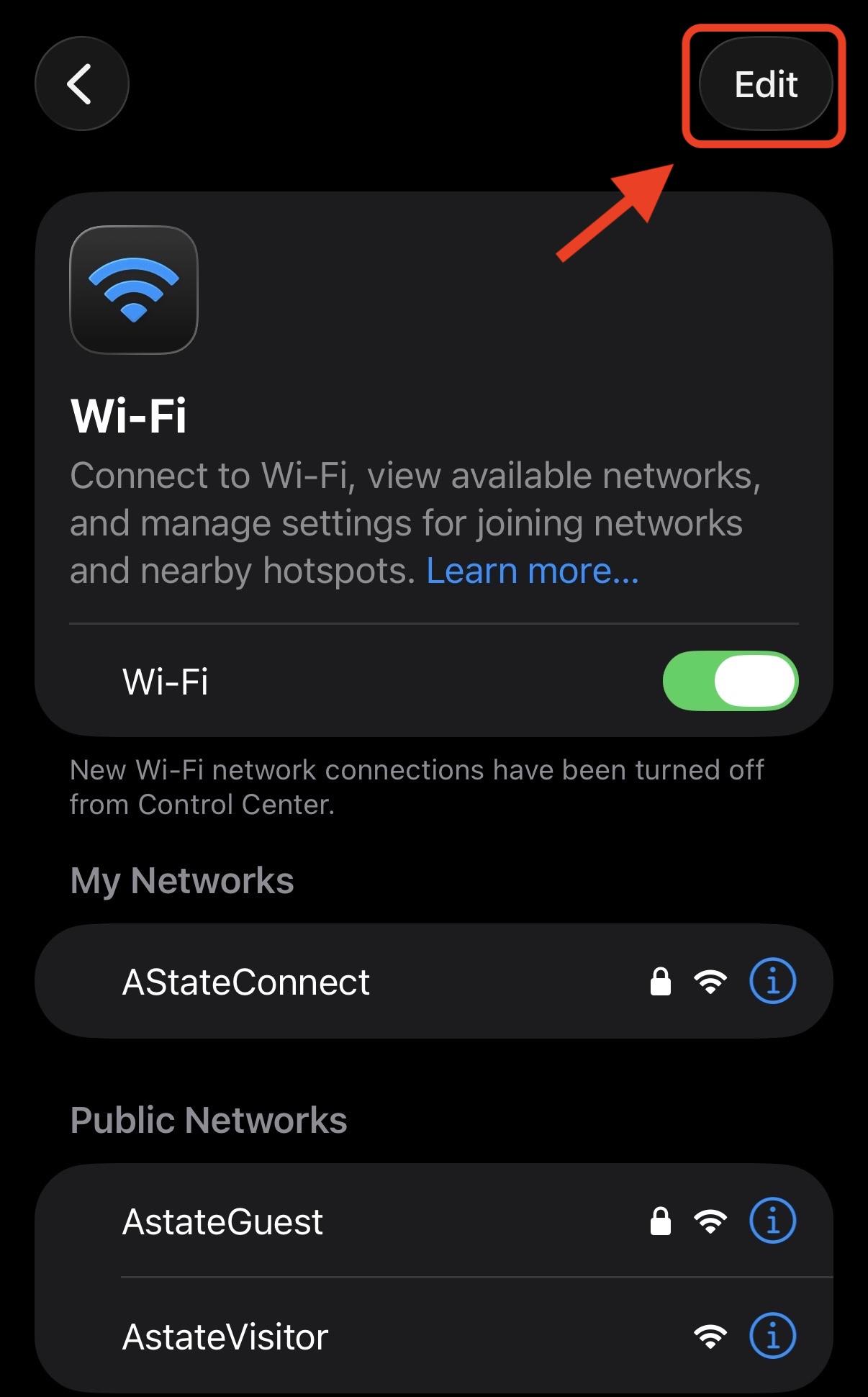
4\. Tap the red minus " - " sign to the left of the network(s) you want to forget and select **Delete**
- Tap the **Check mark** in the top right corner after the selected network(s) have been removed from the list
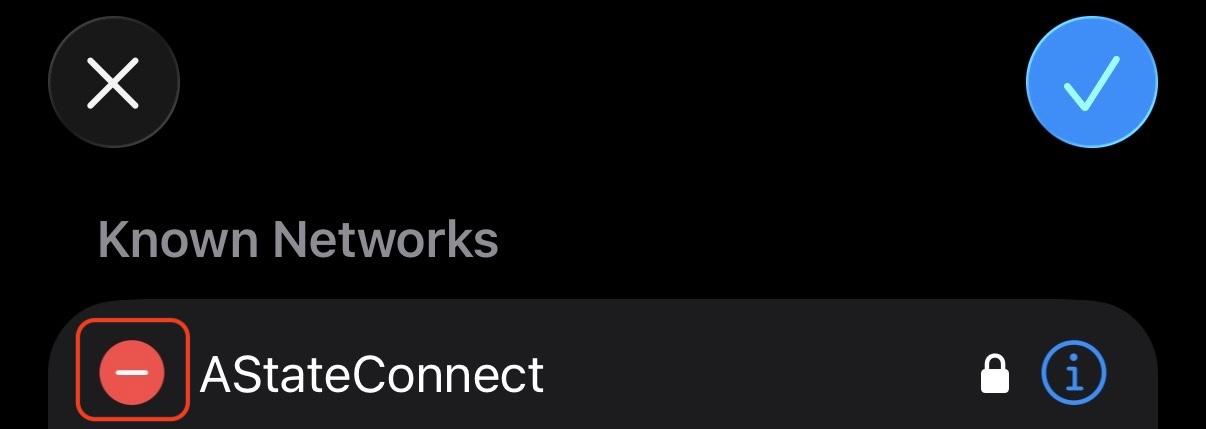 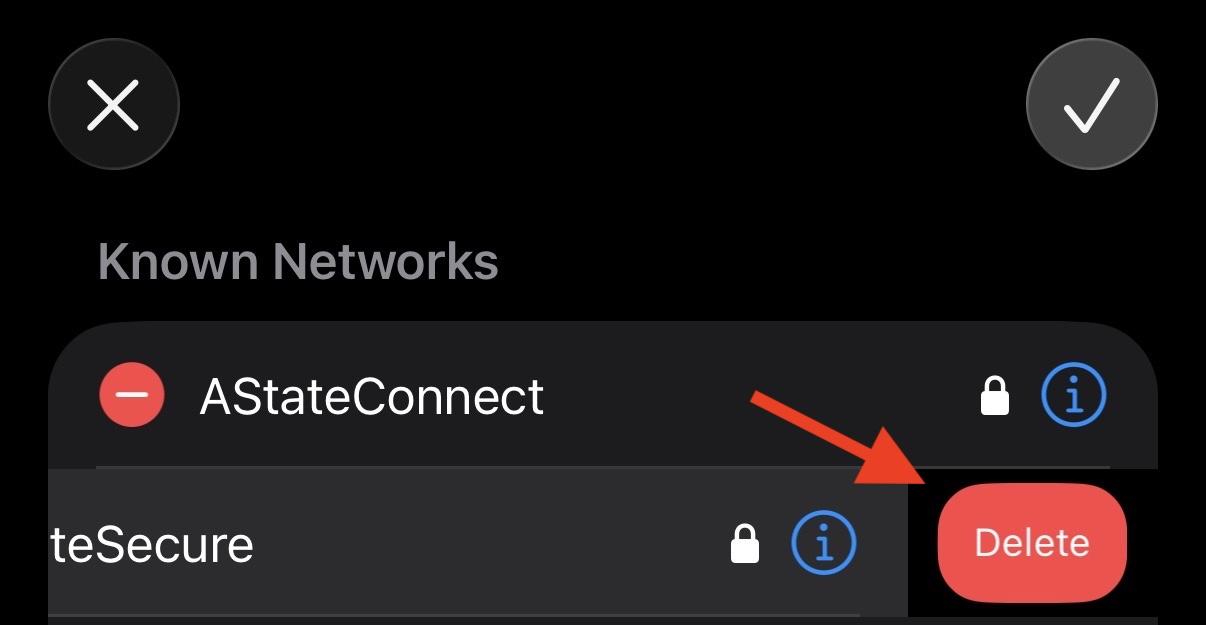
- ***iCloud Keychain*** - If prompted, select **Remove** to "Forget" the network on your iCloud Keychain to prevent your device from trying to connect to the network in the future
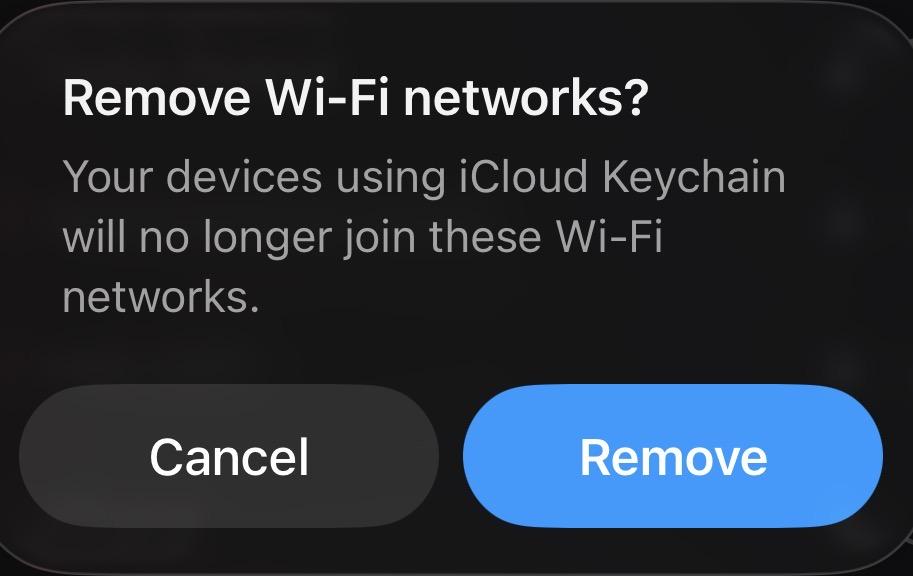
5\. The network(s) should be removed from your device
---
These steps can also be used to Forget the **Home@AState** network if necessary. You would instead click and select the **" i " (information) icon** to the right of **Home@AState** and then click **Forget This Network.**
**If you would like to reconnect to AStateConnect or Home@AState, you can find those instructions [HERE](https://kb.astate.edu/books/campus-wireless/page/ios-devies-iphone-ipad)**
AndroidForgetting a Single Network
1\. Go to the **Settings** on your phone and open it. The icon should look like the image below.
[](https://kb.astate.edu/uploads/images/gallery/2023-12/androidsettings.jpg)
2\. Scroll and tap on **Connections**.
[](https://kb.astate.edu/uploads/images/gallery/2023-12/androidsettingsmenu.jpg)
3\. Tap on **Wi-Fi**.
[](https://kb.astate.edu/uploads/images/gallery/2023-12/androidconnections.jpg)
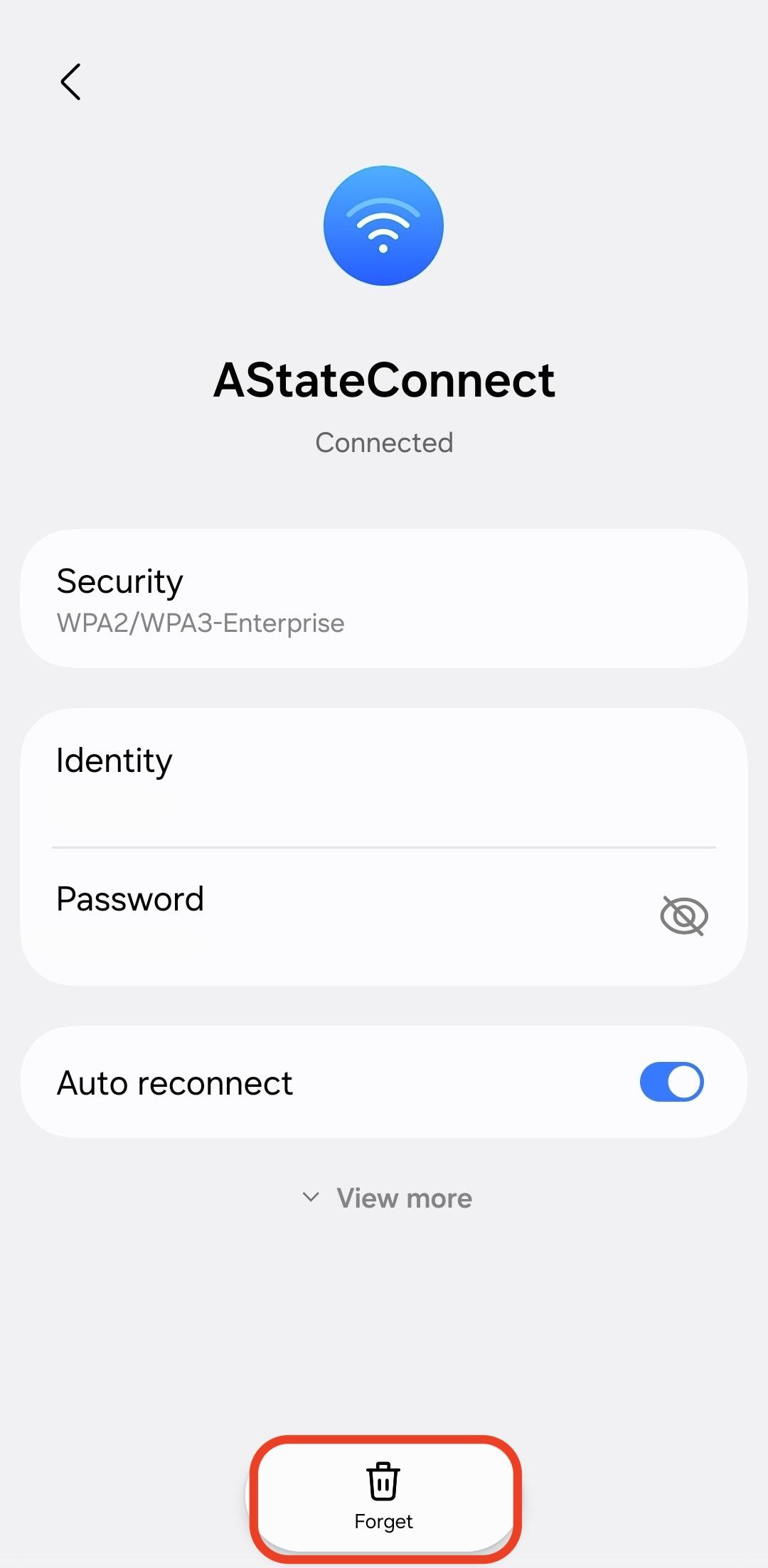
4\. Tap on the gear icon next to **AStateConnect**.
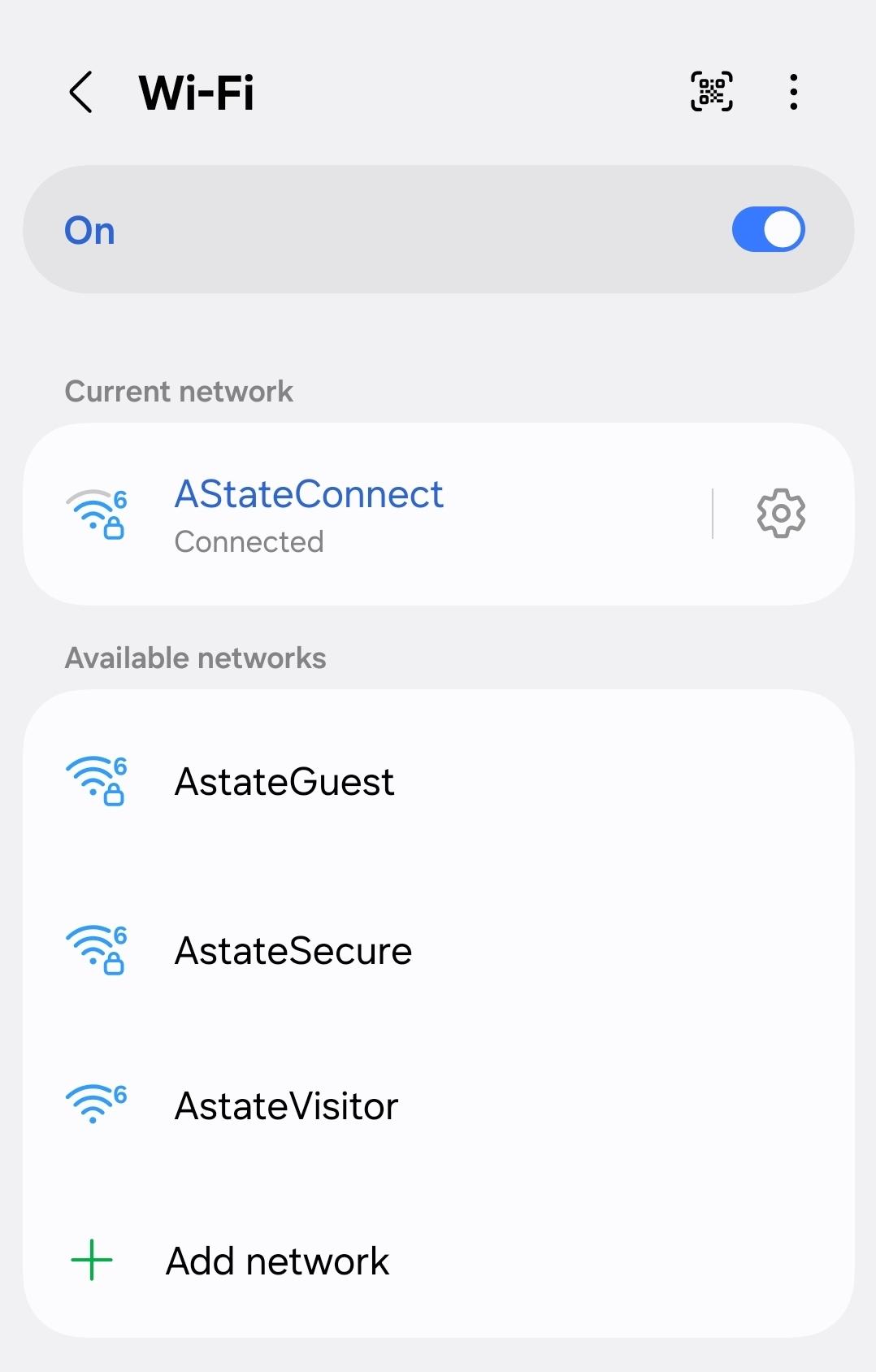
5\. Tap **Forget**.
Forgetting Known Networks
1. Go to the **Settings** on your phone and open it. The icon should look like the image below.
[](https://kb.astate.edu/uploads/images/gallery/2023-12/androidsettings.jpg)
2. Scroll and tap on **Connections**.
[](https://kb.astate.edu/uploads/images/gallery/2023-12/androidsettingsmenu.jpg)
3. Tap on **Wi-Fi**.
[](https://kb.astate.edu/uploads/images/gallery/2023-12/androidconnections.jpg)
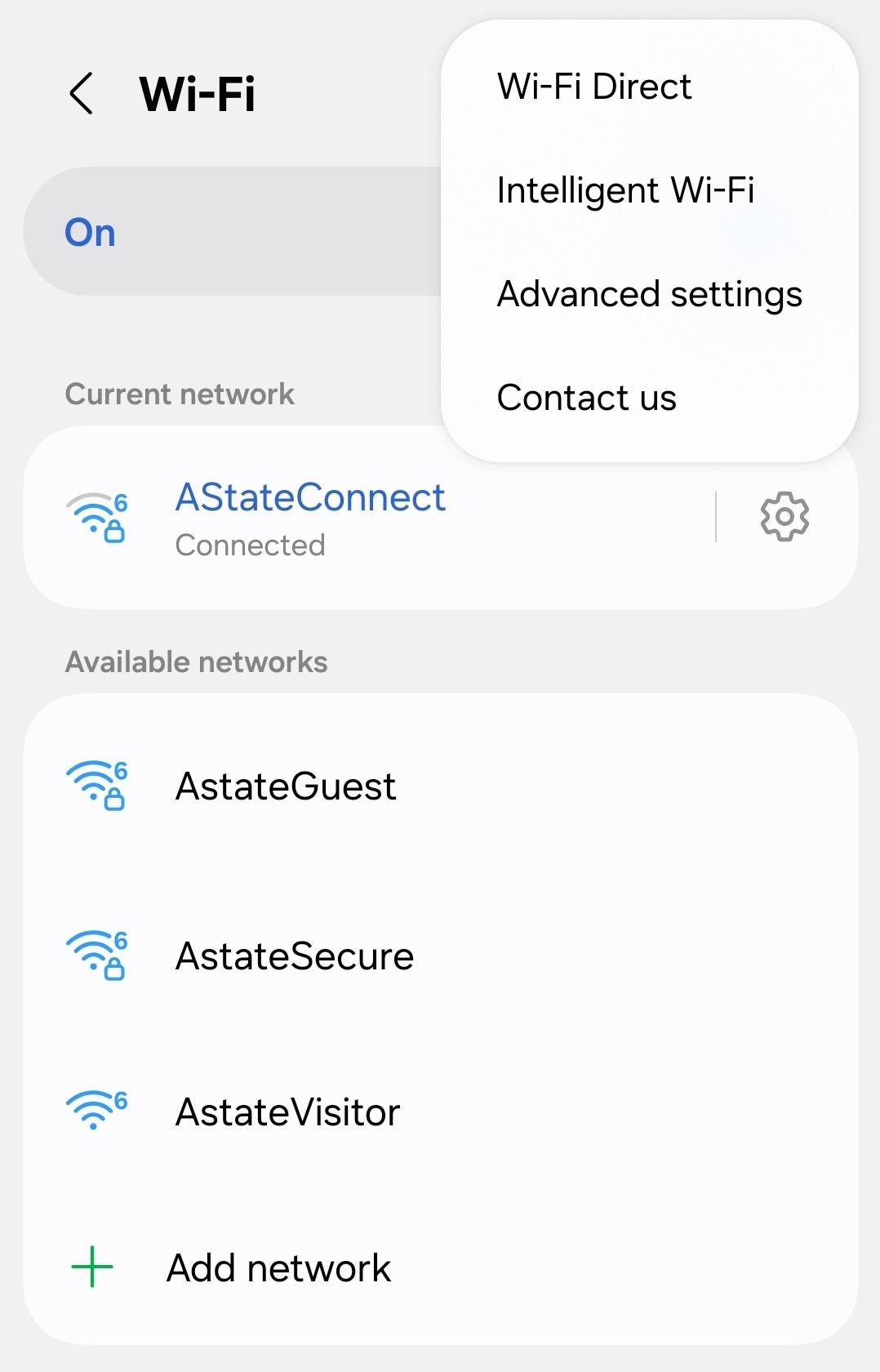
4. Tap the **3 dots** in the top right and select **Advanced settings**
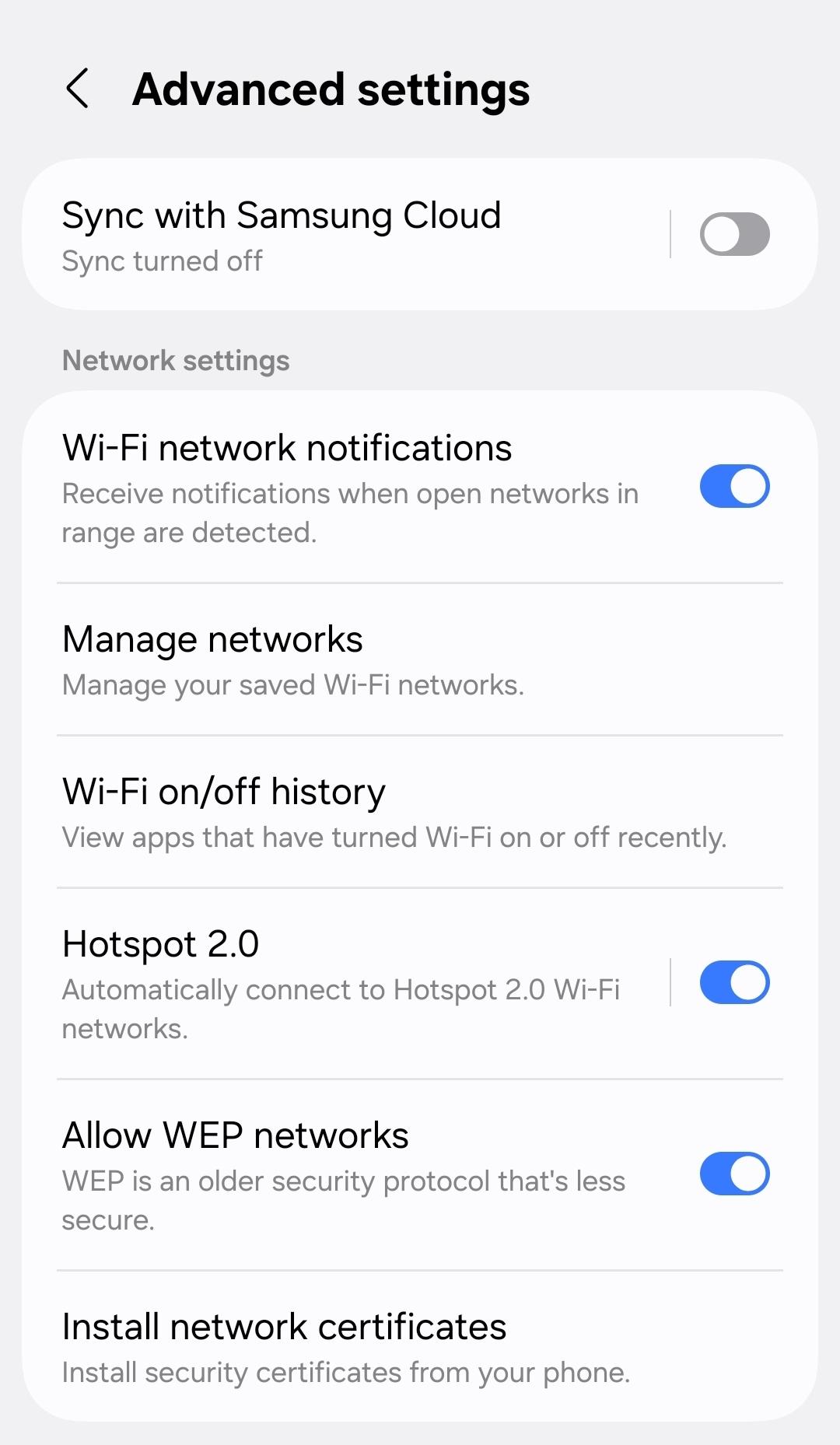
5. Select **Manage networks**
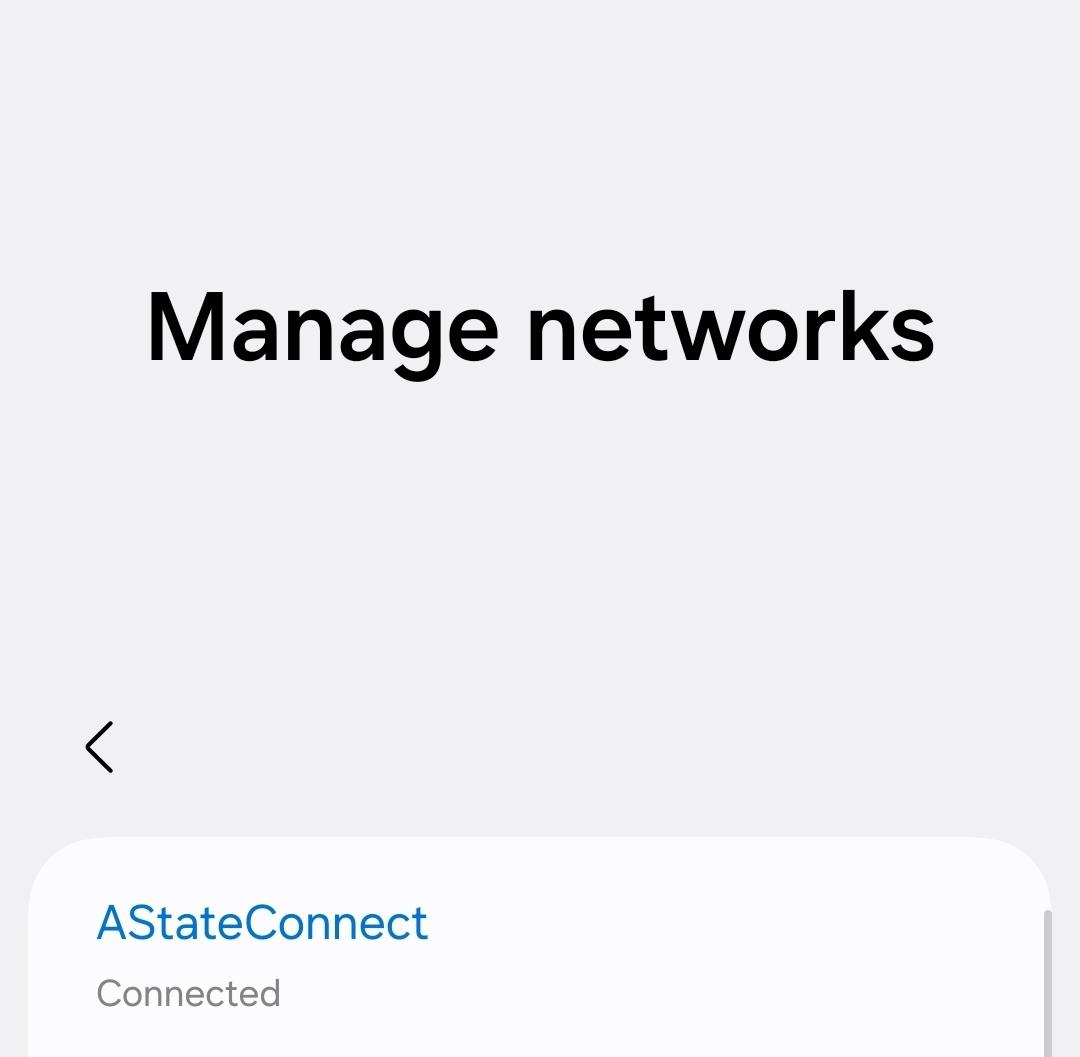
6\. Tap on the network you want to remove or "forget (*in this example, **AStateConnect** is the network we want to forget*) and select **Forget**
---
These steps can also be used to Forget the **Home@AState** network if necessary. You would tap **Home@AState** and then tap **Forget.**
**If you would like to reconnect to AStateConnect or Home@AState, you can find those instructions [HERE](https://kb.astate.edu/books/campus-wireless/page/android-devices)**
Google Pixel
1\. Go to the **Settings** on your phone and open it. The icon should look like the image below.
[](https://kb.astate.edu/uploads/images/gallery/2023-12/androidsettings.jpg)
2\. Scroll and tap on **Connections**.
[](https://kb.astate.edu/uploads/images/gallery/2023-12/androidsettingsmenu.jpg)
3\. Tap on **Wi-Fi**.
[](https://kb.astate.edu/uploads/images/gallery/2023-12/androidconnections.jpg)
4\. Tap on the gear icon next to **AStateConnect**.
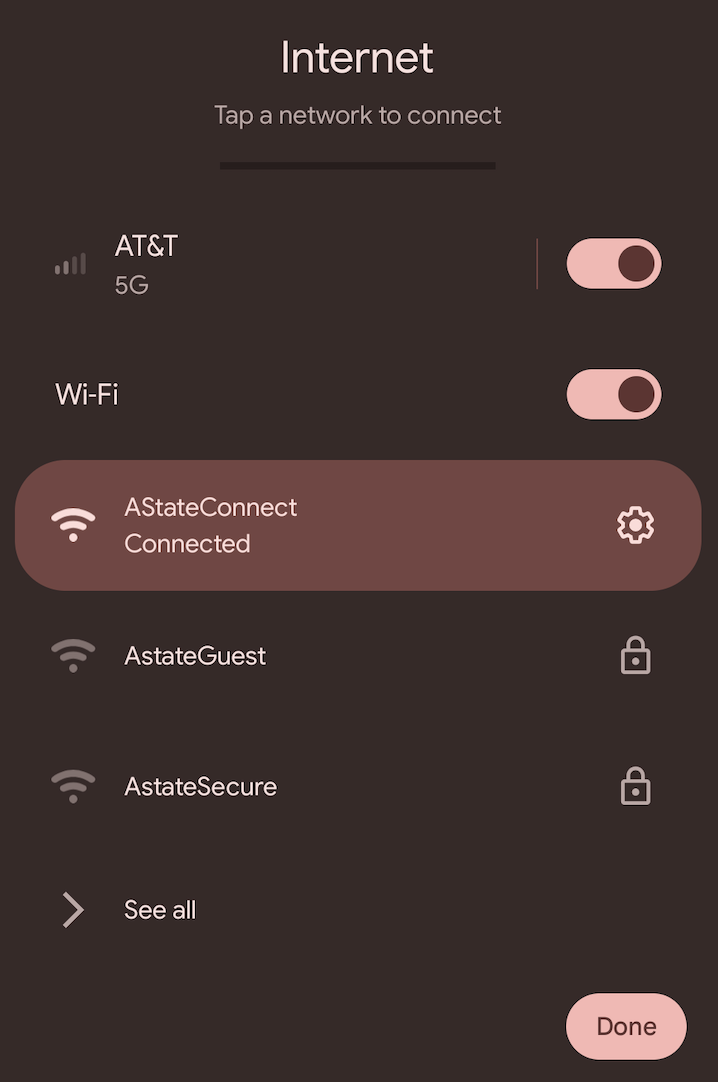
5\. Tap **Forget**.
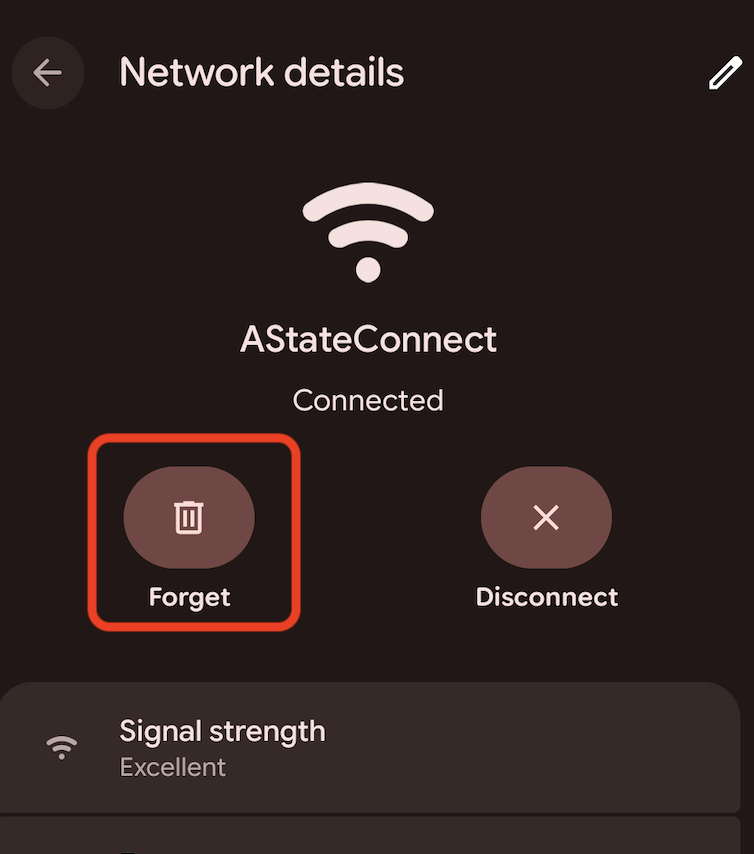
This will successfully disconnect your device from the **AStateConnect** network.
---
These steps can also be used to Forget the **Home@AState** network if necessary. You would tap **Home@AState** and then tap **Forget.**
**If you would like to reconnect to AStateConnect or Home@AState, you can find those instructions [HERE](https://kb.astate.edu/books/campus-wireless/page/google-pixel)**
#### Desktop / Laptop
MacOS (Mac/Macbook)
1\. Go to the **Settings** app on your MacOS device. The icon looks like the image below.
[](https://kb.astate.edu/uploads/images/gallery/2021-09/ios-9-settings-icon-full-size-1.jpg)
2\. Tap on **Wi-Fi** on the left hand side of the **Settings** screen.

3\. Next to where you see **AStateConnect**, click on ***Details***

4\. Click on **Forget This Network**

6\. Click on **Remove**
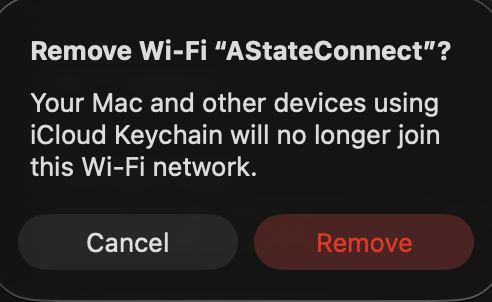
This will successfully disconnect your device from the **AStateConnect** network.
---
These steps can also be used to Forget the **Home@AState** network if necessary. You would instead tap on **Home@AState** and then tap **Forget.**
If you would like to reconnect to **AStateConnect** or **Home@AState**, you can find those instructions **[HERE](https://kb.astate.edu/books/campus-wireless/page/macos-macbooks-mac)**
Windows
1\. Type **Settings** in the search box.
2\. Click **Network & Internet**.
3\. Click **Wi-Fi** on the left pane of the Network & Internet window.
4\. Click **Manage Wi-Fi Settings**.
5\. Click **AStateConnect**.
6\. Click **Forget**.
This will successfully disconnect your device from the **AStateConnect** network.
---
These steps can also be used to Forget the **Home@AState** network if necessary. You would instead click **Home@AState** and then click **Forget.**
**If you would like to reconnect to AStateConnect or Home@AState, you can find those instructions [HERE](https://kb.astate.edu/books/campus-wireless/page/windows)**
Linux
1\. Go to **Settings** on your device.
2\. Scroll and click on **Network and Internet**.
3\. Click on **Wi-Fi**.
4\. Click on **AStateConnect**.
5\. Click **Forget**.
This will successfully disconnect your device from the **AStateConnect** network.
---
These steps can also be used to Forget the **Home@AState** network if necessary. You would click **Home@AState** and then click **Forget.**
**If you would like to reconnect to AStateConnect or Home@AState, you can find those instructions [HERE](https://kb.astate.edu/books/campus-wireless/page/linux)**
Chromebook (ChromeOS)
1\. Go to **Settings** on your device.
2\. Scroll and click on **Network and Internet**.
3\. Click on **Wi-Fi**.
4\. Click on **AStateConnect**.
5\. Click **Forget**.
This will successfully disconnect your device from the **AStateConnect** network.
---
These steps can also be used to Forget the **Home@AState** network if necessary. You would click **Home@AState** and then click **Forget.**
**If you would like to reconnect to AStateConnect or Home@AState, you can find those instructions [HERE](https://kb.astate.edu/books/campus-wireless/page/chromebook)**
For further assistance, contact the ITS Help Desk at 870-972-3933 or stop by IT Support Services (). It is located on the bottom floor of the Dean B. Ellis Library, Room 149.