# iCloud Private Relay Troubleshooting

If you have a device running MacOS or iOS and are connected to the AStateConnect network, but having trouble getting websites to load or you are unable to connect to the AStateConnect network, it may be connected to the i***Cloud Private Relay***.

This feature will need to be turned **OFF** for a device to be able to connect the **AStateConnect** network

- Open your devices **System** settings
![image.png](https://kb.astate.edu/uploads/images/gallery/2026-08/scaled-1680-/ispimage.png)

<details id="bkmrk-iphone-%2F-ipad-select"><summary>iPhone / iPad</summary>

- Select your **Name** on the top of the screen
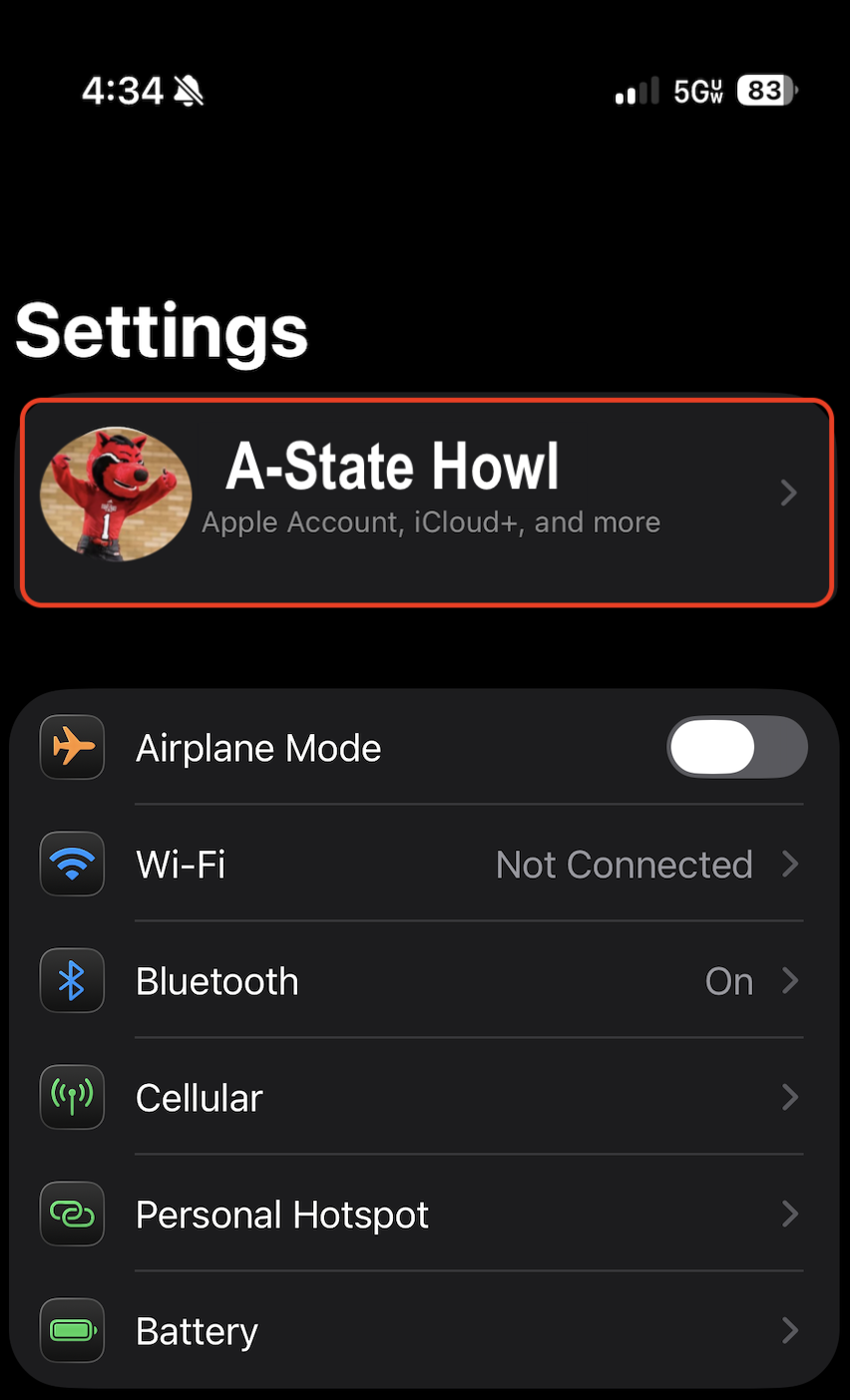
![iPhone Settings menu.png](https://kb.astate.edu/uploads/images/gallery/2026-08/scaled-1680-/iphone-settings-menu.png)

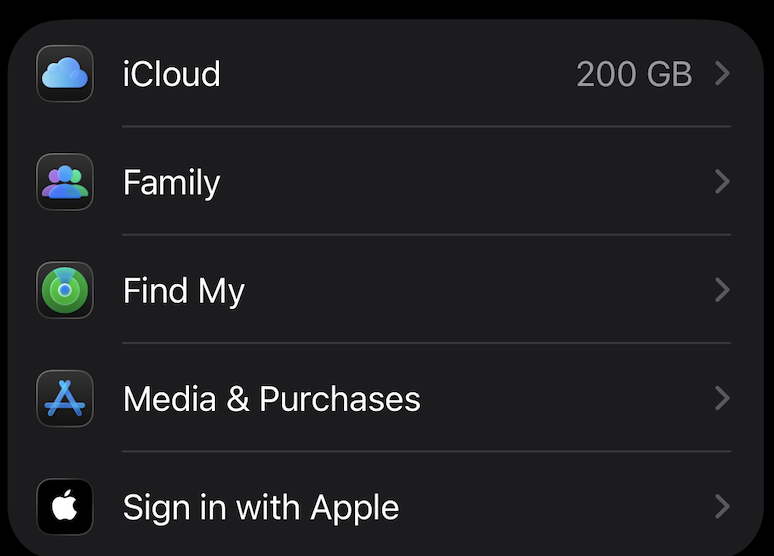
- Select **iCloud**

**![iPhone Profile Options.png](https://kb.astate.edu/uploads/images/gallery/2026-08/scaled-1680-/iphone-profile-options.png)**

- From the **iCloud+ Features** menu, tap **Private Relay**

**![iPhone - Private Ralay option.jpeg](https://kb.astate.edu/uploads/images/gallery/2026-08/scaled-1680-/iphone-private-ralay-option.jpeg)**
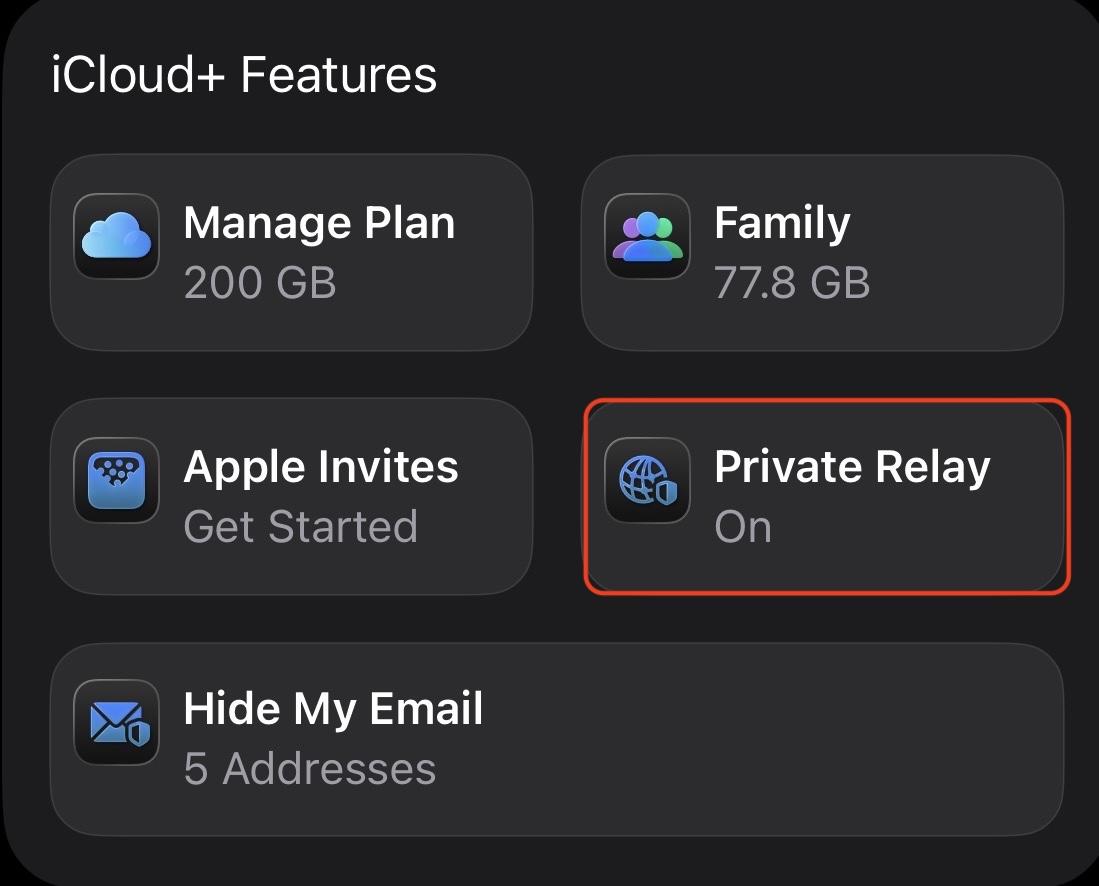
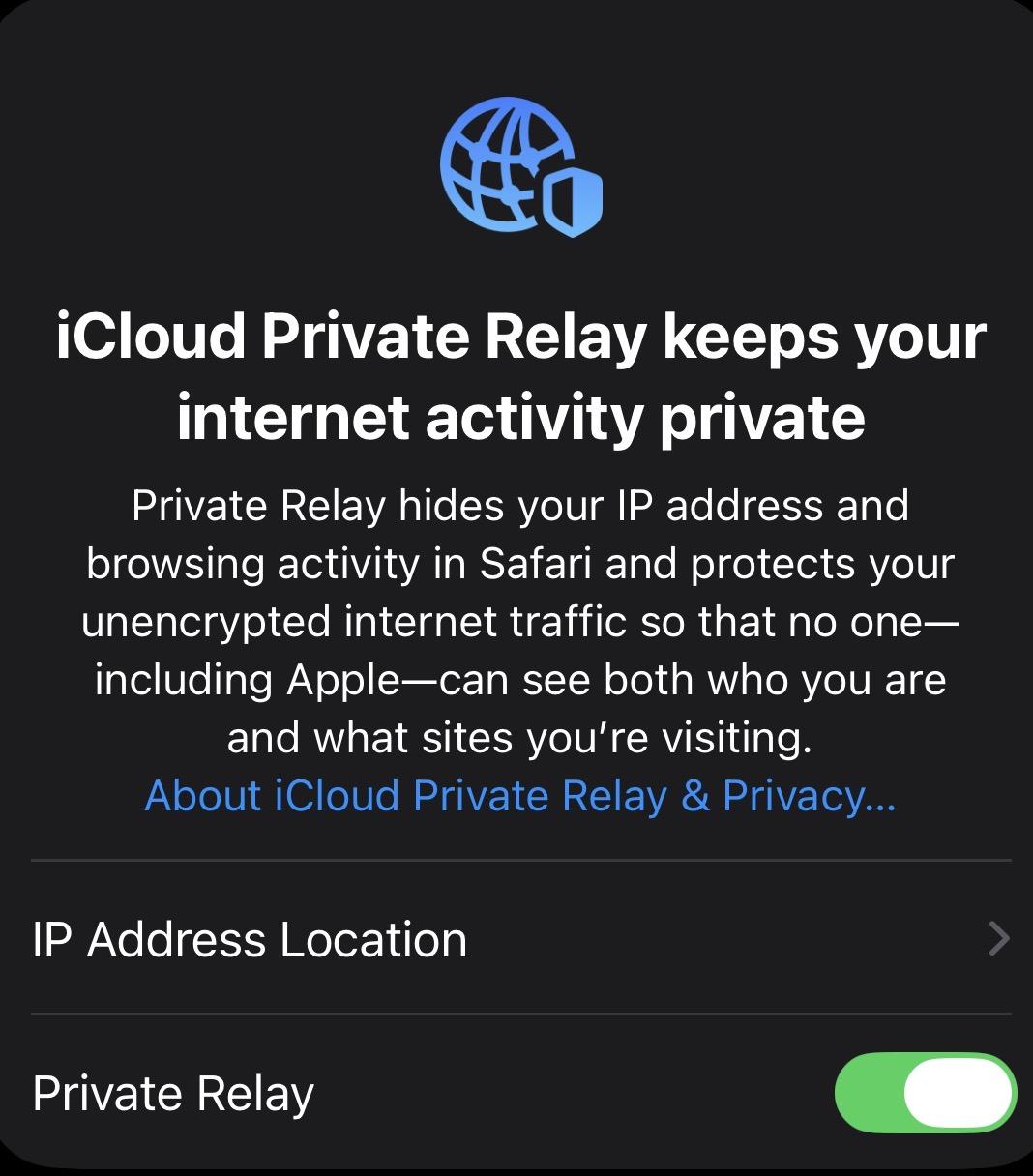
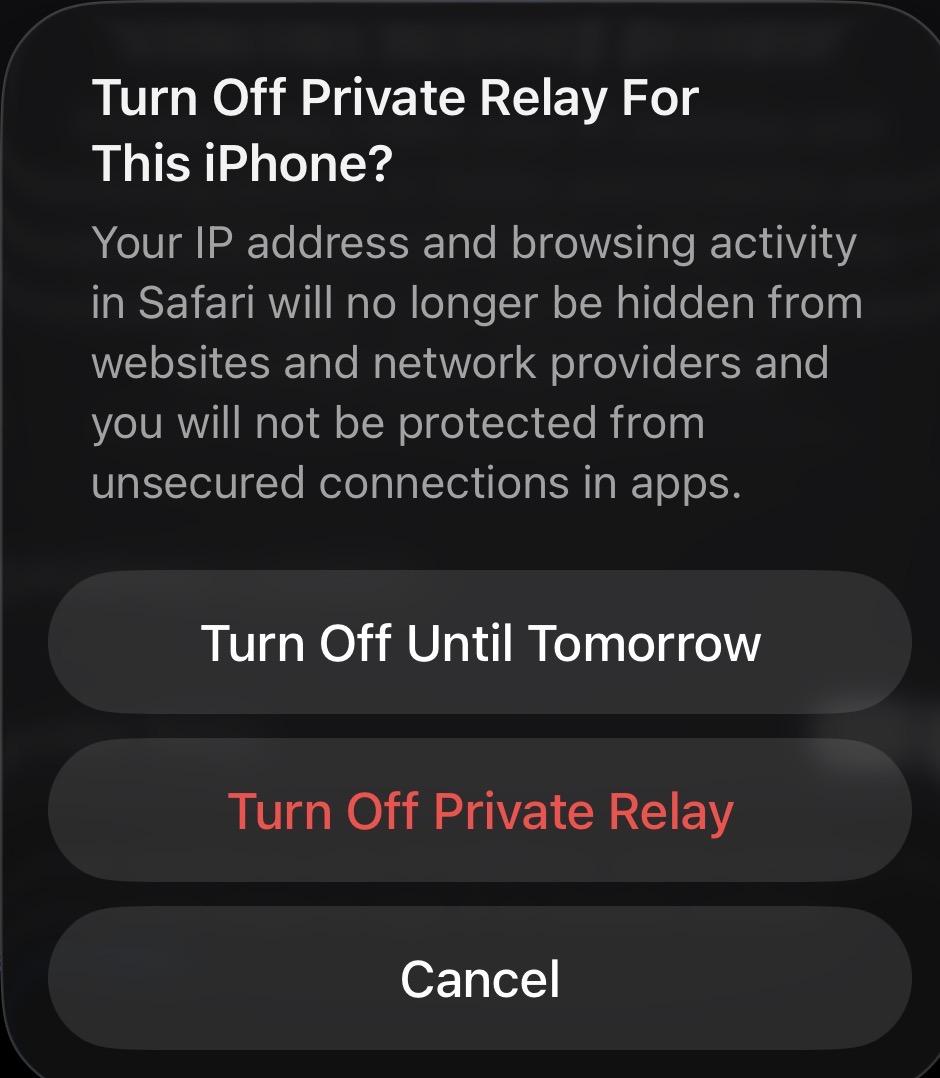
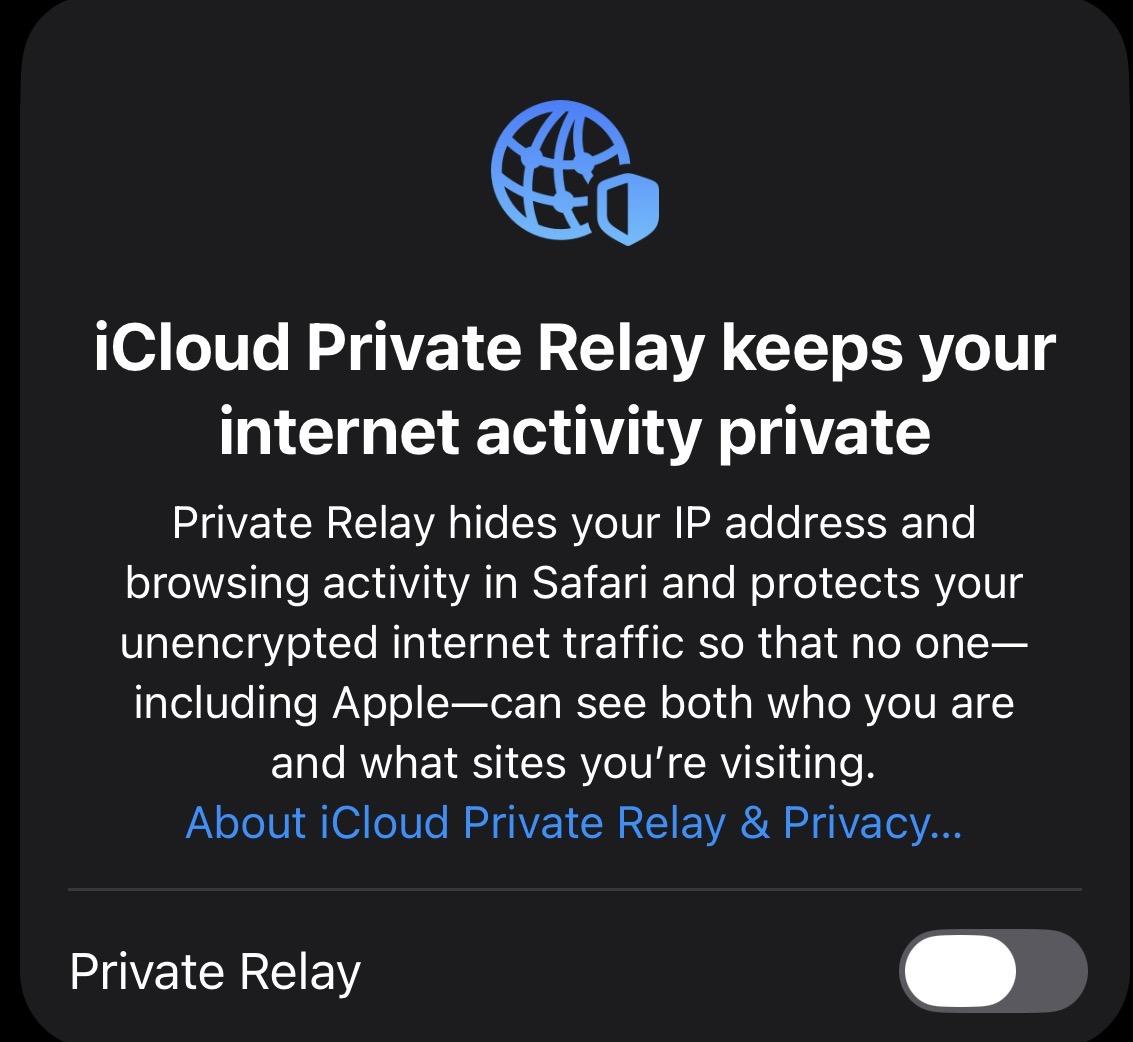
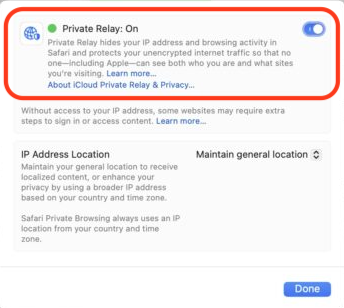
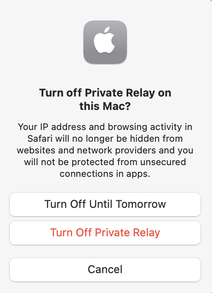
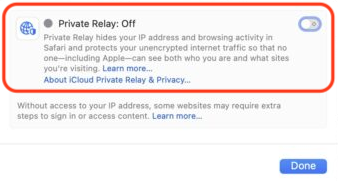
- Toggle **Private Relay** to ***OFF***

 **Toggled <span style="color: rgb(45, 194, 107);">ON</span>** Select **<span style="color: rgb(224, 62, 45);">Turn Off Private Relay</span> Toggled OFF**

 ***![Private Relay - Toggled On.jpeg](https://kb.astate.edu/uploads/images/gallery/2026-08/scaled-1680-/private-relay-toggled-on.jpeg) ![Private Relay - Confirmation Prompt .jpeg](https://kb.astate.edu/uploads/images/gallery/2026-08/scaled-1680-/private-relay-confirmation-prompt.jpeg) ![Private Relay - Toggled Off.jpeg](https://kb.astate.edu/uploads/images/gallery/2026-08/scaled-1680-/private-relay-toggled-off.jpeg)***

- You should now be able to connect to the **AStateConnect** network 
    - You can follow this [<span style="color: rgb(45, 194, 107);">**GUIDE**</span>](https://kb.astate.edu/books/campus-wireless/page/ios-devies-iphone-ipad) for help getting connected to the network

</details><details id="bkmrk-macbook-click-on-you"><summary>MacBook</summary>

- Click on your **Name** on the left side of the menu and select **iCloud** on the right side
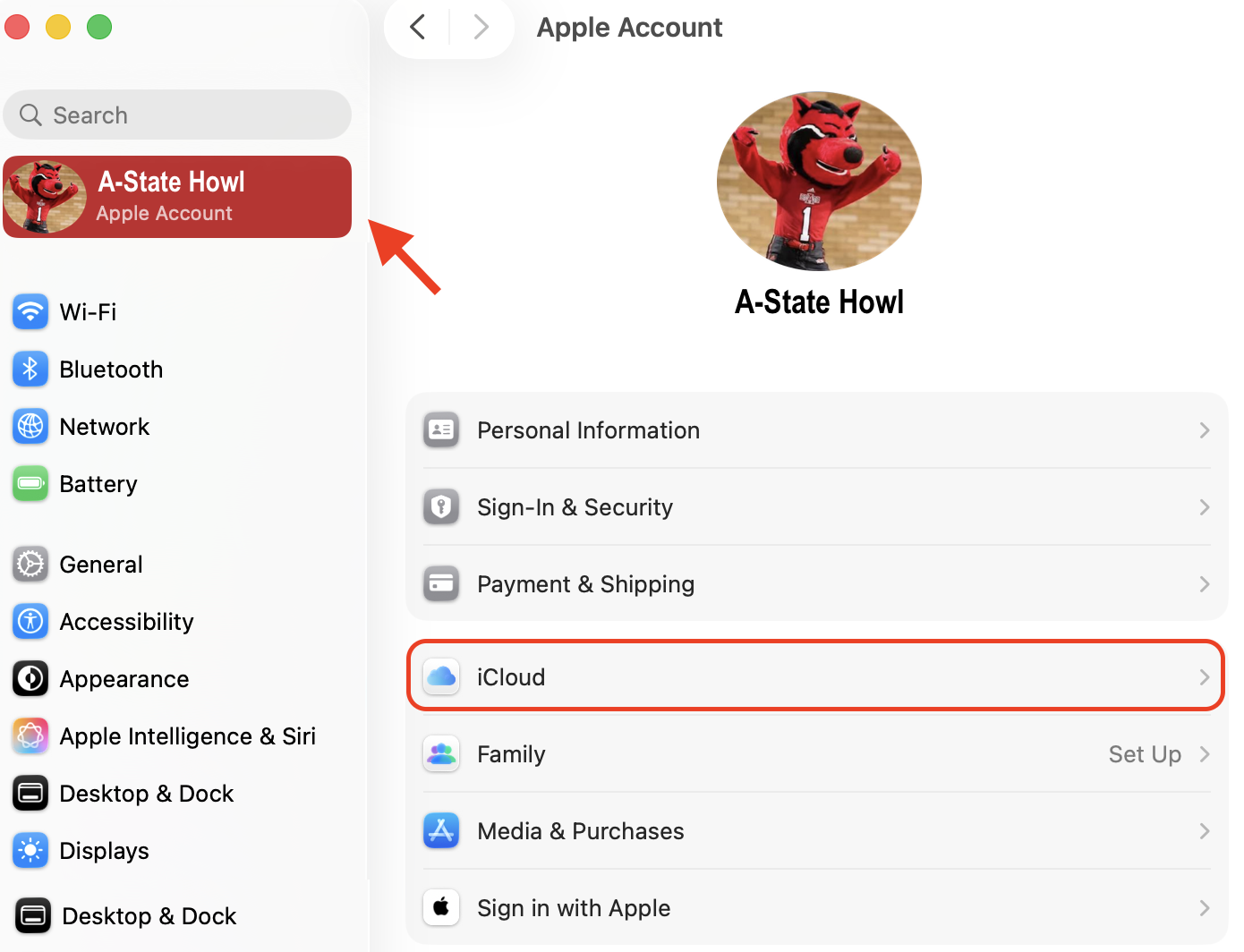
![Macbook - Main Menu.png](https://kb.astate.edu/uploads/images/gallery/2026-08/scaled-1680-/macbook-main-menu.png)

- Under **iCloud+** Features, select **Private Relay**

**![Mac - Private relay menu.png](https://kb.astate.edu/uploads/images/gallery/2026-08/scaled-1680-/mac-private-relay-menu.png)**
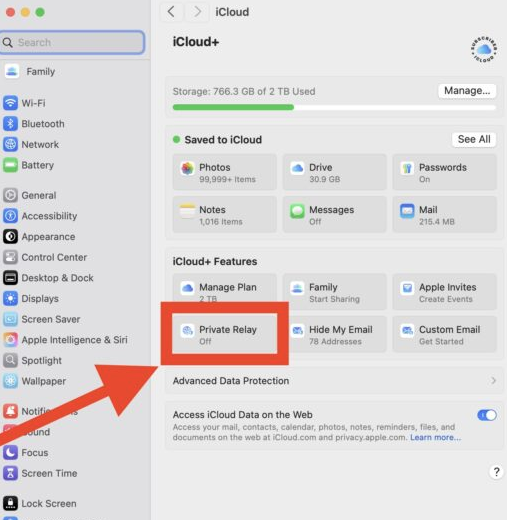
- - Toggle **Private Relay** to ***OFF***

 **Toggled <span style="color: rgb(45, 194, 107);">ON</span>** Select **<span style="color: rgb(224, 62, 45);">Turn Off Private Relay</span> Toggled OFF**

 ***![Mac - Private Relay - ON.png](https://kb.astate.edu/uploads/images/gallery/2026-08/scaled-1680-/mac-private-relay-on.png) ![Mac - Private relay - confirmation prompt.png](https://kb.astate.edu/uploads/images/gallery/2026-08/scaled-1680-/mac-private-relay-confirmation-prompt.png) ![Mac - Private replay - OFF.png](https://kb.astate.edu/uploads/images/gallery/2026-08/scaled-1680-/mac-private-replay-off.png)***

- You should now be able to connect to the **AStateConnect** network 
    - You can follow this [<span style="color: rgb(45, 194, 107);">**GUIDE**</span>](https://kb.astate.edu/books/campus-wireless/page/macos-macbooks-mac) for help getting connected to the network

</details>