The current **AStateSecure** wireless network will be retired at **noon** on **Saturday, Oct. 3**, and will no longer be available after that time.
--- #### Connecting to AStateConnect **AStateConnect** is the Wi-Fi network you will use while on campus. You log in with your A-State email address and password. --- 1\. Open the **Settings** app on your iOS device. The icon should look like the image below. [](https://kb.astate.edu/uploads/images/gallery/2021-09/ios-9-settings-icon-full-size-1.jpg) 2\. Tap on **Wi-Fi** on the left hand side of the **Settings** screen. 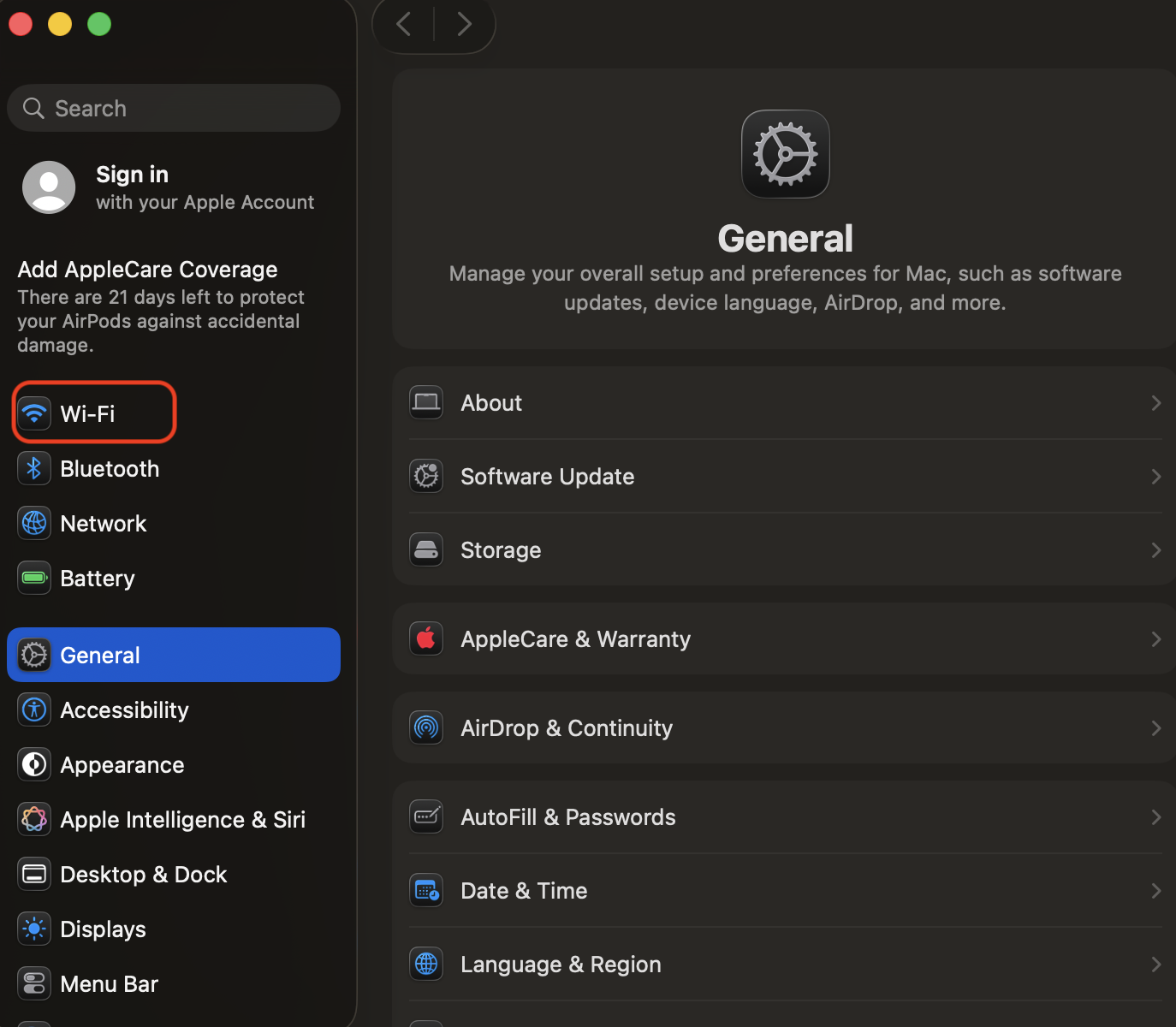 3\. Tap on **AStateConnect**. 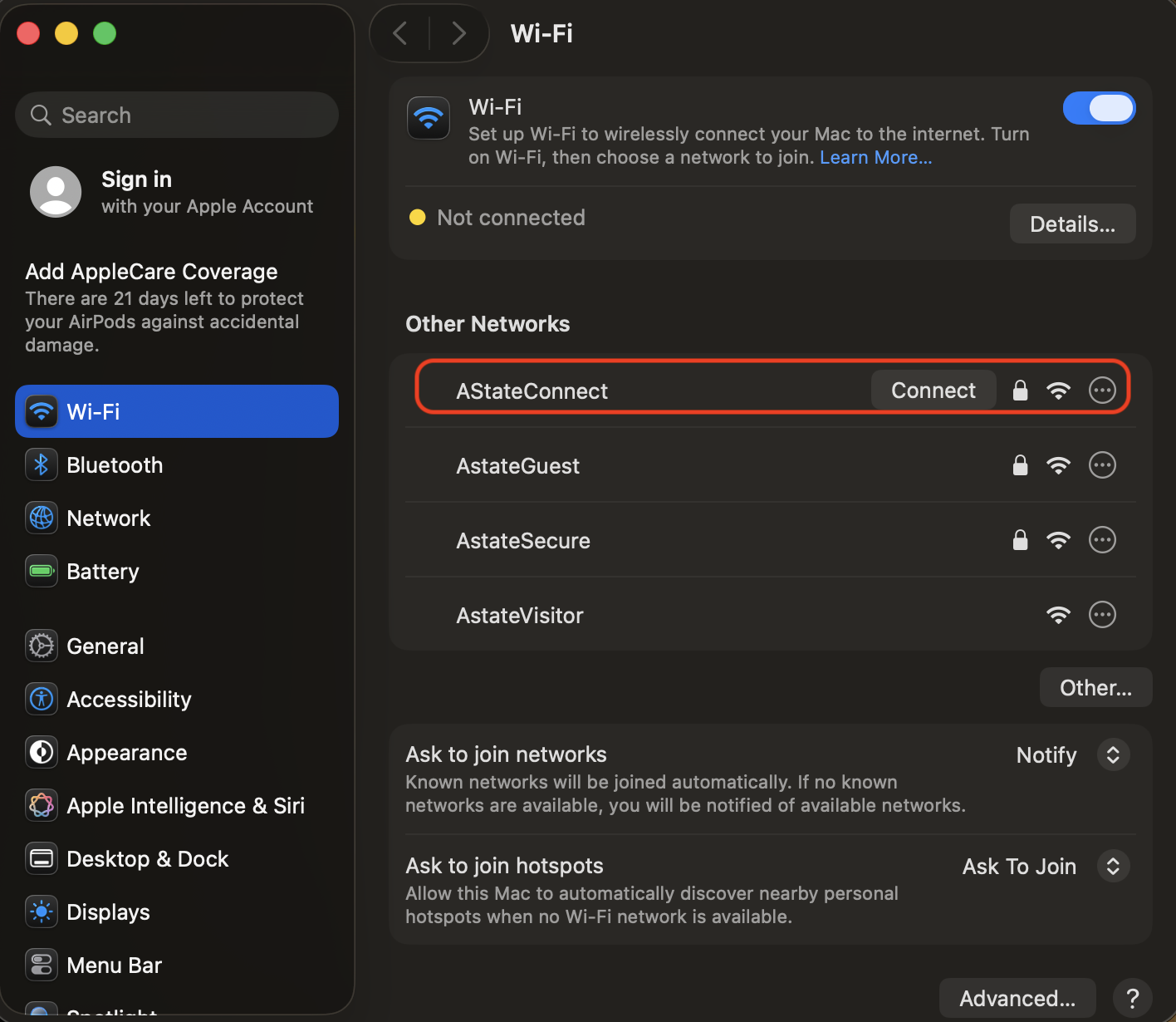 4\. Enter your A-State email address and password and tap **Join**. 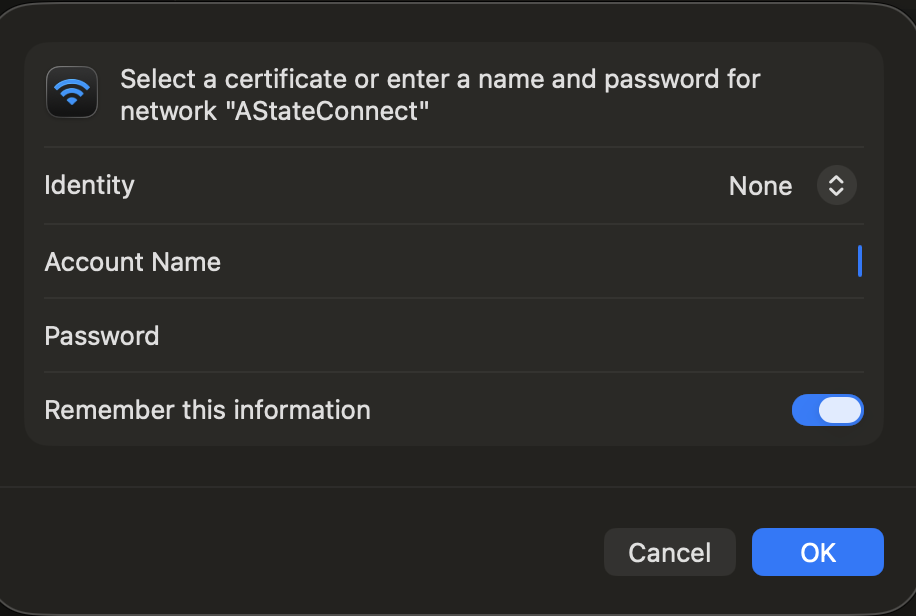 5\. A screen will pop up like the image below. Tap **Trust**. 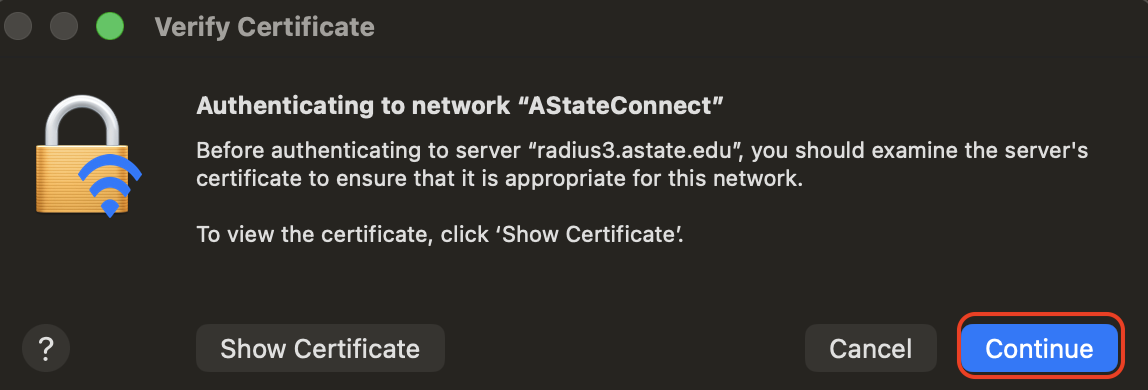 Your device should now be signed into the **AStateConnect** network. --- #### Disable Private Wi-Fi Addressing If you are exeriencing issues with the network, you might need to disable private wi-fi addressing. Steps for this can be found [here](https://kb.astate.edu/books/campus-wireless/page/disabling-private-wi-fi-addressing). --- #### Connecting to Home@AState **Home@AState** is the Wi-Fi network used in A-State Campus Housing. Every student living in on-campus housing should have been provided a password for this Wi-Fi network to their A-State student email. --- 1\. Open the **Settings** app on your iOS device. The icon should look like the image below. [](https://kb.astate.edu/uploads/images/gallery/2021-09/ios-9-settings-icon-full-size-1.jpg) 2\. Tap on **Wi-Fi** on the left hand side of the **Settings** screen. [](https://kb.astate.edu/uploads/images/gallery/2021-10/1.PNG) 3\. Tap on **Home@AState**. 4\. Enter the **Home@AState** password provided via A-State student email and tap **Join**. Your device should now be signed into the **Home@AState** network.If you have not received your **Home@AState** password, you can use this **[GUIDE](https://kb.astate.edu/books/campus-wireless/page/how-to-request-a-home-at-astate-wi-fi-password)** for help requesting a new password.
---For further assistance, contact the ITS Help Desk at 870-972-3933 or stop by IT Support Services (