Captioning with YouTube
Auto Generating Captions for a New Upload
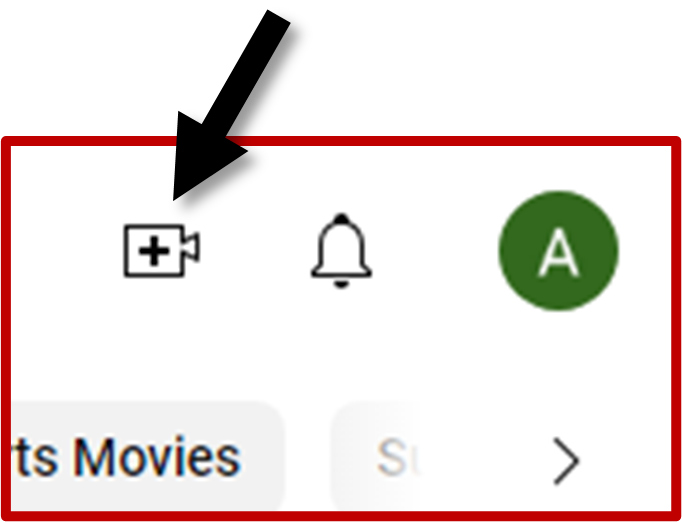
Make sure you are signed into YouTube, otherwise you will not be able to upload/edit videos. Once you are logged in, click Create > Upload Video in the top right corner.
This will pull up a dialog box in the middle of your screen. Drag and drop or select a file to upload. After it has finished uploading, YouTube will supply a video link.
You will then be prompted to add details to your upload such as a title, description, etc. Once satisfied, click Next (bottom right) to progress to video elements.
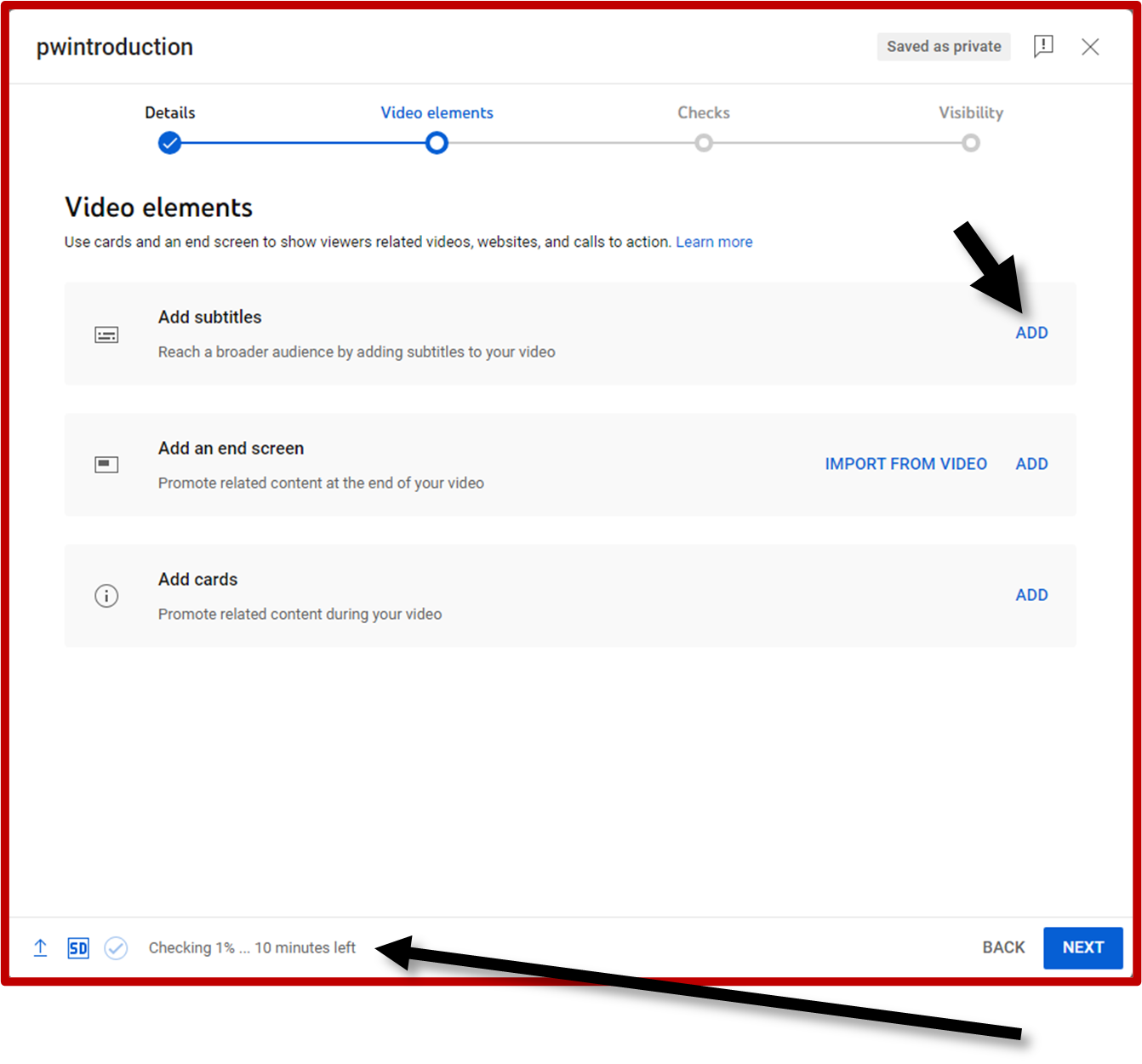 Click ADD on the right-hand side of the top bar to add captions.
Another screen will appear asking how you would like to add captions. Ensure the video language is set to English.
You do not have to do anything else; close this window.
You will have to wait, maybe for several minutes, for this stage to be completed.
Once your video has finished processing (check the progress in the bottom left):
- Ensure there is a blue dot with a checkmark under Checks.
- Click Visibility and set who can see your video. We recommend setting it as ‘Private’ until your captions are complete. You can change this setting at any time.
- Return to Video elements.
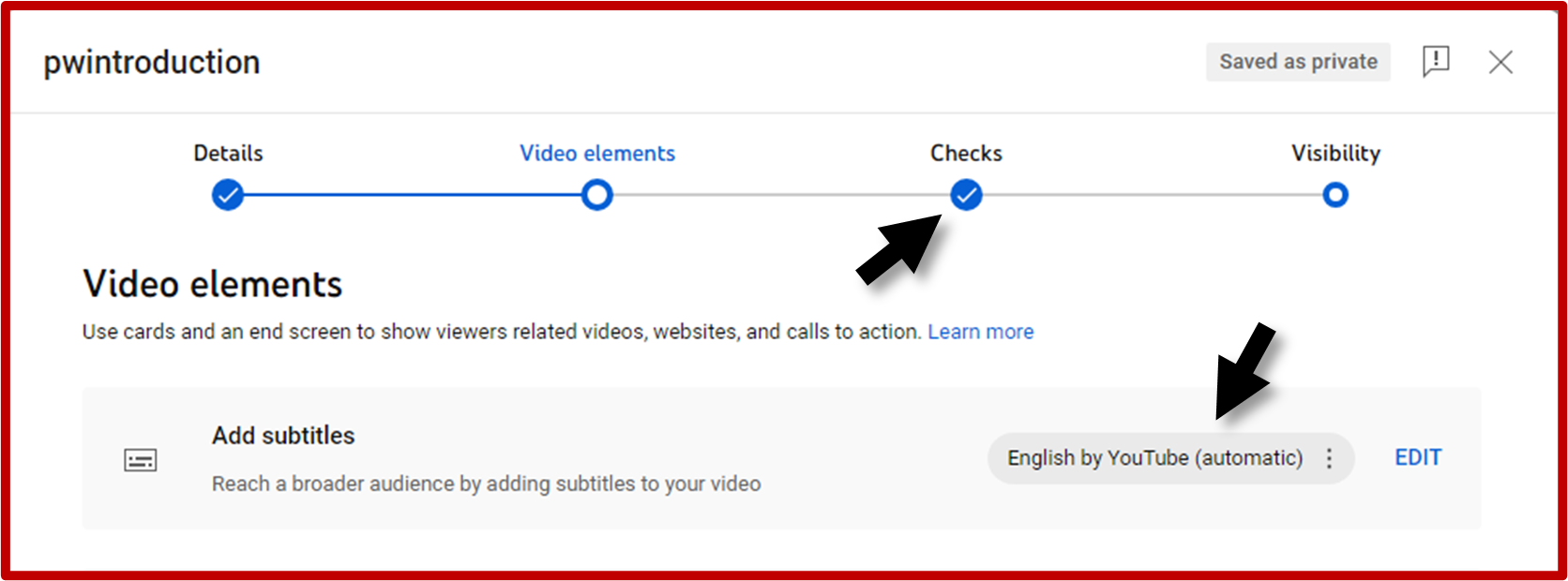
You will see the auto-generated captions (as shown above) are finished. Click Edit to review timing, grammar, spelling, etc. This is a necessary step to ensure accuracy.
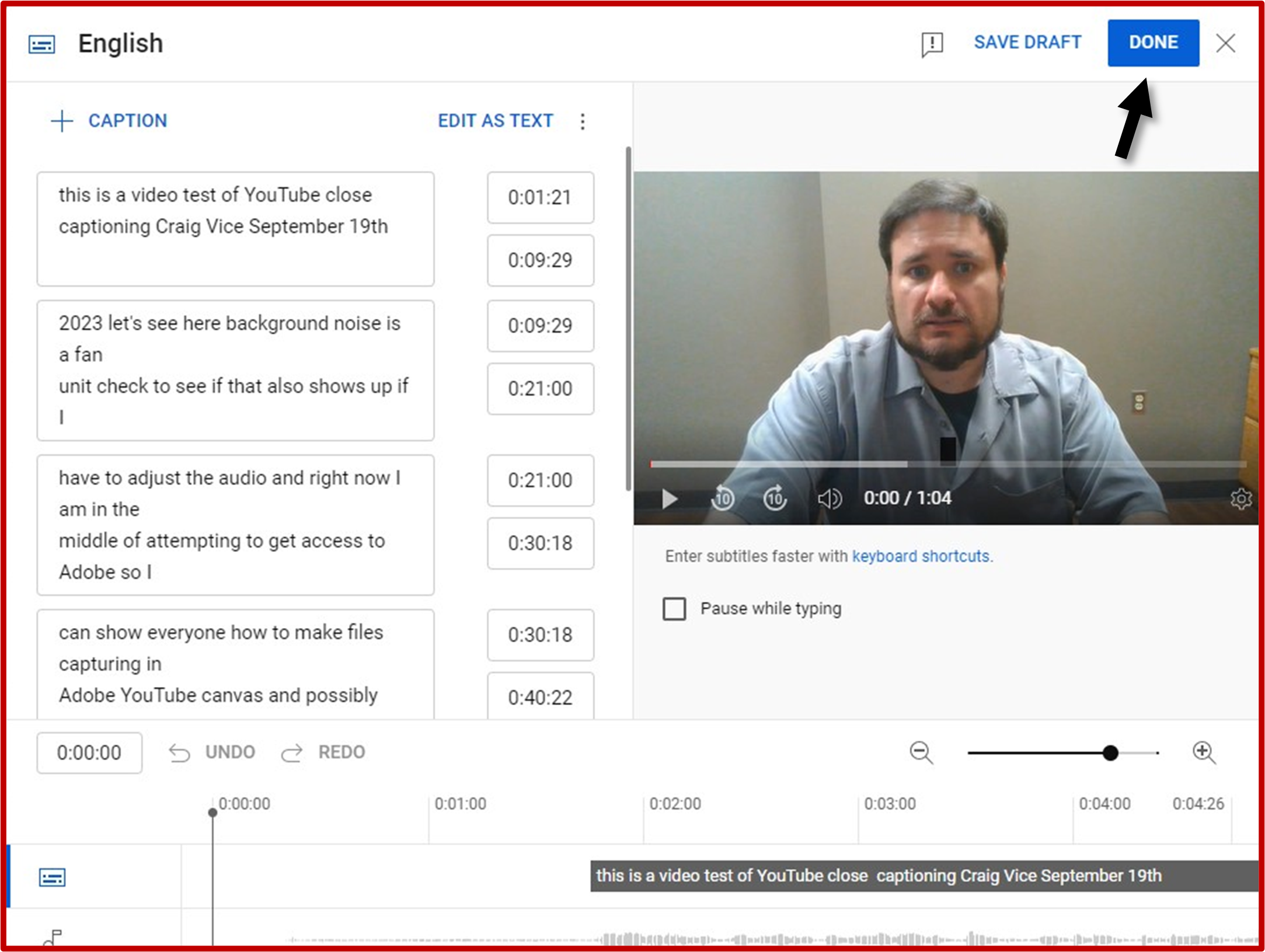
Your screen should now look like the image found below. Click Done in the upper right corner when edits are complete.
Remember to review your video after completion to ensure accuracy of captions.
Auto Generating Captions for Videos Already on YouTube
Make sure you are signed into YouTube, otherwise you will not be able to upload/edit videos.
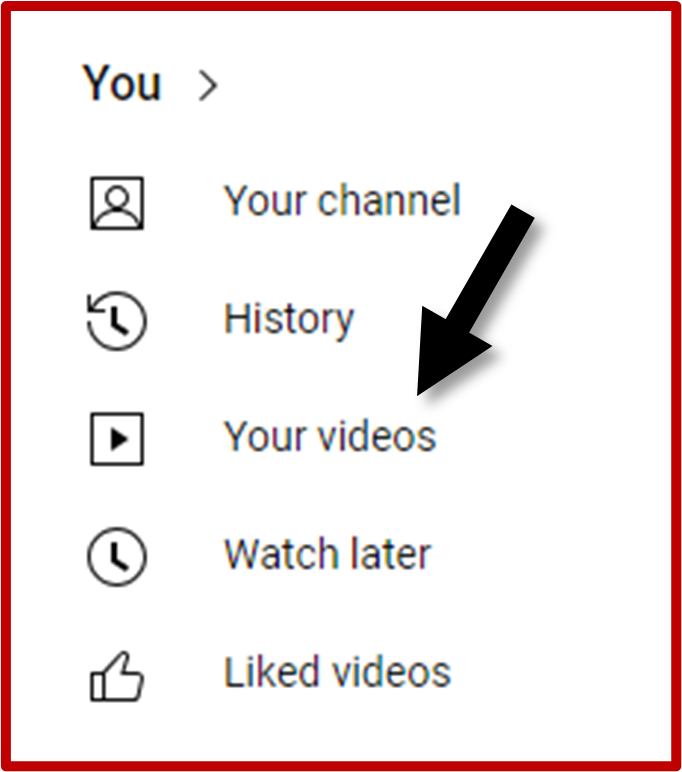
Once you are logged in, click Your Videos on the left side of the screen.
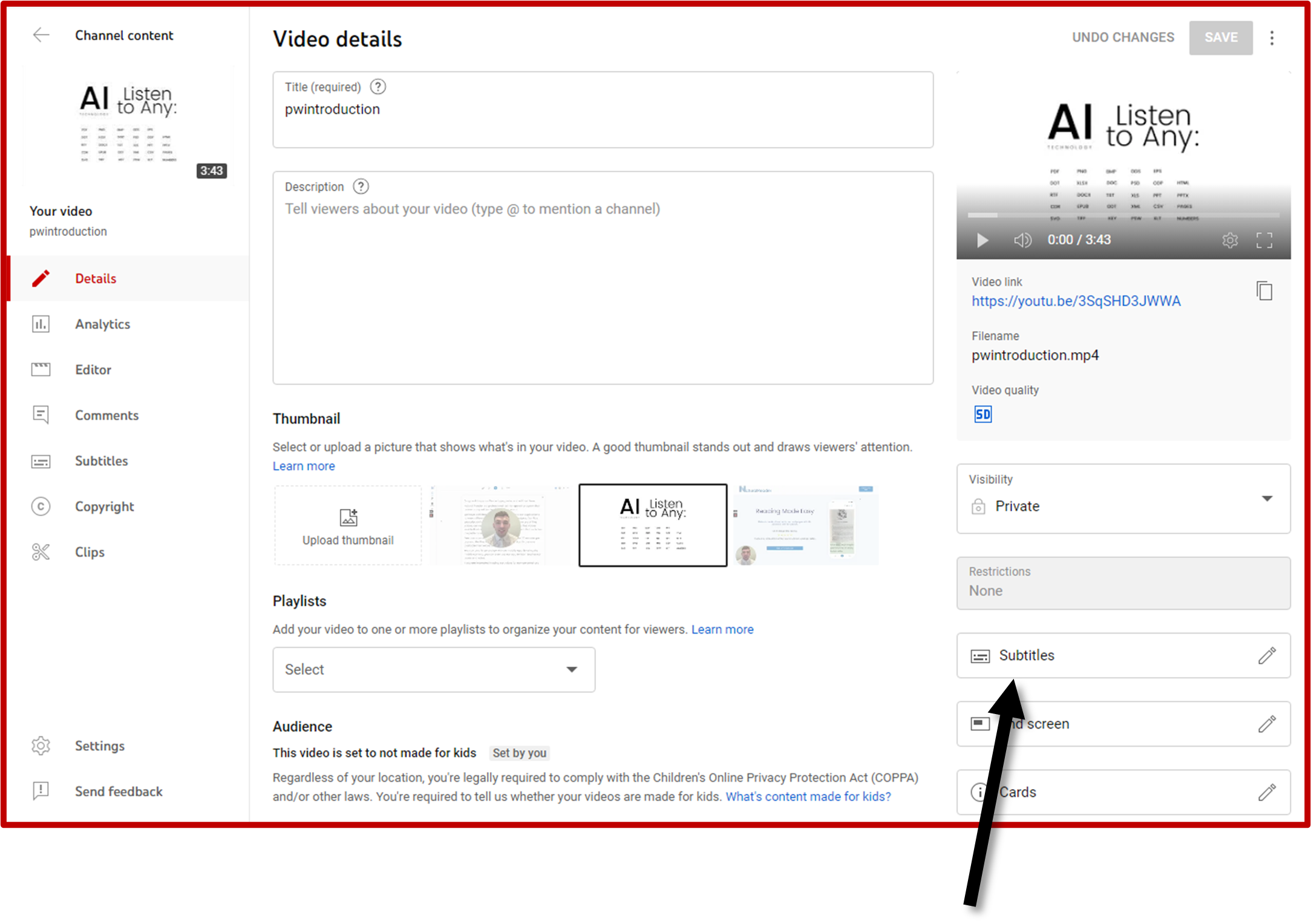
Hover over the video needing to be captioned and click the Details button. It will look like a little pencil. Your screen should now look like the image below.
On the right-hand side of the screen, select the Subtitles option. This will bring up the video editor as pictured in the end of the last section. Click Done in the upper right corner when edits are complete.
Remember to review your video after completion to ensure accuracy of captions.