Installing CA Certificates
Install Certificate Authority certificates
These instruction assume the user has administrative access to the server/workstation.
Windows
First copy the CA certificate(s) to the Windows server/workstation.
The following files were copied to the user account home directory.
- Arkansas_State_University_Root_CA_certificate.cer
- Arkansas_State_University_Issuing_CA_certificate.cer
Windows GUI
- Double click on the CA certificate to start the install process.
- Select Install Certificate...
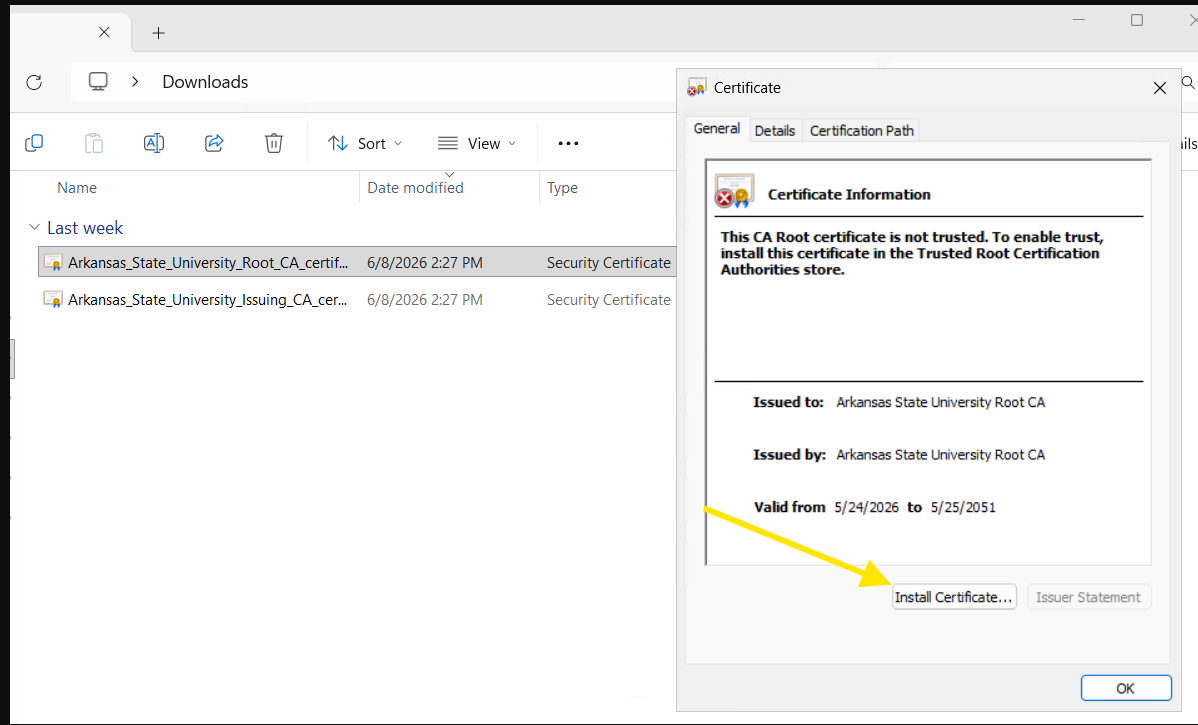
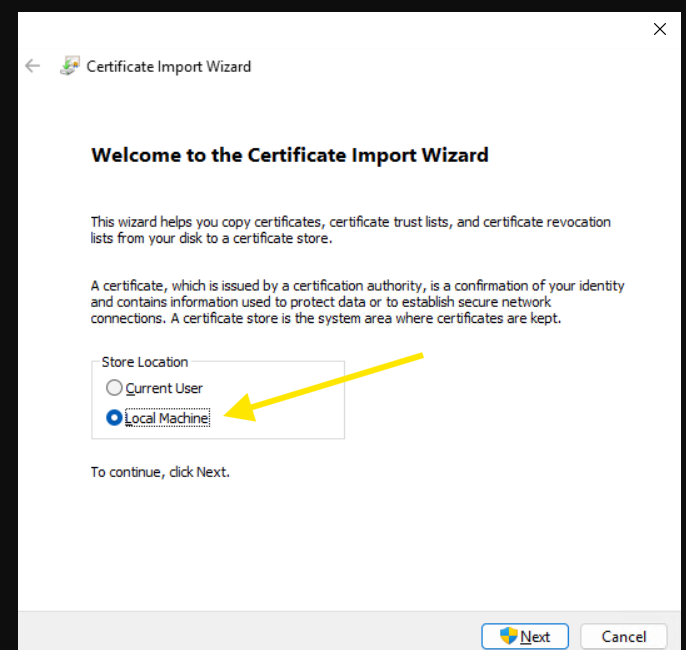
- Select
Local Machinefor the store location and click Next.
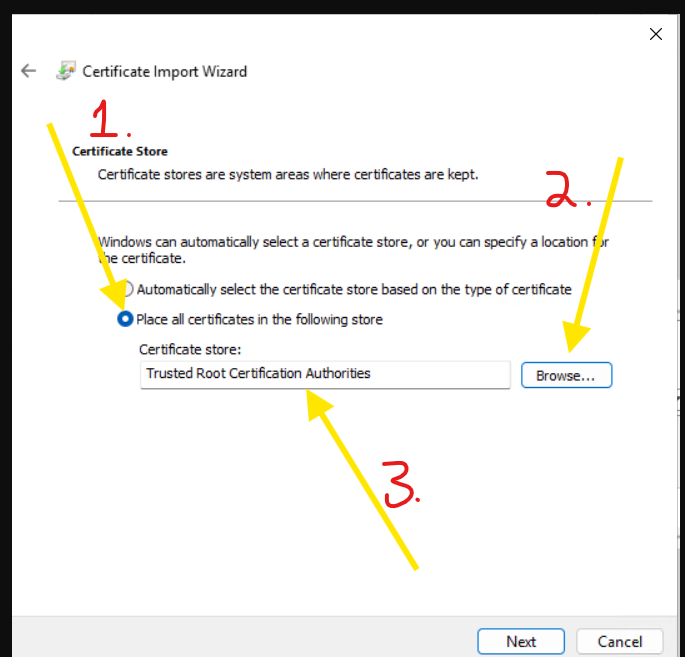
- On the
Certificate Storedialog- Select
Place all certificates in the following store - Select
Browse - For the Arkansas_State_University_Root_CA_certificate.cer certificate
- Choose the
Trusted Root Certification Authorities
- Choose the
- For the Arkansas_State_University_Issuing_CA_certificate.cer certificate
- Choose the
Intermediate Certificatoin Authorities
- Choose the
- Click Next
-

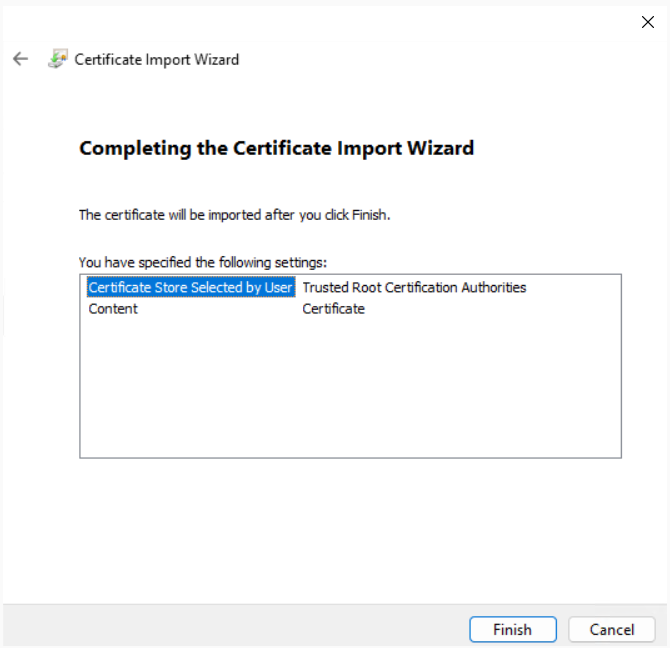
- Select Finish
-

- Select
- Select Ok

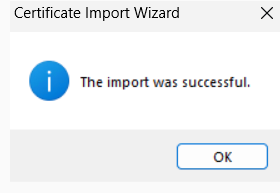
Windows prompt
From an administrative command prompt or PowerShell session, extecute the following two commands.
# Install the Root CA certificate
certutil -addstore -f root "C:\Users\user account\Arkansas_State_University_Root_CA_certificate.cer"

# Install the Intermediate (Issuing) CA certificate
certutil -addstore -f intermediate "C:\Users\user account\Arkansas_State_University_Issuing_CA_certificate.cer"
Linux
First copy the CA certificate(s) to the linux server/workstation and change the extension from .cer to .crt.
RHEL distributions
-
Make sure that the
ca-certificatespackage is installedsudo dnf install ca-certificates -
Copy the CA certificate(s) to
/etc/pki/ca-trust/source/anchors/sudo cp CA_CERT /etc/pki/ca-trust/source/anchors/CA_CERT.crtRepeat for each certificate that needs to be added to the trust store.
-
Update the system certificate trust store
sudo update-ca-trust extractTip
extractis not strictly needed but it does provide more warnings if there is any issues. -
Verify the certificates were added to the trust store
trust list | grep "My Private CA Name"
RHEL example
This example uses the Arkansas State University private certificate authority.
The following files were copied to the user account home directory.
- Arkansas_State_University_Root_CA_certificate.cer
- Arkansas_State_University_Issuing_CA_certificate.cer
# Copy the certificates to the correctly directory
# Note the extension change from .cer to .crt
$ sudo cp /home/user account/Arkansas_State_University_Root_CA_certificate.cer /etc/pki/ca-trust/source/anchors/Arkansas_State_University_Root_CA_certificate.crt
$ sudo cp /home/user account/Arkansas_State_University_Issuing_CA_certificate.cer /etc/pki/ca-trust/source/anchors/Arkansas_State_University_Issuing_CA_certificate.crt

# Update the ca trust store
$ sudo update-ca-trust extract

# Verify the certificates were added
$ trust list | grep "Arkansas State University"

# If the certificates were loaded into the trust store you should see the following output.
    label: Arkansas State University Root CA
    label: Arkansas State University Issuing CA
Debian distributions
-
Make sure that the
ca-certificatespackage is installedsudo apt install ca-certificates -
Copy the CA certificate(s) to
/usr/local/share/ca-certificates/sudo cp CA_CERT /usr/local/share/ca-certificates/CA_CERT.crtRepeat for each certificate that needs to be added to the trust store.
-
Update the system certificate trust store
sudo update-ca-certificates -
Verify the certificates were added to the trust store
awk -v cmd='openssl x509 -noout -subject' ' /BEGIN/{close(cmd)}; {print | cmd}' < /etc/ssl/certs/ca-certificates.crt | grep "My Private CA Name"
Debian example
This example uses the Arkansas State University private certificate authority.
The following files were copied to the user account home directory.
- Arkansas_State_University_Root_CA_certificate.cer
- Arkansas_State_University_Issuing_CA_certificate.cer
# Copy the certificates to the correctly directory
# Note the extension change from .cer to .crt
$ sudo cp /home/user account/Arkansas_State_University_Root_CA_certificate.cer /usr/local/share/ca-certificates/Arkansas_State_University_Root_CA_certificate.crt
$ sudo cp /home/user account/Arkansas_State_University_Issuing_CA_certificate.cer /usr/local/share/ca-certificates/Arkansas_State_University_Issuing_CA_certificate.crt

# Update the ca trust store
$ sudo update-ca-certificates

Updating certificates in /etc/ssl/certs...
rehash: warning: skipping ca-certificates.crt,it does not contain exactly one certificate or CRL
2 added, 0 removed; done.
Running hooks in /etc/ca-certificates/update.d...
done.

# Note: you can ignore the rehash warnings about certificates 'does not contain exactly one certificate or CRL'.

# Verify the certificates were added
$ awk -v cmd='openssl x509 -noout -subject' ' /BEGIN/{close(cmd)}; {print | cmd}' < /etc/ssl/certs/ca-certificates.crt | grep 'Arkansas State University'

# If the certificates were loaded into the trust store you should see the following output.
subject=C=US, ST=Arkansas, L=State University, O=Arkansas State University, CN=Arkansas State University Issuing CA
subject=C=US, ST=Arkansas, L=State University, O=Arkansas State University, CN=Arkansas State University Root CA
Installing the Certificate Profile on Mac/iPad (iOS)
To install the Certificate Profile.
1. Click on the certificate profile app:

2. At the Profile Downloaded box click ok.

3. Go to System Settings and General.

4. Go to Device Management

5. Under Device Management, you should see the Certificate Profile. Click on it to install.

6. In the Are you sure you want to install this device profile, click install.

7. It will prompt you for your username and password.

8. Once it is installed, you should see the Certificate profile in Device Management.
.