# Installing the Certificate Profile on Mac/iPad (iOS)

To install the Certificate Profile.

<span style="mso-bidi-font-family: Aptos; mso-bidi-theme-font: minor-latin;"><span style="mso-list: Ignore;">1.<span style="font: 7.0pt 'Times New Roman';"> </span></span></span>Click on the certificate profile app:

<span style="mso-no-proof: yes;">![](https://kb.astate.edu/uploads/images/gallery/2026-10/embedded-image-ezkczdcq.png)</span>

<span style="mso-bidi-font-family: Aptos; mso-bidi-theme-font: minor-latin;"><span style="mso-list: Ignore;">2.<span style="font: 7.0pt 'Times New Roman';"> </span></span></span>At the Profile Downloaded box click ok.
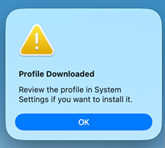
<span style="mso-no-proof: yes;">![](https://kb.astate.edu/uploads/images/gallery/2026-10/embedded-image-ncvkpev2.png)</span>

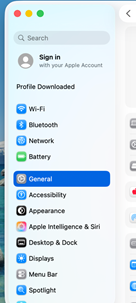
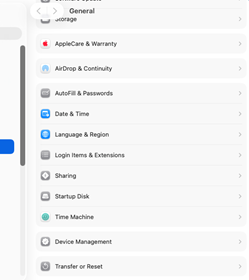
<span style="mso-bidi-font-family: Aptos; mso-bidi-theme-font: minor-latin;"><span style="mso-list: Ignore;">3.<span style="font: 7.0pt 'Times New Roman';"> </span></span></span>Go to System Settings and General.

<span style="mso-spacerun: yes;"> </span><span style="mso-no-proof: yes;">![](https://kb.astate.edu/uploads/images/gallery/2026-10/embedded-image-r320s8bh.png)</span>

<span style="mso-bidi-font-family: Aptos; mso-bidi-theme-font: minor-latin;"><span style="mso-list: Ignore;">4.<span style="font: 7.0pt 'Times New Roman';"> </span></span></span>Go to Device Management

<span style="mso-no-proof: yes;">![](https://kb.astate.edu/uploads/images/gallery/2026-10/embedded-image-f1vobcoq.png)</span>

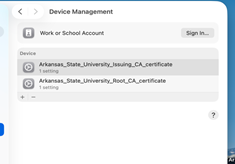
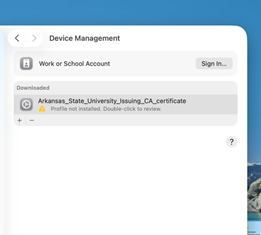
<span style="mso-bidi-font-family: Aptos; mso-bidi-theme-font: minor-latin;"><span style="mso-list: Ignore;">5.<span style="font: 7.0pt 'Times New Roman';"> </span></span></span><span style="mso-spacerun: yes;"> </span>Under Device Management, you should see the Certificate Profile. Click on it to install.
<span style="mso-no-proof: yes;">![](https://kb.astate.edu/uploads/images/gallery/2026-10/embedded-image-pro4e9tm.png)</span>

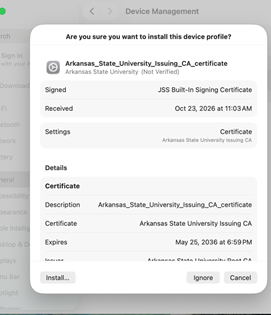
<span style="mso-bidi-font-family: Aptos; mso-bidi-theme-font: minor-latin;"><span style="mso-list: Ignore;">6.<span style="font: 7.0pt 'Times New Roman';"> </span></span></span>In the *Are you sure you want to install this device profile*, click install.
<span style="mso-no-proof: yes;">![](https://kb.astate.edu/uploads/images/gallery/2026-10/embedded-image-5dpjzjzv.png)</span>

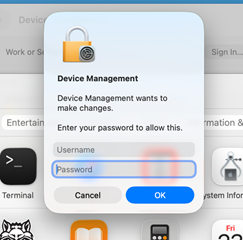
<span style="mso-bidi-font-family: Aptos; mso-bidi-theme-font: minor-latin;"><span style="mso-list: Ignore;">7.<span style="font: 7.0pt 'Times New Roman';"> </span></span></span>It will prompt you for your username and password.
<span style="mso-no-proof: yes;">![](https://kb.astate.edu/uploads/images/gallery/2026-10/embedded-image-wjfzxodi.png)</span>

<span style="mso-bidi-font-family: Aptos; mso-bidi-theme-font: minor-latin;"><span style="mso-list: Ignore;">8.<span style="font: 7.0pt 'Times New Roman';"> </span></span></span>Once it is installed, you should see the Certificate profile in Device Management.

<span style="mso-spacerun: yes;"> </span>.<span style="mso-no-proof: yes;">![](https://kb.astate.edu/uploads/images/gallery/2026-10/embedded-image-fp6uet0m.png)</span>