# Create and Send Email in Outlook

#### Create and send email

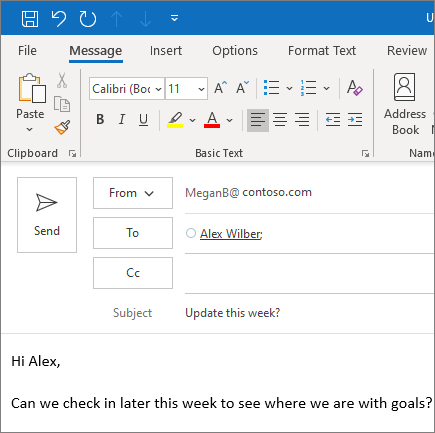
<div id="bkmrk-choose-new-email-to-"><div><div><div>1. Choose **New Email** to start a new message.
2. Enter a name or email address in the **To**, **Cc**, or **Bcc** field.
    
    If you don't see **Bcc**, see [Show, hide, and view the Bcc box](https://support.microsoft.com/en-us/office/show-hide-and-view-the-bcc-blind-carbon-copy-field-04304e27-63a2-4276-8884-5077fba0e229).
3. In **Subject**, type the subject of the email message.
4. Place the cursor in the body of the email message, and then start typing.
5. After typing your message, choose **Send**.
</div><div>![Create and send an email](https://support.content.office.net/en-us/media/61c1a25b-4968-4a20-9dc4-f65c4e40ce65.png)</div>---

<div></div></div></div></div>#### Use @mentions to get someone's attention

<div id="bkmrk-in-the-body-of-the-e"><div><div><div><div><div><div>1. In the body of the email message or calendar invite, enter the **@** symbol and the first few letters of the contact's first or last name.
2. When Outlook offers you one or more suggestions, choose the contact you want to mention.
    
    By default, their full name is included. You can delete a portion of the mention, for example, everything other than the person's first name.
3. The mentioned contact is added to the **To** line of the email or the meeting invite.

</div><div>![@Mention feature in Outlook](https://support.content.office.net/en-us/media/b86f9cdb-22b4-4098-8c25-66a06e63a330.png)</div>---

<div>Additional Microsoft resources  
{{@71#bkmrk-quick-start-guide-ou}}</div><div></div></div></div></div></div></div></div>