# Entra ID Join Procedure - Remote Assets

<p class="callout danger">Before completing the steps in this document be sure that you have backed up all files from your current local profile to OneDrive. At the end of this joining process you will no longer be accessing the managed asset using a local account. For additional information on OneDrive, please see the following KB Articles: [https://kb.astate.edu/books/microsoft-365/chapter/onedrive](https://kb.astate.edu/books/microsoft-365/chapter/onedrive)</p>

#### 1. Purpose

<span class="TextRun SCXW245251054 BCX2" data-contrast="auto" lang="EN-US" style="font-size: 11pt; line-height: 17.25px; font-family: Aptos, 'Aptos_EmbeddedFont', 'Aptos_MSFontService', sans-serif;" xml:lang="EN-US"><span class="NormalTextRun SCXW245251054 BCX2">This </span><span class="NormalTextRun SCXW245251054 BCX2">procedure</span> <span class="NormalTextRun SCXW245251054 BCX2">establishes</span> <span class="NormalTextRun SCXW245251054 BCX2">the necessary steps for an institutionally owned and managed asset to be</span><span class="NormalTextRun SCXW245251054 BCX2"> joined to </span><span class="NormalTextRun SCXW245251054 BCX2">A-State’s</span><span class="NormalTextRun SCXW245251054 BCX2"> Microsoft</span><span class="NormalTextRun SCXW245251054 BCX2"> Entra ID</span><span class="NormalTextRun SCXW245251054 BCX2"> tenant</span><span class="NormalTextRun SCXW245251054 BCX2">.</span></span><span class="EOP Selected SCXW245251054 BCX2" data-ccp-props="{}" style="font-size: 11pt; line-height: 17.25px; font-family: Aptos, 'Aptos_EmbeddedFont', 'Aptos_MSFontService', sans-serif;"> To ensure compliance with university standards and a consistent experience for users, all technology resources shall be configured to meet a minimum standard. Remote devices that are not joined to the on-premise domain must be manually joined to Entra ID to ensure compliance with these standards. </span>

#### 2. Scope

<span class="TextRun SCXW84697250 BCX2" data-contrast="auto" lang="EN-US" style="font-size: 11pt; line-height: 17.25px; font-family: Aptos, 'Aptos_EmbeddedFont', 'Aptos_MSFontService', sans-serif;" xml:lang="EN-US"><span class="NormalTextRun SCXW84697250 BCX2">This standard applies to all </span><span class="NormalTextRun SCXW84697250 BCX2">Arkansas State University</span> <span class="NormalTextRun SCXW84697250 BCX2">(A-State)</span><span class="NormalTextRun SCXW84697250 BCX2"> owned technology resources and users of those resources. </span></span>

#### 3. Definitions

<span class="TextRun SCXW205753393 BCX2" data-contrast="auto" lang="EN-US" style="font-size: 11pt; line-height: 17.25px; font-family: Aptos, 'Aptos_EmbeddedFont', 'Aptos_MSFontService', sans-serif; font-weight: bold;" xml:lang="EN-US"><span class="NormalTextRun SCXW205753393 BCX2">Entra ID</span> <span class="NormalTextRun SCXW205753393 BCX2">–</span> </span><span class="TextRun SCXW205753393 BCX2" data-contrast="auto" lang="EN-US" style="font-size: 11pt; line-height: 17.25px; font-family: Aptos, 'Aptos_EmbeddedFont', 'Aptos_MSFontService', sans-serif;" xml:lang="EN-US"><span class="NormalTextRun SCXW205753393 BCX2">Entra ID is Microsoft’s </span><span class="NormalTextRun SCXW205753393 BCX2">cloud-based identity and access management (IAM) service</span><span class="NormalTextRun SCXW205753393 BCX2">, parallel to </span><span class="NormalTextRun ContextualSpellingAndGrammarErrorV2Themed SCXW205753393 BCX2">on-premise</span> <span class="NormalTextRun SCXW205753393 BCX2">Active Directory</span><span class="NormalTextRun SCXW205753393 BCX2">.</span></span><span class="EOP Selected SCXW205753393 BCX2" data-ccp-props="{}" style="font-size: 11pt; line-height: 17.25px; font-family: Aptos, 'Aptos_EmbeddedFont', 'Aptos_MSFontService', sans-serif;"> </span>

#### 4. Responsibilities

<span class="TextRun SCXW19889855 BCX2" data-contrast="auto" lang="EN-US" style="font-size: 11pt; line-height: 17.25px; font-family: Aptos, 'Aptos_EmbeddedFont', 'Aptos_MSFontService', sans-serif; font-weight: bold;" xml:lang="EN-US"><span class="NormalTextRun SCXW19889855 BCX2">IT Security</span><span class="NormalTextRun SCXW19889855 BCX2"> Team</span> <span class="NormalTextRun SCXW19889855 BCX2">– </span></span><span class="TextRun SCXW19889855 BCX2" data-contrast="auto" lang="EN-US" style="font-size: 11pt; line-height: 17.25px; font-family: Aptos, 'Aptos_EmbeddedFont', 'Aptos_MSFontService', sans-serif;" xml:lang="EN-US"><span class="NormalTextRun SCXW19889855 BCX2">Responsible for the technical configuration </span><span class="NormalTextRun SCXW19889855 BCX2">of</span><span class="NormalTextRun SCXW19889855 BCX2"> device join settings in Entra ID</span><span class="NormalTextRun SCXW19889855 BCX2">, including the permissions of who </span><span class="NormalTextRun AdvancedProofingIssueV2Themed SCXW19889855 BCX2">is able to</span><span class="NormalTextRun SCXW19889855 BCX2"> join devices</span><span class="NormalTextRun SCXW19889855 BCX2">.</span><span class="NormalTextRun SCXW19889855 BCX2"> </span></span><span class="EOP Selected SCXW19889855 BCX2" data-ccp-props="{}" style="font-size: 11pt; line-height: 17.25px; font-family: Aptos, 'Aptos_EmbeddedFont', 'Aptos_MSFontService', sans-serif;"> </span>

<span class="TextRun SCXW19889855 BCX2" data-contrast="auto" lang="EN-US" style="font-size: 11pt; line-height: 17.25px; font-family: Aptos, 'Aptos_EmbeddedFont', 'Aptos_MSFontService', sans-serif; font-weight: bold;" xml:lang="EN-US"><span class="NormalTextRun SCXW19889855 BCX2">ITS </span><span class="NormalTextRun SCXW19889855 BCX2">Endpoint Technician</span> <span class="NormalTextRun ContextualSpellingAndGrammarErrorV2Themed SCXW19889855 BCX2">– </span></span><span class="TextRun SCXW19889855 BCX2" data-contrast="auto" lang="EN-US" style="font-size: 11pt; line-height: 17.25px; font-family: Aptos, 'Aptos_EmbeddedFont', 'Aptos_MSFontService', sans-serif;" xml:lang="EN-US"><span class="NormalTextRun ContextualSpellingAndGrammarErrorV2Themed SCXW19889855 BCX2">Responsible for assisting users in their area of support with the Entra join process.</span></span><span class="EOP Selected SCXW19889855 BCX2" data-ccp-props="{}" style="font-size: 11pt; line-height: 17.25px; font-family: Aptos, 'Aptos_EmbeddedFont', 'Aptos_MSFontService', sans-serif;"> </span>

<span class="TextRun SCXW19889855 BCX2" data-contrast="auto" lang="EN-US" style="font-size: 11pt; line-height: 17.25px; font-family: Aptos, 'Aptos_EmbeddedFont', 'Aptos_MSFontService', sans-serif; font-weight: bold;" xml:lang="EN-US"><span class="NormalTextRun SCXW19889855 BCX2">User</span><span class="NormalTextRun SCXW19889855 BCX2"> – </span></span><span class="TextRun SCXW19889855 BCX2" data-contrast="auto" lang="EN-US" style="font-size: 11pt; line-height: 17.25px; font-family: Aptos, 'Aptos_EmbeddedFont', 'Aptos_MSFontService', sans-serif;" xml:lang="EN-US"><span class="NormalTextRun SCXW19889855 BCX2">Responsible for enrolling their remote assets</span><span class="NormalTextRun SCXW19889855 BCX2"> into Entra ID and ensuring all necessary files are backed up prior to this enrollment.</span></span>

#### 5. Entra ID Join Steps

<p class="callout info">Need assistance with these steps? You can request support with this process from your assigned zone technician in completing these steps. [https://kb.astate.edu/books/endpoint-technicians-team/page/its-zone-structure](https://kb.astate.edu/books/endpoint-technicians-team/page/its-zone-structure)</p>

1. On your A-State owned asset, sign in and go to system settings.
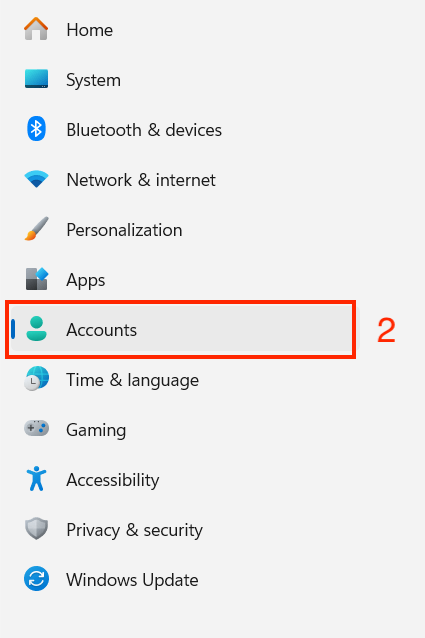
2. On the left, select “Accounts”.  
    [![Screenshot 2026-09-21 at 9.26.41 AM.png](https://kb.astate.edu/uploads/images/gallery/2026-09/scaled-1680-/screenshot-2026-09-21-at-9-26-41-am.png)](https://kb.astate.edu/uploads/images/gallery/2026-09/screenshot-2026-09-21-at-9-26-41-am.png)
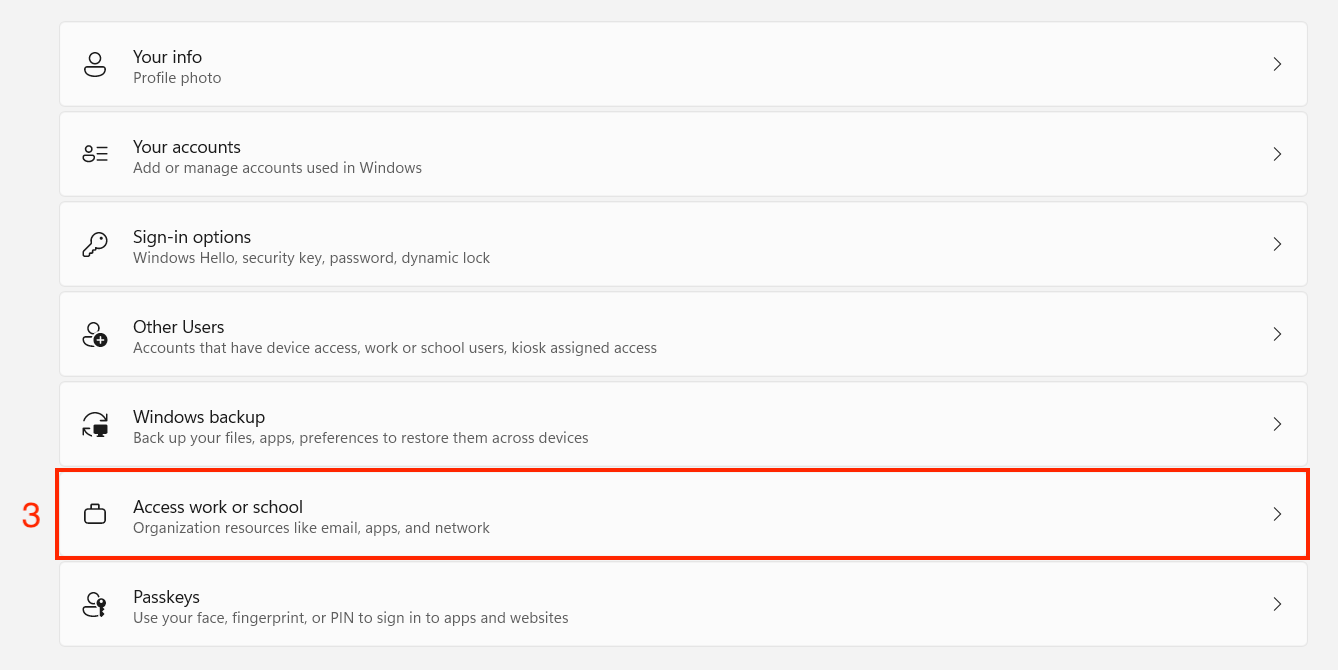
3. Find and select “Access work or school”.  
    [![Screenshot 2026-09-21 at 9.27.22 AM.png](https://kb.astate.edu/uploads/images/gallery/2026-09/scaled-1680-/screenshot-2026-09-21-at-9-27-22-am.png)](https://kb.astate.edu/uploads/images/gallery/2026-09/screenshot-2026-09-21-at-9-27-22-am.png)
4. In the “Add a work or school account” section, click “Connect”.  
    [![Screenshot 2026-09-21 at 9.28.38 AM.png](https://kb.astate.edu/uploads/images/gallery/2026-09/scaled-1680-/screenshot-2026-09-21-at-9-28-38-am.png)](https://kb.astate.edu/uploads/images/gallery/2026-09/screenshot-2026-09-21-at-9-28-38-am.png)

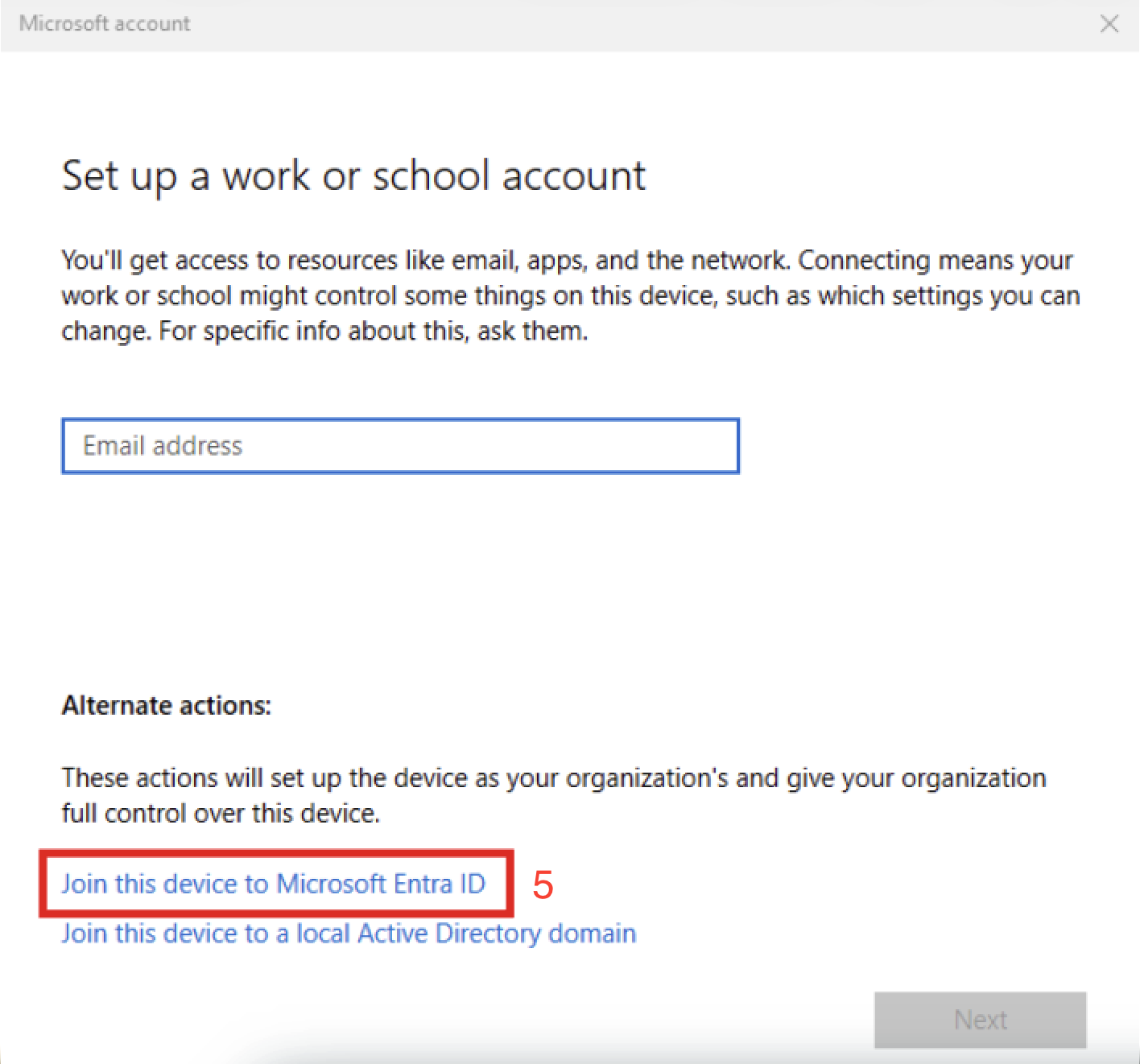
5. At the bottom of the window, there is text that says, “Join this device to Microsoft Entra ID”. Click on that text.  
    [![Screenshot 2026-09-21 at 9.11.27 AM.png](https://kb.astate.edu/uploads/images/gallery/2026-09/scaled-1680-/2k8screenshot-2026-09-21-at-9-11-27-am.png)](https://kb.astate.edu/uploads/images/gallery/2026-09/2k8screenshot-2026-09-21-at-9-11-27-am.png)
6. A Microsoft credential window will pop-up, enter your A-State email and password.
7. A window should pop up asking you to accept, and/or a confirmation window asking you to “Make sure this is your organization”. Hit Accept/Join.
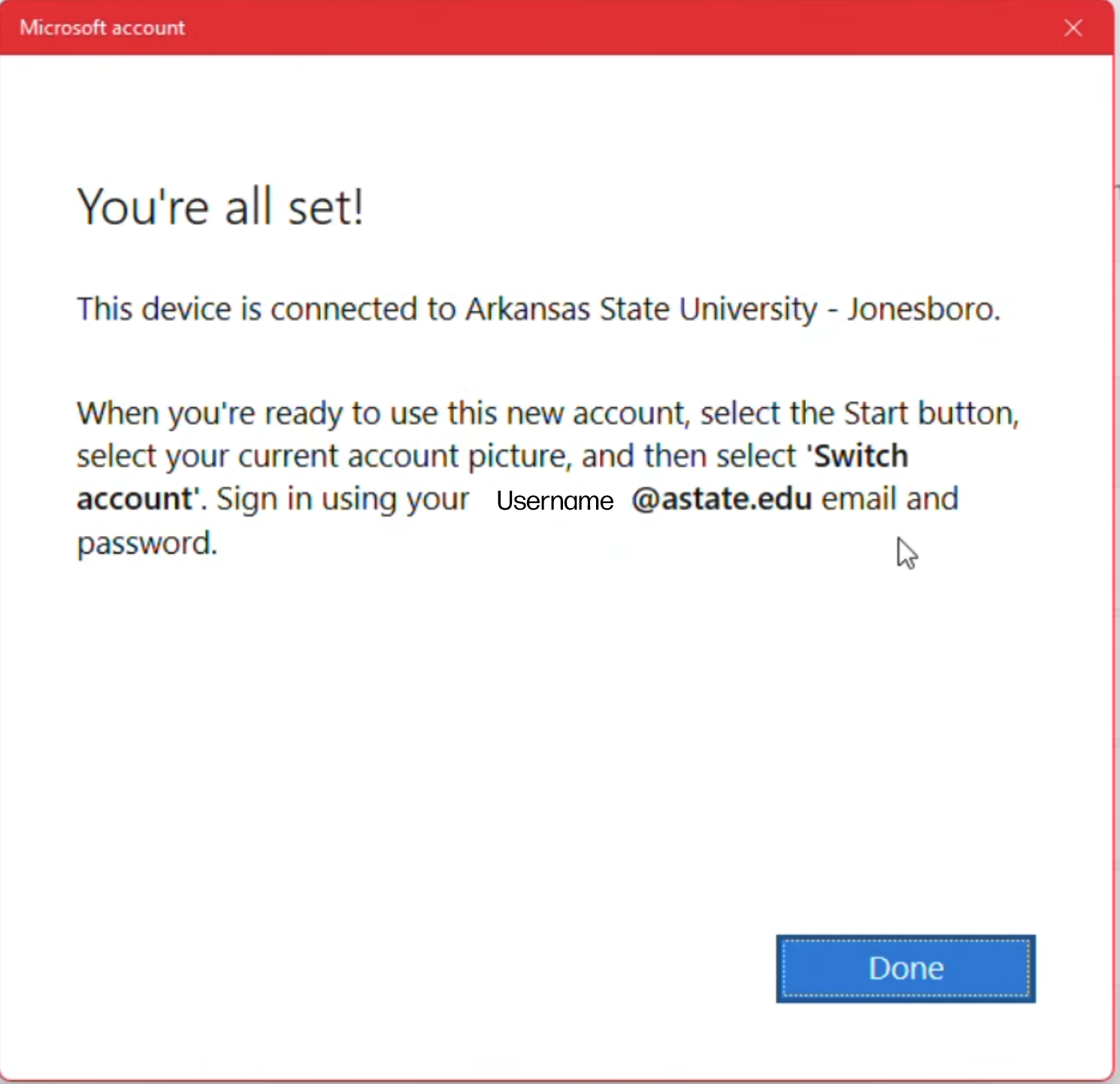
8. You should receive a message stating that your device has been connected to A-State. [![You're all set.png](https://kb.astate.edu/uploads/images/gallery/2026-09/scaled-1680-/youre-all-set.png)](https://kb.astate.edu/uploads/images/gallery/2026-09/youre-all-set.png)
#### 6. Next Steps

To speed up the Intune sync process you can manually start a sync using the Company Portal application on your device. To do this you can do the following:

1. Press the Windows key and type "Company Portal" 
    1. If no application shows up, you may have to wait for the application to be automatically installed.
2. Sign in using your work credentials.
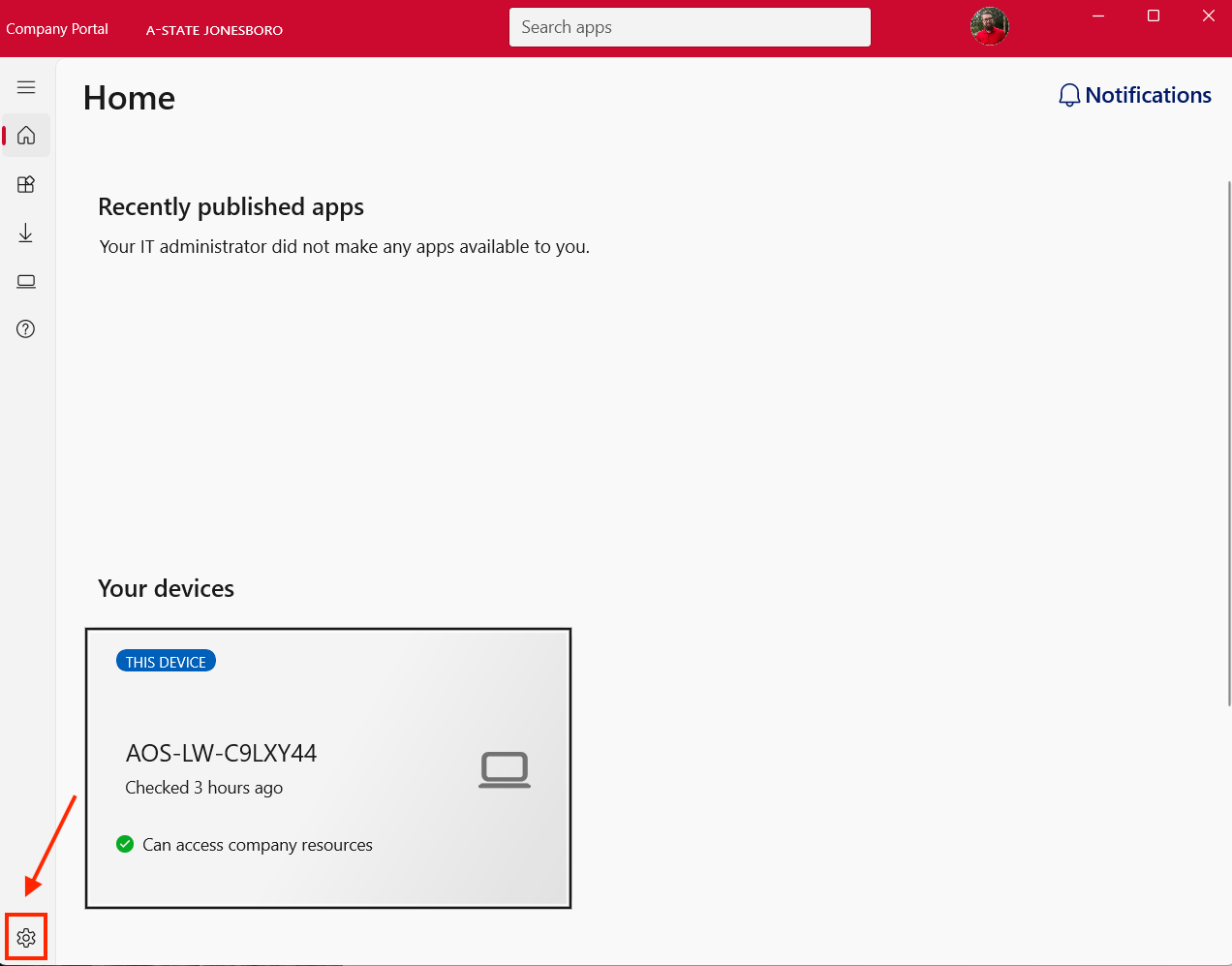
3. On the home page select the settings icon in the bottom left corner. [![Company Portal.png](https://kb.astate.edu/uploads/images/gallery/2026-09/scaled-1680-/company-portal.png)](https://kb.astate.edu/uploads/images/gallery/2026-09/company-portal.png)
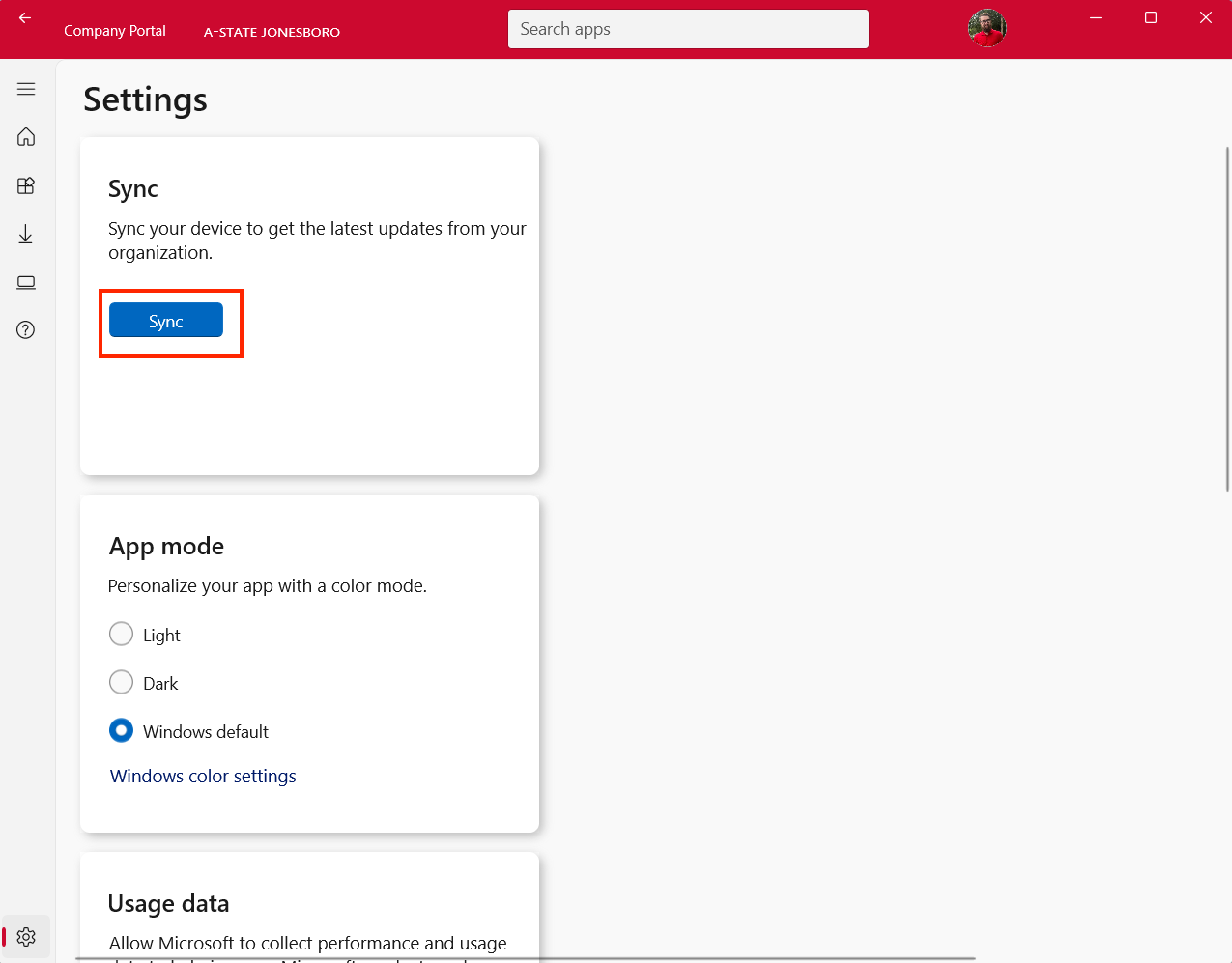
4. In settings select the "sync" button. [![Company Portal - Sync.png](https://kb.astate.edu/uploads/images/gallery/2026-09/scaled-1680-/company-portal-sync.png)](https://kb.astate.edu/uploads/images/gallery/2026-09/company-portal-sync.png)
5. Sync times may vary, so please allow 5-30 minutes for this to complete.
6. Once this is completed you will need to restart your device.

<p class="callout danger">Before restarting your device be sure that you have backed up all files from your current local profile to OneDrive. At the end of this joining process you will no longer be accessing the managed asset using a local account. For additional information on OneDrive, please see the following KB Articles: [https://kb.astate.edu/books/microsoft-365/chapter/onedrive](https://kb.astate.edu/books/microsoft-365/chapter/onedrive)</p>