# Manage Your Calendar and Contacts in Outlook

#### Schedule an appointment

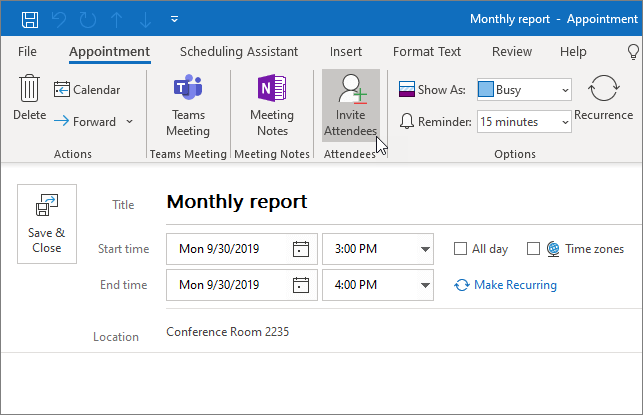
<div id="bkmrk-in-calendar%2C-select-"><div><div><div>1. In **Calendar**, select **New Appointment**.
2. Add a **Subject**, **Location**, and the start and end times.
3. Select **Invite Attendees** to turn the appointment into a meeting.
4. Select **Save &amp; Close** to finish, or **Send** if it's a meeting.
</div><div>![Schedule an appointment in Outlook](https://support.content.office.net/en-us/media/f5525b0c-14e0-490e-9fbc-205af681eccf.png)</div>---

<div></div></div></div></div>#### Use the Scheduling Assistant

When you create a meeting, use the **Scheduling Assistant** to see when attendees and rooms are available.

<div id="bkmrk-from-a-new-meeting-r"><div><div><div><div><div><div>- From a new meeting request, select **Scheduling Assistant**.
- The shaded area with vertical bars shows the meeting time. Drag the bars to adjust the meeting time.
- The grid shows when attendees are available. To the right of the meeting request, Outlook shows suggested times and the number of conflicts.

</div><div>![Scheduling Assistant Tool](https://support.content.office.net/en-us/media/642e7c1b-4ed4-4291-bdf9-06dcefce676c.png)</div>---

<div></div></div></div></div></div></div></div>#### Add a contact

<div id="bkmrk-select-the-people-ic"><div><div><div><div><div><div><div><div><div>1. Select the **People** icon.
2. Select **New Contact** or press Ctrl+N.
3. Enter a name and any other information that you want to include for the contact.
4. Select **Save &amp; New** to create another contact, or **Save &amp; Close** if you're done.

</div><div>![Add a contact in Outlook](https://support.content.office.net/en-us/media/8d3fb968-3b56-48ef-8927-93d95ec075ac.png)</div>---

<div>Additional Microsoft resources  
{{@71#bkmrk-quick-start-guide-ou}}</div><div></div></div></div></div></div></div></div></div></div></div><div id="bkmrk-"><div><div><div><div><div><div><div></div></div></div></div></div></div></div></div>