# Microsoft Authenticator

Microsoft Authenticator is a multi-factor authentication(MFA) application that A-State uses to keep your account secure. This is a required tool for anyone with an A-State account.

# Adding Microsoft Authenticator to Outlook Account

<p class="callout success">If you are already signed in to your A-State Microsoft account, you can use this <span style="color: rgb(224, 62, 45);">**[GUIDE](https://kb.astate.edu/books/microsoft-authenticator-Ps9/page/adding-microsoft-authenticator-to-your-account-already-signed-in)**</span> for adding Microsoft Authenticator </p>

<p class="callout warning">You will need both a computer/tablet and a mobile phone for this process  
  
\*For setup with <span style="text-decoration: underline;">mobile device only</span>, follow this [<span style="color: rgb(224, 62, 45);">**GUIDE**</span>](https://kb.astate.edu/books/microsoft-authenticator-Ps9/page/microsoft-authenticator-account-faqs)</p>

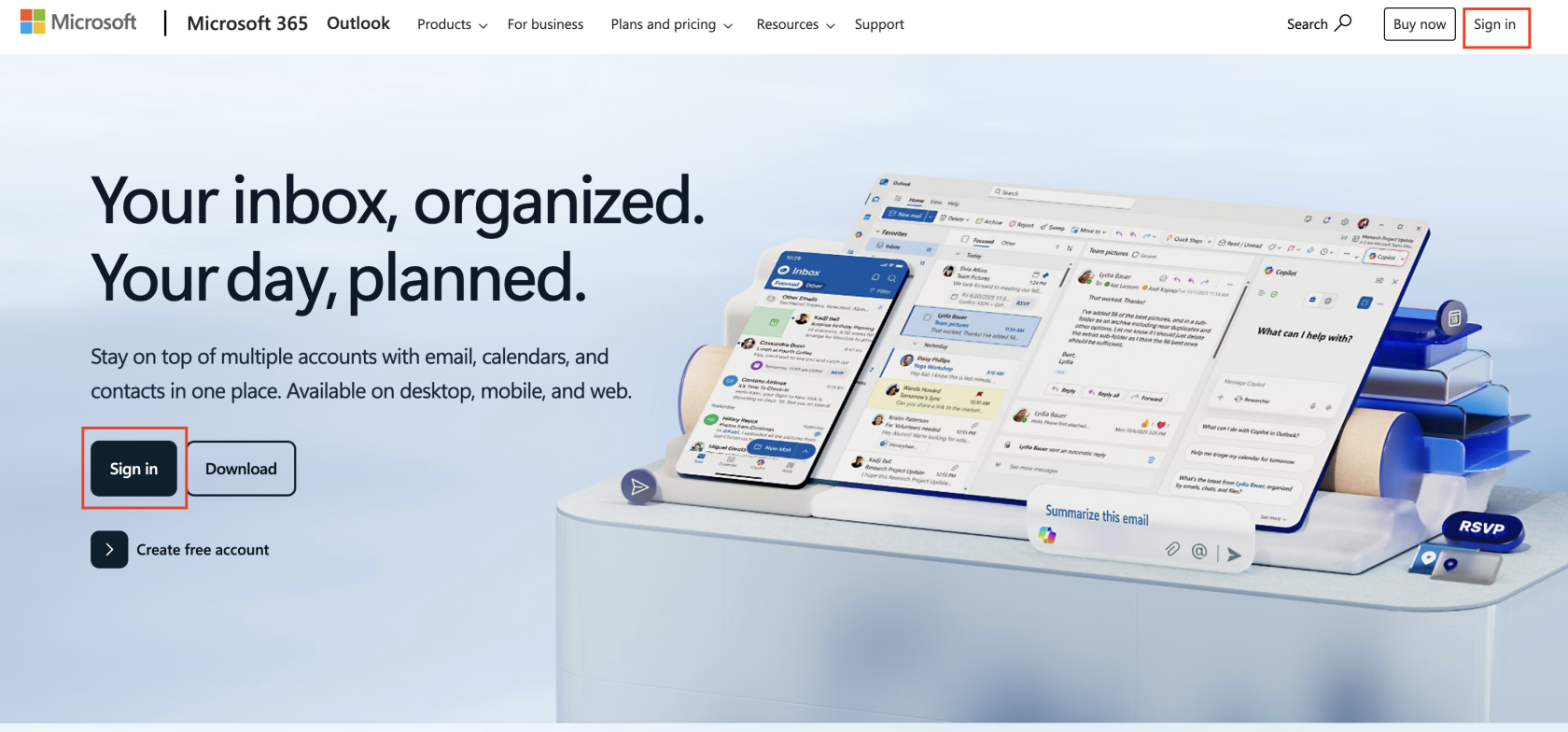
- - From a web browser, visit [www.outlook.com](http://www.outlook.com) and select **Sign In[![Outlook - MS.png](https://kb.astate.edu/uploads/images/gallery/2026-01/scaled-1680-/outlook-ms.png)](https://kb.astate.edu/uploads/images/gallery/2026-01/outlook-ms.png)**
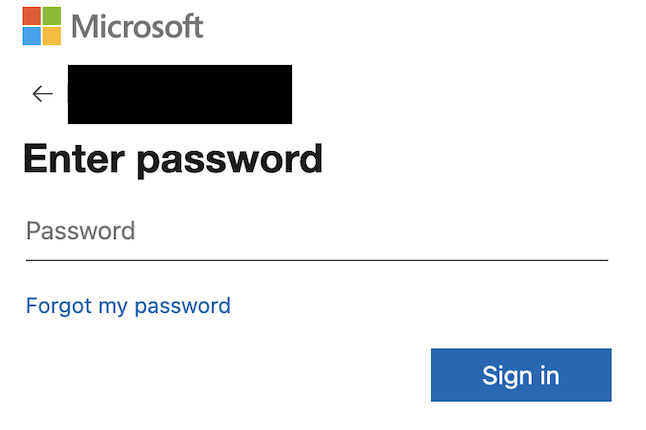
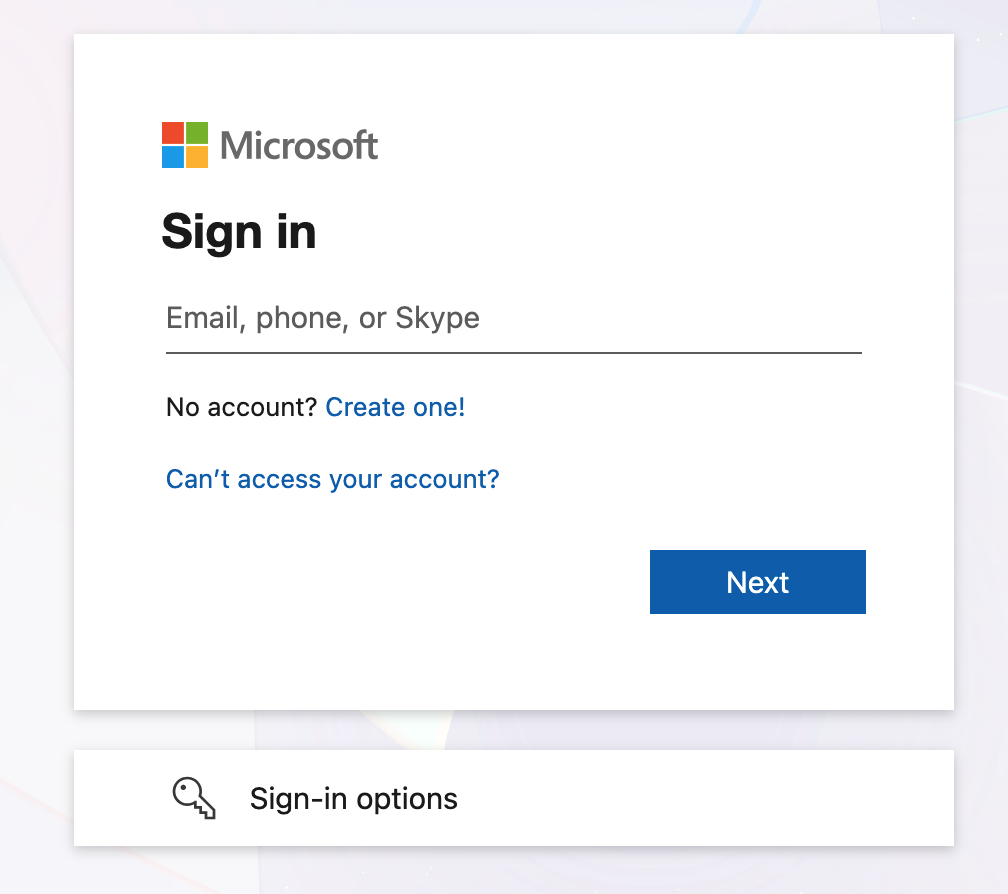
    - Sign in with your A-State email address and enter your password

 **![Outlook - Sign in.png](https://kb.astate.edu/uploads/images/gallery/2026-01/scaled-1680-/outlook-sign-in.png) ![Outlook - PW.png](https://kb.astate.edu/uploads/images/gallery/2026-01/scaled-1680-/outlook-pw.png)**
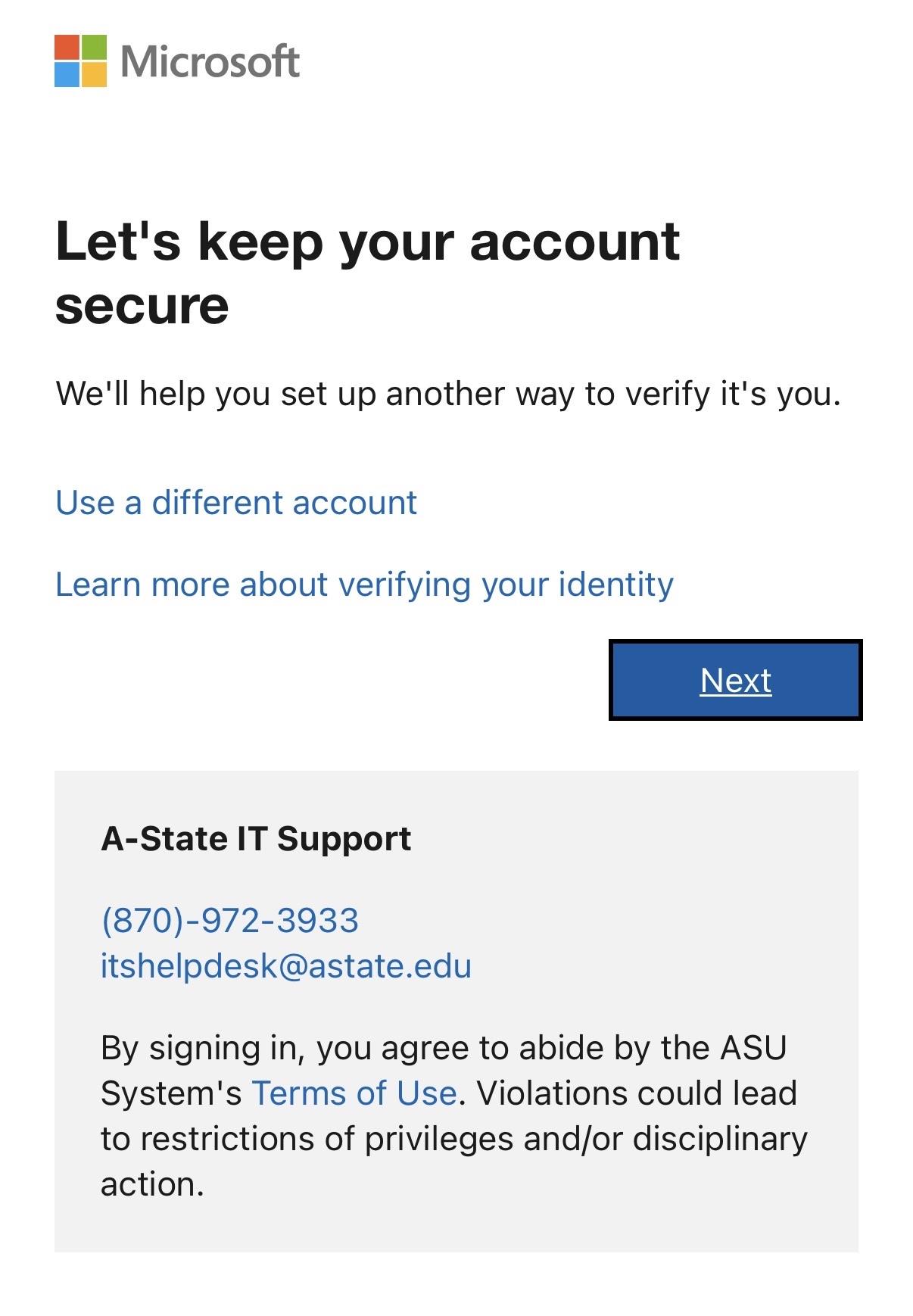
- - On the "***Let's keep your account secure"*** screen, click **Next**

![Secure Account - Outlook.png](https://kb.astate.edu/uploads/images/gallery/2026-01/scaled-1680-/secure-account-outlook.png)

- - Download the **Microsoft Authenticator app** by either scanning the Qr code below or through the ***App Store (iPhone/iOS)*** or the ***Play Store (Android)***

[![MS_Authenticator_QR.png](https://kb.astate.edu/uploads/images/gallery/2026-03/scaled-1680-/ms-authenticator-qr.png)<span style="color: #000000; background-color: #ffffff;">**<span class="popover__content">aka.ms/mobileauthenticator</span>**</span>](https://aka.ms/mobileauthenticator)

- - - After you download the free **Microsoft Authenticator app** on your phone click **Next** on the computer
- 
- 
- <p class="callout warning">***Please make sure you are downloading the app named "Microsoft Authenticator", this application is free and does not require any purchase***</p>
- 

![MS Authenticator Download Screen.png](https://kb.astate.edu/uploads/images/gallery/2026-01/scaled-1680-/ms-authenticator-download-screen.png)

- - Make sure you **allow** notifications on your phone and then click **Next**

![Notification - MS.png](https://kb.astate.edu/uploads/images/gallery/2026-01/scaled-1680-/notification-ms.png)

- - ##### A **unique QR code** will generate on the next screen
        
        
        - **Be sure to scan the code by using the Microsoft Authenticator app on your phone (select Scan QR code)**

 ![MS-Auth_QR-Example.png](https://kb.astate.edu/uploads/images/gallery/2026-06/scaled-1680-/ms-auth-qr-example.png) [![Mobile - Auth.png](https://kb.astate.edu/uploads/images/gallery/2026-01/scaled-1680-/mobile-auth.png)](https://kb.astate.edu/uploads/images/gallery/2026-01/mobile-auth.png)

- - Once you scan the QR code, click **Next**
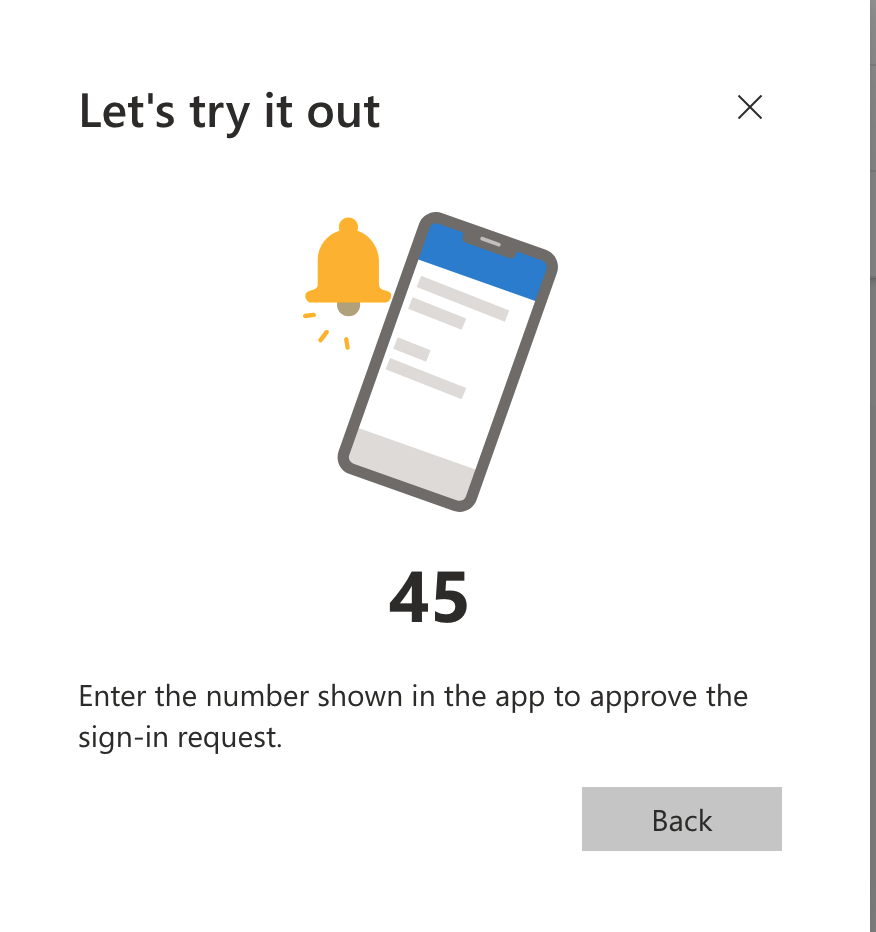
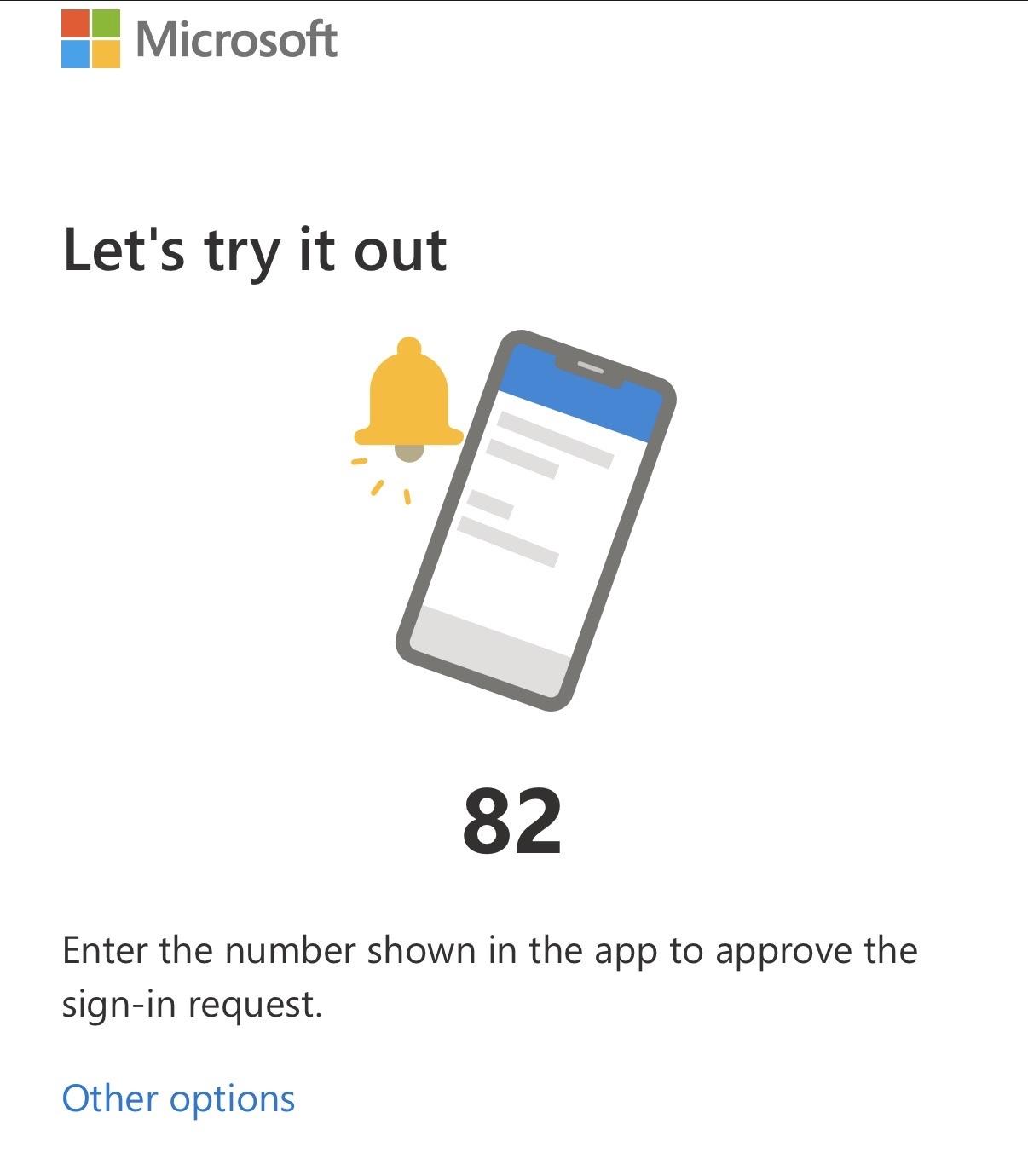
    - Microsoft will then generate a random number on the computer, go to your the **Authenticator app** and enter the number you see on screen

![Auth - Number Example.png](https://kb.astate.edu/uploads/images/gallery/2026-01/scaled-1680-/auth-number-example.png)

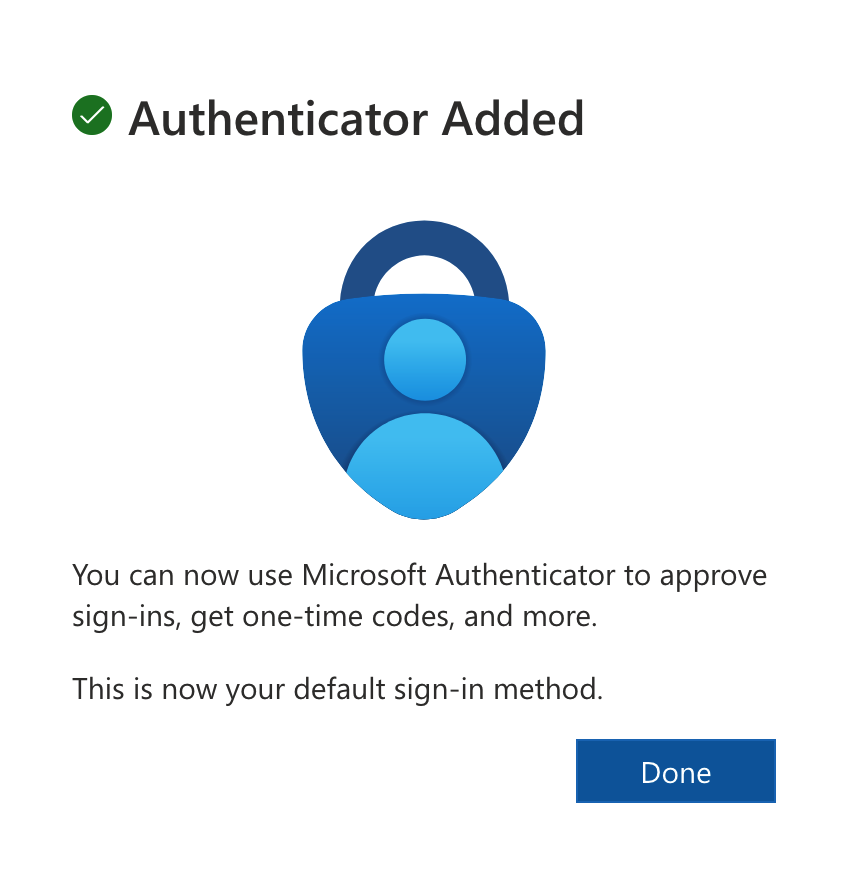
- - After you enter the number in the app, your A-State account will be successfully linked to your Microsoft Authenticator app, Click **Done**

![Auth - Added.png](https://kb.astate.edu/uploads/images/gallery/2026-01/scaled-1680-/auth-added.png)

- - The next page will show you have successfully added Microsoft Authenticator as a verification method, along with your personal email, click **Done** and continue to your Outlook inbox

![Setup Complete - MS.png](https://kb.astate.edu/uploads/images/gallery/2026-01/scaled-1680-/setup-complete-ms.png)

<p class="callout info">For further assistance, contact the ITS Help Desk at 870-972-3933 or stop by IT Support Services (<itsupportservices@astate.edu>). It is located on the bottom floor of the Dean B. Ellis Library, Room 149</p>

# Adding Microsoft Authenticator To Your Account (Already Signed In)

<p class="callout warning">You will need both a computer/tablet and a mobile phone for this process  
  
\*[\*For setup with mobile device only, follow this ](https://kb.astate.edu/books/student-email-setup/page/delete-KXa "here")[<span style="color: rgb(224, 62, 45);">**GUIDE**</span>](https://kb.astate.edu/books/microsoft-authenticator-Ps9/page/microsoft-authenticator-account-faqs)</p>

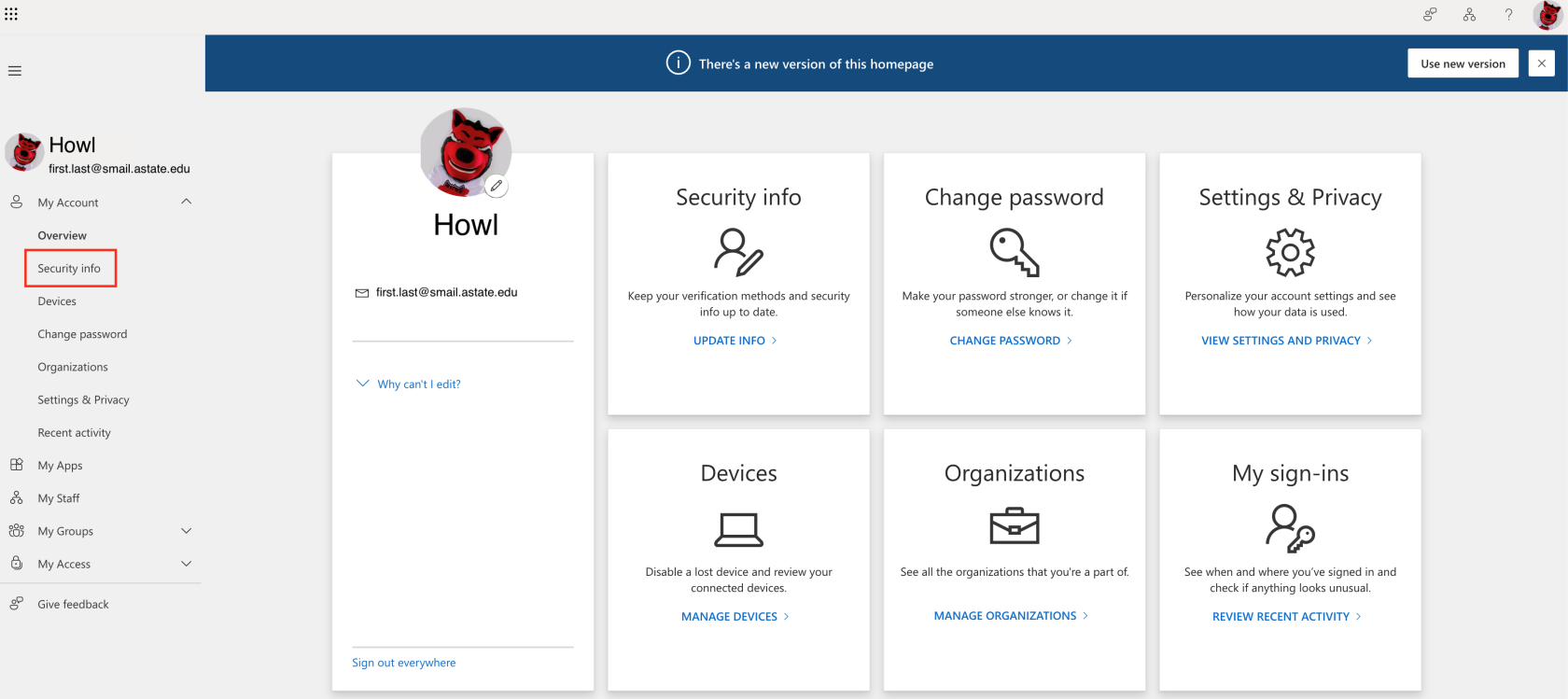
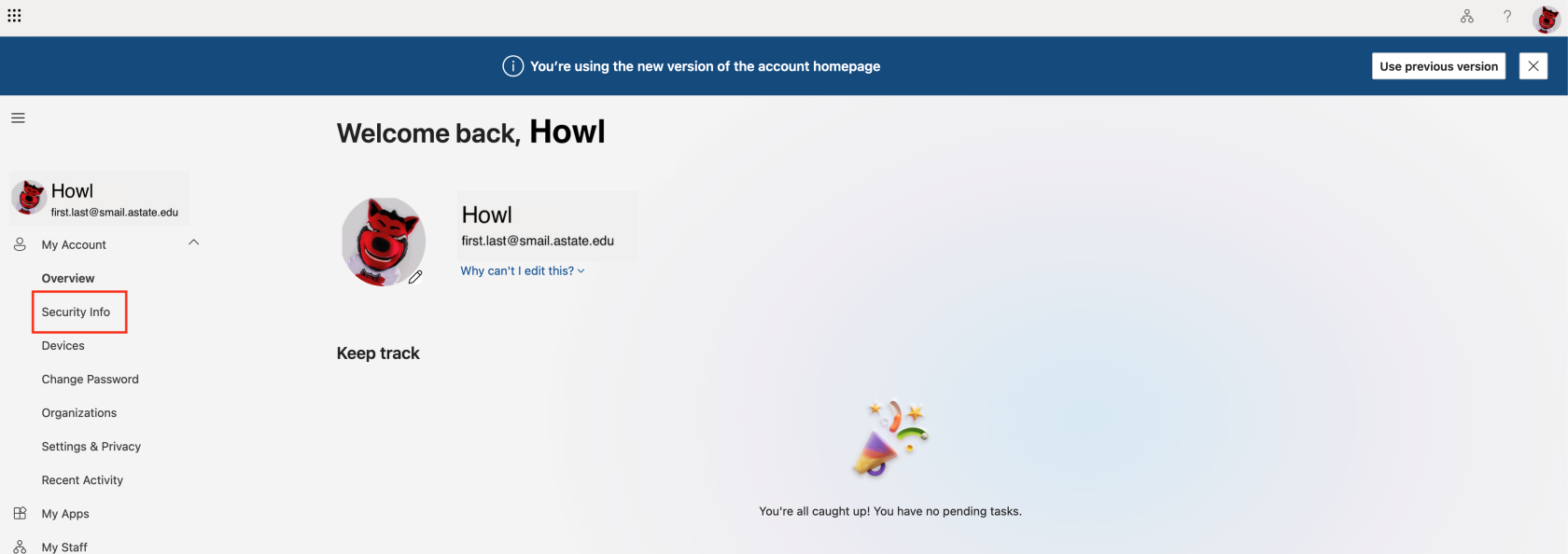
- Go to [myaccount.microsoft.com](https://myaccount.microsoft.com) in your web browser and sign in with your A-State credentials, then select "**Security info**" under **My Account** to the left of the screen 
    - The Security info section will be in the same place, no matter if you are using the old or new style of the Microsoft interface.

---

#### **OLD** 

[![Outlook Account Screen.png](https://kb.astate.edu/uploads/images/gallery/2026-04/scaled-1680-/outlook-account-screen.png)](https://kb.astate.edu/uploads/images/gallery/2026-04/outlook-account-screen.png)
#### **NEW**

**[![New MS Look.png](https://kb.astate.edu/uploads/images/gallery/2026-04/scaled-1680-/new-ms-look.png)](https://kb.astate.edu/uploads/images/gallery/2026-04/new-ms-look.png)**
- ---
    
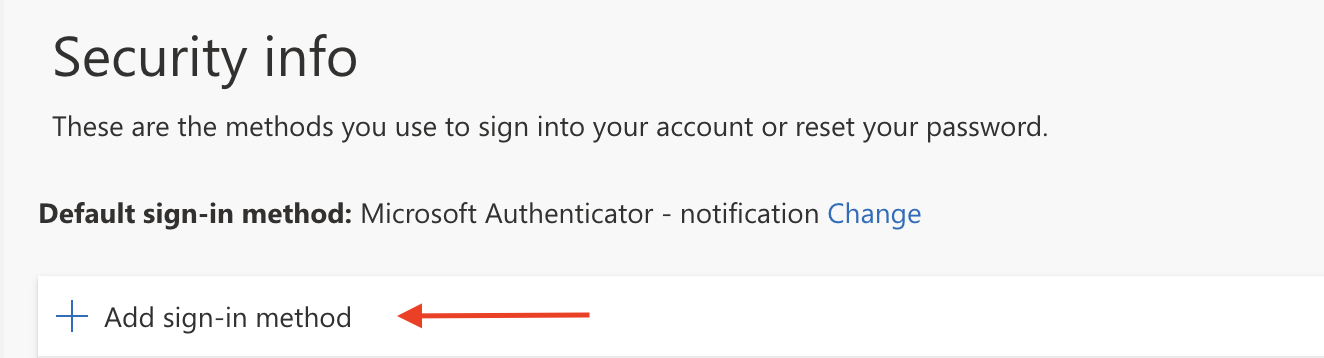
    Click on "**+ Add sign-in method**"
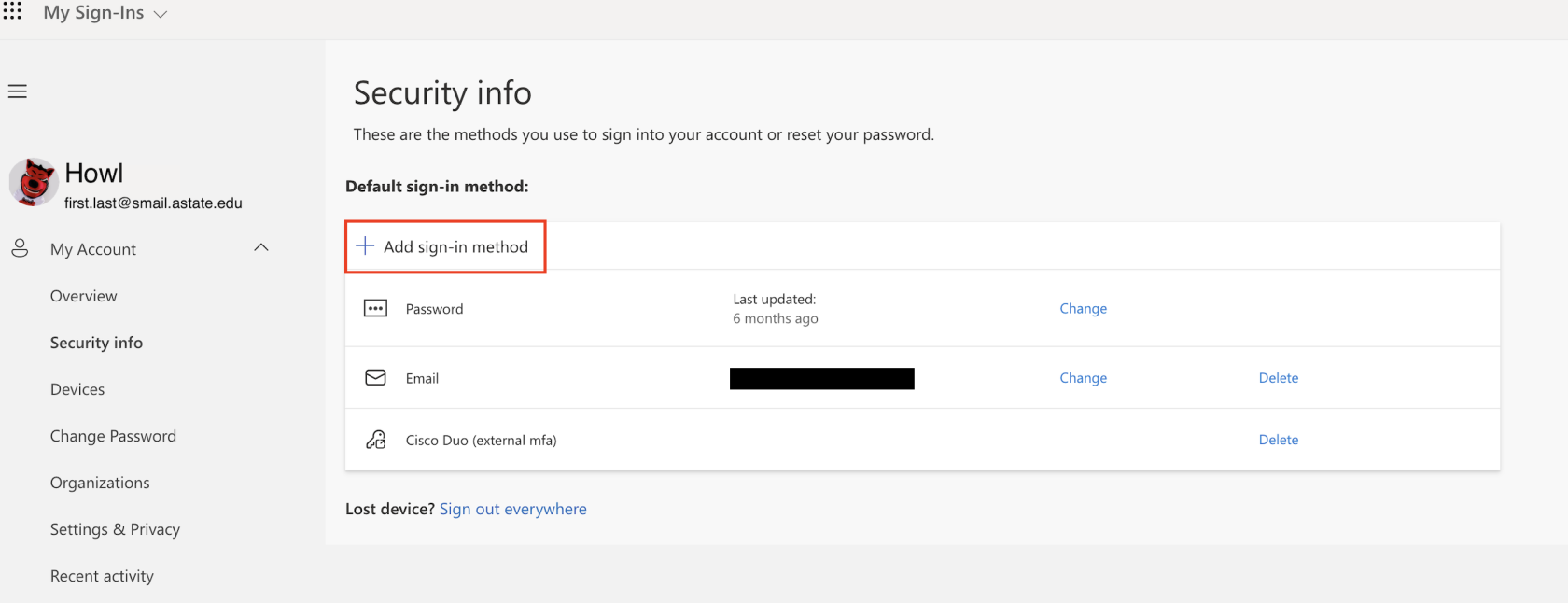
![Select SI method.png](https://kb.astate.edu/uploads/images/gallery/2026-04/scaled-1680-/select-si-method.png)

- Select the "**Microsoft Authenticator**" option
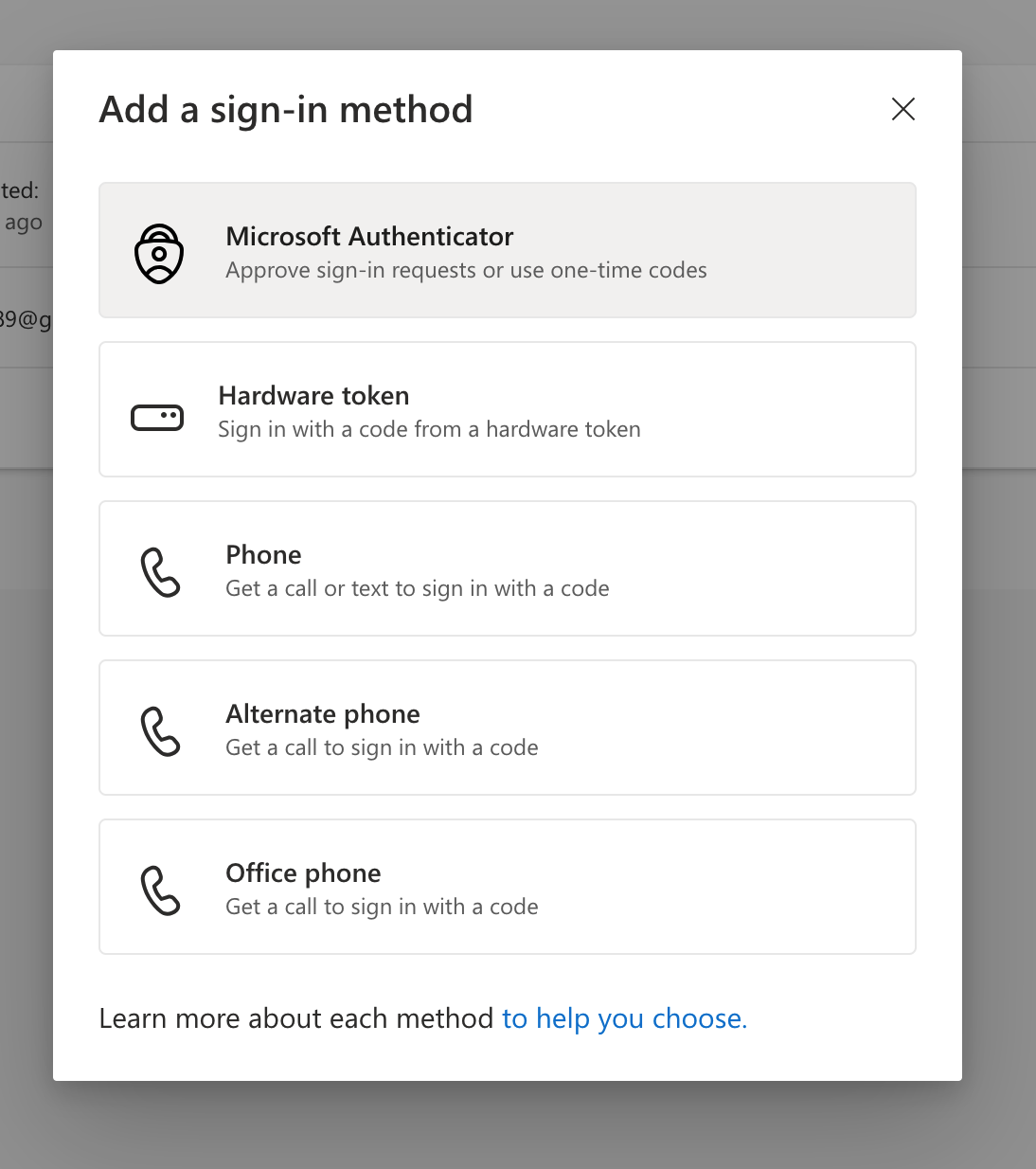
![MS Option.png](https://kb.astate.edu/uploads/images/gallery/2026-04/scaled-1680-/ms-option.png)

- Download the free **Microsoft Authenticator app** by either scanning the QR code below or through the ***App Store (iPhone/iOS)*** or the ***Play Store (Android)***

<p class="callout warning">***Please make sure you are downloading the app named "Microsoft Authenticator", this application is free and does not require any purchase***</p>

 ![Download MS Auth.png](https://kb.astate.edu/uploads/images/gallery/2026-04/scaled-1680-/download-ms-auth.png) ![MS_Authenticator_QR.png](https://kb.astate.edu/uploads/images/gallery/2026-03/scaled-1680-/ms-authenticator-qr.png) **[https://aka.ms/mobileauthenticator](https://aka.ms/mobileauthenticator)**

- After you download the app, click "Next" and then click "Next" on the next pop-up

![MSA Prompt.png](https://kb.astate.edu/uploads/images/gallery/2026-04/scaled-1680-/msa-prompt.png)

- Scan the generated QR code while using the Microsoft Authenticator app on your mobile device 
    - <span data-darkreader-inline-color="" style="color: rgb(224, 62, 45);">*Do not use your camera app, this will not link the authenticator to your account* </span><span data-darkreader-inline-color="" style="color: rgb(224, 62, 45);">![MS-Auth_QR-Example.png](https://kb.astate.edu/uploads/images/gallery/2026-06/scaled-1680-/ms-auth-qr-example.png) </span>

- <span data-darkreader-inline-color="" style="color: rgb(0, 0, 0);">After you scan the QR code, it will generate a random number, type the number on the screen into your mobile device</span>

<span data-darkreader-inline-color="" style="color: rgb(0, 0, 0);">[![MFA Number.png](https://kb.astate.edu/uploads/images/gallery/2026-04/scaled-1680-/mfa-number.png)](https://kb.astate.edu/uploads/images/gallery/2026-04/mfa-number.png)</span>

- <span data-darkreader-inline-color="" style="color: rgb(0, 0, 0);">After inputting the number, the Microsoft Authenticator has been added to your account successfully</span>

<span data-darkreader-inline-color="" style="color: rgb(0, 0, 0);">![MSA Done.png](https://kb.astate.edu/uploads/images/gallery/2026-04/scaled-1680-/msa-done.png)</span>

<p class="callout info">For further assistance, contact the ITS Help Desk at 870-972-3933 or stop by IT Support Services (<itsupportservices@astate.edu>). It is located on the bottom floor of the Dean B. Ellis Library, Room 149</p>

# Microsoft Authenticator & Account FAQs

<details id="bkmrk-how-do-i-sign-in-to-"><summary>How do I sign in to Microsoft Authenticator with only a mobile device or tablet?</summary>

- Download the free **Microsoft Authenticator app** by either scanning the QR code below or through the ***App Store (iPhone/iOS)*** or the ***Play Store (Android)***

<p class="callout warning">***Please make sure you are downloading the app named "Microsoft Authenticator", this application is free and does not require any purchase***</p>

 [![MS-Auth_Logo.png](https://kb.astate.edu/uploads/images/gallery/2026-06/scaled-1680-/ms-auth-logo.png)](https://kb.astate.edu/uploads/images/gallery/2026-06/ms-auth-logo.png) ![MS_Authenticator_QR.png](https://kb.astate.edu/uploads/images/gallery/2026-03/scaled-1680-/ms-authenticator-qr.png)

 [**https://aka.ms/mobileauthenticator**](https://aka.ms/mobileauthenticator)

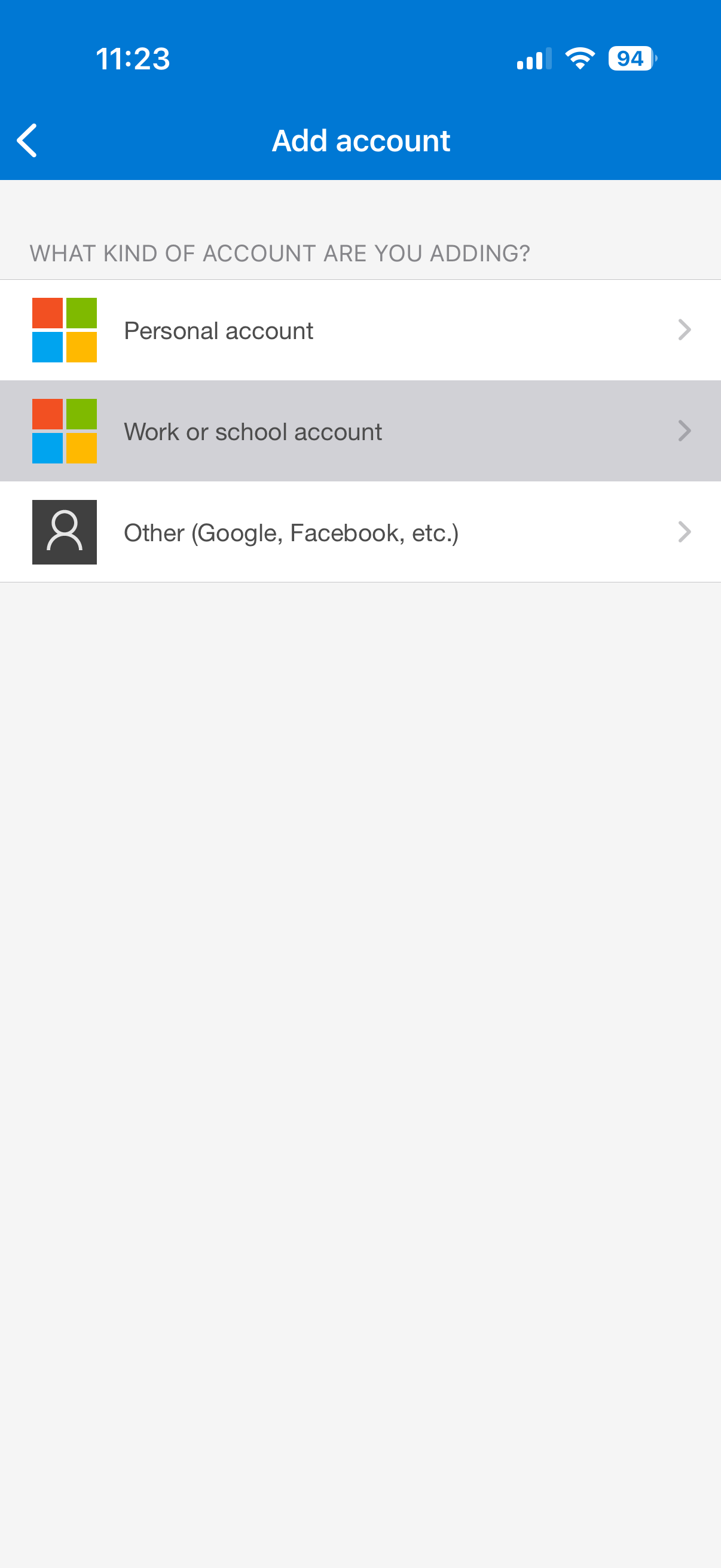
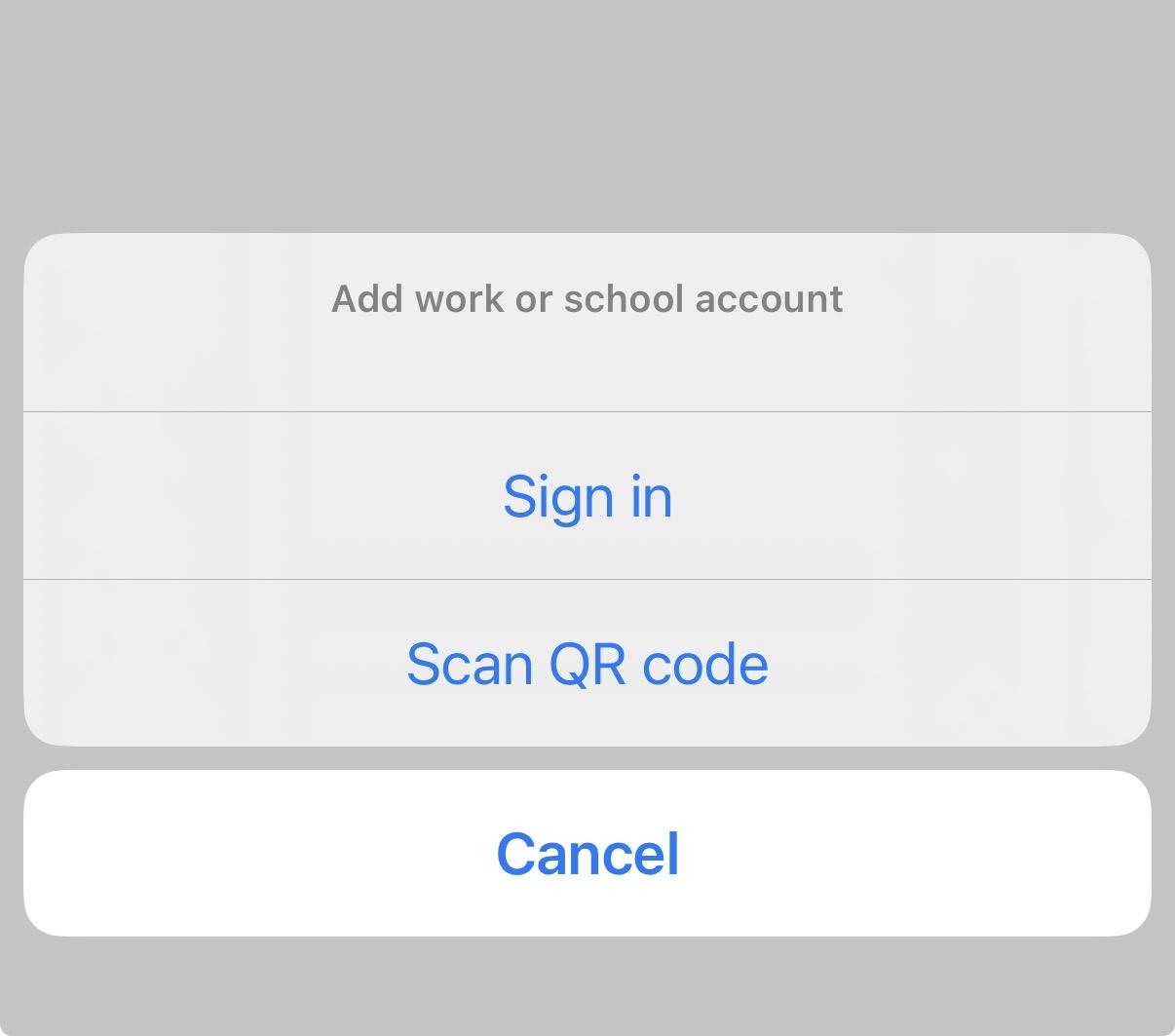
- Open the **Microsoft Authenticator** on your mobile device and select the **+** icon in the top right corner and select **Work or school account** and then **Sign in** with your A-State credentials
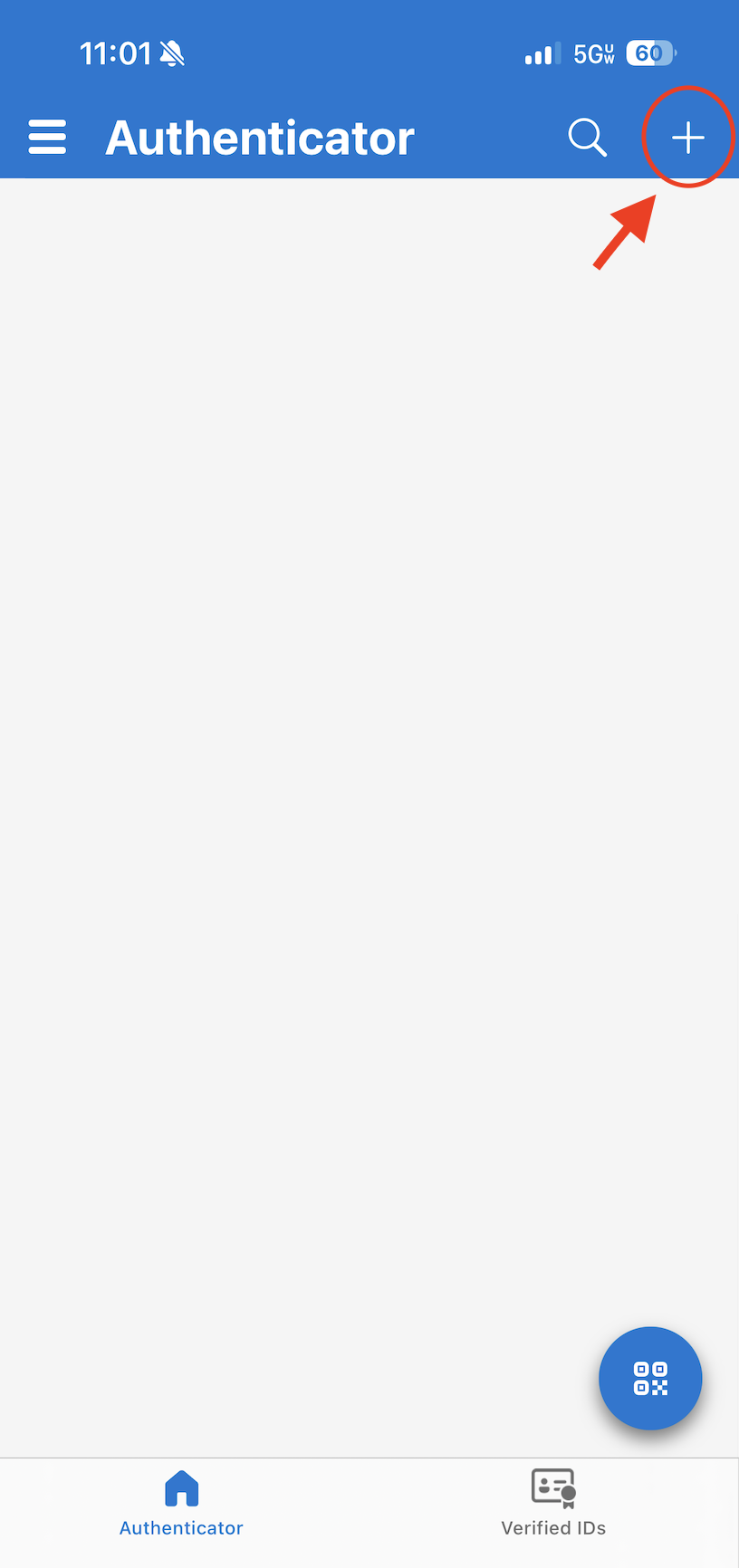
 ![MS-Auth_Phone1.png](https://kb.astate.edu/uploads/images/gallery/2026-06/scaled-1680-/ms-auth-phone1.png) ![MS-Auth_Phone2.png](https://kb.astate.edu/uploads/images/gallery/2026-06/scaled-1680-/ms-auth-phone2.png) [![MS-Auth_Phone3.jpeg](https://kb.astate.edu/uploads/images/gallery/2026-06/scaled-1680-/ms-auth-phone3.jpeg)](https://kb.astate.edu/uploads/images/gallery/2026-06/ms-auth-phone3.jpeg)

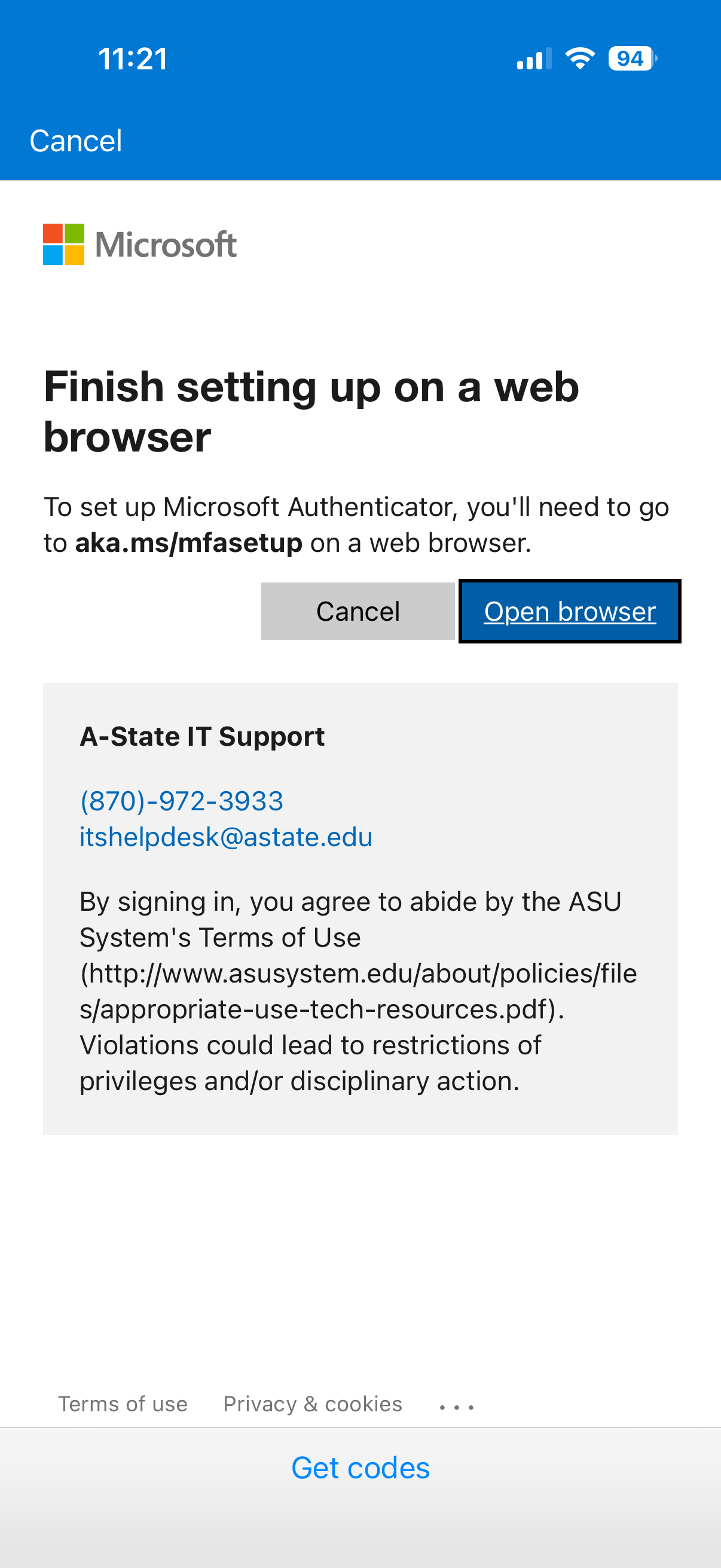
- Select **Open browser**, then select **Next** on following screen:
 ![MS-Auth_Phone4.png](https://kb.astate.edu/uploads/images/gallery/2026-06/scaled-1680-/Voums-auth-phone4.png) ![MS-Auth_Phone5.jpeg](https://kb.astate.edu/uploads/images/gallery/2026-06/scaled-1680-/cHBms-auth-phone5.jpeg)

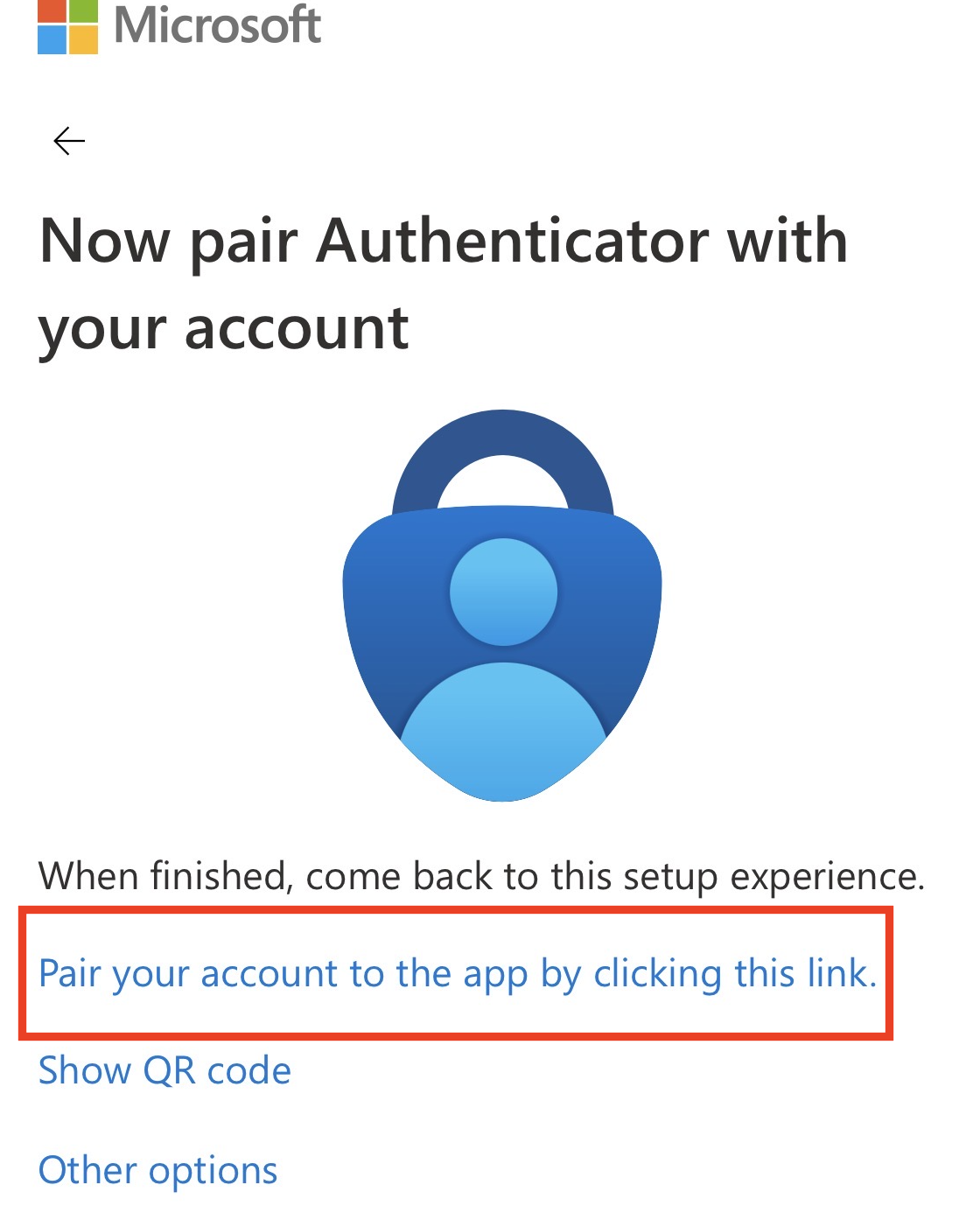
- Select **Next**, you may need to select ***Pair your account to the app by clicking this link.*** if it does not redirect at first. 
    - You will be redirected back to the **Microsoft Authenticator** app and it will ask for a 2 digit code 
        - To find the code, go back to your web browser and then type the code in the box in the **Authenticator** app. ***(You can refresh the page in your browser to get a new code, if needed.)***
![MS-Auth_Phone7.png](https://kb.astate.edu/uploads/images/gallery/2026-06/scaled-1680-/ms-auth-phone7.png) ![MS-Auth_Phone10.png](https://kb.astate.edu/uploads/images/gallery/2026-06/scaled-1680-/ms-auth-phone10.png) [![MS-Auth_Phone9.jpeg](https://kb.astate.edu/uploads/images/gallery/2026-06/scaled-1680-/JX5ms-auth-phone9.jpeg)](https://kb.astate.edu/uploads/images/gallery/2026-06/JX5ms-auth-phone9.jpeg)

</details><details id="bkmrk-how-do-i-change-the-"><summary>How do I change the default authentication method?</summary>

1\. Go to [myaccount.microsoft.com](https://myaccount.microsoft.com) and sign in with your A-State credentials

2\. Select **Security info** under **My Account** on the left side of the screen

3\. On the **Security info** page, click *Change* at the top next to **Default sign-in method:**

**[![MS-Auth_Change.png](https://kb.astate.edu/uploads/images/gallery/2026-06/scaled-1680-/ms-auth-change.png)](https://kb.astate.edu/uploads/images/gallery/2026-06/ms-auth-change.png)**

4\. A box will pop-up asking which method you would like to use:

[![MS-Auth_Method.png](https://kb.astate.edu/uploads/images/gallery/2026-06/scaled-1680-/ms-auth-method.png)](https://kb.astate.edu/uploads/images/gallery/2026-06/ms-auth-method.png)

<p class="callout info">Options:   
 - **App based authentication - notification:** Input a code into the Microsoft Authenticator app   
 - **App based authentication or** <span style="color: rgb(224, 62, 45);">\*</span>**hardware token - code:** Use the current bypass code displayed in the   
 Microsoft Authenticator app   
  *(the code refreshes every 30 seconds)   
  
-Other Options (By exception only):  
 - **Phone: Text/Call** - Receive a code via text message to your mobile number or receive a phone call to approve   
**<span style="color: rgb(224, 62, 45);"> \*</span>Hardware token** - exception only (provided by Security)*</p>

5\. Once you have made your selection, click **Confirm**

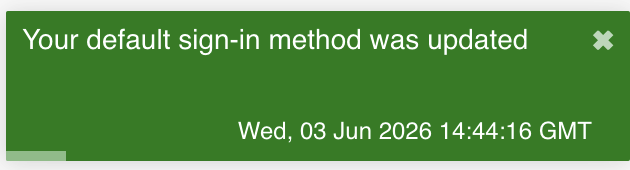
6\. You will receive a notification in the top right of the screen, letting you know it has been confirmed

[![MS-Auth_Confirmed.png](https://kb.astate.edu/uploads/images/gallery/2026-06/scaled-1680-/ms-auth-confirmed.png)](https://kb.astate.edu/uploads/images/gallery/2026-06/ms-auth-confirmed.png)
</details><details id="bkmrk-how-do-i-add%2Fchange%2F"><summary>How do I add/change/remove my phone number?</summary>

#### **Adding your phone number:**

1\. Go to [myaccount.microsoft.com](https://myaccount.microsoft.com) and sign in with your A-State credentials

2\. Select **Security info** under **My Account** on the left side of the screen

3\. Select **+ Add sign-in method** and select **Phone**

4\. Input the correct **Country code** and **Phone number** (no dashes) and choose which method you want to use to verify (text or call) and hit **Next**

**[![MS Auth-Phone.png](https://kb.astate.edu/uploads/images/gallery/2026-06/scaled-1680-/ms-auth-phone.png)](https://kb.astate.edu/uploads/images/gallery/2026-06/ms-auth-phone.png)**

5a. If you choose to receive a text, a code will be sent to you via text message, input the code and hit **Next**

[![MS-Auth_Text.png](https://kb.astate.edu/uploads/images/gallery/2026-06/scaled-1680-/ms-auth-text.png)](https://kb.astate.edu/uploads/images/gallery/2026-06/ms-auth-text.png)  
5b. If you choose to receive a call, you will get an automated call from **Microsoft** from this number (**855-330-8653**), just follow the instructions on the call and that will finish the call set up

[![MS-Auth_Call.png](https://kb.astate.edu/uploads/images/gallery/2026-06/scaled-1680-/ms-auth-call.png)](https://kb.astate.edu/uploads/images/gallery/2026-06/ms-auth-call.png)

#### **Changing your phone number:**

To change your phone number, please follow these steps:

1. Go to [myaccount.microsoft.com](https://myaccount.microsoft.com) and sign in with your A-State credentials
2. Select **Security info** under **My Account** on the left side of the screen
3. Next to the phone number you want to change, select **Change**
4. Enter the new phone number and select **Next**
5. Enter the code that was text to the new phone number and select **Next**

#### **Removing your phone number:**

1. Go to [myaccount.microsoft.com](https://myaccount.microsoft.com) and sign in with your A-State credentials
2. Select **Security info** under **My Account** on the left side of the screen
3. Next to the phone number you want to remove, click **Remove**

</details><p class="callout info">For further assistance, contact the ITS Help Desk at 870-972-3933 or stop by IT Support Services (<itsupportservices@astate.edu>). It is located on the bottom floor of the Dean B. Ellis Library, Room 149</p>

# Approving a login with Microsoft Authenticator

- Open a web browser and go to the [Pack Portal](https://pack.astate.edu) and select **Log In** in the top right corner 
    - This can also be completed through Canvas, Outlook, and Banner 9

![Pack1.png](https://kb.astate.edu/uploads/images/gallery/2026-07/scaled-1680-/pack1.png)

- Enter your A-State email dress and click **Next**

**![Pack-Auth2.png](https://kb.astate.edu/uploads/images/gallery/2026-07/scaled-1680-/pack-auth2.png)**

- Enter your **A-State credentials** for Microsoft on the next prompts and click **Sign in**

 ![Pac-Auth3.png](https://kb.astate.edu/uploads/images/gallery/2026-07/scaled-1680-/pac-auth3.png) ![Pack-Auth4.png](https://kb.astate.edu/uploads/images/gallery/2026-07/scaled-1680-/pack-auth4.png)

- A randomly generated code will display on the screen

![Pack-Auth5.png](https://kb.astate.edu/uploads/images/gallery/2026-07/scaled-1680-/pack-auth5.png)

- Enter the number in your **Microsoft Authenticator** app on your mobile device

![Pack-Auth6.png](https://kb.astate.edu/uploads/images/gallery/2026-07/scaled-1680-/pack-auth6.png)

- After authenticating, the screen will refresh on the Pack Portal and you have successfully logged in using **Microsoft Authenticator**

**![Pack-Auth7.png](https://kb.astate.edu/uploads/images/gallery/2026-07/scaled-1680-/pack-auth7.png)**

<div id="bkmrk--9">  
</div><p class="callout info">For further assistance, contact the ITS Help Desk at 870-972-3933 or stop by the IT Support Services (<itsupportservices@astate.edu>). It is located on the bottom floor of the Dean B. Ellis Library, Room 149. </p>

# Microsoft Authenticator Setup through Pack Portal

- From a web browser, go to the Pack Portal - [pack.astate.edu](https://pack.astate.edu/dashboard) and select **Log In** in the top right corner

![Pack Portal - Login.png](https://kb.astate.edu/uploads/images/gallery/2026-08/scaled-1680-/pack-portal-login.png)

- Enter your A-State email address in the **Username** field and click **Next**

![SSO Login.png](https://kb.astate.edu/uploads/images/gallery/2026-08/scaled-1680-/sso-login.png)

- Sign into **Microsoft** using your A-State email and password

 ![MS-SignIn.png](https://kb.astate.edu/uploads/images/gallery/2026-07/scaled-1680-/ms-signin.png) ![MS-Signin_PW.png](https://kb.astate.edu/uploads/images/gallery/2026-07/scaled-1680-/ms-signin-pw.png)

- - - On the "***Let's keep your account secure"*** screen, click **Next**
    
    ![Secure Account - Outlook.png](https://kb.astate.edu/uploads/images/gallery/2026-01/scaled-1680-/secure-account-outlook.png)
    
    
    - - Download the **Microsoft Authenticator app** by either scanning the Qr code below or through the ***App Store (iPhone/iOS)*** or the ***Play Store (Android)***
    
    [![MS_Authenticator_QR.png](https://kb.astate.edu/uploads/images/gallery/2026-03/scaled-1680-/ms-authenticator-qr.png)<span style="color: #000000; background-color: #ffffff;">**<span class="popover__content">aka.ms/mobileauthenticator</span>**</span>](https://aka.ms/mobileauthenticator)
    
    
    - - - After you download the free **Microsoft Authenticator app** on your phone click **Next** on the computer
    - 
    - 
    - <p class="callout warning">***Please make sure you are downloading the app named "Microsoft Authenticator", this application is free and does not require any purchase***</p>
    - 
    
    ![MS Authenticator Download Screen.png](https://kb.astate.edu/uploads/images/gallery/2026-01/scaled-1680-/ms-authenticator-download-screen.png)
- Make sure you **allow** notifications on your phone and then click **Next**

![Notification - MS.png](https://kb.astate.edu/uploads/images/gallery/2026-01/scaled-1680-/notification-ms.png)

A **unique QR code** will generate on the next screen

- - - **Be sure to scan the code by using the Microsoft Authenticator app on your phone (select Scan QR code)**

 ![MS-Auth_QR-Example.png](https://kb.astate.edu/uploads/images/gallery/2026-06/scaled-1680-/ms-auth-qr-example.png) [![Mobile - Auth.png](https://kb.astate.edu/uploads/images/gallery/2026-01/scaled-1680-/mobile-auth.png)](https://kb.astate.edu/uploads/images/gallery/2026-01/mobile-auth.png)

- Once you scan the QR code, click **Next** 
    - Microsoft will then generate a random number on the computer, go to your the **Authenticator app** and enter the number you see on screen

![Auth - Number Example.png](https://kb.astate.edu/uploads/images/gallery/2026-01/scaled-1680-/auth-number-example.png)

- - After you enter the number in the app, your A-State account will be successfully linked to your Microsoft Authenticator app, Click **Done**

![Auth - Added.png](https://kb.astate.edu/uploads/images/gallery/2026-01/scaled-1680-/auth-added.png)

- - The next page will show you have successfully added Microsoft Authenticator as a verification method, along with your personal email, click **Done** and continue to the **Pack Porta**l page

![Setup Complete - MS.png](https://kb.astate.edu/uploads/images/gallery/2026-01/scaled-1680-/setup-complete-ms.png)

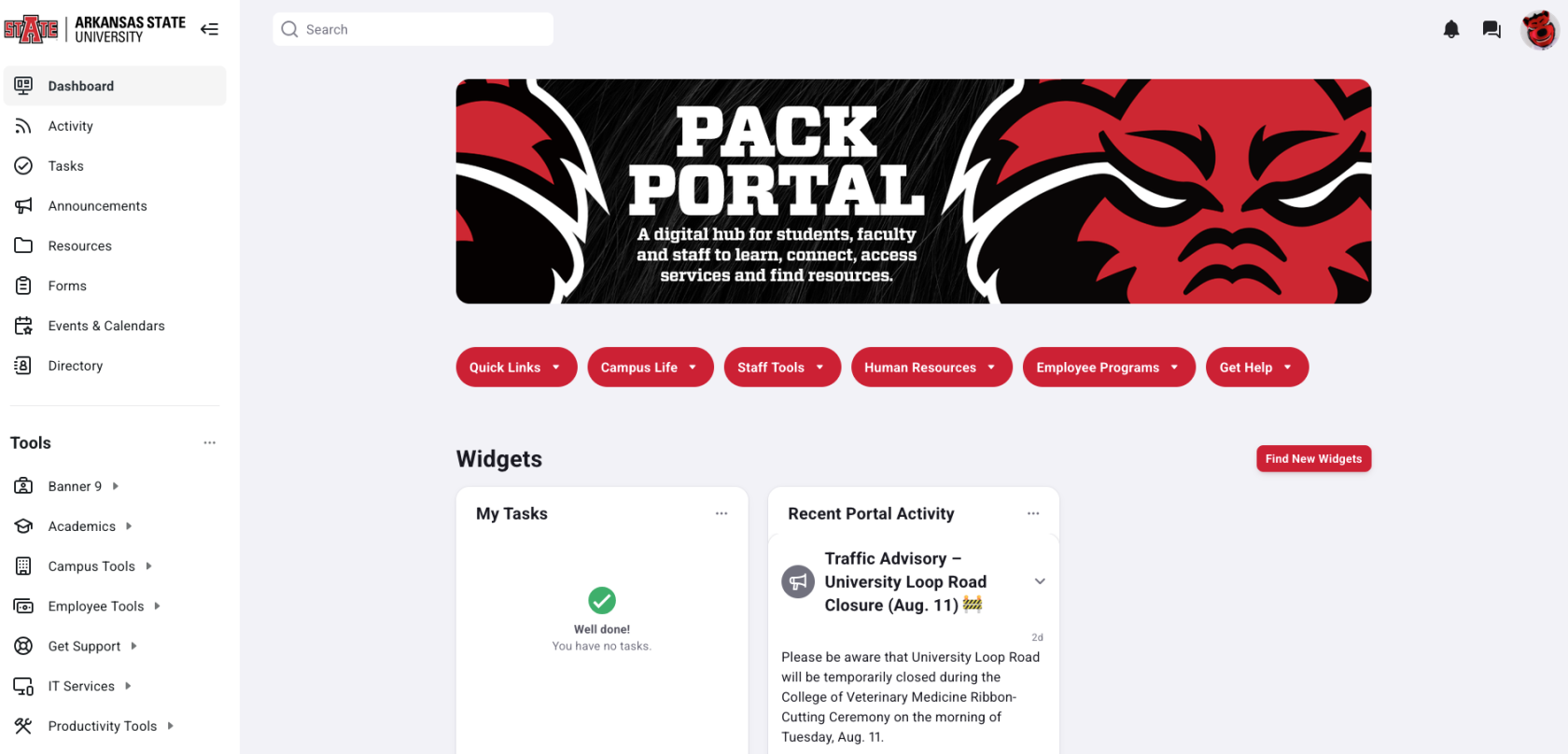
- You should have full access to your **Pack Portal** now
![Pack - Howl.png](https://kb.astate.edu/uploads/images/gallery/2026-08/scaled-1680-/pack-howl.png)

<p class="callout info">For further assistance, contact the ITS Help Desk at 870-972-3933 or stop by IT Support Services (<itsupportservices@astate.edu>). It is located on the bottom floor of the Dean B. Ellis Library, Room 149</p>

# Microsoft Authenticator FOB Guide

1. <span class="s1">Go to </span>[https://myaccount.microsoft.com/](https://myaccount.microsoft.com/)
2. Sign in with your A-State username &gt; click Next.  
    *(example: username@astate.edu or username@smail.astate.edu)* [![image.png](https://kb.astate.edu/uploads/images/gallery/2026-08/scaled-1680-/lucimage.png)](https://kb.astate.edu/uploads/images/gallery/2026-08/lucimage.png)
3. Enter your A-State password &gt; click Sign in.
4. On the left Click “My Account” and Select “Security Info”.  
    (Note: When using a smart device, you may have to select the **≡** first)  
      
    [![image.png](https://kb.astate.edu/uploads/images/gallery/2026-08/scaled-1680-/erwimage.png)](https://kb.astate.edu/uploads/images/gallery/2026-08/erwimage.png)
5. Click Add sign-in method and select Hardware token.  
      
    <table border="1" style="border-collapse: collapse; width: 107.861%; height: 140px; border-width: 0px;"><colgroup><col style="width: 50.0645%;"></col><col style="width: 50.0645%;"></col></colgroup><tbody><tr><td style="border-width: 0px;">[![image.png](https://kb.astate.edu/uploads/images/gallery/2026-08/scaled-1680-/dByimage.png)](https://kb.astate.edu/uploads/images/gallery/2026-08/dByimage.png)  
    </td><td style="border-width: 0px;">[![image.png](https://kb.astate.edu/uploads/images/gallery/2026-08/scaled-1680-/Ki6image.png)](https://kb.astate.edu/uploads/images/gallery/2026-08/Ki6image.png)  
    </td></tr></tbody></table>
6. Click Next, at the below screen.  
      
    [![image.png](https://kb.astate.edu/uploads/images/gallery/2026-08/scaled-1680-/gzKimage.png)](https://kb.astate.edu/uploads/images/gallery/2026-08/gzKimage.png)
7. Here you will enter the serial number on the back of the FOB and click Next.  
      
    [![image.png](https://kb.astate.edu/uploads/images/gallery/2026-08/scaled-1680-/Dj8image.png)](https://kb.astate.edu/uploads/images/gallery/2026-08/Dj8image.png)
8. Name your FOB and click Next.  
      
    [![image.png](https://kb.astate.edu/uploads/images/gallery/2026-08/scaled-1680-/tnWimage.png)](https://kb.astate.edu/uploads/images/gallery/2026-08/tnWimage.png)
9. Push the button on the FOB to display the random 6-digit authentication and enter the code on the enter code screen and click Next.  
      
    [![image.png](https://kb.astate.edu/uploads/images/gallery/2026-08/scaled-1680-/LYIimage.png)](https://kb.astate.edu/uploads/images/gallery/2026-08/LYIimage.png)
10. Now click "Done."
11. Congratulations, you have successfully added the FOB to your account.  
      
    [![image.png](https://kb.astate.edu/uploads/images/gallery/2026-08/scaled-1680-/0uJimage.png)](https://kb.astate.edu/uploads/images/gallery/2026-08/0uJimage.png)