# Microsoft Authenticator & Account FAQs
How do I sign in to Microsoft Authenticator with only a mobile device or tablet?
- Download the free **Microsoft Authenticator app** by either scanning the QR code below or through the ***App Store (iPhone/iOS)*** or the ***Play Store (Android)***
***Please make sure you are downloading the app named "Microsoft Authenticator", this application is free and does not require any purchase***
[](https://kb.astate.edu/uploads/images/gallery/2026-06/ms-auth-logo.png) 
[**https://aka.ms/mobileauthenticator**](https://aka.ms/mobileauthenticator)
- Open the **Microsoft Authenticator** on your mobile device and select the **+** icon in the top right corner and select **Work or school account** and then **Sign in** with your A-State credentials
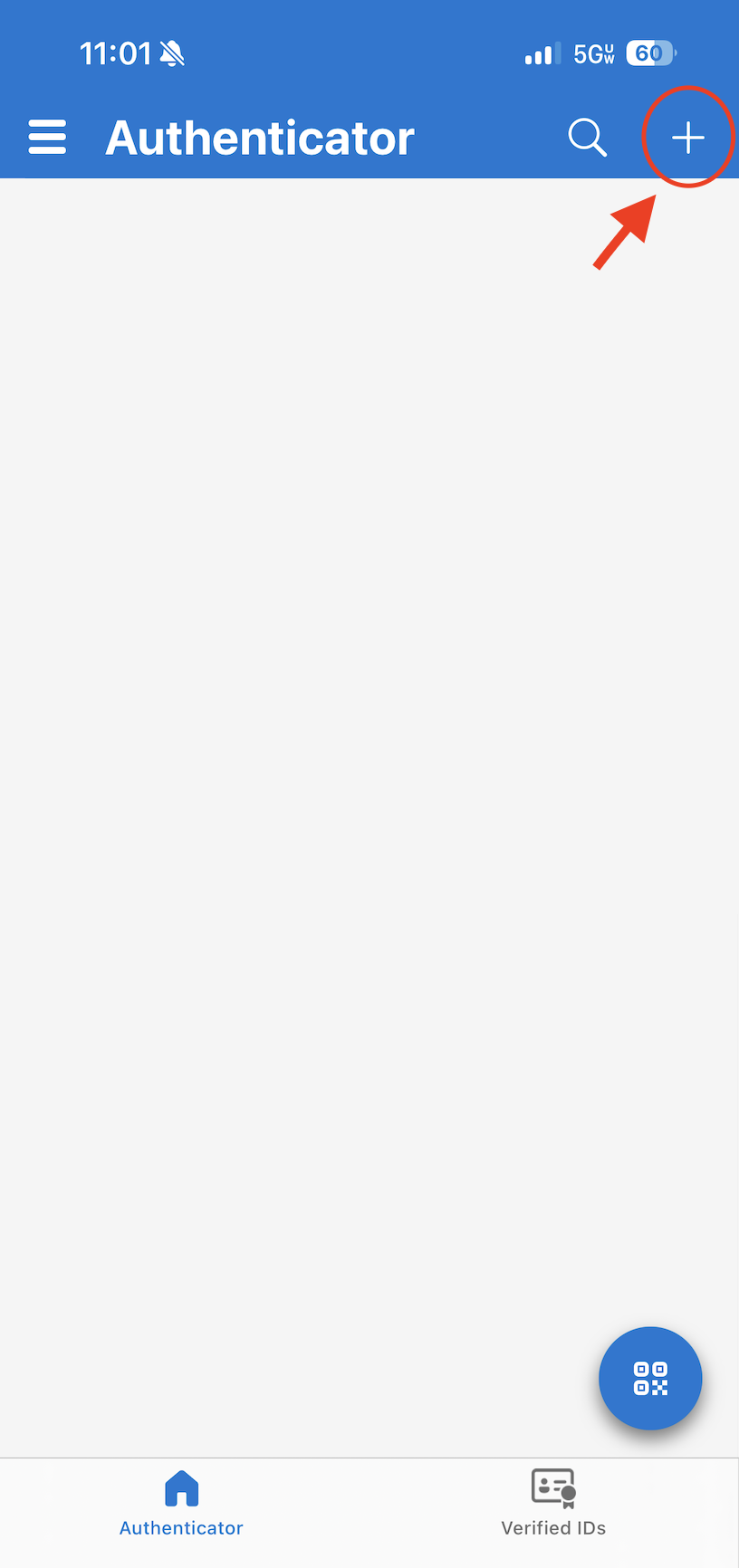 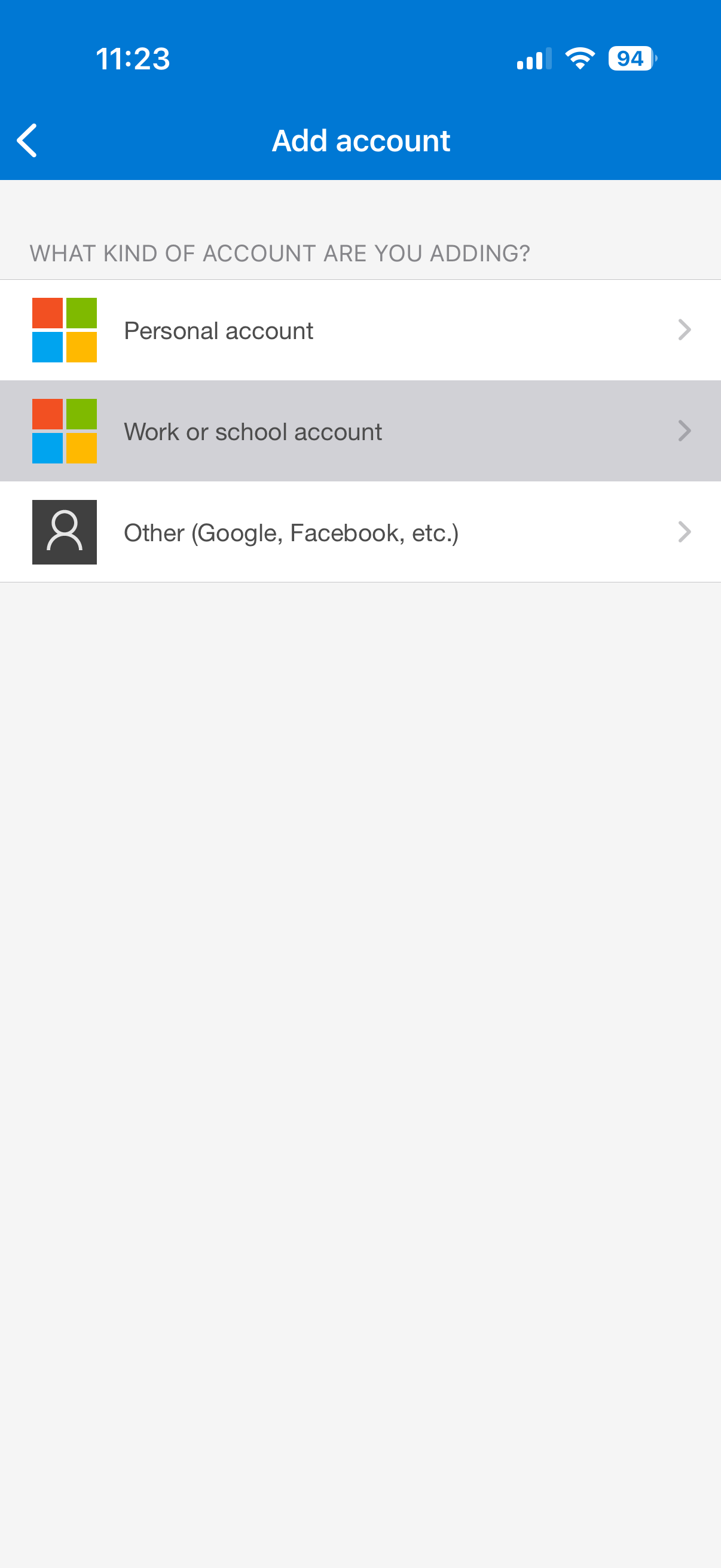 [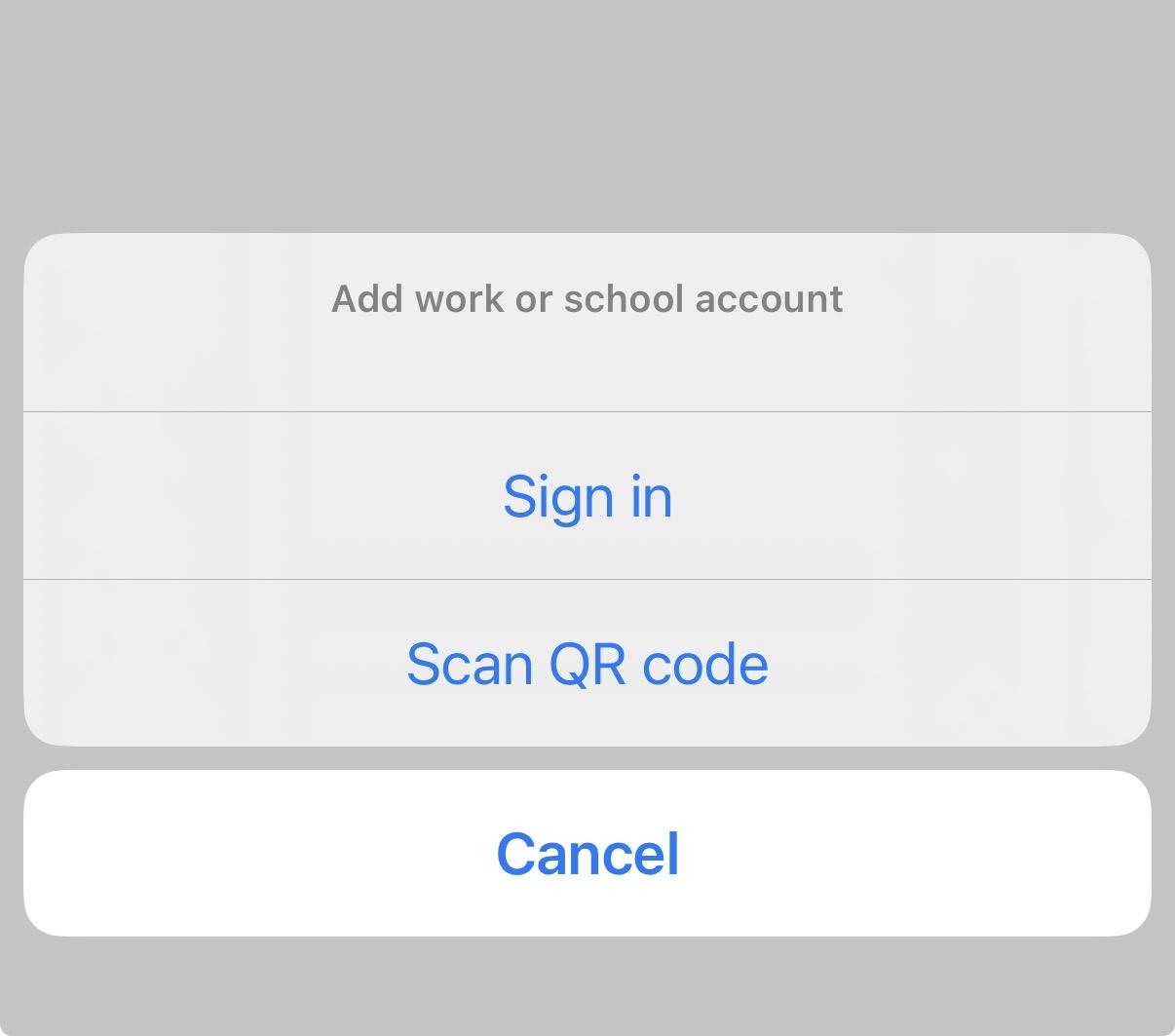](https://kb.astate.edu/uploads/images/gallery/2026-06/ms-auth-phone3.jpeg)
- Select **Open browser**, then select **Next** on following screen:
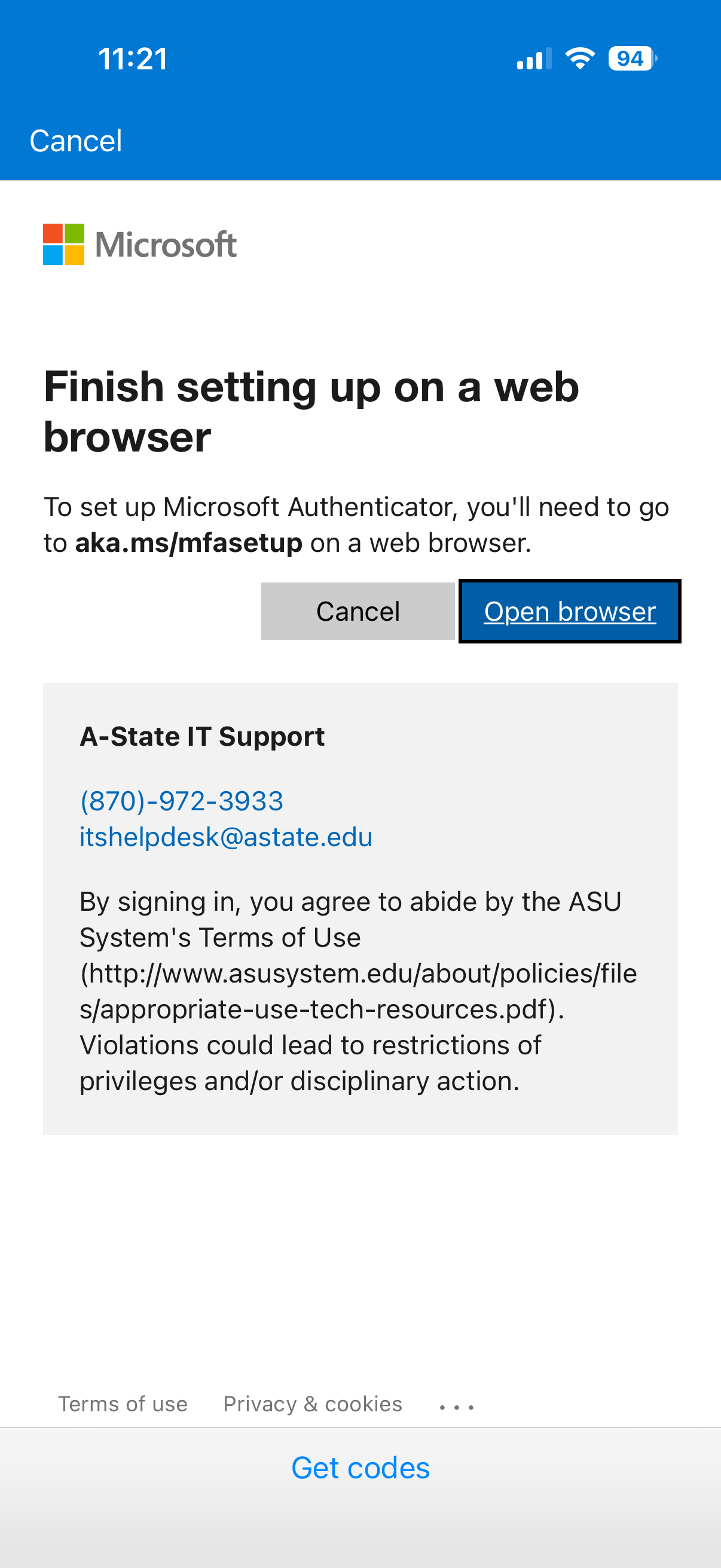 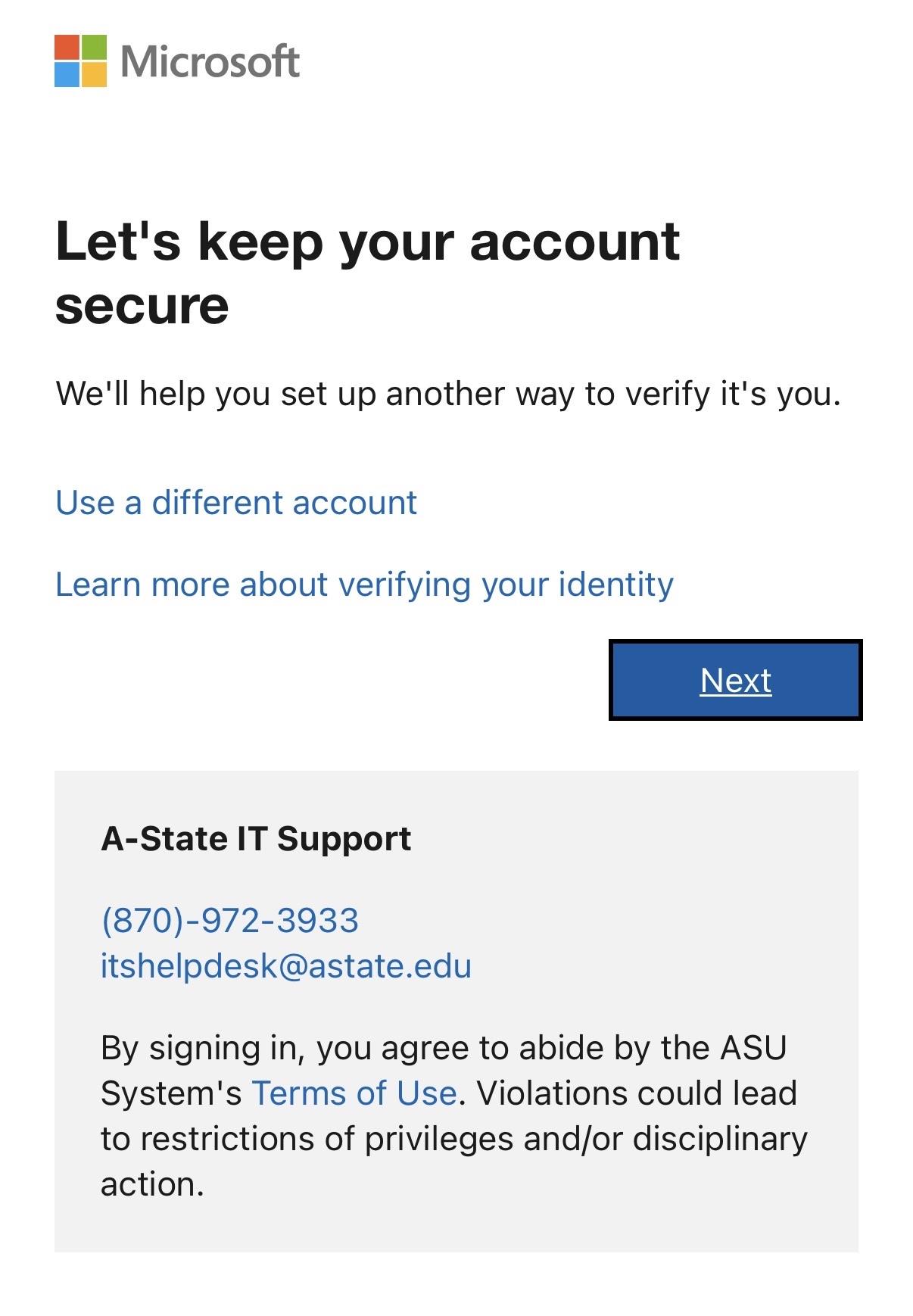
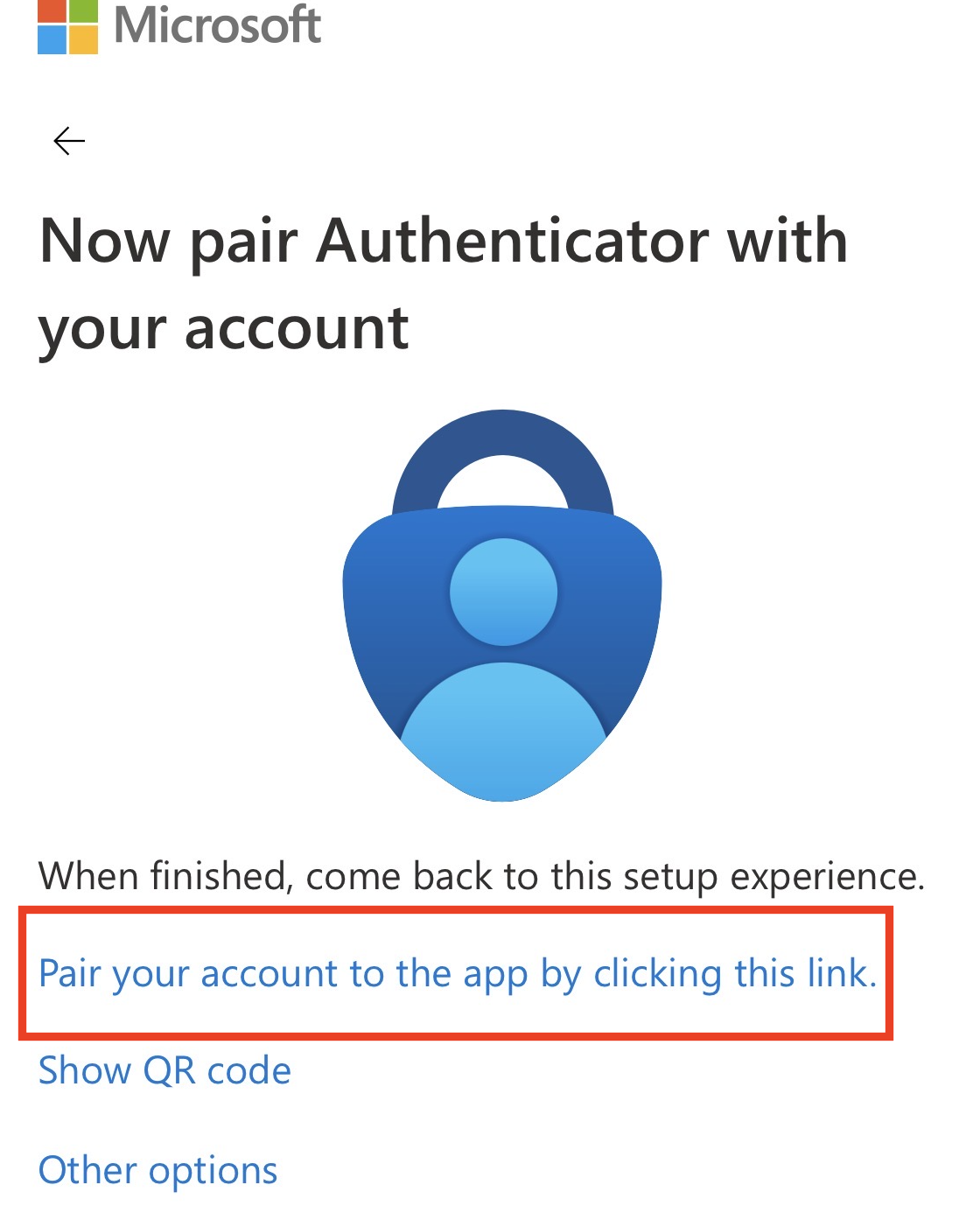
- Select **Next**, you may need to select ***Pair your account to the app by clicking this link.*** if it does not redirect at first.
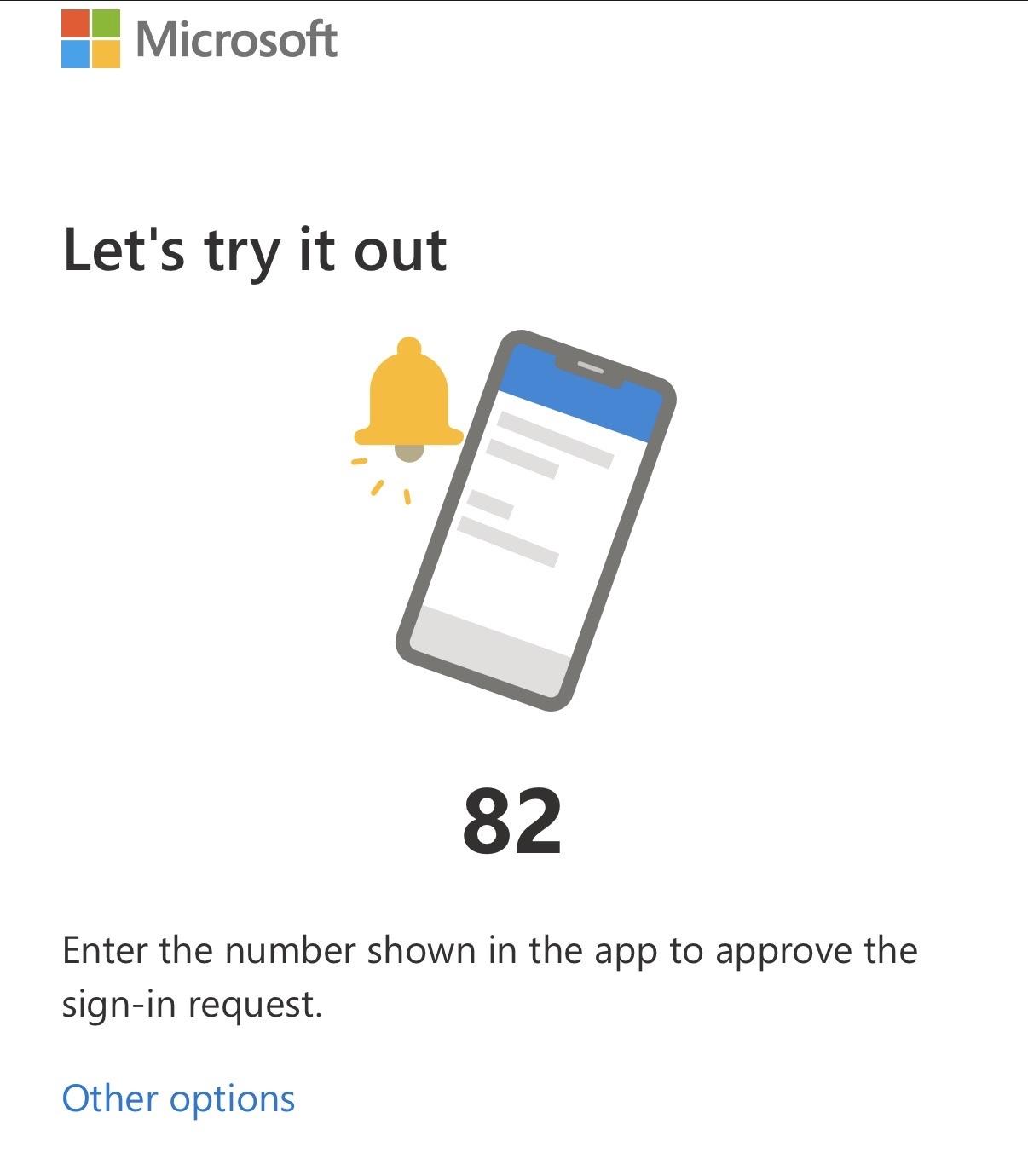
- You will be redirected back to the **Microsoft Authenticator** app and it will ask for a 2 digit code
- To find the code, go back to your web browser and then type the code in the box in the **Authenticator** app. ***(You can refresh the page in your browser to get a new code, if needed.)***
  [](https://kb.astate.edu/uploads/images/gallery/2026-06/JX5ms-auth-phone9.jpeg)
How do I change the default authentication method?
1\. Go to [myaccount.microsoft.com](https://myaccount.microsoft.com) and sign in with your A-State credentials
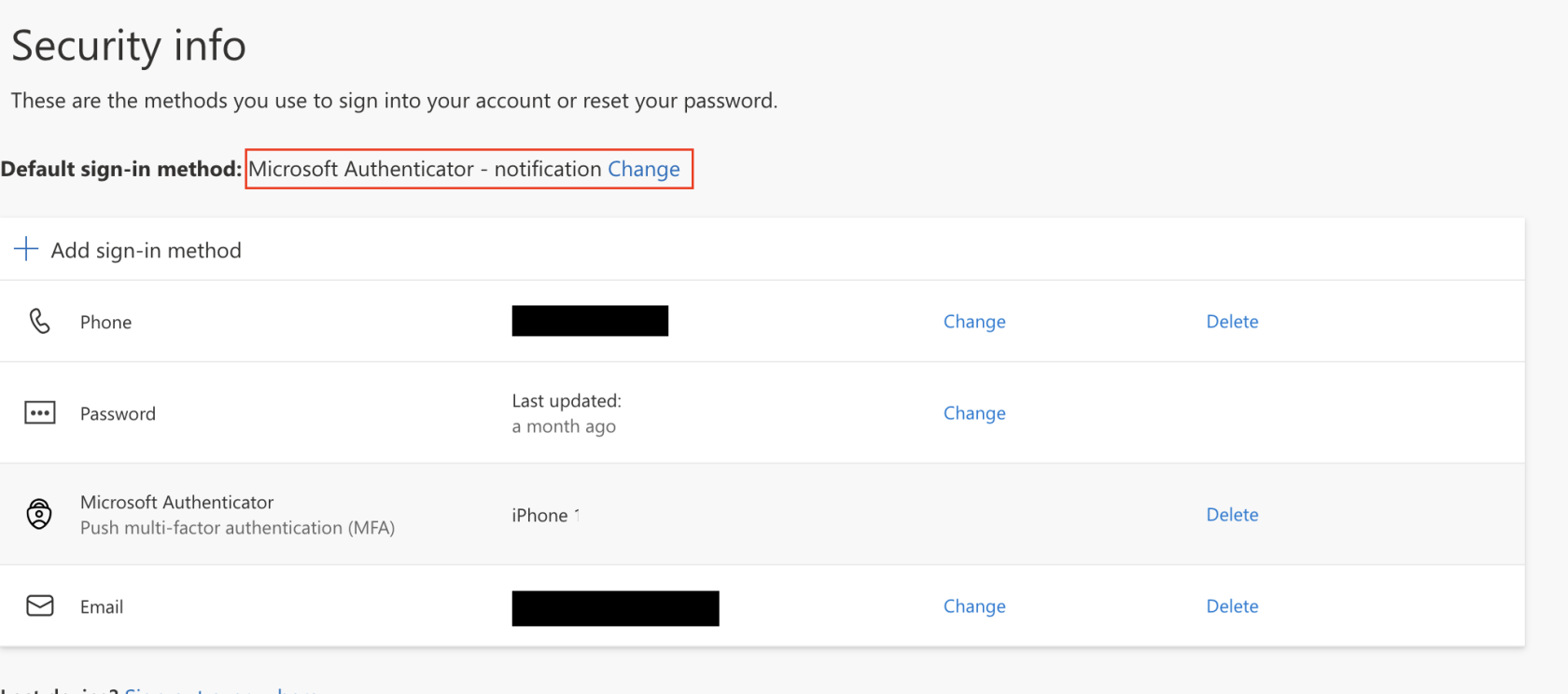
2\. Select **Security info** under **My Account** on the left side of the screen
3\. On the **Security info** page, click *Change* at the top next to **Default sign-in method:**
**[](https://kb.astate.edu/uploads/images/gallery/2026-06/ms-auth-change.png)**
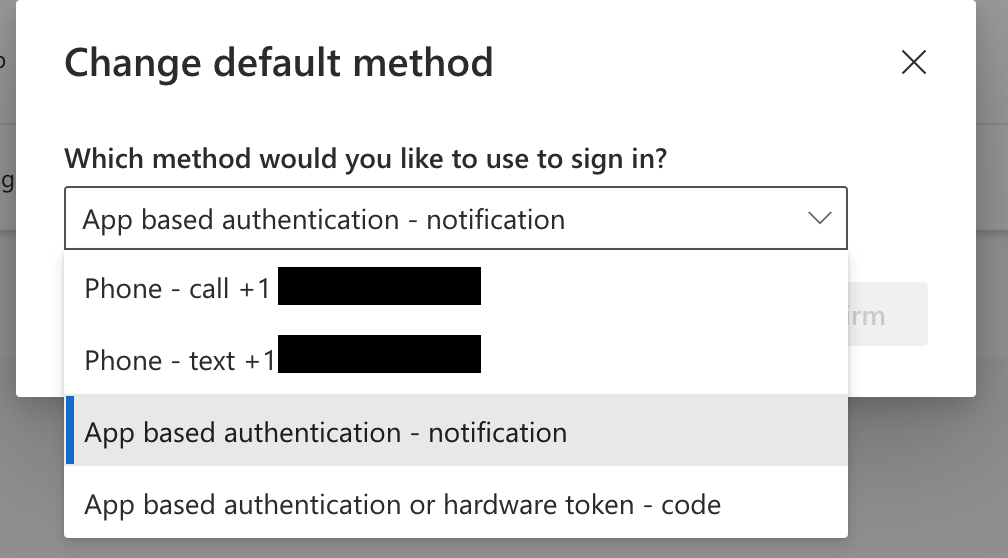
4\. A box will pop-up asking which method you would like to use:
[](https://kb.astate.edu/uploads/images/gallery/2026-06/ms-auth-method.png)
Options:
- **App based authentication - notification:** Input a code into the Microsoft Authenticator app
- **App based authentication or** \***hardware token - code:** Use the current bypass code displayed in the
Microsoft Authenticator app
*(the code refreshes every 30 seconds)
-Other Options (By exception only):
- **Phone: Text/Call** - Receive a code via text message to your mobile number or receive a phone call to approve
** \*Hardware token** - exception only (provided by Security)*
5\. Once you have made your selection, click **Confirm**
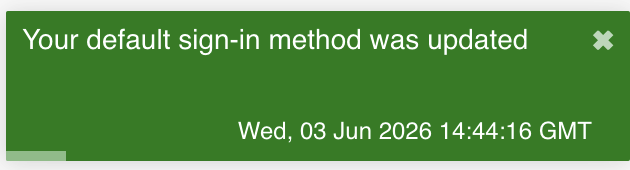
6\. You will receive a notification in the top right of the screen, letting you know it has been confirmed
[](https://kb.astate.edu/uploads/images/gallery/2026-06/ms-auth-confirmed.png)
How do I add/change/remove my phone number?
#### **Adding your phone number:**
1\. Go to [myaccount.microsoft.com](https://myaccount.microsoft.com) and sign in with your A-State credentials
2\. Select **Security info** under **My Account** on the left side of the screen
3\. Select **+ Add sign-in method** and select **Phone**
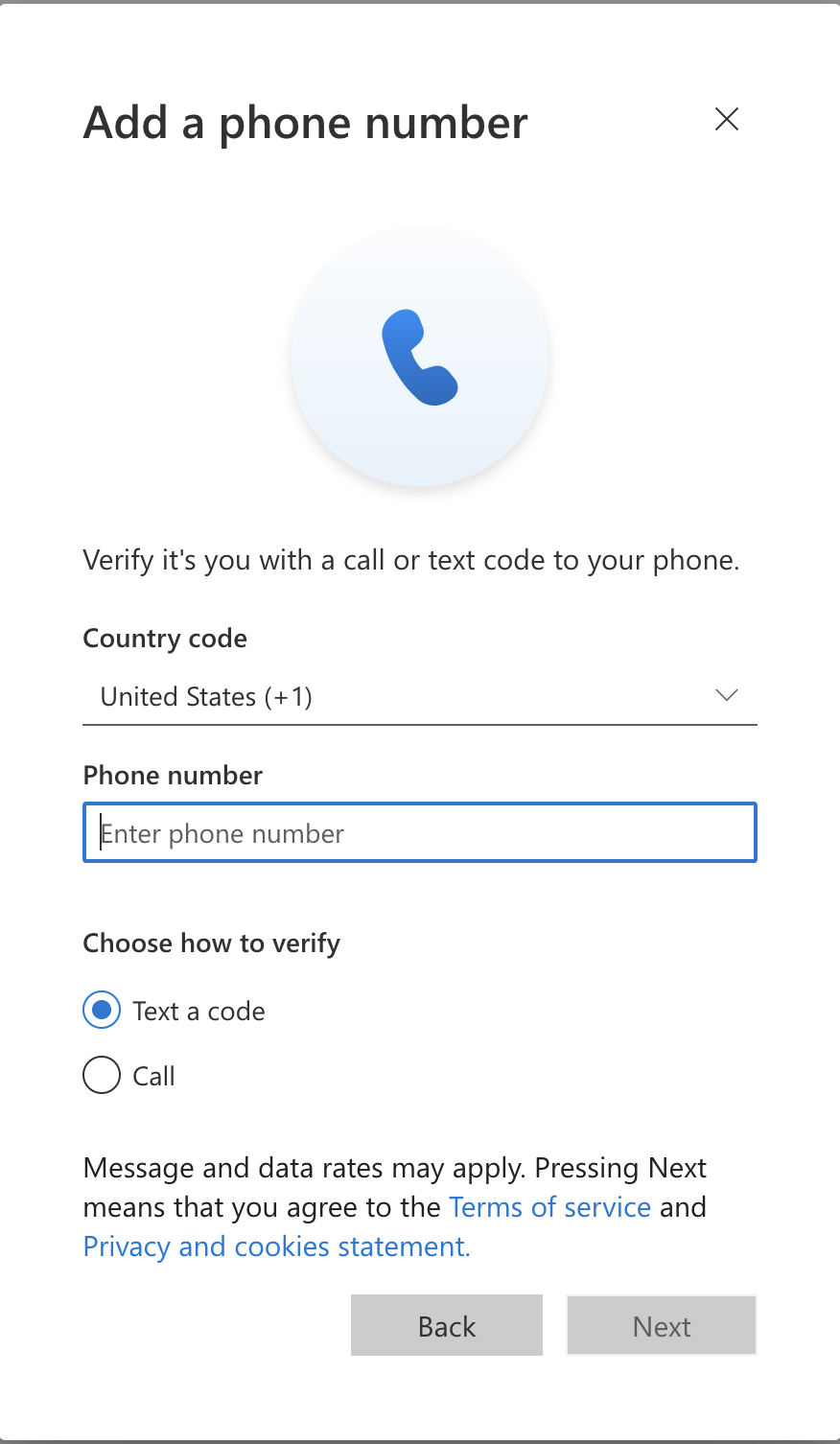
4\. Input the correct **Country code** and **Phone number** (no dashes) and choose which method you want to use to verify (text or call) and hit **Next**
**[](https://kb.astate.edu/uploads/images/gallery/2026-06/ms-auth-phone.png)**
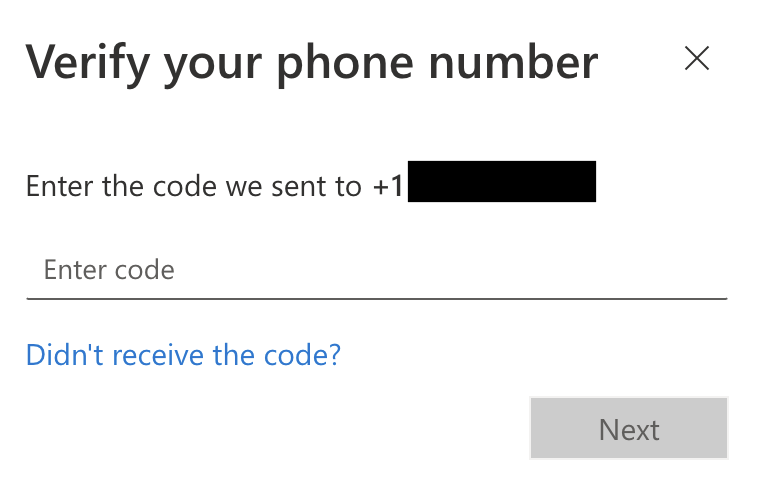
5a. If you choose to receive a text, a code will be sent to you via text message, input the code and hit **Next**
[](https://kb.astate.edu/uploads/images/gallery/2026-06/ms-auth-text.png)
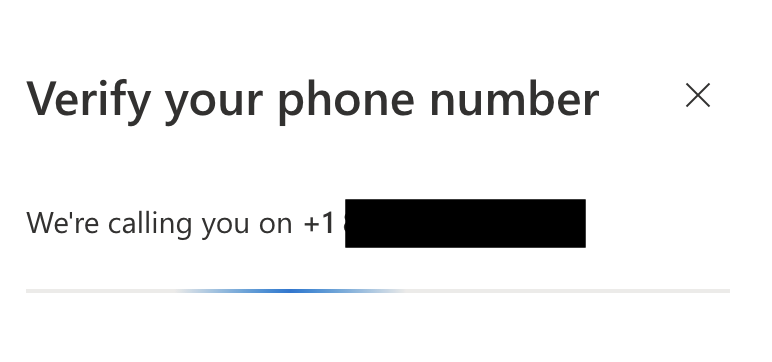
5b. If you choose to receive a call, you will get an automated call from **Microsoft** from this number (**855-330-8653**), just follow the instructions on the call and that will finish the call set up
[](https://kb.astate.edu/uploads/images/gallery/2026-06/ms-auth-call.png)
#### **Changing your phone number:**
To change your phone number, please follow these steps:
1. Go to [myaccount.microsoft.com](https://myaccount.microsoft.com) and sign in with your A-State credentials
2. Select **Security info** under **My Account** on the left side of the screen
3. Next to the phone number you want to change, select **Change**
4. Enter the new phone number and select **Next**
5. Enter the code that was text to the new phone number and select **Next**
#### **Removing your phone number:**
1. Go to [myaccount.microsoft.com](https://myaccount.microsoft.com) and sign in with your A-State credentials
2. Select **Security info** under **My Account** on the left side of the screen
3. Next to the phone number you want to remove, click **Remove**
For further assistance, contact the ITS Help Desk at 870-972-3933 or stop by IT Support Services (). It is located on the bottom floor of the Dean B. Ellis Library, Room 149