# Microsoft Authenticator FOB Guide

1. <span class="s1">Go to </span>[https://myaccount.microsoft.com/](https://myaccount.microsoft.com/)
2. Sign in with your A-State username &gt; click Next.  
    *(example: username@astate.edu or username@smail.astate.edu)* [![image.png](https://kb.astate.edu/uploads/images/gallery/2026-08/scaled-1680-/lucimage.png)](https://kb.astate.edu/uploads/images/gallery/2026-08/lucimage.png)
3. Enter your A-State password &gt; click Sign in.
4. On the left Click “My Account” and Select “Security Info”.  
    (Note: When using a smart device, you may have to select the **≡** first)  
      
    [![image.png](https://kb.astate.edu/uploads/images/gallery/2026-08/scaled-1680-/erwimage.png)](https://kb.astate.edu/uploads/images/gallery/2026-08/erwimage.png)
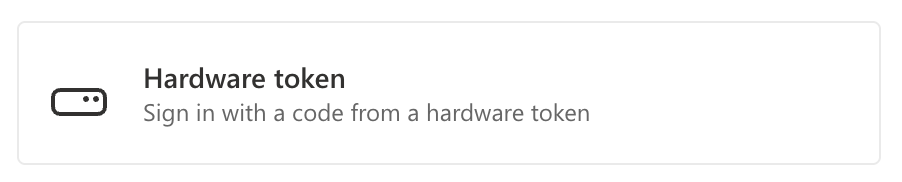
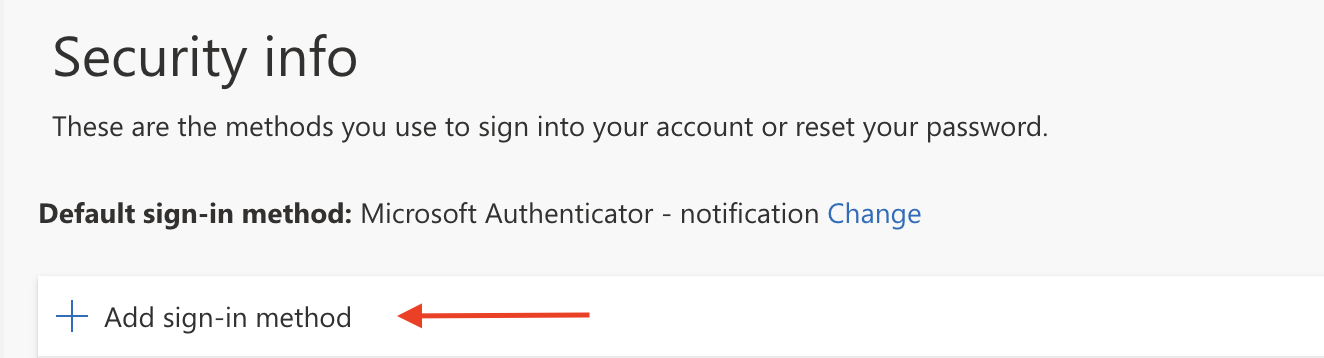
5. Click Add sign-in method and select Hardware token.  
      
    <table border="1" style="border-collapse: collapse; width: 107.861%; height: 140px; border-width: 0px;"><colgroup><col style="width: 50.0645%;"></col><col style="width: 50.0645%;"></col></colgroup><tbody><tr><td style="border-width: 0px;">[![image.png](https://kb.astate.edu/uploads/images/gallery/2026-08/scaled-1680-/dByimage.png)](https://kb.astate.edu/uploads/images/gallery/2026-08/dByimage.png)  
    </td><td style="border-width: 0px;">[![image.png](https://kb.astate.edu/uploads/images/gallery/2026-08/scaled-1680-/Ki6image.png)](https://kb.astate.edu/uploads/images/gallery/2026-08/Ki6image.png)  
    </td></tr></tbody></table>
6. Click Next, at the below screen.  
      
    [![image.png](https://kb.astate.edu/uploads/images/gallery/2026-08/scaled-1680-/gzKimage.png)](https://kb.astate.edu/uploads/images/gallery/2026-08/gzKimage.png)
7. Here you will enter the serial number on the back of the FOB and click Next.  
      
    [![image.png](https://kb.astate.edu/uploads/images/gallery/2026-08/scaled-1680-/Dj8image.png)](https://kb.astate.edu/uploads/images/gallery/2026-08/Dj8image.png)
8. Name your FOB and click Next.  
      
    [![image.png](https://kb.astate.edu/uploads/images/gallery/2026-08/scaled-1680-/tnWimage.png)](https://kb.astate.edu/uploads/images/gallery/2026-08/tnWimage.png)
9. Push the button on the FOB to display the random 6-digit authentication and enter the code on the enter code screen and click Next.  
      
    [![image.png](https://kb.astate.edu/uploads/images/gallery/2026-08/scaled-1680-/LYIimage.png)](https://kb.astate.edu/uploads/images/gallery/2026-08/LYIimage.png)
10. Now click "Done."
11. Congratulations, you have successfully added the FOB to your account.  
      
    [![image.png](https://kb.astate.edu/uploads/images/gallery/2026-08/scaled-1680-/0uJimage.png)](https://kb.astate.edu/uploads/images/gallery/2026-08/0uJimage.png)