Modern Campus Guides
For the web team to reference when editing content in the CMS.
Program Page - Snippets
How to Insert templated WYSIWYG editors AKA Snippets
Learn how to effectively manage A-State program page content by inserting and organizing appropriate snippets in Omni CMS. This guide provides the exact steps needed to add and/or edit a snippet.
Open the Page
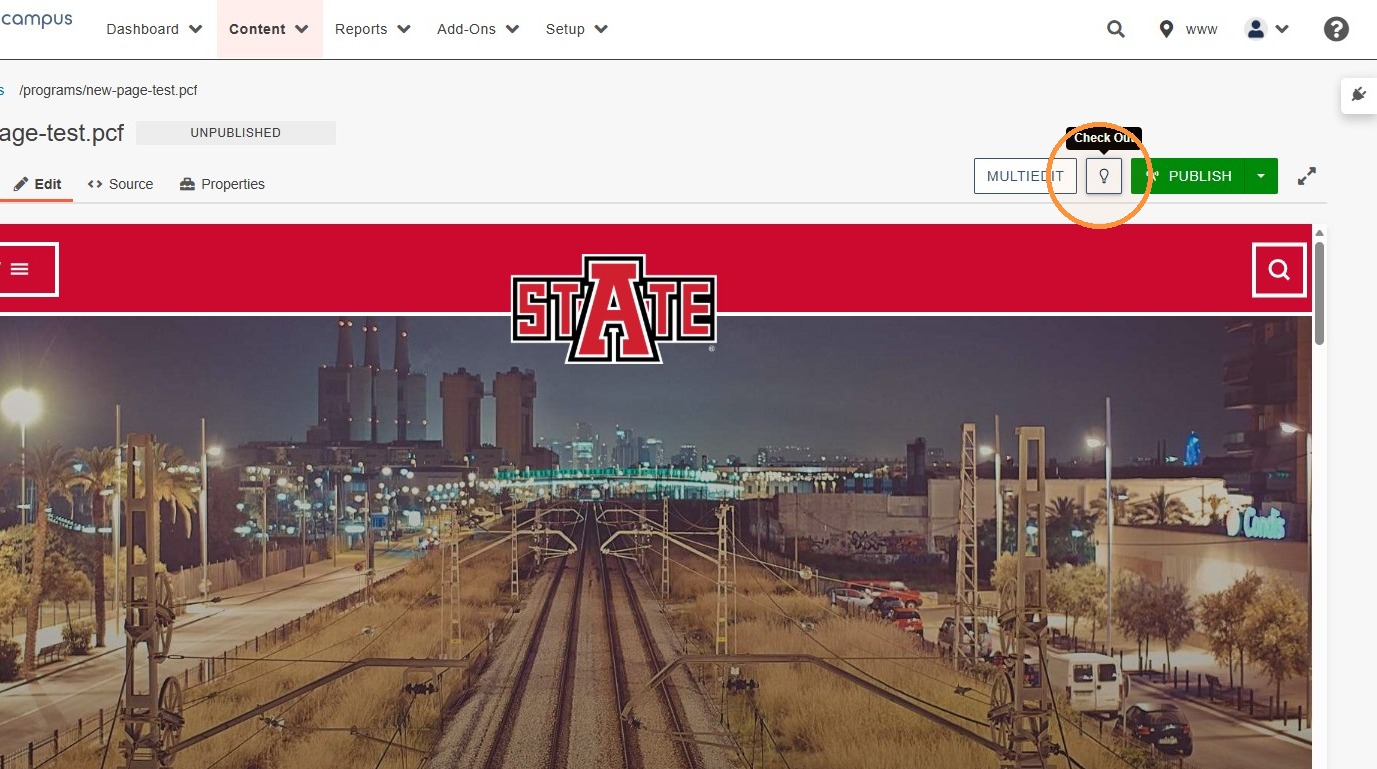
1. Make sure you have the page checked out. The lightbulb will have a yellow fill.
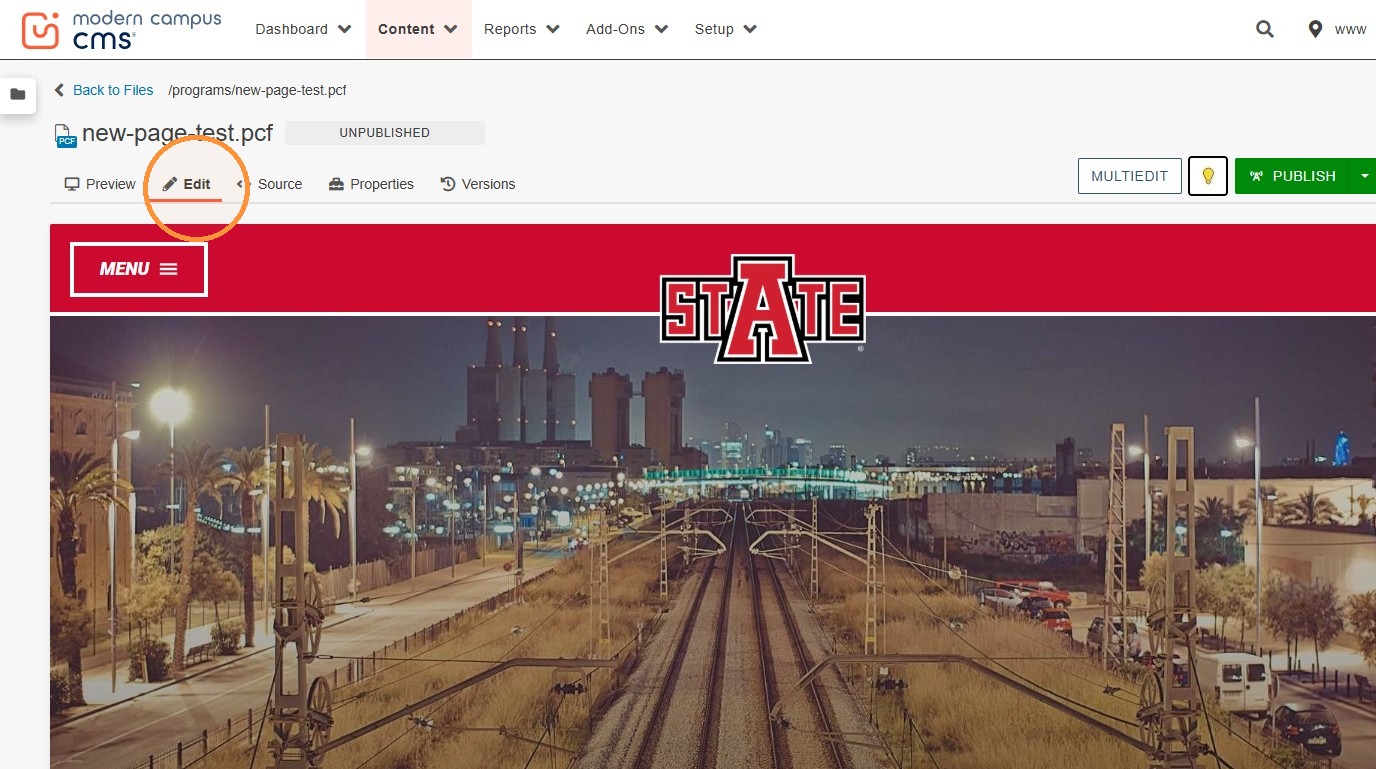
2. Make sure you are on the "Edit" tab.
Select Content Region
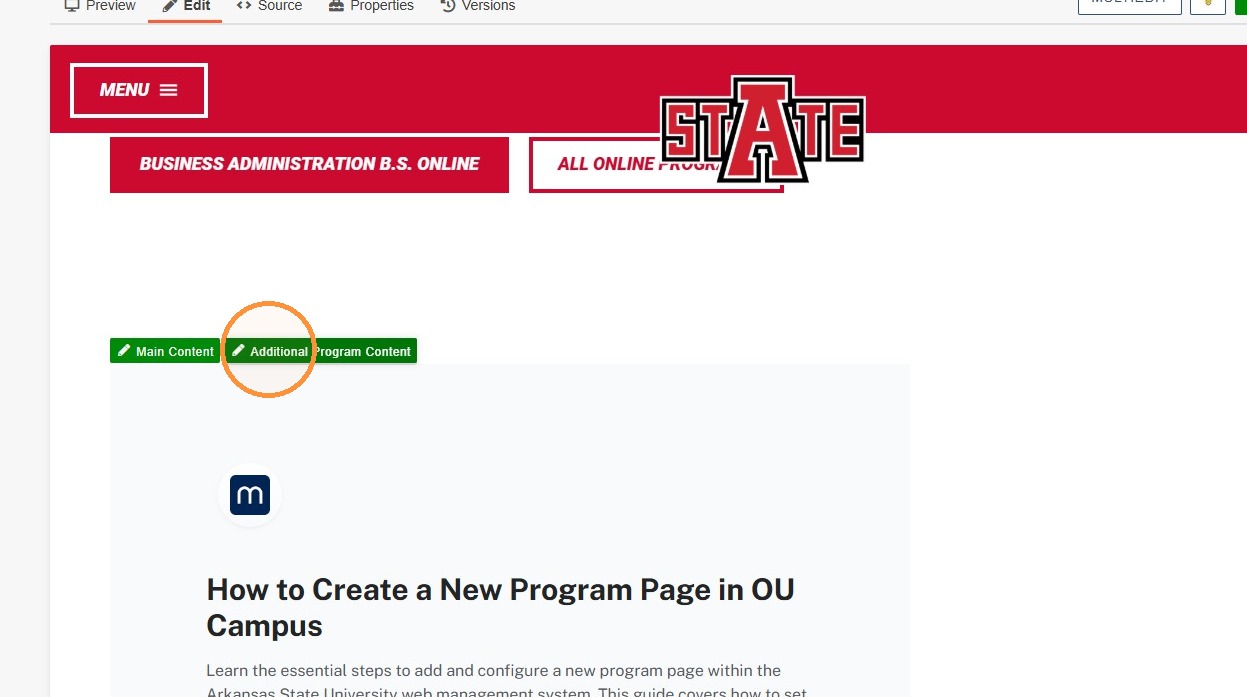
3. Program pages are designed on a template with predetermined areas for specific snippets. The green box will typically have the name of the snippet that should be there; however, you can always reference another program page if needed.
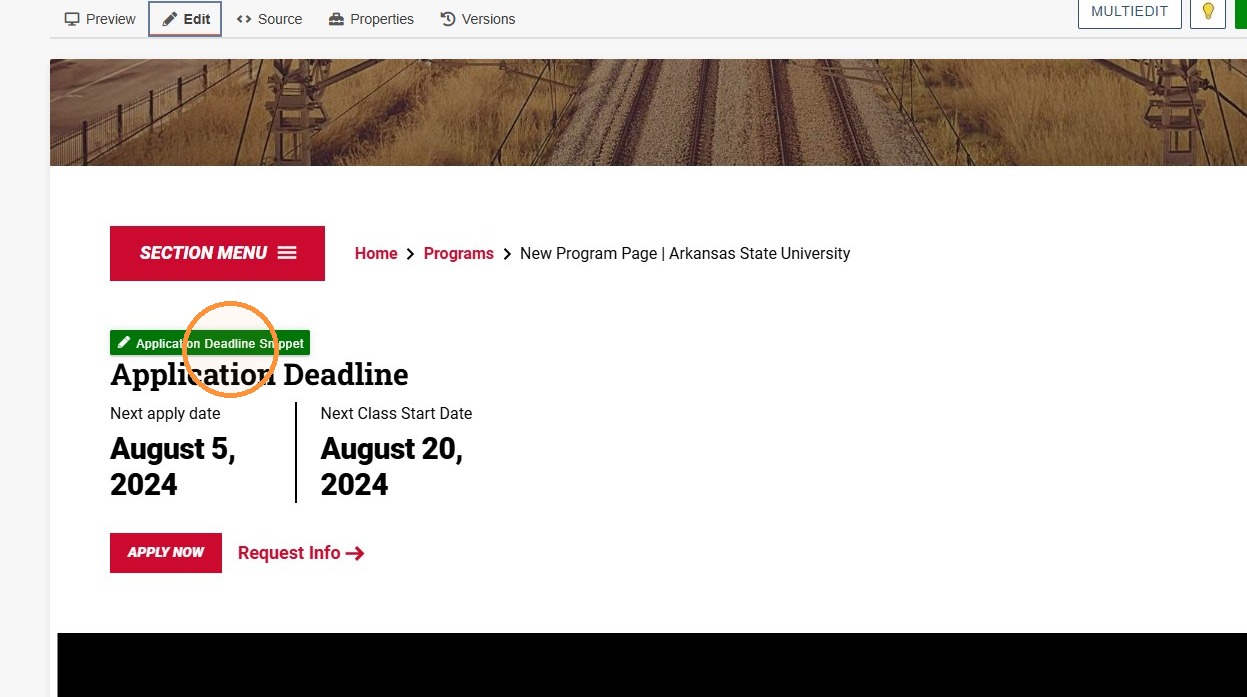
4. Click on that box, and it will open up the What You See Is What You Get editor (WYSIWYG). This is the standard codeless method of editing content in the CMS.
Insert the Snippet
5. Most editable sections will look like a long text bar if there are no snippets currently in that section.
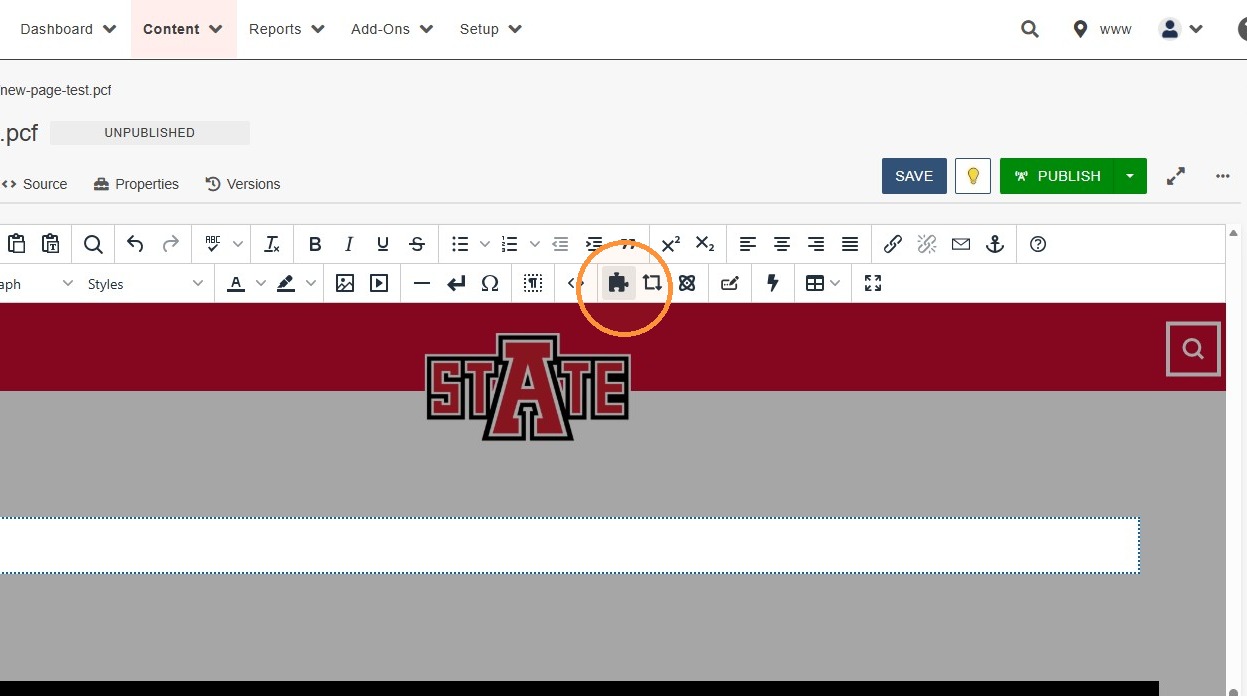
To enter a snippet:
Navigate to the top bar and select the puzzle piece icon.
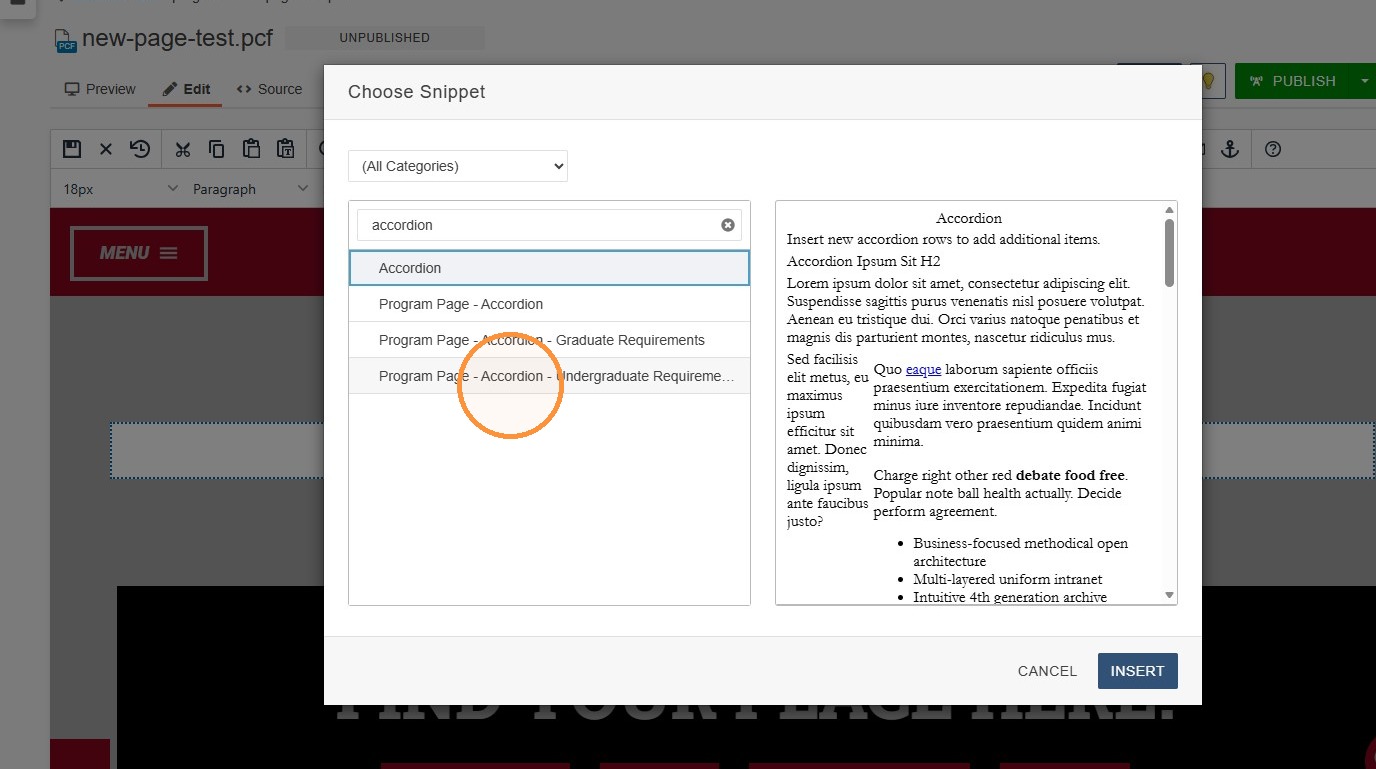
Select the appropriate snippet from the list. For more in-depth details on the CMS, visit the kb page
6. Insert your chosen snippet. Press Insert.
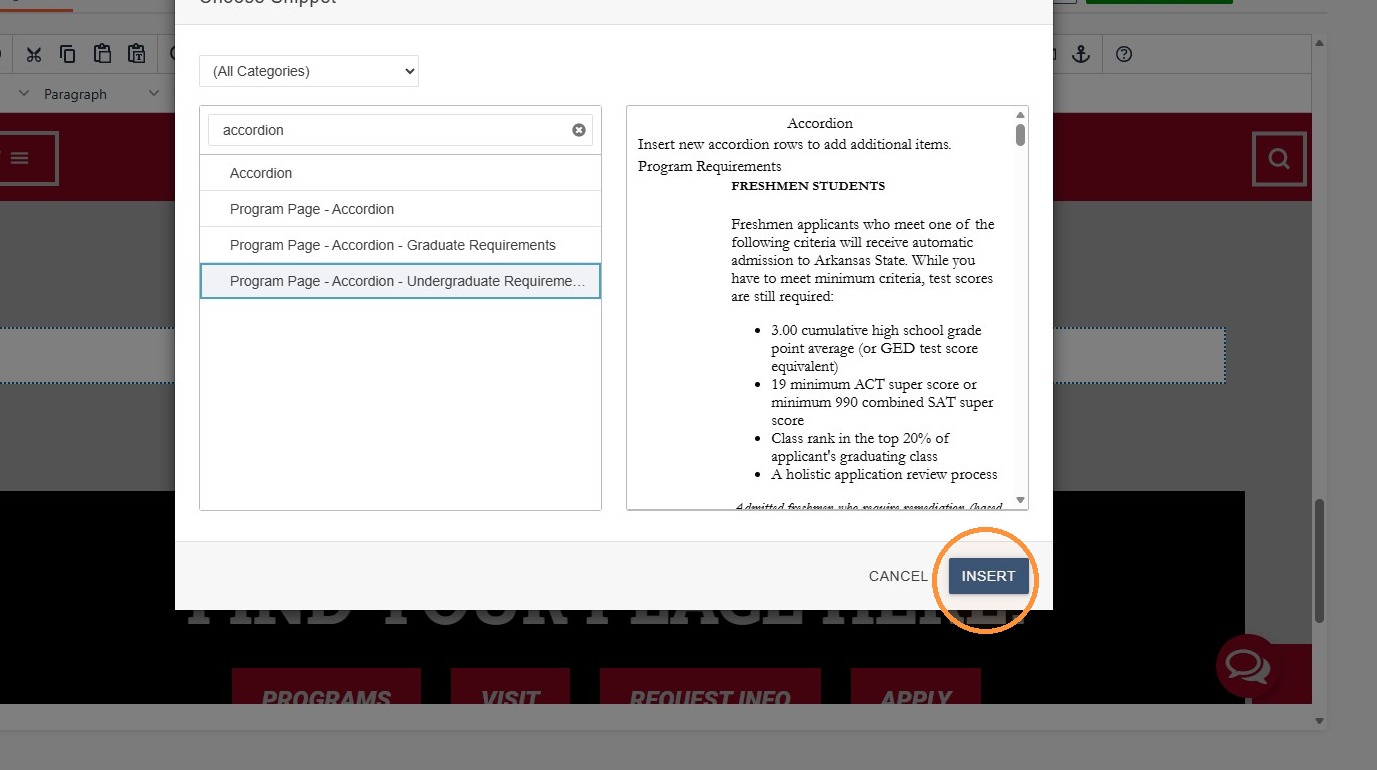
7. Snippets can be edited within the WYSIWYG editor.
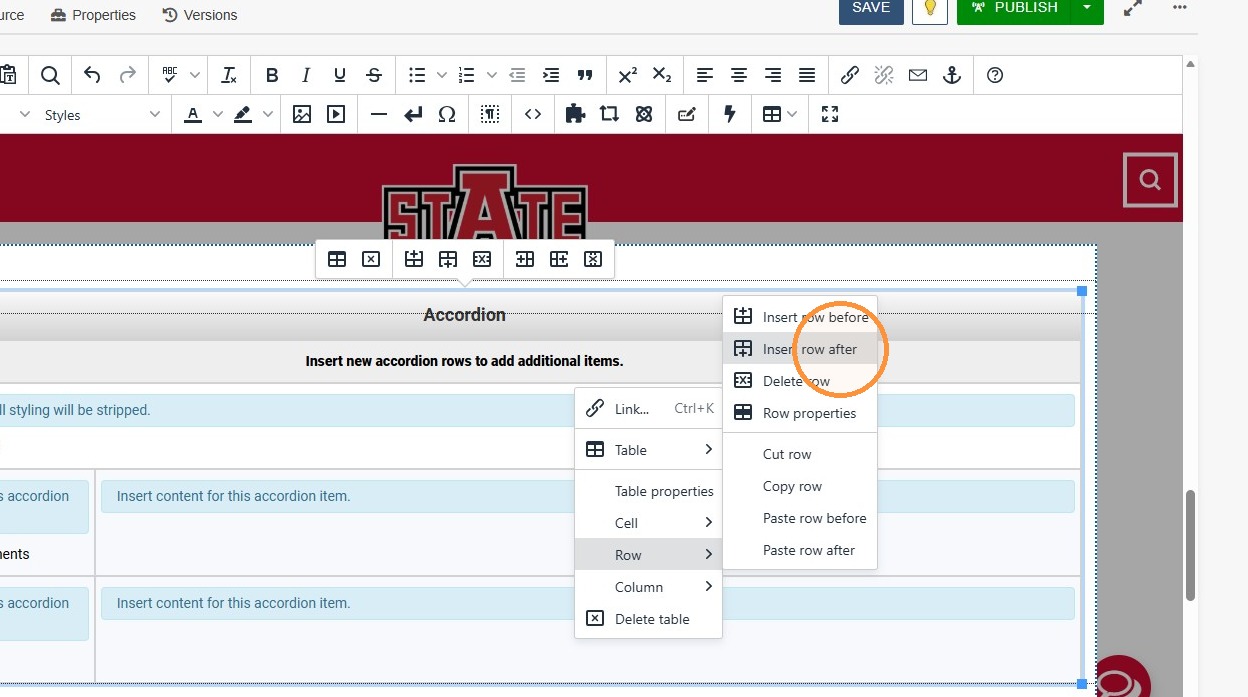
For example, with the Accordion snippet, you can "insert row after" to add another row. Various snippets have different interactions, depending on how you manipulate them. They can be wonky, so always preview the page.