# Chapter 1: Getting Started
Learn how to access Nuventive, navigate your workspace, and understand the basic layout and tools available. This chapter also covers how to request user access or make changes to existing permissions, ensuring your team is ready to begin entering and managing assessment data.
# Logging in to Nuventive
Nuventive is accessed through A-State’s centralized **Pack Portal**. This page walks you through how to locate Nuventive within the portal and what to do if you encounter login issues.
---
## Video Tutorial
**Watch: Logging In to Nuventive**
This short video walks you through the login process step-by-step.
---
## **Steps to Log In **[](https://kb.astate.edu/uploads/images/gallery/2025-09/image-1756913178687.png)****
1. 1. **Go to [pack.astate.edu](https://pack.astate.edu)**
This is the university’s main hub for accessing campus tools.
2. **Log in using your A-State credentials**
Enter your username and password through the university’s single sign-on system.
[](https://kb.astate.edu/uploads/images/gallery/2025-09/image-1756913126967.png)
3. **Find Nuventive in the left-hand menu**
- Click **Campus Tools** under the **Tools** section in the left-hand navigation.
- If Nuventive isn’t immediately visible, click **“Show More”** to expand the list.
- Select **Nuventive** from the expanded menu.
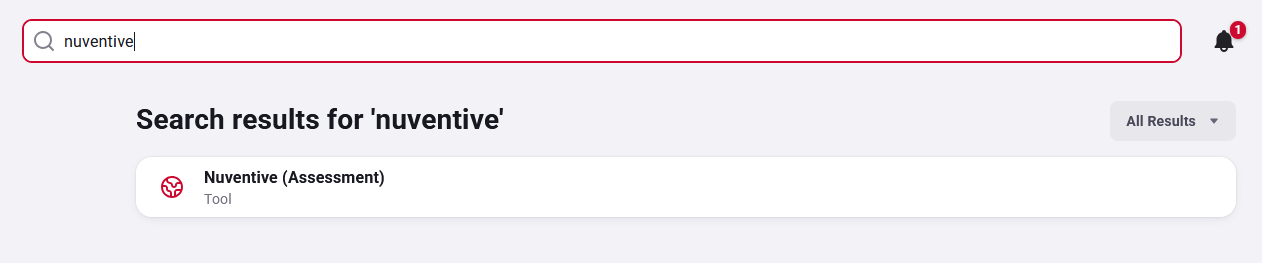
4. **Alternatively, use the search bar**
Type “Nuventive” in the search box at the top of the Pack Portal to quickly locate the tile.
[](https://kb.astate.edu/uploads/images/gallery/2025-09/search-for-nuventive.png)
---
## **Troubleshooting Access**
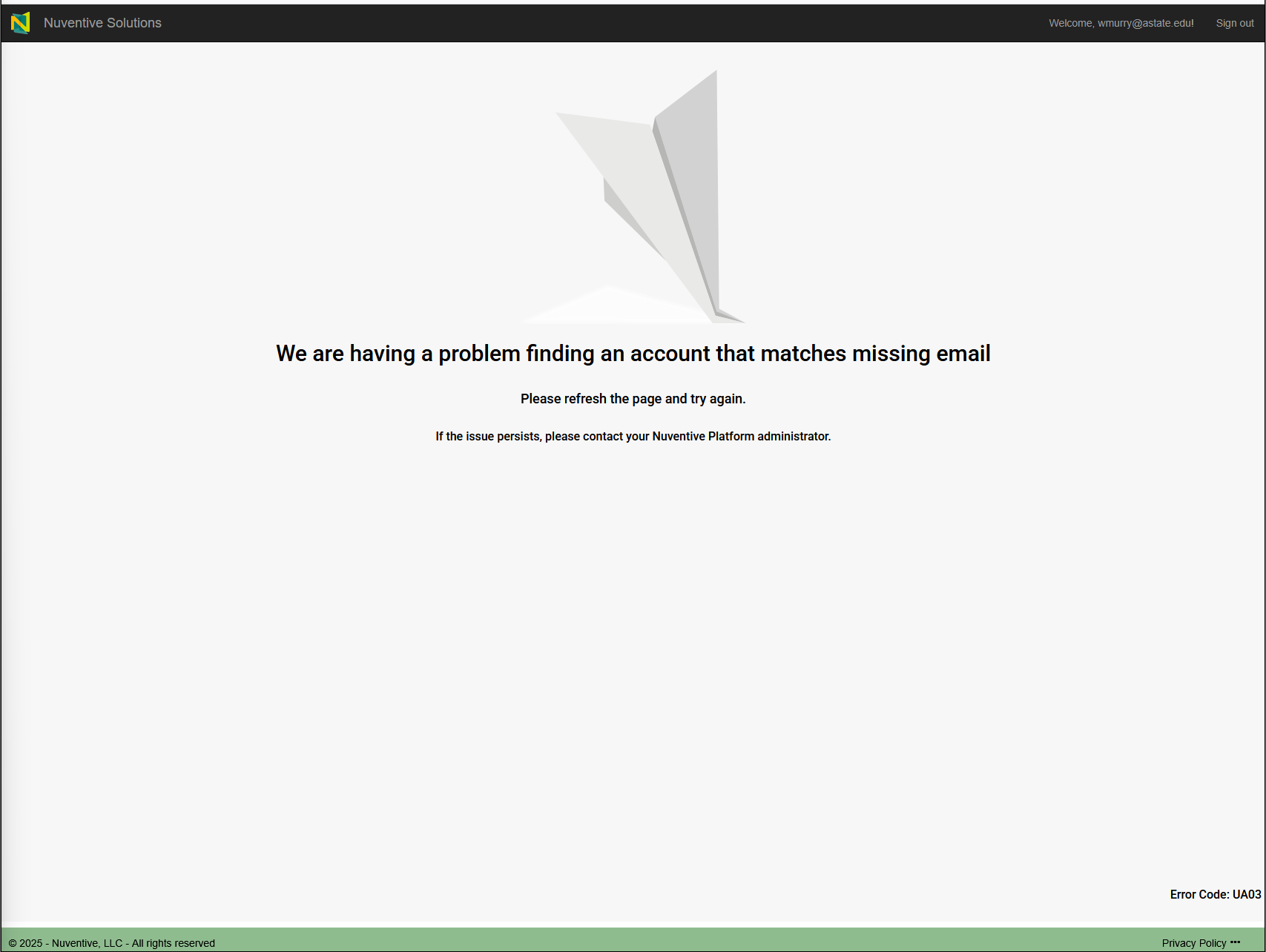
- **Error Message in Nuventive?**
[](https://kb.astate.edu/uploads/images/gallery/2025-09/image-1756914293358.png)
Contact the **Office of Accreditation & Assessment**:
- Phone: (870) 972-2989
- Location: Room 610, Dean B. Ellis Library
- Email: ****
- **Issues Logging into Pack Portal?**
Contact the **ITS Help Desk**:
- Phone: (870) 972-3933
- Email: ****
---
**[➡️ Next](https://kb.astate.edu/books/nuventive/page/adding-or-deleting-users)**
# Adding or Deleting Users
Adding or deleting users in **Nuventive** requires coordination with the **Office of Accreditation and Assessment**. This page explains what information you need to provide and the types of permissions available.
---
## Video Tutorial
**Watch:** Adding or Deleting Users
This short video explains the process for requesting user additions or deletions.
---
## Information Required
When requesting to add or delete a user, provide:
- **Last Name**
- **First Name**
- **A-State Email Address**
- **Name of every workspace** the user should be added to
- **Role and permissions** the user should receive
---
### Roles and Permissions by Workspace
#### Academic Department and College Dashboards
- **Full Access**
#### Academic Programs
- **Assessment Access – Faculty**
- **Assessment Leader**
- **External Reviewer Access** (for program accreditors)
- **Full Access**
- **PAR Form** (for peer review)
- **Read Only**
#### Accreditation Standards
- **Full Access**
#### Auxiliary Assessment
- **Full Access**
- **Read Only**
#### Co-curricular Assessment
- **Full Access**
- **Read Only**
#### Discover 2025 Executive View
- **Full Access**
- **Read Only**
#### Extracurricular Assessment
- **Full Access**
- **Read Only**
#### General Education Quadrennial
- **Assessment Access (Read Only Feedback)**
- **Feedback Access (Read Only Assessment Forms)**
- **Full Access (Assessment and Feedback)**
#### Platform Administrator
- **Canvas Analytics**
#### Strategic Plan – Discover 2025
- **Full Access**
- **Reviewer Access**
> **Note:** These roles and permissions apply across all spaces, including accreditation and co-curricular workspaces.
---
## Need Help?
Contact the **Office of Accreditation and Assessment**:
Phone: (870) 972-2989
Location: Room 610, Dean B. Ellis Library
Email:
---
[➡️ **Next**](https://kb.astate.edu/books/nuventive/page/accessing-your-workspace)
# Accessing Your Workspace
After logging into Nuventive through the Pack Portal, you’ll be directed to your personalized workspace. This is where you enter assessment data, upload documents, and manage program-level information. Most users will only have access to one workspace, but some may see multiple options depending on their role.
---
## Video Tutorial
**Watch: Accessing Your Workspace**
This video walks you through how to locate and enter your assigned workspace in Nuventive.
---
## **Steps to Access Your Workspace**
1. **Log in to Nuventive via [pack.astate.edu](https://pack.astate.edu/dashboard)**
Follow the login instructions from the Logging In to Nuventive page.
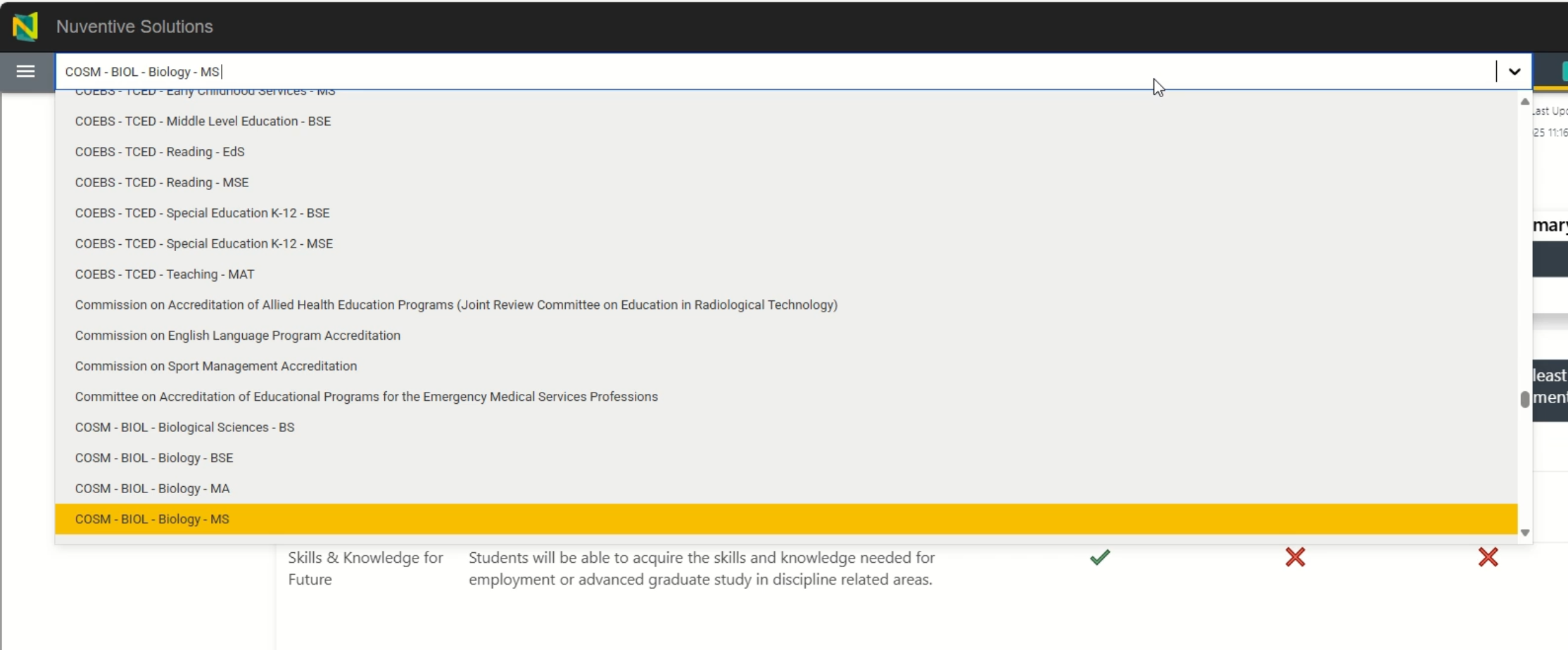
2. **Once Nuventive opens, look for the workspace selection screen**
- If you only have one workspace, it will open automatically.
- If you have access to multiple workspaces (e.g., college, department, program, or other specialized administrative roles), you’ll see a list to choose from.
[](https://kb.astate.edu/uploads/images/gallery/2025-09/workspace-selection.png)
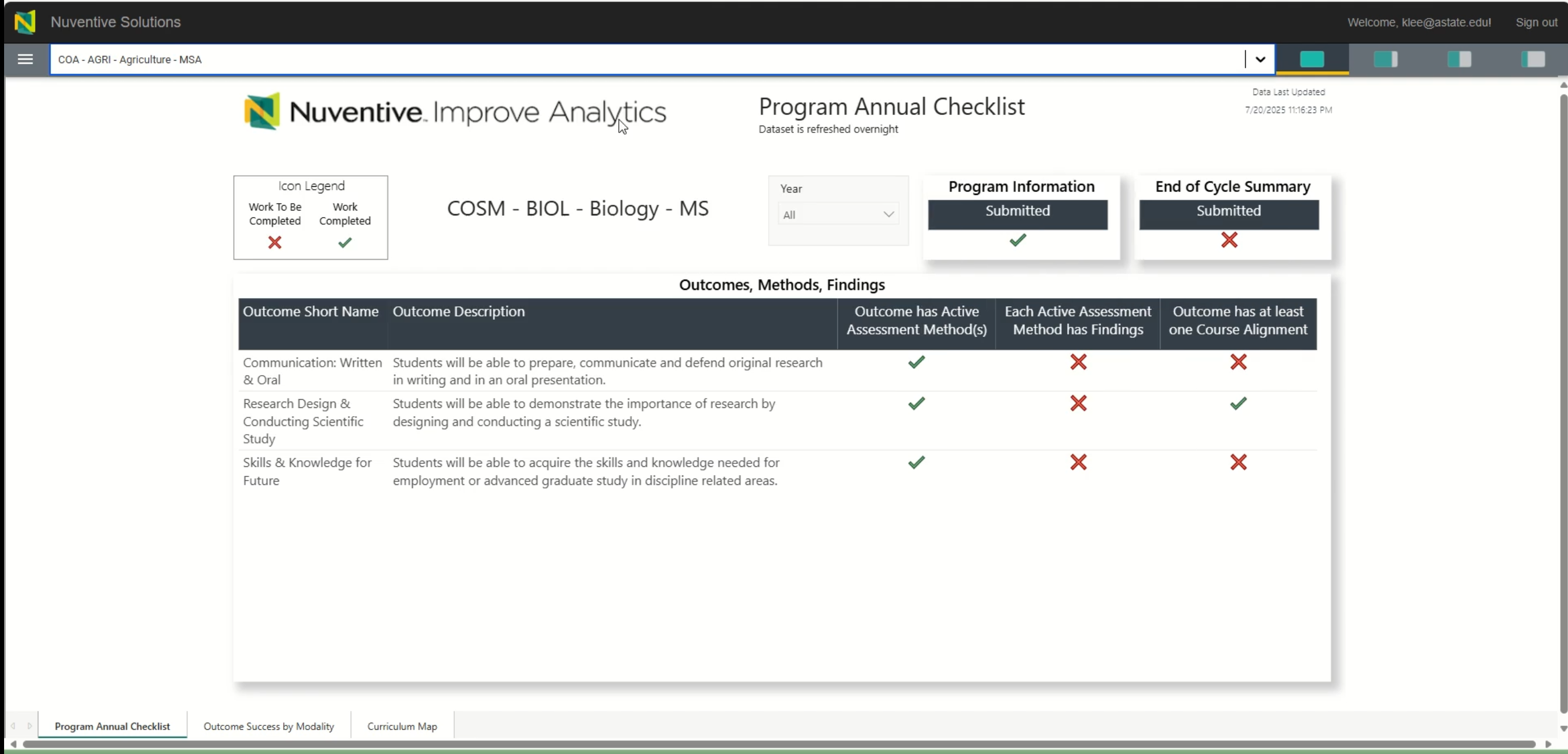
3. **Click the name of the workspace you want to enter**
- Workspaces are typically named by department, program, or role.
- If you’re unsure which workspace to select, contact the Office of Accreditation & Assessment.
[](https://kb.astate.edu/uploads/images/gallery/2025-09/workspace-homepage-example.png)
---
### **Tips for Navigating Your Workspace**
- The left-hand menu provides access to key sections like **Program Information**, **Documents**, and **Assessment Plans**.
- Use the breadcrumb trail at the top of the page to return to the workspace home or switch between sections.
- If you accidentally enter the wrong workspace, use the **Home** or **Workspace Selector** to return and choose again.
---
## **Need Help?**
If your workspace is missing or incorrect, contact:
**Office of Accreditation & Assessment**: (870) 972-2989
****
Room 610, Dean B. Ellis Library
---
**[➡️ Next](https://kb.astate.edu/books/nuventive/page/workspace-menu-overview)**
# Workspace Menu Overview
The Nuventive workspace menu is your central hub for managing assessment tasks. While the layout may vary slightly depending on your role or program, most users will see a consistent set of tools for entering outcomes, uploading documents, and reviewing reports.
---
## Video Tutorial
**Watch: Workspace Menu Overview**
This video walks you through the layout and function of each section in the Nuventive workspace menu.
**
---
## **Home Page Features**
- **Completion Indicators**
- Red ❌ or green ✅ icons show whether each section is complete.
- These indicators update **once daily**, typically around midnight.
- **Right-Hand Viewing Panels**
- Toggle between layout options and access supplemental documents.
- If the home screen appears empty, use these panels to explore additional views.
- **Bottom-of-Screen Reports**
- Some reports can be accessed directly from the home page using toggles at the bottom.
---
## **Menu Sections Explained**
**[](https://kb.astate.edu/uploads/images/gallery/2025-09/nuventive-menu.png)**
1. **Annual Checklist**
- Located at the top of the left-hand menu.
- Returns you to the workspace home page.
- Useful for tracking completion status across key sections.
2. **Program Information**
- Contains standing details about your program, such as mission statements and degree levels.
3. **Program Review**
- Used by programs **without specialized accreditation** to complete their annual review.
4. **Assessment**
- Where you’ll spend most of your time.
- Includes:
- **Outcomes, Methods, and Findings**: Enter and track assessment data.
- **Mapping**: Align outcomes with courses or standards.
- **End of Cycle Summary**: Reflect on results and plan improvements.
- **Printable Reports**: Generate formatted reports for review or submission.
- **Canvas**: View linked data from Canvas if applicable.
- **Dashboards**: Visualize assessment data across departments or colleges.
5. **Documents**
- Archive for supplemental materials such as syllabi, meeting notes, or evidence files.
- Can be accessed from various viewing panels.
6. **Program Assessment Review Rubric**
- View the rubric used for peer evaluation.
- Receive feedback from reviewers directly in this section.
---
## Tips & Support
- Use the **breadcrumb trail** at the top of the page to move between sections.
- If you accidentally enter the wrong workspace, use the **Workspace Selector** to return and choose again.
- If a section is missing, your role may not have access.
- For help with missing menu items or workspace issues, contact:
- **Office of Accreditation & Assessment**:
- (870) 972-2989
-
- Room 610, Dean B. Ellis Library
---
**[➡️ Next](https://kb.astate.edu/books/nuventive/chapter/chapter-2-building-your-assessment-plan)**