Nuventive
This guide provides step-by-step instructions for using Nuventive, A-State’s assessment management platform. It is designed to support faculty and staff in entering outcomes, documenting findings, and generating reports within the Nuventive system.
As a companion to the Assessment Manual, this book focuses specifically on the software tools and workflows used during the assessment process. Each page includes a short video walkthrough and direct links to the Office of Accreditation and Assessment for support. For timelines, procedures, and institutional policies, please refer to the Assessment Knowledge Base Book.
- Chapter 1: Getting Started
- Chapter 2: Building Your Assessment Plan
- Program Information
- Documents
- Defining Program Outcomes
- Mapping Outcomes
- Creating and Managing Assessment Methods
- Documenting Findings
- Chapter 3: Dashboards and Visualization
- Chapter 4: Reporting and Feedback
- Program Assessment Review and Rubric
- Program Review Process
- General Education Outcomes Assessment
- GEC Quadrennial Feedback
- End of Cycle Summary
- Printable Reports
- Chapter 5: Resources and Support
Chapter 1: Getting Started
Learn how to access Nuventive, navigate your workspace, and understand the basic layout and tools available. This chapter also covers how to request user access or make changes to existing permissions, ensuring your team is ready to begin entering and managing assessment data.
Logging in to Nuventive
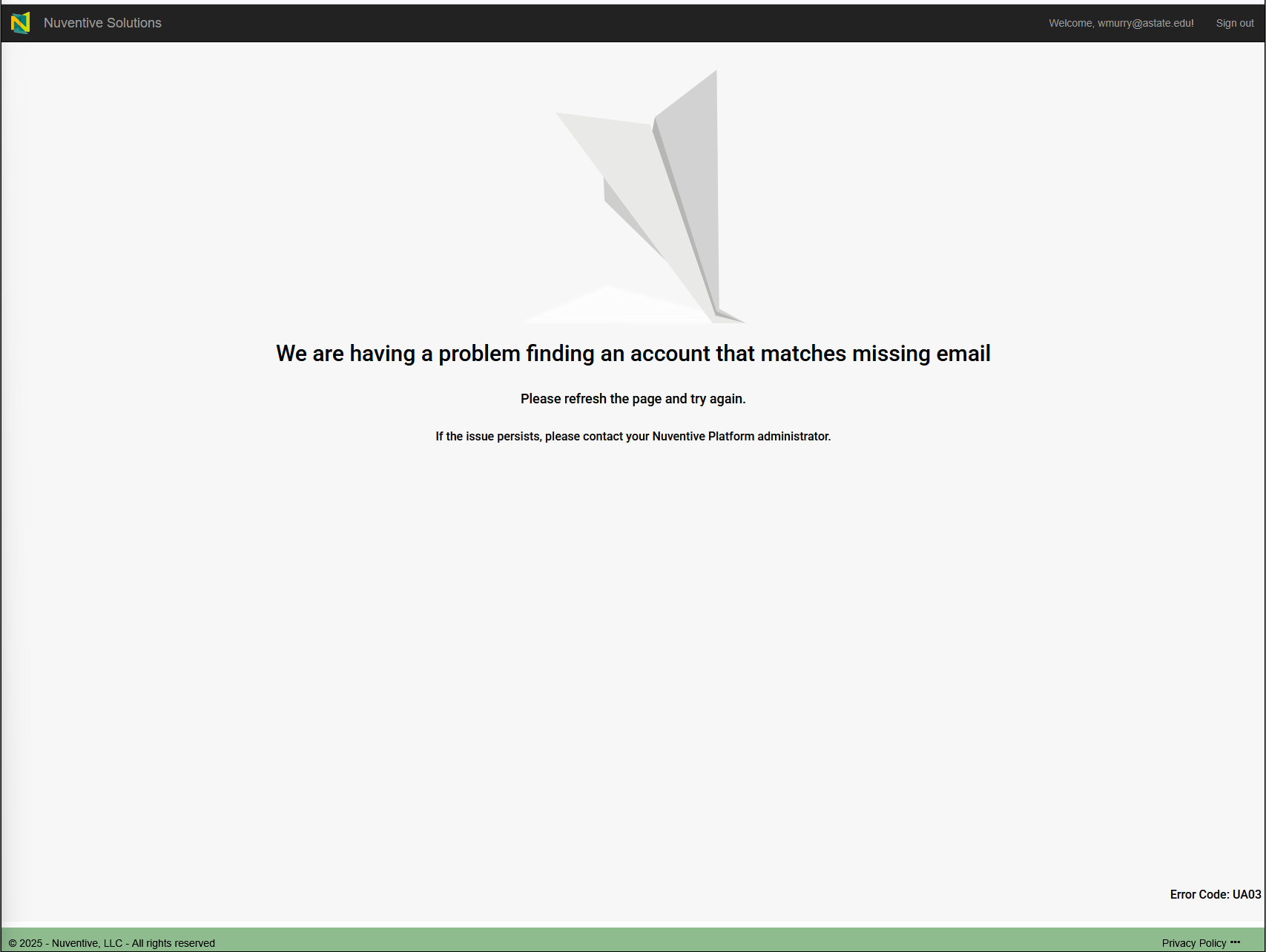
Nuventive is accessed through A-State’s centralized Pack Portal. This page walks you through how to locate Nuventive within the portal and what to do if you encounter login issues.
Video Tutorial
Watch: Logging In to Nuventive
This short video walks you through the login process step-by-step.
Steps to Log In 

-
-
Go to pack.astate.edu
This is the university’s main hub for accessing campus tools. -
Log in using your A-State credentials
Enter your username and password through the university’s single sign-on system.
-
Find Nuventive in the left-hand menu
-
Click Campus Tools under the Tools section in the left-hand navigation.
-
If Nuventive isn’t immediately visible, click “Show More” to expand the list.
-
Select Nuventive from the expanded menu.
-
-
Alternatively, use the search bar
Type “Nuventive” in the search box at the top of the Pack Portal to quickly locate the tile.
-


Troubleshooting Access
-
Error Message in Nuventive?

Contact the Office of Accreditation & Assessment:
- Phone: (870) 972-2989
- Location: Room 610, Dean B. Ellis Library
- Email: klee@astate.edu
-
Issues Logging into Pack Portal?
Contact the ITS Help Desk:- Phone: (870) 972-3933
- Email: itshelpdesk@AState.edu
Adding or Deleting Users
Adding or deleting users in Nuventive requires coordination with the Office of Accreditation and Assessment. This page explains what information you need to provide and the types of permissions available.
Video Tutorial
Watch: Adding or Deleting Users
This short video explains the process for requesting user additions or deletions.
Information Required
When requesting to add or delete a user, provide:
- Last Name
- First Name
- A-State Email Address
- Name of every workspace the user should be added to
- Role and permissions the user should receive
Roles and Permissions by Workspace
Academic Department and College Dashboards
- Full Access
Academic Programs
- Assessment Access – Faculty
- Assessment Leader
- External Reviewer Access (for program accreditors)
- Full Access
- PAR Form (for peer review)
- Read Only
Accreditation Standards
- Full Access
Auxiliary Assessment
- Full Access
- Read Only
Co-curricular Assessment
- Full Access
- Read Only
Discover 2025 Executive View
- Full Access
- Read Only
Extracurricular Assessment
- Full Access
- Read Only
General Education Quadrennial
- Assessment Access (Read Only Feedback)
- Feedback Access (Read Only Assessment Forms)
- Full Access (Assessment and Feedback)
Platform Administrator
- Canvas Analytics
Strategic Plan – Discover 2025
- Full Access
- Reviewer Access
Note: These roles and permissions apply across all spaces, including accreditation and co-curricular workspaces.
Need Help?
Contact the Office of Accreditation and Assessment:
Phone: (870) 972-2989
Location: Room 610, Dean B. Ellis Library
Email: assessment@astate.edu
Accessing Your Workspace
After logging into Nuventive through the Pack Portal, you’ll be directed to your personalized workspace. This is where you enter assessment data, upload documents, and manage program-level information. Most users will only have access to one workspace, but some may see multiple options depending on their role.
Video Tutorial
Watch: Accessing Your Workspace
This video walks you through how to locate and enter your assigned workspace in Nuventive.
Steps to Access Your Workspace
-
Log in to Nuventive via pack.astate.edu
Follow the login instructions from the Logging In to Nuventive page. -
Once Nuventive opens, look for the workspace selection screen
- If you only have one workspace, it will open automatically.
- If you have access to multiple workspaces (e.g., college, department, program, or other specialized administrative roles), you’ll see a list to choose from.

-
Click the name of the workspace you want to enter
- Workspaces are typically named by department, program, or role.
- If you’re unsure which workspace to select, contact the Office of Accreditation & Assessment.


Tips for Navigating Your Workspace
Need Help?
If your workspace is missing or incorrect, contact:
Office of Accreditation & Assessment: (870) 972-2989
klee@astate.edu
Room 610, Dean B. Ellis Library
Workspace Menu Overview
The Nuventive workspace menu is your central hub for managing assessment tasks. While the layout may vary slightly depending on your role or program, most users will see a consistent set of tools for entering outcomes, uploading documents, and reviewing reports.
Video Tutorial
Watch: Workspace Menu Overview
This video walks you through the layout and function of each section in the Nuventive workspace menu.
Home Page Features
-
Completion Indicators
- Red ❌ or green ✅ icons show whether each section is complete.
- These indicators update once daily, typically around midnight.
-
Right-Hand Viewing Panels
- Toggle between layout options and access supplemental documents.
- If the home screen appears empty, use these panels to explore additional views.
-
Bottom-of-Screen Reports
- Some reports can be accessed directly from the home page using toggles at the bottom.
Menu Sections Explained

-
Annual Checklist
- Located at the top of the left-hand menu.
- Returns you to the workspace home page.
- Useful for tracking completion status across key sections.
-
Program Information
- Contains standing details about your program, such as mission statements and degree levels.
- Program Review
- Used by programs without specialized accreditation to complete their annual review.
-
Assessment
- Where you’ll spend most of your time.
- Includes:
- Outcomes, Methods, and Findings: Enter and track assessment data.
- Mapping: Align outcomes with courses or standards.
- End of Cycle Summary: Reflect on results and plan improvements.
- Printable Reports: Generate formatted reports for review or submission.
- Canvas: View linked data from Canvas if applicable.
- Dashboards: Visualize assessment data across departments or colleges.
-
Documents
- Archive for supplemental materials such as syllabi, meeting notes, or evidence files.
- Can be accessed from various viewing panels.
-
Program Assessment Review Rubric
- View the rubric used for peer evaluation.
- Receive feedback from reviewers directly in this section.
Tips & Support
Chapter 2: Building Your Assessment Plan
Prepare your Nuventive workspace for assessment reporting by entering program details, uploading documents, and defining measurable outcomes. This chapter guides you through mapping outcomes to institutional goals, creating and managing assessment methods, and documenting findings. These steps ensure your assessment process is well-organized, actionable, and aligned with university priorities.
Program Information
The Program Information tab stores essential details about your program, including accreditation status, review dates, and program codes. This page explains how to access and update this information.
Video Tutorial
Watch: Program Information
This short video walks you through navigating to the Program Information tab and completing the required fields.
?
Steps to Access Program Information
Fields to Complete
- Specialized Accreditor
- Indicate whether your program has specialized accreditation or program review (you will have one or the other, not both).
- Accreditor Name
- Last Accreditation Date
- Next Anticipated Accreditation Visit Date
- Last Program Review (if applicable)
- Next Program Review (if applicable)
Program reviews apply to programs without specialized accreditation.
- Classification of Instructional Programs (CIP) Code and Degree Code
- Use these Knowledge Base resources to find active codes:
- Notes (optional)
- Program Status
- Should be set to Active unless the program is in phase-out.
- Phase-Out Details (if applicable)
- Notice to Student Date
- Final Phase-Out Date
Need Help?
Contact the Office of Accreditation and Assessment:
Phone: (870) 972-2989
Location: Room 610, Dean B. Ellis Library
Email: klee@astate.edu
Documents
The Documents section in Nuventive is where you can upload and organize files related to assessment and accreditation. It also serves as the archive for historical Taskstream data. You can create your own folder structure, similar to how you organize files on your computer.
Video Tutorial
Watch: Documents
This short video walks you through navigating the Documents section and managing files.
Steps to Access and Manage Documents
Best Practices
- Use clear file names that indicate the content and date.
- Archive Taskstream data here if it’s not already present.
- Store supporting documentation for assessment or accreditation purposes.
- Upload final versions of reports and evidence to avoid confusion.
- Check file size and format requirements (e.g., PDF, Word, Excel).
- Link documents back to your workspace in Outcomes, Methods, and Findings when needed.
Need Help?
Contact the Office of Accreditation and Assessment:
Phone: (870) 972-2989
Location: Room 610, Dean B. Ellis Library
Email: klee@astate.edu
Defining Program Outcomes
Program outcomes describe what students should know, do, or value upon completing a program. In Nuventive, outcomes form the foundation of your assessment plan and must be created before you can add methods or findings.
You cannot add Methods or Findings until at least one Outcome has been created and saved.
Video Tutorial
Watch: Defining Program Outcomes
This short video explains how to create and manage program outcomes in Nuventive.
Key Features
Accessing Outcomes
Creating an Outcome
- If no outcomes exist, you’ll see blank fields for Outcome Short Name and Outcome Description.
- Click the green and white plus button to add a new outcome.
- Complete the following fields:
- Outcome Short Name: A brief label (e.g., Communication).
- Outcome Description: Full text of the outcome statement.
- Status: Defaults to Active unless archiving an old outcome.
- Assessment Schedule: Select the academic years for assessment.
Institutional requirement: All outcomes must be assessed within a four-year cycle. - Outcome Type: Typically Program-Level Outcome.
Saving and Managing Outcomes
- Click Save in the top-right corner to finalize your outcome.
- After saving:
- Reorder outcomes using the six-dot handle.
- Edit, copy, or delete outcomes using the vertical ellipses (⋮) menu.
Need Help?
Contact the Office of Accreditation and Assessment:
Phone: (870) 972-2989
Location: Room 610, Dean B. Ellis Library
Email:klee@astate.edu
Mapping Outcomes
The Mapping feature in Nuventive allows you to align program outcomes with university learning outcomes, curriculum courses, and (if applicable) specialized accreditors. You can complete mapping in two ways: through the Mapping menu or within Outcomes, Methods, and Findings.
Video Tutorial
Watch: Mapping
This short video walks you through both mapping options and how to align outcomes effectively.
Steps to Access Mapping
Alternative Mapping Access
University Learning Outcomes Mapping
- Align each program outcome to one or more university learning outcomes listed on the left.
- Use the Contributes option to indicate alignment.
- Click Save when finished.
Curriculum Mapping
- Ensure all program courses are listed on the left.
- If courses are missing or incorrect:
- Click the vertical ellipses → Assign Courses.
- Search and select courses from Banner.
- Click Save and Close.
- Return to the curriculum map and use the key at the top:
- I = Introduced
- R = Reinforced
- M = Mastered
- A = Assessed
- Apply the most accurate designation for each course-outcome combination.
Tip: Only A (Assessed) should appear more than once in a category.
Specialized Accreditor Mapping
- If your program has specialized accreditation, follow the same process as above for mapping outcomes to accreditor standards.
Note: Accurate mapping not only aligns your outcomes with institutional goals—it also powers dashboard visualizations and supports reporting tools in later stages of the assessment cycle.
Need Help?
Contact the Office of Accreditation and Assessment:
Phone: (870) 972-2989
Location: Room 610, Dean B. Ellis Library
Email: klee@astate.edu
Creating and Managing Assessment Methods
Assessment methods describe how you will measure each program outcome. In Nuventive, methods ensure that your outcomes are supported by clear, measurable strategies for collecting evidence of student learning.
- You cannot add Methods or Findings until at least one Outcome has been created and saved.
- You cannot add Findings until at least one Method has been created and saved for the Outcome.
Video Tutorial
Watch: Documenting Assessment Methods
This short video explains how to create and manage assessment methods in Nuventive.
Key Features
Accessing Methods
Creating a Method
- Open the outcome you want to assess by:
- Double-clicking the outcome name, or
- Using the vertical ellipses (⋮) menu on the right.
- Select the Methods tab.
- Click the green and white plus button to add a new method.
- Complete the following fields:
- Assessment Method Short Name: A brief label (e.g., Direct Measure).
- Assessment Method Description: Full explanation of the method, including measurable targets (e.g., 80% of students score 4 or higher on the presentation rubric).
- Status: Defaults to Active unless archiving an old method.
- Attach a Tool: Use the green and white plus button to upload supporting materials (e.g., assignment instructions, rubrics).
Saving and Managing Methods
- Click Save in the top-right corner to finalize your method.
- After saving:
- Review the breadcrumb trail at the top to confirm the method is linked to the correct outcome.
- Edit or delete methods using the vertical ellipses (⋮) menu.
Need Help?
Contact the Office of Accreditation and Assessment:
Phone: (870) 972-2989
Location: Room 610, Dean B. Ellis Library
Email:klee@astate.edu
Documenting Findings
Findings document the results of your assessment activities and indicate whether your program met its established targets. In Nuventive, findings also include analysis, reflection, and action planning for continuous improvement.
You cannot add Findings until at least one Method has been created and saved for the Outcome.
Video Tutorial
Watch: Recording Findings
This short video explains how to enter findings and interpret results in Nuventive.
Key Features
Accessing Findings
Creating a Finding
- Click the green and white plus button to add a new finding.
- Complete the following fields:
- Overview: Summarize the results of your assessment.
- Target Met?: Indicate whether the target was met, exceeded, or not met.
- Reporting Period: Select the academic year for which you are reporting.
- Multiple Modalities: Indicate whether results represent multiple program modalities (e.g., hybrid vs. fully online).
- Student Counts: Enter the number of students assessed and the number who met the target.
- Analysis and Reflection: Provide interpretation of results and implications for improvement.
- Action Plan: Outline steps for addressing findings.
- Evidence (Optional): Upload supporting documentation.
Saving and Managing Findings
- Click Save in the top-right corner to finalize your finding.
- After saving:
- Review the breadcrumb trail at the top to confirm the finding is linked to the correct outcome and method.
- Edit or delete findings using the vertical ellipses (⋮) menu.
Need Help?
Contact the Office of Accreditation and Assessment:
Phone: (870) 972-2989
Location: Room 610, Dean B. Ellis Library
Email:klee@astate.edu
Chapter 3: Dashboards and Visualization
Explore how to view and interpret data through dashboards tailored to colleges, departments, specialized accreditors, and Canvas-integrated courses. These visual tools help track progress, monitor student success, and identify areas for improvement across multiple levels of assessment.
College Dashboards
The College Dashboard provides assessment administrators with a high-level view of program progress within their college. It includes tools for monitoring assessment activity, running reports, and managing documentation.
Video Tutorial
Watch: College Dashboard
This short video explains how to navigate the college-level dashboard and use its features.
Key Features
-
Dashboard Access
- In the left-hand menu, select Dashboard, then choose your college from the dropdown menu.
-
Program Annual Checklist
- Displays all programs within your college and their progress in the assessment process for the selected academic year.
- Notes about the administrative dashboard appear at the bottom of this menu.
-
Reports
- Run reports to view:
- Current users
- Co-curricular programs attached to your college
- Program outcomes by modality
- Export reports at any time.
- If you need a report that isn’t available, contact the Office of Accreditation and Assessment to request it.
- Run reports to view:
-
Printable Reports
- Access printable report options directly from the dashboard.
-
Document Library
- Any files added to the college dashboard documentation will be accessible to all programs under your college in Nuventive.
Need Help?
Contact the Office of Accreditation and Assessment:
Phone: (870) 972-2989
Location: Room 610, Dean B. Ellis Library
Email: klee@astate.edu
Department Dashboards
The Department Dashboard provides department chairs and program coordinators with a consolidated view of all programs within their department. It includes tools for monitoring assessment progress, running reports, and sharing documentation.
Video Tutorial
Watch: Department Dashboard
This short video explains how to navigate the department-level dashboard and use its features.
Key Features
Dashboard Access
- In the left-hand menu, select Dashboard, then choose Department Dashboard from the dropdown list.
- Select your department to view all associated programs.
Program Annual Checklist
- Displays all programs within your department and their progress in the assessment process for the selected academic year.
- Provides an overview of completion status rather than listing individual outcomes.
- Updates nightly, so data reflects activity as of the previous day.
Reports
- Run reports to view:
- Program progress by academic year
- Current users associated with your department
- Export reports at any time for offline review.
- If you need a report that isn’t available, contact the Office of Accreditation and Assessment to request it.
Printable Reports
- Access printable report options directly from the dashboard for comprehensive overviews of all programs in your department.
Document Library
- Any files added to the department dashboard documentation will be accessible to all programs under your department in Nuventive.
- Use this space for shared resources, templates, or departmental guidelines.
Need Help?
Contact the Office of Accreditation and Assessment:
Phone: (870) 972-2989
Location: Room 610, Dean B. Ellis Library
Email:klee@astate.edu
Specialized Accreditor Dashboards
The Specialized Accreditor Dashboard allows programs with specialized accreditation requirements to manage and update their accreditation standards within Nuventive. This dashboard is designed to help programs maintain compliance and streamline reporting for accrediting bodies.
Video Tutorial
Watch: Specialized Accreditor Dashboard
This short video explains how to navigate the specialized accreditor dashboard and edit accreditation standards.
Key Features
Accessing the Accreditation Workspace
- Use the drop-down menu at the top of the screen to toggle to the appropriate accreditation workspace.
- This may take you to a home screen before accessing standards.
Accreditation Standards
- In the left-hand menu, select Accreditation Standards.
- You will see all standards associated with your specialized accreditor.
- If your accreditor’s standards are missing, contact the Office of Accreditation and Assessment for assistance.
Editing Standards
- To edit a standard:
- Double-click in the white space of the standard, or
- Use the vertical ellipses (⋮) menu to open and edit.
- For large edits or a full overhaul of standards, contact the Office of Accreditation and Assessment for support.
Need Help?
Contact the Office of Accreditation and Assessment:
Phone: (870) 972-2989
Location: Room 610, Dean B. Ellis Library
Email:klee@astate.edu
Canvas Dashboards
The Canvas Dashboards in Nuventive provide detailed visualizations of student performance data at the course and assignment level. These dashboards allow you to analyze results for courses included in your curriculum map and support evidence-based reporting in your assessment process.
Video Tutorial
Watch: Canvas Integration
This short video explains how to access Canvas dashboards and use them to support assessment reporting.
Steps to Access Canvas Dashboards
Additional Access Point
- You can also view Canvas dashboards from inside Outcomes, Methods, and Findings by expanding the right-hand side panel.
- Use the toggle to hide or extend the panel as needed while reviewing findings.
Related Resource
Creating and Using Outcomes in Canvas
If you're unfamiliar with how outcomes are created and mapped in Canvas, visit the Creating and Using Outcomes in Canvas page in the Learning Technology Book. This guide explains how to define outcomes, align them with assignments, and prepare your course for dashboard integration.
Need Help?
Contact the Office of Accreditation and Assessment:
Phone: (870) 972-2989
Location: Room 610, Dean B. Ellis Library
Email: klee@astate.edu
Chapter 4: Reporting and Feedback
Enter assessment results, generate printable reports, and review feedback from rubrics and committees. This chapter supports continuous improvement through structured reflection and documentation of assessment practices.
Program Assessment Review and Rubric
The Program Assessment Review is conducted every two years by the Peer Review Committee to evaluate the quality of your program’s assessment work in Nuventive. Using a standardized rubric, reviewers assess the clarity of learning outcomes, the appropriateness of assessment methods, the interpretation and use of results, and the documentation of action plans and resource needs. This process supports continuous improvement and helps programs align with institutional expectations.
Tip: Use rubric feedback to revise outcomes, strengthen methods, and improve documentation in future cycles.
Video Tutorials
Watch: Program Assessment Review Rubric
How to access and interpret the rubric used during the review.
Watch: Program Assessment Review
Overview of the review process and how feedback is delivered.
Accessing the Program Assessment Review Rubric
To view the rubric:
- Use the left-hand menu in Nuventive to navigate to Program Assessment Review Rubric
- Select the rubric from the side panel
- You can view the rubric directly in Nuventive or download a copy
The rubric covers all major sections of your assessment documentation, including:
- Program Information
- Outcomes
- Methods
- Findings
- Curriculum Mapping
You can also access the rubric from within the Assessment Outcomes, Methods, and Findings sections using the same side panel.
Feedback and Purpose
Once the review is complete, your program will receive feedback from the Office of Accreditation and Assessment. This includes:
- A completed rubric with scores and comments
- Highlights of strengths and areas for improvement
- Recommendations for future assessment cycles
This feedback helps ensure that:
- Assessment practices are meaningful and well-documented
- Programs receive consistent, actionable guidance
- Institutional standards for assessment are upheld
Need Help?
Contact the Office of Accreditation and Assessment:
Phone: (870) 972-2989
Location: Room 610, Dean B. Ellis Library
Email: klee@astate.edu
Program Review Process
This page walks you through the complete Program Review workflow in Nuventive, including self-studies, reviewer feedback, responses, action plans, and printable reports. These steps are required for programs without specialized accreditation and support submission to ADHE.
➤See: External Academic Reviews page of the Knowledge Base.
Self-Studies
Watch: Program Review Self-Studies
To begin a self-study:
- Select your program from the drop-down menu.
- Use the left-hand menu: Program Review → Self-Studies.
- Click the ➕ icon to start a new self-study.
- Choose the year and begin editing each section.
- Save progress and mark completion when finished.
Tip: Use the audit log to track edits and restore previous versions if needed.
External Reviewer Feedback
Watch: Program Review External Reviewer Feedback
External reviewers receive a login link via email. Everyone else uses single sign-on.
To enter feedback:
- Select your program and go to Program Review → External Reviewer Feedback.
- Click ➕ to begin a new review.
- Complete each section using the ADHD Program Review Template.
- Upload the signed cover sheet (required for ADHE).
- Save and close.
Tip: Cover sheets can be digitally signed or scanned and uploaded.
Response to Reviewer
Watch: Program Review Response to Reviewer
To respond to reviewer recommendations:
- Go to Program Review → Responses to External Reviewer Recommendations.
- Click Add New Response.
- Select the self-study year and enter your response.
- Set completion status and date, then save.
Tip: You can reopen and edit responses later using the three-dot menu.
Action Plans
Watch: Program Review Action Plans
To create and track action plans:
- Go to Program Review → Action Plan.
- Click Add Recommendation and enter the reviewer’s suggestion.
- Add your response and select the self-study year.
- Click Future Planned Actions to enter your plan, timeline, responsible party, and needed resources.
- Later, add a Progress Report to document completion.
Tip: Use clear timelines and designate responsible individuals to ensure accountability.
Printable Reports
Watch: Program Review Printable Reports
To generate a comprehensive report:
- Go to Program Review → Program Review Printable Reports.
- Select the self-study year and action plan update year.
- Click Run Report.
- Download or print the file for submission to ADHE.
Tip: These reports include your self-study, reviewer feedback, and action plans.
Need Help?
Contact the Office of Accreditation and Assessment:
Phone: (870) 972-2989
Location: Room 610, Dean B. Ellis Library
Email: klee@astate.edu
General Education Outcomes Assessment
General Education Outcomes Assessment in Nuventive follows a structured process designed to support institutional goals and ensure consistency across departments. The General Education Committee sets the outcomes, and faculty assess student learning within designated General Education courses.
Tip: Use the quadrennial summary to reflect on long-term trends and provide meaningful feedback to the General Education Committee.
Video Tutorial
Watch: General Education Outcomes Assessment
How to navigate the workspace and complete assessment for General Education courses.
Navigating the Workspace
To begin:
- Use the drop-down menu to select your General Education Course and Department
- In the left-hand menu, choose Course General Education Outcomes Assessment
You’ll also see related sections in the menu:
- GEC Quadrennial Feedback
- Printable Reports
- Documents Library – functions like other workspaces and stores supplemental documentation
Completing the Assessment
Once you’ve selected your course:
- The General Education outcomes should already be present in your workspace
- You do not need to create new outcomes—these are set by the General Education Committee
- Open the outcome using double-click or the ellipses menu
- Proceed through the assessment steps in order:
- Methods
- Findings
- Quadrennial Summary
Each step builds on the previous one—methods must be entered before findings, and findings must be entered before completing the quadrennial summary.
Quadrennial Summary
The Quadrennial Summary is reviewed by the General Education Committee and should reflect four years of assessment data. Use this section to:
- Provide overall feedback on student learning
- Develop a narrative based on your findings
- Reference the General Education Quadrennial Reports in the side panel to select your cycle and run a report
After completing your summary, be sure to save and close.
Need Help?
Contact the Office of Accreditation and Assessment:
Phone: (870) 972-2989
Location: Room 610, Dean B. Ellis Library
Email: klee@astate.edu
GEC Quadrennial Feedback
The GEC Quadrennial Feedback workspace is used by the General Education Committee to review your program’s General Education assessment over a four-year cycle. Feedback is provided using a standardized rubric and helps guide future improvements in teaching and assessment practices.
Tip: Review the Quadrennial Review Rubric before submitting your summary to ensure your report addresses all key areas.
Video Tutorial
Watch: GEC Quadrennial Feedback
How to access the feedback workspace and understand the review process.
Navigating the Feedback Workspace
To access the feedback workspace:
- Use the left-hand menu in Nuventive to select GEC Quadrennial Feedback
- This section is used by the Quadrennial Review Committee to evaluate your four-year assessment summary
- Feedback is based on the Quadrennial Review Rubric
Using the Rubric
The Quadrennial Review Rubric outlines the criteria used by reviewers to assess your report. You are encouraged to use the rubric as a guide while developing your assessment process and reporting on methods and findings.
Feedback and Notification
Once the committee has completed its review:
- You will receive feedback based on the rubric
- A determination will be made regarding your quadrennial report
- Notifications will be sent by both the General Education Committee and the Office of Accreditation and Assessment
Need Help?
Contact the Office of Accreditation and Assessment:
Phone: (870) 972-2989
Location: Room 610, Dean B. Ellis Library
Email: klee@astate.edu
End of Cycle Summary
The End of Cycle Summary is a key reporting tool in Nuventive. It provides a comprehensive overview of your program’s assessment work at the end of its evaluation cycle (every two years). This summary is reviewed by the Peer Review Committee and helps communicate program priorities, resource needs, and future plans to chairs, deans, and other administrators.
Video Tutorial
Watch: End of Cycle Summary
This short video explains when and how to complete the End of Cycle Summary.
Steps to Complete the End of Cycle Summary
Purpose
The End of Cycle Summary should provide a clear picture of:
- Program priorities
- Identified needs
- Plans for moving forward
Tip: This summary should be something you could share with a chair, dean, or administrator to communicate program priorities and resource needs.
Need Help?
Contact the Office of Accreditation and Assessment:
Phone: (870) 972-2989
Location: Room 610, Dean B. Ellis Library
Email: klee@astate.edu
Printable Reports
The Printable Reports section in Nuventive allows you to generate downloadable Word documents summarizing your assessment data. These reports can be used for internal planning, accreditation documentation, or sharing with chairs, deans, and committees.
Tip: Use the report filters to narrow your results by cycle, outcome status, or method before generating your document.
Video Tutorial
Watch: Printable Reports
How to access, filter, and download assessment reports from Nuventive.
Accessing Printable Reports
To begin:
- Use the left-hand menu to navigate to Assessment → Printable Reports
- Use the right-hand side panel to expand the layout and view available reports
Running a Report
To generate a report:
- Hover over a report to view a short description of its contents
- Click the report to open filter options
- Use the drop-down menus to select:
- Active or archived status
- Assessment cycle
- Outcome status
- Methods
- Cycle
- Click Run Report
The report will open as a Word document within Nuventive. You can then download and edit the file as needed.
Need Help?
If you need a custom report or encounter issues, contact the Office of Accreditation and Assessment:
Phone: (870) 972-2989
Location: Room 610, Dean B. Ellis Library
Email: klee@astate.edu
Chapter 5: Resources and Support
This chapter brings together helpful tools, troubleshooting tips, accessibility guidance, and support contacts to assist you in using Nuventive effectively. It also includes links to related Knowledge Base books and external resources for deeper learning and institutional context. If you’re unsure where to start or run into an issue, this is your go-to reference.
Nuventive Support Index
This page provides a centralized reference for troubleshooting, frequently asked questions, accessibility tips, support contacts, external Nuventive resources, and links to related Knowledge Base books. If you’re unsure where to go for help or need quick answers, start here.
Troubleshooting Common Issues
Workspace Not Loading
- Try clearing your browser cache or switching to Chrome or Firefox.
- Confirm you’re logged into the Pack Portal and have the correct permissions.
Missing Permissions
- Contact the Office of Accreditation and Assessment to request access or role changes.
Upload Errors
- Ensure your file name does not contain special characters.
- Try uploading from a different browser if issues persist.
Dashboard Not Displaying Data
- Confirm that your program has completed mapping and entered outcomes.
- Dashboards may take time to update after new data is entered.
Frequently Asked Questions
Can I edit findings after submission?
Yes, but only during the active reporting window. Contact the assessment office if you need access outside that timeframe.
How do I know if my outcomes are mapped correctly?
Use the Mapping menu or check within the Outcomes, Methods, and Findings section. Dashboards will reflect mapped outcomes.
Who reviews my End of Cycle Summary?
The Peer Review Committee evaluates summaries using a standardized rubric every two years.
What if I have multiple workspaces?
Your role may span multiple programs. Use the workspace selector at the top of the Nuventive interface to switch views.
Accessibility Tips
- Nuventive is web-based and generally compatible with screen readers, but some dashboard visualizations may not be fully accessible.
- Use keyboard navigation for form fields and menus.
- When uploading documents, ensure they are accessible (e.g., tagged PDFs, alt text for images).
Support Contacts
Office of Accreditation and Assessment
For access issues, permissions, and assessment guidance
klee@astate.edu
870-972-2989
Center for Excellence in Teaching and Learning (CETL)
For pedagogy and instructional design support
CETL@astate.edu
870-972-2334
ITS Help Desk
For technical issues with login, browsers, or file uploads
itshelpdesk@astate.edu
870-972-3933
Nuventive Resources
-
Nuventive Resources Page
Includes product sheets, videos, and white papers -
Nuventive News
Updates on partnerships and platform enhancements
Related Knowledge Base Books
-
Assessment Book
Institutional timelines, procedures, and review processes for assessment at A-State. -
Canvas for Educators
Guides faculty on using Canvas to create assignments and activities that support assessment data collection. -
Surveys and Evaluations
Provides guidance on using survey tools, including those used for student course evaluations. These evaluations can inform future changes to improve learning outcomes. -
Campus Resources
Lists external tools and services provided by other university offices that support teaching, learning, and assessment.
Next Academic Year Prep
Video Tutorial
Watch: Nuventive Prep for Next Academic Year
This short video walks you through getting your workspace ready for the next academic year.