Respondus Lockdown Browser
Respondus Lockdown Browser is a software application professors use on A-State's campus to enforce academic integrity on online quizzes and exams.
- Download and How to Use Instructions
- Respondus FAQ
- LockDown Browser – Power Options / Task Manager Disabled Fix - Windows/Mac
Download and How to Use Instructions
How to Download Respondus Lockdown Browser
1. Log into your Pack Portal account at pack.astate.edu

2. Search for Software Downloads in the top search box

3. On the Software Downloads page, click on the download link under Respondus Lockdown Browser

4. On the page, click on the Install Now or Download button to begin downloading the software onto your device.

5. Once the download is complete, you should be able to see the application on your computer (either in your Launchpad for Mac or by searching for it on Windows). The application could like either of the two images below. See below the images for instructions on how to use Respondus Lockdown Browser!


How to Use Respondus Lockdown Browser:
1. Open Respondus Lockdown Browser on your device.
2. Make sure AState-Canvas is selected and then click Continue.
3. You will be asked to close out of applications that you have open in order to launch the application. This is what it will look like if you are being asked to close currently open applications. You will need to click Close Applications in order to completely open Respondus Lockdown Browser. 
4. Click Login to Canvas so you can be taken to the my.Astate portal.
5. Enter your A-State email address and password and click Login.

6. Authenticate using Authenticate using Microsoft Authenticator on your mobile device.


7. Once you complete Steps 1-6, you will be logged into Canvas through Respondus Lockdown Browser. You will need to navigate to the course you have an exam in and go through the instructions provided by your professor.
For further assistance, contact the ITS Help Desk at 870-972-3933 or stop by IT Support Services (itsupportservices@astate.edu). It is located on the bottom floor of the Dean B. Ellis Library, Room 149.
Respondus FAQ
- If a Canvas test taken in Respondus Lockdown Browser gets locked and the student cannot finish the test, the student should reboot the machine to regain control of their computer. However, this method may or may not allow students to regain control of their computer.
- If rebooting does not work, the student can click the globe icon, click on Proctor exit, and type the password escape. This will completely shut down Respondus Lockdown Browser. The Canvas test, however, will still be locked and the instructor will need to be contacted by the student.
The ITS Helpdesk or After Hours staff cannot contact professors on a student's behalf and cannot reset exams.
- Respondus LockDown Browser requires Windows 10/11, Chrome OS (Browser extension only), and Mac OS 12 or above. Anything older than these stated operating systems might not be supported by Respondus.
- Open a Ticket with Respondus
- Knowledge Base
- Respondus eSupport
For further assistance, contact the ITS Help Desk at 870-972-3933 or stop by IT Support Services (itsupportservices@astate.edu). It is located on the bottom floor of the Dean B. Ellis Library, Room 149.
LockDown Browser – Power Options / Task Manager Disabled Fix - Windows/Mac
If your device has crashed when using the LockDown Browser and are unable to use Task Manager or access the power options on your device, follow these steps to resolve the issue:
Windows:
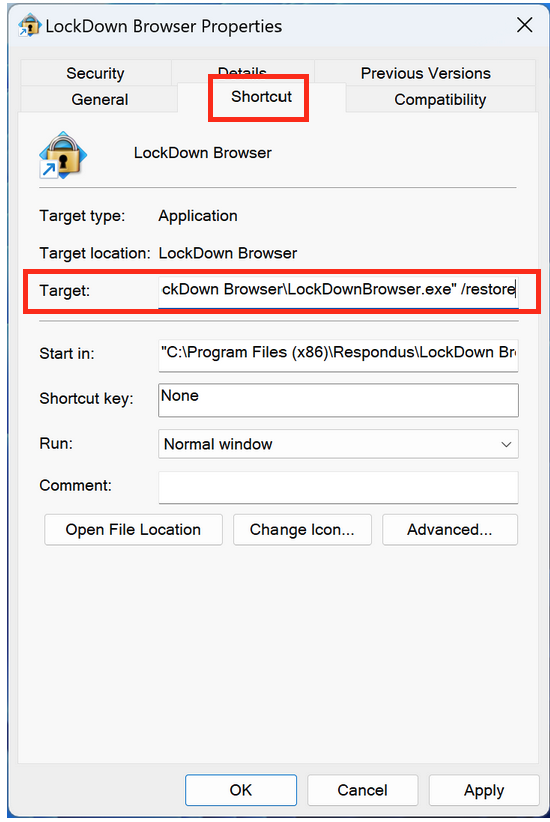
- Right click on the LockDown Browswer desktop shortcut
- Select Properties
- Under the Shortcut tab, locate Target: field.
- At the end of the target address, append the following parameter: /restore
(Note: there is a space in front of the parameter)

- At the end of the target address, append the following parameter: /restore
macOS:
- Start the system after fully powering down your device (not suspended/sleep mode)
- Start LockDown Browswer and let it navigate to the ASU Sign In Page ( You do not need to log in)
- Once you are at the log in page, shut down the LockDown Browser, Finder and the Power options should be re-enabled
For further assistance, contact the ITS Help Desk at 870-972-3933 or stop by IT Support Services (itsupportservices@astate.edu). It is located on the bottom floor of the Dean B. Ellis Library, Room 149.