Scheduling
- Add/Edit Section Tutorial
- CourseDog Home Screen Overview
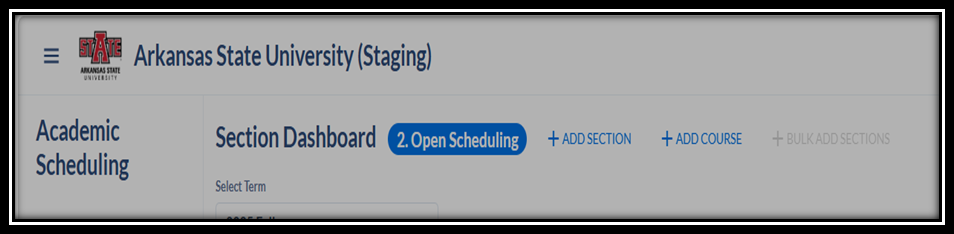
- Section Dashboard and Open Scheduling Phase
- Adding a Course from Inventory and Adding a Section
- Meeting Patterns and Meeting Times
- Editing/Changing Rooms
- Editing an Existing Section
- Set Instructors
- Relationships and Linked Section
- Scheduling multiple sections in the same room
Add/Edit Section Tutorial
CourseDog Scheduler- Add Edit Sections.pdf
CourseDog Home Screen Overview
CourseDog Home Screen Overview
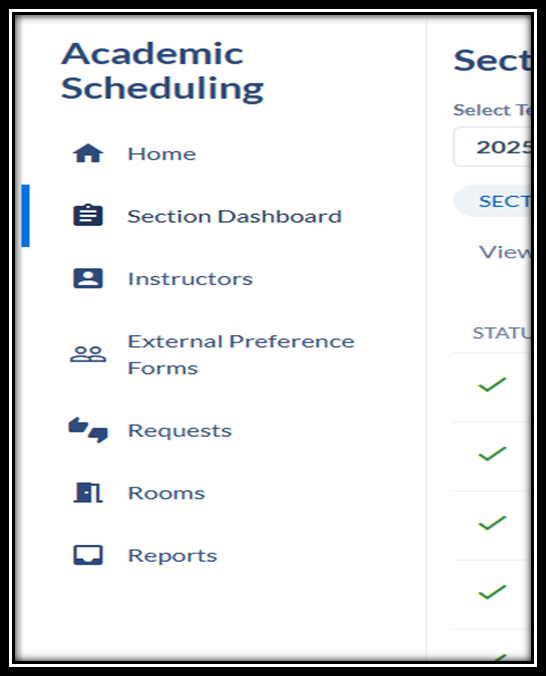
When your login TO COURSEDOG, the screen, Left side navigation has the following tabs
- Home
- Section Dashboard,
- Instructors
- Requests
- Rooms
- Reports
** We do not use External preference forms**

Section Dashboard and Open Scheduling Phase
Section Dashboard will take you to the department/program(s) that is set as your primary.
Open Scheduling Phase
You will see all the department(s)) that are assigned to you.

Adding a Course from Inventory and Adding a Section
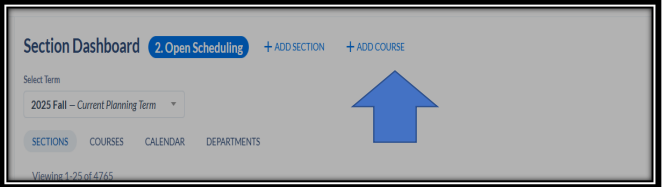
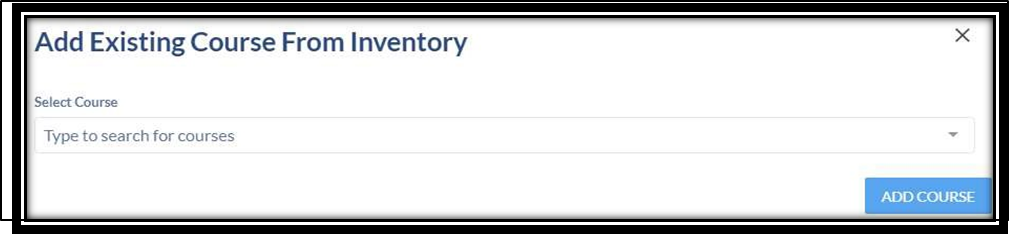
A new window populates and Search for course by typing the subject in the Select Course field
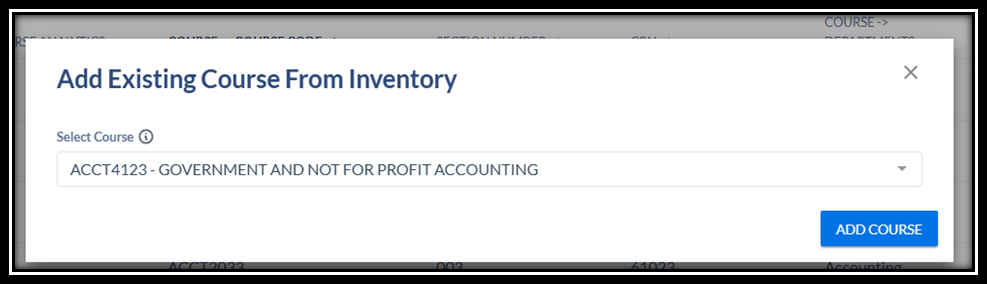
Adding a Section
Adding an additional section to what has already been rolled. Click on the department of
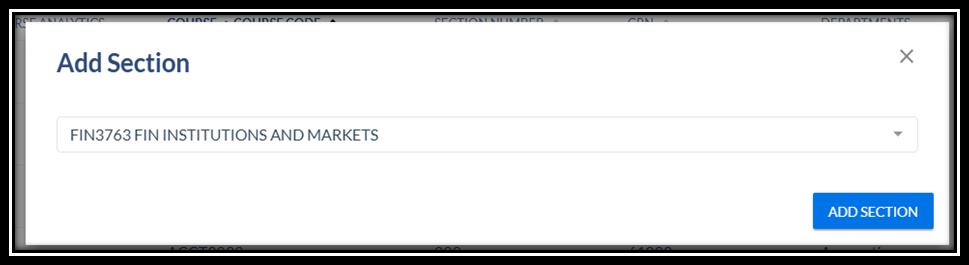

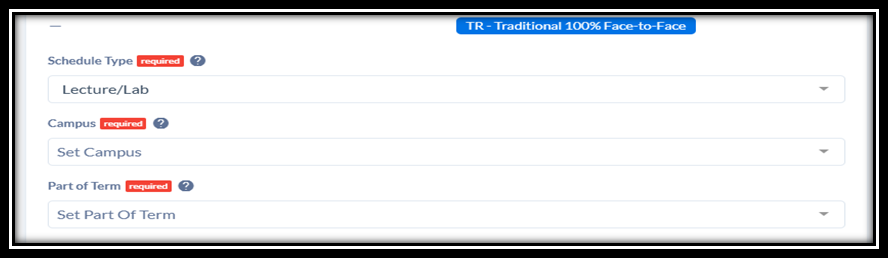
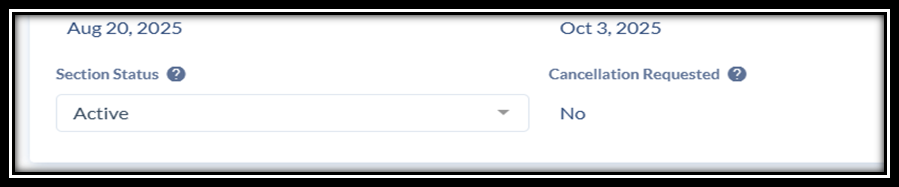
- Section Number field automatically populates
- CRN: has not been This will be set once CourseDog syncs with Banner. Section Status: Should be Active
- Course Title: CourseDog populates the default course title. If you need to update the title for a special topics or Variable hour course. Please do let Academic Affairs
- Course Default Grade Mode: CourseDog populates the default grade mode on the class
- Instruction Mode: leave as Default
- Schedule Type: Choose the schedule type (Like Lec/Lab)
- Campus: Set the campus Code (Like Jonesboro, WEB, WEB Online course)
- Part of Term: Choose the Part of term (1, 2, 3..)
- Section Status: Active
Meeting Patterns and Meeting Times
Click Meeting Patterns to set the Meeting days and Time

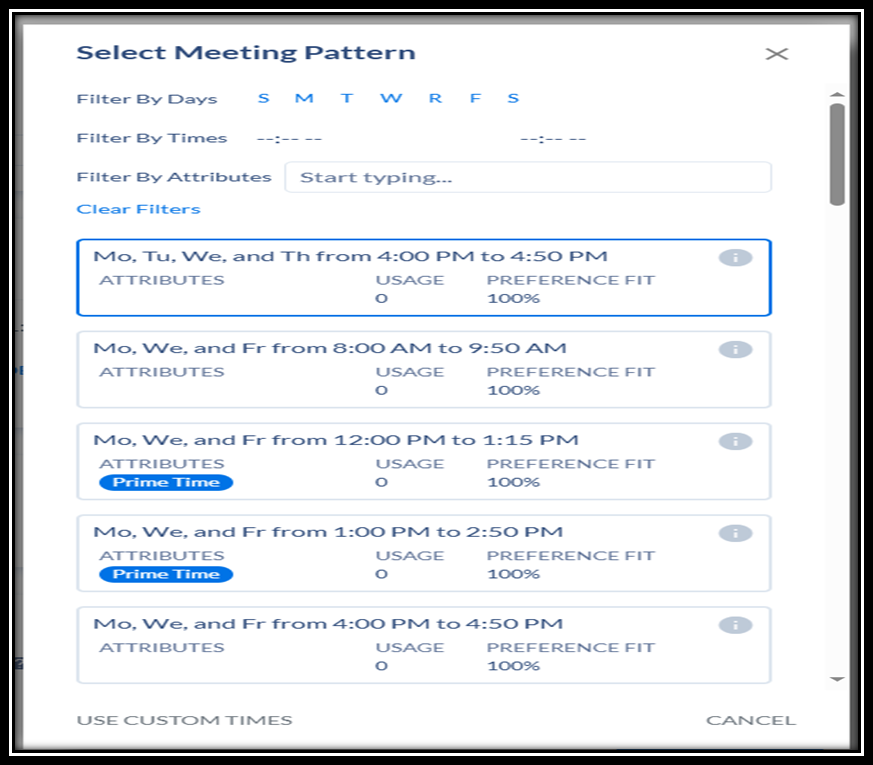
You can improve search results, by filtering on the following:
- Filter By Days
- Filters by Times
*Please note we are not using Filter by Attribute option.
If you want to delete the meeting pattern, hover over the meeting pattern and you will see the greyed circle with the line through it.
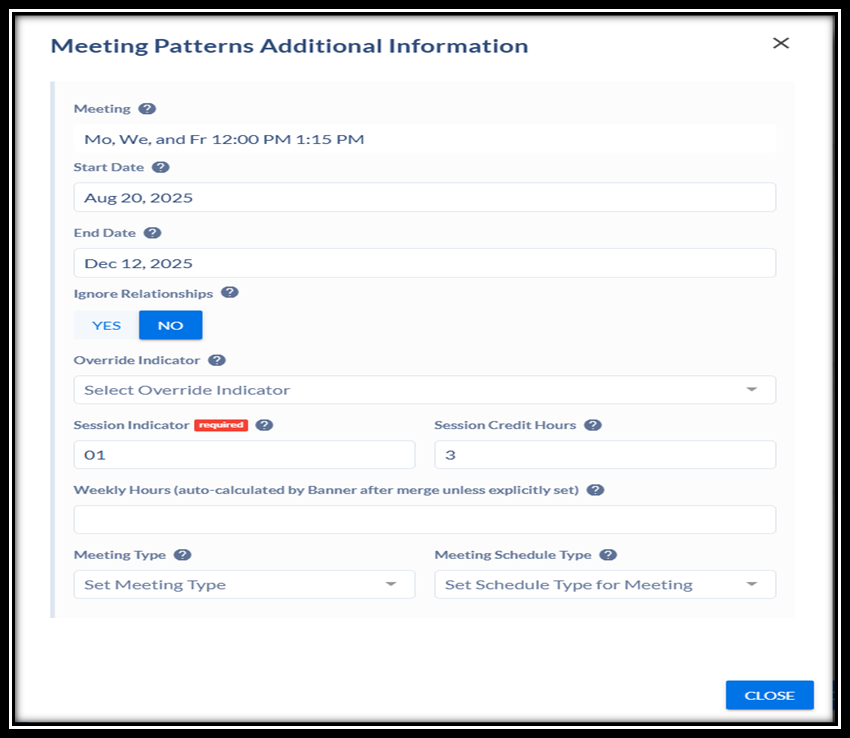
Set Meeting details
You will have to set the session credit hours and Meeting Type is Blank and then Meeting schedule type is typically (Lec/Lab etc..)
Editing/Changing Rooms
How to add, edit, or change classrooms in Coursedog: Adding or Changing Rooms.pdf
Editing an Existing Section
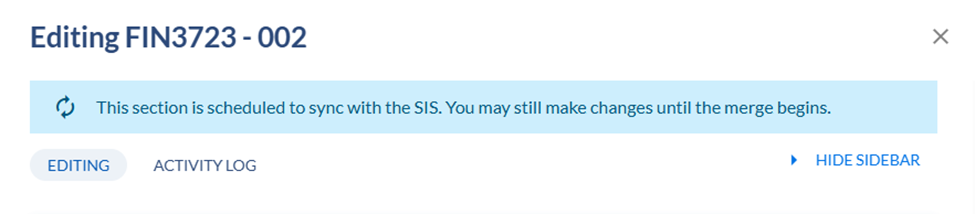
Please note during Open scheduling phase you should be able to edit the sections
There are some fields that are required and will require a response if the field is blank. To edit a currently rolled section
Click on the down arrow next to the course which will expand to show current sections associated with the course.
Click on the section to be edited.
- Part of term
- Campus
- Schedule Type
- Meeting Times
- Meeting Patterns & Rooms
- Instructors
- Enrollment Settings
- Additional settings
Once the desired change has been made, click on SAVE SECTION.
Set Instructors
A new window will populate with a list of instructors. You can search by instructors assigned to your department or choose the toggle to show ALL INSTRUCTORS (at the top)
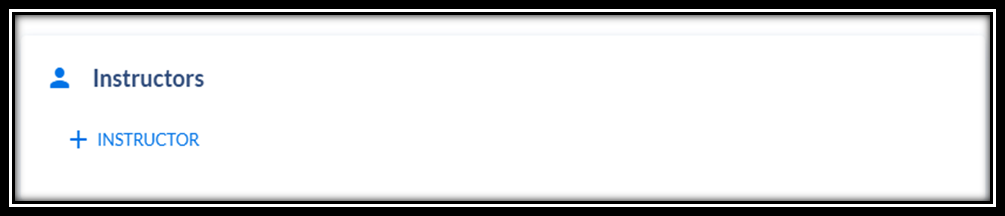
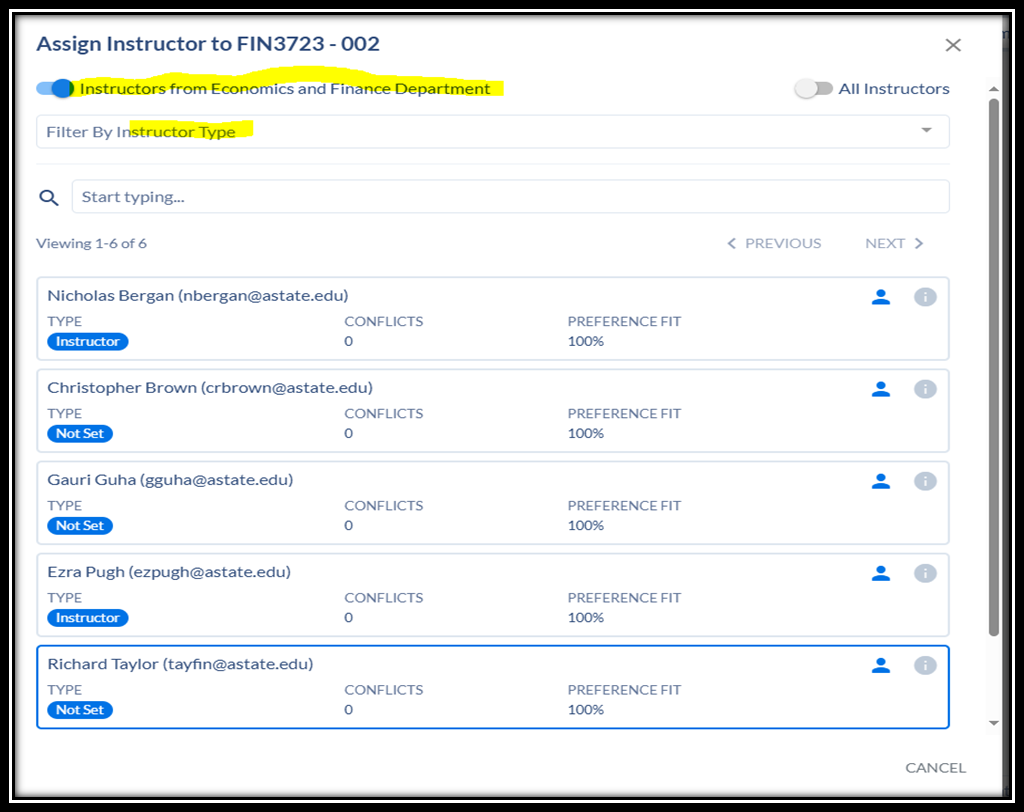
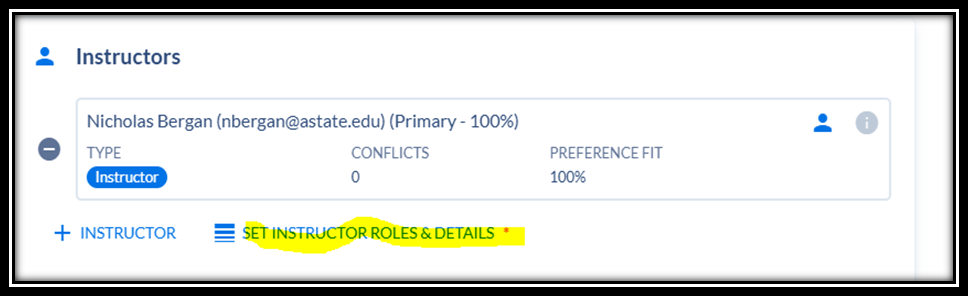
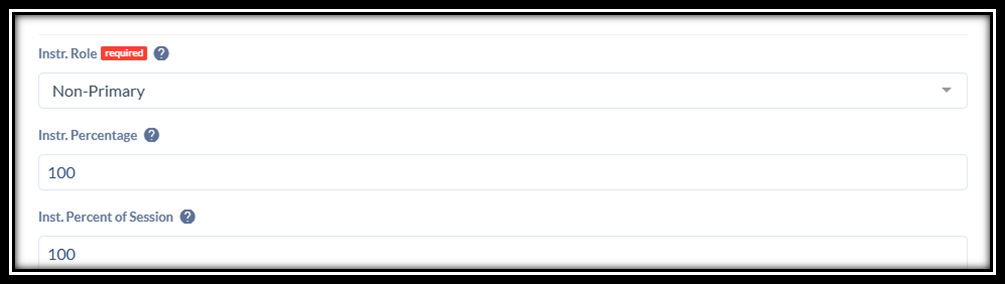
Once you set the Instructor , Click the SET Instructor Roles and details
Instructor Percentage will be set to 100% for primary Instructor
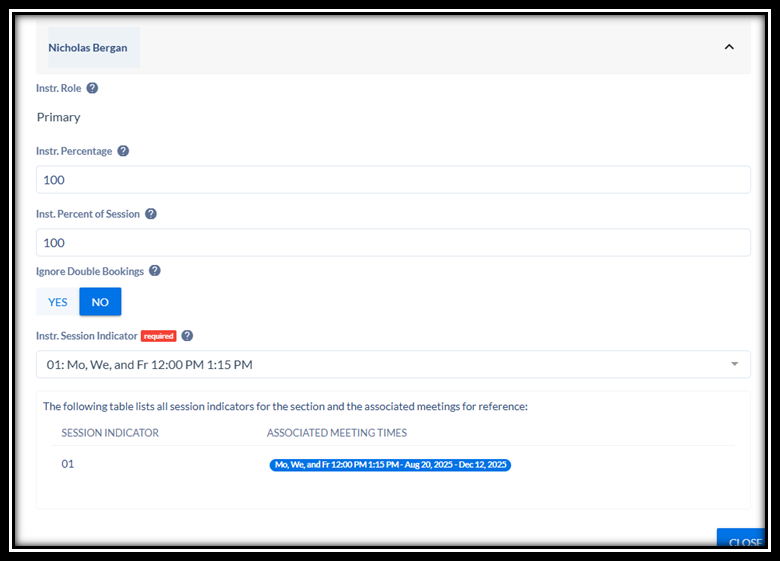
Secondary Instructor can also be set up they will be called “Non-Primary” Instructor
Relationships and Linked Section
Overview
-
Relationships are used for defining time or room connections between sections.
-
It is very important to define Section Relationships prior to assigning meeting patterns and rooms, as relationships can impact your assignments.
- This article explains types of linked sections you can set up in Academic Scheduling; how to manage them; and integration considerations.
-
For Banner-specific instructions, go here.
Types of Linked Sections
-
Linked sections are for defining time and room relationships between sections.
-
For example, two sections can have a non-overlapping relationship which means they cannot be scheduled during overlapping meeting times.
-
The below table breaks down all of the different types of linked sections.
|
Linked Section Type |
Definition |
Example |
|
Same Day |
This relationship links sections together by day and issues a warning if a different meeting day violates the relationship. |
A-State wants to ensure all Writing Across the Curriculum courses meet on the same day to ensure optimal participation at the end of term event featuring an all-day conference.
|
|
Same Time
|
This relationship links sections together by time and issues a warning if a different meeting time violates the relationship. |
A-State y wants to ensure all sections of Food Prep Practicum I meet at the same time (regardless of the day) to ensure students can observe and serve in the Dining Hall.
|
|
Same Room
|
|
A-State wants to make sure all sections of Human Anatomy are meeting in the same room because there is only 1 facility for the Cadaver Lab.
|
|
Same Time Same Day
|
This relationship links sections together so they appear at the same time on the same day and issues a warning if a different meeting pattern violates the relationship. |
A-State has multiple sections each term that participate in a bi-annual Global Issues Conference. Each section's students must present their cases during the conference and having these courses meet at the same time and the same day will ensure optimal participation in the program.
|
|
Same Time Different Day
|
This relationship links sections together so they appear at the same time on different days and issues a warning if a meeting pattern change violates the relationship. |
A-State offers a cohort with a local business that offers college credit courses during lunch hours. This relationship allows the flexibility for room and day assignments but keeps the classes during set hours.
|
|
Same Time Same Day Same Room
|
|
A-State refers to sections with this relationship as "Cross-Listing." Sections with this relationship typically have students register for different sections but they share a room and instructor.
|
|
Same Time Different Day Same Room
|
This relationship links sections together so they appear at the same time on different days but in the same room and issues a warning if a meeting pattern change violates the relationship. |
A-State offers Hy-Flex courses where there are live, online components as well as in-person sessions. This relationship helps preserve a sense of balance in using the physical space so that the meeting pattern is preserved and the room remains utilized. |
|
Different Time
|
This relationship links sections together so they must have different meeting patterns to prevent time overlap. Coursedog issues a warning if a meeting pattern change violates the relationship.
|
A-State uses this relationship to link sections in the Accounting major from overlapping times during the week. |
|
Different Day
|
This relationship links sections together so they must have different meeting days to prevent day overlap. Coursedog issues a warning if a meeting pattern change violates the relationship. |
A-State uses the Different Day relationship to ensure doctoral programs in Education do not meet the same days as the undergrad cohorts, ensuring they have enough faculty capacity during the week.
|
|
Non-Overlapping
|
This relationship prevents linked sections from being offered on the same days at the same time.
Note that the non-overlapping relationship does not take the start and end date of the sections into account. If, for example, there is a non-overlapping relationship between two sections with start and end dates that do not overlap, however their meeting patterns overlap, the sections will be flagged as violating the non-overlapping relationship. |
A-State offers a business cohort program and all students must take a prescribed sequence of courses. The Non-Overlapping relationship ensures these classes are never overlapping so this group of students is certain to get the classes they need to graduate on time. |
|
Different Time Different Day
|
This relationship links sections together so they must have different meeting patterns to prevent time AND day overlap. Coursedog issues a warning if a meeting pattern change violates the relationship. |
A-State uses the Different Time, Different Day relationship to help balance courses in the Nutrition Science Major to help students find more space for major courses.
|
|
Different Room |
This is for sections that must meet in different rooms. |
A-State uses the “Different Room” relationship to offer rooms in various campus locations. |
Scheduling multiple sections in the same room
How to schedule multiple sections in the same room:
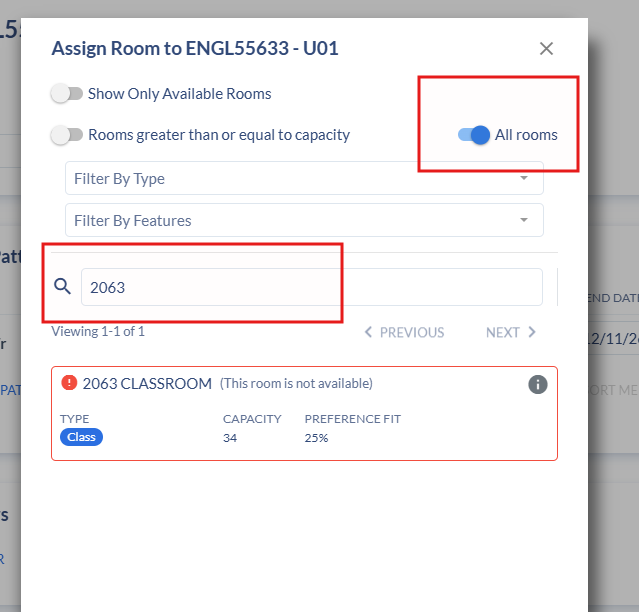
To override the room assignment and schedule multiple sections in the same room, please follow these steps:
-
Open the Section Dashboard for the course.
-
Click the Room field.
-
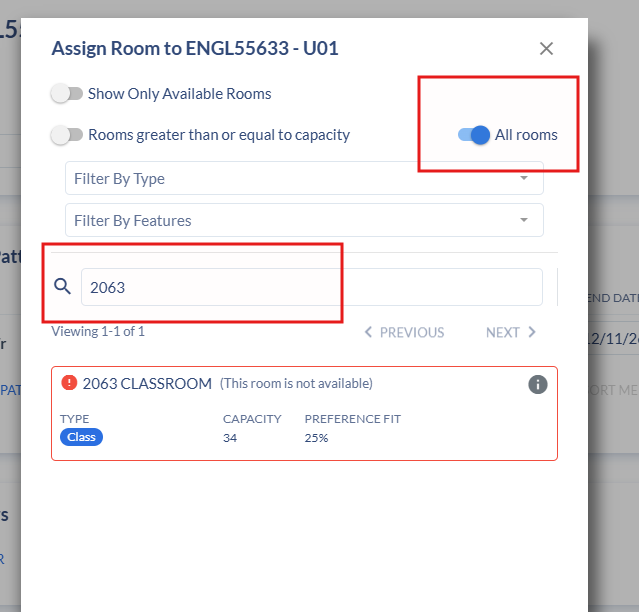
Disable Show only available rooms and Rooms greater than or equal to capacity.
-
Enable All Rooms, enter the desired room number, and select the room.
Next:
-
Click Set Details.
-
Change the Override Indicator to O. While R was previously recommended, with Coursedog we now recommend using O.
-
Close the dialog box and save the section.