# Slate for Students

# Slate - Password Reset

#### The following are instructions for resetting your Slate password.

<p class="callout warning">All first time CAS (Centralized Application Service) applicants must complete these steps to finalize you A-State application. Do not select First-Time User when logging in.</p>

<p class="callout warning">Veterinary Medicine CAS Applicant Notice - Your VMCAS Supplemental application should already be listed on your application selection screen after you log in. If you do not see the supplemental application please contact <vetmed@astate.edu> and avoid trying to create a new application.</p>

<p class="callout info">Step 1</p>

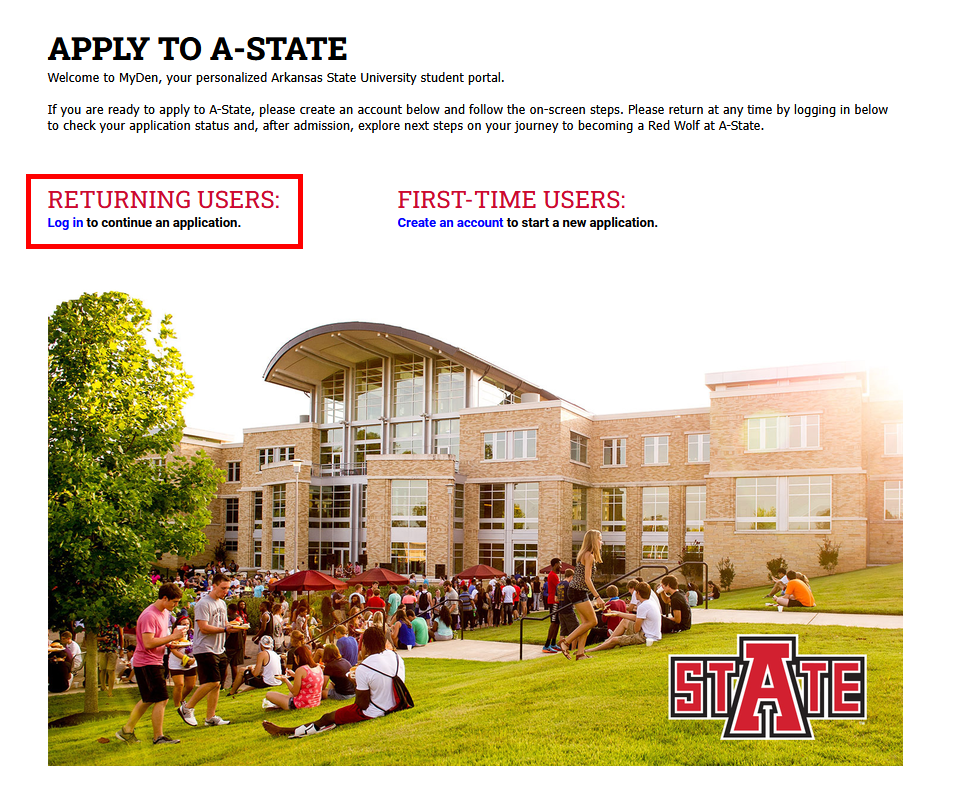
Navigate to Slate via the link provided in your notification email

<p class="callout info">Step 2</p>

Click Returning Users: Log in

[![2026-06-29 17_22_33-Apply to A-State — Mozilla Firefox Private Browsing.png](https://kb.astate.edu/uploads/images/gallery/2026-06/scaled-1680-/2026-06-29-17-22-33-apply-to-a-state-mozilla-firefox-private-browsing.png)](https://kb.astate.edu/uploads/images/gallery/2026-06/2026-06-29-17-22-33-apply-to-a-state-mozilla-firefox-private-browsing.png)

<p class="callout info">Step 3</p>

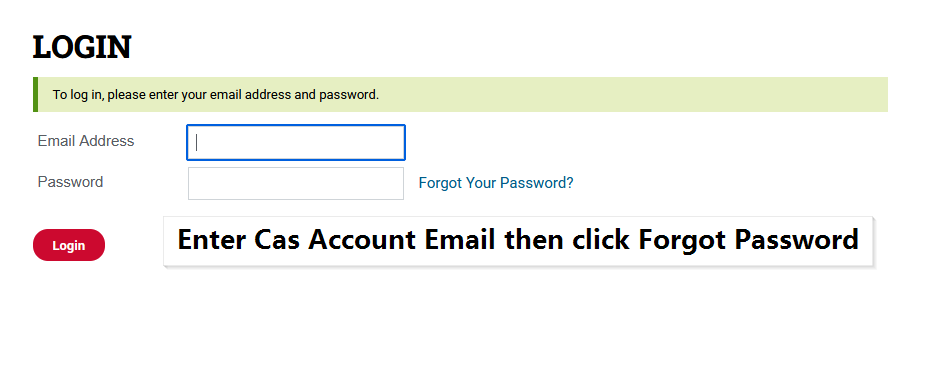
Enter your Slate Account email and click "Forgot your Password?"

<p class="callout warning">CAS - Applicants will use you CAS Account email address.</p>

<span style="background-color: rgb(241, 196, 15);">[![2026-06-29 17_23_05-Login — Mozilla Firefox Private Browsing.png](https://kb.astate.edu/uploads/images/gallery/2026-06/scaled-1680-/2026-06-29-17-23-05-login-mozilla-firefox-private-browsing.png)](https://kb.astate.edu/uploads/images/gallery/2026-06/2026-06-29-17-23-05-login-mozilla-firefox-private-browsing.png)</span>

<p class="callout info">Step 4</p>

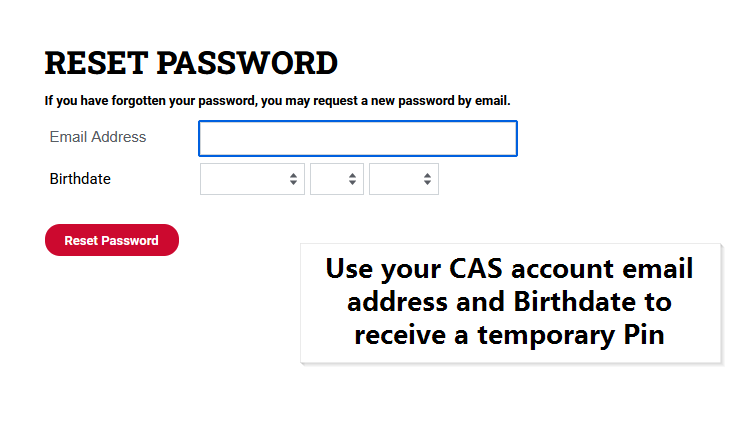
Enter you Email again and Birth Date and click "Reset Password" to receive an email with a temporary pin.

[![2026-06-29 17_35_35-Reset Password — Mozilla Firefox Private Browsing.png](https://kb.astate.edu/uploads/images/gallery/2026-06/scaled-1680-/2026-06-29-17-35-35-reset-password-mozilla-firefox-private-browsing.png)](https://kb.astate.edu/uploads/images/gallery/2026-06/2026-06-29-17-35-35-reset-password-mozilla-firefox-private-browsing.png)
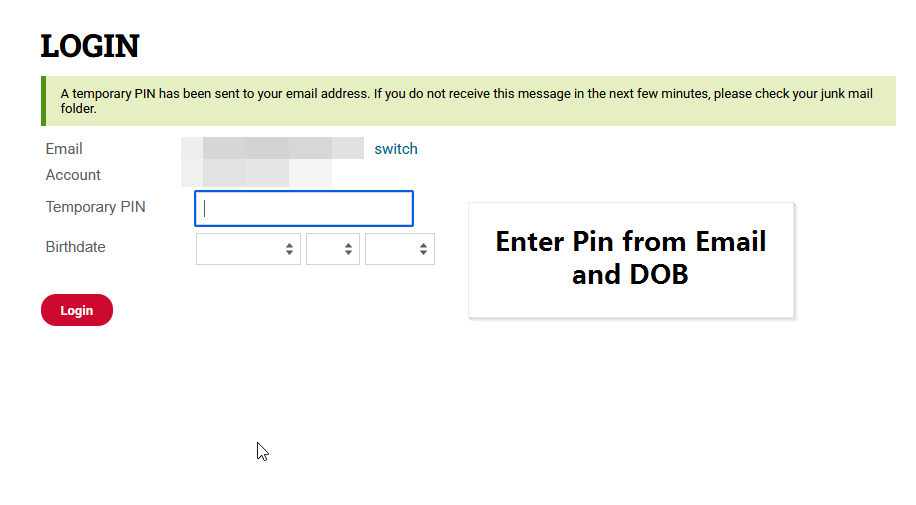
<p class="callout info">Step 5</p>

Enter the Pin and Birth Date and click "Login"

[![2026-06-29 17_33_33-Login — Mozilla Firefox Private Browsing.png](https://kb.astate.edu/uploads/images/gallery/2026-06/scaled-1680-/2026-06-29-17-33-33-login-mozilla-firefox-private-browsing.png)](https://kb.astate.edu/uploads/images/gallery/2026-06/2026-06-29-17-33-33-login-mozilla-firefox-private-browsing.png)
<p class="callout info">Step 6</p>

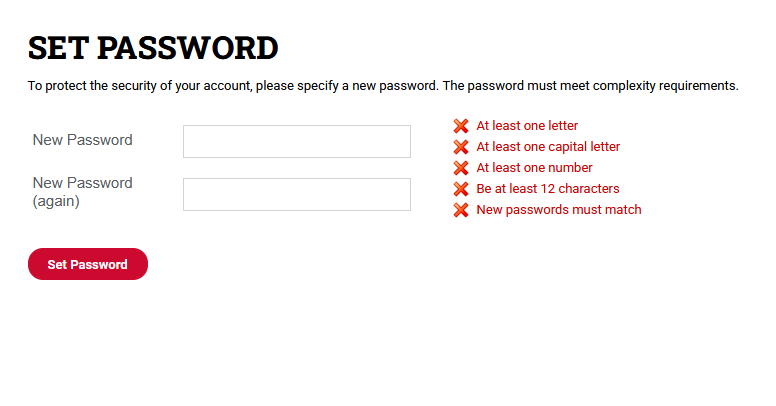
Create new password and click "Set Password"

[![2026-06-29 17_35_09-Set Password — Mozilla Firefox Private Browsing.png](https://kb.astate.edu/uploads/images/gallery/2026-06/scaled-1680-/2026-06-29-17-35-09-set-password-mozilla-firefox-private-browsing.png)](https://kb.astate.edu/uploads/images/gallery/2026-06/2026-06-29-17-35-09-set-password-mozilla-firefox-private-browsing.png)