Please note that University holidays and closing are not automatically applied to your appointments.
##### Option 1 - Setting your PTO and Holidays as Events in your Outlook Calendar. For example, Thanksgiving Thursday 8-5. This will block your calendar in Slate as well. You must enter the calendar event as a set time.Selecting 'All Day' will not block out the time on your appointment calendar in Slate.
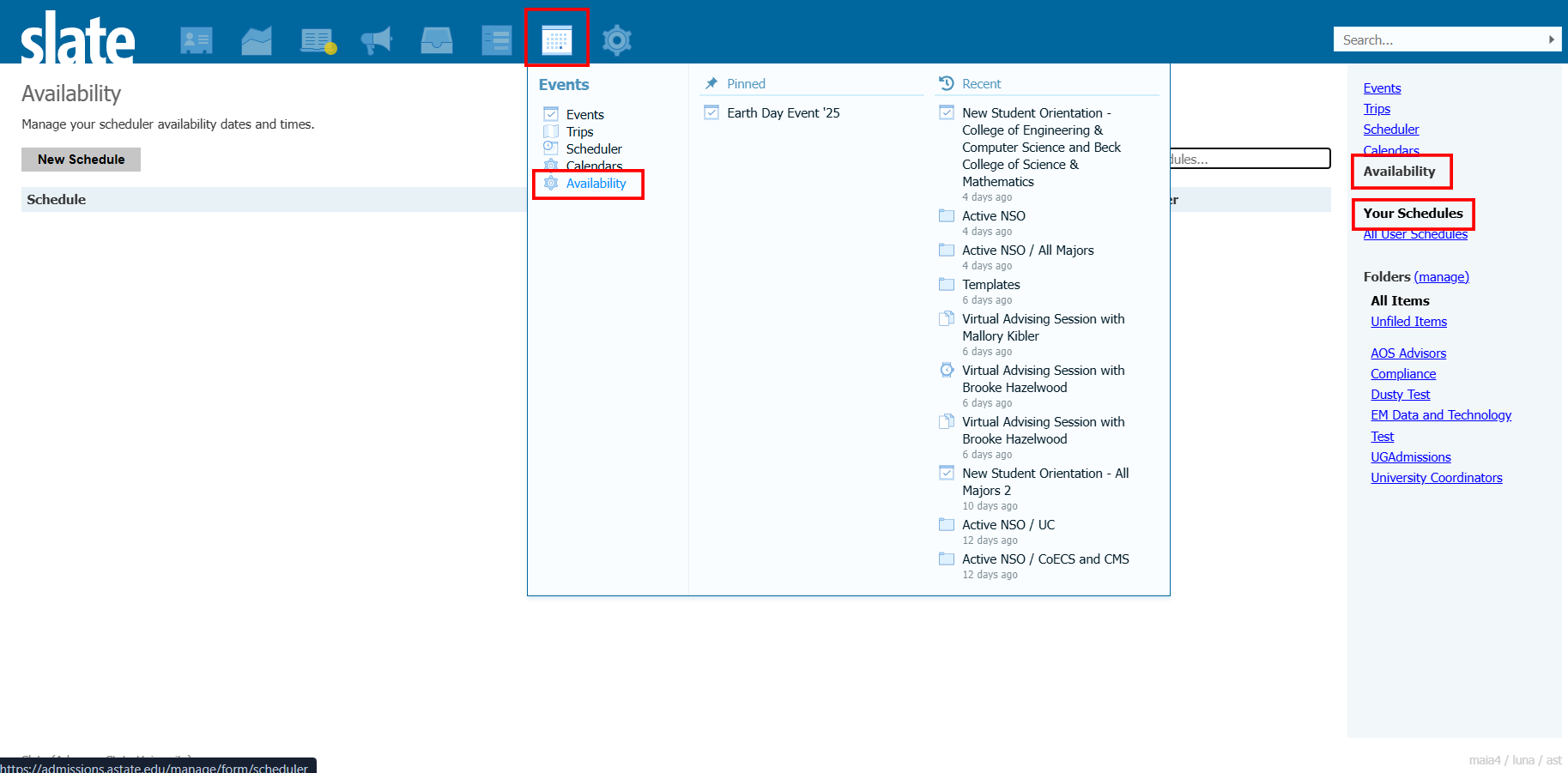
Open Outlook > Click on the day or 'New Event' > Set the time frame > Save. You must do this for each day your are not available. [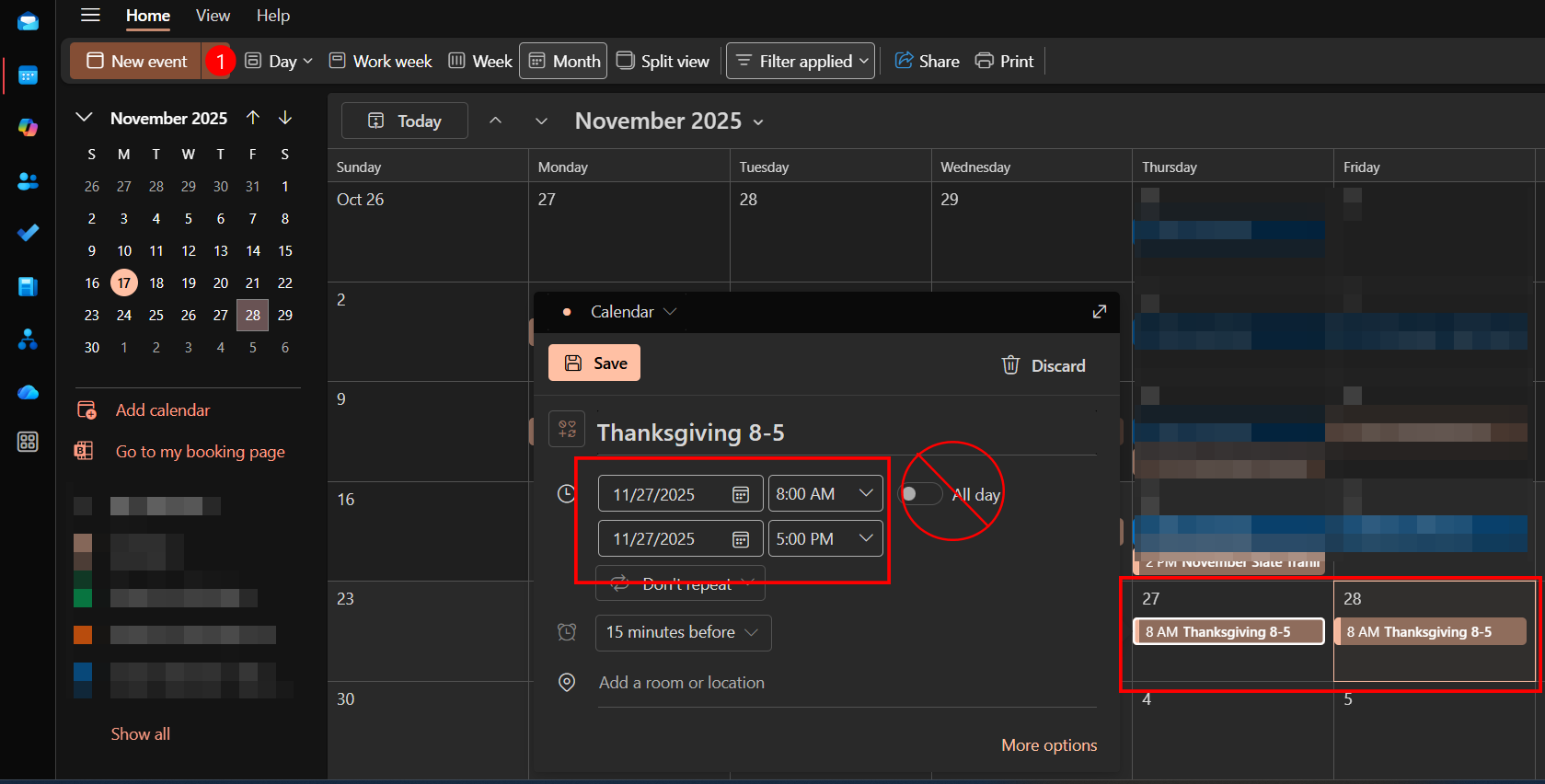](https://kb.astate.edu/uploads/images/gallery/2025-11/slateholiday.png) ##### Option 2 - Setting alternative date availability within Slate. Open Slate > Navigate to the Event Tab and Select Availability > Click on your Schedule to Edit > Click the + under 'Special Availability' to add the dates. Set the new timeframe or Delete the time to remove all availability for the day > SaveYou must click 'Save' for the changes to update.
[](https://kb.astate.edu/uploads/images/gallery/2025-11/slateavailability.png) [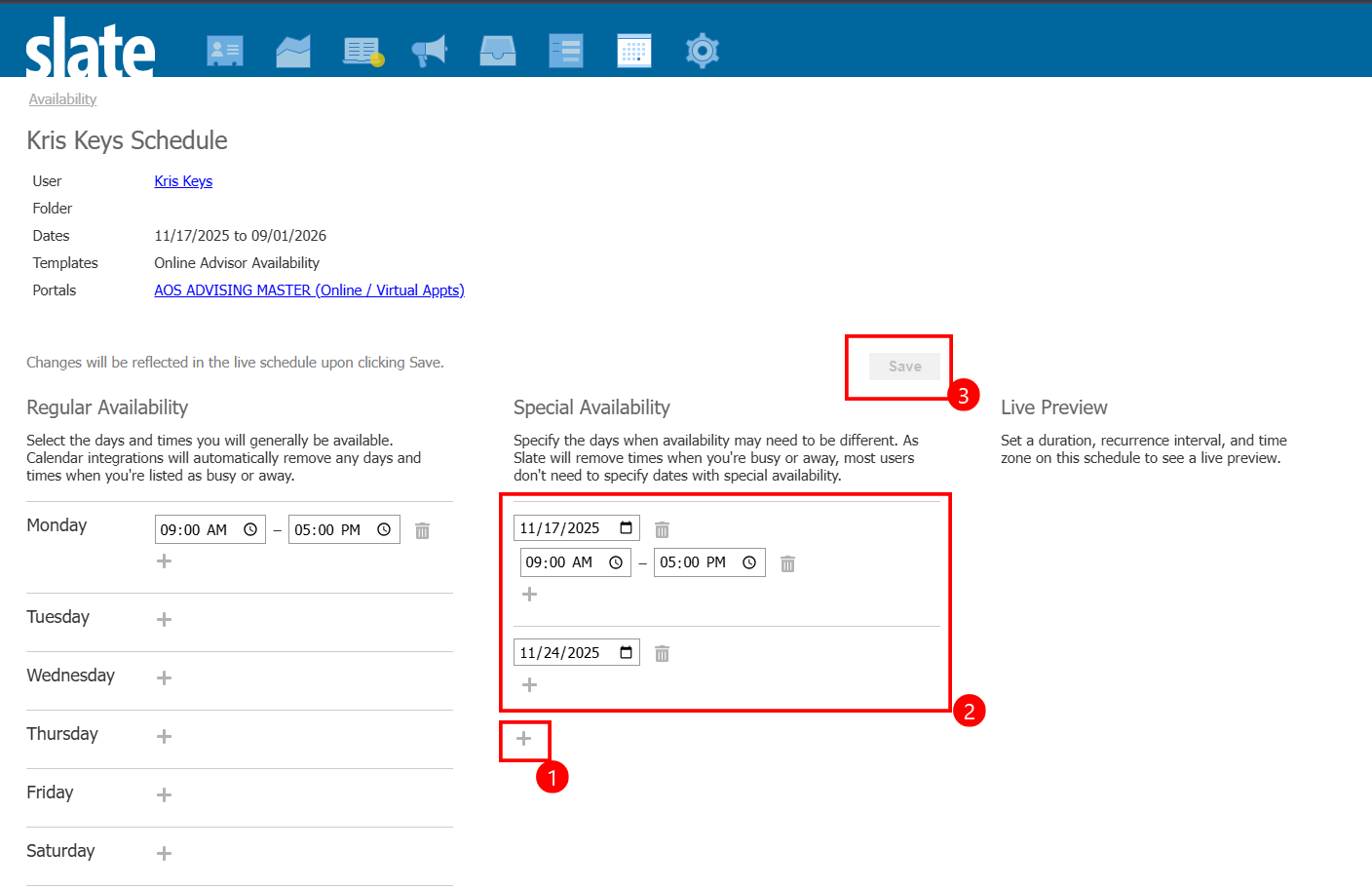](https://kb.astate.edu/uploads/images/gallery/2025-11/capture-251117-140940.png)