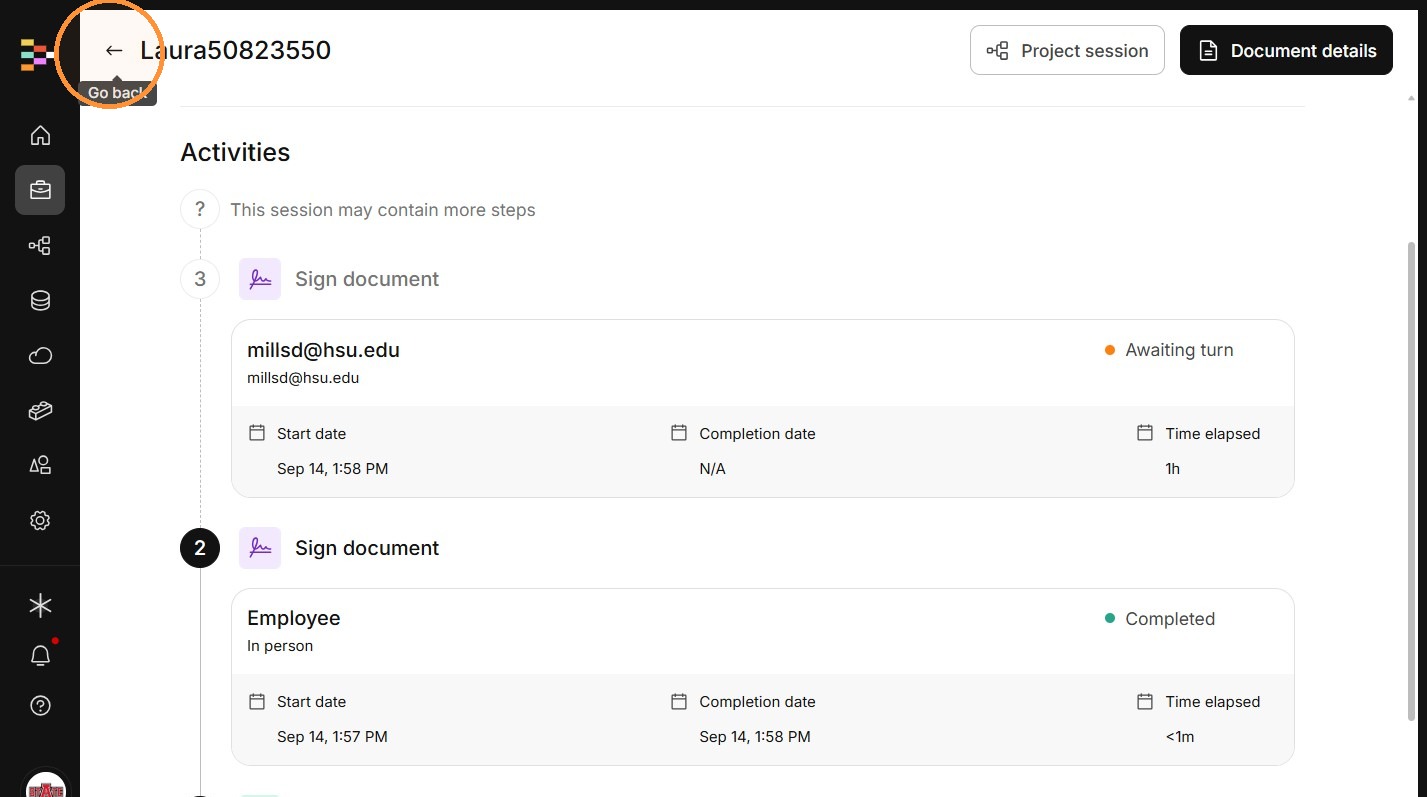
Viewing Streamline Session Details
This guide provides a straightforward walkthrough for accessing and reviewing detailed session data within your Intellistack workspace. Follow these steps to efficiently navigate your project records and retrieve specific session information.
Workspace Navigation
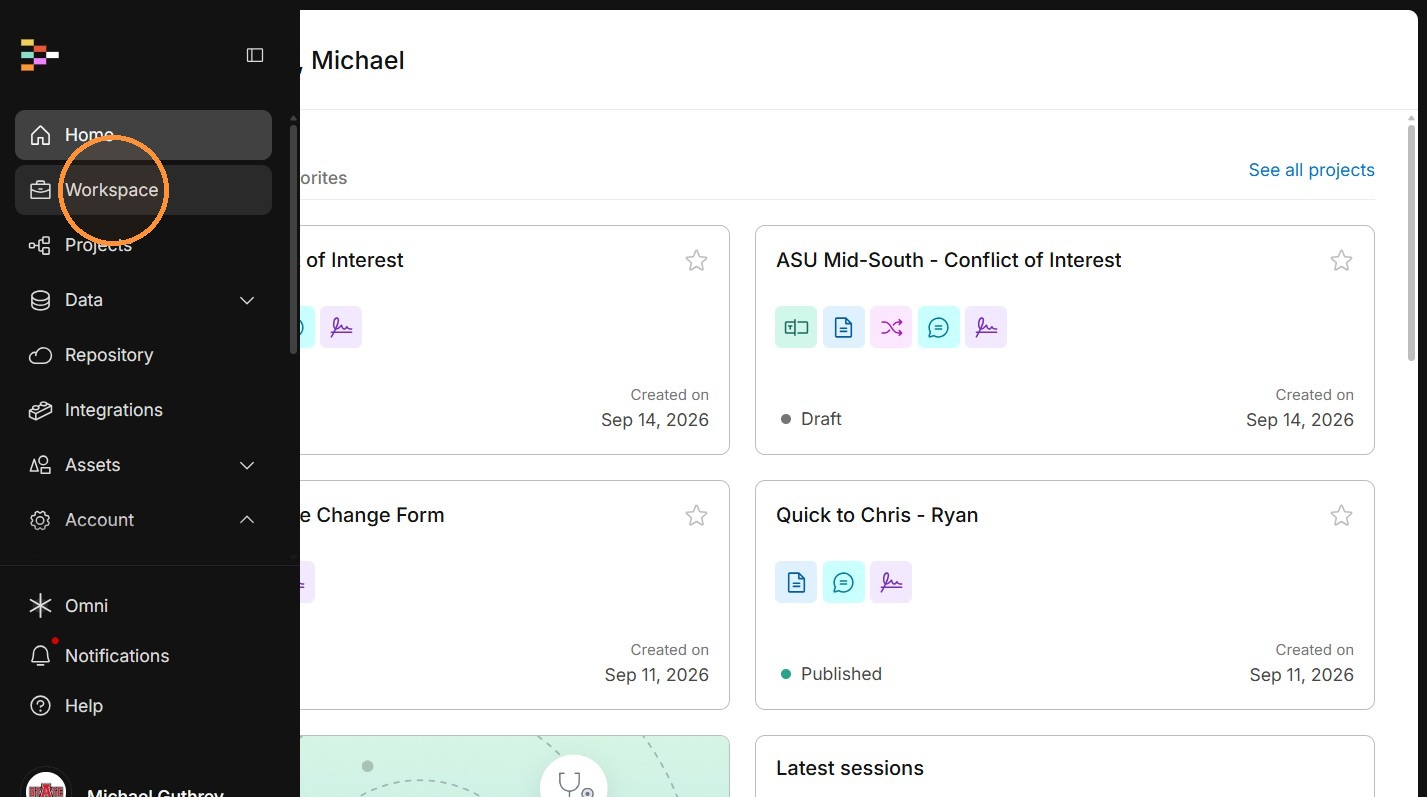
1. Open Streamline and click "Workspace"
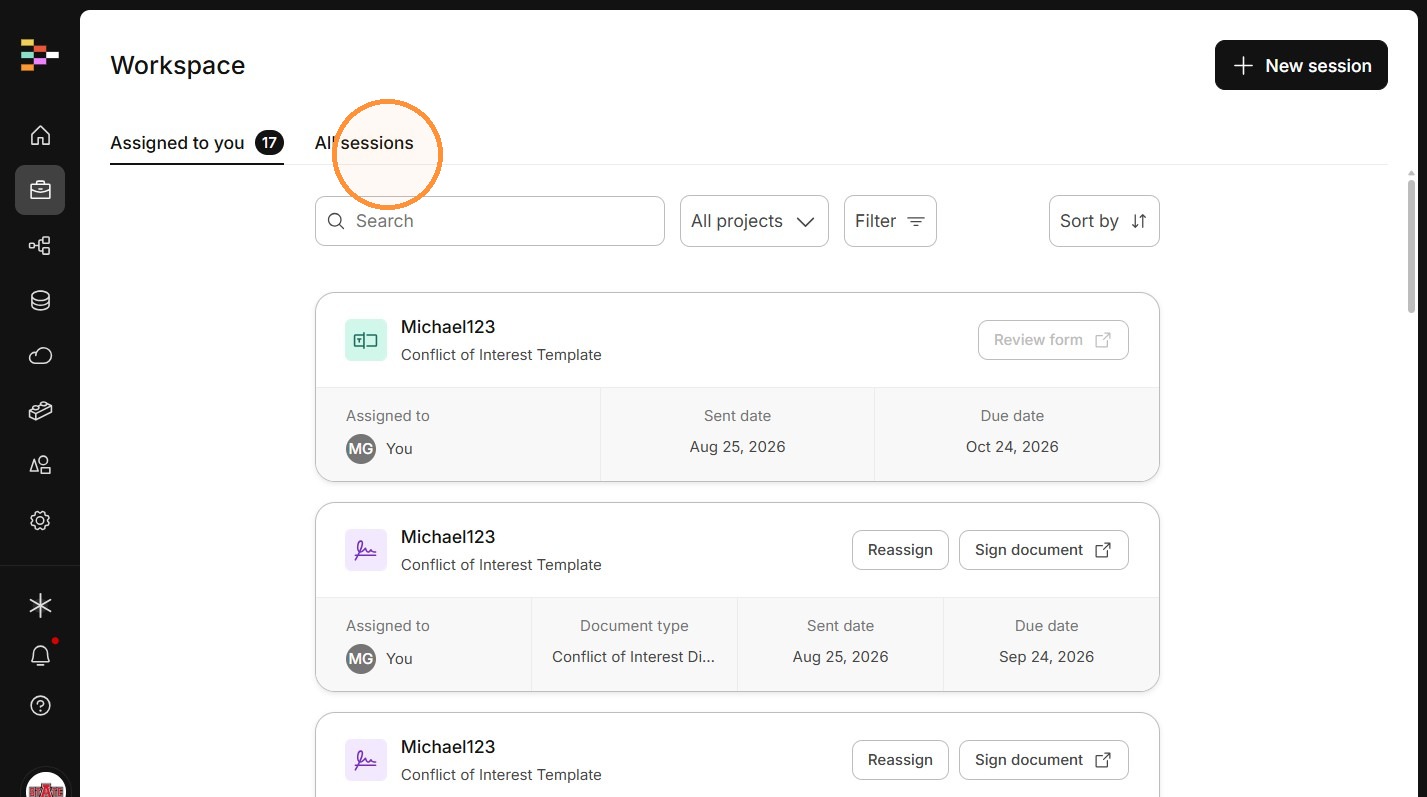
2. Click "All sessions"
Assigned to you is also useful, but only for your individual tasks. To view all of the workflow sessions, select all sessions.
Session List
3. Click the Show data toggle to reveal the session names. This makes it easier to identify specific sessions.
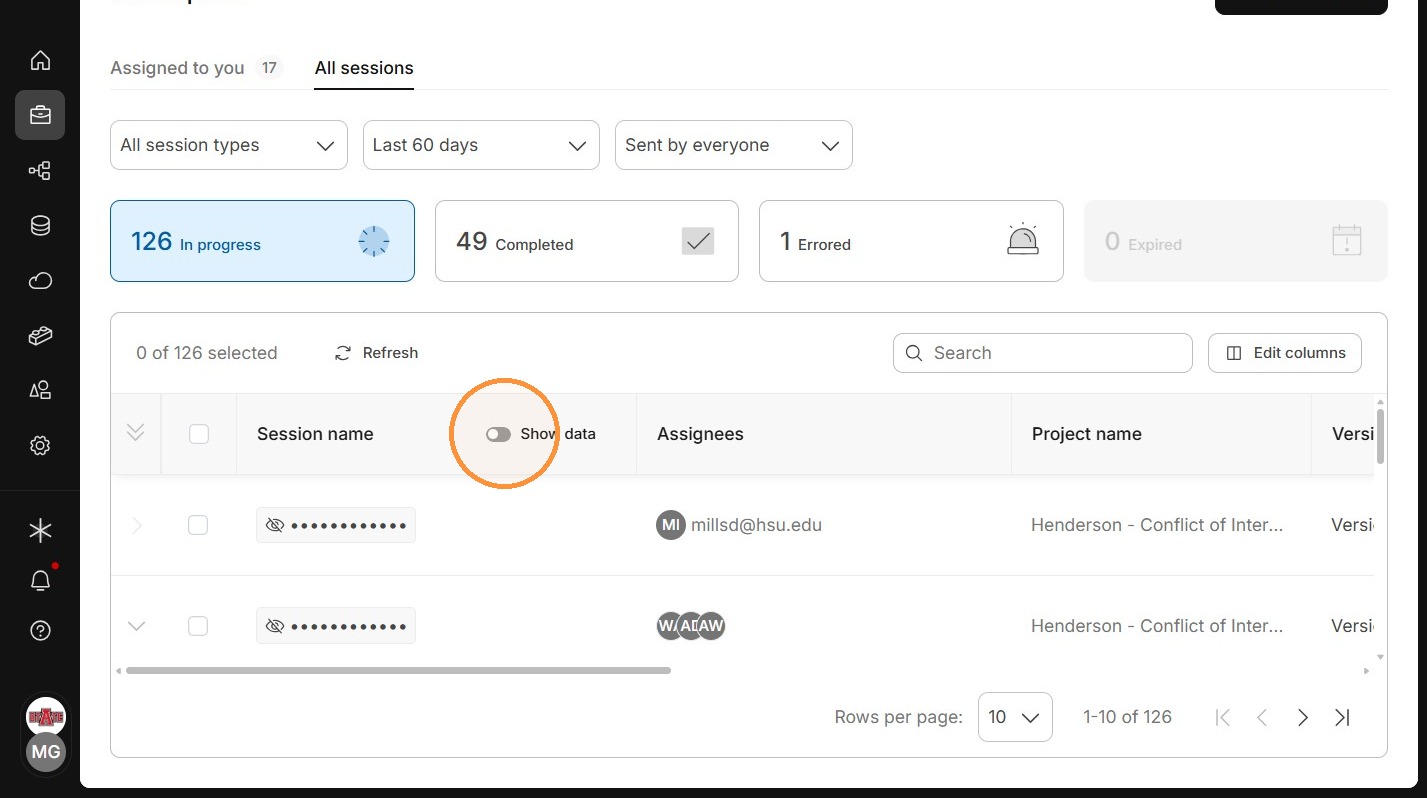
4. In the column "Project name", you will be able to see what workflow the session is a part of.
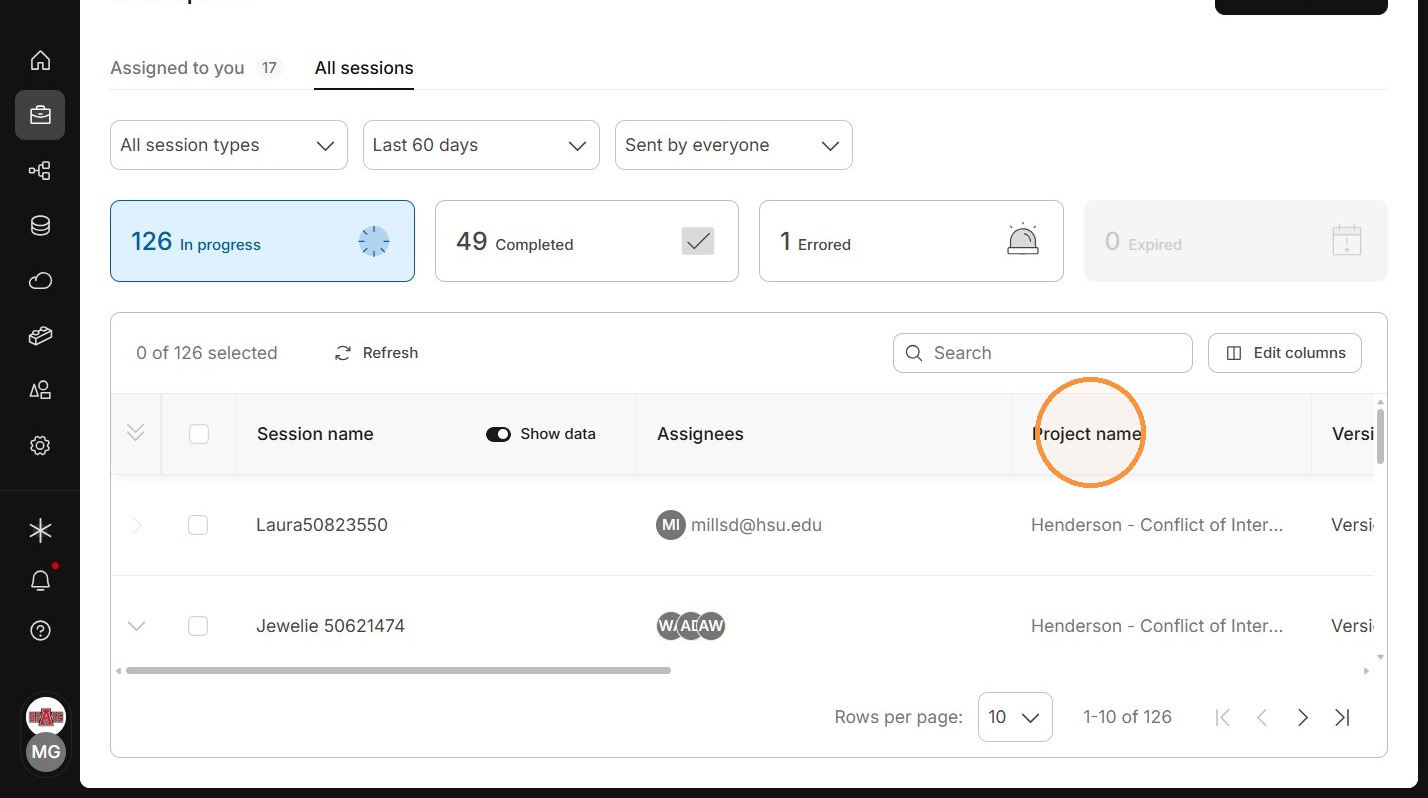
5. Click the session row’s expand icon.
You will have to scroll all the way to the right with the scroll bar at the bottom, or if your mouse has a middle wheel, you can usually press that in and slide side to side.
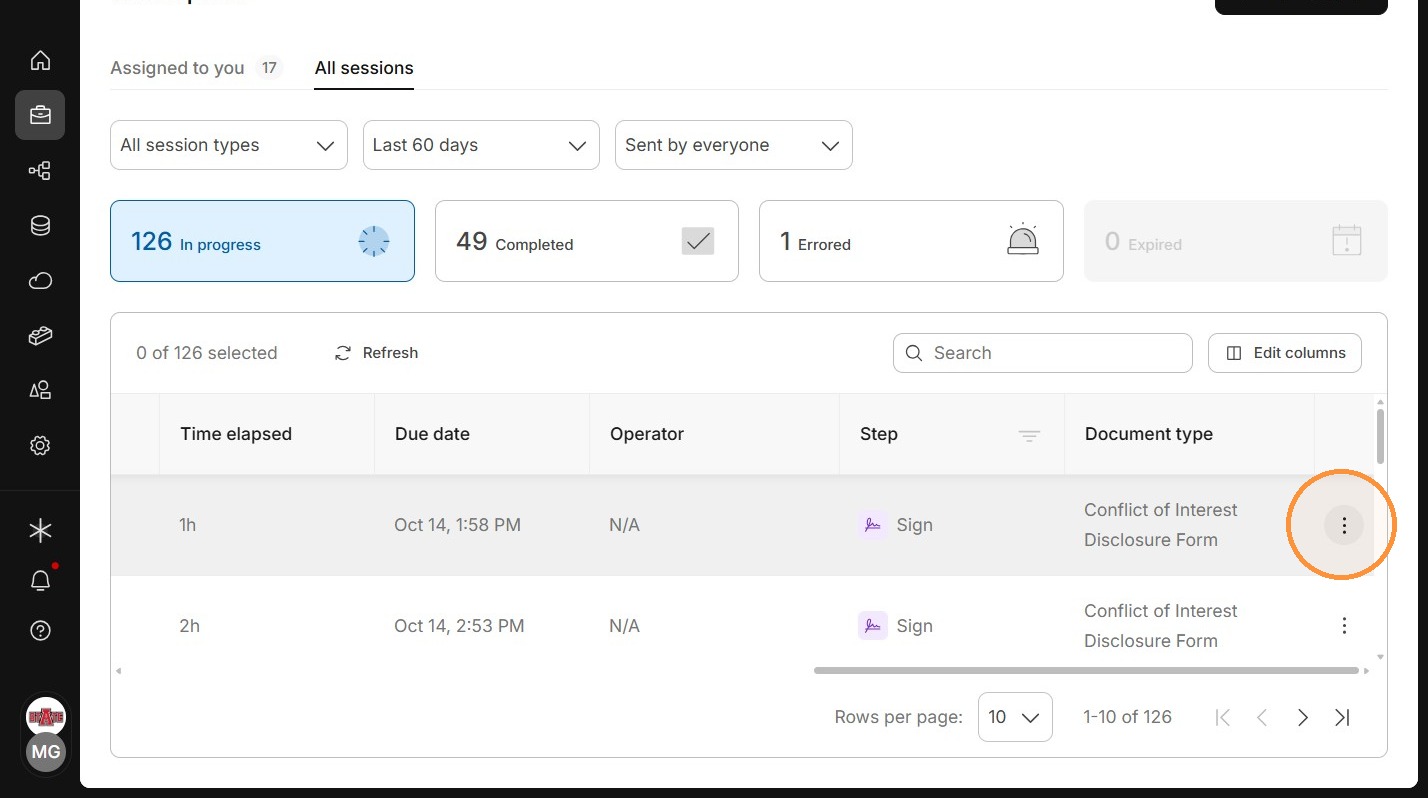
Session Details
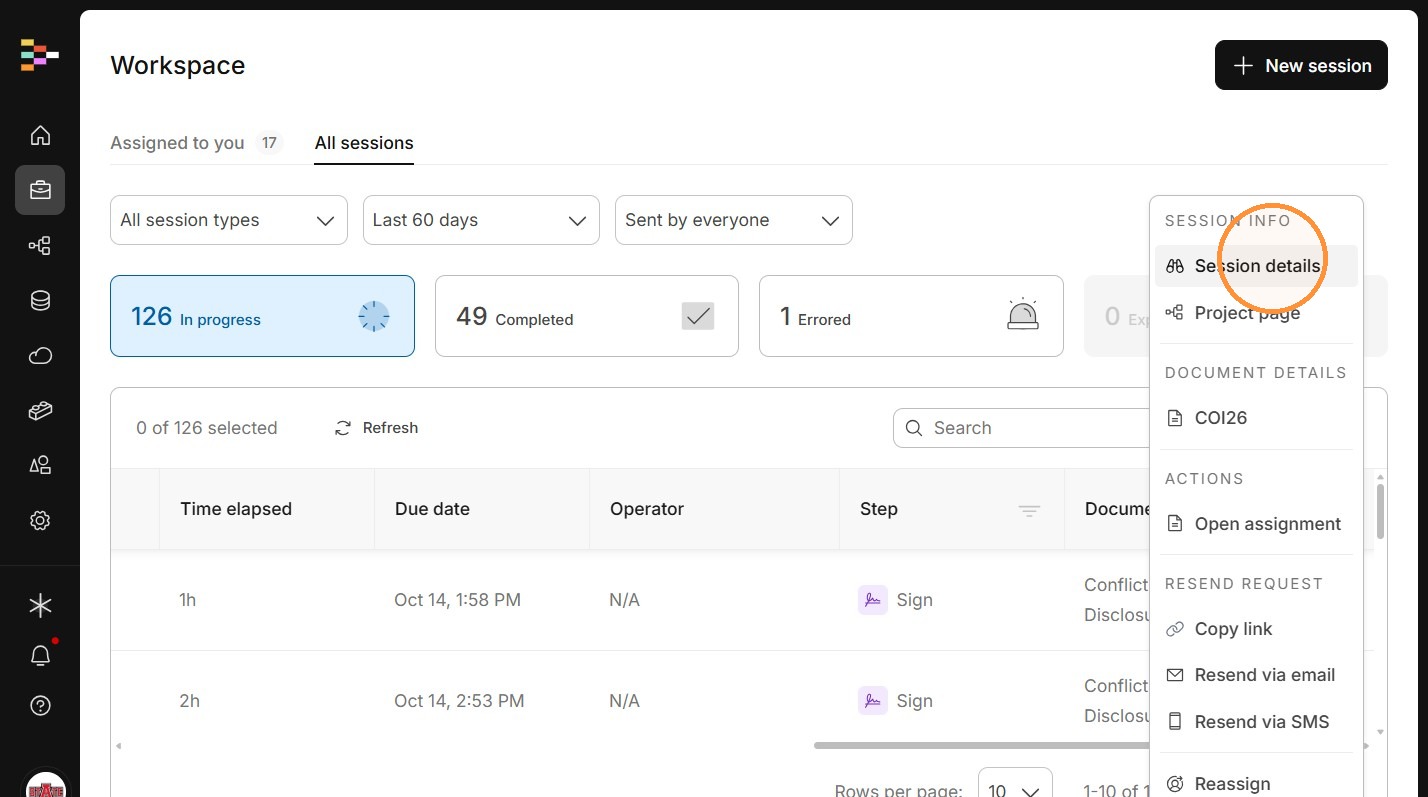
6. Click "Session details"
There are a few important functions you can perform from this menu.
7. This will show you all of the steps the workflow has taken.