Student Email Setup
You have several options for accessing your A-State student email. You can use mail apps on your smart devices, as well as accessing it through web browsers. You will find instructions for all of these options here.
Set Up the Microsoft Outlook Mobile App
iOS
1. Download Microsoft Outlook from the iOS App Store and then open it.

2. Tap Add Account.
3. Enter your full A-State email address and tap Add Account.
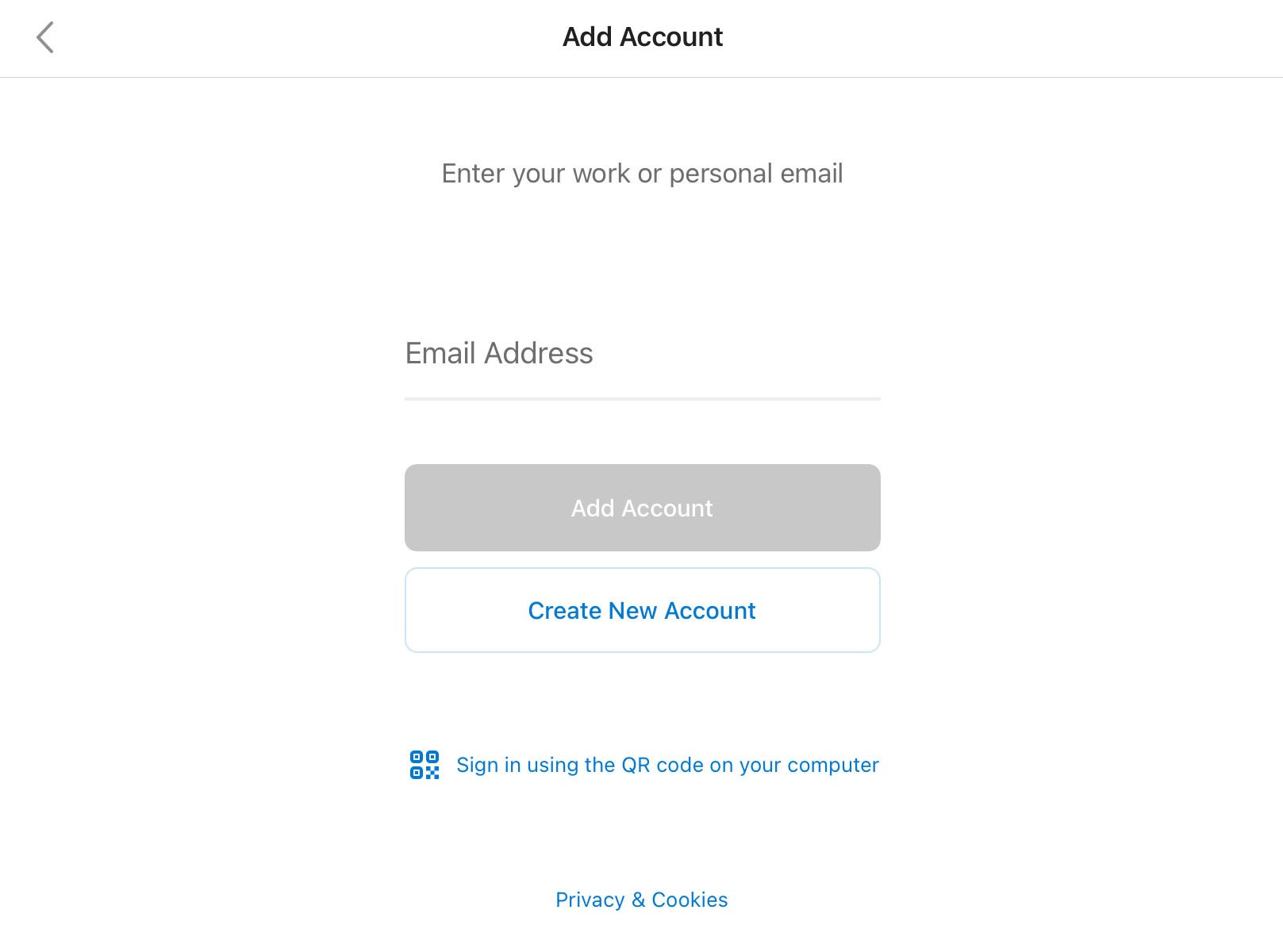
4. Enter your email account password and tap Sign In.

5. Authenticate using Microsoft Authenticator.
Note: If the Push notification doesn't appear, open up the Microsoft Authenticator app on your phone
6. If you wish to add another account when prompted, tap Add and follow the prompts.
 7. If you desire notifications, tap Turn On when given the following prompt.
Android
1. Install the Microsoft Outlook app from the Google Play Store and then open it.
2. Tap Get Started if this is your first time.
3. Tap Add Account.

4. Enter your full A-State email address and tap Continue.

5. Enter your password and tap Sign In.

6. Authenticate using Microsoft Authenticator.
Note: If the Push notification doesn't appear, open up the Microsoft Authenticator app on your phone

8. If you desire notifications, tap Turn On when given the following prompt.

For further assistance, contact the ITS Help Desk at 870-972-3933 or stop by the IT Support Services (itsupportservices@astate.edu). It is located on the bottom floor of the Dean B. Ellis Library, Room 149.
Transfer email from Gmail to Outlook
For students wishing to move emails from the older Gmail inbox to Outlook can follow these instructions.
1. Download and install Microsoft 365 from Office.com, which includes Outlook. Use your full A-State email address and password to sign in.
The following link provides detailed instructions: https://kb.astate.edu/books/microsoft-365/page/how-to-install-microsoft-365
2. Open Outlook.
3. Click File.

4. Click Add Account.

5. Enter your full A-State email address and click Connect.

6. Select Google.

7. Copy the settings underlined below, then click Next.

8. Enter your password, then click Connect.

9. Click Next.

10. Enter your full A-State email and password and click Login.

11. "Microsoft apps & services wants to access your Google Account" will show up, scroll down and click Allow.


NOTE: You will be prompted to do steps 9, 10 and 11 once a day. It is recommended to remove your Gmail account once you've moved over all emails you wish to keep. Instructions on removing your Gmail account are at the end.
12. You should see Account successfully added; click Done.

13. Your Gmail inbox will be displayed on the left below your new Outlook inbox.

14. Your Gmail account has been successfully added! To move emails to your new inbox, simply select and drag emails from your old inbox into your new one.
Remove your Gmail account
1. Right-click on your Gmail account and select Remove First.last@smail.astate.edu.

2. A confirmation box will appear; click Yes.

For further assistance, contact the ITS Help Desk at 870-972-3933 or stop by IT Support Services (itsupportservices@astate.edu). It is located on the bottom floor of the Dean B. Ellis Library, Room 149.