# Student Email Setup

You have several options for accessing your A-State student email. You can use mail apps on your smart devices, as well as accessing it through web browsers. You will find instructions for all of these options here.

# Set Up the Microsoft Outlook Mobile App

---

#### iOS

---

1\. Download **Microsoft Outlook** from the <span style="background-color: #ffffff;">[iOS App Store](https://www.apple.com/app-store/) and then open it.</span>

[![outlook ios screenshot 5.jpg](https://kb.astate.edu/uploads/images/gallery/2023-11/scaled-1680-/outlook-ios-screenshot-5.jpg)](https://kb.astate.edu/uploads/images/gallery/2023-11/outlook-ios-screenshot-5.jpg)  
2\. Tap **Add Account**.  
  
[![outlook ios screenshot 4.jpg](https://kb.astate.edu/uploads/images/gallery/2023-11/scaled-1680-/outlook-ios-screenshot-4.jpg)](https://kb.astate.edu/uploads/images/gallery/2023-11/outlook-ios-screenshot-4.jpg)

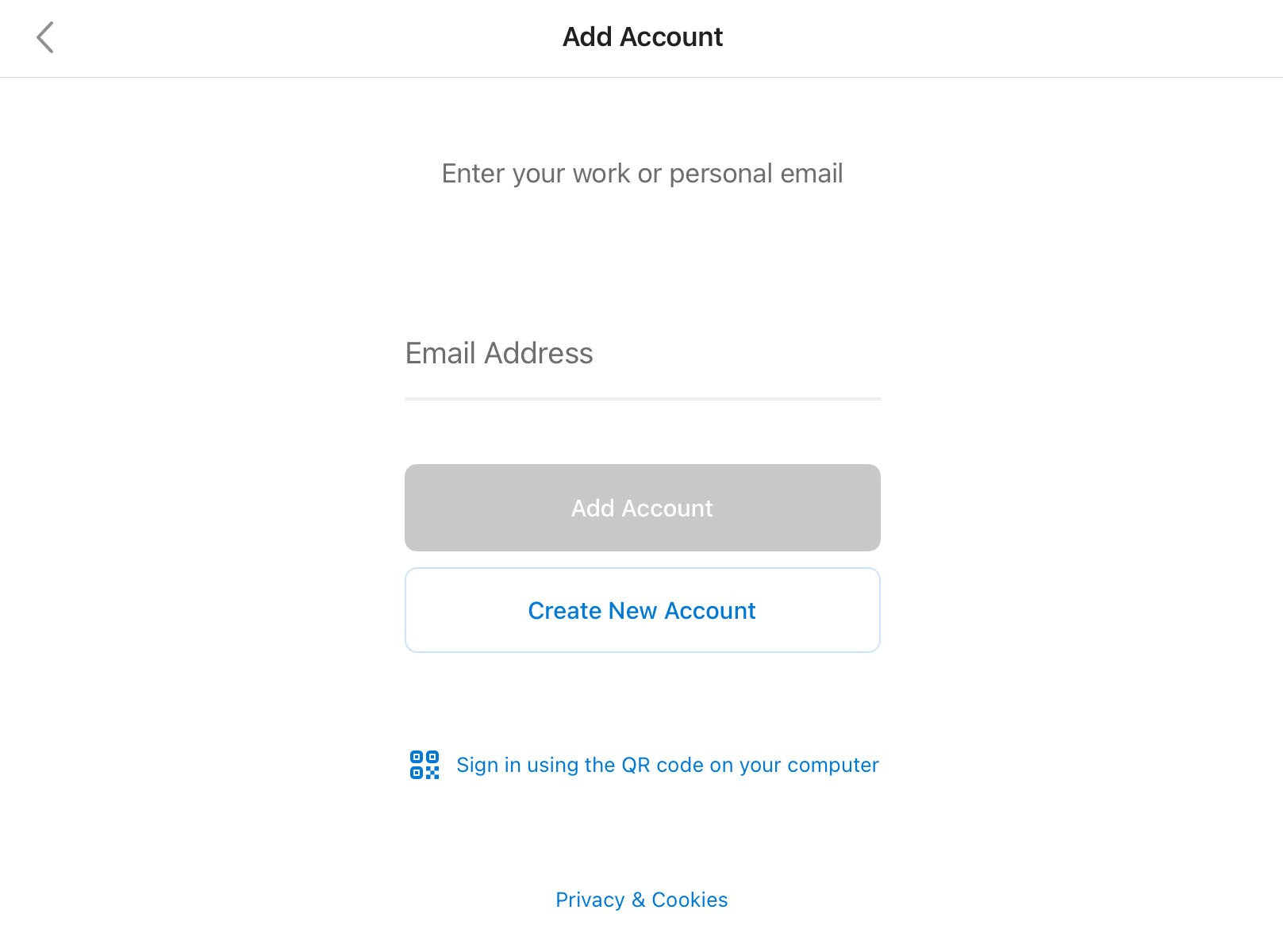
3\. Enter your full A-State email address and tap **Add Account**.

[![outlook-ios-screenshot-3 (1).jpg](https://kb.astate.edu/uploads/images/gallery/2025-03/scaled-1680-/outlook-ios-screenshot-3-1.jpg)](https://kb.astate.edu/uploads/images/gallery/2025-03/outlook-ios-screenshot-3-1.jpg)  
4\. Enter your email account password and tap **Sign In**.

[![outlook ios screenshot 7.jpg](https://kb.astate.edu/uploads/images/gallery/2023-11/scaled-1680-/outlook-ios-screenshot-7.jpg)](https://kb.astate.edu/uploads/images/gallery/2023-11/outlook-ios-screenshot-7.jpg)

  
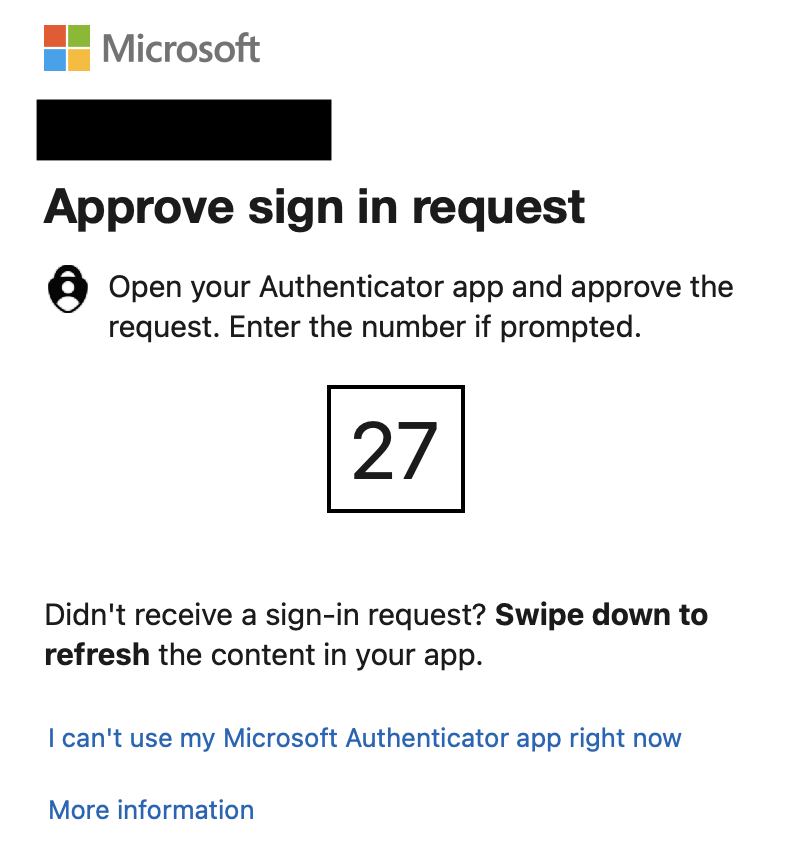
5\. Authenticate using **Microsoft Authenticator**.  
  
![MS-Signin_AU.png](https://kb.astate.edu/uploads/images/gallery/2026-07/scaled-1680-/ms-signin-au.png)

<section class="ocpSection" id="bkmrk-if-multi-factor-auth-0"></section><p class="callout info">Note: If the Push notification doesn't appear, open up the Microsoft Authenticator app on your phone</p>

6\. If you wish to add another account when prompted, tap **Add** and follow the prompts.

<div id="bkmrk-7.-if-you-desire-not"><div>[![outlook ios screenshot 2.jpg](https://kb.astate.edu/uploads/images/gallery/2023-11/scaled-1680-/outlook-ios-screenshot-2.jpg)](https://kb.astate.edu/uploads/images/gallery/2023-11/outlook-ios-screenshot-2.jpg)7. If you desire notifications, tap **Turn On** when given the following prompt.  
  
</div></div>[![outlook ios screenshot 1.jpg](https://kb.astate.edu/uploads/images/gallery/2023-11/scaled-1680-/outlook-ios-screenshot-1.jpg)](https://kb.astate.edu/uploads/images/gallery/2023-11/outlook-ios-screenshot-1.jpg)

---

#### Android

---

1\. Install the **Microsoft Outlook** app from the [Google Play Store](https://play.google.com/store/search?q=microsoft%20outlook&c=apps) and then open it.  
  
[![Outlook for Android KB Screenshot 1.jpg](https://kb.astate.edu/uploads/images/gallery/2023-11/scaled-1680-/PHMoutlook-for-android-kb-screenshot-1.jpg)](https://kb.astate.edu/uploads/images/gallery/2023-11/PHMoutlook-for-android-kb-screenshot-1.jpg)  
  
2\. Tap **Get Started** if this is your first time.

3\. Tap **Add Account**.

[![Outlook for Android KB Screenshot 4.jpg](https://kb.astate.edu/uploads/images/gallery/2023-11/scaled-1680-/9P6outlook-for-android-kb-screenshot-4.jpg)](https://kb.astate.edu/uploads/images/gallery/2023-11/9P6outlook-for-android-kb-screenshot-4.jpg)  
  
4\. Enter your full A-State email address and tap **Continue**.

[![Outlook for Android KB Screenshot 2.jpg](https://kb.astate.edu/uploads/images/gallery/2023-11/scaled-1680-/wSdoutlook-for-android-kb-screenshot-2.jpg)](https://kb.astate.edu/uploads/images/gallery/2023-11/wSdoutlook-for-android-kb-screenshot-2.jpg)  
  
5\. Enter your password and tap **Sign In**.

[![Outlook for Android KB Screenshot 3.jpg](https://kb.astate.edu/uploads/images/gallery/2023-11/scaled-1680-/a5Voutlook-for-android-kb-screenshot-3.jpg)](https://kb.astate.edu/uploads/images/gallery/2023-11/a5Voutlook-for-android-kb-screenshot-3.jpg)

<section class="ocpSection" id="bkmrk-6.-authenticate-usin">6\. Authenticate using **Microsoft Authenticator**.

![MS-Signin_AU.png](https://kb.astate.edu/uploads/images/gallery/2026-07/scaled-1680-/ms-signin-au.png)

</section><p class="callout info">Note: If the Push notification doesn't appear, open up the Microsoft Authenticator app on your phone</p>

<div id="bkmrk-7.-if-you-wish-to-ad">7. If you wish to add another account when prompted, tap **Add** and follow the prompts.</div><div id="bkmrk--6">  
[![Outlook for Android KB Screenshot 7.jpg](https://kb.astate.edu/uploads/images/gallery/2023-11/scaled-1680-/iX3outlook-for-android-kb-screenshot-7.jpg)](https://kb.astate.edu/uploads/images/gallery/2023-11/iX3outlook-for-android-kb-screenshot-7.jpg)</div><div id="bkmrk-8.-if-you-desire-not">  
8. If you desire notifications, tap **Turn On** when given the following prompt.  
  
</div><div id="bkmrk--8">[![Outlook for Android KB Screenshot 5.jpg](https://kb.astate.edu/uploads/images/gallery/2023-11/scaled-1680-/outlook-for-android-kb-screenshot-5.jpg)](https://kb.astate.edu/uploads/images/gallery/2023-11/outlook-for-android-kb-screenshot-5.jpg)</div><div id="bkmrk--9">  
  
</div><p class="callout info">For further assistance, contact the ITS Help Desk at 870-972-3933 or stop by the IT Support Services (<itsupportservices@astate.edu>). It is located on the bottom floor of the Dean B. Ellis Library, Room 149. </p>

# Transfer email from Gmail to Outlook

---

For students wishing to move emails from the older Gmail inbox to Outlook can follow these instructions.

---

1\. Download and install **Microsoft 365** from [Office.com](https://office.com), which includes Outlook. Use your full A-State email address and password to sign in.

<p class="callout info">The following link provides detailed instructions: [https://kb.astate.edu/books/microsoft-365/page/how-to-install-microsoft-365](https://kb.astate.edu/books/microsoft-365/page/how-to-install-microsoft-365)</p>

2\. Open **Outlook**.

3\. Click **File**.

[![image-1723216590901.jpg](https://kb.astate.edu/uploads/images/gallery/2024-08/scaled-1680-/image-1723216590901.jpg)](https://kb.astate.edu/uploads/images/gallery/2024-08/image-1723216590901.jpg)

4\. Click **Add Account**.

[![transfer email from outlook add account.jpg](https://kb.astate.edu/uploads/images/gallery/2025-07/scaled-1680-/transfer-email-from-outlook-add-account.jpg)](https://kb.astate.edu/uploads/images/gallery/2025-07/transfer-email-from-outlook-add-account.jpg)

5\. Enter your full A-State email address and click **Connect**.

[![image-1723216760513.jpg](https://kb.astate.edu/uploads/images/gallery/2024-08/scaled-1680-/image-1723216760513.jpg)](https://kb.astate.edu/uploads/images/gallery/2024-08/image-1723216760513.jpg)

6\. Select **Google**.

[![image-1723216799641.jpg](https://kb.astate.edu/uploads/images/gallery/2024-08/scaled-1680-/image-1723216799641.jpg)](https://kb.astate.edu/uploads/images/gallery/2024-08/image-1723216799641.jpg)

7\. Copy the settings underlined below, then click **Next**.

[![image-1723217048834.jpg](https://kb.astate.edu/uploads/images/gallery/2024-08/scaled-1680-/image-1723217048834.jpg)](https://kb.astate.edu/uploads/images/gallery/2024-08/image-1723217048834.jpg)

8\. Enter your password, then click **Connect**.

[![image-1723217101842.jpg](https://kb.astate.edu/uploads/images/gallery/2024-08/scaled-1680-/image-1723217101842.jpg)](https://kb.astate.edu/uploads/images/gallery/2024-08/image-1723217101842.jpg)

9\. Click **Next**.

[![image-1723217129074.jpg](https://kb.astate.edu/uploads/images/gallery/2024-08/scaled-1680-/image-1723217129074.jpg)](https://kb.astate.edu/uploads/images/gallery/2024-08/image-1723217129074.jpg)

10\. Enter your full A-State email and password and click **Login**.

[![image-1723217176841.jpg](https://kb.astate.edu/uploads/images/gallery/2024-08/scaled-1680-/image-1723217176841.jpg)](https://kb.astate.edu/uploads/images/gallery/2024-08/image-1723217176841.jpg)

11\. "Microsoft apps &amp; services wants to access your Google Account" will show up, scroll down and click **Allow**.

[![image-1723217281741.jpg](https://kb.astate.edu/uploads/images/gallery/2024-08/scaled-1680-/image-1723217281741.jpg)](https://kb.astate.edu/uploads/images/gallery/2024-08/image-1723217281741.jpg)

[![image-1723217300787.jpg](https://kb.astate.edu/uploads/images/gallery/2024-08/scaled-1680-/image-1723217300787.jpg)](https://kb.astate.edu/uploads/images/gallery/2024-08/image-1723217300787.jpg)

**NOTE:** You will be prompted to do steps 9, 10 and 11 *once a day*. It is recommended to remove your Gmail account once you've moved over all emails you wish to keep. Instructions on removing your Gmail account are at the end.

12\. You should see **Account successfully added;** click **Done**.

[![image-1723217686142.jpg](https://kb.astate.edu/uploads/images/gallery/2024-08/scaled-1680-/image-1723217686142.jpg)](https://kb.astate.edu/uploads/images/gallery/2024-08/image-1723217686142.jpg)

13\. Your Gmail inbox will be displayed on the left below your new Outlook inbox.

[![image-1723217802408.jpg](https://kb.astate.edu/uploads/images/gallery/2024-08/scaled-1680-/image-1723217802408.jpg)](https://kb.astate.edu/uploads/images/gallery/2024-08/image-1723217802408.jpg)

14\. Your Gmail account has been successfully added! To move emails to your new inbox, simply select and drag emails from your old inbox into your new one.

---

#### Remove your Gmail account 

---

1\. Right-click on your Gmail account and select **Remove First.last@smail.astate.edu**.

[![image-1723219236309.jpeg](https://kb.astate.edu/uploads/images/gallery/2024-08/scaled-1680-/image-1723219236309.jpeg)](https://kb.astate.edu/uploads/images/gallery/2024-08/image-1723219236309.jpeg)

2\. A confirmation box will appear; click **Yes**.

[![image-1723219311484.jpg](https://kb.astate.edu/uploads/images/gallery/2024-08/scaled-1680-/image-1723219311484.jpg)](https://kb.astate.edu/uploads/images/gallery/2024-08/image-1723219311484.jpg)

<p class="callout info">For further assistance, contact the ITS Help Desk at 870-972-3933 or stop by IT Support Services (<itsupportservices@astate.edu>). It is located on the bottom floor of the Dean B. Ellis Library, Room 149.</p>