Surveys and Evaluations
Guides on the Course Evaluation System and using Qualtrics for surveys.
Surveys and Evaluations Index
This page provides an overview of tools and strategies used to design questionnaires, deploy surveys, collect responses, and analyze results. Each entry includes a brief description and a link to the relevant Knowledge Base page or external resource. Some tools listed here may be maintained by other campus offices or appear in other Books on our Shelf. Links are provided to ensure easy navigation and to support sustainability by referencing official sources when appropriate.
Survey Creation and Deployment Tools
- Qualtrics – Robust survey platform used for research, instructional feedback, and data collection.
- Microsoft Forms – Lightweight survey and quiz tool available through Office 365.
- Google Forms – Simple form creation tool available through Google Workspace.
Course Evaluation System
- Watermark CES – Official course evaluation system used for end-of-term student feedback.
Survey Design and Analysis Tools
-
Survey Design Resources – Guidance on writing effective survey questions and avoiding bias:
- Writing Survey Questions – Pew Research Center
- How to Create an Effective Survey – Qualtrics
- Five Tips for Designing an Effective Survey – Duke Global Health Institute
- Likert Scale: Examples and How to Use It – SurveyMonkey
- Designing Surveys for Evaluations and Research – EdTech Books
-
Statistical Software – For a list of the tools that support data analysis that the university can provide, see the Statistical & Analytical Software section of the Campus Technology & Support Services Index.
Related Tools in Other Books
- Faculty180 – Faculty activity reporting system that includes course evaluation data as part of the collection of teaching, research, and service activity.
Qualtrics
Qualtrics empowers companies to capture and act on customer, product, brand & employee experience insights in one place.
 What is Qualtrics?

Qualtrics is a web based software that allows the user to create surveys and generate reports without having any previous programming knowledge. Qualtrics is HIPPA and FERPA complaint.
The Qualtrics support team is available 24/7.
How Do I Get Access?
Faculty
Log in to Pack Portal and Select either Productivity Tools or Staff Tools, then select Qualtrics from the respective menu.

Students
The use of Qualtrics is provided free of charge to A-State students and employees for work related to academic coursework and/or projects related to their role at A-State.
To gain access to the Qualtrics Research Core survey tool, students must fill out the Qualtrics Student Access Form.
IRB Approvals
Not all surveys require approval by the Institutional Review Board (IRB), but it is important to know when IRB approval applies. Surveys used for managerial decision-making do not require IRB approval. IRB permission is required to conduct human participants’ research that involves the creation of generalization knowledge for publication and other scholarly dissemination purposes. Please visit the Office of Research and Sponsored Programs Research Compliance book in the Knowledge Base for more information regarding the IRB process and to determine if your project will need further review before your survey can be disseminated.
I Need Qualtrics Training
Learn the Qualtrics Research Core platform
A-Z Guide of Qualtrics topics and features
Live / On Demand Training and Certification
Learn to use Qualtrics by registering for one of their live, self-paced, or certification courses.
https://basecamp.qualtrics.com/
To register you must first Log In.
Use the Qualtrics Credentials method to sign in to XM Basecamp
Then select to Sign in with SSO

Enter astate as our Organization ID

Follow the Duo instructions to log in with your A-State account.
Watermark CES
Watermark Course Evaluations and Surveys, formerly known as EvaluationKIT, is an online tool for administering course evaluations.
About Watermark CES
The tool is available for use campus-wide, and the use is covered by the campus Technology fee. It is integrated with Canvas, and can be accessed by students, instructors, and administrators from inside Canvas.

Benefits of Watermark CES
Streamline the process of capturing student feedback with Watermark Course Evaluations & Surveys, a solution designed specifically for higher ed. Automated, information-rich reporting provides faculty and administrators with the data needed to monitor quality and make timely decisions to improve teaching and learning.
Administrators
- Elimination of paper process
- Complete access to data for analysis and reporting
- Consistency in when and how evaluations are administered
- Each school is managed independently
Instructors
- Ability to monitor who has not completed an evaluation
- Online access to reports
- Overall summary across all courses and over time
Students
- All course evaluations accessible online in one location
Support
If you are new to using Watermark Course Evaluations & Surveys, we have created an online training course that should help get you started.
Watermark Course Evaluations & Surveys
Faculty should find all the resources they need to find their evaluation results in the Getting Started module of the course. Any questions about your evaluation results should be directed to your Department Chair or Program Director.
New CES Administrators should complete all the modules. Once the new administrator has reviewed all of these resources, they can contact the Center for Excellence in Teaching and Learning if they need any further assistance or have any additional questions.
Note: This course will require a Canvas account. If you get the following error when attempting to access Canvas from Pack Portal, please contact the ITS HelpDesk.

Accessing the Course Evaluation System
For instructions on how to access the evaluation system through Canvas, see the information in the Getting Started module of the Watermark Course Evaluations & Surveys course. Specifically, the Accessing Your Account page.
Accessing Your Account
 Access from Canvas
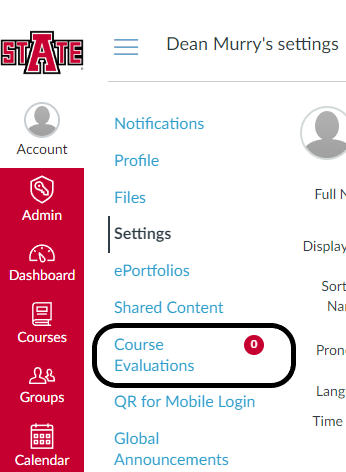
To access Watermark CES, log into Canvas and Select Account from the left hand Global Navigation Menu.
After a second or two you should then see Course Evaluations pop into the menu. If this does not happen, see the section below for the Direct log in option
Clicking on Course Evaluations will open your Watermark CES account.
 After Watermark CES has opened
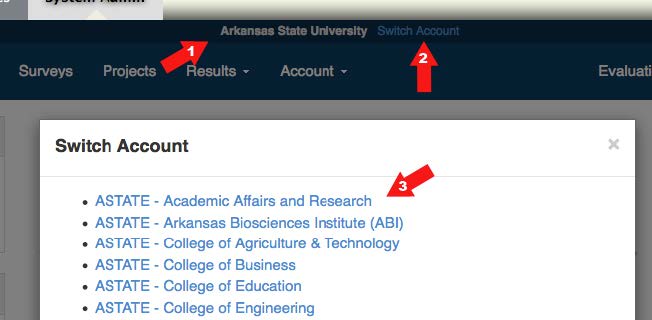
If you don't see what you expect, first check that you are viewing the correct account.
- Check for an account name at the top and center of the Watermark CES dashboard page.
- If a different College or Account is displayed, click Switch Accounts.
- Select your college or account from the list.
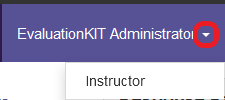
Next check that you have the correct role selected. You may need to change between the Student, Instructor, Administrator, or CES Administrator roles.
 Direct Login Option
If you don't see the option for Course Evaluations pop into your Account menu, you can use the following links to directly access the log in page for your account.
To log in, use your A-State ID number for your username.
If this is your first time logging in through these links, you will also need to use the Forgot your password option. You will need to save this password, as you will need to use it everytime you wish to use the direct log in link.
- Arkansas State University
- ASTATE - Academic Affairs and Research
- ASTATE - Arkansas Biosciences Institute (ABI)
- ASTATE - College of Agriculture & Technology
- ASTATE - College of Business
- ASTATE - College of Education
- ASTATE - College of Engineering
- ASTATE - College of Fine Arts
- ASTATE - College of Humanities & Social Sciences
- ASTATE - College of Media and Communication
- ASTATE - College of Nursing & Health Professions
- ASTATE - College of Science & Mathematics
- ASTATE - Concurrent Enrollment Program
- ASTATE - Continuing Education and Community Outreach
- ASTATE - Dean B. Ellis Library
- ASTATE - Department of Distance Education
- ASTATE - Graduate School
- ASTATE - Honors College
- ASTATE - Information and Technology Services
- ASTATE - Institutional Research, Planning, and Assessment
- ASTATE - ITTC Faculty Center
- ASTATE - LSDE
- ASTATE - Military Science
- ASTATE - Office of International Programs
- ASTATE - OSLO
- ASTATE - Querétaro Campus
- ASTATE - Univeristy Wide
- ASTATE - University College
- ASTATE - Writing Center
Finding Project Results
You should see the most recently completed projects listed in the Project Results module on your EvaluationKIT dashboard.
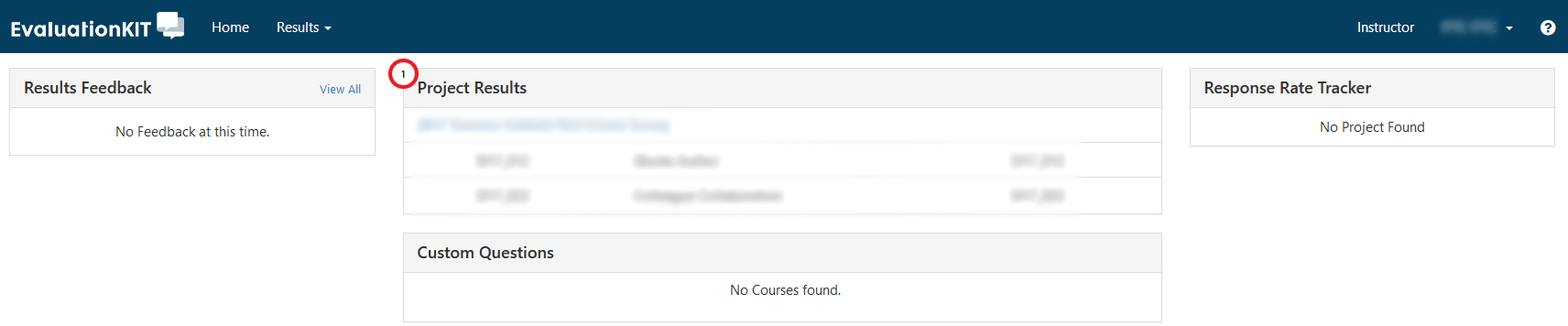
To find results not shown in the module:
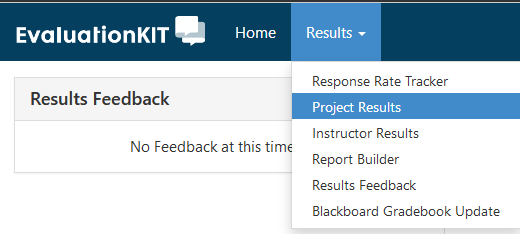
- Click on the Results tab on the EvaluationKIT menu bar.

- Select Project Results from the dropdown menu.
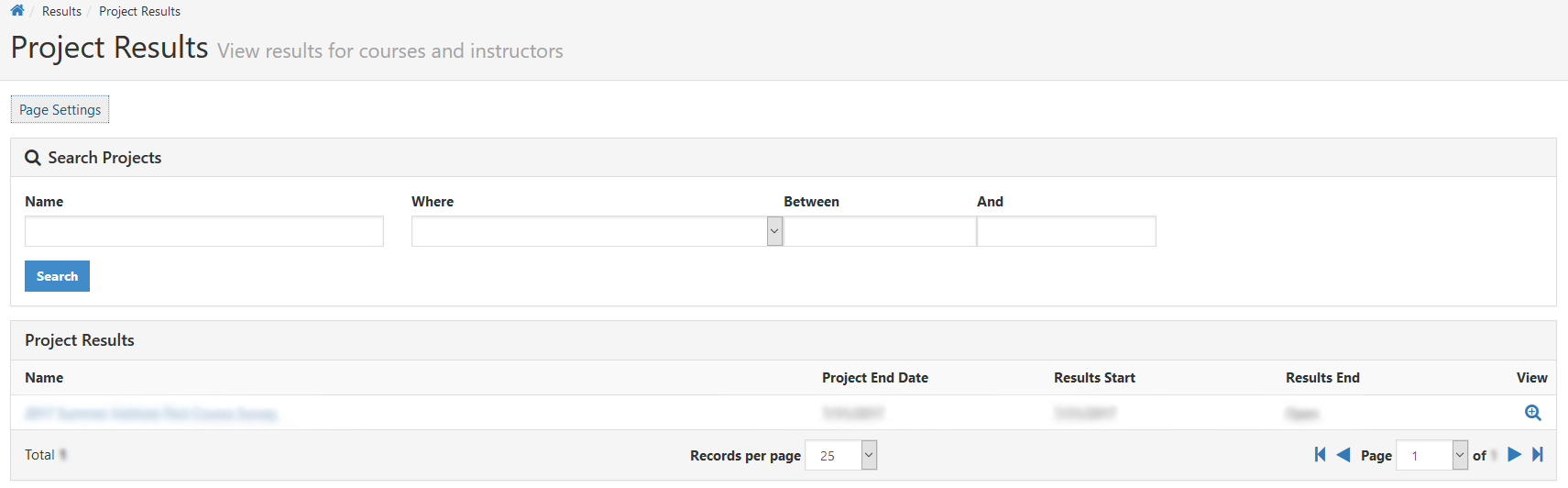
- Find the project in the Project Results list.

- To help narrow the results use the search fields.
- Settings to sort the results can be found by clicking Page Settings.
- Click on the name of the Project to see a list of all your courses that were included in that project
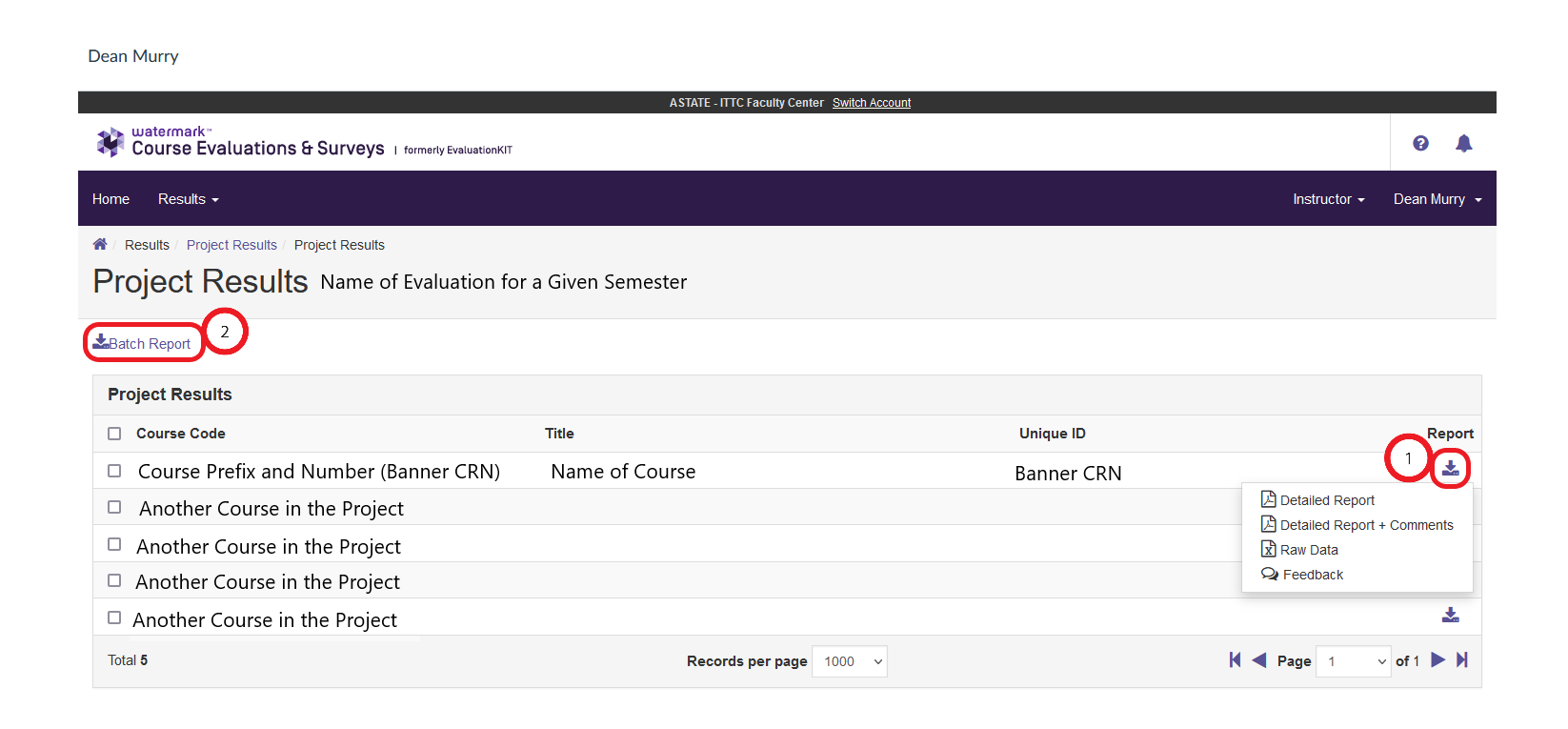
- From the list of your courses that were included in the Project Results, click either the Download arrow for a specific class (1) or check the boxes for multiple courses and use the Batch Report (2) button to see your options for Report Results to Download.

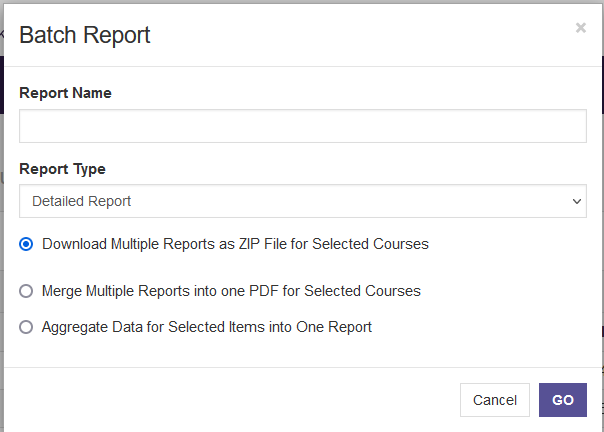
- If you use the Batch Report option, in addition to the Report Type selection you have for individual reports, you also have three options for how to compose those Reports.

- Download Multiple Reports as ZIP File for Selected Courses, would be the same as Downloading the Reports for each course individually.
- Merge Multiple Reports into one PDF for Selected Courses, would result in a singular file but would otherwise be similar to the previous option.
- Aggregate Data for Selected Items into One Report, would merge all the individual course results into one overall score.
- If you use the Batch Report option, in addition to the Report Type selection you have for individual reports, you also have three options for how to compose those Reports.
Managing Administrators
Any existing CES Administrator on the account can use this feature to create and manage administrators within their account. Examples of an administrator would be a Dean, Department Chair or any other type of administrator who needs access to reports and/or the custom questions feature within a specified area of your institution's hierarchy.
Within Manage Administrators under Site Settings in the Account tab you can:
- Manually Create a New Administrator
- Edit Administrators
- Promote/Demote CES Administrators
Manually Create a New Administrator
- Click on +Add New Administrator
- Assign the administrator a Username, Password (required when manually creating an administrator) and input their Name and E-mail Address.
- If the administrator plans to access Watermark CES through a link in Canvas, please ensure the username is set to their A-State ID number.
- Under Select Role(s), select the level of access the Administrator will need.
- For a new CES Administrator, select any role. Once the administrator is created you can then promote them to the CES Administrator role.
- Under Select Level(s), select the specific areas within your hierarchy wherein the administrator should have access. (Note: Selecting a higher level/node in the hierarchy DOES NOT automatically include all lower levels/nodes!)
- Click on Save to create & save the administrator.
Once you have manually inputted administrators you will be able to see all of the administrators in your account listed at the bottom of the page, as well as search for and edit the Administrators within the account.
Request to Have an Administrator Added to Your Account
Watermark CES is set up for each department or group to manage their own accounts. Each Department or Program should identify a person as the primary CES Administrator for their evaluations. If you don't have another CES Administrator that can create accounts, the Chair or Program Administrator should send a request to the Center for Excellence in Teaching and Learning to set up the new administrator. This request should include the following information for the new administrator.
- Administrator's Name
- Administrator's A-State ID Number.
- Administrator's A-State E-mail Address
- Levels of the account (department or program) they will be managing
- Role they will need
- CES Administrators: Super-users with access to ALL areas of the account. This role is needed to: create, deploy, and collect results for course evaluation projects. This is the most common role for the administrator that manages the department's evaluations.
- Survey Admin: Select this role if you would like to create a node administrator who would only create/edit surveys. Survey admins only have access to the surveys they have created.
- Report Admin: Select this role to allow the node administrator access to reporting for Instructors and courses within their specific area(s), school/college/department(s)
- Custom Question Admin: Select this role to allow the node administrator access to author and add custom question surveys for their specific areas or courses therein.
- Student Alert Admin: Select this role to allow the node administrator to receive student alerts and access Student Alert Reporting.
- Course Admin: Select this role if you are using the “Manage Courses” feature in your project for node administrators. This role allows the administrator to manage course and enrollment information in a project.
- Custom Question Monitoring Admin: Select this role if the node administrator should have access to view custom question surveys that were associated to their specific areas or courses therein.
- Results Monitoring Admin: Select this role if the node administrator should have access to view who has accessed results for Projects associated to their specific areas.
- Project Admin: Select this role to allow the node administrator to create, manage and deploy projects within their academic area or level(s) of access. This role allows the administrator to only control projects in their academic unit or level(s) of access.