Finding Project Results
You should see the most recently completed projects listed in the Project Results module on your EvaluationKIT dashboard.
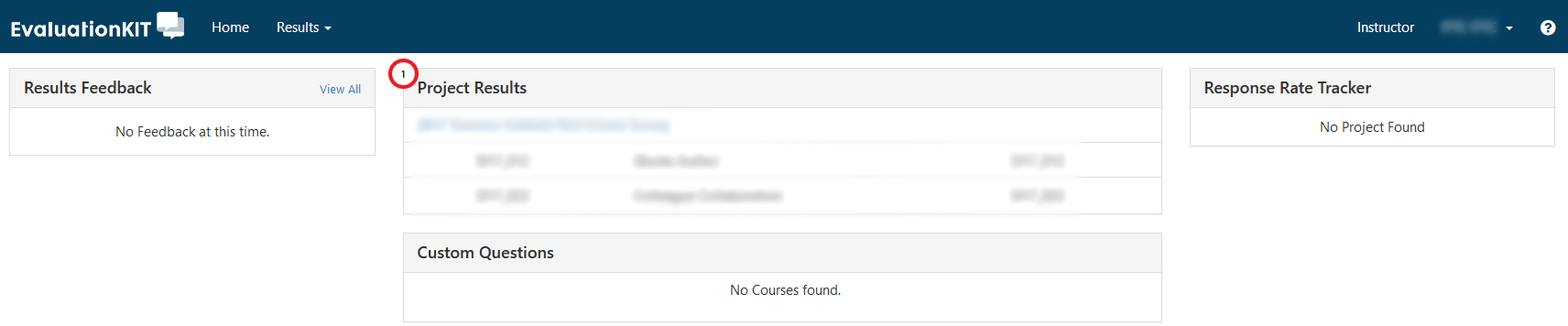
To find results not shown in the module:
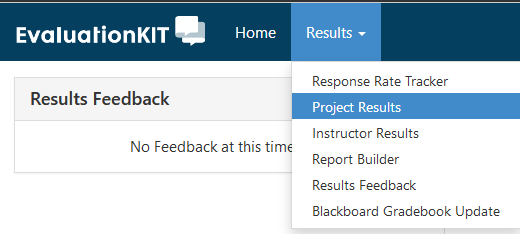
- Click on the Results tab on the EvaluationKIT menu bar.

- Select Project Results from the dropdown menu.
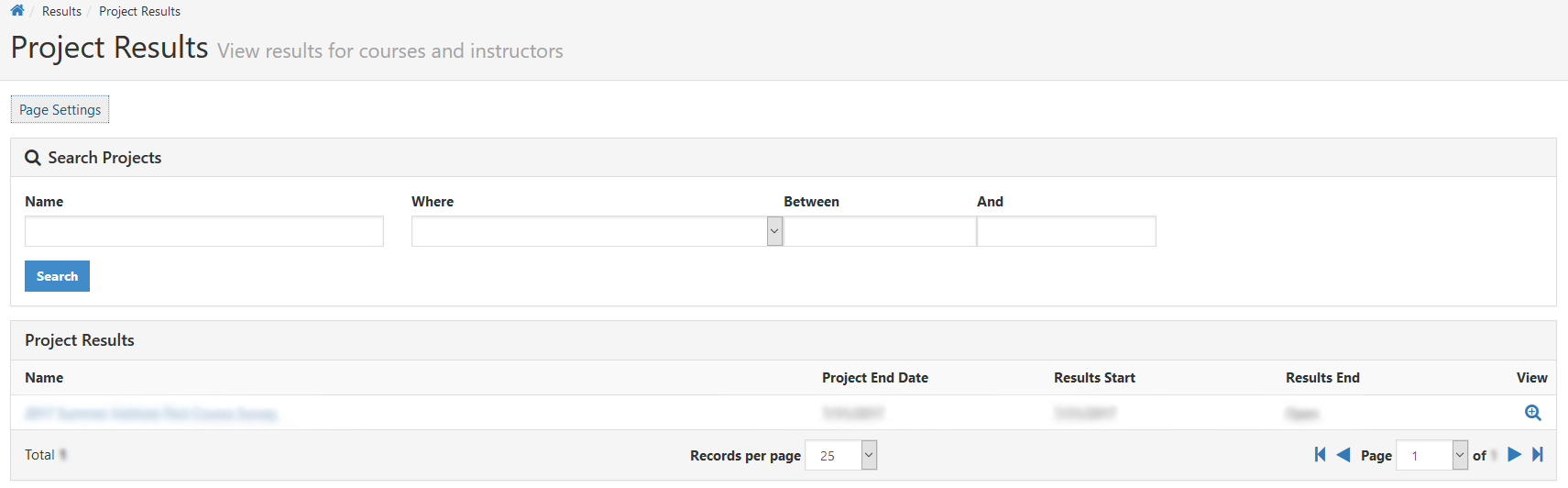
- Find the project in the Project Results list.

- To help narrow the results use the search fields.
- Settings to sort the results can be found by clicking Page Settings.
- Click on the name of the Project to see a list of all your courses that were included in that project
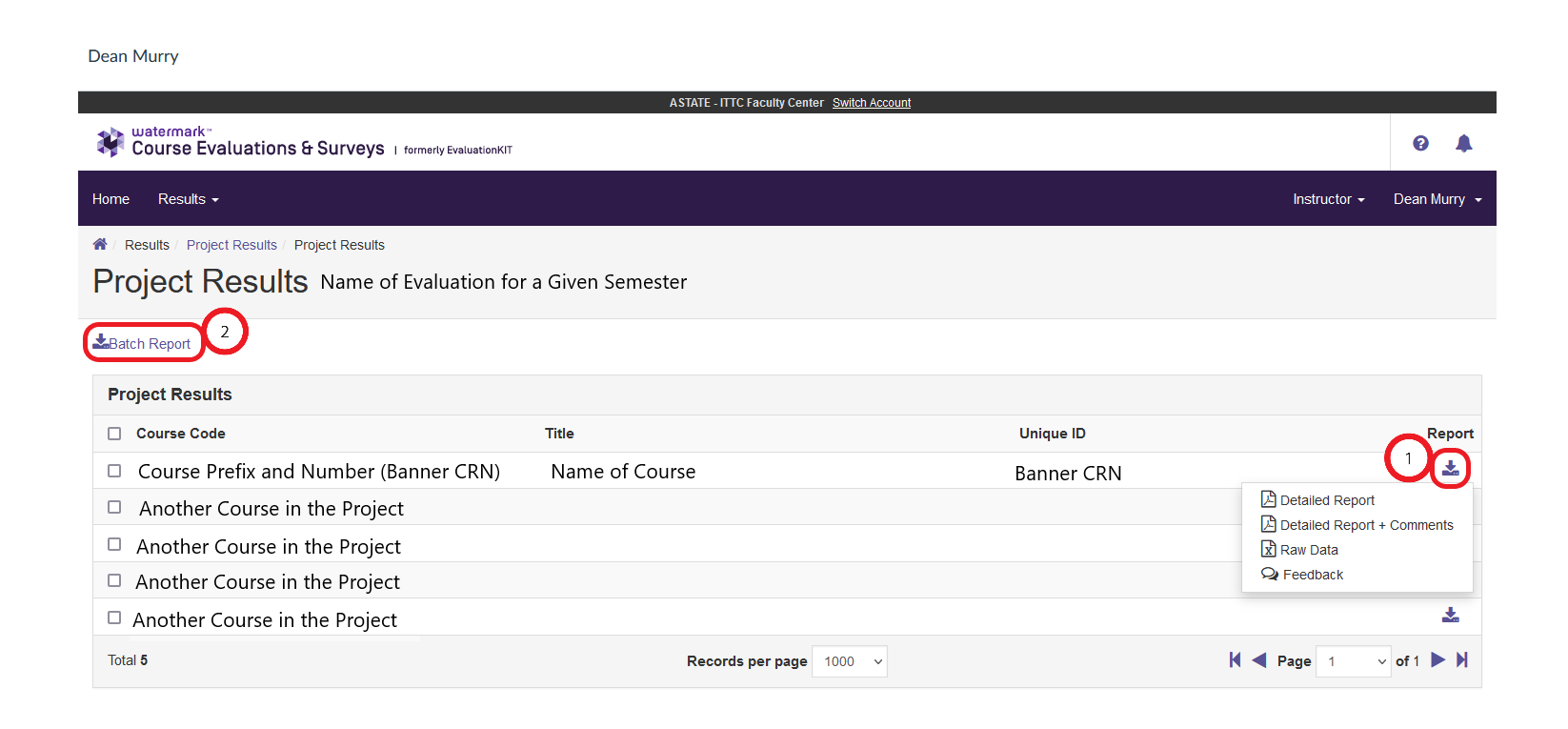
- From the list of your courses that were included in the Project Results, click either the Download arrow for a specific class (1) or check the boxes for multiple courses and use the Batch Report (2) button to see your options for Report Results to Download.

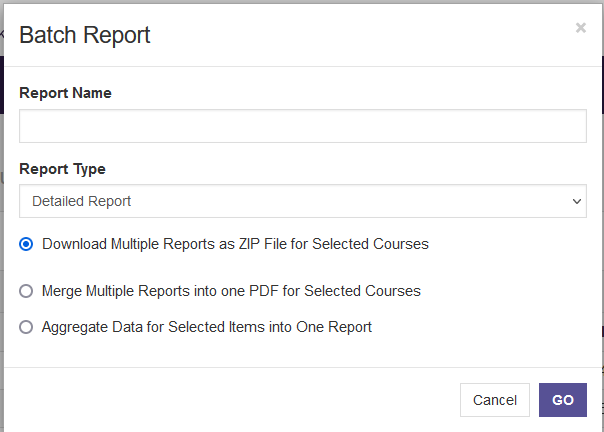
- If you use the Batch Report option, in addition to the Report Type selection you have for individual reports, you also have three options for how to compose those Reports.

- Download Multiple Reports as ZIP File for Selected Courses, would be the same as Downloading the Reports for each course individually.
- Merge Multiple Reports into one PDF for Selected Courses, would result in a singular file but would otherwise be similar to the previous option.
- Aggregate Data for Selected Items into One Report, would merge all the individual course results into one overall score.
- If you use the Batch Report option, in addition to the Report Type selection you have for individual reports, you also have three options for how to compose those Reports.