# Global Protect Download and Installation Instructions
---
#### Installing Global Protect on Mac
---
1\. Go to [https://globalprotect.astate.edu](https://globalprotect.astate.edu/).
2\. Enter your full A-State email address and password and click **Login.**
[](https://kb.astate.edu/uploads/images/gallery/2025-05/image-1747341283228.png)[ ](https://kb.astate.edu/uploads/images/gallery/2025-05/image-1747341250064.png)
3\. Authenticate using **Microsoft Authenticator**.
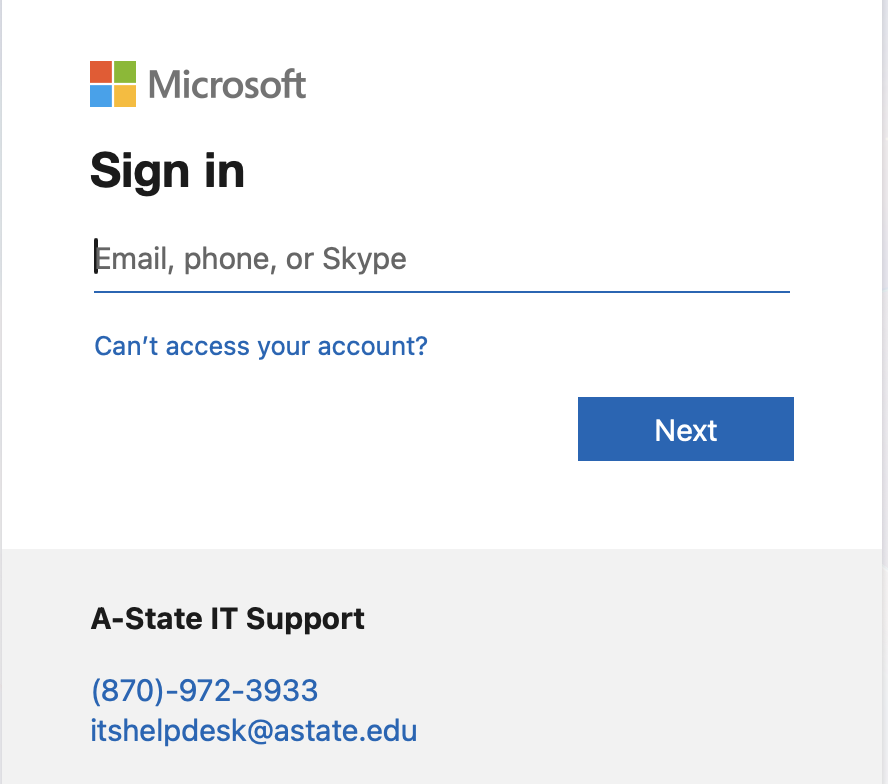 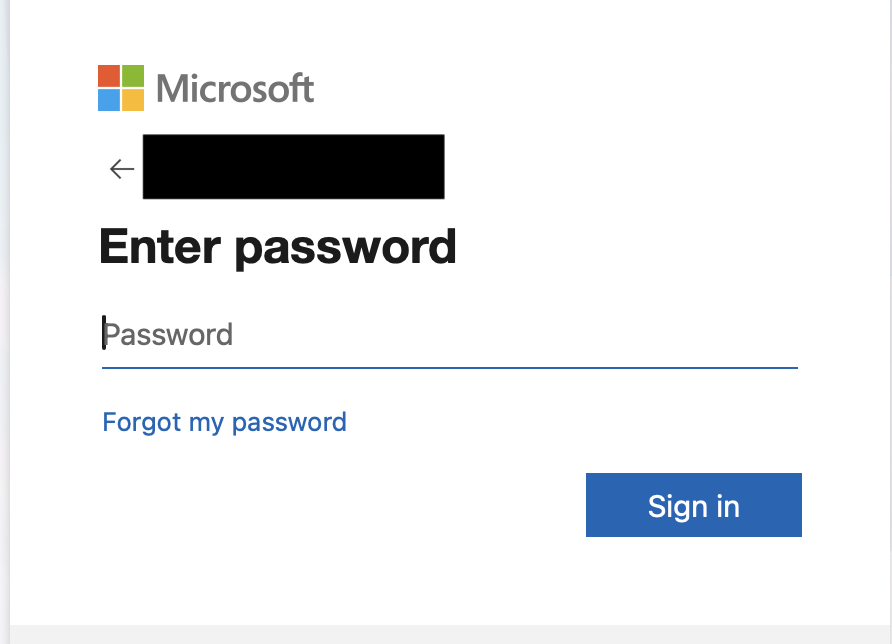 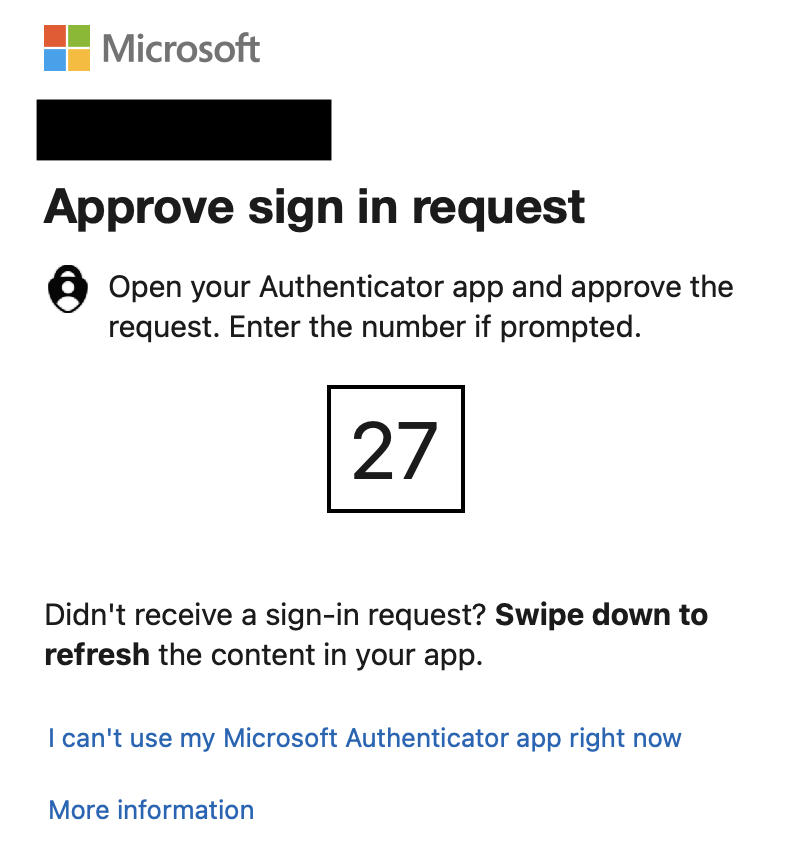
4\. Click **Download Mac 32/64 bit GlobalProtect agent**.
**[](https://kb.astate.edu/uploads/images/gallery/2021-09/0iIglobal-protect.png)** 5. Run the installer (images below include the steps you will go through in order to install the application).
6\. Make sure the **Open with Installer (default)** option is selected and click **OK**.
[](https://kb.astate.edu/uploads/images/gallery/2021-09/gp-install-1.png)
7\. Click **Continue**.
[](https://kb.astate.edu/uploads/images/gallery/2021-09/gp-install-2.png)
8\. Make sure the **Macintosh HD** disk is selected and click **Continue**.
[](https://kb.astate.edu/uploads/images/gallery/2021-09/gp-install-3.png)
9\. Make sure the **Global Protect** option is selected and click **Continue**.
[](https://kb.astate.edu/uploads/images/gallery/2021-09/gp-install-4.png)
10\. Click **Install**.
[](https://kb.astate.edu/uploads/images/gallery/2021-09/gp-install-5.png)
11\. Once you go through these steps and the installation is complete, Global Protect will be successfully installed on your device.
12\. Click **Close**.
[](https://kb.astate.edu/uploads/images/gallery/2021-09/gp-install-8.png)
13\. A window like the image below will pop up, you can click **Move to Trash**.
[](https://kb.astate.edu/uploads/images/gallery/2021-09/gp-install-7.png)
---
#### Installing Global Protect On Windows
---
1\. Go to [https://globalprotect.astate.edu/.](https://globalprotect.astate.edu/)
2\. Enter your full A-State email address and password and click **Login.**
[](https://kb.astate.edu/uploads/images/gallery/2025-05/image-1747341283228.png)
3\. Authenticate using **Microsoft Authenticator**.

4\. Click **Download Windows 64 bit GlobalProtect agent**.
**[](https://kb.astate.edu/uploads/images/gallery/2021-09/2Mbgp-2.png)** 5. Run the installer and then click **Next**.
[](https://kb.astate.edu/uploads/images/gallery/2021-09/gp-1.png)
6\. Click **Next**.
[](https://kb.astate.edu/uploads/images/gallery/2021-09/8Sygp-2.png)
7\. A window will pop up and ask if you want to allow this app to make changes to your computer; click **Yes**.
8\. Click **Close** to complete the installation when finished.
For further assistance, contact the ITS Help Desk at 870-972-3933 or stop by IT Support Services (). It is located on the bottom floor of the Dean B. Ellis Library, Room 149.