Class Scheduling Reports

Coursedog Class Scheduling Reports
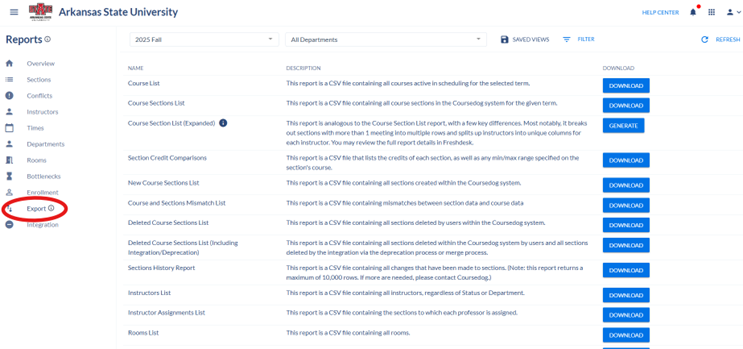
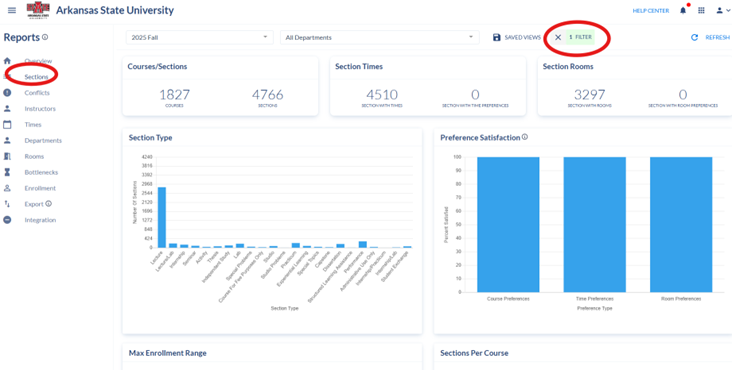
Reports can be accessed via the class scheduling toolbar.
To begin using the reports dashboard, select the appropriate term. Specific departments can be selected for a department level review or left as “All Departments” to view all section data for the given term.
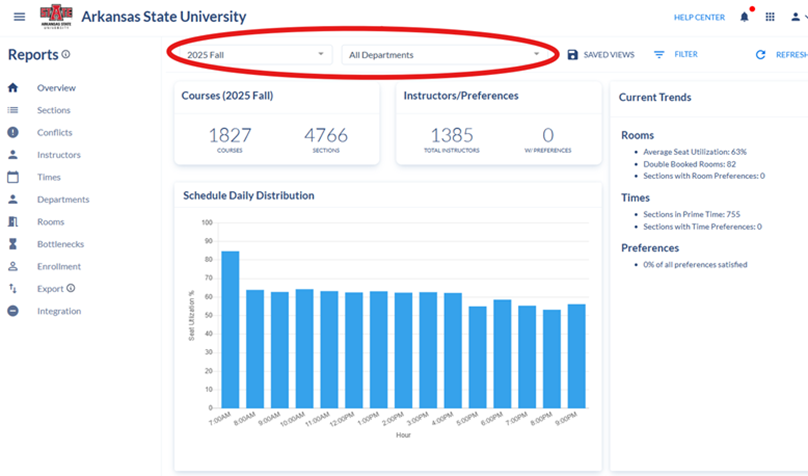
The reports dashboard is interactive and can be filtered to customize report data. The following are a few examples of the different filters that can be applied and utilized within the reports dashboard.
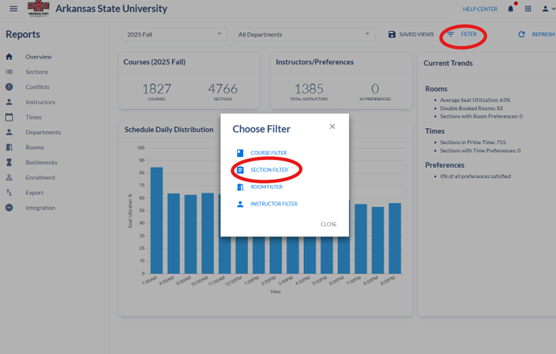
Example 1: Single Section Filter (Campus Level) – To identify all sections for a given campus, select filter at the top of the dashboard and choose “Section Filter.”
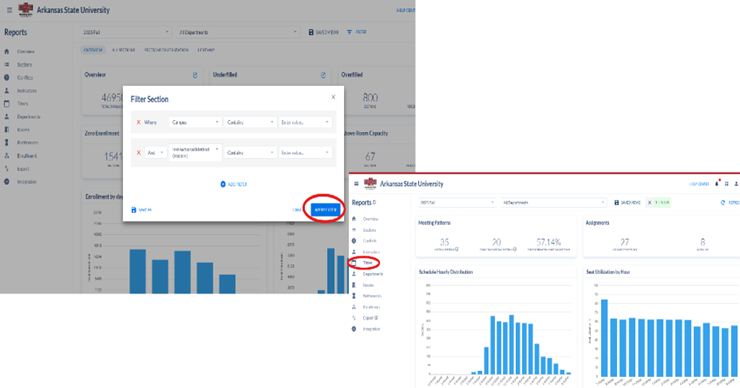
Input the initial criteria (leaving the last value blank) and select “Apply Filter.” Select “Section Filter.” This step allows the various campus locations to populate within the filter and the desired campus can then be selected. Select “Apply Filter” again.
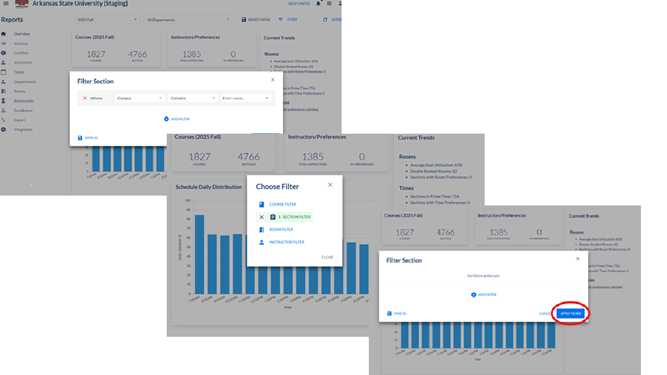
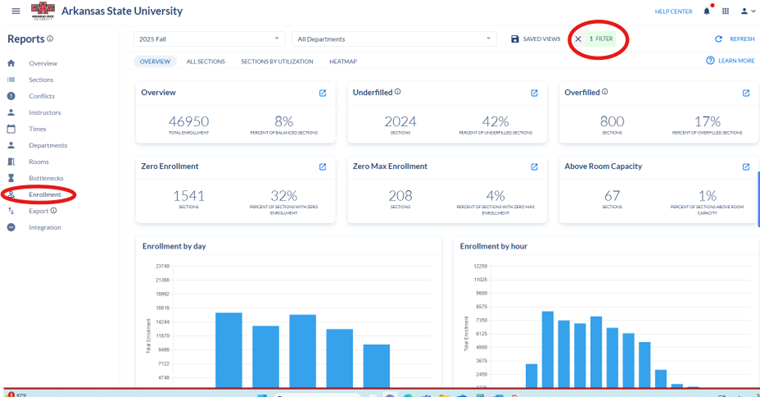
Example 2: Multiple Section Filter (Campus Level/Instructional Method) – To identify all sections for a
given campus with a specific instructional method, select filter at the top of the dashboard and choose “Section Filter.” Input the initial criteria (leaving the last value blank) and “Apply Filter.” Select “Section Filters” to allow the missing values to populate. Select the appropriate campus, instructional method and “Apply Filter” once again. In this example, the dashboard will now reflect only section data for the Fall 2025 term
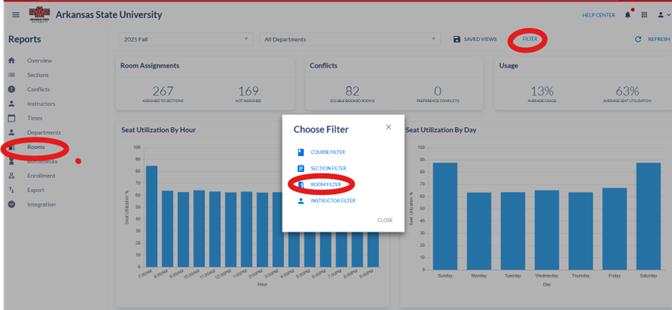
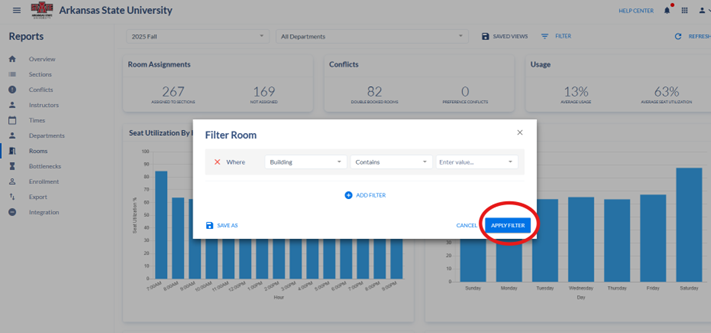
Example 3: Room Filter– To identify room assignments, conflicts or usage for a specific room/building, select “Filter” and “Room Filter.” Input the desired values and select “Rooms” in the reports toolbar to view the data.
Additional academic scheduling reports are available by selecting “Export” via the reports toolbar. It is important to note that customized filters cannot be utilized. However, this data can be filtered once downloaded.