Bomgar (BeyondTrust Remote Support) iOS/Android Mobile Setup
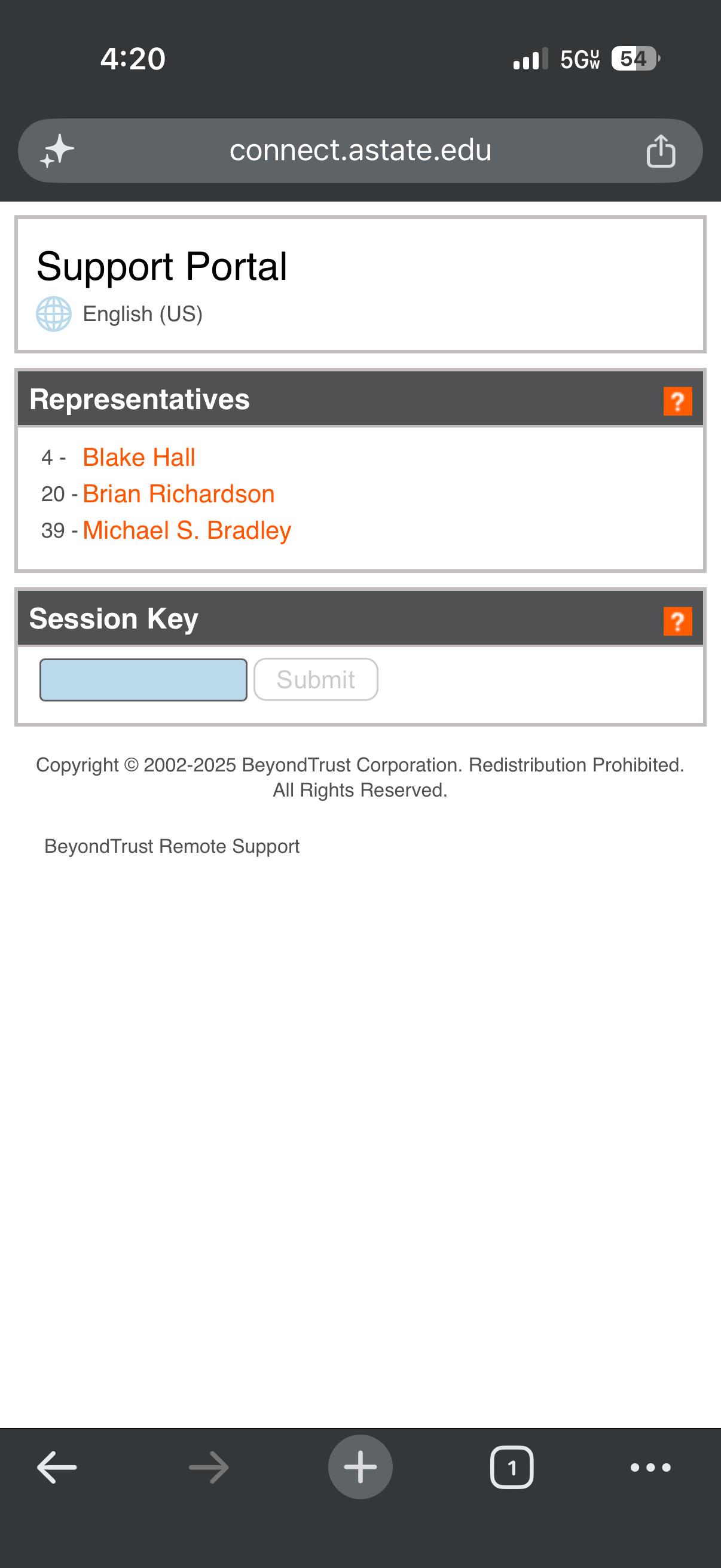
- Open any web browser and go to connect.astate.edu , this will open the Support Portal and select the agent's name you are needing to remote into your device
2. The next screen will prompt you to install the BeyondTrust Support application from your device's app store
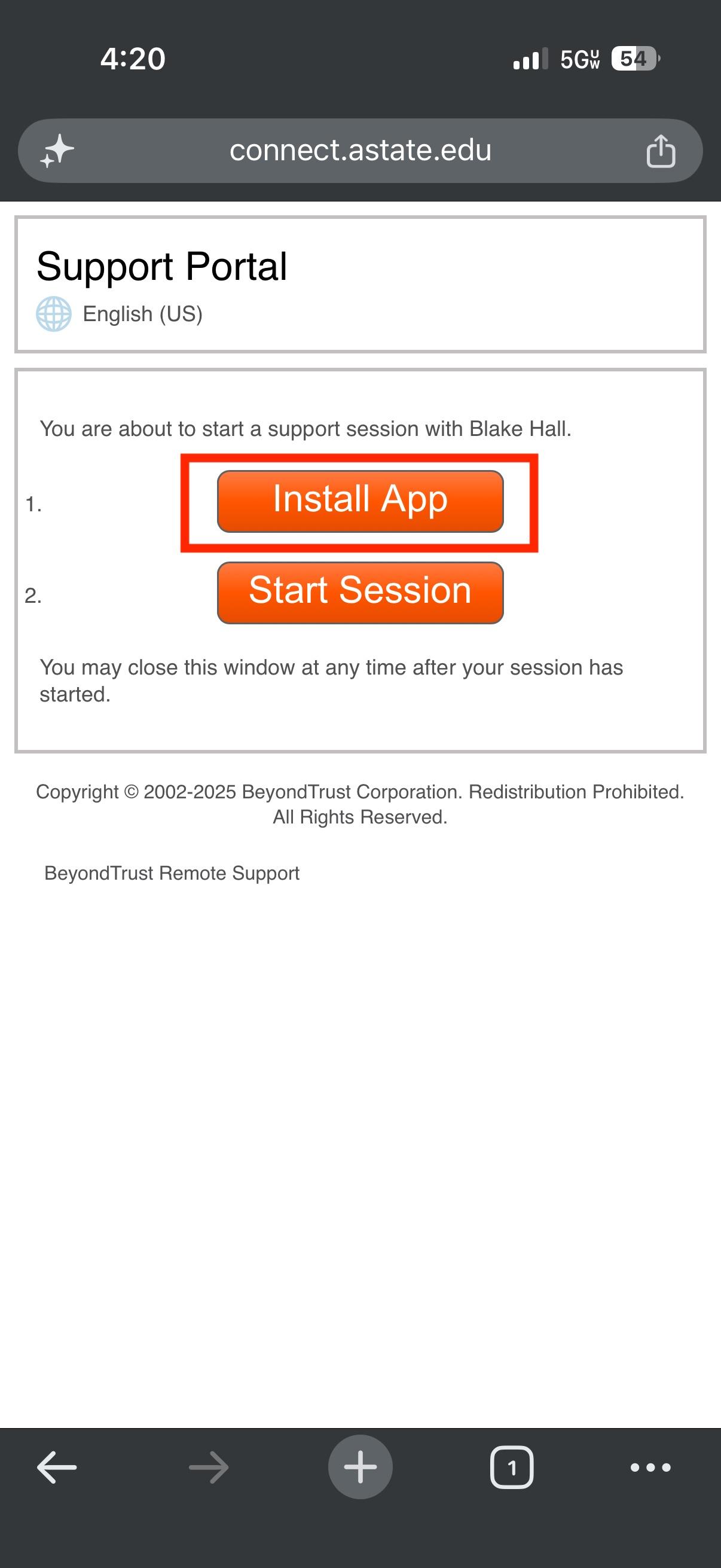
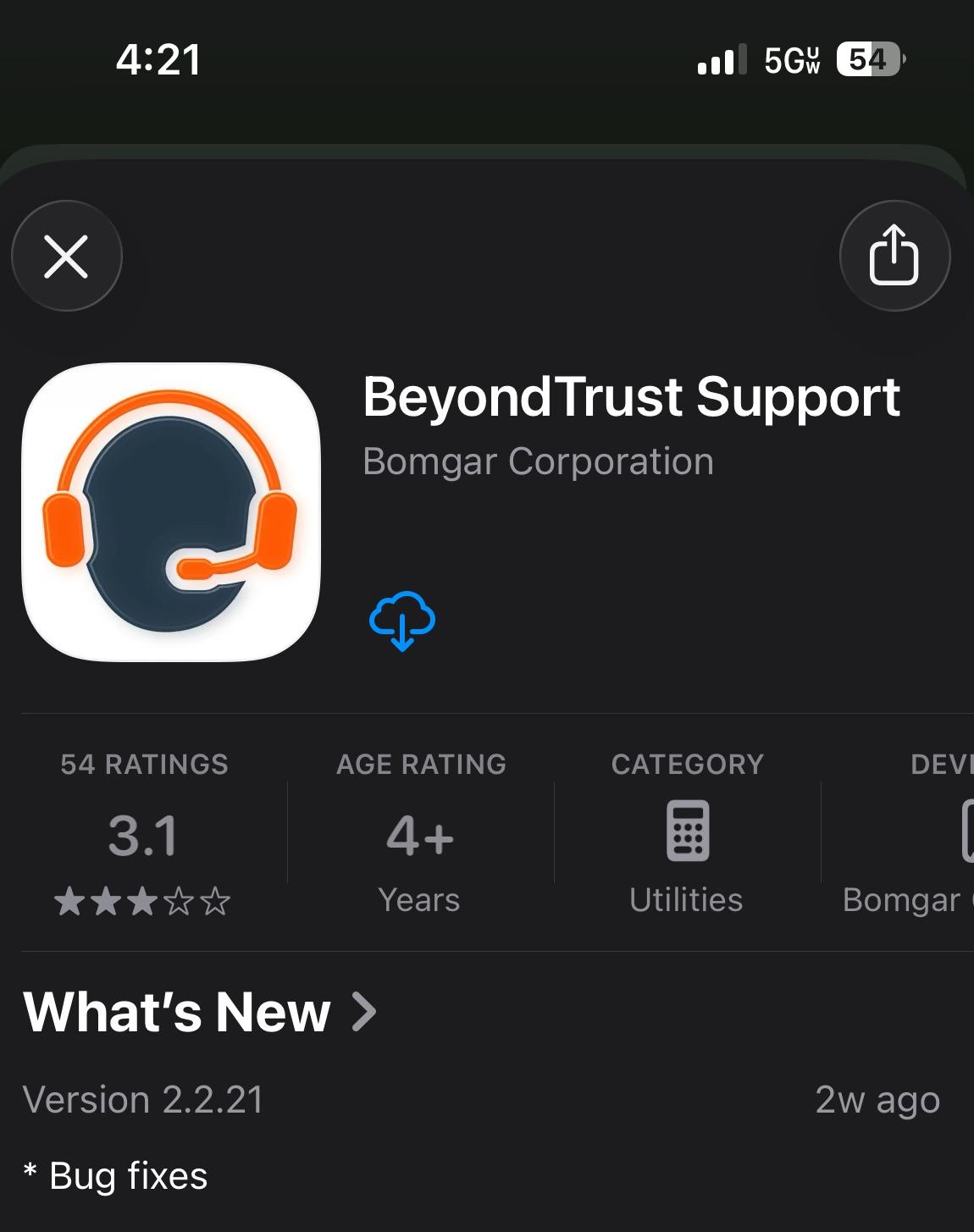
3. After installing the app on your mobile device, you can proceed with either of these methods:
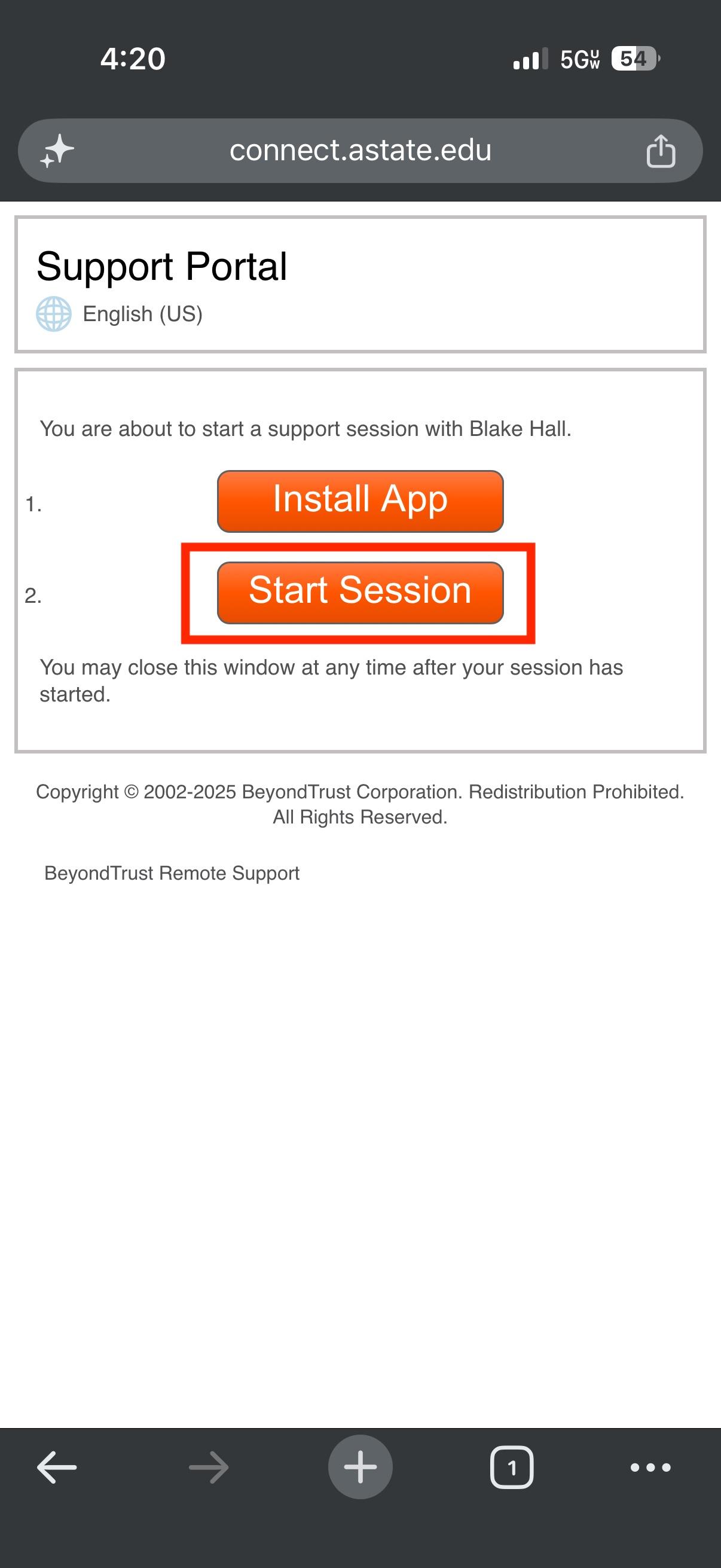
- Go back to the Support Portal page and select "Start Session" (select Allow when prompted) or
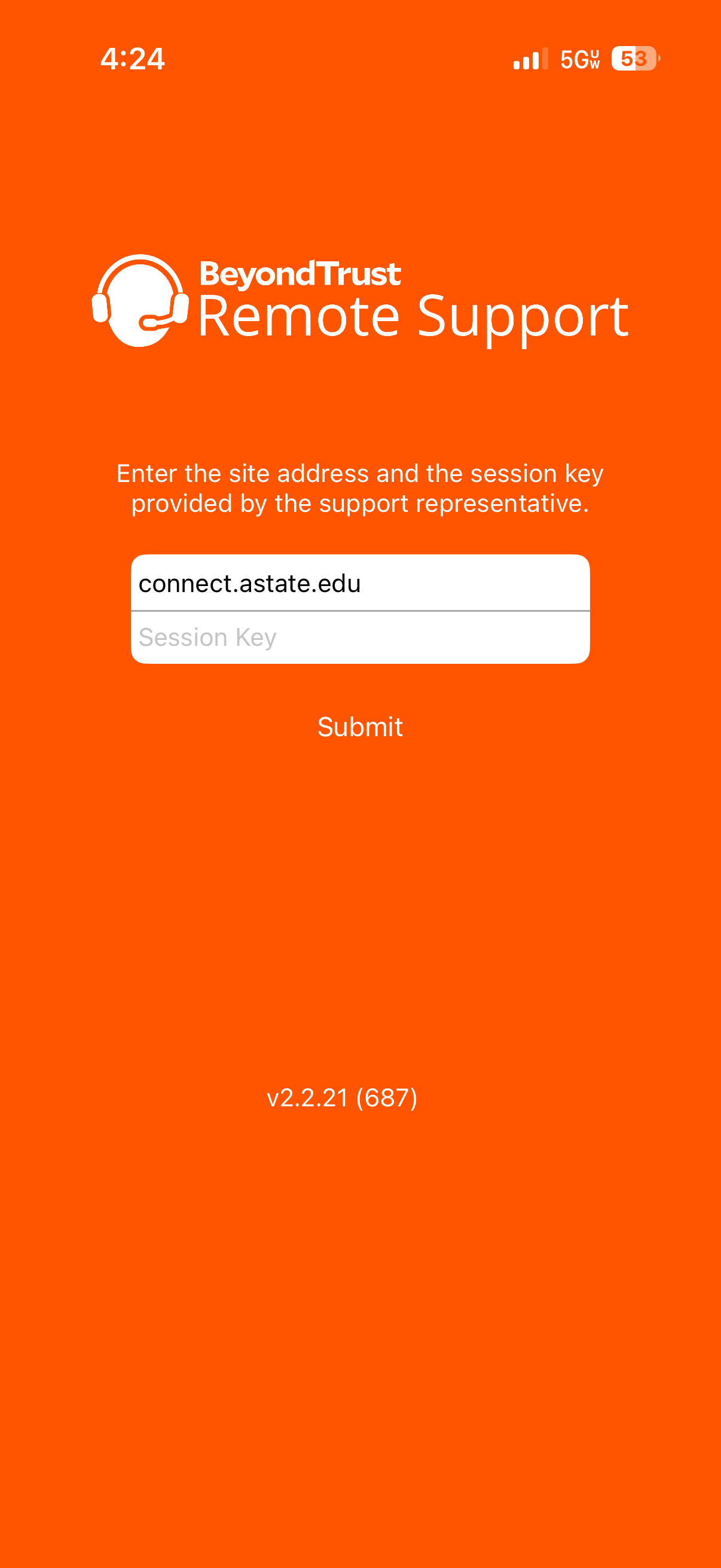
- Open the app itself and type connect.astate.edu in the "Site Address" field and the A-State agent can provide you with the Session Key
Option 1: Option 2:
3. Either method will connect your device to the BeyondTrust portal, where the agent can remote in and see this screen:
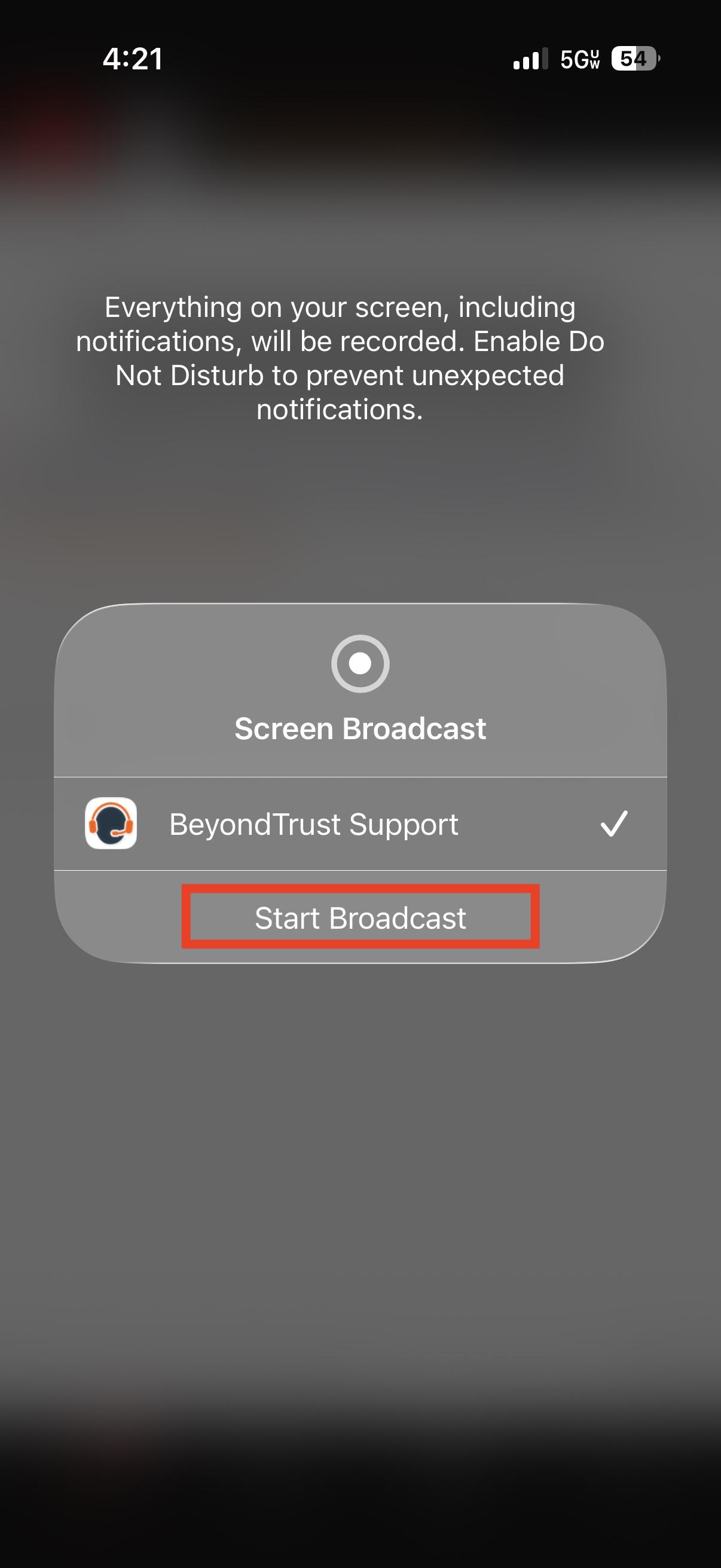
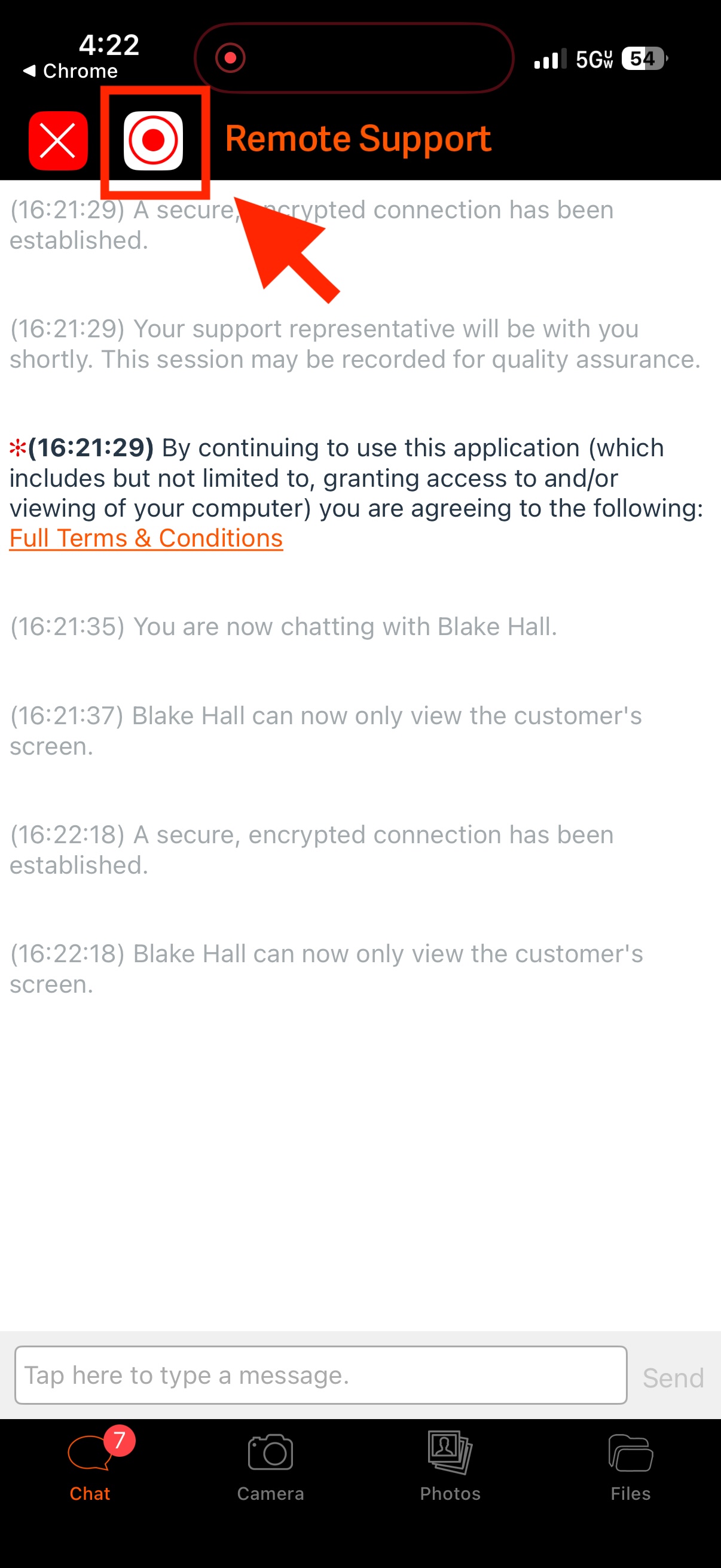
- Select the circle icon at the top of the screen and then select "Start Broadcast"
- Please note, the agent will not be able to see anything other than the chat screen until you start the broadcast, if the circle icon is RED, the agent will be able to view your screen on your device
Not Sharing Sharing
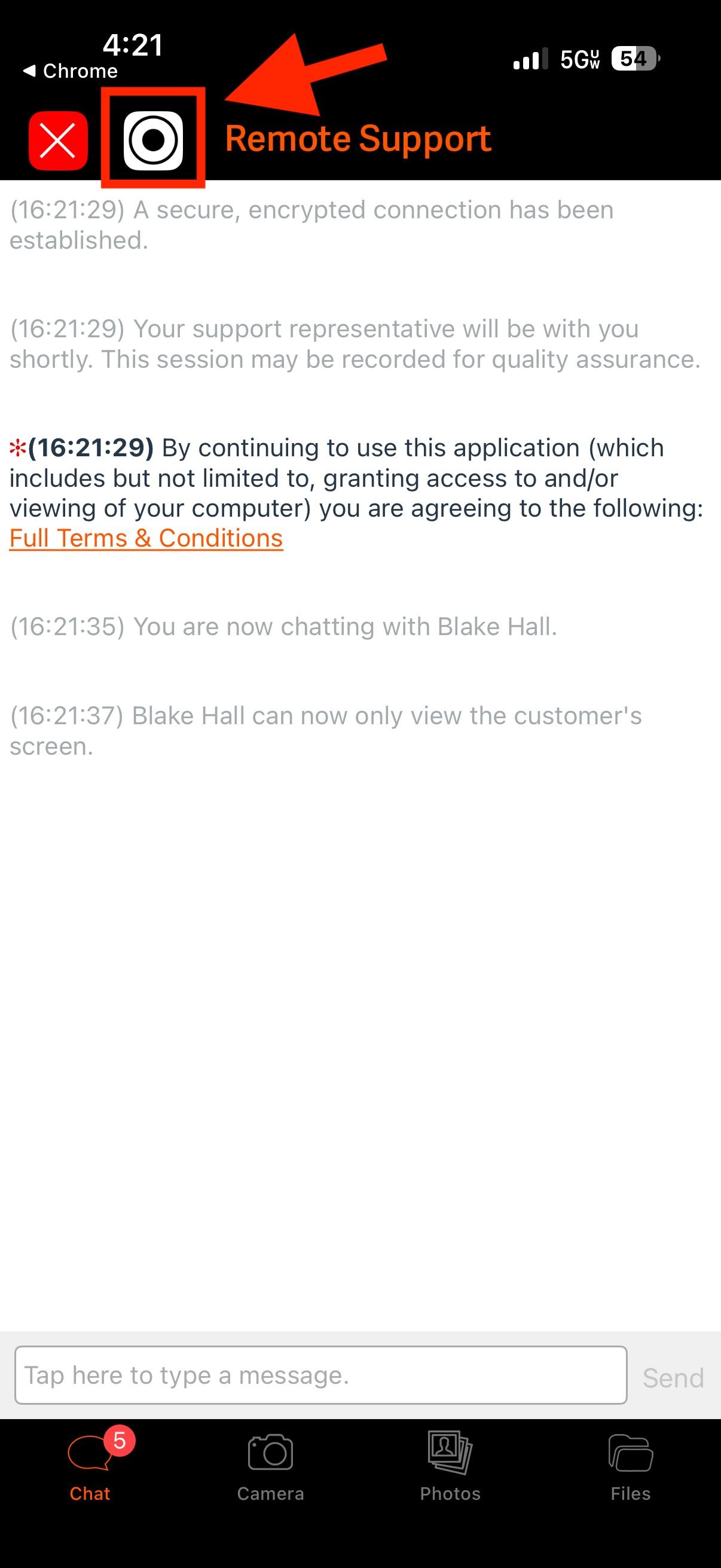
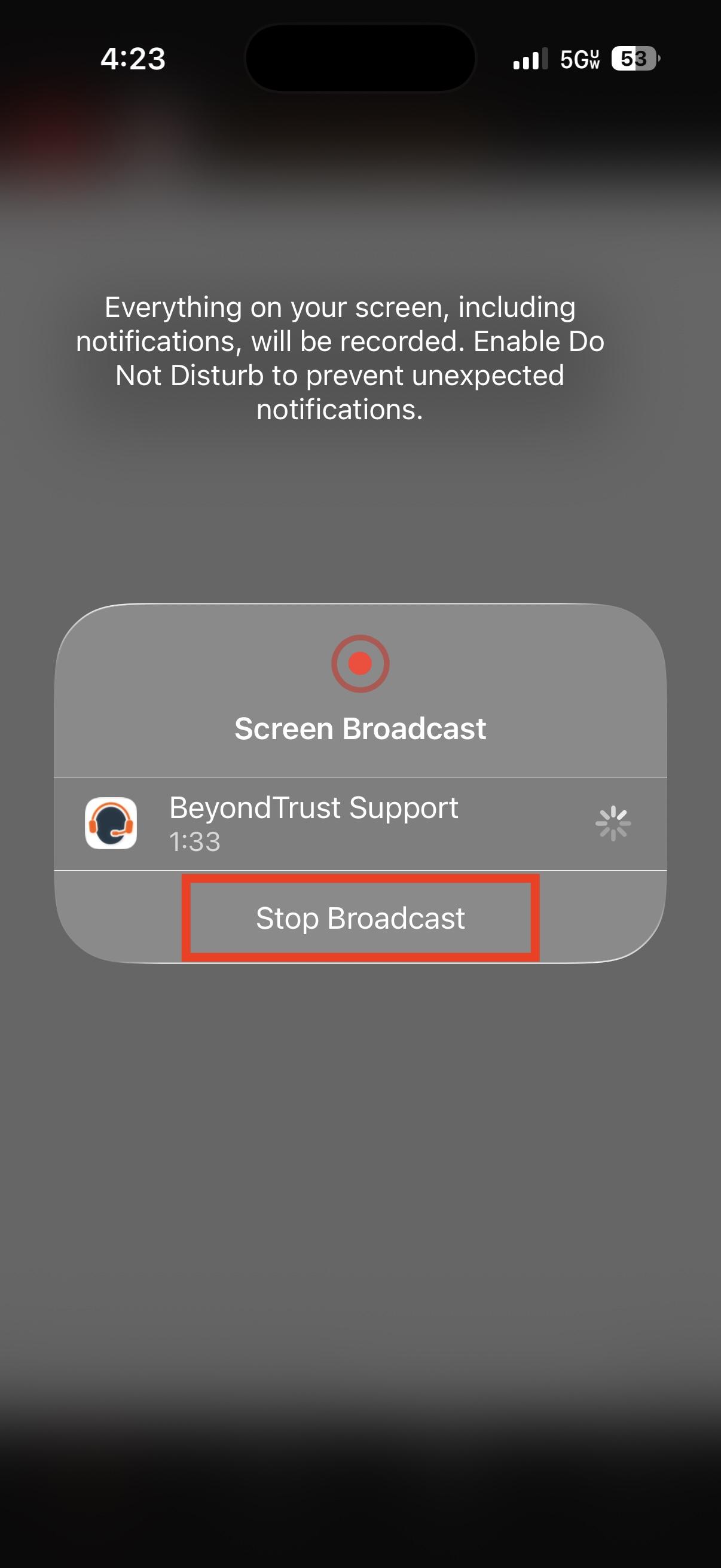
4. Once you are ready to end the session, tap the circle icon again and select "Stop Broadcast"
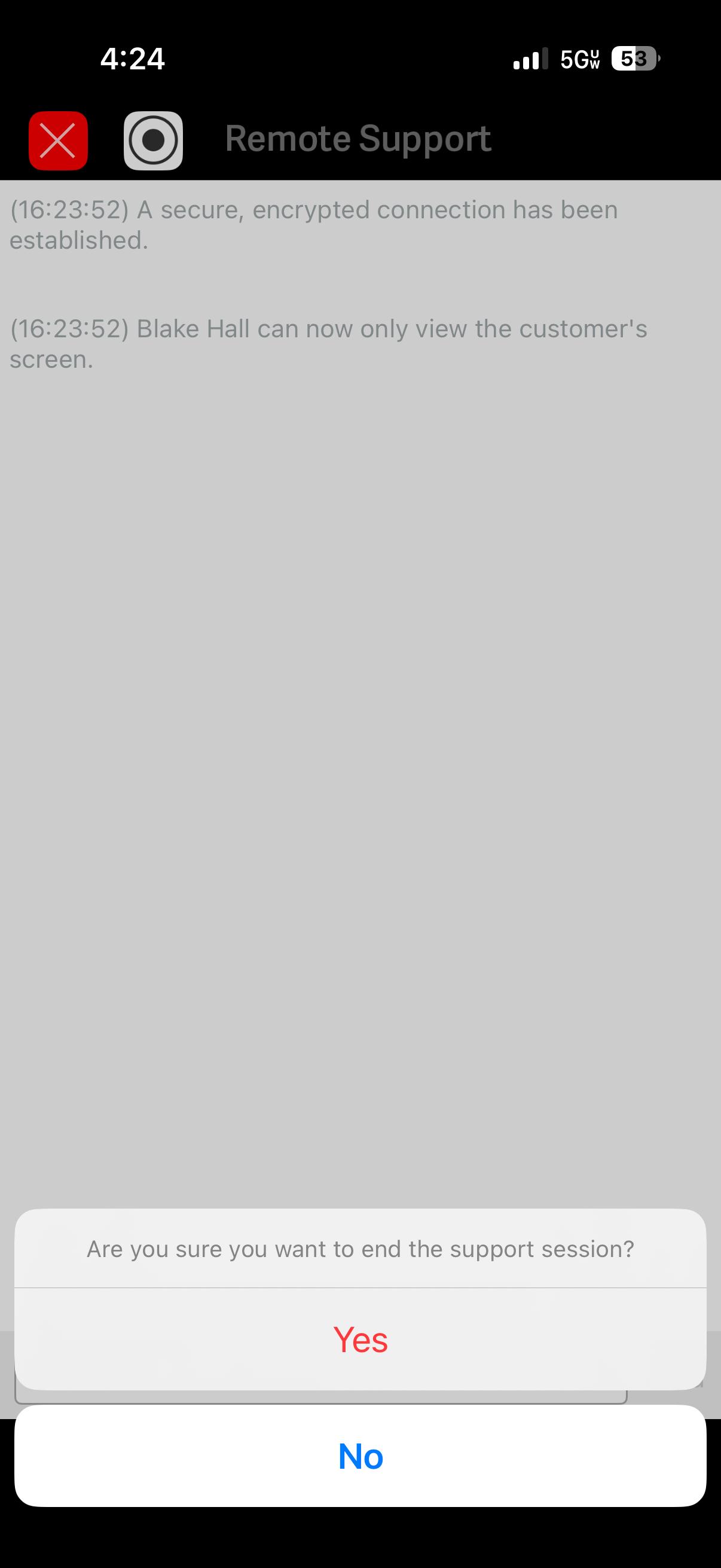
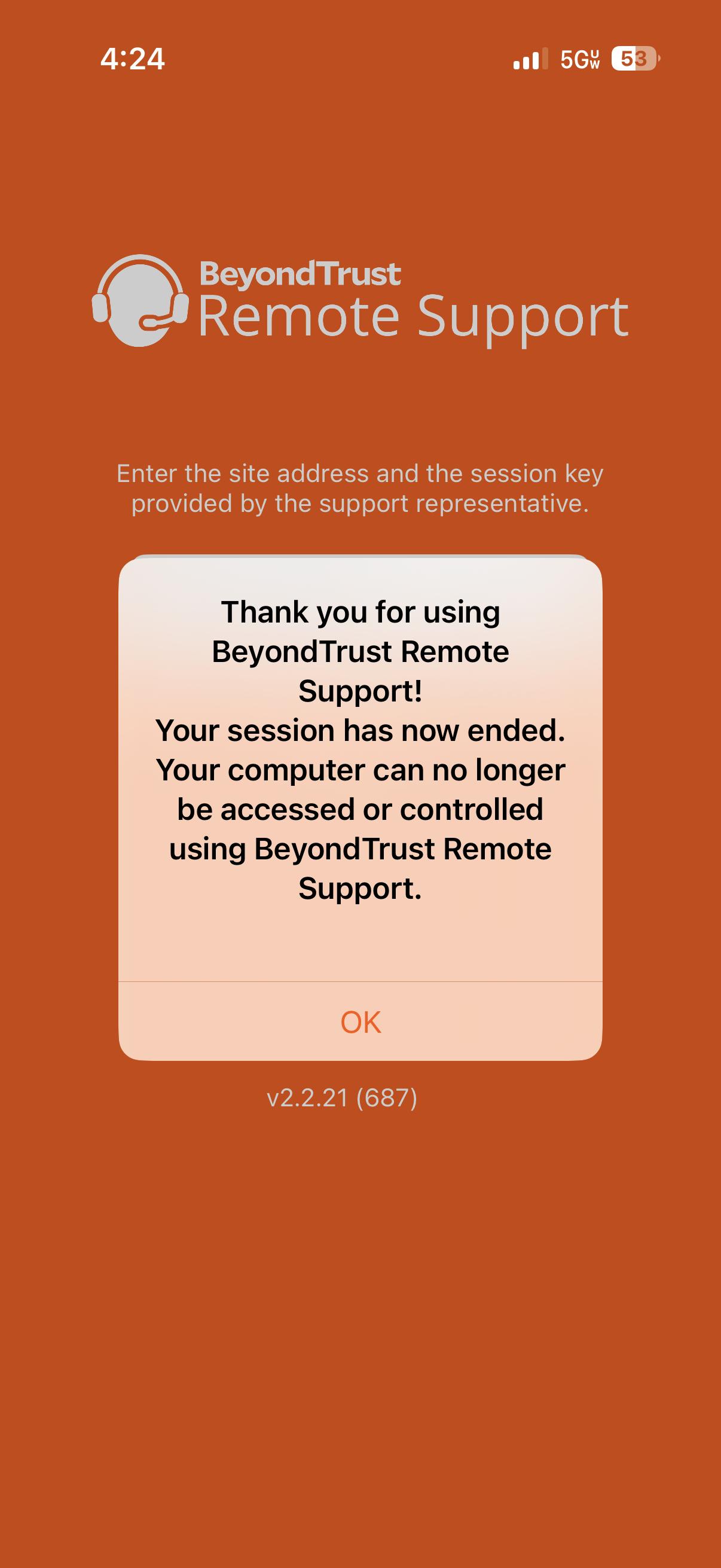
5. To completely end the session and remove access for the A-State agent, tap the "X" in the top left and select Yes, when it ask if you want to end the support session, you will receive a confirmation message when disconnected