
Enrollment Dashboard Navigation
-
Sign in to Argos.
- In the left-hand panel, open the JBORO folder.
-
Inside JBORO you will see
two sub-folders:ChairsandDeans.SelectChairs Folderif you are a department chair.SelectDeans Folderif you are ayour collegedean.folder.
NOTE: You may be prompted to sign in again when you select your folder.

Access
-
Dashboards are college specific. You can view only the dashboards for your own college.
-
Example: the Dean of Liberal Arts cannot open the Engineering & Computer Science dashboard, and vice versa.
-
If you do not see the deans or chairs folder, email bcreech@astate.edu.
Select and hit Run Dashboard.

Report Options
- Enrollment
Displays each student with their degree information, semester credit hours, and overall credit hours. - GPA
Shows students’ degree information alongside their GPA and academic standing. - Student Details
Displays students’ personal information, including race, age, address, and phone number, alongside their degree information.

Need help?
Use the HELP tab in the upper left of the dashboard. It includes quick guidance on:
-
What each section shows (Enrollment, GPA, Student details)
-
How filters work (Term, Campus, Level, Major)
-
Common issues (e.g., “no results,” missing access, export tips)
Tip: Switch back to your data anytime by clicking the Main tab.
Save / Export Results
-
Right-click anywhere in the report grid and choose Save Results.
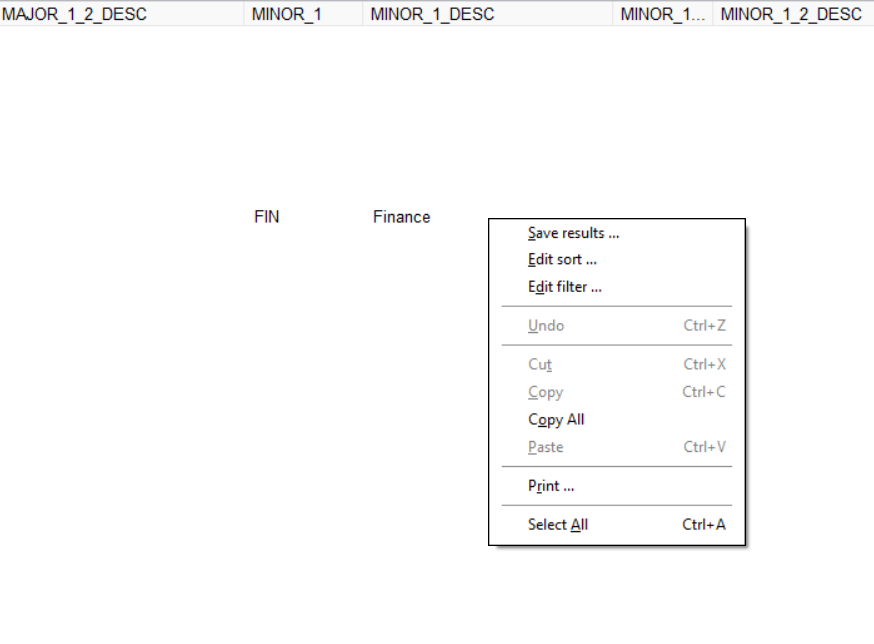
2. In the dialog, uncheck any columns you don’t want included.

3. Click Save.
4. Choose OneDrive as the location so you can access the file from anywhere.

5. Name the file and confirm Save.
Tip: If you don’t see Save Results, click once inside the grid to activate it, then try again.
Video
How to access & use Enrollment Dashboard.mp4