Skip to main content
VIEW CLASS LIST / ROSTER
1. Login to Self Service via my.AStatePack Portal
2. Go to “Class Lists / Rosters” on the Self Service home page
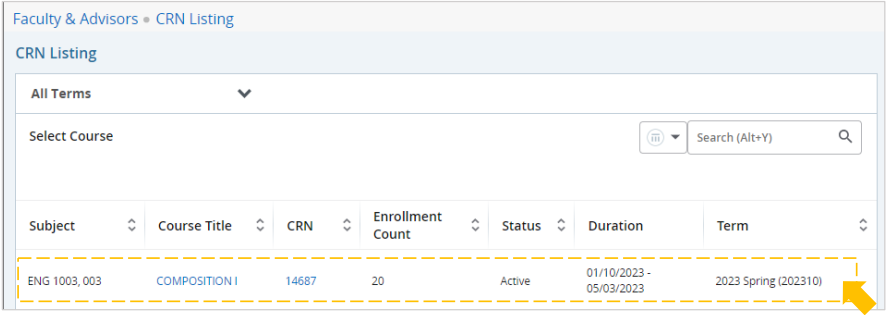
3. A listing of classes where you’re an instructor will be displayed
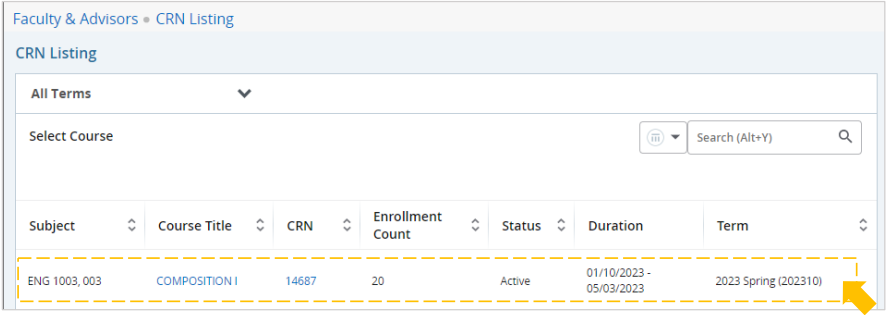
a. Select the arrow next to “All Terms” to filter by term and narrow down the classes listed
b. Select a course title to display the course details pop-up (general course information)
c. Select a CRN to display the class details pop-up (class section specific information)
4. Select anywhere on the white part of the course row to view the class list for that course
5. The class list “Summary View” will display
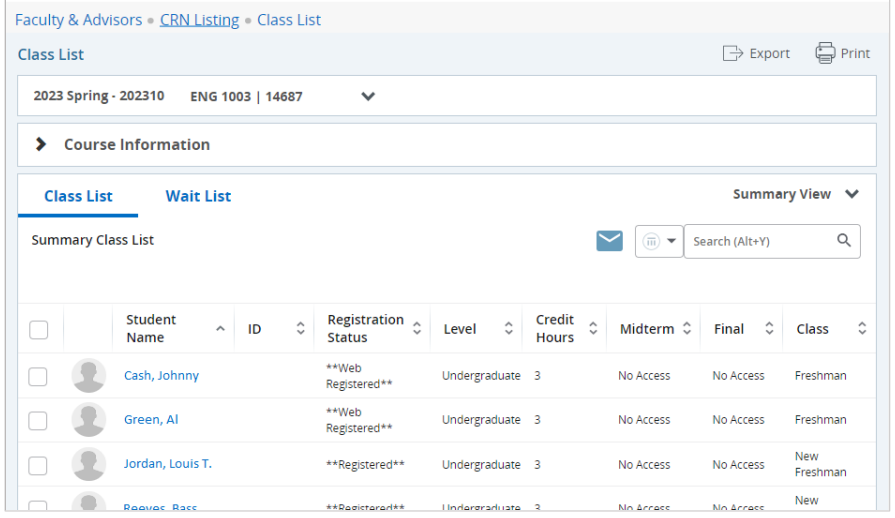 a. Use the “Export” button to save the class list as an Excel file
b. Select the “Print” button to open a printer friendly class list that you can print or save as a .pdf

c. Use the checkboxes to select students, or check the top box to select all
d. Select the envelope button to email all selected students
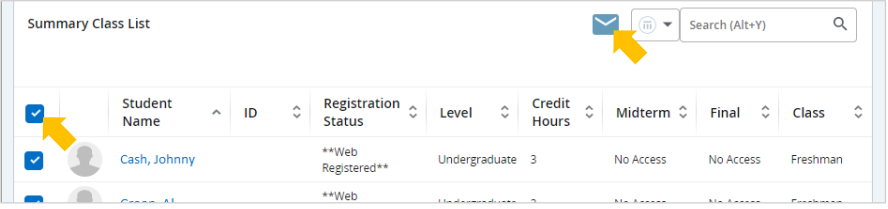
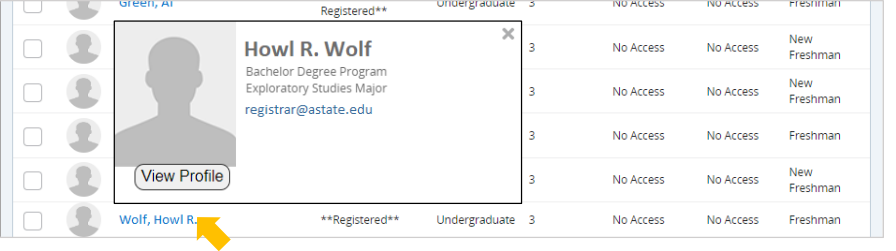
e. Select a student’s name to view their student profile, including advisor information
f. Hover over a student’s name to view a quick summary, including their email address
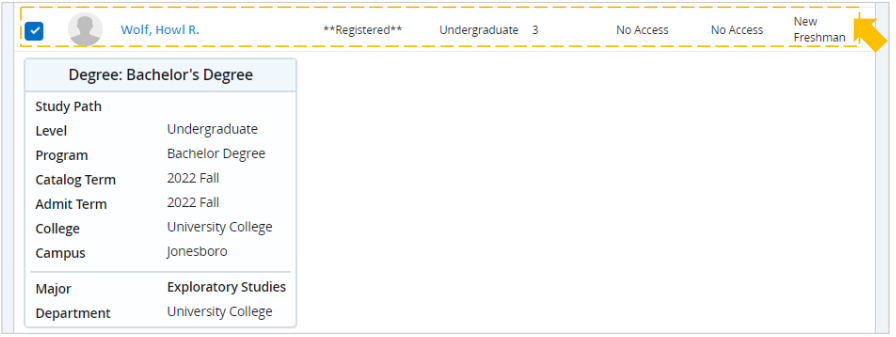
g. Select anywhere on the white part of the student row to expand that student’s degree information
i. Switch to “Detail View” to expand degree information for every student on the class list