Mac/iOS - AStateSecure Connection Troubelshooting
If you are having trouble connecting to the AStateSecure network on your MacBook or iOS device and it keeps going in a loop and asking you to run a Network Diagnostics, follow these steps to resolve the issue.
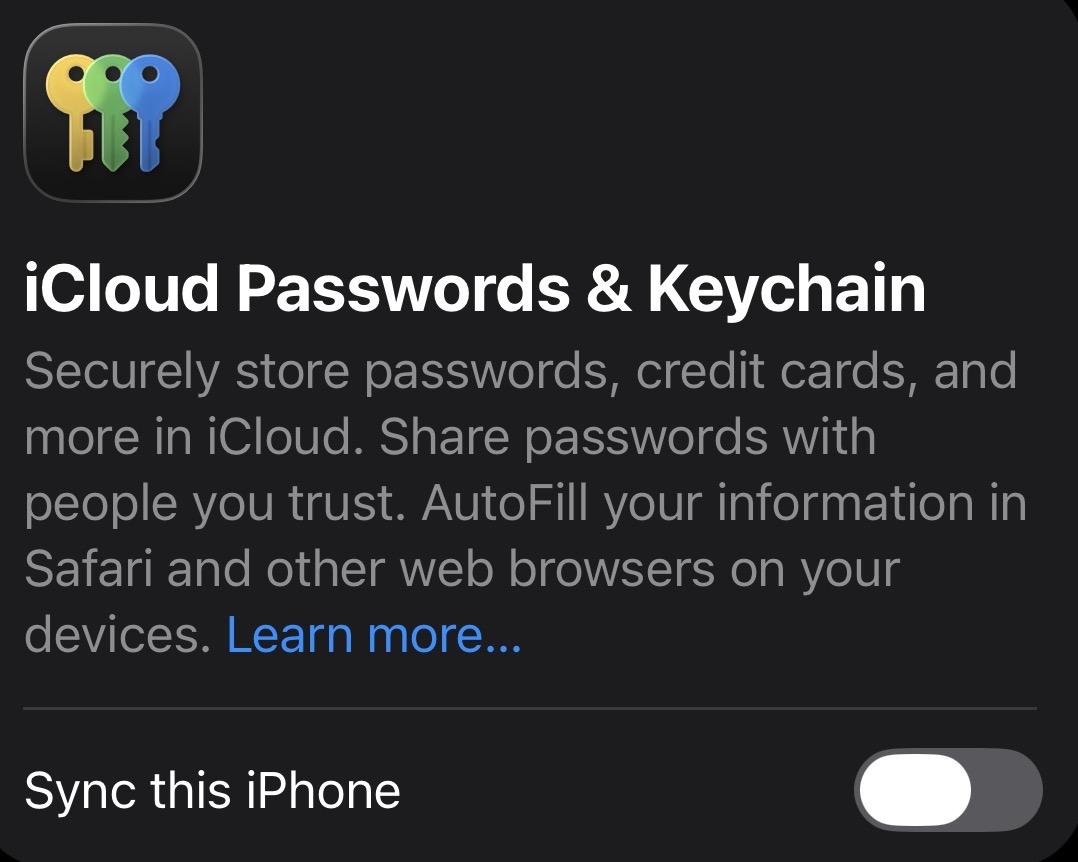
First, you will need to temporarily pause your iCloud/Keychain sync on your iPhone
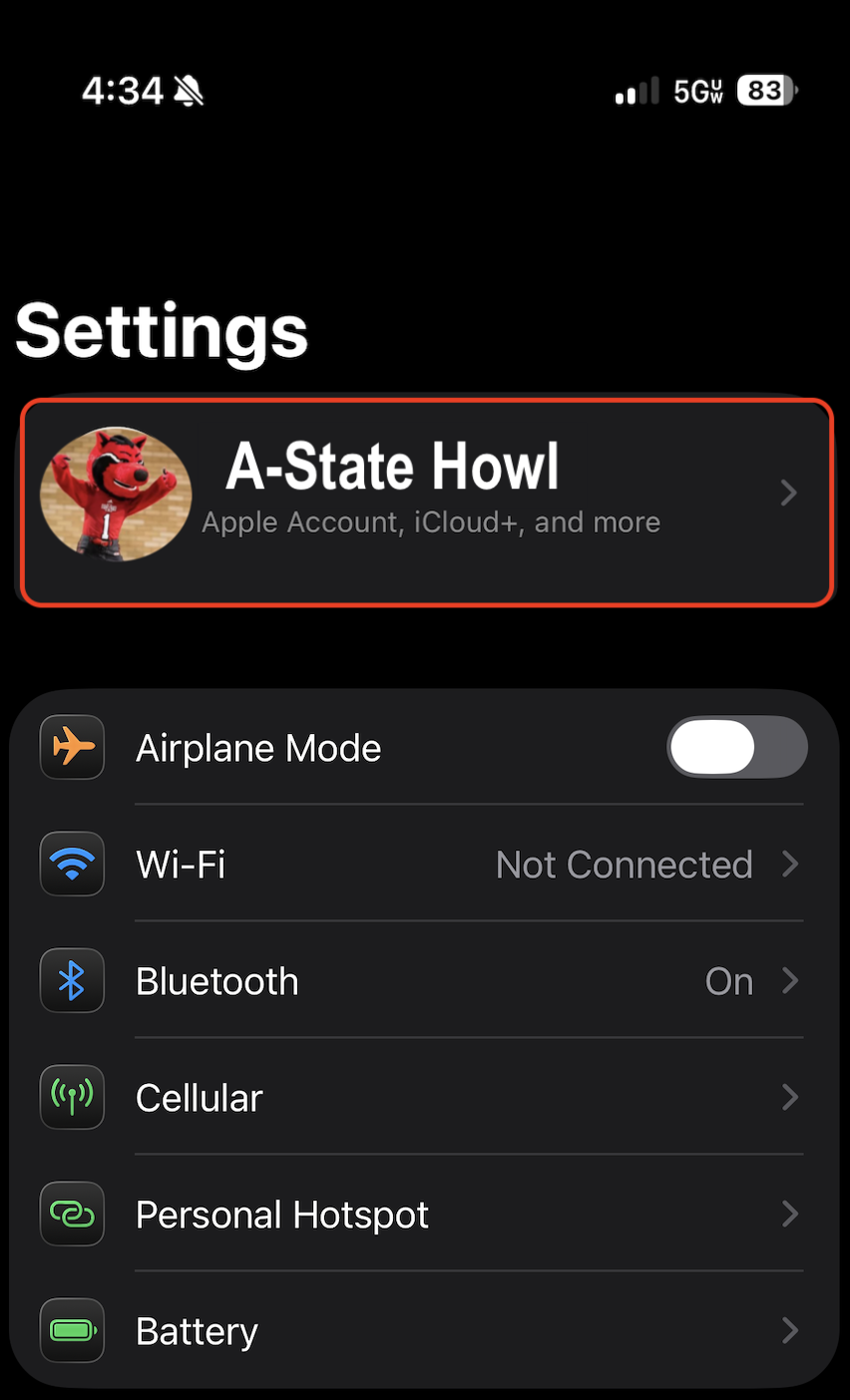
- Open the Settings app on your iPhone
- Tap your name at the very top of the screen
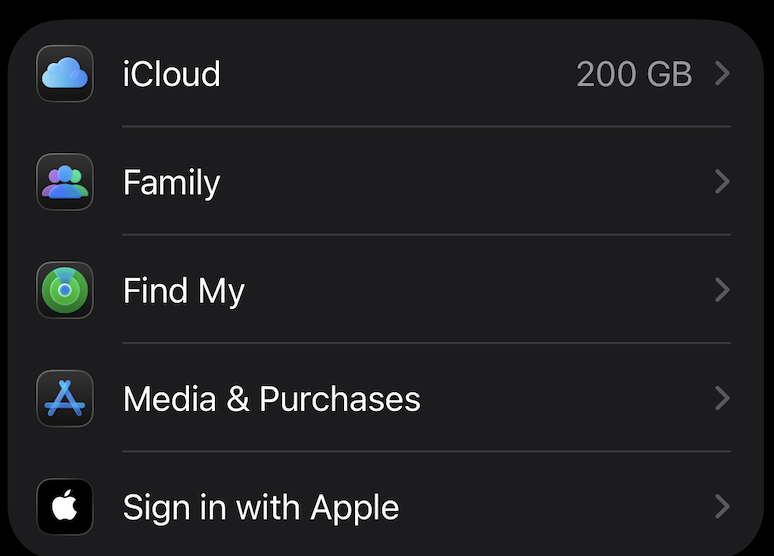
- On the next screen, tap the iCloud option
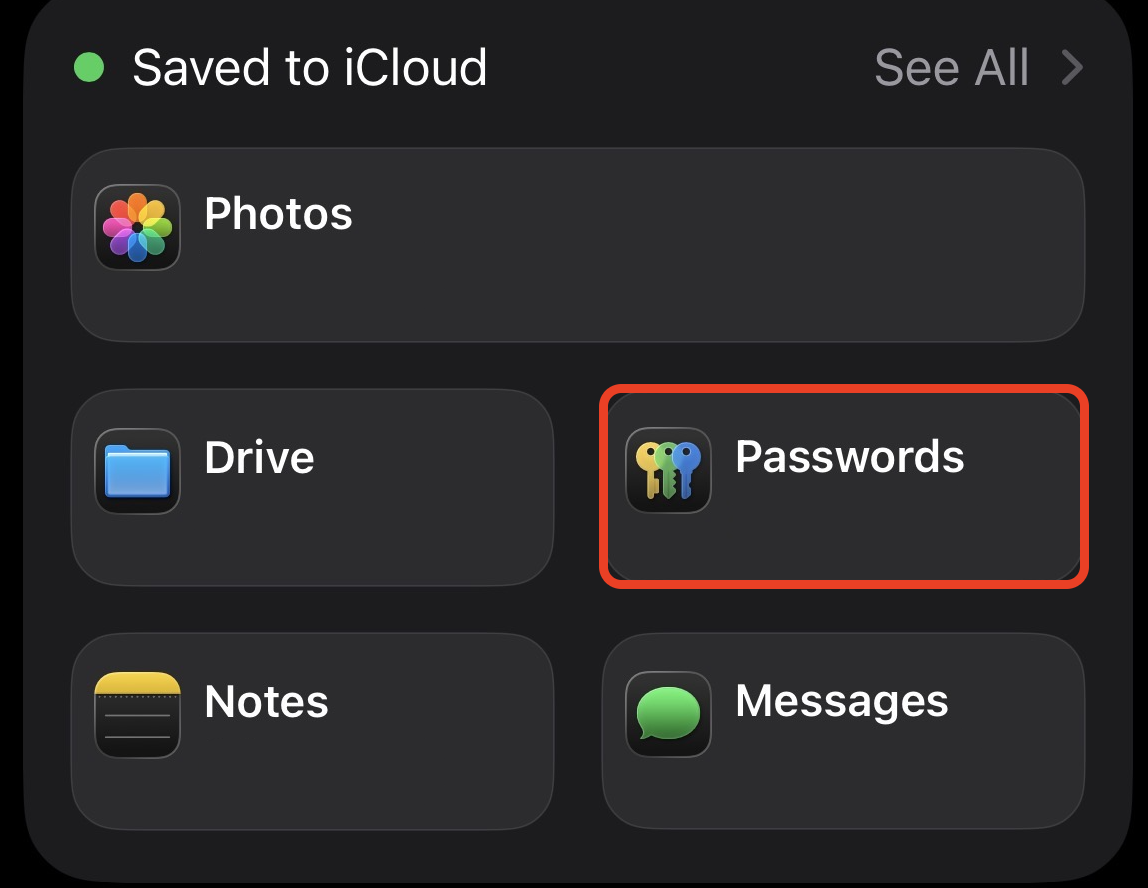
- Tap Passwords in the Saved to iCloud sections
- Toggle iCloud Passwords & Keychain to OFF
Once you have that paused, go back to your MacBook or your iPhone and follow these steps to forget the AStateSecure network:
- Go to your devices Network/Wifi settings
MacBook
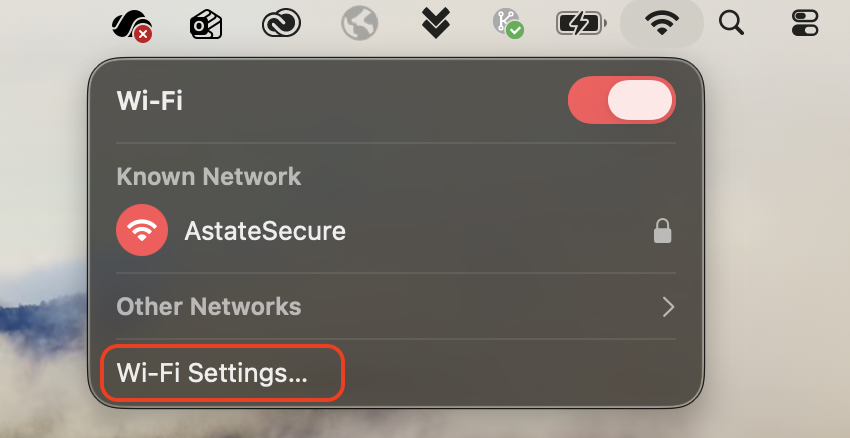
- Click on the Wifi symbol in the top right of the screen

- Select Wifi Settings... from the list
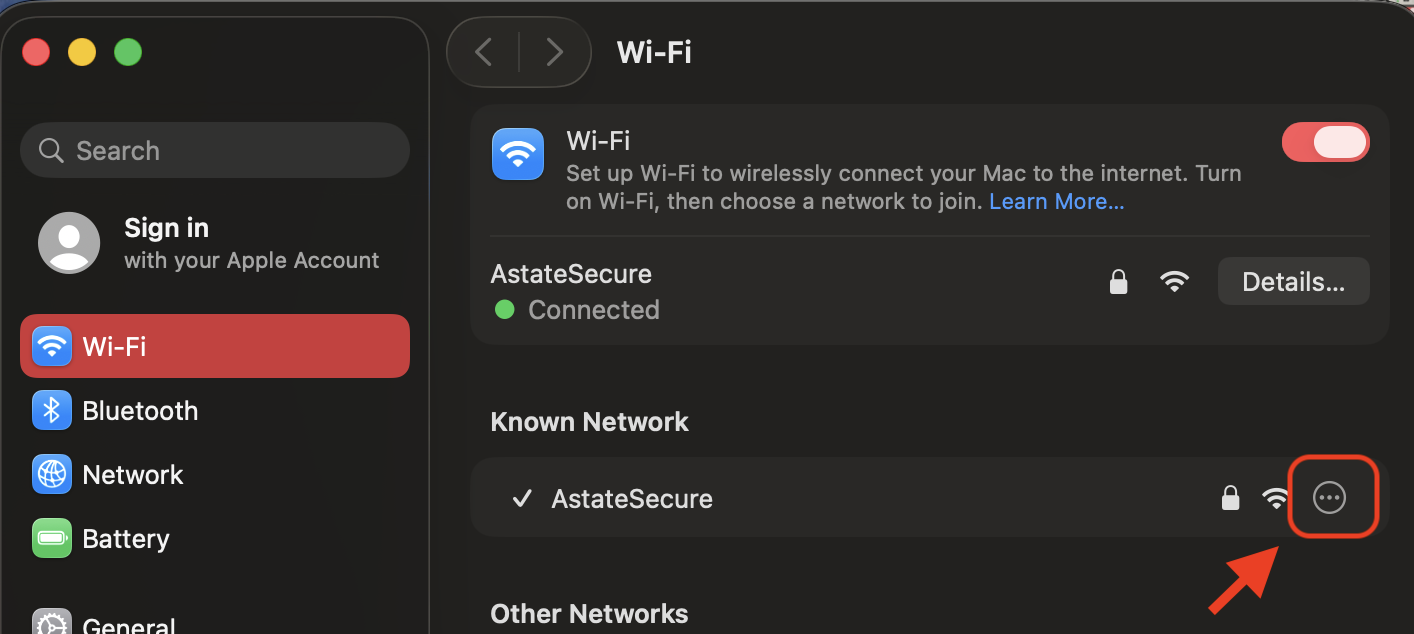
- Select the 3 dots icon on the AStateSecure bar
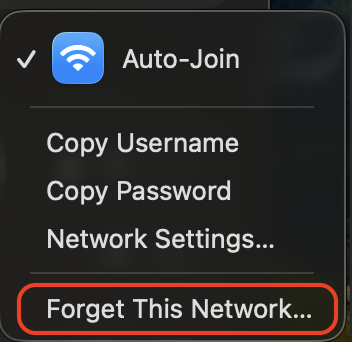
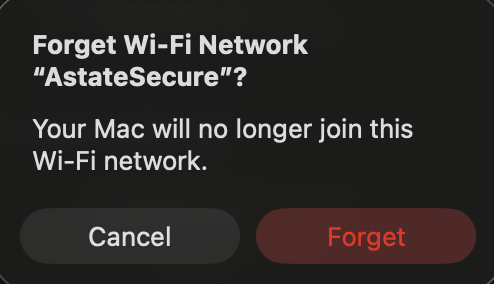
- Click Forget This Network... and then select Forget when prompted
iPhone
- Open the Settings app
- Select Wi-Fi from the main screen
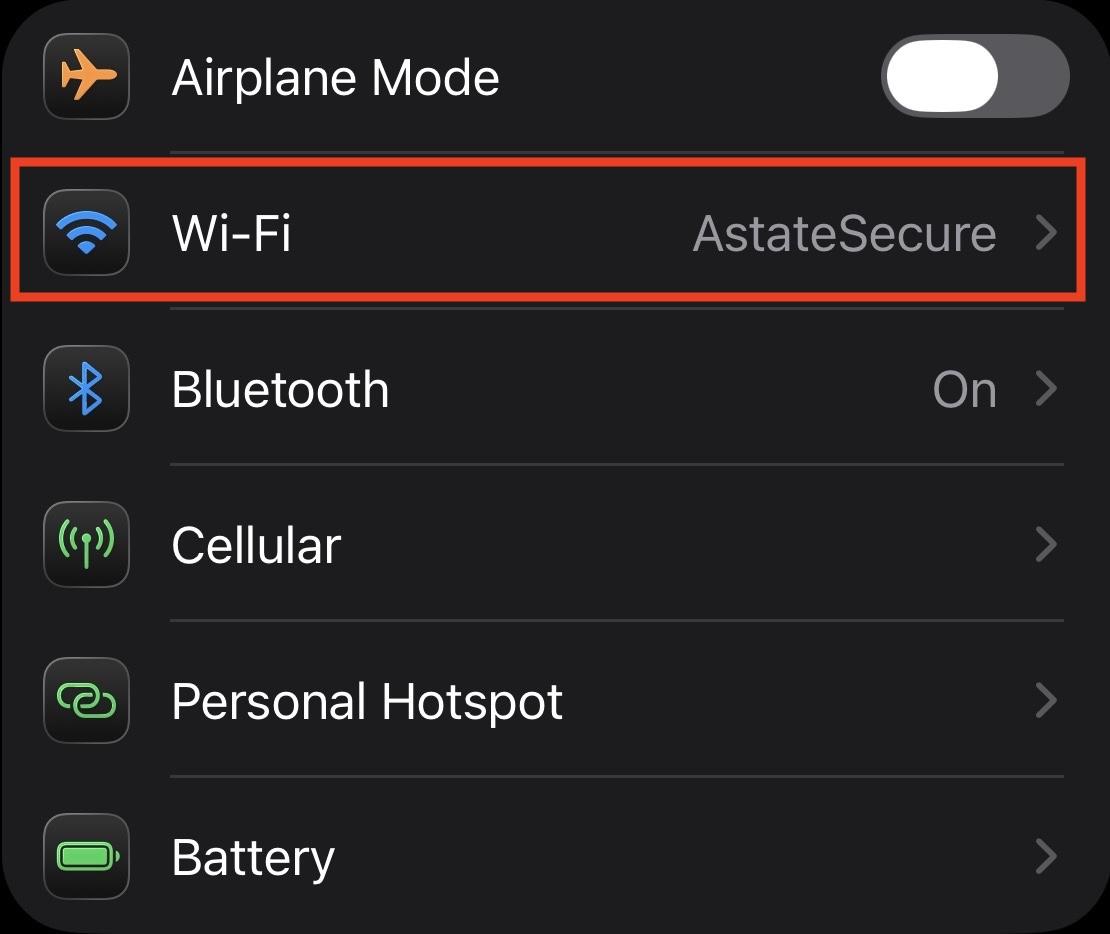
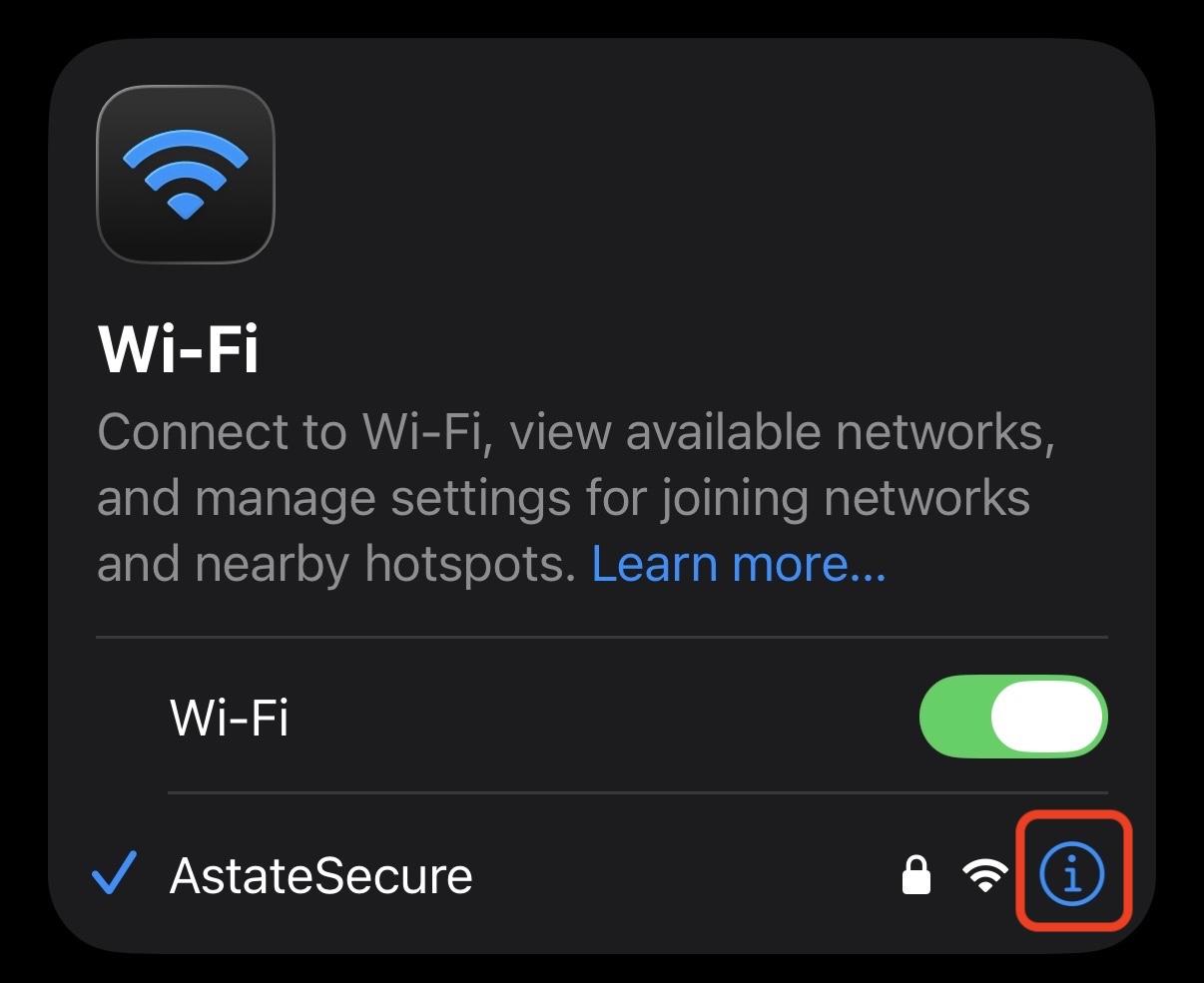
- Tap the blue "i" icon next to AStateSecure