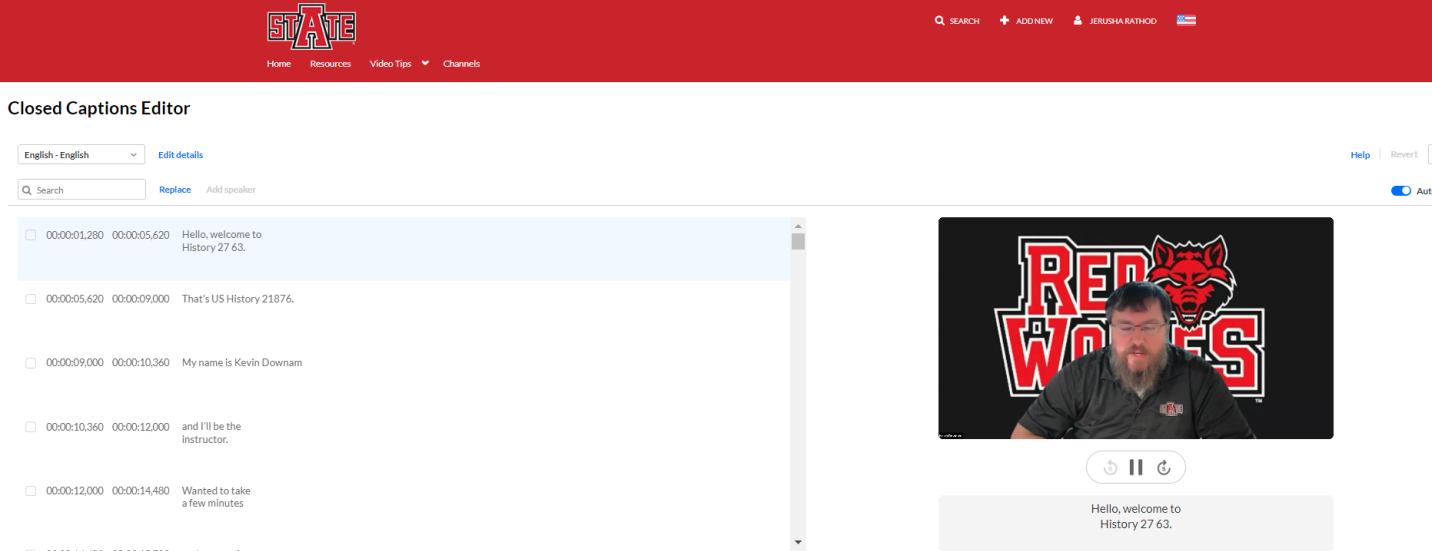
Captioning in Kaltura
What is Kaltura?
Kaltura is a cloud-based video management system that allows:
- Secure hosting of instructional videos
- Easy embedding in Canvas courses
- Auto-captioning and accessibility features
- Video quizzes with gradebook integration
- Analytics to track student engagement
It is integrated with Canvas and available to all A-State faculty, staff, and students.
How do I access Kaltura?
-
Kaltura MediaSpace
Use your A-State credentials to log in and manage your media library. -
Canvas Integration
- Access via My Media in the global navigation menu
- Use Media Gallery in individual courses
- Embed videos using the Browse & Embed tool in the Rich Content Editor
For more details about Kaltura, please review CETL's Learning Technology.
How do I add captions to my videos in Kaltura?
All Kaltura videos receive AI-generated auto captions. This includes videos that have been uploaded onto the Kaltura platform but may have originated elsewhere. Auto captions are generally accurate, but they are not perfect. Kaltura closed captions must be edited to ensure your video is accessible. To edit a video’s captions, please follow the instructions below. You can access your videos through A-State MediaSpace or Canvas. Use the same steps on both platforms.
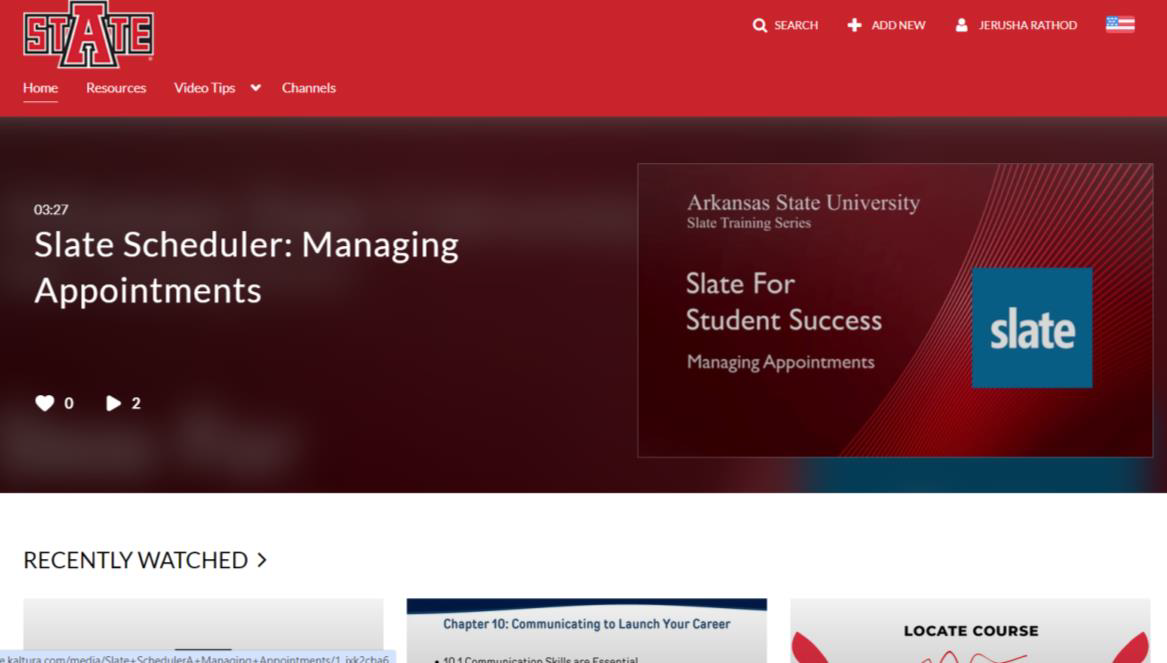
- Log in to MediaSpace using your A-State credentials.
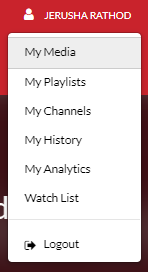
- Click on your profile on the upper right corner of the page.
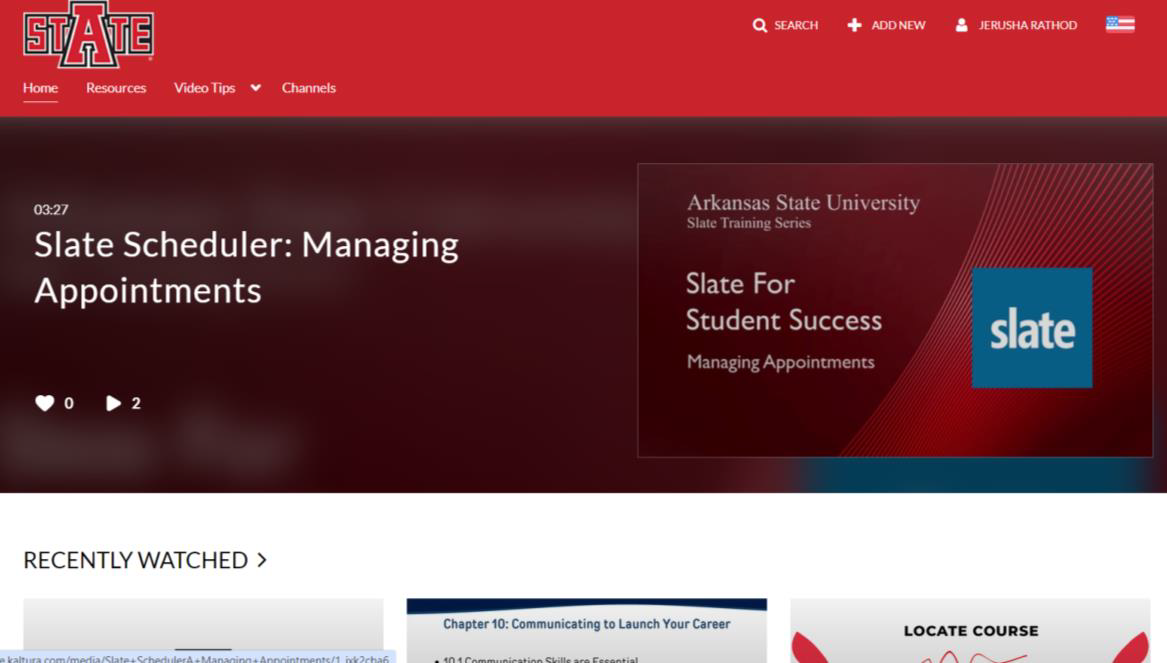
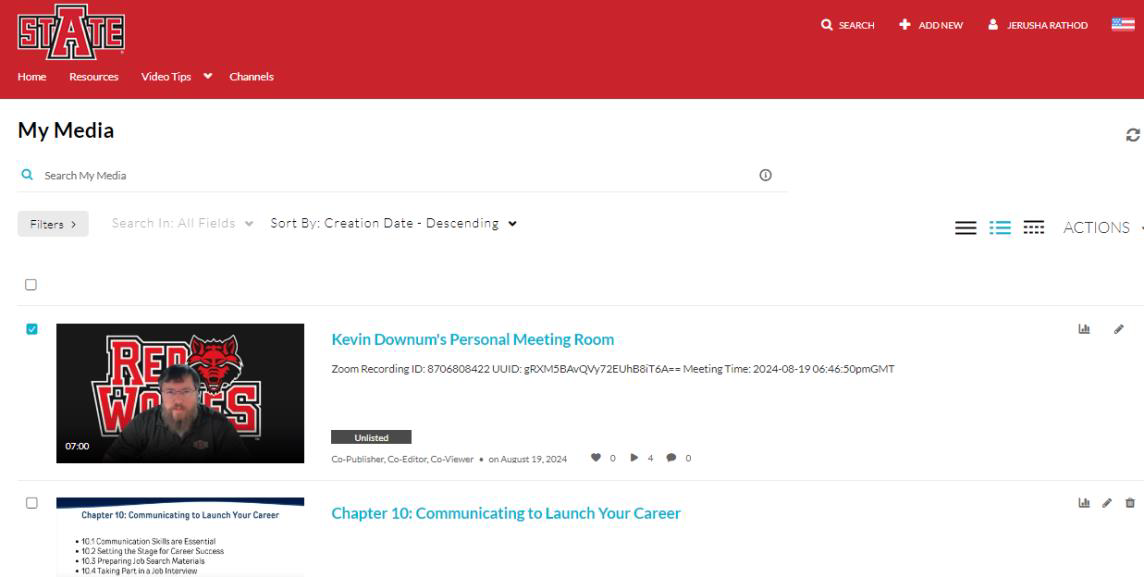
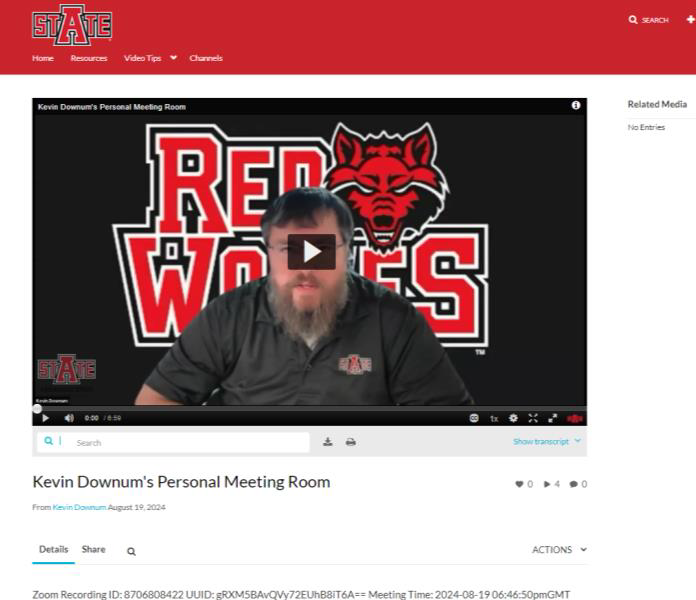
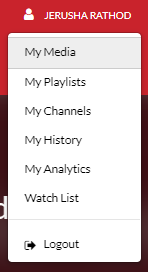
- Click on My Media to view your collection of videos.
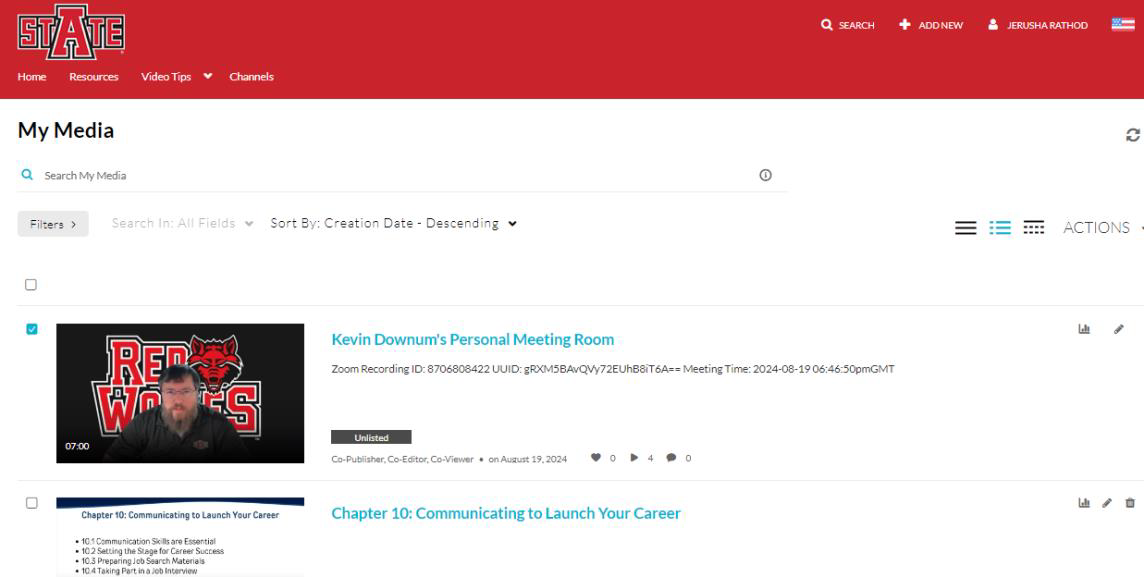
- Select the video for which you wish to edit the captions.
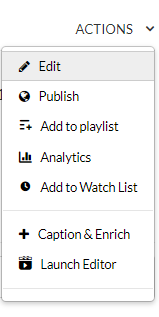
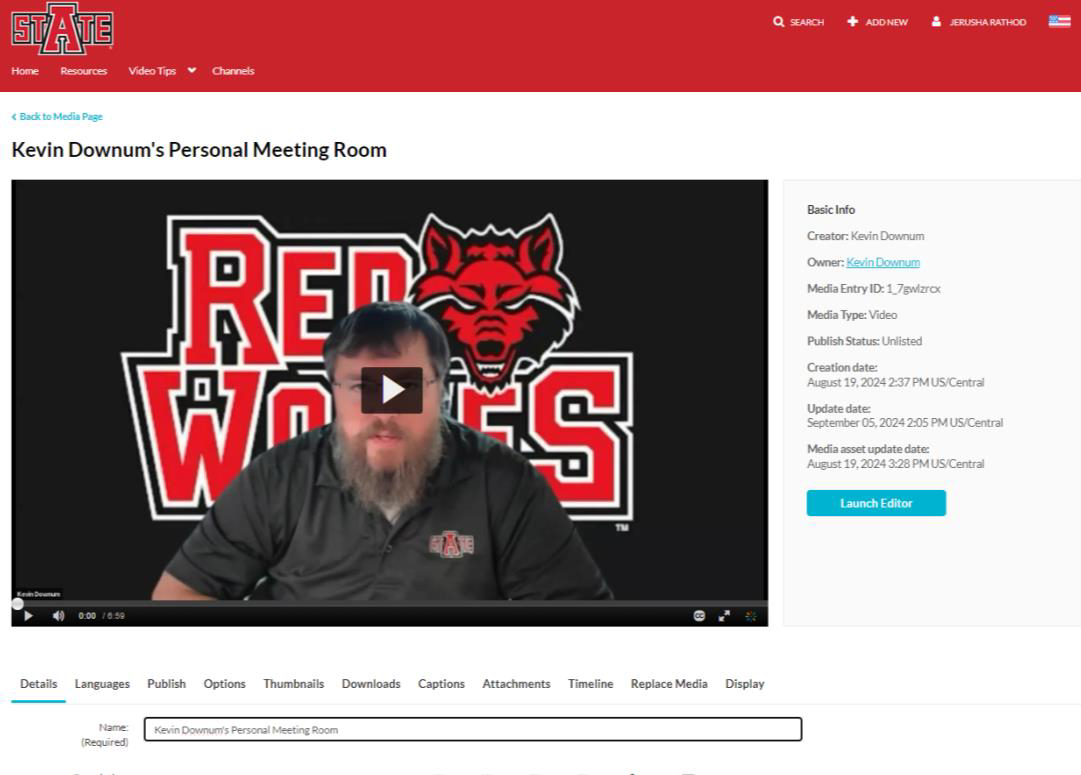
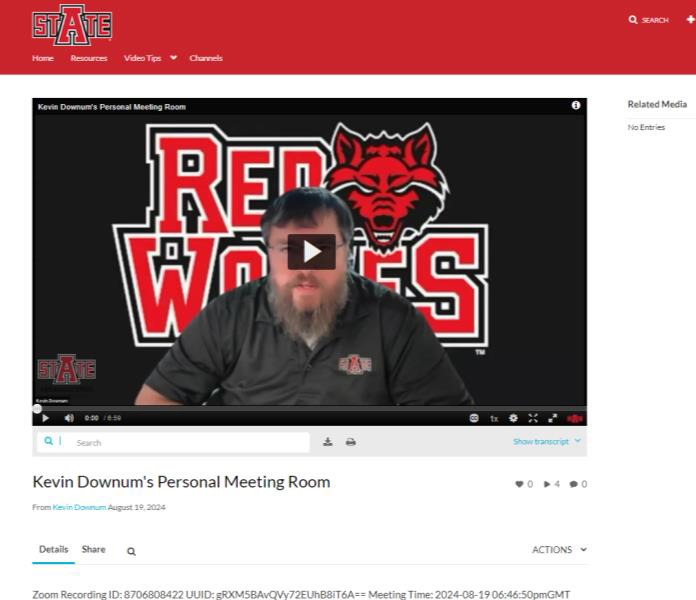
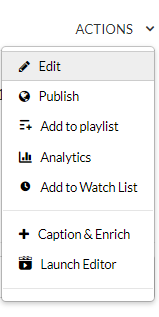
- Click Actions on the bottom right corner below the video screen. Next, click Edit.
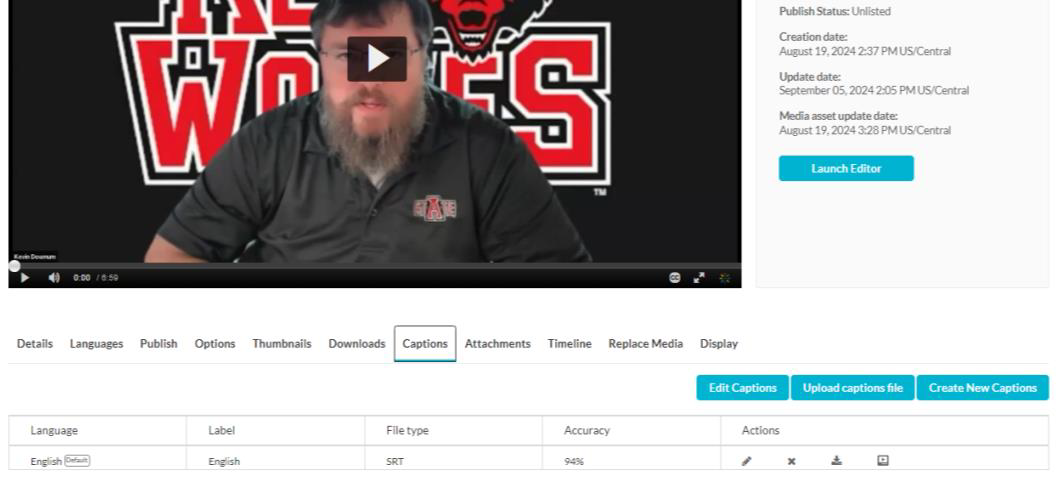
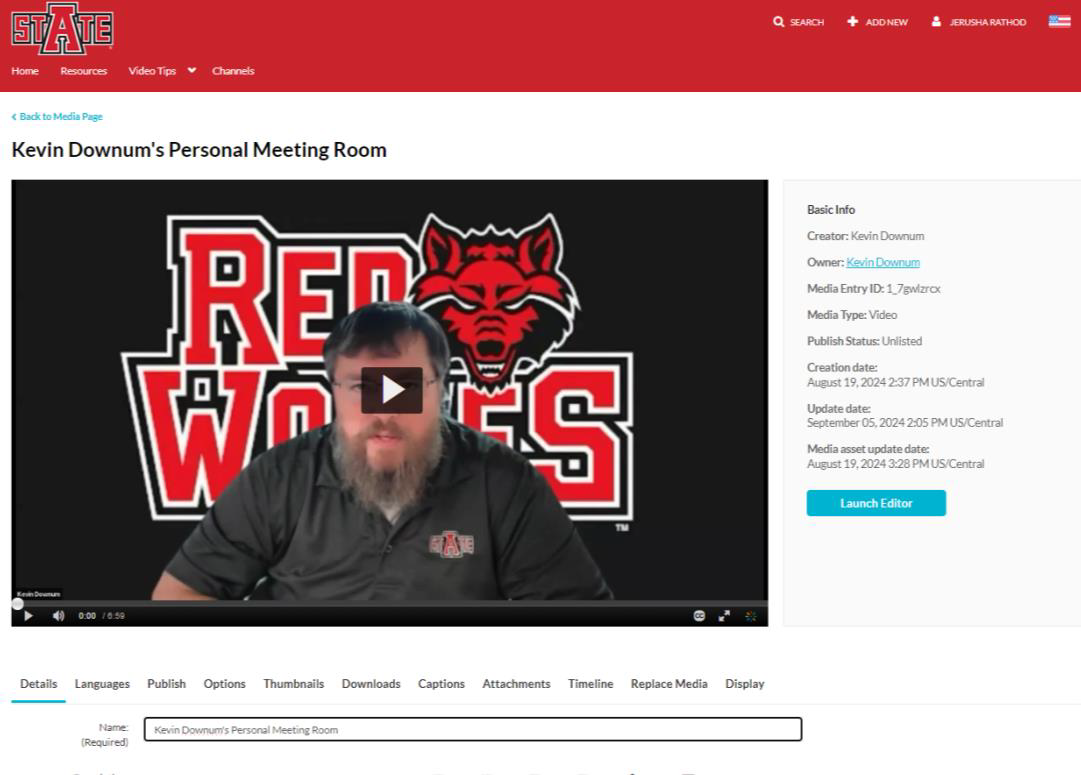
- On the horizontal navigation menu below the video screen, select Captions. Next, select Edit Captions.
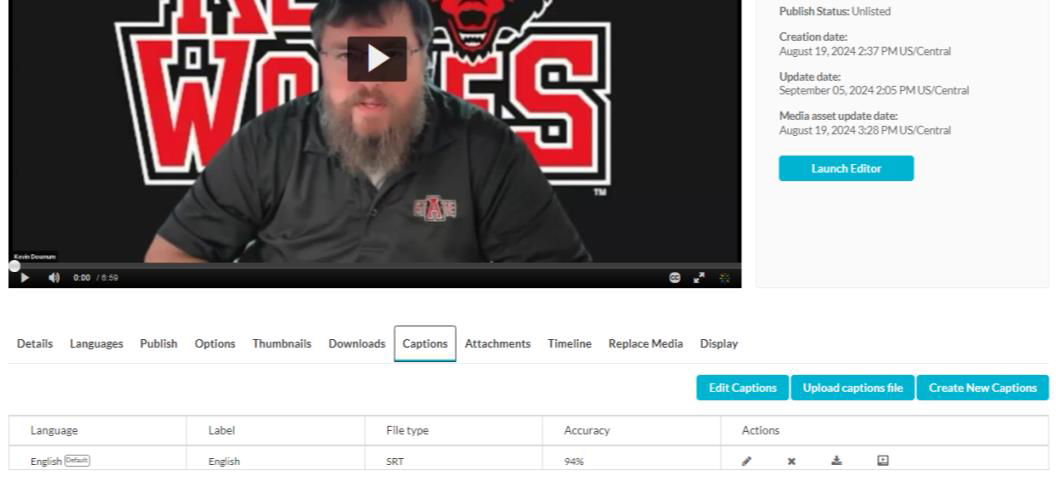
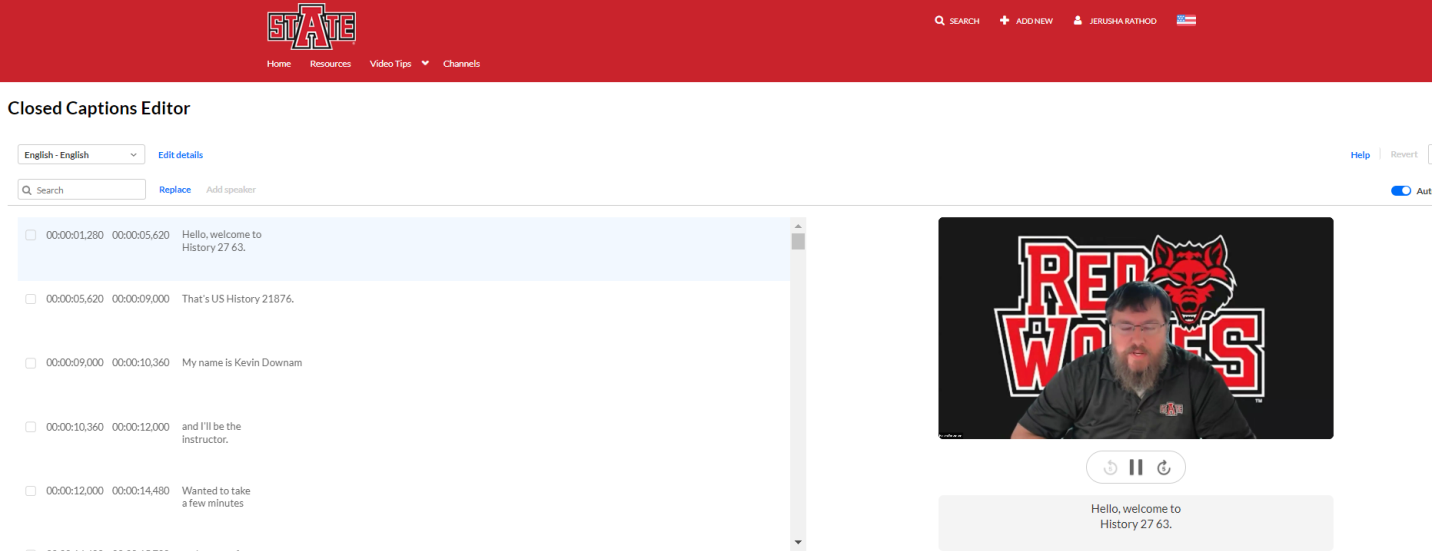
PRO TIP: Use the video player icon on the actions table to enable/disable the closed captions editor screen. - The Closed Captions Editor screen allows users to edit the captions second-by-second. You can enable/disable auto-scrolling while editing, and if you make a mistake, you can use the Revert button to return to previously saved captions. Don’t forget to SAVE your work before exiting the cc editor!