
Install Certificate Authority certificates
These instruction assume the user has administrative access to the server/workstation.
Windows
First copy the CA certificate(s) to the Windows server/workstation.
The following files were copied to the user account home directory.
- Arkansas_State_University_Root_CA_certificate.cer
- Arkansas_State_University_Issuing_CA_certificate.cer
Windows GUI
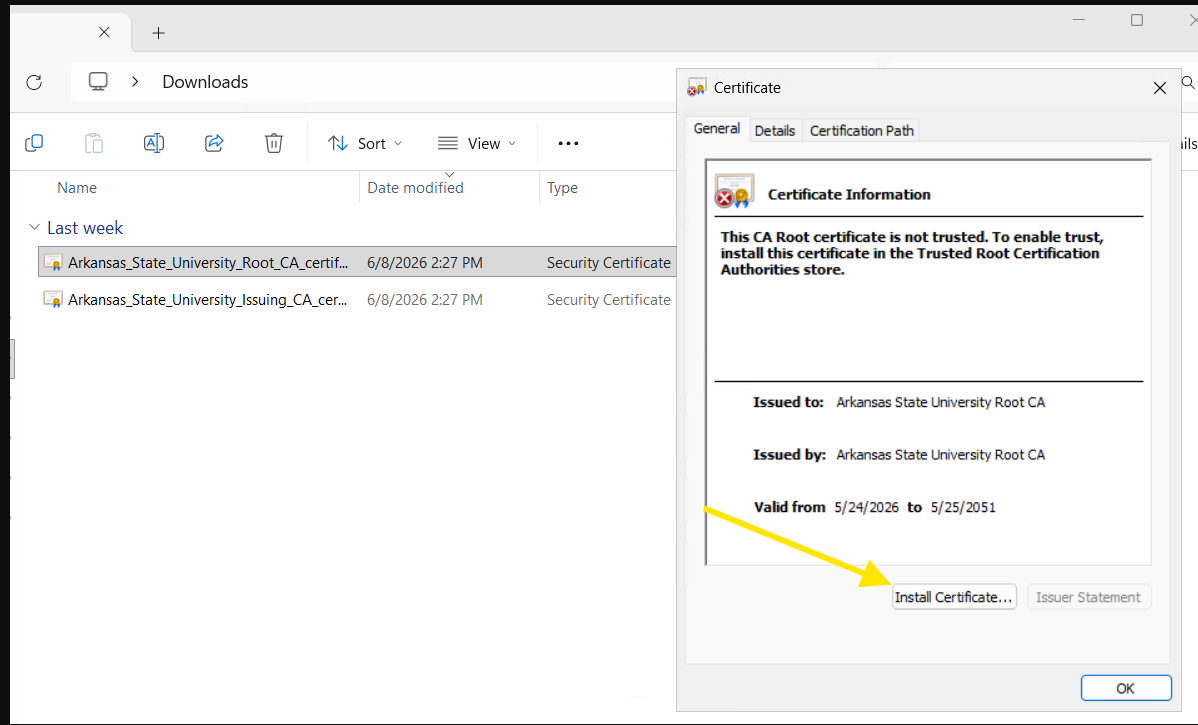
- Double click on the CA certificate to start the install process.
- Select Install Certificate...
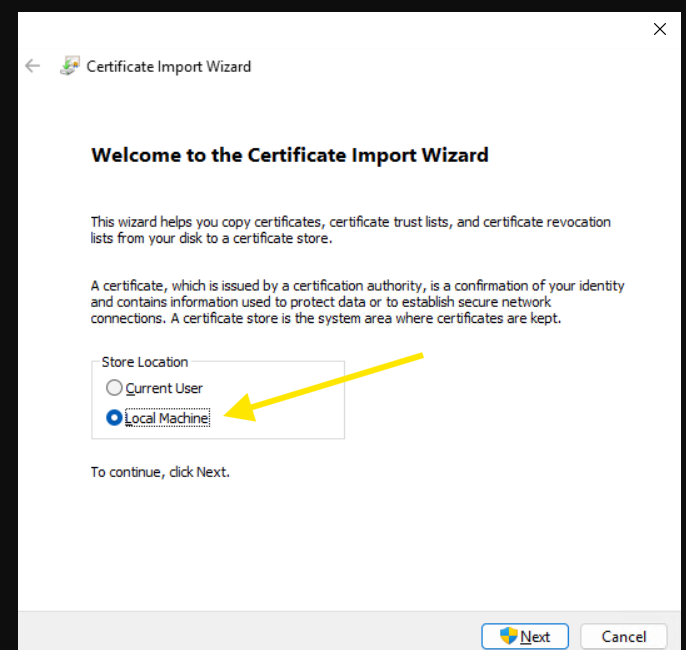
- Select
Local Machinefor the store location and click Next.
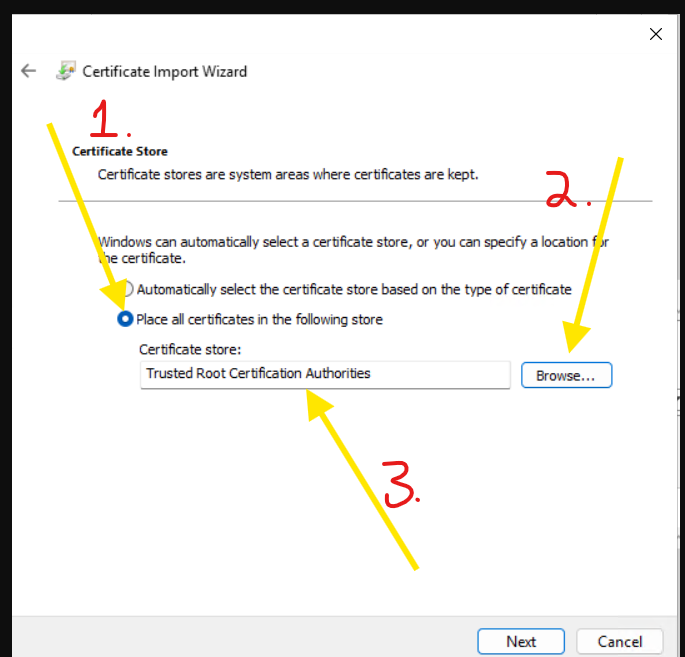
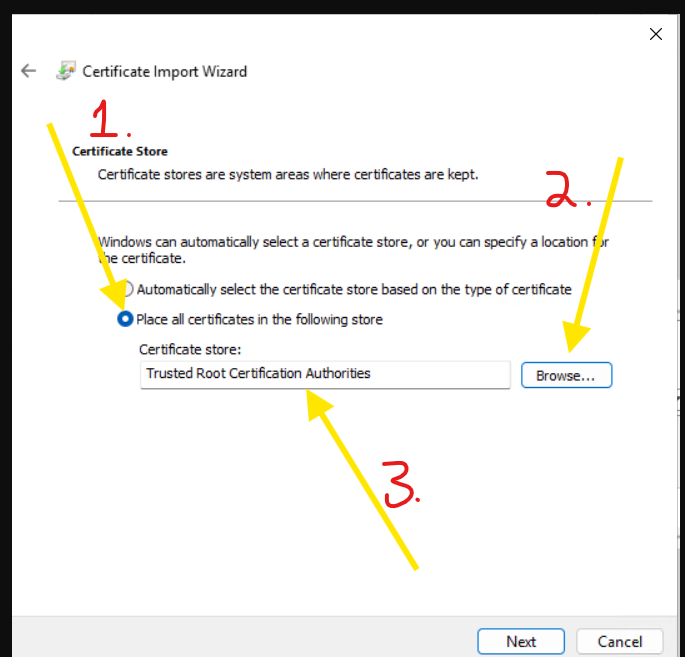
- On the
Certificate Storedialog- Select
Place all certificates in the following store - Select
Browse - For the Arkansas_State_University_Root_CA_certificate.cer certificate
- Choose the
Trusted Root Certification Authorities
- Choose the
- For the Arkansas_State_University_Issuing_CA_certificate.cer certificate
- Choose the
Intermediate Certificatoin Authorities
- Choose the
- Click Next
-
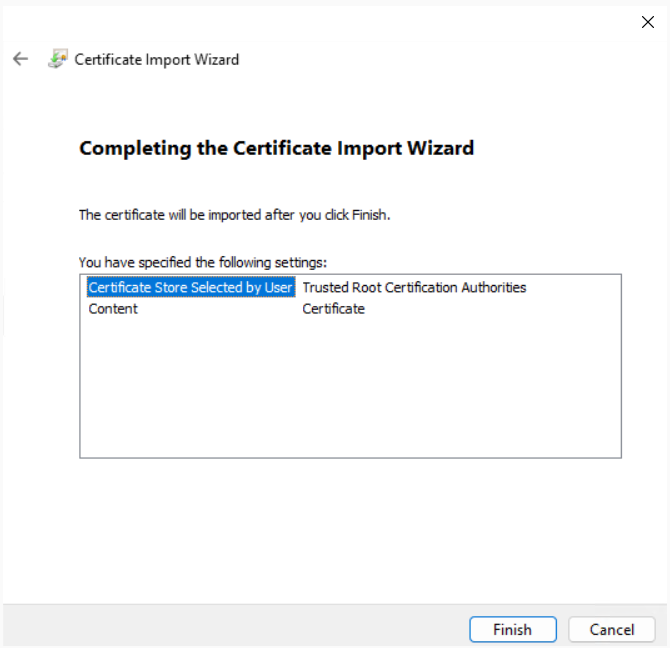
- Select Finish
-
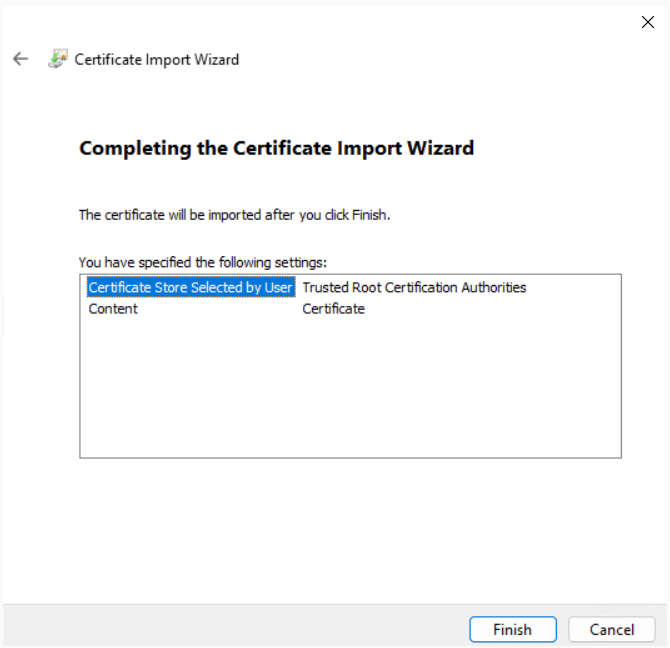
- Select
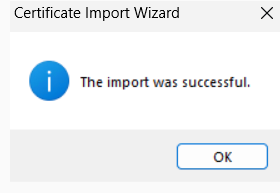
- Select Ok
Windows prompt
From an administrative command prompt or PowerShell session, extecute the following two commands.
# Install the Root CA certificate
certutil -addstore -f root "C:\Users\user account\Arkansas_State_University_Root_CA_certificate.cer"

# Install the Intermediate (Issuing) CA certificate
certutil -addstore -f intermediate "C:\Users\user account\Arkansas_State_University_Issuing_CA_certificate.cer"
Linux
First copy the CA certificate(s) to the linux server/workstation and change the extension from .cer to .crt.
RHEL distributions
-
Make sure that the
ca-certificatespackage is installedsudo dnf install ca-certificates -
Copy the CA certificate(s) to
/etc/pki/ca-trust/source/anchors/sudo cp CA_CERT /etc/pki/ca-trust/source/anchors/CA_CERT.crtRepeat for each certificate that needs to be added to the trust store.
-
Update the system certificate trust store
sudo update-ca-trust extractTip
extractis not strictly needed but it does provide more warnings if there is any issues. -
Verify the certificates were added to the trust store
trust list | grep "My Private CA Name"
RHEL example
This example uses the Arkansas State University private certificate authority.
The following files were copied to the user account home directory.
- Arkansas_State_University_Root_CA_certificate.cer
- Arkansas_State_University_Issuing_CA_certificate.cer
# Copy the certificates to the correctly directory
# Note the extension change from .cer to .crt
$ sudo cp /home/user account/Arkansas_State_University_Root_CA_certificate.cer /etc/pki/ca-trust/source/anchors/Arkansas_State_University_Root_CA_certificate.crt
$ sudo cp /home/user account/Arkansas_State_University_Issuing_CA_certificate.cer /etc/pki/ca-trust/source/anchors/Arkansas_State_University_Issuing_CA_certificate.crt

# Update the ca trust store
$ sudo update-ca-trust extract

# Verify the certificates were added
$ trust list | grep "Arkansas State University"

# If the certificates were loaded into the trust store you should see the following output.
    label: Arkansas State University Root CA
    label: Arkansas State University Issuing CA
Debian distributions
-
Make sure that the
ca-certificatespackage is installedsudo apt install ca-certificates -
Copy the CA certificate(s) to
/usr/local/share/ca-certificates/sudo cp CA_CERT /usr/local/share/ca-certificates/CA_CERT.crtRepeat for each certificate that needs to be added to the trust store.
-
Update the system certificate trust store
sudo update-ca-certificates -
Verify the certificates were added to the trust store
awk -v cmd='openssl x509 -noout -subject' ' /BEGIN/{close(cmd)}; {print | cmd}' < /etc/ssl/certs/ca-certificates.crt | grep "My Private CA Name"
Debian example
This example uses the Arkansas State University private certificate authority.
The following files were copied to the user account home directory.
- Arkansas_State_University_Root_CA_certificate.cer
- Arkansas_State_University_Issuing_CA_certificate.cer
# Copy the certificates to the correctly directory
# Note the extension change from .cer to .crt
$ sudo cp /home/user account/Arkansas_State_University_Root_CA_certificate.cer /usr/local/share/ca-certificates/Arkansas_State_University_Root_CA_certificate.crt
$ sudo cp /home/user account/Arkansas_State_University_Issuing_CA_certificate.cer /usr/local/share/ca-certificates/Arkansas_State_University_Issuing_CA_certificate.crt

# Update the ca trust store
$ sudo update-ca-certificates

Updating certificates in /etc/ssl/certs...
rehash: warning: skipping ca-certificates.crt,it does not contain exactly one certificate or CRL
2 added, 0 removed; done.
Running hooks in /etc/ca-certificates/update.d...
done.

# Note: you can ignore the rehash warnings about certificates 'does not contain exactly one certificate or CRL'.

# Verify the certificates were added
$ awk -v cmd='openssl x509 -noout -subject' ' /BEGIN/{close(cmd)}; {print | cmd}' < /etc/ssl/certs/ca-certificates.crt | grep 'Arkansas State University'

# If the certificates were loaded into the trust store you should see the following output.
subject=C=US, ST=Arkansas, L=State University, O=Arkansas State University, CN=Arkansas State University Issuing CA
subject=C=US, ST=Arkansas, L=State University, O=Arkansas State University, CN=Arkansas State University Root CA