
Get your mobile ID on your phone
Access A-State OnlineAdd Photomobile Submission ID to your phone
Your Access A-State ID proclaims you as a member of the A-State community and is your key to access essential campus services.
Ready to submitadd your photo?ID to your phone?
1. Go to the App Store and install the Transact eAccounts app on your iPhone.

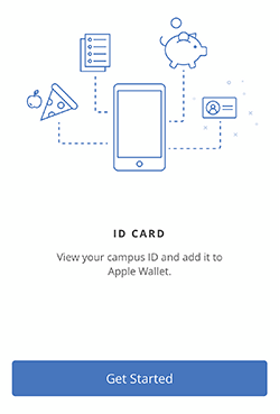
2. Swipe through the four screens and tap Get Started
3. Search for Arkansas State University
Select Arkansas State University and SAML 2, then continue to Sign In

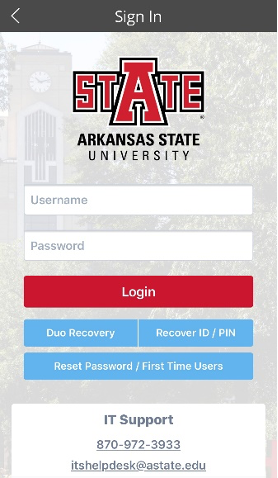
4. Log in with your A-State username and password.
Continue with the DUO two-step authentication process and choose the method (i.e. push Notification or Passcode). Approve the request for verification.

5. Click on the gear at the top right of your phone.

Ready to submit your photo?
6. Go to Submit ID Photo. Click on Get Started
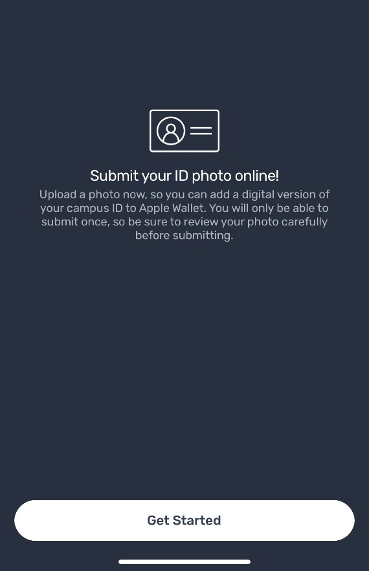
7. You will now see this screen.
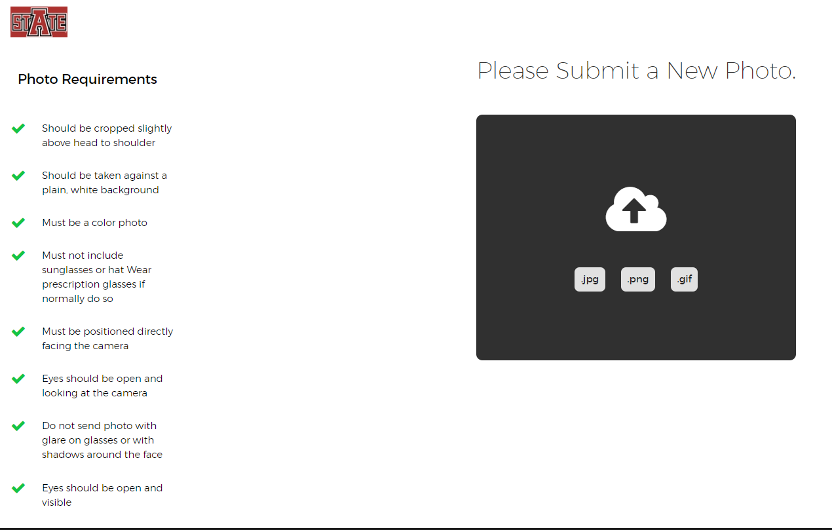
8. Here you can upload a new photo, the photo requirements are listed on the screen and here below.
- Should be taken against a plain white background (no textures)
- Should be cropped slightly above head to shoulder
- Must be a color photo, no filters
- No sunglasses. Wear prescription glasses if normally do so
- Must be positioned directly facing the camera with eyes visible and open
- Do not send photo with glare on glasses or with shadows around the face
- No other objects or people in the photo
CORRECT AND INCORRECT PHOTO SUBMISSION EXAMPLES
|
Missing White Background |
|
|
INCORRECT! |
|




9. You will next be prompted to upload a photo of a government-issued photo ID (e.g. Driver’s License or Passport). Copies of the government issued ids are not kept. These are deleted as soon as verified.
10. Choose the Card Design that you would like for your physical ID.
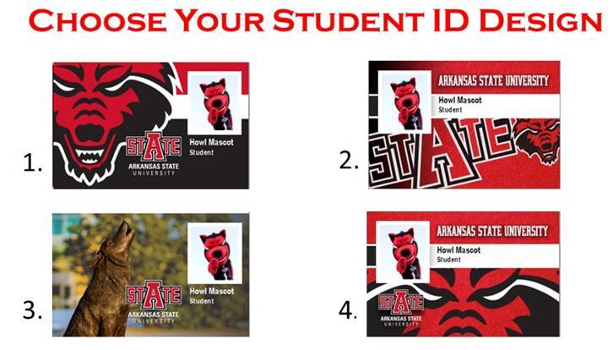
11. Once you have added your images and chosen a card design, hit the Submit & Sign-out button.
12. You should receive an email stating if your image was approved or denied. If your image was denied, please resubmit a new image following the guidelines stated above.
13. Once your photo has been approved, follow these instructions to finish installment of your Mobile Credential: Apple User or Android User
For additional assistance, please contact us at access@astate.edu or 870-972-2900