Having Trouble Logging into AstateSecure?
If you are having trouble getting onto the university’s Wi-Fi on your apple devices, your device may be trying to push other passwords to sign in even if you’re using the correct A-State credentials. Therefore, you must un-sync your iCloud passwords to be able to sign into AstateSecure successfully.
First, make sure you aren’t connected to any other A-State Wi-Fi options. If you are, make sure to forget the network for those options. Once this has been done, follow the steps below to un-sync your passwords.
Steps:
-
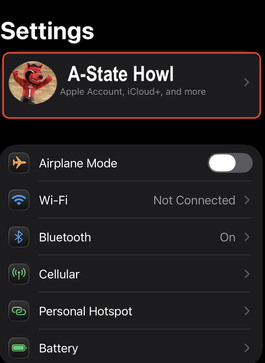
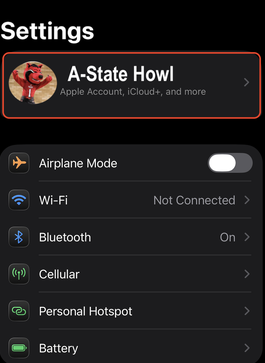
Open Settings app on your iPhone.
-
Tap your name at the top of the screen that shows your apple account, iCloud+, and more.
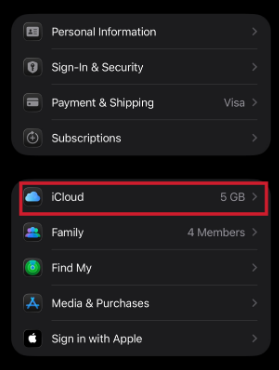
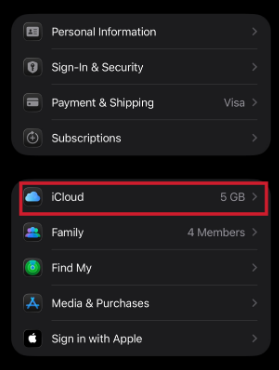
- Tap the iCloud option.
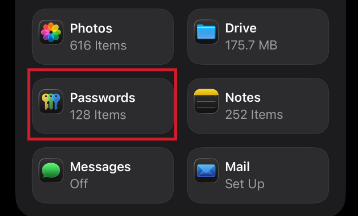
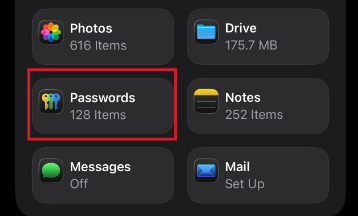
- Tap the Passwords section on the screen.
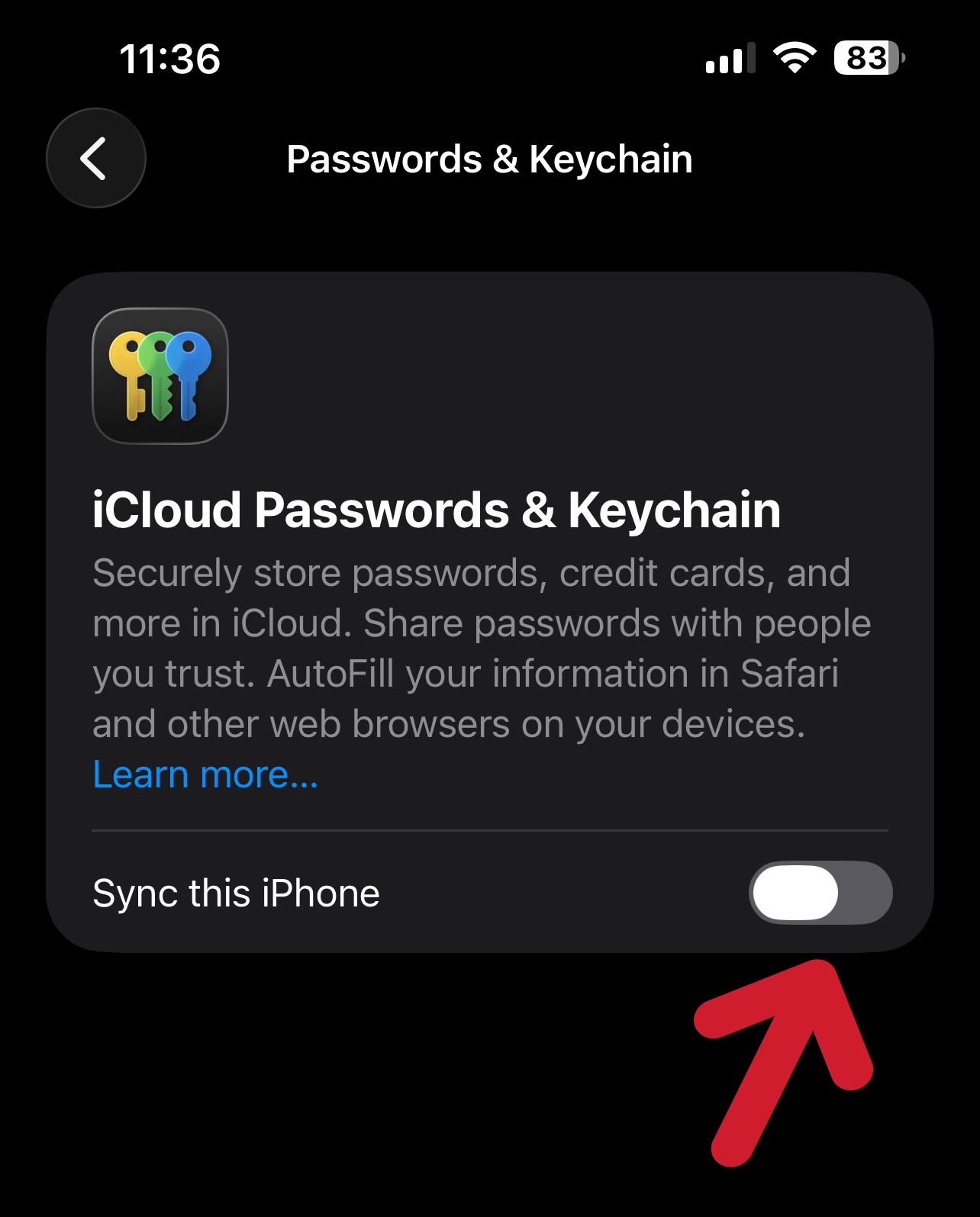
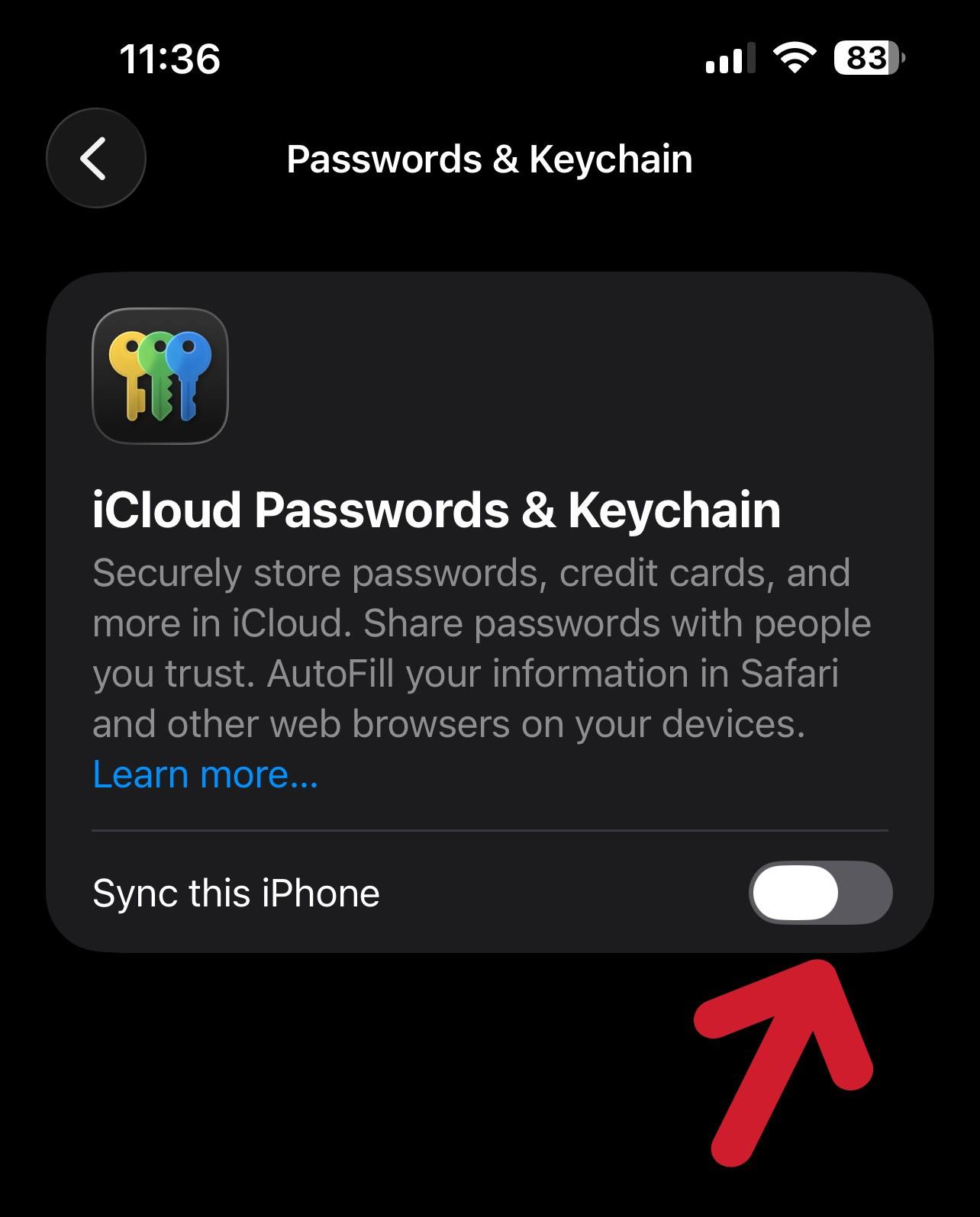
- Tap the toggle for “Sync this iPhone” to turn it off.
- Now go to the Wi-Fi settings on your apple device that you're using, and sign into AstateSecure using your A-State credentials.
- Once the device is connected, you may follow steps 1 - 5 to turn password sync back on.