
How To Add Documents
This page will review how to add documents such as PDFs, Spreadsheets, and Word Docs, to the Knowledge Base. Please follow the steps below to learn more.
1. Go to kb.astate.edu and click Log in.

3. Click on the paper clip icon to open the Attachments screen.

4. Click on the Upload File tab.
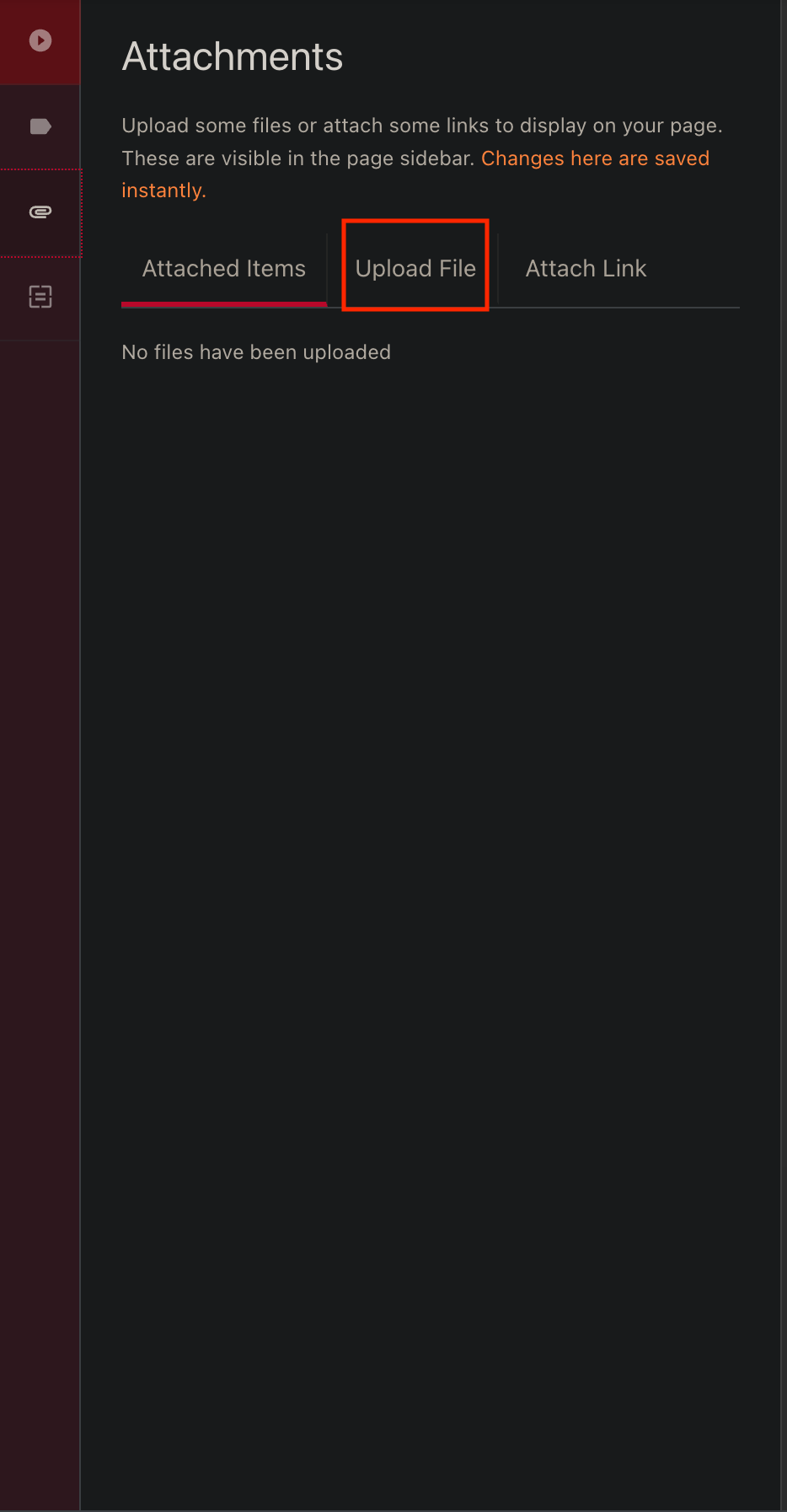
5. Once a file has been selected, click on the Attached Items tab to show the files that are now attached.

6. After checking the file is correct, select the small chain icon to link the document as a clickable link to the page. *Please note that this will place the link wherever your cursor is placed on the screen*

Your document is now linked to your page as a clickable link. Please remember to save your page.
