
Post Phishing Procedures - Changing Rules
If your account was previously compromised and you are not currently receiving any emails, you still have a rule set for your email where its automatically deleting all your emails.
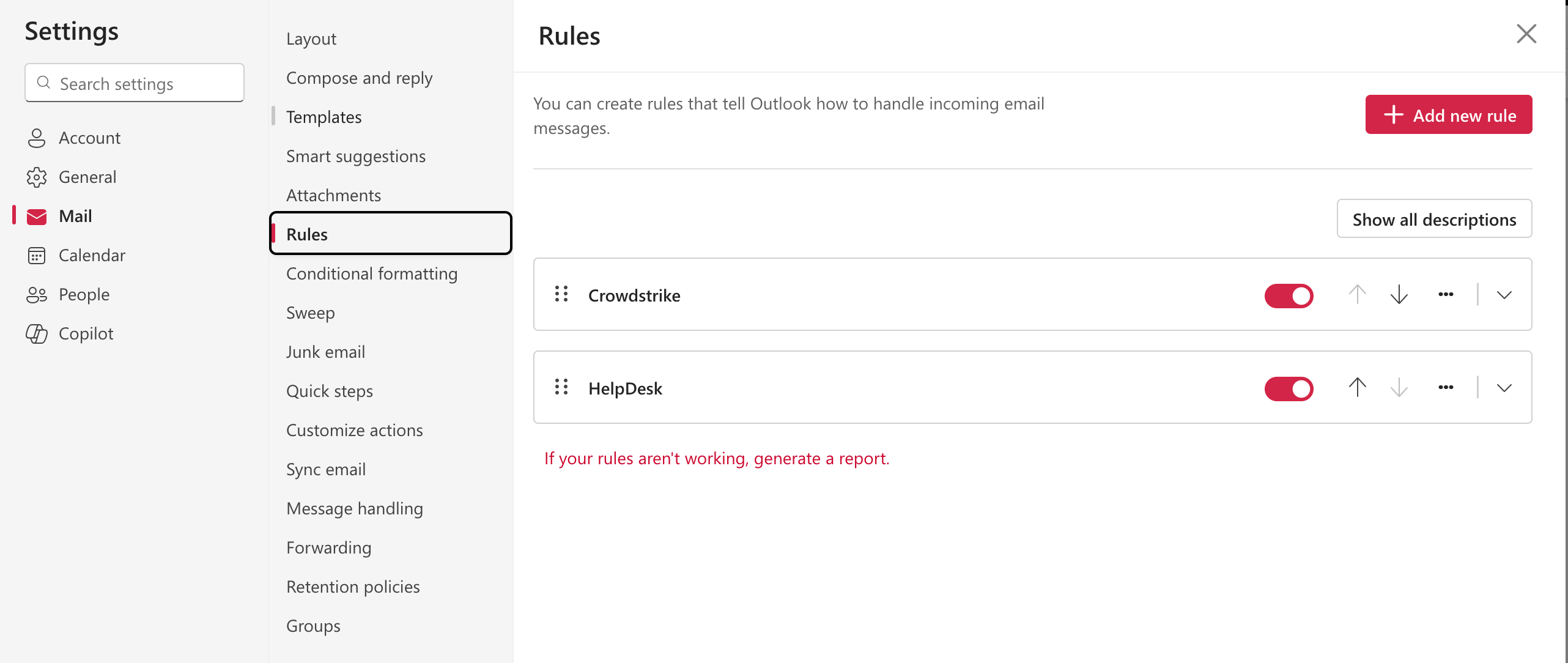
- Go to Outlook.com
- Click sign in
- Once you see your inbox click on the gear icon in the top far-right corner located directly to the left of your initials
- Click on Mail
- Then Click Rules
- If you see any, click on the 3 dots to the right of each rule and click delete
After the rules are deleted, You may want to go to your trash folder and move any important emails back to your inbox
That should fix the issue and help you start receiving your emails in your inbox again
For further assistance, contact the ITS Help Desk at 870-972-3933 or stop by IT Support Services. It is located on the bottom floor of the Dean B. Ellis Library, Room 149.