
Upload and save files and folders to OneDrive
Use OneDrive in your browser
-
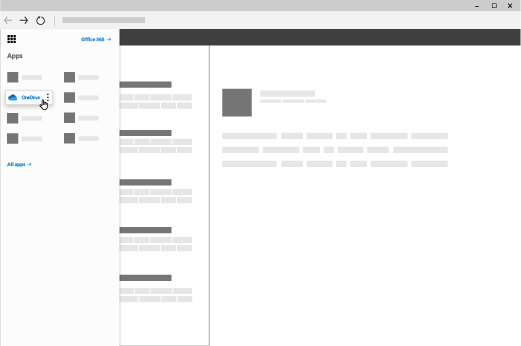
Sign in to office.com, then select the app launcher
 > OneDrive.
-
Pick a file or folder by selecting the circle in the upper corner of the item, and then select a command at the top of the page.
You can store over 300 types of files on OneDrive. With Microsoft Edge or Google Chrome:
-
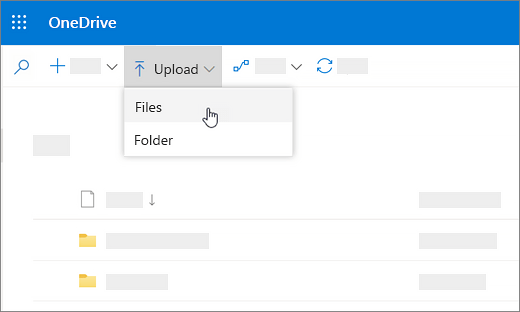
Select Upload > Files or Upload > Folder.
-
Select the files or folder you want to upload.
-
Select Upload, Open or Select Folder.
Use OneDrive on your desktop
If you use Windows 10, OneDrive may have already asked you to sign in to sync your files.
If OneDrive isn't installed on our computer or setup, please refer to the following Microsoft Support Articles:
Windows 10
In File Explorer, select: OneDrive - Arkansas State University - Jonesboro.

Save and open files in your Office apps
-
Select File > Save as > OneDrive - Arkansas State University - Jonesboro to save a work file to OneDrive.
-
Select File > Open and then select OneDrive, to open a file saved to OneDrive.
Note: Requires Microsoft 365, Office 2019, or Office 2016.

Additional Microsoft resources
{{@71#bkmrk-quick-start-guide-on}}