
Work on the go with OneDrive
-
Open the OneDrive app on your mobile device.
-
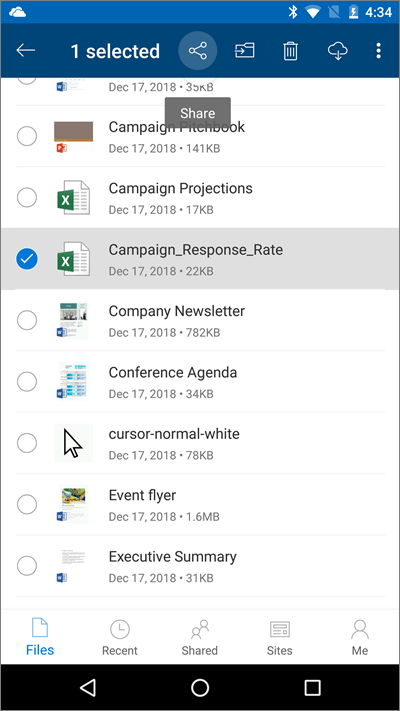
Select a file or folder - press and hold until the checkmark appears next to it.
-
Tap the

 Share icon.

From
Open a file in an Office app:
app
-
Open an Office app like Word, Excel, or PowerPoint on your device.
-
Tap Open, then tap OneDrive - [companyArkansas name]State University - Jonesboro.
-
Tap the More icon (three dots) nextBrowser to the file and open it.
- If you would like to share the file,
thentap selectthe Share. icon.
app
-
Open an Office app like Word, Excel, or PowerPoint on your device.
-
Tap Open, then tap OneDrive -
[companyArkansasname]State University - Jonesboro. -
Tap theMoreicon (three dots) nextBrowser to the file and open it. - If you would like to share the file,
thentapselectthe Share.icon.
Open your files on your mobile device
- Open the OneDrive app on your mobile device.
-
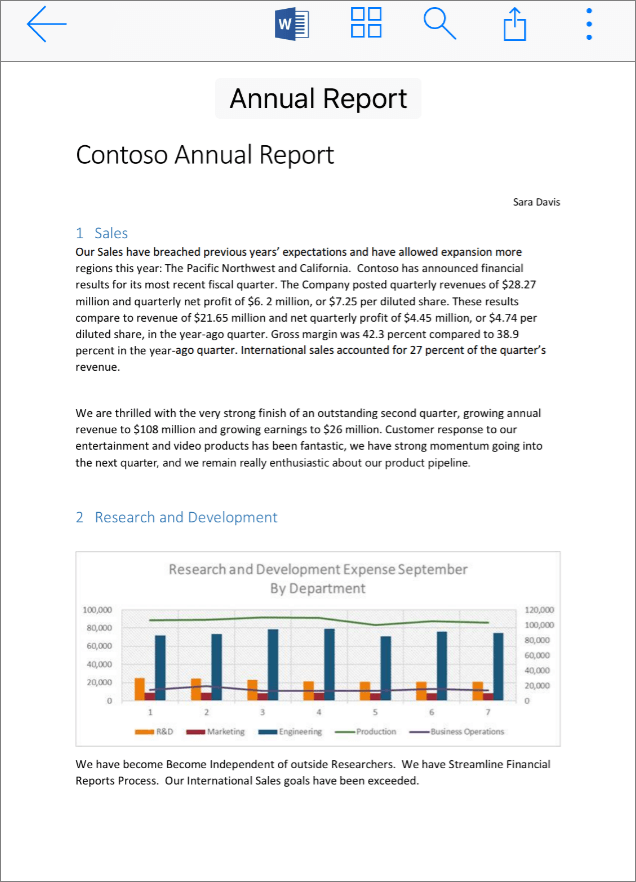
Tap a file to preview it.
- Tap
Tapthe More icon (three vertical dots) in the upper right corner.- For Office
appfiles,icon at the toptap Open to open thefile.file in the default Office app. - For other files types, select Open in another app
- For Office
Learn more: