
Adding Microsoft Authenticator To Your Account (Already Signed In)
You will need both a computer/tablet and a mobile phone for this process
**For setup with mobile device only,only, follow this GUIDE
- Go to myaccount.microsoft.com in your web browser and sign in with your A-State credentials, then select "Security info" under My Account to the left of the screen
- The Security info section will be in the same place, no matter if you are using the old or new style of the Microsoft interface.
OLD

NEW

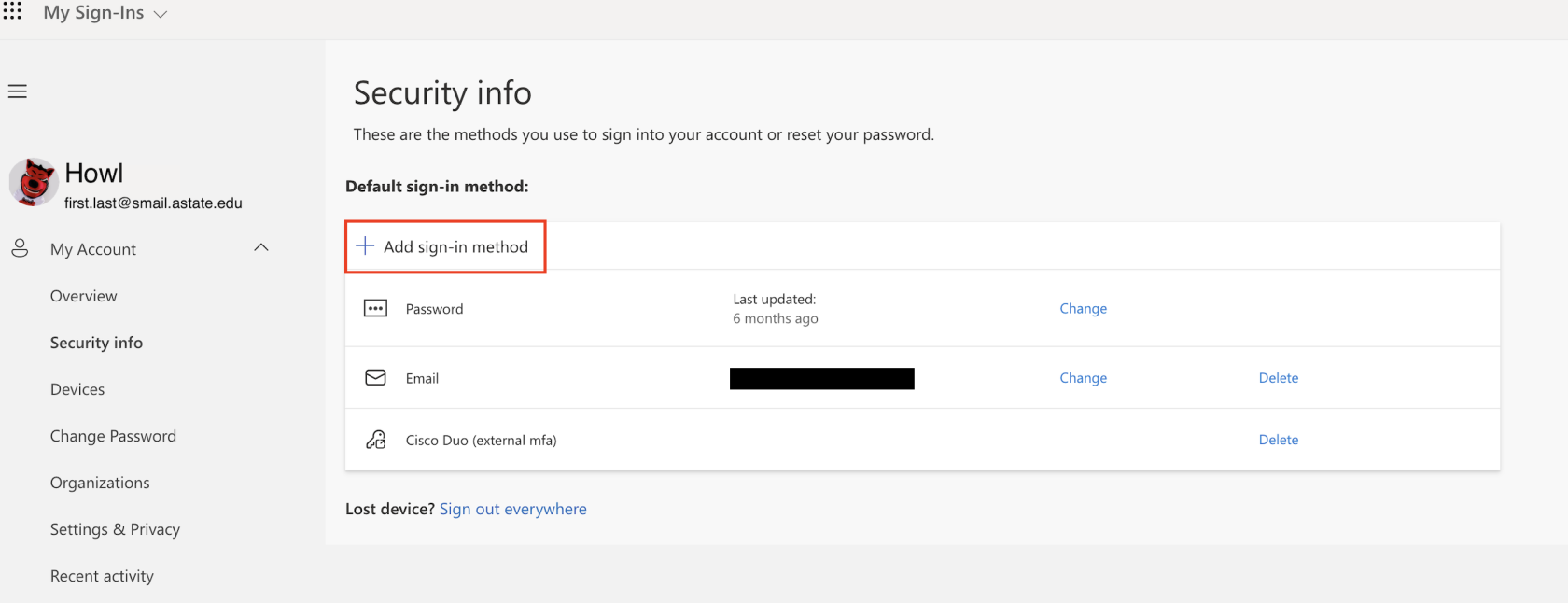
Click on "+ Add sign-in method"
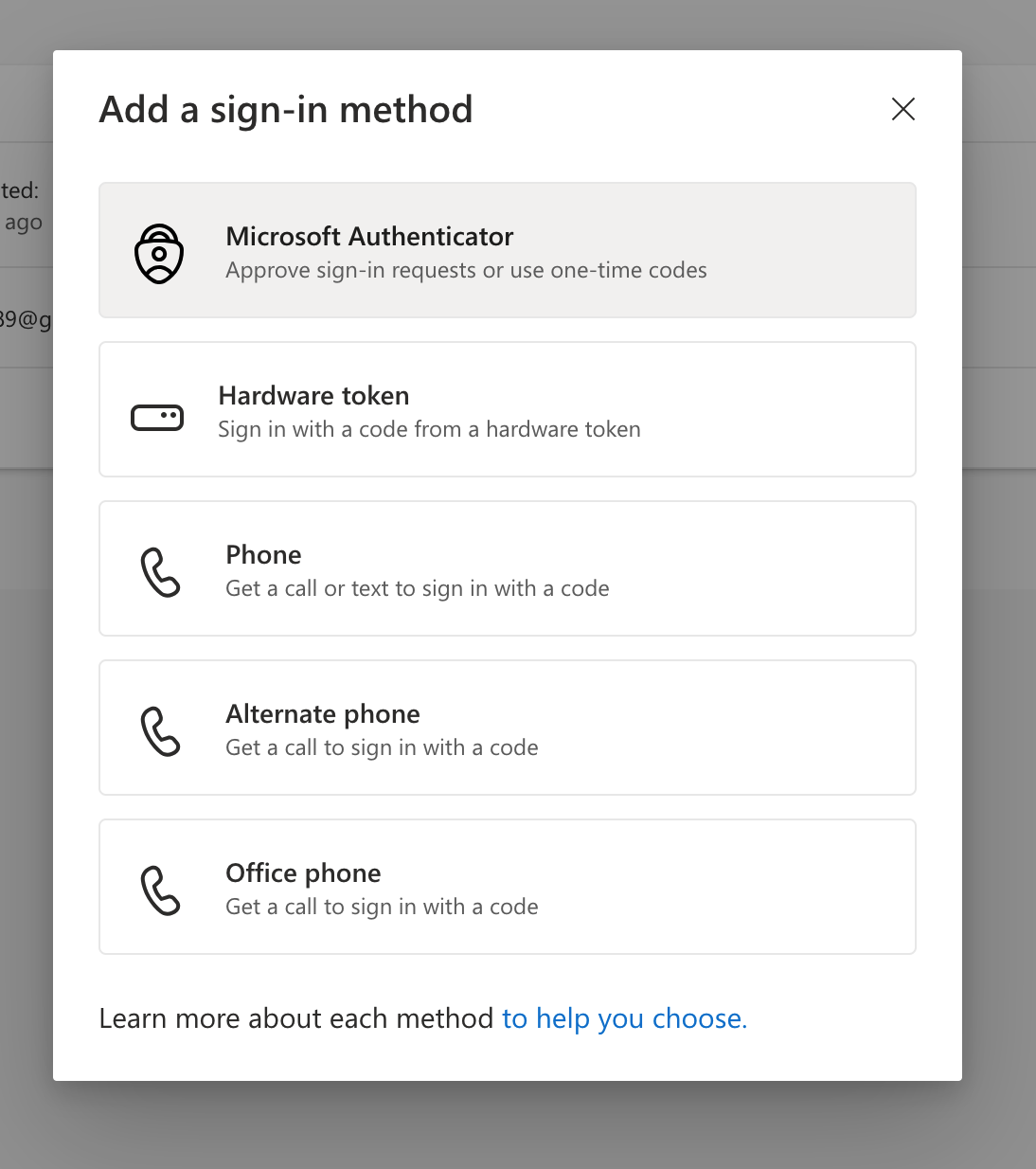
- Select the "Microsoft Authenticator" option
- Download the free Microsoft Authenticator app by either scanning the QR code below or through the App Store (iPhone/iOS) or the Play Store (Android)
Please make sure you are downloading the app named "Microsoft Authenticator", this application is free and does not require any purchase

 https://aka.ms/mobileauthenticator
- After you download the app, click "Next" and then click "Next" on the next pop-up

- Scan the generated QR code while using the Microsoft Authenticator app on your mobile device
- Do not use your camera app, this will not link the authenticator to your account

- Do not use your camera app, this will not link the authenticator to your account
- After you scan the QR code, it will generate a random number, type the number on the screen into your mobile device
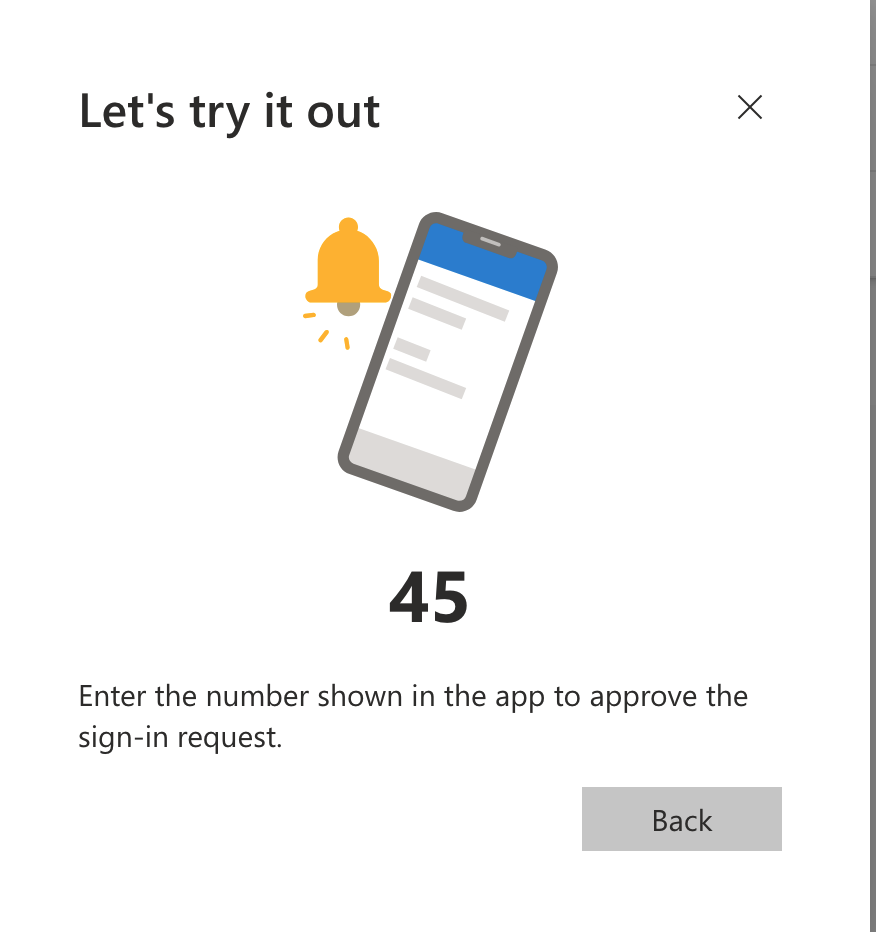
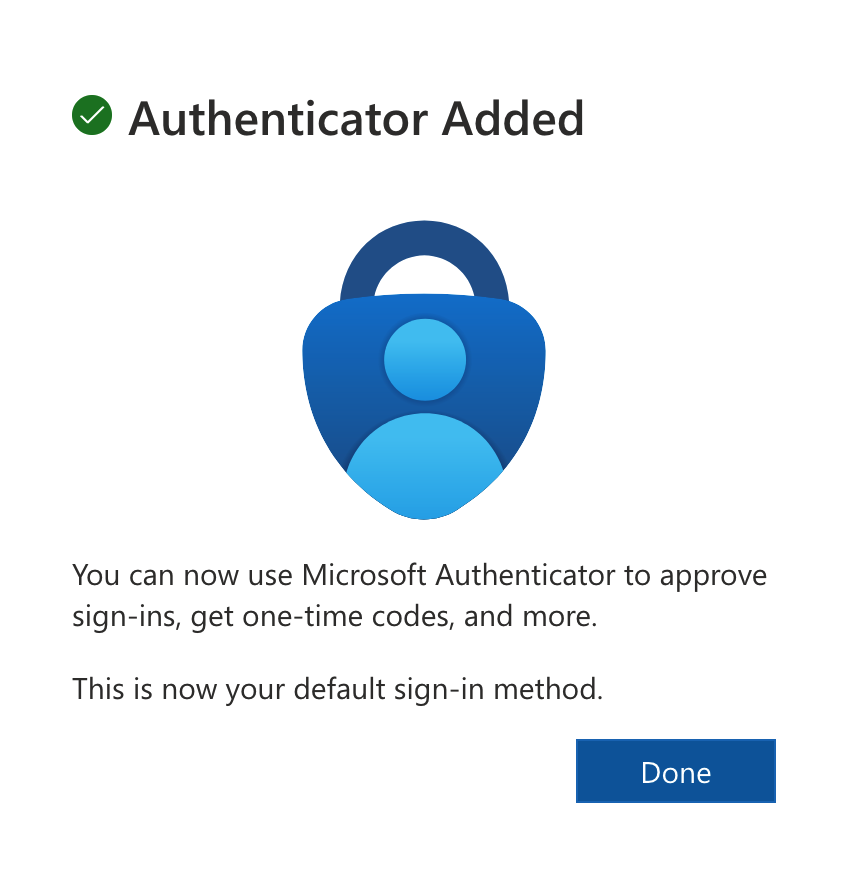
- After inputting the number, the Microsoft Authenticator has been added to your account successfully
For further assistance, contact the ITS Help Desk at 870-972-3933 or stop by IT Support Services (itsupportservices@astate.edu). It is located on the bottom floor of the Dean B. Ellis Library, Room 149