
Approving a login with Microsoft Authenticator
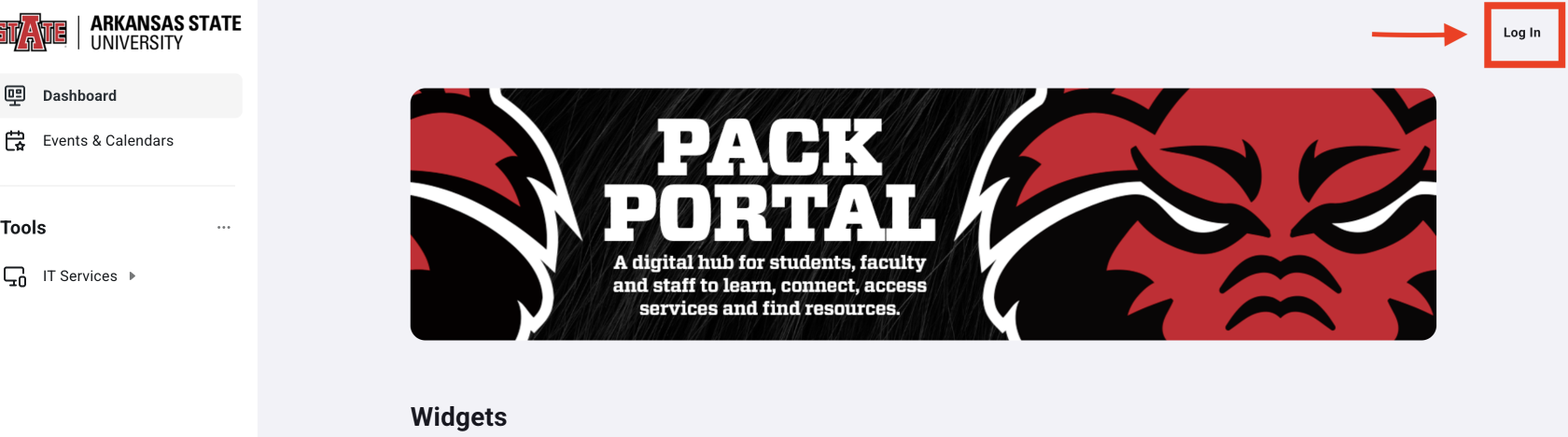
- Open a web browser and go to the Pack Portal and select Log In in the top right corner
- This can also be completed through Canvas, Outlook, and Banner 9
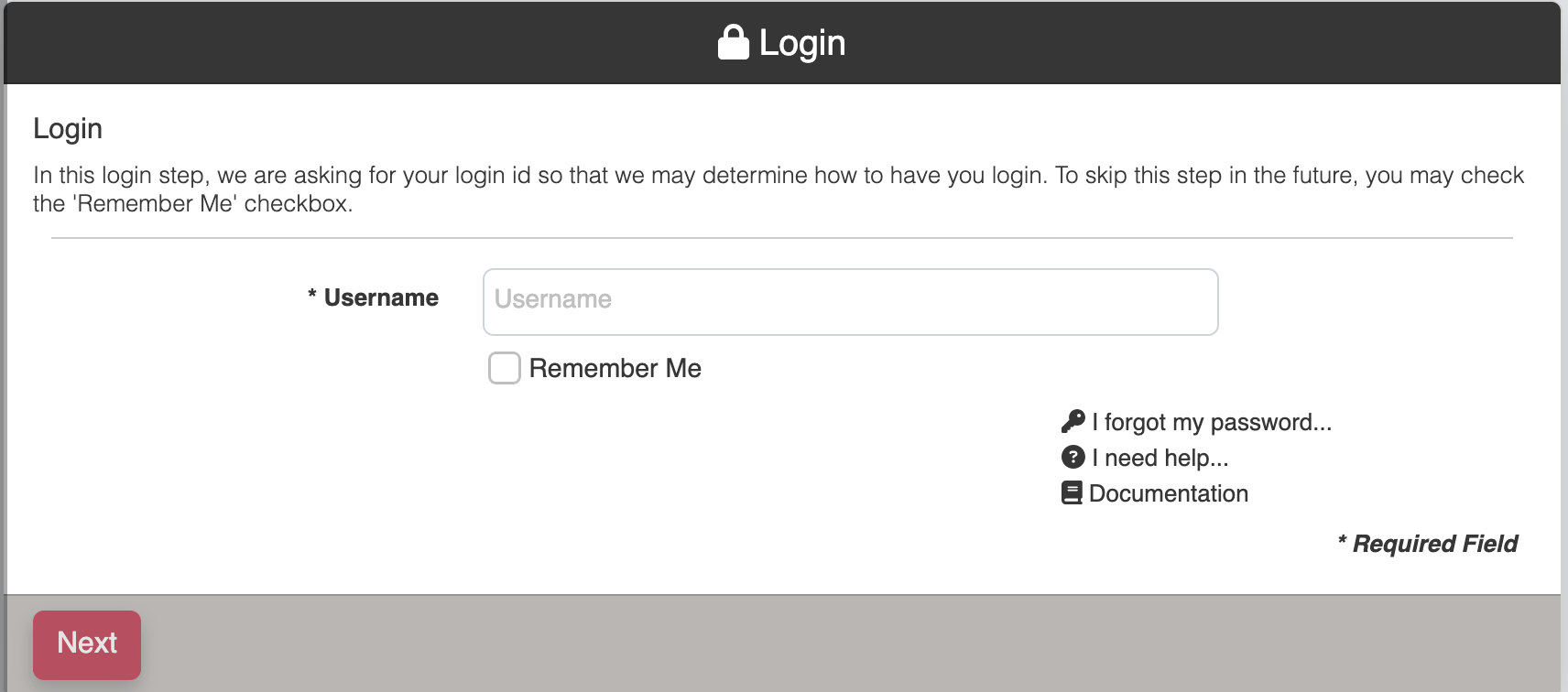
- Enter your A-State email dress and click Next
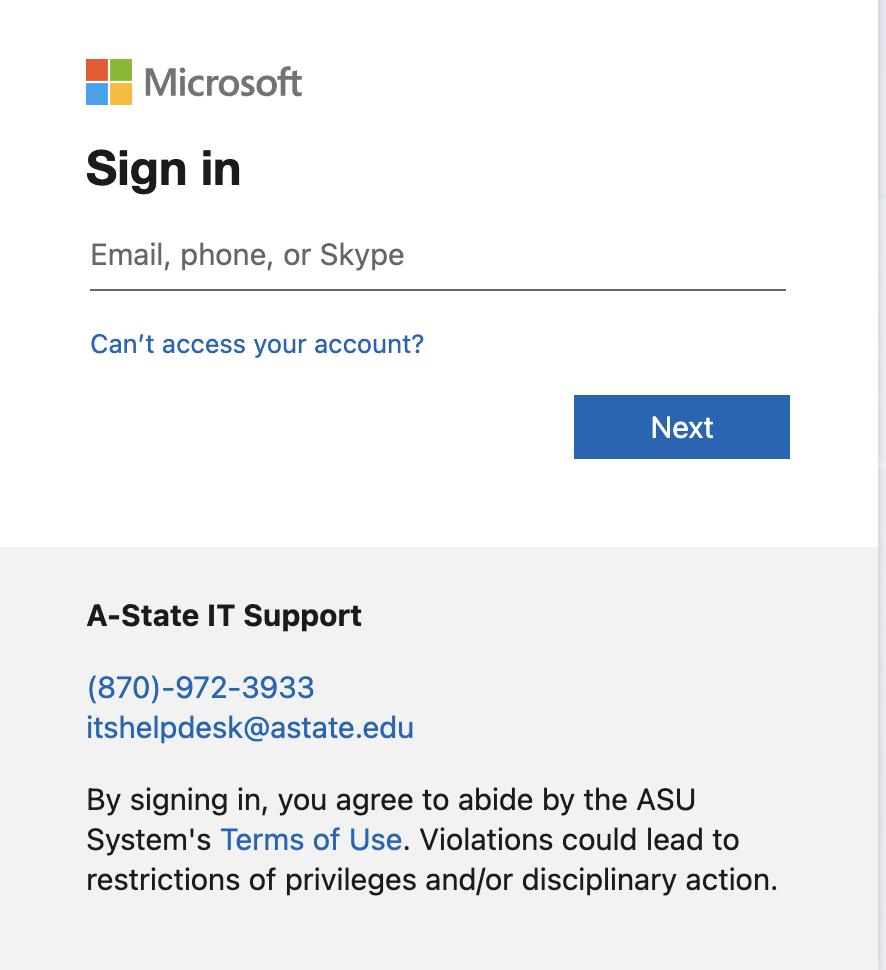
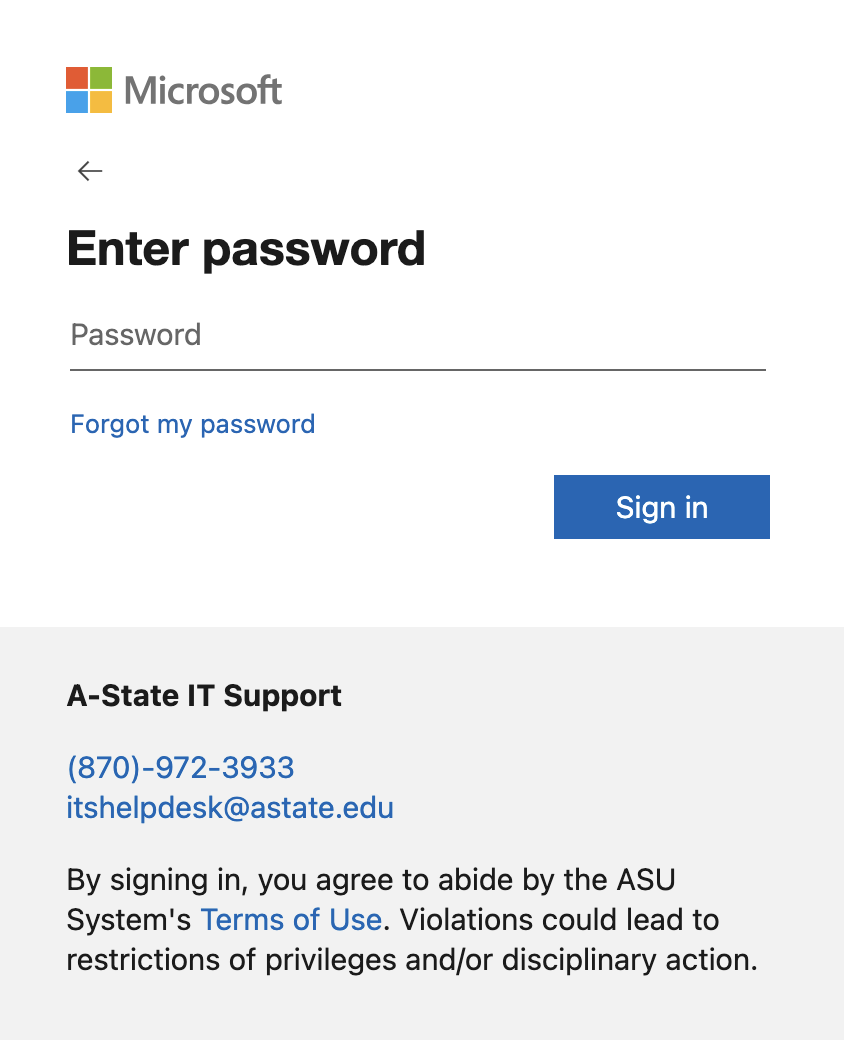
- Enter your A-State credentials for Microsoft on the next prompts and click Sign in
- A randomly generated code will display on the screen

- Enter the number in your Microsoft Authenticator app on your mobile device
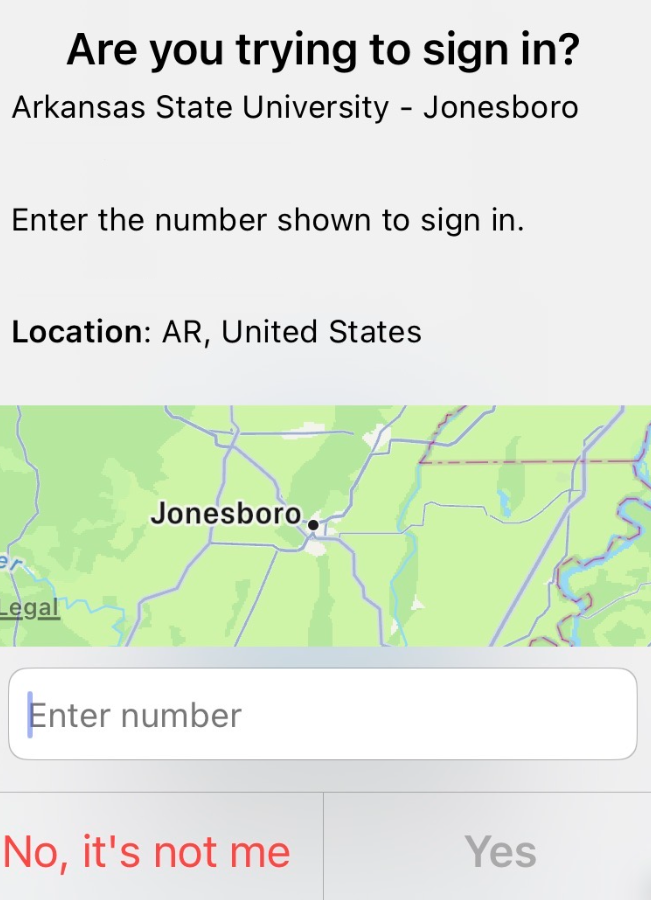
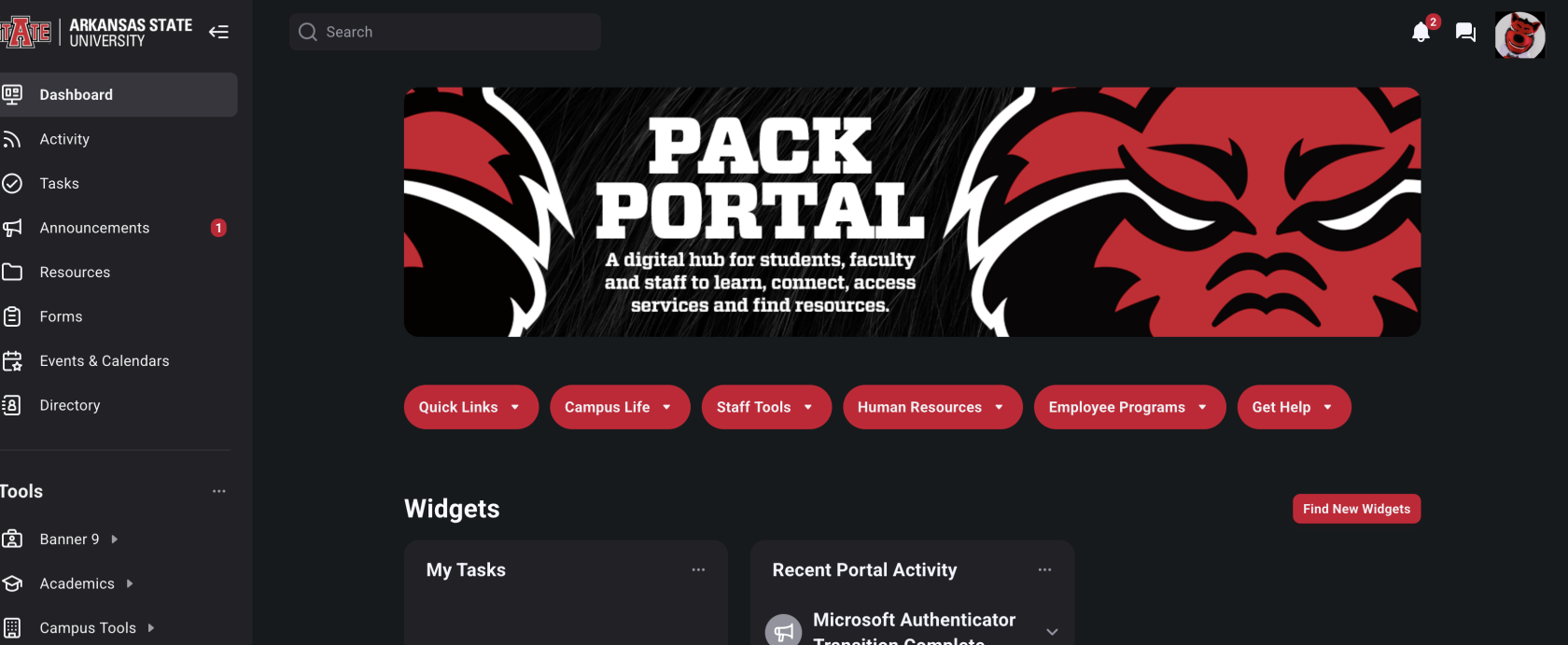
- After authenticating, the screen will refresh on the Pack Portal and you have successfully logged in using Microsoft Authenticator
For further assistance, contact the ITS Help Desk at 870-972-3933 or stop by the IT Support Services (itsupportservices@astate.edu). It is located on the bottom floor of the Dean B. Ellis Library, Room 149.